What Is Mykey on Ford F150

Contents
- 1 Key Takeaways
- 2 📑 Table of Contents
- 3 Unlocking Safety: What Exactly Is MyKey on Your Ford F150?
- 4 How the Magic Happens: The Technology Behind MyKey
- 5 Your Step-by-Step Guide to Setting Up MyKey on Your F150
- 6 Features and Limitations: What MyKey Can and Cannot Do
- 7 Troubleshooting Common MyKey Issues on the F150
- 8 Who Benefits Most? Practical Uses for MyKey
- 9 The Future of MyKey and Ford’s Broader Safety Ecosystem
- 10 Conclusion: Empowering Owners, Promoting Safety
- 11 Frequently Asked Questions


MyKey on Ford F150 is Ford’s built-in system that lets you restrict certain driving functions to promote safer habits. Using an administrator key, you can set speed limits, cap audio volume, and enable seatbelt alerts for other keys. It’s a game-changer for parents with teen drivers, businesses with fleets, and even rental companies looking to enforce safe driving policies.
Key Takeaways
- MyKey is a programmable restriction system: It allows an admin key holder to limit speed, audio volume, and other functions on a Ford F150 for secondary keys.
- Setup requires the original “admin” key: You must use the primary key that came with the truck to program and manage MyKey settings via the vehicle’s menus.
- Restrictions are enforced automatically: Once a MyKey is programmed, the truck will not exceed the set speed limit, will mute audio under certain conditions, and will issue persistent seatbelt warnings.
- It cannot be overridden by the MyKey user: The driver using a programmed MyKey cannot cancel or change the active restrictions; only the admin key can modify or erase them.
- Designed for safety and accountability: It’s ideal for parents of new drivers, fleet managers, and rental companies to encourage safer driving habits and reduce vehicle abuse.
- Works on most modern F150 models: MyKey has been available on Ford trucks, including the F150, since the late 2000s/early 2010s model years, depending on the specific generation.
- Resetting or changing settings requires the admin key: To alter limits or turn off MyKey, you must insert the primary administrator key and follow the setup process again.
📑 Table of Contents
- Unlocking Safety: What Exactly Is MyKey on Your Ford F150?
- How the Magic Happens: The Technology Behind MyKey
- Your Step-by-Step Guide to Setting Up MyKey on Your F150
- Features and Limitations: What MyKey Can and Cannot Do
- Troubleshooting Common MyKey Issues on the F150
- Who Benefits Most? Practical Uses for MyKey
- The Future of MyKey and Ford’s Broader Safety Ecosystem
- Conclusion: Empowering Owners, Promoting Safety
Unlocking Safety: What Exactly Is MyKey on Your Ford F150?
So, you’ve got a mighty Ford F150. It’s a toolbox on wheels, a family hauler, a tow rig, or maybe all three. You love its power and capability. But with great power comes… well, you know the rest. What if you could gently apply the brakes—literally and figuratively—on certain driving behaviors without being a backseat driver? That’s where MyKey comes in. Think of it as your silent, electronic co-pilot, designed specifically for your F150. It’s not a performance upgrade or a fancy infotainment trick. It’s a thoughtful piece of safety tech built right into the truck’s computer system.
In simple terms, MyKey on Ford F150 is a programmable feature that lets you, the owner or primary driver (the “administrator”), create special, restricted keys for other drivers. When one of these programmed “MyKeys” is used to start the truck, the vehicle automatically enforces a set of rules you’ve pre-defined. These rules can include a top speed limit, an audio volume cap, and more insistent safety reminders. It’s Ford’s way of putting a layer of smart, customizable safety between the driver and the truck’s full potential, all without needing any aftermarket gadgets.
This system is a godsend for parents handing over the keys to a new teen driver. Instead of constant nagging, the truck itself becomes the enforcer of sensible limits. But its utility doesn’t stop there. Fleet managers for small businesses, construction companies, or rental agencies also use MyKey to protect their assets, reduce wear and tear, and promote safer driving practices among employees or customers. It transforms your F150 from just a powerful tool into a smarter, more responsible one.
How the Magic Happens: The Technology Behind MyKey
Understanding how MyKey works demystifies it and shows you why it’s so reliable. The system isn’t magic; it’s clever use of the existing key fob and the truck’s onboard computer. Your Ford F150 comes with at least two programmed keys from the factory: one is the primary administrator key, and the other is often a standard key. The MyKey function uses the unique electronic signature (the transponder chip) inside each key fob to tell the truck who is behind the wheel.
The Two-Tier Key System: Admin vs. MyKey
There are two distinct roles:
- The Administrator Key: This is your master key. It’s usually the one you use day-to-day. It has full, unrestricted access to all the truck’s features and, crucially, is the only key that can program, change, or erase MyKey settings. You must have this key to set anything up.
- The MyKey: This is a secondary key that you program with restrictions. You can have multiple MyKeys programmed for different drivers (e.g., one for your teen, one for a new employee). When the truck is started with a MyKey, the computer reads its signature and activates the pre-set limits you configured for that specific key.
The truck’s computer stores these settings in its memory. It’s a one-time programming process per key. Once a MyKey is set, it stays programmed until you, using the admin key, go back into the menus to change or clear it. The system is designed to be persistent and tamper-resistant.
What Triggers the Restrictions?
The MyKey system is always listening. As soon as you turn the ignition on with a programmed MyKey, the truck’s computer cross-references that key’s ID with its stored profile. If it matches, the restrictions you set are immediately active for that driving cycle. There’s no need for the driver to “select” a mode; it’s automatic based on the key used. This seamless operation is why it’s so effective—the driver doesn’t have a simple way to opt-out while using that specific key.
Your Step-by-Step Guide to Setting Up MyKey on Your F150
Setting up MyKey is straightforward, but it requires you to be in the driver’s seat with your administrator key. The process is done through the truck’s infotainment screen or steering wheel controls, depending on your model year and Sync system. Don’t worry; it’s a menu-driven process, no technical expertise needed.
Visual guide about What Is Mykey on Ford F150
Image source: s1.cdn.autoevolution.com
Before You Begin: Prerequisites
First, ensure your admin key is the one in the ignition. The truck must be in “On” mode (engine off, but electronics on) or running. Also, make sure the MyKey you want to program is physically with you. You’ll need to clear any existing MyKey settings on that key first if it was used before. The system will guide you through this.
The Programming Process (General Steps)
While exact menu names can vary slightly, the flow is consistent across modern F150s:
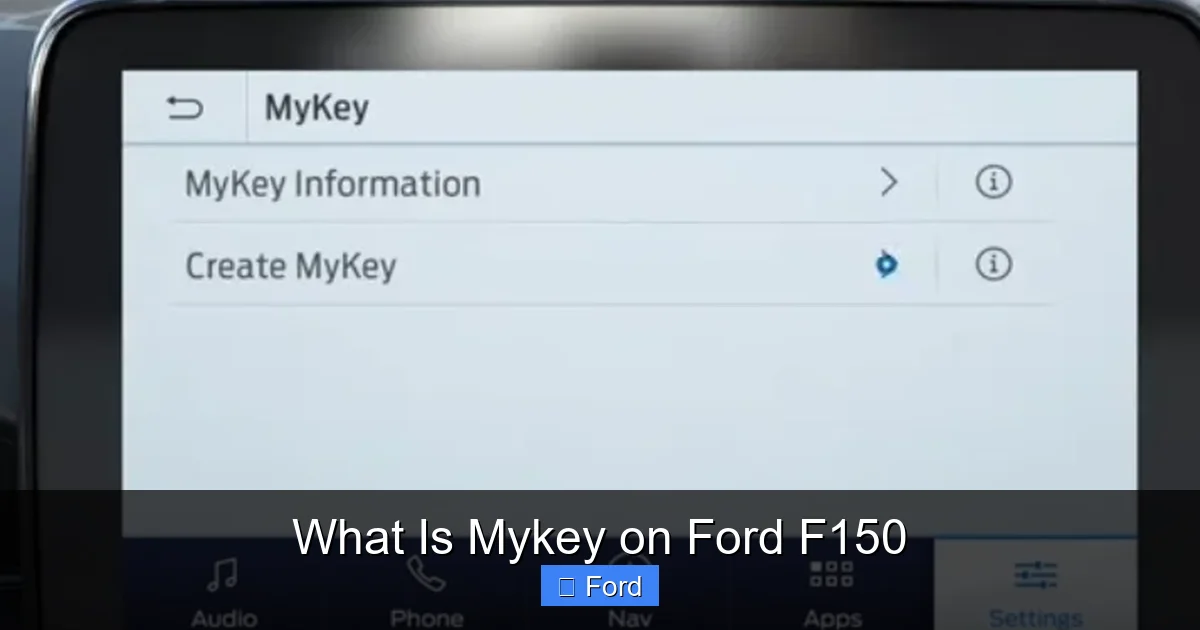
- Access the Settings Menu: Use your steering wheel controls or the touchscreen to navigate to the “Settings” menu. Look for a tab or option labeled “MyKey,” “MyKey Settings,” or “Vehicle Settings.”
- Create a MyKey: Select “Create MyKey” or “Enroll MyKey.” The system will prompt you to insert the key you wish to program into the ignition (if not already there) and turn it to “On.”
- Clear Any Previous Settings: The system will ask if you want to clear existing MyKey settings on that key. Say “Yes” to start fresh.
- Set Your Restrictions: This is the core step. You’ll be presented with a list of programmable features. Use the menu to toggle each one “ON” and set parameters. Common settings include:
- Speed Limit: Set a maximum vehicle speed (e.g., 65 mph, 75 mph). You can also set a warning chime at a specific speed below the limit.
- Audio Volume Limit: Set a maximum volume level for the audio system. The system may also automatically mute audio when the driver’s seatbelt is unbuckled.
- Seat Belt Reminder: Enable a more urgent, continuous chime that will not turn off until the driver (and sometimes front passenger) buckles their seatbelt.
- Early Low Fuel Warning: Set the fuel warning to appear at a higher fuel level than normal.
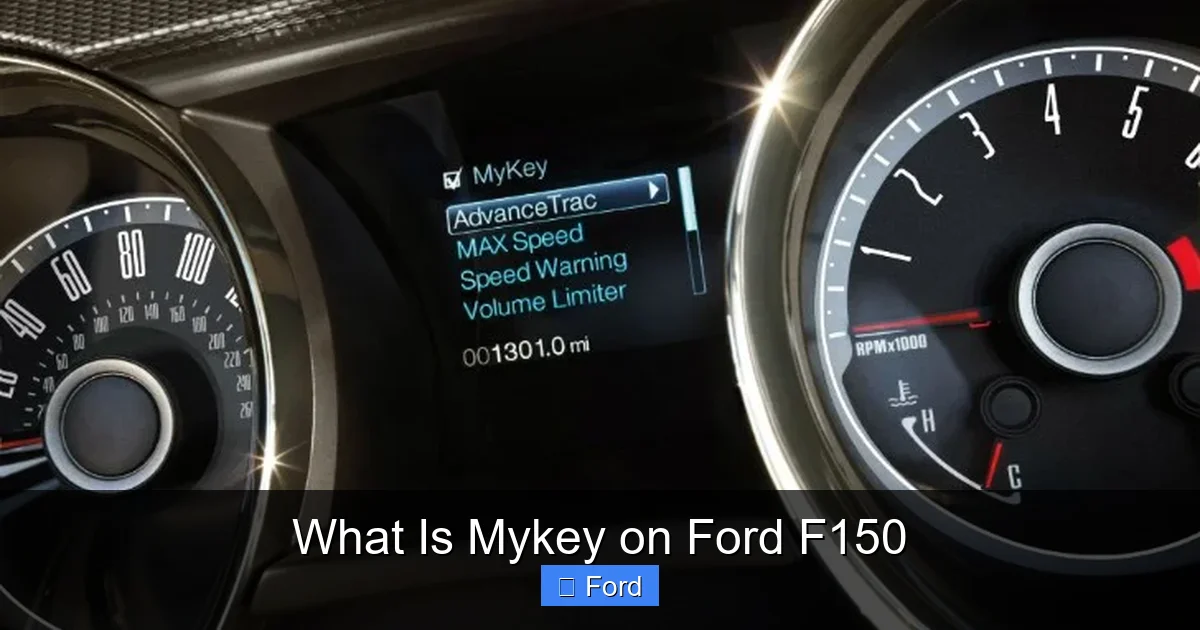
- Other Systems: On some models, you can also restrict the use of the parking aid, disable the front collision warning, or prevent manual deactivation of the AdvanceTrac stability control system.
- Save and Exit: After configuring your desired settings, confirm and exit the menu. The truck will now associate those restrictions with the specific key fob you just programmed.
Pro Tip: Always test the MyKey after programming. Start the truck with the newly programmed key and verify that the speedometer shows the limit icon, the volume is capped, and the seatbelt chime behaves as expected. This ensures everything is working before handing the key over.
Features and Limitations: What MyKey Can and Cannot Do
MyKey is powerful, but it has specific boundaries. Knowing exactly what it controls helps you set realistic expectations and use it effectively.
Core Features You Can Control
- Speed Limiting: This is the headline act. You can set a maximum speed between 50 mph and 90 mph (in 5 mph increments, depending on model/year). The truck will physically prevent the accelerator from pushing the vehicle past this limit. It’s not a suggestion; it’s a hard ceiling. A visual and audible warning will alert the driver when approaching the set limit.
- Audio Volume Control: You can cap the maximum volume of the audio system. Furthermore, you can enable a setting that automatically mutes the audio when the driver’s seatbelt is unbuckled. This is a brilliant way to encourage buckling up before the music gets loud.
- Enhanced Seat Belt Reminder: While all F150s have a seatbelt chime, MyKey can make it more persistent and louder. It will continue to chime at a faster rate until the driver (and sometimes front passenger) fastens their seatbelt, rather than stopping after a set time.
- Early Low Fuel Warning: You can program the low fuel light to come on when there are fewer gallons remaining than in the standard setting, giving the driver more time to find a gas station.
- System Deactivation Prevention: MyKey can prevent the driver from manually turning off critical safety systems like AdvanceTrac (stability control) or the collision warning system. This ensures foundational safety tech is always active.
- Driver Information Display: When a MyKey is active, the truck’s instrument cluster will display a “MyKey” icon or message, clearly indicating restricted mode is in effect.
Important Limitations and What MyKey Doesn’t Do
- It Does Not Control Steering or Brakes: MyKey only limits speed via the throttle. It does not, for example, apply the brakes to enforce a limit or prevent aggressive steering. Safe driving habits are still paramount.
- It Is Not a GPS Tracker: MyKey does not provide location tracking or geofencing. If you need to know where the truck is, you’d need to look at Ford’s built-in SYNC connectivity services or a separate aftermarket GPS tracker.
- Admin Key Overrides Everything: If an admin key is used, all MyKey restrictions are instantly bypassed for that driving cycle. The system is key-based, not user-based.
- It May Not Affect All PTO or Auxiliary Functions: For trucks used for work, MyKey’s speed limit might not engage when a Power Take-Off (PTO) unit is actively running, as the vehicle may be in a stationary or operational mode. Always check your owner’s manual for specific PTO interactions.
- Professional Tuning Can Defeat It: A skilled tuner can sometimes modify the truck’s engine control unit (ECU) to override the electronic speed limiter. However, this voids warranties and is not something the average user can do. MyKey is a factory safety feature, not an anti-tamper device.
Troubleshooting Common MyKey Issues on the F150
Even a well-designed system can hiccup. Here are solutions to the most frequent MyKey headaches.
“MyKey Settings Won’t Save” or “Create MyKey” Option Grayed Out
This is the most common snag. The cause is almost always that the key in the ignition is not recognized as the administrator key.
- Solution: Ensure you are using the original primary key fob that came with the truck. If you have multiple keys, the wrong one might be in the slot. Try both keys—the one that can access the MyKey menu is your admin key. If you’ve lost the admin key, you may need a dealer to program a new one and set it as admin, which can be costly.
MyKey Restrictions Not Activating
You programmed it, but the driver can still floor it past 80 mph. What gives?
- Solution: Double-check that the driver is using the correct, programmed MyKey fob and not the admin key. Also, verify in the MyKey settings menu that the speed limit feature is toggled “ON” for that specific MyKey. A simple reboot (turn truck off, remove key, reinsert) can sometimes help the system re-read the key.
Can’t Erase or Change MyKey Settings
You need to adjust the speed limit, but the menu won’t let you modify or delete the MyKey.
- Solution: You must have the administrator key in the ignition to make any changes. Insert the admin key, go to the MyKey menu, and you should see options to “Clear MyKey” or “Change Settings.” If the option is still missing, there may be a system fault requiring a dealer visit.
MyKey Icon Stays On with Admin Key
The “MyKey” warning light is on in the cluster even when you start the truck with your regular admin key.
- Solution: This usually means the last key used to start the truck was a MyKey, and the system hasn’t been reset. Simply starting the truck once with the admin key should clear the icon. If it persists, go into the MyKey settings with the admin key and ensure no MyKey profiles are active for that key.
Battery Issues in the Key Fob
A weak or dead key fob battery can sometimes cause communication errors, making the truck fail to recognize a key’s status (admin vs. MyKey).
- Solution: Replace the battery in the key fob. This is a simple DIY fix for most F150 key fobs. After replacing the battery, you may need to re-sync the fob by pressing the lock button a few times with the key in the ignition.
Who Benefits Most? Practical Uses for MyKey
While its teen-driver application is the most advertised, MyKey’s utility is far broader. Let’s explore who gets the most value.
For Parents and New Drivers
This is the classic use case. Giving a new driver, especially a teenager, access to a powerful F150 can be nerve-wracking. MyKey provides peace of mind. You can set a conservative speed limit (say, 65 or 70 mph) that matches their skill level and local speed limits. The audio volume cap prevents dangerously loud music that can distract or mask outside noises. The aggressive seatbelt reminder builds good habit formation. It’s a structured training wheels approach for the road. You’re not saying “I don’t trust you”; you’re saying “The truck has rules for everyone’s safety.” It also opens a conversation about responsible driving.
For Small Business Fleets and Contractors
If your F150 is a company vehicle, MyKey is a low-cost fleet management tool. You can program keys for employees to prevent speeding, which reduces liability, fuel costs, and wear and tear. The audio and seatbelt settings promote a culture of safety and professionalism. It’s a simple way to enforce company driving policies without expensive telematics. For construction crews or service techs, it helps ensure trucks are driven responsibly on and off job sites.
For Rental Companies and Dealerships
Rental car and truck agencies have long used aftermarket speed governors. MyKey provides an elegant, factory-integrated solution. They can program a MyKey for each renter, setting appropriate limits. This protects the vehicle from abuse, reduces the risk of accidents caused by speeding, and can even lower insurance premiums. Dealerships use it for test drives, ensuring potential customers don’t push the vehicle beyond safe or legal limits during a demo.
For Personal Responsibility and Peace of Mind
Even without a teen or fleet, some owners use MyKey on themselves! Maybe you’re prone to speeding on long highway stretches and want a mechanical reminder to slow down. Or perhaps you lend your truck to a friend or relative you don’t fully trust. Handing them a MyKey-programmed fob gives you control and protection. It’s an honest way to say, “Here are the keys, but the truck has a max speed of 75.” It sets clear, non-negotiable boundaries.
The Future of MyKey and Ford’s Broader Safety Ecosystem
MyKey isn’t a static piece of tech. It’s part of Ford’s evolving commitment to vehicle safety and intelligent connectivity. As Ford moves deeper into software-defined vehicles with over-the-air updates via Ford Power-Up, we can expect MyKey’s capabilities to expand.
Integration with FordPass and Connectivity
Currently, MyKey is key-based and local. The future likely involves deeper integration with the FordPass app and the truck’s built-in modem. Imagine being able to:
- Remotely adjust MyKey settings from your smartphone if your teen calls and asks for a temporary speed limit increase for a highway trip.
- Receive a notification when a MyKey driver exceeds a certain speed, even if below the set limit, so you can have a coaching conversation.
- Use geofencing in conjunction with MyKey, where different speed limits apply in certain areas (e.g., a lower limit in school zones).
This would transform MyKey from a static set of rules into a dynamic, manageable safety tool.
Building on Ford’s Safety Suite
MyKey works hand-in-hand with other Ford safety technologies. For instance, it can prevent the deactivation of Pre-Collision Assist with Automatic Emergency Braking. This layered approach—restricting speed and encouraging seatbelt use while also having active safety systems that can intervene—creates a robust safety net. It’s part of a philosophy that combines driver behavior management (MyKey) with crash avoidance technology (Co-Pilot360).
Lessons from Other Manufacturers
Ford isn’t alone in this space. Other brands have their own versions of key-based restriction systems. For example, some GM vehicles have “Teen Driver” mode, and certain Kias and Hyundais have “Driver Attention Warning” setups that can be paired with key profiles. While the implementations differ, the goal is the same: promote safer driving. Exploring how systems like Subaru’s X-Mode for vehicle control or Toyota’s TRAC system for traction management approach vehicle dynamics from a different angle highlights the industry’s focus on giving drivers—and owners—more tailored control over their vehicle’s behavior. MyKey specifically targets the human element of driving.
Conclusion: Empowering Owners, Promoting Safety
MyKey on Ford F150 is a brilliantly simple yet profoundly effective feature. It leverages the existing key fob and truck computer to give owners a powerful tool for promoting safety and accountability. It’s not about distrust; it’s about using technology to support good driving habits, provide peace of mind, and protect your valuable asset. The setup is a one-time task for the admin key holder, and the system works silently and reliably in the background.
For parents, it’s an invaluable ally in the challenging task of teaching a teen to drive. For businesses, it’s a cost-effective fleet management strategy. For anyone who lends their truck, it’s a way to set clear, enforceable boundaries. In a world of increasingly complex vehicle technology, MyKey stands out as a user-friendly, practical application that directly addresses a universal concern: safe driving. Take the time to explore this feature in your F150’s settings menu. Program a MyKey, set some sensible limits, and experience the confidence that comes with knowing your truck is an active participant in safety, not just a passive tool.
Frequently Asked Questions
Can the driver using a MyKey override or turn off the speed limit while driving?
No. The speed limit is electronically enforced by the truck’s computer. When the set speed is reached, the accelerator pedal becomes unresponsive beyond that point. The driver cannot override it by pressing harder. Only using the administrator key to start the truck will remove the limit.
How many different MyKeys can I program for my Ford F150?
Your F150 can store multiple MyKey profiles. The exact number varies by model year and system configuration, but most modern F150s can program at least 4-5 separate MyKeys. Each key fob gets its own set of stored restrictions. You can have different limits for different drivers if desired.
Will MyKey affect my truck’s performance or fuel economy when not in use?
No. MyKey restrictions are only active when the truck is started with a programmed MyKey fob. When you use your administrator key, the truck operates with no restrictions, full power, and normal fuel economy. The system is dormant until a MyKey is detected.
What happens if I lose my administrator key? Can I still manage MyKey?
This is a critical situation. Without the administrator key, you cannot program new MyKeys, change existing settings, or erase MyKey profiles. You would need to contact a Ford dealer, who can potentially program a new key as the administrator using specialized equipment, but this process often requires proof of ownership and can be expensive. It’s wise to have a spare admin key made and stored safely.
Can MyKey settings be different for each programmed MyKey?
Yes. When you program a new MyKey, you set the restrictions for that specific key at that time. This means you could have a MyKey for a teen driver with a 70 mph limit and high volume cap, and another MyKey for a cautious friend with an 80 mph limit. The settings are stored per key fob.
Does MyKey work if the truck is in tow/transport mode or with a PTO engaged?
Generally, MyKey’s speed limiting function is designed for normal driving conditions. In many models, if a Power Take-Off (PTO) unit is actively running (common in work trucks for running equipment), the speed limit may be overridden or not applied because the vehicle is in a work mode. Always consult your specific owner’s manual for details on how MyKey interacts with PTO or auxiliary modes, as this can vary.