
How to Turn Off “consider Taking a Break” on Hyundai

The “Consider Taking a Break” alert on Hyundai vehicles is part of the Driver Attention Warning (DAW) system, designed to detect driver fatigue. While it’s a critical safety feature, some drivers may wish to temporarily or permanently disable it for specific situations. This can typically be done via the steering wheel controls or the vehicle’s infotainment settings menu. However, disabling this system significantly reduces safety protection and should only be considered with extreme caution, understanding the associated risks and legal implications in your region.
Have you ever been cruising down the highway in your Hyundai, completely focused on the road, only to be jolted by a loud chime and the message “Consider Taking a Break” flashing on your dashboard? It’s a moment that can range from mildly annoying to genuinely startling. This feature is part of Hyundai’s suite of advanced driver-assistance systems (ADAS), specifically the Driver Attention Warning (DAW) or sometimes called Driver Attention Alert. Its intention is noble: to monitor your driving behavior and warn you if it detects signs of fatigue or inattention. But what if you’re on a short, familiar route, or you simply find the alerts overly sensitive? You might be wondering, how to turn off “Consider Taking a Break” on Hyundai?
This guide will walk you through everything you need to know. We’ll explain what this system is, how it works, and most importantly, the practical steps to adjust or disable it across various Hyundai models. But before we dive into the “how,” we must have a serious conversation about the “why you shouldn’t” and the significant safety implications. Disabling a system designed to keep you awake and alive is not a decision to take lightly. Think of this not as a hack to silence your car, but as a guide to understanding and managing a sophisticated safety tool. We’ll also touch on how other manufacturers handle similar features, so you can see you’re not alone in asking these questions. For instance, owners of Hondas often look into how to turn off lane departure warnings, which serve a related purpose in promoting attentive driving.
Key Takeaways
- The alert is a safety feature: Hyundai’s Driver Attention Warning system monitors steering patterns and lane position to suggest breaks and prevent fatigue-related accidents.
- Disabling carries risk: Turning off the system removes a layer of protection, increasing the risk of an accident due to inattention or drowsiness.
- Multiple disable methods exist: You can usually temporarily mute the alert with a steering wheel button or adjust settings in the vehicle’s menu for longer-term changes.
- Model variations matter: Exact steps differ between Hyundai models (Sonata, Tucson, Santa Fe, etc.) and model years; always consult your owner’s manual first.
- It may not be fully “off”: Some models only allow a temporary mute (e.g., 30 minutes) or reduce sensitivity rather than a complete power-down of the system.
- Legal and warranty considerations: In some areas, disabling mandated safety features may have legal consequences; it could also impact warranty coverage for related systems.
- Re-enabling is strongly advised: The system should be turned back on for regular driving, especially on highways, long trips, or in conditions requiring high alertness.
📑 Table of Contents
- Understanding Hyundai’s Driver Attention Warning (DAW) System
- Methods to Disable or Adjust the “Consider Taking a Break” Alert
- Important Safety, Legal, and Warranty Considerations
- Model-Specific Variations: What Works for Your Hyundai?
- When to Re-enable the System and Best Practices
- Conclusion: A Tool, Not a Nuisance
Understanding Hyundai’s Driver Attention Warning (DAW) System
Before you can effectively manage a feature, you must understand it. The “Consider Taking a Break” alert isn’t a random guess; it’s the output of a complex algorithm running on your car’s computer. This system is a passive monitoring tool, meaning it doesn’t use cameras to watch your eyes (like some premium systems from Subaru or Cadillac). Instead, it relies on data from the vehicle’s existing sensors, primarily the electric power steering (EPS) and sometimes the forward-facing camera used for other ADAS features like Lane Keeping Assist (LKA).
How Does It Detect Fatigue?
The system learns your normal driving patterns during the initial phase after you start driving. It establishes a baseline for your steering input—how often and how much you correct the steering wheel. When you’re alert, your steering is typically smooth and consistent. Fatigue or distraction manifests as specific patterns: increased “corrections” or jerky, abrupt steering inputs, a lack of small steering adjustments, or even drifting out of your lane without intentional steering input. The system analyzes these patterns in real-time. If the data deviates significantly from your established baseline for a sustained period, it concludes you may be losing focus or becoming drowsy. That’s when you get the audible chime and the visual warning on your instrument cluster or infotainment screen suggesting you take a break.
When and Why It Activates
This alert is most common during monotonous driving conditions—long, straight highway stretches, late at night, or after a long day. It’s less likely to go off in heavy, stop-and-go traffic where constant steering and braking are the norm. The sensitivity can also be influenced by your driving style; a more aggressive driver might trigger it differently than a cautious one. It’s important to know that this system is usually active by default every time you start the car and drive above a certain speed (often around 40-50 mph). It’s integrated into the vehicle’s safety net, working alongside systems like Forward Collision-Avoidance Assist (FCA) and Lane Keeping Assist.
Methods to Disable or Adjust the “Consider Taking a Break” Alert
Now, to the core of your question. Hyundai provides drivers with some ability to manage this alert, though the level of control varies by model year and trim level. It’s rarely a simple “ON/OFF” switch. You typically have two primary avenues: a temporary mute via steering wheel controls or a more permanent adjustment through the vehicle settings menu. Let’s break down each method.
Visual guide about How to Turn Off “consider Taking a Break” on Hyundai
Image source: thecarhow.com
Method 1: The Quick Mute (Steering Wheel Button)
This is the fastest way to silence the alert the moment it chimes. On most Hyundai models equipped with DAW, there is a dedicated button on the steering wheel, often marked with a symbol of a person with a coffee cup or a similar “alertness” icon. It might be located on the left spoke of the steering wheel, near other driver-assist controls.
How to use it: When the “Consider Taking a Break” message appears and the chime sounds, simply press and hold this button for about 2-3 seconds. The alert will mute, and a message will appear on the display confirming the system has been temporarily disabled or muted. This mute is not permanent. In most vehicles, the system will re-arm itself after a set period of time (typically 30 minutes to an hour of driving) or when you turn the car off and restart it. This method is designed for situations where you are, in fact, alert but the system made a false detection—perhaps you were making an unusual number of steering corrections for a valid reason like avoiding road debris.
Method 2: Adjusting Through the Infotainment/Cluster Menu
For a longer-term adjustment (though rarely a complete power-off), you’ll need to dive into your vehicle’s settings. The exact path differs, but the logic is similar across Hyundai’s current infotainment systems (like Hyundai Blue Link or the newer touchscreen interfaces).
General Steps:
- Ensure the vehicle is in park (P) and the engine is running, or in accessory mode.
- Using the steering wheel controls or the touchscreen, navigate to the Vehicle Settings or Driver Assistance Settings menu.
- Look for sub-menus named Driver Attention Warning, DAW, Driver Alertness, or Safety.
- Within that menu, you should find options like Attention Alert, Alert Sensitivity (High/Normal/Low), or Mute Duration.
- You can often set the sensitivity to “Low” to reduce the frequency of alerts. Some models may have an option to Turn Off the system entirely, but this is becoming less common due to safety regulations.
- Select your preference and confirm/save the setting.
Model-Specific Note: On newer Hyundai models (2021+), the settings are often found under: Home > Settings > Vehicle > Driver Assistance > Driver Attention Warning. On slightly older models with a physical cluster display, you might use the steering wheel toggle buttons to scroll through the “Setup” or “Assistance” menus on the instrument panel. Always refer to your specific owner’s manual for the definitive path, as Hyundai updates its interface software periodically.
Method 3: Dealer or Professional Disabling (Not Recommended)
In the past, some dealers or aftermarket specialists could use diagnostic tools to permanently disable certain ADAS alerts at the software level. This is increasingly difficult and often impossible on newer vehicles due to encrypted software and regulatory requirements. We strongly advise against this. It may void parts of your warranty, trigger fault codes, and potentially violate safety standards in your jurisdiction. It also creates a permanent loss of a critical safety feature for all future drivers of the vehicle.
Important Safety, Legal, and Warranty Considerations
Before you proceed, you must understand the full picture. Disabling a drowsiness detection system is not like turning off your radio volume. It’s a decision that removes a safeguard.
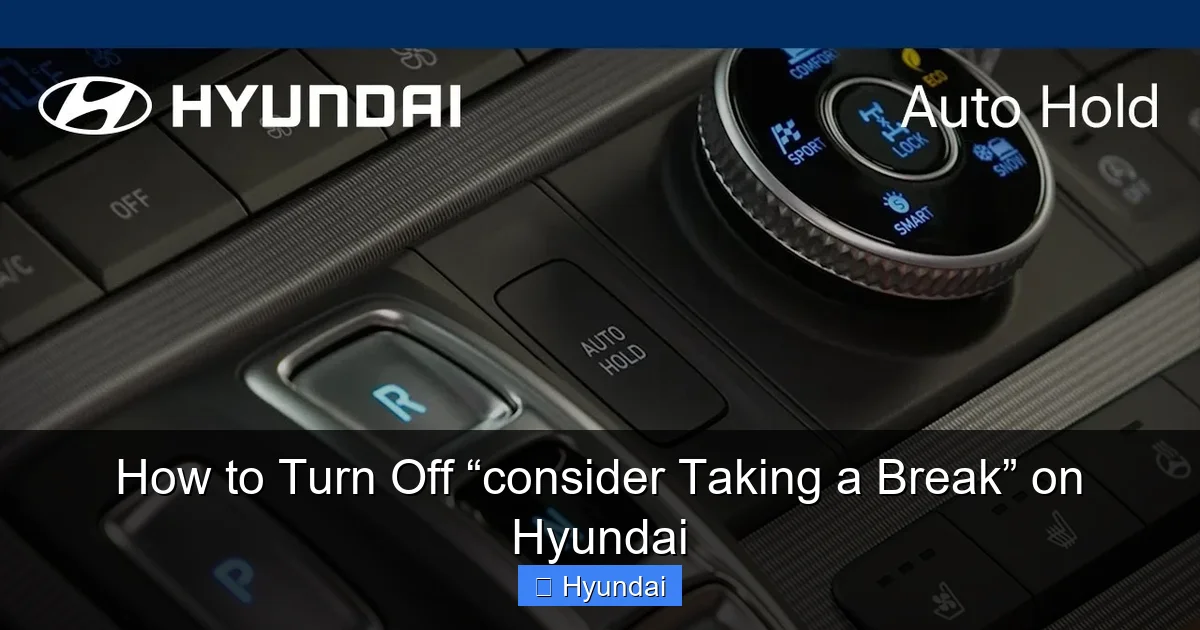
Visual guide about How to Turn Off “consider Taking a Break” on Hyundai
Image source: thecarhow.com
The Non-Negotiable Safety Risk
The statistics are clear: drowsy driving is as dangerous as drunk driving. The National Highway Traffic Safety Administration (NHTSA) estimates that drowsy driving was responsible for nearly 700 deaths and over 80,000 crashes in a single recent year. These are numbers that rival impairment from alcohol. The DAW system is your car’s way of saying, “Hey, your driving behavior suggests you’re not at your best. Pull over.” Ignoring or disabling this external nudge means you are relying solely on your own self-assessment, which is notoriously poor when fatigued. You might feel fine, but microsleeps can happen without warning. That chime could be the only thing preventing you from drifting into another lane or off the road.
Legal Implications and Regulations
Safety regulations are evolving. In some regions, certain ADAS features are mandated or strongly encouraged. While you generally still own the car and can adjust its settings, permanently disabling factory-installed safety systems could potentially be viewed as negligence if you are involved in an accident. Insurance adjusters and courts might look unfavorably upon a driver who deliberately disabled a known fatigue-alert system. It’s a gray area, but it’s a risk. Furthermore, in some jurisdictions, vehicles must pass safety inspections; a disabled system might trigger a warning light or fault code that could cause a failed inspection.
Warranty and System Integrity
Your Hyundai’s warranty covers defects in materials and workmanship. Tampering with or permanently disabling a safety system through unauthorized methods could be argued as “misuse” or “alteration” of the vehicle. If a related component (like the steering angle sensor or forward camera) fails, Hyundai might deny warranty coverage, claiming the issue was exacerbated by the disabled system’s lack of normal operation. It’s a slippery slope. Using the built-in menu settings to adjust sensitivity is almost always acceptable and covered, as it’s a manufacturer-provided option.
Model-Specific Variations: What Works for Your Hyundai?
Hyundai produces a wide range of vehicles, from the compact Elantra to the three-row Palisade. The DAW system and its controls are not one-size-fits-all. Here’s a general guide for popular models, but remember, your owner’s manual is the ultimate authority.
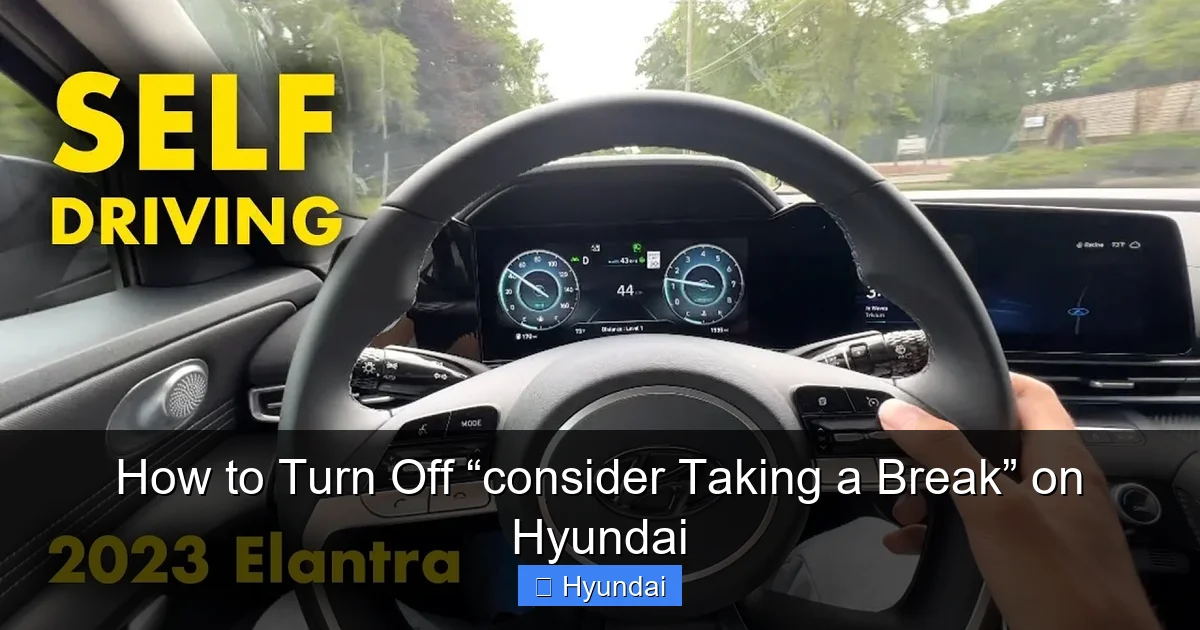
Visual guide about How to Turn Off “consider Taking a Break” on Hyundai
Image source: thecarhow.com
- Hyundai Sonata (2020+): Typically features a clear “Driver Attention Warning” setting in the touchscreen menu under Safety. A steering wheel button (often the same as the Lane Keeping Assist button) can be pressed to mute an active alert.
- Hyundai Tucson (2022+): The settings are found in the cluster or infotainment screen under Driver Assistance. The mute button is usually on the left steering wheel spoke, marked with a coffee cup icon.
- Hyundai Santa Fe (2021+): Similar to the Tucson, with settings accessible via the touchscreen. The physical mute button is standard on most trims.
- Hyundai Elantra (2021+): The system is standard on most trims. The menu path is usually Settings > Vehicle > Driver Assistance > Driver Attention Warning. The steering wheel button is present.
- Hyundai Palisade (2020+): Due to its size and family focus, the DAW is prominent. Settings are in the large touchscreen menu. The mute button functionality is identical.
Critical Tip: The model year is everything. A 2019 Sonata will have a different interface and potentially different capabilities than a 2024 Sonata. When searching online for steps, always include your exact model year. If you’re struggling to find the setting, your vehicle’s built-in “Help” or “Tutorial” function on the infotainment screen (if equipped) can often show you where the feature is located. You can also find a digital copy of your owner’s manual on the Hyundai website by entering your VIN.
When to Re-enable the System and Best Practices
If you have chosen to adjust or temporarily mute the DAW system, treating it like a light switch that stays off is dangerous. Adopt a mindset of responsible, situational use.
- Always re-enable for highway driving: The system is most valuable on long, monotonous stretches of interstate where fatigue sets in. Make it a habit to ensure the DAW is active (sensitivity set to Normal or High) before any trip over 30-45 minutes on major roads.
- Use temporary mute sparingly: The steering wheel mute is for that moment when you are, in fact, alert but the system misfired. Don’t use it as a “snooze” button for fatigue. If you’re actually tired, the correct action is to pull over safely and rest, not to silence the warning.
- Consider sensitivity, not “Off”: Instead of seeking a full disable, experiment with lowering the sensitivity to “Low.” This will reduce nuisance alerts during normal city driving but will still activate for more pronounced signs of fatigue. It’s a good compromise.
- Educate all drivers: If multiple people use the vehicle, ensure everyone knows how the system works and agrees on its use. One person’s preference to disable it could put others at risk.
- Combine with other strategies: No technology replaces good habits. Use the DAW as a backup to your own plans: schedule regular breaks on long drives (every 2 hours or 100 miles), avoid driving late at night if possible, and never drive if you feel sleepy. The alert is a last line of defense, not your primary plan.
It’s also worth noting that Hyundai’s system is part of a larger ecosystem. If you find the attention alert bothersome, you might also be curious about adjusting other aids. For example, some drivers look into how to turn off lane departure assist on a Subaru, which operates on a similar principle of promoting vehicle position awareness. Understanding these systems as a whole helps you make informed decisions about your driving experience.
Conclusion: A Tool, Not a Nuisance
So, you’ve learned how to turn off “Consider Taking a Break” on Hyundai. You know the button to press and the menu to navigate. But the most important takeaway is this: that alert is your car trying to be a co-pilot, a silent guardian watching for patterns you might not notice in your own tired mind. The ability to mute it is a concession to real-world scenarios where technology isn’t perfect, not a free pass to dismiss the message entirely.
Disabling it completely is a choice that prioritizes momentary convenience over long-term safety—for you, your passengers, and everyone else on the road. If the frequency of alerts feels wrong, first check for simple fixes: clean your windshield (a dirty camera lens can cause errors), ensure your tires are properly inflated, and consider if your driving pattern has genuinely changed. Then, adjust the sensitivity in the settings. Use the mute button judiciously. But always, always re-engage the system for its intended purpose: keeping you alert on journeys where the risk of fatigue is real. Your life and the lives of others are worth far more than the few seconds of annoyance saved by silencing a life-saving warning.
Frequently Asked Questions
Is it safe to permanently turn off the “Consider Taking a Break” alert?
No, it is not considered safe. This system is a critical safety feature designed to mitigate the dangers of drowsy driving. Permanently disabling it removes an important layer of protection and significantly increases your risk of a fatigue-related accident. It should only be adjusted for very specific, short-term situations.
Will disabling the Driver Attention Warning void my Hyundai’s warranty?
Using the built-in menu settings to adjust sensitivity is a manufacturer-approved function and will not void your warranty. However, using aftermarket tools or dealer software to permanently disable the system at a computer level could be considered tampering and might void coverage for related safety systems. Always consult your warranty booklet.
Can I temporarily disable the alert without affecting the next drive?
Yes. Pressing and holding the dedicated steering wheel button (usually marked with a coffee cup icon) will mute the current alert. The system will typically reactivate after a set time (e.g., 30 minutes) of driving or when you restart the vehicle. This is the intended method for handling a false alert while remaining alert.
Why is my “Consider Taking a Break” alert coming on so frequently?
Frequent alerts can be caused by several factors: actual driver fatigue, a very monotonous commute, aggressive or unusual steering patterns, or even a technical issue. First, ensure your windshield is clean (the camera may be obstructed) and your tires are properly inflated. If the problem persists, a diagnostic check at a Hyundai dealer may be needed to rule out a sensor or software glitch.
Do all Hyundai models have this “Consider Taking a Break” feature?
No. The Driver Attention Warning system is part of Hyundai’s advanced safety suite and is not standard on all base models. It became more widespread around the 2020-2021 model years, often bundled with features like Lane Keeping Assist and Forward Collision-Avoidance Assist. Check your owner’s manual or window sticker to confirm if your specific vehicle is equipped with DAW.
How do I know if the system is currently active or disabled?
When you start driving, a small icon (usually a steaming coffee cup or a person) may briefly illuminate on your instrument cluster or heads-up display to indicate the system is on and monitoring. If you have disabled it via the settings menu, there is often a persistent indicator light or a message in the driver-assist settings screen that shows the system status as “Off” or “Disabled.” The absence of the initial startup icon is also a clue it’s not active.
