
How to Sync Messages in a Tesla

Syncing your smartphone messages with your Tesla allows you to stay connected without taking your eyes off the road. This guide covers everything from Bluetooth pairing to notification settings for both iPhone and Android. You’ll learn step-by-step how to enable, customize, and troubleshoot message sync in your Tesla’s infotainment system. We also address security concerns and common issues like connection drops or missing notifications. Perfect for Tesla owners wanting seamless, safe integration of their texts and alerts.
Hey there! Have you ever been driving your Tesla, heard that familiar text notification chime, and wished you could just glance at the screen to see who’s messaging without fumbling for your phone? You’re not alone. One of the coolest convenience features in modern Teslas is the ability to sync your smartphone’s text messages directly to the car’s central touchscreen. It transforms your vehicle into a connected hub, letting you stay informed safely. But getting it set up right can be a bit tricky if you don’t know the steps. That’s exactly why we’re here. This guide will walk you through everything you need to know about how to sync messages in a Tesla, from the initial requirements to fine-tuning your settings and solving common hiccups. Let’s dive in and get your texts talking to your Tesla.
Key Takeaways
- Compatibility is Key: Message syncing requires a compatible smartphone (iPhone or Android) and a Tesla with Bluetooth capability and updated software.
- Bluetooth is the Bridge: The entire process hinges on a stable Bluetooth connection between your phone and the vehicle’s infotainment system.
- Notifications Must Be Enabled: Both your phone’s settings and Tesla’s display settings must allow message notifications to appear on screen.
- Security Requires Permissions: Granting Tesla access to your notifications is a security step; understand what data is shared and how to manage it.
- Troubleshooting is Often Simple: Most sync issues are resolved by restarting the phone, toggling Bluetooth, or rebooting the Tesla’s touchscreen.
- It’s for Safety, Not Distraction: Properly configured, message sync minimizes distraction by reading texts aloud and limiting on-screen interaction.
📑 Table of Contents
- What Does “Syncing Messages” Actually Mean in a Tesla?
- Prerequisites: Is Your Phone and Tesla Ready?
- Step-by-Step: Pairing Your Phone for Message Sync
- Customizing Your Message Experience: Settings and Preferences
- Troubleshooting: Why Aren’t My Messages Syncing?
- Security, Privacy, and Best Practices
- The Road Ahead: Future of Messaging in Teslas
- Conclusion: Drive Connected, Drive Safe
What Does “Syncing Messages” Actually Mean in a Tesla?
Before we get into the “how,” let’s clarify the “what.” Syncing messages in a Tesla isn’t about transferring your entire SMS history into the car’s memory. It’s a real-time, permission-based connection. When enabled, your Tesla acts as a secondary display for your phone’s messaging apps. When a new text arrives, the car’s system receives a notification via Bluetooth, displays the sender’s name and a snippet of the message on the screen, and can even read it aloud using the text-to-speech function. You can then choose to reply with a quick preset message or ignore it. The magic is that this happens without you needing to pick up your phone, keeping your hands on the wheel and eyes on the road as much as possible.
The Technology Behind It: Bluetooth and Phone-as-Key
This feature relies on two main technologies working together. First, there’s the classic Bluetooth connection, which pairs your phone with the car for data exchange. Second, and uniquely for Tesla, is the “Phone Key” functionality. When you set up your phone as a key to unlock and start the car, Tesla’s system establishes a deeper, more secure link between your device and the vehicle. This persistent connection helps maintain reliable messaging sync every time you enter and drive. It’s a seamless ecosystem, but it does mean your phone needs to have Bluetooth turned on and be in proximity to the car.
Prerequisites: Is Your Phone and Tesla Ready?
You can’t just start syncing messages out of the box. A few boxes need to be checked first. Think of this as preparing your tools before a job. If any of these prerequisites aren’t met, the sync process will fail or be incomplete.
Visual guide about How to Sync Messages in a Tesla
Image source: evseekers.com
Phone Compatibility: iOS vs. Android
Good news: Tesla supports both major smartphone platforms. However, the setup experience differs slightly.
- iPhone (iOS): Generally the smoothest experience. You’ll need to grant Tesla explicit permission to access your notifications through your iPhone’s settings. This is a security feature of iOS that prevents apps from snooping.
- Android: Works well but can be more variable due to the many Android skins (Samsung’s One UI, Google’s Pixel UI, etc.). You’ll need to ensure Tesla has “Notification Access” permission in your Android settings, which is sometimes buried in a sub-menu. Also, battery optimization settings on some Android phones can kill the Tesla app’s background activity, breaking the sync. You may need to disable battery optimization for the Tesla app.
Your phone should also have a recent version of its operating system and the latest Tesla mobile app installed.
Tesla Software Requirements
Your Tesla needs to be running a recent version of its firmware. Tesla pushes updates over-the-air (OTA) regularly, and messaging features are often improved. Go to Controls > Software on your touchscreen to check your version. If an update is available, install it. Also, ensure your vehicle’s Bluetooth module is functioning—this is rarely an issue but can be if you’ve had other Bluetooth problems.
Bluetooth Basics
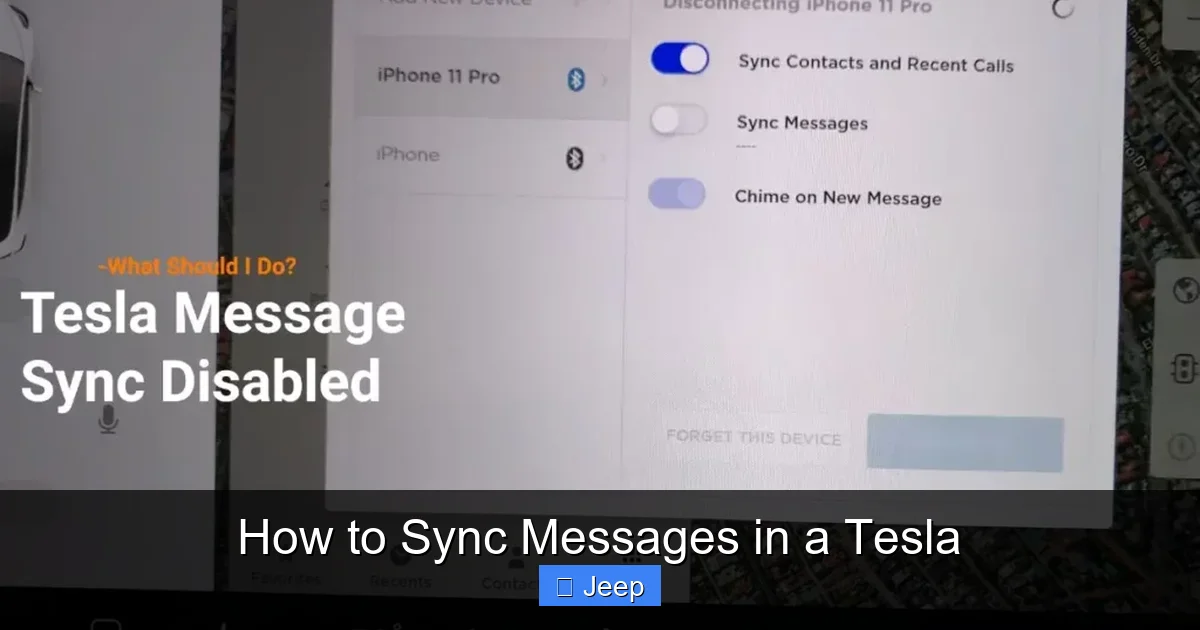
This might sound obvious, but your phone’s Bluetooth must be turned on and discoverable. The Tesla should already be paired with your phone for general audio streaming and phone calls. If you haven’t paired it for those functions yet, you’ll need to do that first under Settings > Bluetooth on the touchscreen. The message sync builds on that existing pairing.
Step-by-Step: Pairing Your Phone for Message Sync
Alright, everything’s ready. Let’s get those messages talking. The process has two main phases: establishing the Bluetooth link and granting notification permissions.
Visual guide about How to Sync Messages in a Tesla
Image source: evseekers.com
Phase 1: The Bluetooth Handshake
This is the foundational step. If your phone is already paired for music and calls, you’re halfway there. If not:
- In your Tesla, tap the Controls icon (car symbol) on the bottom left of the screen.
- Go to Settings (the gear icon), then Bluetooth.
- Toggle Bluetooth On if it isn’t already.
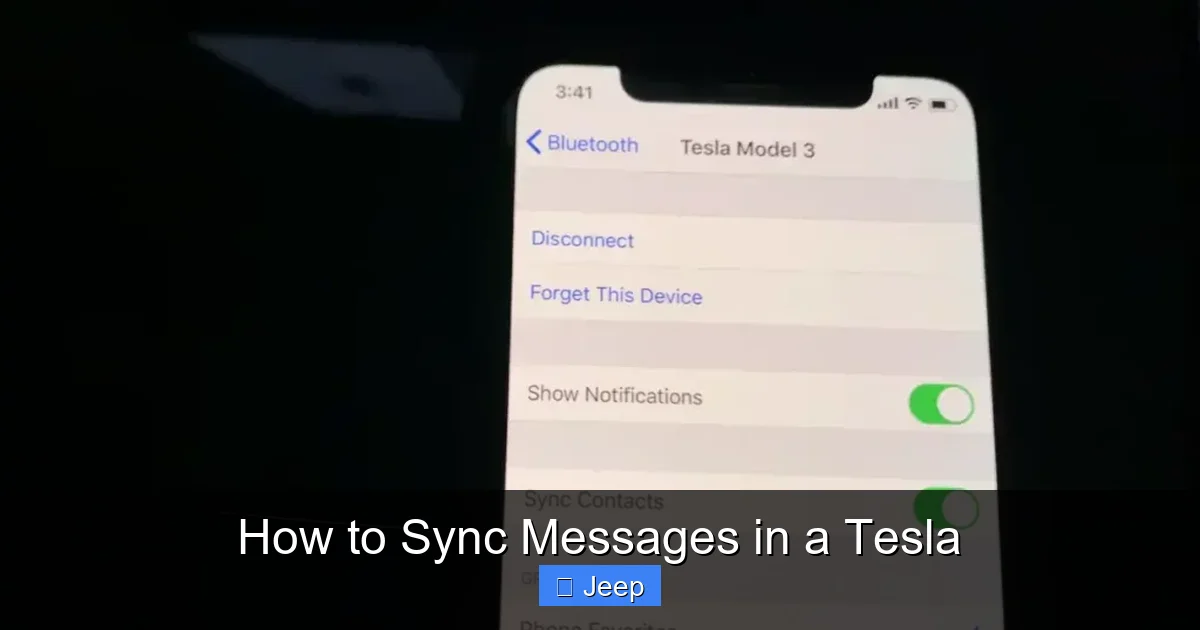
- On your smartphone, open Settings and go to Bluetooth. Ensure it’s on and set to discoverable.
- On the Tesla screen, tap Add New Device. Your car will start scanning.
- Select your phone’s name from the list on the Tesla screen.
- Both devices will show a pairing code. Confirm they match, and accept the pairing request on your phone.
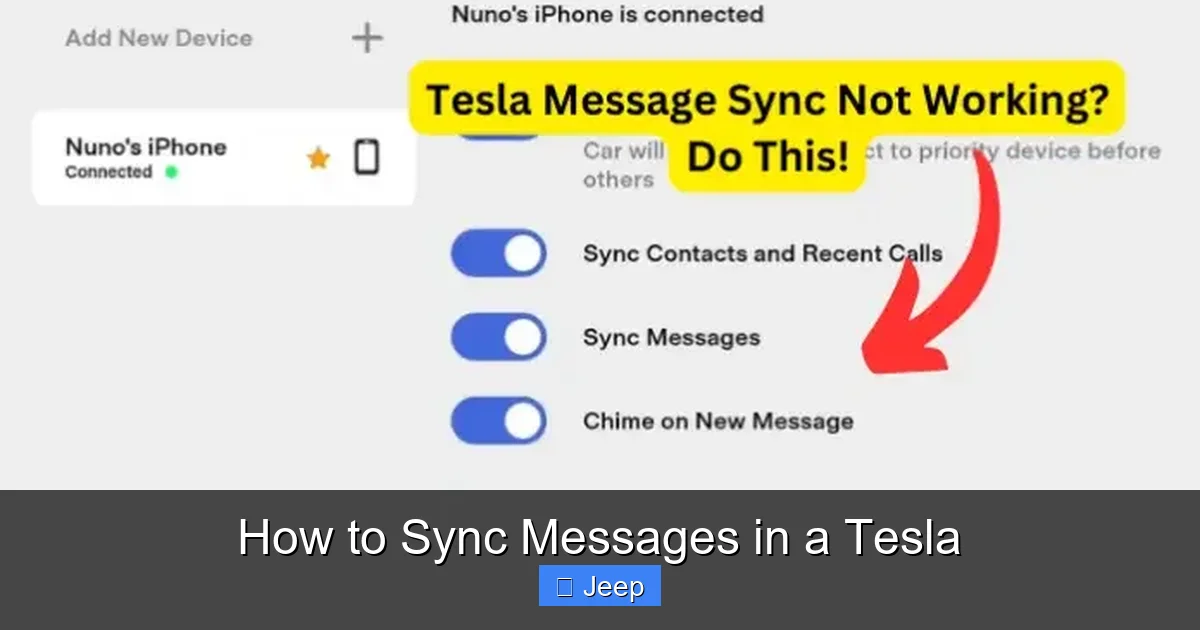
- You’ll be asked which functions to enable: Media, Phone, and Contacts. For full message sync, ensure Contacts is checked. This allows the car to match incoming numbers to names in your address book.
Once paired, your phone should appear in the Tesla’s Bluetooth device list with a connected status.
Phase 2: Granting Notification Access (The Critical Step)
This is where many people get stuck. The Bluetooth connection is live, but messages won’t appear because the Tesla app (or the car’s system) isn’t allowed to “see” your notifications.
- For iPhone Users:
Go to your iPhone’s Settings > scroll down to find the Tesla app > tap it > under Notifications, ensure Allow Notifications is toggled On. Also, under Settings > Notifications > Tesla, make sure Show Previews is set to Always or When Unlocked. If it’s set to “Never,” the preview won’t appear on the Tesla screen. - For Android Users:
The path varies by manufacturer. Generally, go to Settings > Apps > Tesla > tap Notifications and ensure they are allowed. More importantly, look for a setting called Notification Access. This is often under Settings > Apps & Notifications > Special App Access > Notification Access. Find the Tesla app in the list and make sure the toggle is On. You may also need to disable battery optimization for the Tesla app in your phone’s battery settings to prevent it from being put to sleep.
After granting these permissions, restart your Tesla’s touchscreen by holding down the two scroll wheel buttons on the steering wheel until the screen goes black and reboots. This refreshes the system. Now, send a test text from another phone to yours. You should see the notification pop up on your Tesla screen!
Customizing Your Message Experience: Settings and Preferences
Getting messages to appear is great, but tailoring how they work is even better. Tesla gives you control over what you see and hear, which is crucial for minimizing distraction.
Visual guide about How to Sync Messages in a Tesla
Image source: teslord.com
Managing Notifications on the Tesla Screen
Within the Tesla interface, you can adjust how intrusive message alerts are.
- Navigate to Controls > Settings > Notifications on the touchscreen.
- Here, you’ll see a list of apps, including Messages (for texts) and potentially other messaging apps like WhatsApp if they are supported on your region and software version.
- You can toggle notifications On or Off for each.
- For messages, you can also choose whether to show a preview of the text or just the sender’s name. For privacy, showing only the sender is a good option if you often have passengers.
Using “Do Not Disturb” and Driving Modes
Tesla understands that constant alerts while driving aren’t ideal. You have a couple of tools:
- Do Not Disturb: Activate this mode (often a crescent moon icon in the quick settings panel at the bottom of the screen) to silence all non-critical notifications, including messages. This is perfect for when you need absolute focus.
- While Driving Settings: In Settings > Safety & Security > Driving, you can find options related to “Read Text Messages Aloud” or similar. Ensure this is enabled if you want the car to read messages to you via the speakers. You can also set preferences for whether you want to be prompted to reply.
Choosing Your Alert Sounds
You can select different chime sounds for various notifications. Go to Settings > Sound and scroll to Alert Sounds. Pick a tone for “Text Message” that is audible but not startling.
Troubleshooting: Why Aren’t My Messages Syncing?
Even with everything set up correctly, things can go wrong. Don’t panic—most issues have simple fixes. Here’s a systematic approach to get your sync back.
Issue: No Notifications Appear at All
This is the most common problem. Follow this checklist in order:
- Check the basics: Is Bluetooth on on both phone and car? Is the phone connected to the Tesla? Is the Tesla’s Bluetooth device list showing your phone as “Connected”?
- Re-grant permissions: Go back to your phone’s notification settings for the Tesla app. Toggle them off and on again. Sometimes an iOS or Android update resets these.
- Restart the phone: A classic fix. Power off your smartphone completely and turn it back on.
- Reboot the Tesla touchscreen: Hold down the two scroll wheels on the steering wheel until the screen restarts. This clears the infotainment system’s cache.
- Delete and re-pair: In the Tesla’s Bluetooth settings, forget your phone. Then, go through the entire pairing process from scratch. This often resolves stubborn connection issues.
Issue: Notifications Show But Don’t Read Aloud
If you see the text on screen but the car stays silent:
- Check your Tesla’s Sound settings. Is the media volume turned up? Is the “Alert Volume” set too low or muted?
- Ensure the “Read Text Messages Aloud” option is enabled in Settings > Safety & Security > Driving (the exact path may vary by software version).
- Make sure your phone isn’t in a mode that silences all sounds (like an iPhone’s “Ring/Silent” switch set to silent).
Issue: Only the Number Shows, Not the Contact Name
This means the Tesla isn’t matching the incoming number to an entry in your phone’s contacts. The fix is to ensure Contacts sharing was enabled during Bluetooth pairing. If you’re unsure:
- In Tesla Bluetooth settings, tap the i icon next to your paired phone.
- Verify that Contacts is checked. If not, check it. The car will then sync your contacts book. This may take a minute.
- Also, ensure the number in your contact is saved in the correct, full format (e.g., +1 followed by area code and number).
If problems persist after all this, it might be a software bug. Check Tesla forums for your specific model year and software version, as sometimes a particular update introduces glitches that are fixed in the next OTA patch.
Security, Privacy, and Best Practices
Letting your car access your text messages feels like a big step. It’s smart to understand what’s happening with your data and how to use the feature responsibly.
What Data Is Shared, and Where Does It Go?
When you grant notification access, the Tesla system (running on the vehicle’s local computer) receives the text content from your phone via the Bluetooth link. The messages are not sent to Tesla’s servers or cloud. They are processed locally in the car for displaying and reading aloud. Once you dismiss the notification, the data is gone from the car’s temporary memory. This is a key privacy feature. However, your phone’s operating system (Apple or Google) is aware that the Tesla app has this permission, as part of their own permission management systems.
Minimizing Distraction: The Golden Rule
The whole point of message sync is safety. But a screen full of notifications can be just as distracting as a phone in your hand. Adopt these habits:
- Use “Do Not Disturb” liberally: Enable it during heavy traffic or complex driving situations.
- Rely on audio cues: Let the car read the message aloud. Glance at the screen only if the message is critical and you need to see details.
- Use quick replies: Tesla offers preset responses like “On my way,” “Can’t talk now,” or a custom message. Set up a few that cover most situations so you don’t feel pressured to type.
- Pull over for complex replies: If a text requires a detailed response, the safe choice is to wait until you’re parked.
Managing Permissions and Revoking Access
If you sell your Tesla or simply want to disable the feature, you must revoke permissions on your phone. On iPhone, go to Settings > Tesla and toggle off Notifications. On Android, go to Settings > Apps > Tesla > Permissions and revoke Notification Access. You should also “Forget This Device” for your Tesla in your phone’s Bluetooth settings. On the Tesla side, you can remove the phone from Settings > Bluetooth.
The Road Ahead: Future of Messaging in Teslas
Tesla’s software is always evolving. While the core message sync functionality has been stable, future updates could bring exciting enhancements. We might see deeper integration with more third-party messaging apps (like WhatsApp or Telegram, which have limited support in some regions). Imagine being able to dictate a reply using natural language processing that’s even more accurate. There’s also potential for richer notifications—perhaps showing an image from an MMS, though safety concerns would limit this. Another possibility is contextual awareness, where the car might automatically enable “Do Not Disturb” for messages if it detects you’re entering a busy highway via navigation data. Keeping your Tesla’s software updated ensures you’ll get these improvements as they roll out.
Conclusion: Drive Connected, Drive Safe
Syncing your messages in a Tesla is a fantastic blend of convenience and modern technology. It bridges the gap between your digital life and your driving experience in a way that prioritizes safety—provided you set it up correctly and use it mindfully. Remember the core pillars: ensure compatibility, establish a solid Bluetooth connection, grant the necessary notification permissions, and customize your alert settings to suit your needs. When things go wrong, don’t forget the simple power of a reboot. By mastering this feature, you transform your Tesla’s touchscreen from a mere control panel into an intelligent, connected co-pilot that keeps you informed without compromising your focus on the road. So go ahead, set it up, send yourself a test text, and enjoy the seamless integration. Just keep those eyes up and your replies simple until you’re parked. Safe travels!
Frequently Asked Questions
Can I sync messages from multiple phones with my Tesla?
Yes, you can pair multiple phones to your Tesla’s Bluetooth. However, only the phone that is currently connected and actively in use will have its messages synced and displayed. The car typically connects to the last phone used or the one with the strongest signal. If you switch phones, you may need to manually select the connected device in the Bluetooth settings.
Why are my messages showing up as a phone number instead of a contact name?
This usually means the Tesla hasn’t synced your phone’s contacts, or the incoming number doesn’t exactly match an entry in your address book. First, ensure “Contacts” was enabled during Bluetooth pairing. You can also manually trigger a contact sync by tapping the ‘i’ icon next to your paired phone in Tesla Bluetooth settings. Also, double-check that the contact is saved with the full international number format (e.g., +1xxxxxxxxxx).
Does syncing messages drain my phone’s battery faster?
There is a minor, continuous power draw from maintaining the Bluetooth Low Energy (BLE) connection and the Tesla app’s background activity to monitor notifications. For most users, this drain is negligible and unlikely to be noticeable over a typical day. However, if you’re already struggling with battery life, you might consider disabling the feature when not driving.
I have an Android phone, and my messages stopped syncing after a software update. What gives?
Android updates, especially major ones, can sometimes reset app permissions and battery optimization settings. Go back into your phone’s settings and re-check the Tesla app’s Notification Access permission. Also, look in your phone’s Battery > Battery Optimization settings and make sure the Tesla app is set to “Don’t optimize” or “Not restricted.” This prevents the OS from killing the app’s background process.
Can I sync messages from apps like WhatsApp or Facebook Messenger?
Support for third-party messaging apps is limited and varies by Tesla software version and region. In some markets, WhatsApp notifications appear if the app is installed on your phone and you’ve granted Tesla notification access. However, the integration is often less reliable than native SMS/MMS. The safest and most consistent experience remains with your phone’s built-in text messaging app.
Is it possible to see message history or scroll back through previous texts on the Tesla screen?
No. Tesla’s message sync is designed for real-time, momentary notifications only. When a new text arrives, it appears as a pop-up notification. Once you dismiss it (by tapping ‘X’ or selecting an action), it’s gone. You cannot browse your短信 history or previous conversations on the Tesla touchscreen. You must use your phone for that.
