
How to Reset Hyundai Bluetooth

Facing Bluetooth connectivity issues in your Hyundai? A reset is often the fastest fix. This guide details every method, from simple soft resets to full system wipes, for all Hyundai models and infotainment systems. We explain exactly how to perform each reset, what data you’ll lose, and when a dealership visit is necessary. Follow our step-by-step instructions to get your phone paired and streaming audio again.
There you are, ready to hit the road, your favorite podcast cued up, only to find your Hyundai’s Bluetooth has given up the ghost. No connection, no audio, just a frustrating pairing error. Before you consider expensive dealership visits or living with a cord, know this: many Hyundai Bluetooth problems can be solved with a simple reset. Think of it like restarting your phone when it’s acting sluggish. Your car’s infotainment computer is just that—a computer. And sometimes, it needs a fresh start. This guide is your comprehensive manual for navigating every type of Hyundai Bluetooth reset, from the quickest reboot to the nuclear factory option. We’ll walk you through it all, with clear steps for different models and systems. Let’s get you back to hands-free calling and streaming music.
Key Takeaways
- Identify Your Infotainment System: The reset process depends on whether you have a basic audio system, UVO, or Blue Link. Check your owner’s manual or the screen’s boot-up logo.
- Start with a Soft Reset: This is the safest first step. It reboots the head unit without deleting paired devices or settings, often fixing temporary glitches.
- A Hard Reset Erases Everything: A factory reset will delete all paired phones, saved radio stations, and navigation data. Use this for persistent pairing failures or corrupted settings.
- Model-Year Matters: Procedures can differ between a 2015 Sonata and a 2023 Tucson. Always consult your specific owner’s manual for the most accurate instructions.
- Bluetooth Issues Have Many Causes: A reset isn’t always the answer. Problems can stem from phone software, a faulty Bluetooth module, or interference. Troubleshoot systematically.
- Some Issues Require Professional Tools: If resets fail, the problem may be a software bug needing a dealership’s diagnostic computer or a hardware failure requiring part replacement.
- Prevention is Key: Keep your phone’s OS updated, delete old, unused pairings, and ensure your Hyundai’s infotainment firmware is current via USB or over-the-air updates if available.
📑 Table of Contents
Why Does Hyundai Bluetooth Need Resetting?
Before we dive into the “how,” understanding the “why” makes troubleshooting much clearer. Bluetooth connections are complex digital handshakes between your phone’s software and your car’s infotainment system. Glitches happen. The most common reasons your Hyundai Bluetooth might fail include:
Software Glitches and Memory Overload
Like any computer, your car’s head unit can suffer from temporary software bugs or memory corruption. Maybe it got confused after a phone software update, or it simply has too many old, unused device profiles stored. A reset clears this temporary cache and gives the system a clean slate to negotiate a fresh connection.
Failed Pairing Attempts or Corrupted Profiles
If you repeatedly tried and failed to pair a new phone, or if an old phone’s profile in the system became corrupted, it can block new connections. Resetting the Bluetooth module or the entire system removes these problematic profiles.
System-Wide Infotainment Bugs
Sometimes, the Bluetooth issue is a symptom of a larger problem with the infotainment system itself—a bug in the radio’s firmware. A more comprehensive reset, or even a software update from the dealer, may be required. For broader system issues, a full infotainment system reset is the logical next step after targeting just Bluetooth.
After a Phone OS Update
When you update your iPhone or Android device, it can change the Bluetooth protocols or security settings. Your Hyundai’s system might not recognize the “new” phone immediately. A reset of the car’s Bluetooth often re-initiates the pairing process successfully.
The Hierarchy of Resets: From Soft to Hard
Not all resets are created equal. It’s crucial to start with the least invasive method. Think of it as a ladder: you climb from the bottom (easiest, least data loss) to the top (most thorough, full data wipe) only if the lower steps fail.
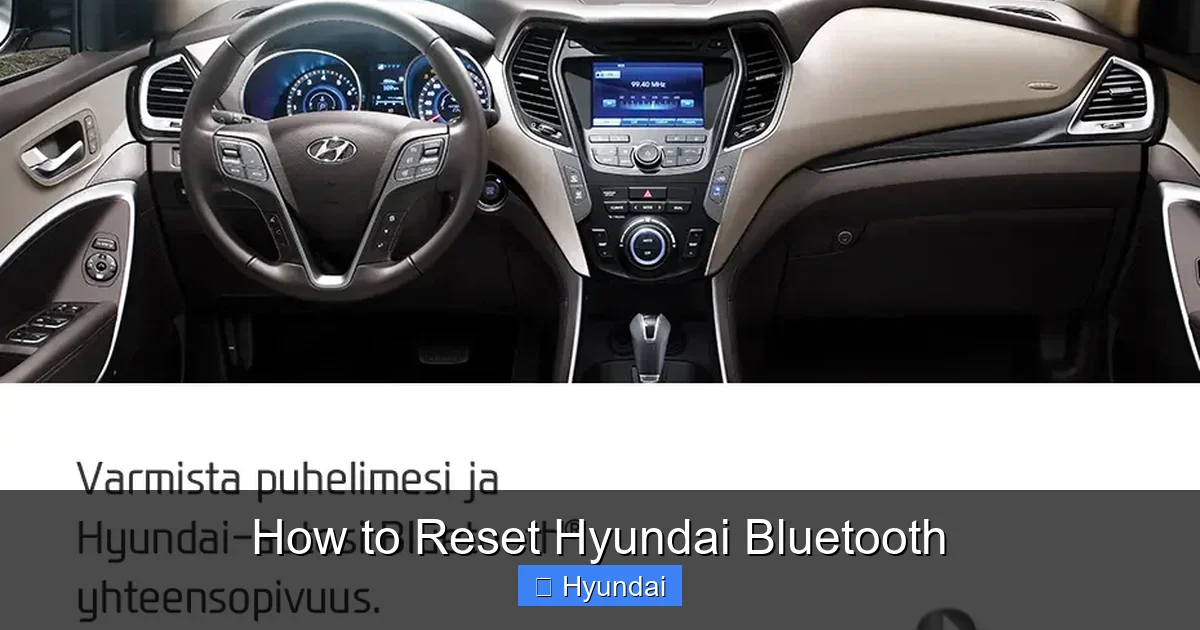
Visual guide about How to Reset Hyundai Bluetooth
Image source: hyundai.fi
Method 1: The Soft Reset (Infotainment Reboot)
This is your go-to first move. It simply powers off and restarts the infotainment screen and radio, clearing temporary memory (RAM). It does NOT delete your paired phones, saved radio stations, or settings.
How to Perform a Hyundai Soft Reset:
- Turn your car’s ignition to the “ON” or “ACC” position (do not start the engine).
- Locate the power button for your infotainment system. This is often a physical button on the faceplate or a soft button on the touchscreen menu (sometimes labeled “Power” or you hold the “Home” button).
- Press and hold the power button for about 5-10 seconds until the screen goes completely black.
- Wait 10-15 seconds.
- Press the power button again to turn the system back on. It will take a minute or two to fully boot up.
Once rebooted, go to your Bluetooth settings and try pairing your phone again. This method solves a huge percentage of “Bluetooth not available” or “connection failed” errors.
Method 2: Bluetooth Module Reset (Selective Reset)
Some Hyundai models and infotainment generations (like certain UVO systems) allow you to reset just the Bluetooth module, leaving radio presets and other settings intact. This is more targeted than a full factory reset. The exact path varies:
- Go to Settings on your infotainment screen.
- Navigate to System or Connectivity.
- Look for an option like Bluetooth Reset, Reset Bluetooth, or Clear Bluetooth Data.
- Select it and confirm. The system will restart the Bluetooth radio.
Note: This option is not available on all Hyundai models. If you don’t see it, proceed to the next method.
Method 3: The Factory Reset (Nuclear Option)
This returns the infotainment system to its original factory state. It will delete ALL user data: all paired phones, saved radio stations (AM/FM/SiriusXM), navigation destinations and favorites, system settings (clock, language, sound), and connected USB media lists. Use this only when softer resets fail and you’re prepared to re-configure everything.
How to Perform a Hyundai Factory Reset:
- Go to Settings.
- Find System or General.
- Look for Factory Reset, Reset All Settings, or Initialize System.
- You will likely need to enter a PIN or confirm your choice. The default PIN is often “0000” or “1234,” but if one was set by a previous owner, you may need it.
- Confirm the reset. The system will power off and reboot, taking several minutes.
After the reset, you must pair your phone from scratch. Go to your phone’s Bluetooth settings and your Hyundai’s Bluetooth menu to complete the pairing process anew.
Model-Specific Considerations and Variations
Hyundai has used several infotainment platforms over the years. The reset steps can differ slightly based on your vehicle’s year and model.
Visual guide about How to Reset Hyundai Bluetooth
Image source: 36754.cdn.simplo7.net
Hyundai Vehicles with UVO / Blue Link (2015 and Newer)
Most post-2015 Hyundai models feature the UVO infotainment system, with higher trims adding Blue Link connected car services. The reset menu structure is generally consistent across these:
- Path: Menu > Settings > System > Factory Reset.
- For models with a physical “Menu” button on the radio bezel, that’s your starting point. For newer models with touch-only interfaces, look for a “Settings” gear icon on the home screen.
- If you have Blue Link, a factory reset may also disconnect your Blue Link account. You’ll need to re-login or re-activate services after the reset, which sometimes requires calling Blue Link customer service. This is a key point—resetting can impact connected features. For specific Blue Link re-activation steps, a dedicated guide on resetting Hyundai Blue Link is invaluable.
Older Models (Pre-2015) and Base Audio Systems
Vehicles like a 2012 Elantra or a base-model 2014 Santa Fe without a large touchscreen have a different interface. The reset is often a simple button combination:
- Common Method: With the car on, press and hold the “Audio” or “Source” button and the “Power” button simultaneously for about 10 seconds until the display goes black and reboots.
- There is typically no menu-driven factory reset on these basic units. The physical button combo is your only soft reset option. For a true factory reset on these older systems, you may need to disconnect the car battery for 10 minutes, which also resets the clock and radio presets.
The 2020+ Hyundai with Hyundai Digital Key & Over-the-Air Updates
The latest Hyundai models feature advanced systems with potential over-the-air (OTA) updates. If your Bluetooth issue started after a recent OTA update, a simple reboot might not be enough. You may need to:
- Perform a factory reset as described above.
- Check for any pending system updates in the Settings > System > Software Update menu. Sometimes, the dealer releases a fix for known Bluetooth bugs.
- Be aware that on vehicles with the Hyundai Digital Key (phone as key), a factory reset will require you to re-enroll your phone as a key, which is a more involved process best done with the owner’s manual handy.
When a Reset Isn’t Enough: Advanced Troubleshooting
You’ve soft-reset, you’ve factory-reset, and your phone still won’t connect. Now what? The problem likely lies elsewhere. Here’s your diagnostic path.
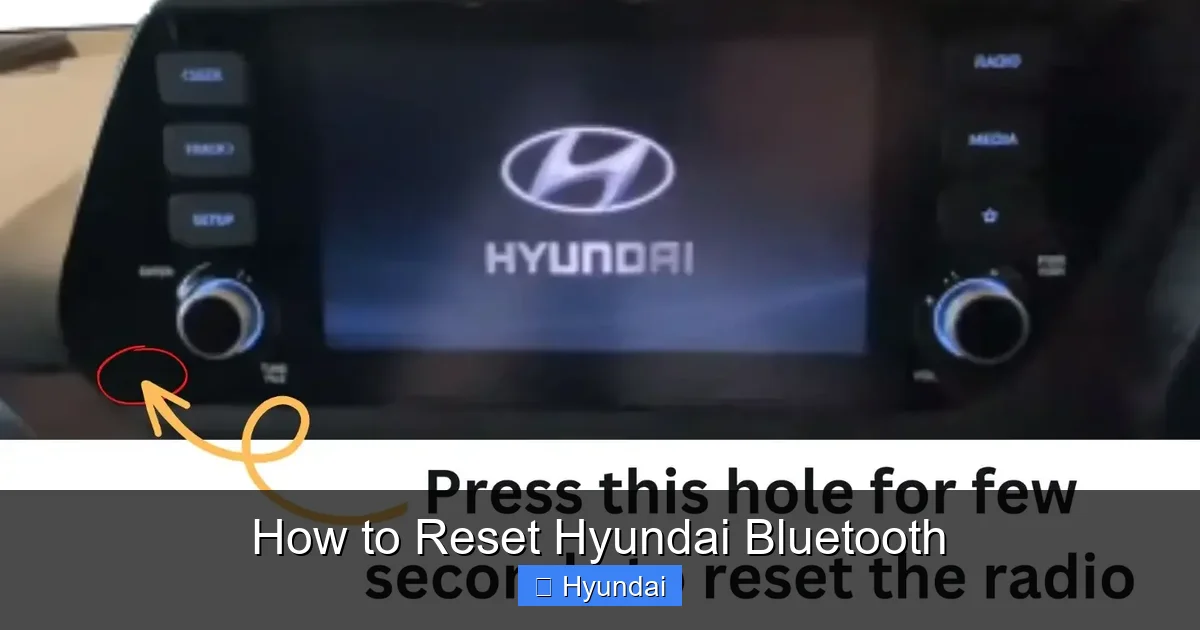
Visual guide about How to Reset Hyundai Bluetooth
Image source: sourceht.com
Step 1: The Phone is the Problem (Usually)
Before blaming the car, eliminate your phone as the culprit.
- Restart your phone. This clears its own Bluetooth cache.
- Check for phone OS updates. Go to Settings > General > Software Update (iPhone) or Settings > System > Advanced > System Update (Android).
- Delete the Hyundai profile from your phone’s Bluetooth list. Then, on the car side, delete your phone from the paired devices list (if possible). Try pairing from scratch.
- Try a different phone. This is the ultimate test. If another phone pairs perfectly, the issue is with your original phone’s Bluetooth hardware or software.
Step 2: Interference and Environmental Factors
Bluetooth operates on the 2.4GHz band, shared by Wi-Fi, microwave ovens, and even some EV charging systems.
- Try pairing away from other electronic devices and large metal objects.
- If you have a dash cam or wireless charger that plugs into the USB port, unplug it temporarily. These can sometimes cause interference.
- Ensure your phone’s Bluetooth is set to “Discoverable” or “Visible” during the pairing process.
Step 3: The Bluetooth Module Itself May Be Faulty
If multiple phones fail to connect after all resets, the Bluetooth module (a small chip or part of the head unit) may have failed. This is a hardware issue. Signs include: the Bluetooth option is grayed out or missing from the menu, or the system says “Bluetooth not available” immediately upon startup.
This requires professional diagnosis and replacement. The cost can vary widely. For context, troubleshooting electrical gremlins in other brands often follows a similar path—for instance, resetting a brake system light on a Honda Civic might start with a simple scan tool, but could end with a faulty sensor replacement. The principle is the same: rule out simple fixes before assuming hardware failure.
Preventive Maintenance for a Healthy Bluetooth Connection
An ounce of prevention is worth a pound of resets. Incorporate these habits to keep your Hyundai’s connectivity reliable.
- Keep Software Updated: Periodically check your Hyundai’s infotainment system for updates via USB (using the Hyundai website) or over-the-air if your model supports it. Update your phone’s OS regularly.
- Practice Good Pairing Hygiene: When you sell or trade your car, always perform a factory reset first to erase your personal data and paired devices. Similarly, if you no longer use a phone, delete it from the car’s paired list to reduce clutter and potential conflicts.
- Avoid “Stacking” Connections: Don’t leave old, unused phones paired. A long list of inactive devices can sometimes confuse the system.
- Use the Correct USB Port: For phones that support Android Auto or Apple CarPlay, using those wired connections can sometimes relieve Bluetooth bandwidth for phone calls only, improving stability.
Conclusion: Your Path to a Restored Connection
Dealing with a finicky Bluetooth system is incredibly frustrating, but it’s rarely a lost cause. You now have a clear, escalating strategy. Always begin with the simplest step: the soft reset. It’s quick, painless, and works surprisingly often. If that fails, move to a targeted Bluetooth reset if your system allows it. As a last resort before visiting a mechanic, perform the full factory reset, knowing you’ll need to re-enter all your preferences. Remember to troubleshoot your phone first—it’s the most common point of failure. By understanding your Hyundai’s infotainment system and following these structured steps, you can diagnose and resolve most Bluetooth issues yourself, saving time, money, and getting back to enjoying your drive with seamless, wireless audio and calls.
Frequently Asked Questions
What’s the difference between a soft reset and a factory reset for Bluetooth?
A soft reset just restarts the infotainment screen like rebooting a computer, clearing temporary glitches without deleting any data. A factory reset erases all user settings, paired devices, and presets, returning the system to its original out-of-the-box state.
Will a factory reset delete my navigation maps or radio presets?
Yes, a full factory reset will delete everything. This includes all saved radio stations (AM/FM/Satellite), navigation destinations and home addresses, Bluetooth pairings, USB media lists, and all system preferences like clock and sound settings. You will need to set everything up again afterward.
My Hyundai’s Bluetooth menu is grayed out or missing. Can I still reset it?
A grayed-out or missing Bluetooth menu usually indicates a deeper hardware failure or a major software corruption that the standard reset menus cannot access. In this case, you may need to try disconnecting the car’s battery for 10-15 minutes to perform a deeper system power cycle. If that fails, the Bluetooth module itself may be faulty and require professional diagnosis.
Do I need a different reset procedure for my 2018 Sonata versus a 2022 Tucson?
The core principles are the same—start with a soft reboot—but the menu navigation can differ slightly. Newer models with larger touchscreens (like most 2020+ vehicles) have a “Settings” gear icon. Older models with smaller screens or physical buttons may use a “Menu” button. Always consult your owner’s manual for the exact path for your specific model year and trim level.
I did a factory reset and my phone still won’t pair. What now?
If a factory reset doesn’t resolve the issue, the problem is likely not with the car’s stored data. First, ensure your phone’s Bluetooth is on and discoverable. Restart your phone. Delete the Hyundai Bluetooth profile from your phone’s list. Try pairing a completely different phone to the car. If another phone works, the issue is with your original phone. If no phones work, the Bluetooth module hardware may be faulty and needs replacement by a dealer or qualified technician.
Will resetting my Hyundai’s infotainment system affect my Blue Link subscription?
Yes, a factory reset will disconnect your vehicle from your Blue Link account. After the reset, you will need to re-activate Blue Link services. This often involves calling the Blue Link customer service number or using your Blue Link app to re-link your vehicle’s VIN to your account. Have your VIN handy. For detailed Blue Link re-activation steps, refer to a specific guide on the topic.