
How to Get Waze on Tesla

Contents
- 1 Key Takeaways
- 2 📑 Table of Contents
- 3 Why Tesla Doesn’t Have Waze (Or Any Third-Party Apps) Natively
- 4 The Primary Solution: The Phone-as-Hotspot Method (Step-by-Step)
- 5 Alternative Workarounds: Screen Mirroring and More
- 6 Pros and Cons: Comparing the Methods
- 7 Safety and Legal Considerations: Don’t Be a Distraction
- 8 The Future: Will Tesla Ever Support Waze Natively?
- 9 Conclusion: The Practical Path Forward
- 10 Frequently Asked Questions

Car Storage Net

Octane Booster

Phone Mount for Bike

Rear View Camera
Tesla’s built-in navigation is excellent, but it lacks Waze’s community-driven traffic and police alert features. Unfortunately, there’s no official way to install Waze directly on the Tesla touchscreen. The most effective and reliable solution is to use your smartphone as a WiFi hotspot and mount your phone on the dashboard for navigation.
Let’s be honest: Tesla’s built-in navigation is pretty fantastic. It’s sleek, integrated, and the big-screen experience is great. But for many of us, Waze is the undisputed king of real-time traffic, police alerts, and crowd-sourced road wisdom. The big question, the one we get all the time, is: how to get Waze on Tesla? The short, frustrating answer is: you can’t, at least not natively. Tesla has locked down its infotainment system to its own apps. No Apple CarPlay, no Android Auto, and certainly no side-loading of random apps like Waze. It’s a walled garden, and that’s by design for safety, security, and a controlled user experience.
But all hope is not lost! Where there’s a will, there’s a way. Over the years, Tesla owners have gotten clever. We’ve developed workarounds, hacks, and simple setups that let you harness Waze’s power while still enjoying your Tesla’s driving experience. This guide will walk you through every single method, from the simple and safe to the complex and risky. We’ll focus on the most practical, reliable solution that works for virtually every Tesla owner today. So, buckle up, and let’s dive into the world of getting Waze onto your Tesla’s dashboard.
Key Takeaways
- No Native Support: Tesla does not offer Waze as a built-in app or via Apple CarPlay/Android Auto.
- Phone-as-Hotspot is Primary Method: Connecting your phone’s WiFi hotspot to your Tesla and mounting the phone is the standard workaround.
- Safety First: Any solution requires mounting your phone securely within your line of sight, not in your hand.
- Audio Routing: You can route Waze audio through your Tesla’s speakers via Bluetooth or USB connection.
- Screen Mirroring is Limited: Wireless screen mirroring (AirPlay/Android Auto Mirroring) typically requires a jailbroken or modified Tesla, which voids warranty.
- Future Uncertain: Tesla has not announced plans to integrate third-party navigation apps like Waze natively.
- Data Usage: Using your phone as a hotspot consumes cellular data, so monitor your plan.
📑 Table of Contents
- Why Tesla Doesn’t Have Waze (Or Any Third-Party Apps) Natively
- The Primary Solution: The Phone-as-Hotspot Method (Step-by-Step)
- Alternative Workarounds: Screen Mirroring and More
- Pros and Cons: Comparing the Methods
- Safety and Legal Considerations: Don’t Be a Distraction
- The Future: Will Tesla Ever Support Waze Natively?
- Conclusion: The Practical Path Forward
Why Tesla Doesn’t Have Waze (Or Any Third-Party Apps) Natively
To understand the workarounds, you first need to understand why the problem exists. Tesla’s approach to its vehicle’s software is unique in the automotive world. They treat the car like a smartphone—a single, unified software experience that they control completely. This has huge advantages: seamless, over-the-air updates that add features and fix bugs for the entire fleet instantly. It means a consistent, polished interface that doesn’t feel like a clunky afterthought. But it also means a closed ecosystem.
The Security and Safety Argument
Tesla’s official stance revolves around safety and security. Allowing arbitrary third-party apps could introduce vulnerabilities. A compromised app could, in theory, access vehicle controls or data. More importantly, from a safety perspective, Tesla wants to limit driver distraction. They design their own navigation UI to be minimal, with large touch targets and limited information on screen at once. Waze, with its constant stream of icons, alerts, and ads, is a different beast. Tesla argues their controlled environment prevents a dangerous “app downloading” frenzy while driving. It’s a valid point, even if it frustrates users who want choice.
The Absence of Apple CarPlay and Android Auto
This closed philosophy is most evident in Tesla’s complete rejection of Apple CarPlay and Android Auto. Every other major automaker offers one or both. These standard protocols would instantly solve the Waze problem—you’d just plug in your phone and use Waze on the car screen via CarPlay. But Tesla has famously held out, insisting their native system is superior. They’ve even hinted at building their own “App Store” someday, but that remains a rumor. For now, the only way to get phone apps onto the screen is through unofficial, often complex, mirroring solutions that we’ll discuss later.
The Benefit of Tesla’s Native Navigation
Before we bash it too much, let’s give credit where it’s due. Tesla’s navigation is deeply integrated. It knows the car’s exact charge level, battery capacity, and charging habits. It can route you to a Supercharger and automatically precondition the battery for optimal charging speeds. It displays energy consumption projections in real-time. For long-distance EV travel, this integration is game-changing and something Waze simply cannot replicate. So, for many trips, the native app is still the best tool. But for daily city commutes where traffic jams and police traps are the main concern, Waze’s crowd-sourced data is invaluable. This is why learning how to get Waze on Tesla remains such a popular quest.
The Primary Solution: The Phone-as-Hotspot Method (Step-by-Step)
Forget complicated hacks. The simplest, most reliable, and warranty-safe method to use Waze in your Tesla is this: use your phone as a dedicated navigation device. You connect your Tesla to your phone’s personal hotspot for data, and you mount your phone on the dashboard or windshield. It’s not the integrated dream, but it works perfectly, every time, on every Tesla model, with no risk to your car’s software. Think of it as the “brute force” approach that just works.
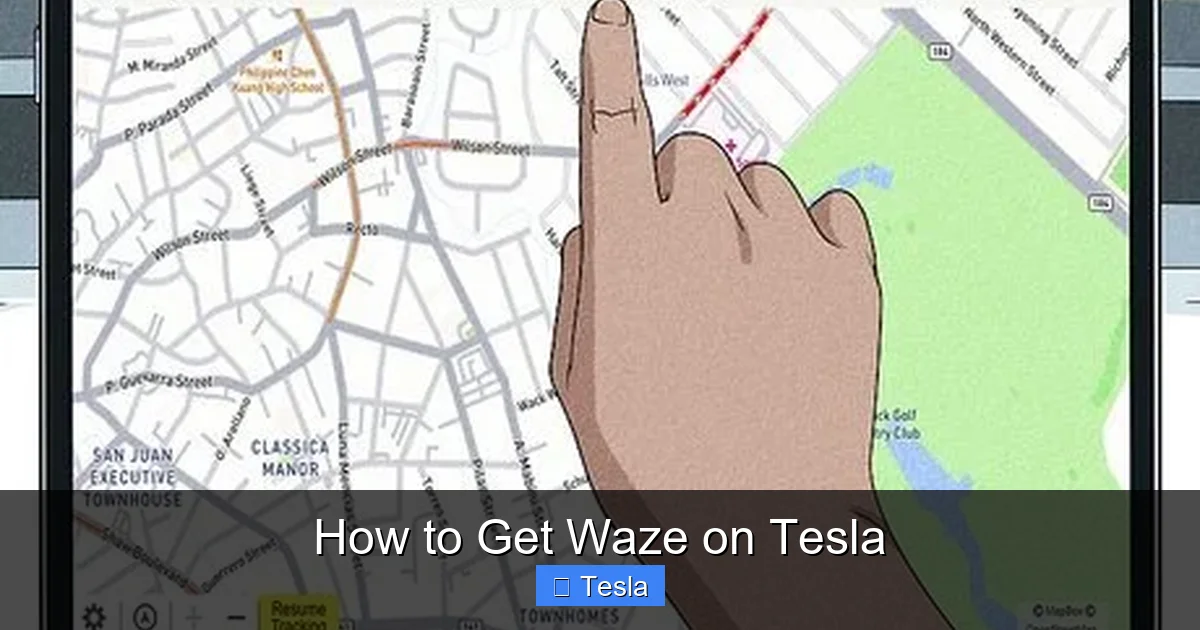
Visual guide about How to Get Waze on Tesla
Image source: wikihow.com
What You’ll Need
- A Smartphone (iPhone or Android): This will run the Waze app.
- A Dedicated Phone Mount: This is non-negotiable for safety and legality. Get a high-quality mount that holds your phone securely. Popular options include magnetic mounts (like a MagSafe case and mount), cradle mounts, or suction cup mounts for the windshield/dash. Ensure it doesn’t obstruct your view.
- Your Tesla’s WiFi Capability: All Teslas have this. You’re connecting the *car* to your phone’s hotspot so the car has internet, but the Waze app stays on your phone screen.
Step 1: Set Up Your Phone’s Personal Hotspot
First, you need to turn your phone into a portable WiFi router. This shares its cellular data connection.
- On iPhone: Go to Settings > Cellular > Personal Hotspot (or Settings > Personal Hotspot). Turn it “On.” Set a WiFi Password. Note the network name (SSID).
- On Android: Go to Settings > Network & Internet > Hotspot & tethering > WiFi hotspot. Turn it “On.” Configure the network name and password.
Pro Tip: Give your hotspot a unique, easy-to-spot name like “Tesla_Waze_Hotspot” so you can easily select it in your car’s menu later.
Step 2: Connect Your Tesla to the Hotspot
Now, get in your Tesla and connect its built-in WiFi to your phone’s hotspot.
- On the touchscreen, tap the Network (WiFi) icon in the top status bar, or go to Settings > WiFi.
- Make sure WiFi is toggled On.
- Your phone’s hotspot name should appear in the list of available networks. Tap it.
- Enter the password you set in Step 1. Your Tesla will now connect to your phone’s data connection.
Important: Your Tesla will remember this network. Once paired, it will often connect automatically whenever your phone’s hotspot is on and in range. You may want to set your hotspot to “Allow Others to Join” or keep it discoverable.
Step 3: Mount Your Phone and Launch Waze
This is the critical step for actual navigation.
- Mount your phone securely on the dashboard or windshield in a position that is easily visible without you having to look away from the road for more than a second. The driver’s side A-pillar or center of the dash are common spots. Never hold your phone while driving.
- Open the Waze app on your phone. Set your destination.
- Start navigation. Waze will now provide voice prompts through your phone’s speaker or, better yet, through your Tesla’s audio system.
Step 4: Route Audio Through Your Tesla (The Magic Step)
Hearing Waze’s voice prompts over your car’s speakers makes this setup feel much more integrated. You have two main options:
- Bluetooth Audio: Pair your phone with your Tesla via Bluetooth (Settings > Bluetooth). Once paired, your phone’s audio—including Waze prompts—will play through the Tesla’s speakers. This is the easiest method. However, note that when a phone call comes in, audio might switch, and music from your phone might play if you have it on.
- USB Audio: Connect your phone to the Tesla’s USB port (the one in the center console or the front ones). This often provides a more stable connection and can charge your phone simultaneously. Waze audio should route automatically.
Critical Tweak: In the Waze app on your phone, go to Settings > Sound & Voice > Voice Prompt. Set it to “Always On” or “On when no media playing” to ensure prompts cut through any music you might be playing from another source (like Tesla’s streaming audio). You may also need to adjust the “Voice Volume” slider in Waze to be louder than your car’s media volume.
Why This Method is the Winner
This phone-as-hotspot method is the gold standard because it’s simple, free, and risk-free. There’s no software modification to your Tesla. It works on any Tesla model, any software version. It’s completely reversible. The only “downsides” are that you have a second screen to glance at (though a good mount minimizes this) and you’re using your phone’s battery and data. But for the dedicated Waze user, this is a small price to pay for the best traffic and police alert app on the market in your Tesla.
Alternative Workarounds: Screen Mirroring and More
The phone-on-the-dash method works, but some owners want the holy grail: Waze *on the big Tesla screen*. This is where things get tricky. There are a few community-developed methods, but they all come with significant caveats.

Visual guide about How to Get Waze on Tesla
Image source: wikihow.com
Wireless Screen Mirroring (AirPlay / Android Auto Mirroring)
This is the most discussed “hack.” Certain aftermarket devices or software modifications can enable wireless screen mirroring from your iPhone (AirPlay) or Android phone (Miracast/Android casting) to the Tesla’s display. The most famous is a device that plugs into the Tesla’s USB port and creates a local network that tricks the car into thinking it’s a video source.
- The Process: You plug in a small dongle (like an “EVTV” or “TeslaDisplay” device), connect your phone to it via WiFi or Bluetooth, and your phone’s screen is mirrored onto the Tesla’s display.
- The Major Downsides:
- It Often Requires “Jailbreaking” or modifying the car’s USB port settings. This can void your warranty. Tesla may refuse service on related components if they detect unauthorized software or hardware.
- It’s Not Officially Supported. These are third-party, reverse-engineered solutions. They can be buggy, may break after a Tesla software update, and offer no official support.
- Latency and Quality: There can be a lag between your phone and the screen, making touch interaction impossible (you still control Waze on your phone). Video quality can be lower.
- Complex Setup: It’s not a simple plug-and-play for most users.
Verdict: This method is for tech-savvy enthusiasts who understand and accept the risks. For the average owner looking for how to get Waze on Tesla, it’s not recommended. The potential for a bricked infotainment system or a voided warranty outweighs the convenience of a larger screen.
Using a Raspberry Pi or Android Auto Head Unit
This is an extreme, hardware-heavy approach. Some owners have installed a separate Android-based infotainment system (like a Raspberry Pi with a touchscreen) into the Tesla, often in the center console or replacing the rearview mirror. This runs a full Android OS, onto which you can install Waze, Google Maps, etc.
- Why It’s a Bad Idea for Most: This involves major physical modification to your car’s interior. It’s expensive, time-consuming, requires soldering and wiring skills, and can cause electrical issues. It also creates a completely separate system that doesn’t integrate with Tesla’s UI at all. This is a project for dedicated hobbyists, not a practical solution.
The “Future” Hope: A Tesla App Store?
Rumors and speculation about Tesla opening up its platform have circulated for years. Elon Musk has occasionally hinted at it. A true app store would allow developers to create optimized, safe versions of Waze, Spotify, etc., that run natively on the big screen. This would be the ultimate solution. However, there is no official timeline, no beta program, and no guarantee it will happen. We must operate on the assumption that the closed system is here to stay for the foreseeable future. For now, learning the phone-as-hotspot method is your only guaranteed path.
Pros and Cons: Comparing the Methods
Let’s break down the reality of each approach so you can decide what’s best for you.
Visual guide about How to Get Waze on Tesla
Image source: wikihow.com
| Method | Pros | Cons |
|---|---|---|
| Phone-as-Hotspot (Recommended) | • Simple, free, no car modification • Works on all Tesla models/software versions • No risk to warranty • Full, responsive Waze app on your phone • Reliable |
• Requires a phone mount (extra cost) • Two screens to monitor (phone + dash) • Uses phone battery & cellular data • Audio routing can have occasional hiccups |
| Wireless Screen Mirroring | • Waze appears on the large Tesla screen • No need for a separate phone mount (phone can be in cup holder) |
• Often requires car modification (voids warranty) • Can be unstable, breaks with updates • Expensive ($200-$500 for device) • Touch control on Tesla screen is not possible • Latency/lower quality |
| Hardware Mod (Raspberry Pi) | • Full Android experience, multiple apps • Ultimate customization |
• Major physical modification • Very expensive & complex • High risk of electrical problems • No integration with Tesla systems • Will void warranty entirely |
As you can see, the trade-offs are clear. The phone-as-hotspot method has the fewest drawbacks for the average user. It embraces the reality of Tesla’s ecosystem rather than fighting it. You keep your car stock, your warranty intact, and you get the full power of Waze. The minor inconvenience of a phone mount is a small price to pay.
Safety and Legal Considerations: Don’t Be a Distraction
This is the most important section. Using any secondary device while driving requires extreme caution. Your primary job is to drive safely.
- Mounting is Mandatory: Never, ever operate your phone in your hand while the car is moving. Use a certified, sturdy mount. Test it for stability before driving. A phone that falls or swings is a major hazard.
- Glance, Don’t Stare: The Tesla’s own navigation is designed for quick glances. When using Waze on your phone, make a conscious effort to keep your eyes on the road. Use voice prompts as your primary guide. The visual on the phone should be a secondary confirmation, not your main focus.
- Set Destinations While Parked: Always enter your destination into Waze before you start driving. If you need to change it, pull over safely first.
- Know Local Laws: Many jurisdictions have laws against mounting devices on the windshield in a way that obstructs your view. A dash-mounted phone is usually safer and more legal than a windshield mount. Check your local regulations. Some places also have laws against touching a mounted phone while driving. Using voice commands (“Hey Waze, navigate to…”) is your best friend here.
- Audio Volume: Ensure Waze voice prompts are loud enough to hear over your music/road noise, but not so loud that they startle you. Test this before you leave the driveway.
Remember, the goal of Waze is to make you a *safer* driver by alerting you to hazards. If using it creates a new distraction, you’ve defeated the purpose. Integrate it thoughtfully into your driving routine.
The Future: Will Tesla Ever Support Waze Natively?
This is the billion-dollar question. The automotive industry is moving towards more open infotainment platforms. Google’s Android Automotive OS (not to be confused with Android Auto) is a full, car-optimized version of Android that runs natively on the hardware, with access to the Google Play Store. Polestar and some GM vehicles use it. This would easily allow Waze.
Tesla, however, has shown no inclination to adopt such a standard. Their in-house software is a core part of their product differentiation. They have built their own browser, streaming apps, and games. The argument is that they can optimize everything for their specific hardware and user interface in a way a third-party OS cannot. They also cite security and the seamless update process.
There is a vocal community of Tesla owners who want CarPlay/Android Auto. petitions have been started. Tesla has acknowledged the request but has not committed. The most likely scenario for native Waze support is if Tesla itself decides to build a Waze-like feature set into its own navigation—more crowd-sourced data, more user-reported alerts. They have started adding some of this (like traffic-based lane change suggestions). But a full Waze clone from Tesla seems unlikely in the near term. Therefore, the phone-as-hotspot method remains the only practical solution for the foreseeable future.
Conclusion: The Practical Path Forward
So, you wanted to know how to get Waze on Tesla. The journey reveals a simple truth: you don’t put Waze *on* the Tesla. You bring the phone *to* the Tesla. The phone-as-hotspot method, combined with a solid mount and proper audio routing, is the elegant, safe, and effective answer that works for 99% of owners. It respects Tesla’s design choices while giving you the navigation tool you prefer.
Resist the siren song of complex screen mirroring hacks. The risks to your vehicle’s warranty and stability are real and not worth the marginal gain of having Waze on the 15-inch screen. Your phone’s screen, when mounted correctly, is more than sufficient for seeing the route and alerts. Your focus should be on the road, not on which screen the app is on.
Embrace this hybrid setup. Enjoy your Tesla’s incredible driving dynamics and efficiency, and supplement it with Waze’s unparalleled traffic intelligence on your securely mounted phone. It’s the best of both worlds, today and for the years to come, until Tesla—if ever—decides to open its doors to the wider app ecosystem. For now, keep your phone charged, your hotspot on, and your eyes on the road.
Note: If you’re interested in customizing other aspects of your Tesla’s appearance, you can explore options like a full vehicle wrap. Check out our guide on how much it costs to get a Tesla wrapped for a complete breakdown of materials and labor.
Frequently Asked Questions
Is it illegal to use a phone mount for Waze in my Tesla?
Laws vary by state and country, but generally, a securely mounted phone that does not obstruct your view of the road is legal. Windshield mounts can be problematic in some areas; a dash-mounted phone is often the safest and most legal option. Always check your local regulations.
Will using my phone as a hotspot drain my Tesla’s battery?
No. The WiFi connection between your Tesla and your phone uses a very small amount of power from your Tesla’s 12V battery, which is negligible. The hotspot uses your *phone’s* battery and cellular data. It’s a good idea to keep your phone plugged into a USB port in the Tesla to charge it during longer drives.
Can I use Waze on the Tesla screen without a phone mount?
Not with any safe, reliable method. The only ways to get the image on the Tesla screen involve screen mirroring hacks that require hardware modifications and carry a high risk of voiding your warranty or causing software instability. A proper phone mount is the recommended and safe solution.
Does using Waze this way use a lot of my cellular data?
Yes, Waze uses map data and real-time traffic updates. For a typical commute, it might use 50-100 MB per month. For long road trips with constant navigation, it could use a few hundred megabytes. If you have an unlimited data plan, it’s no issue. If you have a capped plan, be mindful, but most users find the data usage minimal.
What about using Waze with Tesla’s “Navigate on Autopilot”?
They won’t integrate. Navigate on Autopilot follows the route programmed into Tesla’s native navigation. If you use Waze on your phone, you’ll have to manually follow its directions. The Autopilot features (like lane changes and speed adjustments based on the route) will only work when a destination is set in the Tesla’s system. You cannot have Waze feed turn-by-turn instructions directly to Autopilot.
Is there any update coming from Tesla to support Waze natively?
There is no official announcement, roadmap item, or credible rumor suggesting Tesla will add native support for Waze, Apple CarPlay, or Android Auto in the near future. The company remains committed to its proprietary software platform. The phone-as-hotspot method is expected to be the standard solution for the foreseeable future.







