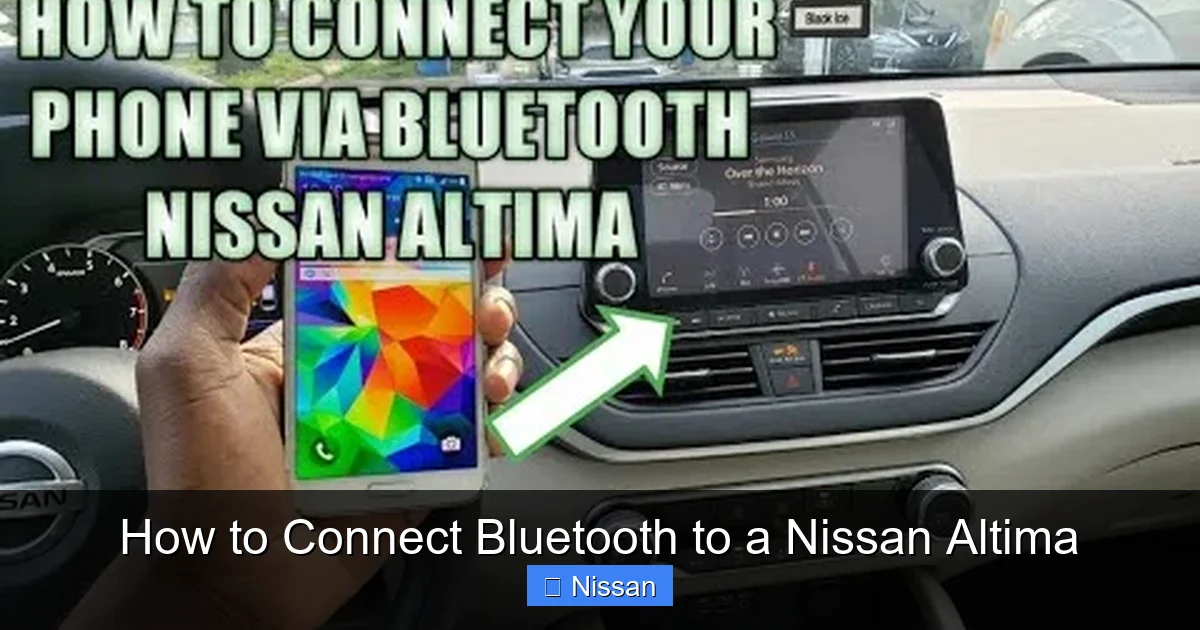
How to Connect Bluetooth to a Nissan Altima

Contents
- 1 Key Takeaways
- 2 📑 Table of Contents
- 3 Introduction: Why Bluetooth in Your Nissan Altima Matters
- 4 Understanding Bluetooth in the Nissan Altima
- 5 Step-by-Step Guide: How to Connect Bluetooth to a Nissan Altima
- 6 Troubleshooting Common Bluetooth Issues
- 7 Tips for Maintaining a Strong Bluetooth Connection
- 8 Advanced Features and Integration
- 9 Conclusion: Enjoy a Smarter, Safer Drive
- 10 Frequently Asked Questions



Connecting Bluetooth to your Nissan Altima is easier than you think. Whether you’re using an older model or a newer infotainment system, this guide walks you through every step to pair your phone seamlessly. Enjoy hands-free calling, music streaming, and voice commands in just minutes.
Key Takeaways
- Check your model year: Bluetooth capabilities vary by year, so confirm your Altima supports Bluetooth before starting.
- Use the correct menu path: Access Bluetooth settings through the “Settings” or “Phone” menu on your infotainment screen.
- Enable Bluetooth on your phone: Make sure your smartphone’s Bluetooth is turned on and discoverable.
- Enter the correct PIN: Most Nissan Altimas use “0000” or “1234” as the default pairing code.
- Test the connection: After pairing, make a test call or play music to ensure everything works properly.
- Update your system if needed: Older models may require a software update for full Bluetooth functionality.
- Reset if problems occur: If pairing fails, try resetting both your phone and the car’s infotainment system.
📑 Table of Contents
- Introduction: Why Bluetooth in Your Nissan Altima Matters
- Understanding Bluetooth in the Nissan Altima
- Step-by-Step Guide: How to Connect Bluetooth to a Nissan Altima
- Troubleshooting Common Bluetooth Issues
- Tips for Maintaining a Strong Bluetooth Connection
- Advanced Features and Integration
- Conclusion: Enjoy a Smarter, Safer Drive
Introduction: Why Bluetooth in Your Nissan Altima Matters
Imagine driving down the highway, your favorite playlist pumping through the speakers, while you answer an important call—without ever touching your phone. That’s the magic of Bluetooth in your Nissan Altima. It’s not just about convenience; it’s about safety, too. With hands-free calling and wireless audio streaming, Bluetooth lets you stay connected without taking your eyes off the road.
Whether you’re commuting to work, running errands, or heading out on a road trip, having your phone synced to your car makes life easier. You can make calls, send texts via voice commands, and enjoy your music library—all without fumbling with cables or your device. And the best part? Setting it up is simpler than most people think. Even if you’re not tech-savvy, this guide will walk you through every step to get your Bluetooth working in no time.
Understanding Bluetooth in the Nissan Altima
Before diving into the setup process, it’s helpful to understand what Bluetooth actually does in your Nissan Altima. Bluetooth is a wireless technology that allows your smartphone to communicate with your car’s infotainment system. Once connected, it enables features like hands-free calling, audio streaming, and even voice-activated commands through systems like NissanConnect.
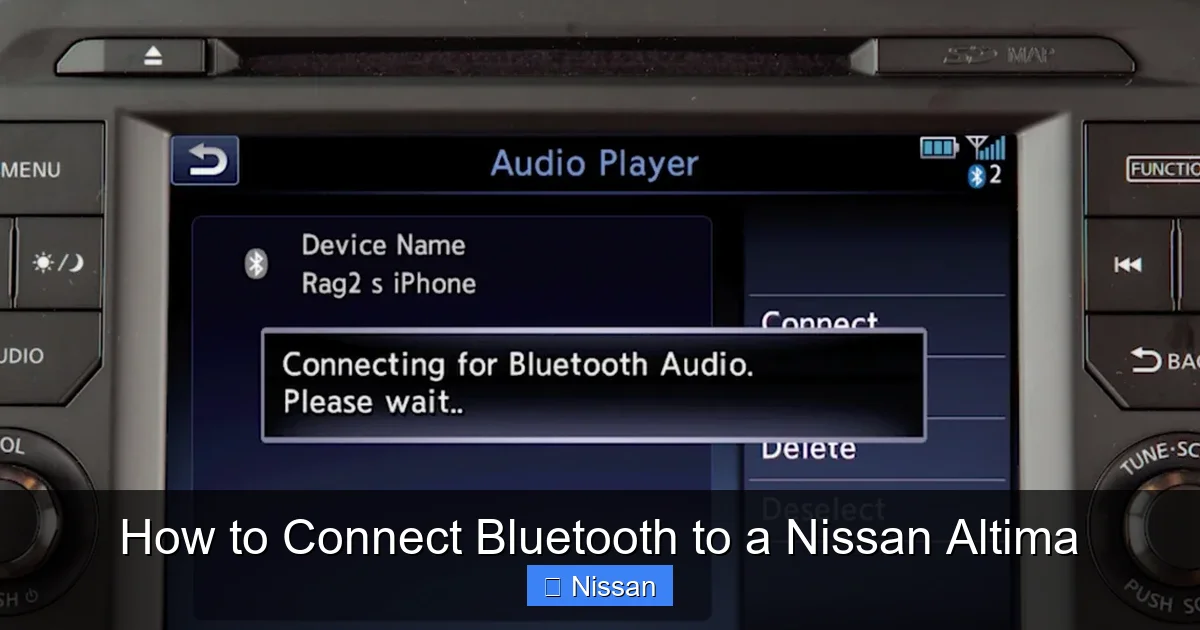
Visual guide about How to Connect Bluetooth to a Nissan Altima
Image source: di-uploads-development.dealerinspire.com
What Features Does Bluetooth Enable?
When you connect Bluetooth to your Nissan Altima, you unlock several useful features:
- Hands-free calling: Answer and make calls using the steering wheel controls or voice commands.
- Audio streaming: Play music, podcasts, or audiobooks from your phone through the car’s speakers.
- Voice recognition: Use voice commands to dial numbers, send texts, or control music.
- Contact syncing: Your phone’s contacts may automatically appear on the infotainment screen.
- Message notifications: Some models display incoming text messages and allow you to reply using voice-to-text.
These features not only enhance your driving experience but also promote safer driving habits by minimizing distractions.
Which Nissan Altima Models Support Bluetooth?
Most Nissan Altimas from 2007 onward come equipped with Bluetooth capability, but the exact features depend on the model year and trim level. Here’s a quick breakdown:
- 2007–2012 models: Basic Bluetooth for hands-free calling only. Audio streaming may not be supported.
- 2013–2018 models: Enhanced Bluetooth with support for both calling and audio streaming. NissanConnect may be available on higher trims.
- 2019–2024 models: Full Bluetooth integration with advanced features like Apple CarPlay, Android Auto, and improved voice control.
If you’re unsure whether your Altima has Bluetooth, check your owner’s manual or look for a Bluetooth icon on the infotainment screen. You can also visit the Nissan website and enter your VIN to confirm your vehicle’s features.
Step-by-Step Guide: How to Connect Bluetooth to a Nissan Altima
Now that you know what Bluetooth can do, let’s get your phone connected. The process is similar across most Nissan Altima models, but there are slight variations depending on the year and infotainment system. Follow these steps carefully to ensure a successful pairing.
Step 1: Prepare Your Phone and Vehicle
Before starting, make sure both your phone and car are ready:
- Turn on your car: You don’t need to drive, but the ignition should be in the “On” or “Accessory” position so the infotainment system is powered.
- Enable Bluetooth on your phone: Go to your phone’s settings and turn on Bluetooth. Make sure it’s set to “Discoverable” or “Visible to all devices.”
- Clear old pairings (if needed): If you’ve previously connected other devices, consider removing them to avoid confusion.
Pro tip: If you’re using an iPhone, make sure “Bluetooth” is enabled in Settings > Bluetooth. For Android users, go to Settings > Connected devices > Connection preferences > Bluetooth.
Step 2: Access the Bluetooth Menu in Your Altima
Now, navigate to the Bluetooth settings on your car’s infotainment system:
- Press the “Menu” or “Settings” button on your dashboard or touchscreen.
- Look for an option labeled “Phone,” “Bluetooth,” or “Connections.”
- Select “Pair Device” or “Add New Device.”
On newer models (2019+), you may see a “NissanConnect” or “Smartphone Integration” menu. Tap that, then choose “Bluetooth Pairing.”
Step 3: Search for Your Phone
Once you’ve entered the pairing mode, your Altima will begin searching for nearby Bluetooth devices. This usually takes 10–20 seconds. You should see a list of available devices appear on the screen.
Look for your phone’s name (e.g., “John’s iPhone” or “Samsung Galaxy S21”). If you don’t see it, make sure your phone is still in discoverable mode and try again.
Step 4: Enter the Pairing Code
When your phone appears on the list, select it. Your car will then prompt you to enter a PIN or passkey. This is a security measure to confirm the connection.
Most Nissan Altimas use one of these default codes:
- 0000 (most common)
- 1234
- 1111
Enter the code using the touchscreen or steering wheel controls. On some models, the code may appear on the car’s screen, and you’ll need to confirm it on your phone instead.
Once entered correctly, your phone and car will establish a connection. You’ll usually see a confirmation message like “Device connected” or “Pairing successful.”
Step 5: Test the Connection
After pairing, it’s important to test the connection to make sure everything works:
- Make a test call: Use the voice command button on your steering wheel to dial a number or say “Call [contact name].”
- Play music: Open a music app on your phone and start playing a song. The audio should stream through your car’s speakers.
- Check notifications: Send yourself a text message to see if it appears on the infotainment screen (if supported).
If any feature isn’t working, try disconnecting and reconnecting. Sometimes a second attempt resolves minor glitches.
Troubleshooting Common Bluetooth Issues
Even with clear instructions, Bluetooth pairing doesn’t always go smoothly. Here are some common problems and how to fix them.
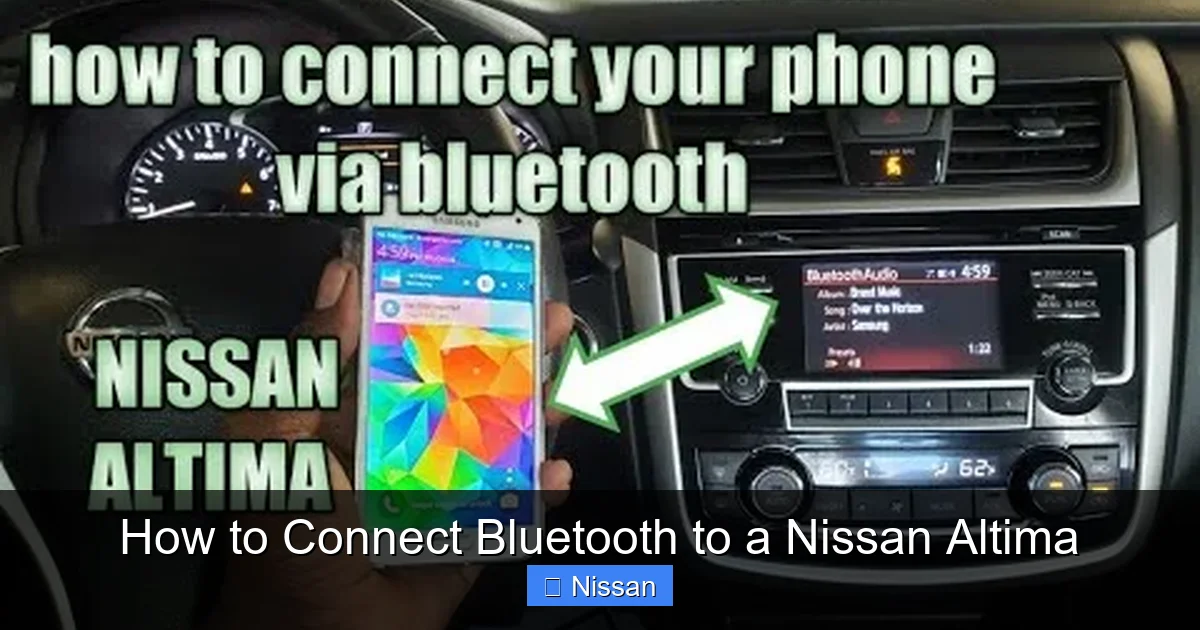
Visual guide about How to Connect Bluetooth to a Nissan Altima
Image source: i.ytimg.com
Problem: Phone Not Showing Up in the List
If your phone doesn’t appear when searching for devices, try these fixes:
- Restart both devices: Turn off your phone and restart your car’s infotainment system (turn the car off and on).
- Check distance: Stay within 3 feet of the car’s Bluetooth antenna (usually near the dashboard).
- Update your phone: Ensure your phone’s operating system is up to date.
- Disable other connections: Turn off Wi-Fi or USB connections that might interfere.
Problem: Pairing Fails or Drops Frequently
If the connection keeps failing or drops during use:
- Clear paired devices: Go to your car’s Bluetooth menu and delete old or unused devices. Too many paired devices can cause conflicts.
- Reset the infotainment system: On some models, you can reset the system by holding the power button for 10–15 seconds.
- Check for interference: Other electronic devices (like dash cams or chargers) can interfere with Bluetooth signals.
Problem: Audio Quality Is Poor
If music sounds choppy or calls are unclear:
- Move your phone closer: Keep your phone in the center console or cup holder for a stronger signal.
- Reduce background apps: Close apps running in the background that might use Bluetooth or data.
- Update your car’s software: Visit a Nissan dealership to check if a firmware update is available for your infotainment system.
Problem: Voice Commands Don’t Work
If you can’t use voice commands after pairing:
- Check microphone placement: Speak clearly and face the front of the car. Avoid covering the microphone (usually near the rearview mirror).
- Enable voice recognition: Make sure voice commands are enabled in both your phone and car settings.
- Use supported phrases: Stick to simple commands like “Call Mom” or “Play Spotify.”
Tips for Maintaining a Strong Bluetooth Connection
Once your Bluetooth is working, you’ll want to keep it that way. Here are some best practices to ensure a reliable connection every time you drive.
Keep Your Phone Charged
A low battery can weaken Bluetooth performance. Use a car charger to keep your phone powered, especially on long trips.
Avoid Overloading the System
Pairing too many devices can slow down the system. Only connect devices you actually use. If you switch between phones (e.g., personal and work), manually disconnect the unused one.
Update Regularly
Both your phone and your car benefit from software updates. Check for updates on your phone monthly, and visit a Nissan service center annually to check for infotainment system updates.
Use a Consistent Location for Your Phone
Place your phone in the same spot each time—like the center console or a phone mount. This helps maintain a strong signal and reduces interference.
Re-pair After Major Changes
If you reset your phone, change your SIM card, or update your phone’s OS, you may need to re-pair Bluetooth. Don’t assume it will reconnect automatically.
Advanced Features and Integration
Once Bluetooth is connected, you can explore more advanced features that enhance your driving experience.
Using Apple CarPlay and Android Auto
If your Nissan Altima supports it (2019+ models), you can use Apple CarPlay or Android Auto for a more integrated experience. These systems use Bluetooth for initial pairing but often switch to USB for better performance.
To use them:
- Connect your phone via USB cable.
- Follow the on-screen prompts to enable CarPlay or Android Auto.
- Use the touchscreen or voice commands to access apps like Maps, Spotify, or Messages.
While Bluetooth handles calls and basic audio, CarPlay and Android Auto offer a fuller smartphone experience with larger icons and better navigation.
Voice Command Shortcuts
Learn a few voice commands to save time:
- “Call [name]” – dials a contact.
- “Send a text to [name]” – starts a new message.
- “Play [song/artist]” – starts music playback.
- “Navigate to [address]” – opens GPS navigation (if supported).
Speak clearly and pause between words for best results.
Multi-Device Pairing
Some newer Altimas allow you to pair multiple phones. This is useful for families or shared vehicles. However, only one device can be active at a time. The last connected phone usually takes priority.
Conclusion: Enjoy a Smarter, Safer Drive
Connecting Bluetooth to your Nissan Altima is a simple process that opens up a world of convenience and safety. Whether you’re making hands-free calls, streaming your favorite playlist, or using voice commands, Bluetooth keeps you connected without compromising your focus on the road.
By following this guide, you’ve learned how to pair your phone, troubleshoot common issues, and make the most of your car’s smart features. Remember to keep your system updated, test your connection regularly, and explore advanced options like CarPlay or Android Auto if available.
Now that your Bluetooth is set up, you can enjoy a smoother, more enjoyable driving experience. So buckle up, hit the road, and let your Nissan Altima do the rest.
Frequently Asked Questions
Can I connect multiple phones to my Nissan Altima via Bluetooth?
Yes, many newer Nissan Altimas allow you to pair multiple phones, but only one can be actively connected at a time. The last device used typically takes priority.
Why won’t my phone connect to Bluetooth in my Altima?
This could be due to outdated software, interference, or incorrect pairing steps. Try restarting both devices, ensuring Bluetooth is on, and re-entering the correct PIN.
What is the default Bluetooth PIN for a Nissan Altima?
The most common default PINs are 0000, 1234, or 1111. Check your owner’s manual if these don’t work.
Does my 2010 Nissan Altima support Bluetooth audio streaming?
Most 2010 models only support hands-free calling. Audio streaming was introduced in later years, so check your specific trim and features.
How do I reset the Bluetooth system in my Nissan Altima?
Go to the Bluetooth menu, delete all paired devices, and restart the infotainment system by turning the car off and on. Some models allow a full system reset via the settings menu.
Can I use Bluetooth while charging my phone in the car?
Yes, you can use Bluetooth while charging. In fact, keeping your phone charged helps maintain a strong connection and prevents interruptions.