
How to Reset Uconnect 4.3 in a Dodge Journey

Resetting the Uconnect 4.3 system in your Dodge Journey can resolve common issues like freezing, slow response, or Bluetooth pairing problems. This guide walks you through soft, hard, and factory resets—plus troubleshooting tips—so you can get your infotainment system back on track quickly and safely.
If you own a Dodge Journey equipped with the Uconnect 4.3 infotainment system, you’ve likely come to rely on its features—whether it’s streaming music via Bluetooth, using voice commands, or getting turn-by-turn directions. But like any technology, it’s not immune to occasional hiccups. Maybe the screen freezes mid-song, your phone won’t connect, or the system just feels sluggish. When that happens, one of the most effective solutions is to reset the Uconnect 4.3 system.
Don’t worry—you don’t need to be a tech expert or visit a dealership to fix it. With a few simple steps, you can reset your Uconnect 4.3 and restore smooth operation. This guide will walk you through everything you need to know: from understanding what a reset does, to choosing the right type of reset for your issue, and even how to prevent future problems. Whether you’re dealing with a minor annoyance or a full system lockup, we’ve got you covered.
Key Takeaways
- Soft resets are quick and safe: Ideal for minor glitches like frozen screens or unresponsive touch controls—no data loss.
- Hard resets restore system stability: Clears temporary memory and reboots the Uconnect 4.3 unit, often fixing persistent performance issues.
- Factory resets erase all personal data: Use only when necessary—this removes saved radio stations, paired phones, and navigation favorites.
- Always check your vehicle’s ignition status: Most resets require the key to be in “ON” or “ACC” mode without starting the engine.
- Keep your Uconnect software updated: Regular updates from Dodge can prevent many issues that lead to needing a reset.
- Resetting won’t affect critical vehicle functions: Your brakes, engine, or safety systems remain untouched—only the infotainment system is affected.
- Document your settings beforehand: Note down radio presets, Bluetooth pairings, and navigation favorites to make reconfiguration easier after a reset.
📑 Table of Contents
- Understanding the Uconnect 4.3 System in the Dodge Journey
- When Should You Reset Your Uconnect 4.3?
- Types of Uconnect 4.3 Resets: Soft, Hard, and Factory
- Step-by-Step Guide: How to Perform a Soft Reset
- Step-by-Step Guide: How to Perform a Hard Reset
- Step-by-Step Guide: How to Perform a Factory Reset
- Troubleshooting Common Reset Issues
- Preventing Future Uconnect 4.3 Problems
- Final Thoughts
Understanding the Uconnect 4.3 System in the Dodge Journey
The Uconnect 4.3 is Chrysler’s (now Stellantis) infotainment platform found in many Dodge vehicles from around 2011 to 2016, including the popular Dodge Journey. It features a 4.3-inch color touchscreen and supports key functions like AM/FM radio, Bluetooth hands-free calling and audio streaming, USB and auxiliary input, voice recognition, and basic navigation (in some trims). While not as advanced as newer Uconnect versions, it remains a reliable system—when it’s working properly.
However, because it runs on embedded software, the Uconnect 4.3 can occasionally experience software glitches. These might include unresponsive touch inputs, delayed responses, error messages, or connectivity issues with smartphones. Unlike your smartphone, which you might restart daily, car infotainment systems aren’t designed for frequent reboots—but that doesn’t mean they shouldn’t be reset when needed.
It’s important to understand that resetting the Uconnect 4.3 is not the same as reprogramming it or performing a firmware update. A reset simply refreshes the system’s memory and restarts its core processes. Think of it like turning your computer off and on again—it clears temporary files, stops stuck processes, and gives the system a clean slate. In most cases, this resolves common issues without any risk to your vehicle’s operation.
When Should You Reset Your Uconnect 4.3?
Visual guide about How to Reset Uconnect 4.3 in a Dodge Journey
Image source: dealerinspire-image-library-prod.s3.us-east-1.amazonaws.com
Not every minor issue requires a full system reset. But there are clear signs that indicate a reset might be necessary. Recognizing these symptoms early can save you frustration and potentially avoid more serious problems down the road.
One of the most common reasons to reset is a frozen or unresponsive screen. If you tap the display and nothing happens—or if it takes several seconds to register your input—a soft or hard reset can often restore responsiveness. Similarly, if the system reboots randomly or displays error messages like “System Error” or “Uconnect Not Available,” a reset may clear the glitch.
Bluetooth connectivity problems are another frequent trigger. If your phone won’t pair, keeps disconnecting, or fails to stream audio despite being connected, resetting the Uconnect system can reinitialize the Bluetooth module and restore stable connections. The same applies to USB or auxiliary input issues—sometimes the system simply “forgets” how to communicate with external devices.
Other signs include distorted audio, missing radio presets, or navigation maps failing to load. While these could stem from hardware issues (like a faulty antenna or damaged wiring), they’re often resolved with a simple reset—especially if the problem started suddenly after a software update or power fluctuation.
It’s also worth noting that extreme temperatures can affect the Uconnect system’s performance. If your Journey has been sitting in direct sunlight on a hot day or exposed to freezing cold, the electronics may behave erratically. In such cases, letting the vehicle cool down or warm up before attempting a reset can improve results.
Types of Uconnect 4.3 Resets: Soft, Hard, and Factory
Visual guide about How to Reset Uconnect 4.3 in a Dodge Journey
Image source: vehicleinfo.mopar.com
Before diving into the steps, it’s crucial to understand the three main types of resets available for the Uconnect 4.3 system. Each serves a different purpose and carries varying levels of impact on your data and settings.
Soft Reset (Reboot)
A soft reset is the least invasive option. It’s essentially a restart of the Uconnect system without erasing any saved data. This is perfect for minor issues like a laggy interface, temporary freeze, or brief connectivity hiccup. Think of it as giving your system a quick nap to clear its head.
To perform a soft reset, you typically hold down two specific buttons for a short period. No tools or special knowledge required—just your hands and about 10 seconds of patience. Because it doesn’t delete anything, you can safely try this first whenever something feels “off.”
Hard Reset (Master Reset)
A hard reset goes a step further. It forces the Uconnect system to completely power down and reboot, clearing its volatile memory and reinitializing all modules. This is useful when the soft reset doesn’t work or when you’re experiencing more persistent issues like repeated crashes or unresponsive controls.
Unlike a soft reset, a hard reset may require you to re-pair your Bluetooth devices afterward, though it usually preserves radio presets and other basic settings. It’s a stronger remedy—like restarting your computer in safe mode—and should be used when simpler fixes fail.
Factory Reset (Full System Restore)
The factory reset is the nuclear option. It wipes the Uconnect 4.3 system back to its original factory state, erasing all user data: paired phones, saved radio stations, navigation favorites, and custom settings. Only use this if other methods fail or if you’re preparing to sell your vehicle and want to remove personal information.
Because of its sweeping impact, always back up your preferences before performing a factory reset. Write down your favorite radio stations, note which phones are paired, and take screenshots of any custom navigation routes if possible.
Step-by-Step Guide: How to Perform a Soft Reset
Visual guide about How to Reset Uconnect 4.3 in a Dodge Journey
Image source: dealerinspire-image-library-prod.s3.us-east-1.amazonaws.com
Let’s start with the easiest and safest method—the soft reset. This is your first line of defense against minor Uconnect 4.3 issues and should be attempted before moving to more drastic measures.
What You’ll Need
– Your Dodge Journey (parked and turned off)
– The key fob or ignition key
– About 30 seconds of your time
Step 1: Turn the Ignition to “ON” or “ACC”
Insert your key into the ignition and turn it to the “ON” or “ACC” position. You don’t need to start the engine—just ensure the dashboard lights up and the Uconnect screen is active. If you’re using a push-button start, press the Start button once without pressing the brake pedal.
Step 2: Locate the Reset Buttons
On the Uconnect 4.3 system in the Dodge Journey, the reset combination involves two buttons: the **Power/Volume knob** (usually on the left side of the screen) and the **Tune/Scroll knob** (on the right side). These are physical knobs you can press inward like buttons.
Step 3: Press and Hold Both Knobs
Simultaneously press and hold both the Power/Volume knob and the Tune/Scroll knob. Keep them pressed for approximately 10 seconds. You’ll notice the screen may go blank or display a loading icon—this is normal.
Step 4: Wait for the System to Reboot
After about 10 seconds, release the buttons. The Uconnect system will begin to restart. This may take 30 seconds to a minute. Once complete, the home screen should appear, and all functions should return to normal.
Step 5: Test the System
Try using the touchscreen, adjusting the volume, and connecting your phone via Bluetooth to confirm everything is working. If the issue persists, proceed to a hard reset.
Pro Tips
– If the screen remains black after releasing the buttons, wait up to two minutes—sometimes the system takes longer to initialize.
– Avoid touching the screen or pressing other buttons during the reboot process.
– Perform this reset with the vehicle parked and in “Park” mode for safety.
Step-by-Step Guide: How to Perform a Hard Reset
If the soft reset didn’t solve your problem, it’s time to try a hard reset. This method forces a deeper reboot and is effective for more stubborn issues like system crashes or persistent unresponsiveness.
What You’ll Need
– Your Dodge Journey (parked and secure)
– Key fob or ignition key
– Patience—this process takes a few minutes
Step 1: Turn Off the Vehicle Completely
Ensure the engine is off and the key is removed from the ignition (or the push-button start is fully off). Wait about 30 seconds to allow all systems to power down fully.
Step 2: Disconnect the Negative Battery Terminal (Optional but Recommended)
For a true hard reset, some users recommend disconnecting the vehicle’s battery. This ensures all electrical systems—including the Uconnect—are completely drained of power.
To do this safely:
– Open the hood and locate the battery.
– Use a wrench to loosen the nut on the negative (black) terminal.
– Carefully remove the cable and tuck it away from the battery post.
– Wait 5–10 minutes to ensure full discharge.
*Note: This step is optional. If you’re not comfortable working with your vehicle’s battery, you can skip it and proceed with the ignition method below.*
Step 3: Reconnect the Battery (If Disconnected)
Reattach the negative battery cable and tighten the nut securely. Close the hood.
Step 4: Turn the Ignition to “ON”
Insert the key and turn it to the “ON” position (or press the Start button once without braking). Do not start the engine.
Step 5: Wait for the Uconnect System to Initialize
The system will power up automatically. You may see the Dodge logo, followed by the Uconnect home screen. This may take longer than usual—up to two minutes.
Step 6: Test All Functions
Check the touchscreen, audio, Bluetooth, and navigation (if equipped). If the issue is resolved, great! If not, consider a factory reset.
Important Notes
– Disconnecting the battery may reset other vehicle settings, such as the clock, radio presets, and power window auto-up/down features. You’ll need to reconfigure these afterward.
– Some newer Dodge Journeys have backup power systems that prevent full discharge—so the battery method may not always work. In such cases, the ignition-based hard reset (steps 1–6 without battery disconnection) is still effective.
Step-by-Step Guide: How to Perform a Factory Reset
When all else fails, a factory reset is your last resort. This completely restores the Uconnect 4.3 to its original out-of-the-box state—erasing all personal data in the process. Use this only if you’re experiencing major malfunctions or preparing to sell your vehicle.
What You’ll Need
– Your Dodge Journey (parked and in “Park”)
– Key fob or ignition key
– A pen and paper (to record settings)
– About 5 minutes
Step 1: Back Up Your Settings
Before proceeding, document everything you’ll lose:
– List your favorite radio stations (AM/FM).
– Note which phones are paired via Bluetooth.
– Write down any saved navigation addresses or routes.
– Check if you have any custom equalizer or audio settings.
This will make reconfiguration much easier after the reset.
Step 2: Access the Uconnect Menu
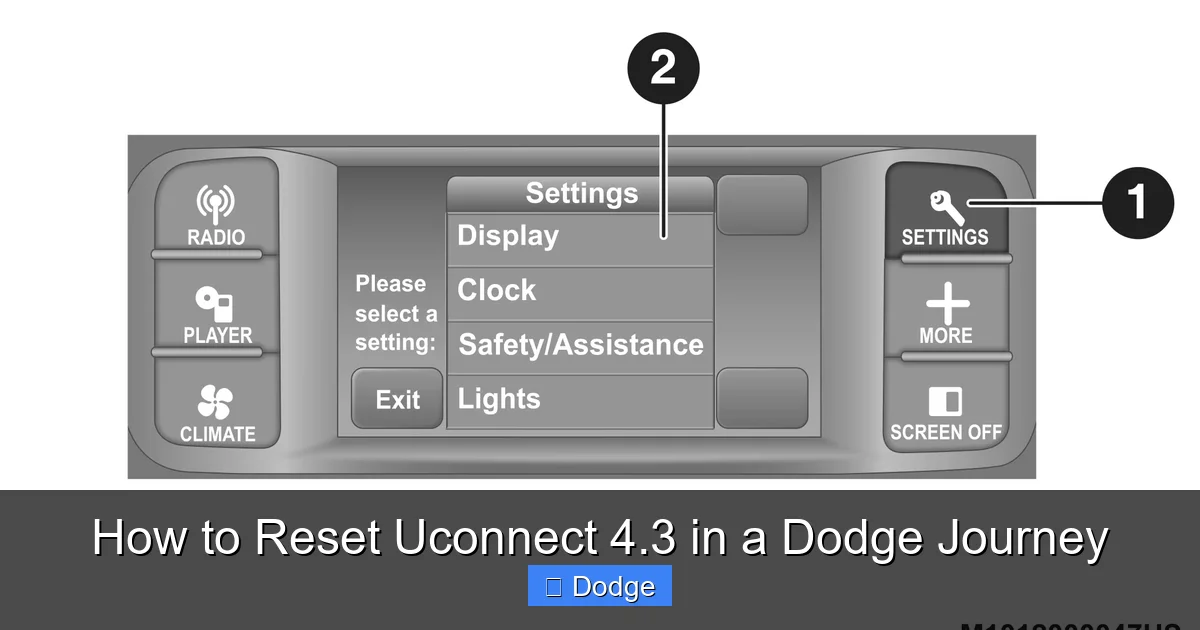
Turn the ignition to “ON” and wait for the Uconnect system to fully load. From the home screen, tap the **Settings** icon (usually a gear or wrench symbol).
Step 3: Navigate to System Reset
In the Settings menu, look for an option labeled **“System”**, **“Reset”**, or **“Restore Defaults”**. On the Uconnect 4.3, this is typically found under **Settings > System > Reset Options**.
Step 4: Select “Factory Reset”
You’ll see options like “Reset to Factory Defaults” or “Master Reset.” Select this option. The system will warn you that all data will be erased. Confirm by tapping **“Yes”** or **“Reset”**.
Step 5: Wait for the Process to Complete
The system will restart automatically. This may take 2–5 minutes. Do not turn off the ignition or disconnect power during this time.
Step 6: Reconfigure Your Settings
Once the system reboots, you’ll need to:
– Re-pair your Bluetooth devices.
– Re-save your favorite radio stations.
– Re-enter navigation destinations.
– Adjust audio and display settings to your preference.
Important Warnings
– A factory reset cannot be undone. Make sure you’ve backed up everything important.
– If the reset fails or the system becomes completely unresponsive, you may need professional assistance from a Dodge dealer.
Troubleshooting Common Reset Issues
Even with careful execution, you might encounter hiccups during or after a reset. Here’s how to handle the most common problems.
The Screen Remains Black After Reset
If the Uconnect screen stays dark after a reset, don’t panic. First, check that the ignition is in the correct position. Sometimes the system needs extra time—wait up to three minutes. If still unresponsive, try disconnecting the battery for 10 minutes and retry the soft reset.
Bluetooth Won’t Reconnect After Reset
After a factory reset, your phone may not automatically reconnect. Go to your phone’s Bluetooth settings, forget the “Uconnect” device, then re-pair it from scratch. Ensure your phone’s Bluetooth is discoverable and within range.
Radio Presets Are Missing
This is expected after a factory reset. Simply retune your favorite stations and save them again by holding the preset button until it beeps or flashes.
System Still Freezes or Crashes
If problems persist after multiple resets, the issue may be hardware-related—such as a failing touchscreen, corrupted memory chip, or faulty wiring. In this case, contact a certified Dodge technician or visit a dealership for diagnostics.
Clock or Date Reset Incorrectly
After a battery disconnect or factory reset, the clock may revert to default. Use the Settings menu to manually set the correct time and date. Some models allow automatic time sync via GPS—enable this if available.
Preventing Future Uconnect 4.3 Problems
While resets are helpful, prevention is always better than cure. Here are practical tips to keep your Uconnect 4.3 running smoothly:
– **Avoid extreme temperatures:** Park in the shade or garage when possible. Prolonged exposure to heat or cold can stress the system’s electronics.
– **Keep your phone updated:** Outdated smartphone operating systems can cause compatibility issues with older Uconnect versions. Ensure your device runs the latest stable OS.
– **Use quality USB cables:** Cheap or damaged cables can cause USB recognition errors. Invest in certified cables and avoid using the port for charging non-audio devices.
– **Limit simultaneous connections:** Don’t pair too many devices at once. The Uconnect 4.3 supports a limited number of Bluetooth pairings—stick to one or two primary devices.
– **Check for software updates:** Although Uconnect 4.3 is no longer actively updated, Dodge occasionally releases patches. Visit the official Uconnect website or contact your dealer to see if an update is available for your VIN.
– **Power down properly:** When turning off your Journey, wait a few seconds after switching off the ignition before opening doors or removing the key. This gives the system time to shut down cleanly.
Final Thoughts
Resetting the Uconnect 4.3 in your Dodge Journey is a straightforward process that can resolve many common infotainment issues. Whether you’re dealing with a frozen screen, Bluetooth woes, or sluggish performance, starting with a soft reset and escalating only when necessary is the smartest approach. Remember: a reset is not a sign of failure—it’s a standard maintenance step, much like restarting your phone or computer.
By following the steps in this guide, you’ll save time, avoid unnecessary dealership visits, and keep your driving experience enjoyable. And with a few preventive habits, you can minimize the chances of needing a reset in the first place. Your Uconnect 4.3 may be an older system, but with a little care, it can continue serving you reliably for years to come.
Frequently Asked Questions
Will resetting Uconnect 4.3 delete my radio presets?
A soft or hard reset typically preserves your radio presets. However, a factory reset will erase them along with all other saved data. Always note your favorites before performing a full reset.
Can I reset Uconnect 4.3 while driving?
No. Always perform a reset with the vehicle parked, in “Park” mode, and the ignition in “ON” or “ACC” position. Never attempt a reset while the engine is running or the car is in motion.
How often should I reset my Uconnect system?
There’s no set schedule. Only reset when you notice performance issues like freezing, lag, or connectivity problems. Frequent resets aren’t necessary and may indicate a deeper issue.
Does a Uconnect reset affect my warranty?
No. Performing a standard reset (soft, hard, or factory) does not void your vehicle’s warranty. These are manufacturer-recommended troubleshooting steps.
What if my Uconnect 4.3 won’t turn on at all?
If the screen remains completely dead, check the vehicle’s fuse box for a blown fuse related to the infotainment system. If fuses are intact, the issue may be hardware-related and require professional diagnosis.
Can I update the Uconnect 4.3 software myself?
Software updates for Uconnect 4.3 are limited and typically require a visit to a Dodge dealership. Check the official Uconnect website with your VIN to see if an update is available.
