
How to Connect Bluetooth in a Nissan Altima

Connecting Bluetooth in your Nissan Altima is simple and enhances your driving experience with hands-free calling and wireless music streaming. Whether you drive a 2013 model or a 2023 Altima, this guide walks you through every step—from pairing your phone to troubleshooting common issues—so you can stay connected safely on the road.
Key Takeaways
- Bluetooth compatibility varies by model year: Older Altimas (pre-2019) use NissanConnect, while newer models feature NissanConnect with Apple CarPlay and Android Auto.
- Pairing requires your phone’s Bluetooth to be on: Always ensure your smartphone’s Bluetooth is enabled before starting the connection process.
- Use the steering wheel or touchscreen controls: Most Altimas allow you to initiate pairing via voice commands or the infotainment screen.
- Reset the system if pairing fails: A quick system reset or clearing saved devices can resolve most connection issues.
- Keep your vehicle’s software updated: Nissan periodically releases updates that improve Bluetooth performance and compatibility.
- Only one phone can be actively connected at a time: While multiple devices can be paired, only one can stream audio or make calls simultaneously.
- Audio streaming and calling use separate profiles: Make sure both “Phone” and “Media” options are enabled during pairing for full functionality.
📑 Table of Contents
Why Bluetooth Matters in Your Nissan Altima
Driving should be about focus, freedom, and safety—not fumbling with cords or missing important calls. That’s where Bluetooth comes in. In your Nissan Altima, Bluetooth isn’t just a fancy feature; it’s a practical tool that keeps your hands on the wheel and your eyes on the road. Whether you’re commuting to work, picking up the kids, or heading out on a weekend road trip, being able to answer calls or stream your favorite playlist without touching your phone makes all the difference.
The Nissan Altima has embraced modern connectivity across its lineup. From the sleek 2013 models to the tech-packed 2023 versions, Bluetooth integration has evolved to meet driver needs. Early Altimas offered basic hands-free calling, while newer trims support advanced features like voice-activated texting, wireless Apple CarPlay, and high-quality audio streaming. No matter which year or trim level you drive, knowing how to connect Bluetooth in a Nissan Altima ensures you get the most out of your vehicle’s infotainment system.
But let’s be honest—technology can sometimes feel overwhelming. You might stare at the screen, press buttons randomly, or give up after a failed attempt. That’s why this guide exists: to simplify the process, eliminate confusion, and help you connect seamlessly—no engineering degree required.
Understanding Your Nissan Altima’s Bluetooth System
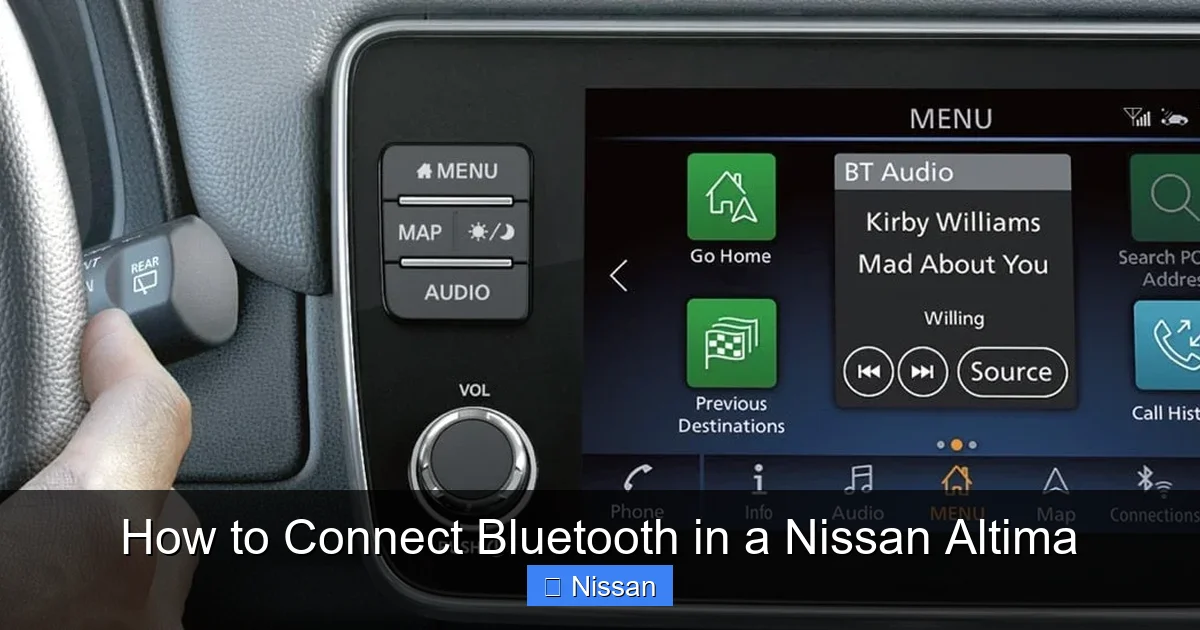
Visual guide about How to Connect Bluetooth in a Nissan Altima
Image source: ncitadvantage-com.cdn-convertus.com
Before diving into the steps, it helps to understand what you’re working with. The Nissan Altima uses a proprietary infotainment platform called NissanConnect, which handles everything from navigation to Bluetooth pairing. Depending on your model year, the interface and capabilities will vary slightly.
Model Year Differences
If your Altima was made before 2019, it likely runs an older version of NissanConnect. These systems support basic Bluetooth functions—mainly hands-free calling and limited audio streaming. The interface may feel a bit dated, with smaller icons and slower response times, but the core pairing process remains straightforward.
Starting in 2019, Nissan introduced a refreshed infotainment system with larger touchscreens (up to 8 inches), improved graphics, and support for smartphone integration platforms like Apple CarPlay and Android Auto. These newer systems not only enhance Bluetooth performance but also allow you to control music, messages, and maps directly from your phone—mirrored on the dashboard screen.
Even if your Altima doesn’t have the latest tech, don’t worry. The fundamental Bluetooth pairing process is consistent across most model years. The key is knowing where to look and what buttons to press.
What Bluetooth Can (and Can’t) Do
Bluetooth in the Altima enables two main functions: **hands-free calling** and **audio streaming**. When properly connected, you can:
– Answer or make calls using voice commands or the steering wheel controls.
– Stream music, podcasts, or audiobooks from apps like Spotify, Apple Music, or YouTube Music.
– Access your phone’s contact list for quick dialing.
– Use voice assistants like Siri or Google Assistant (on compatible models).
However, Bluetooth does *not* support charging your phone or transferring files. It’s strictly for wireless communication between your device and the car’s audio system. Also, remember that only one phone can be actively connected for calls and media at a time—though you can store multiple paired devices for quick switching.
Step-by-Step Guide: How to Connect Bluetooth in a Nissan Altima
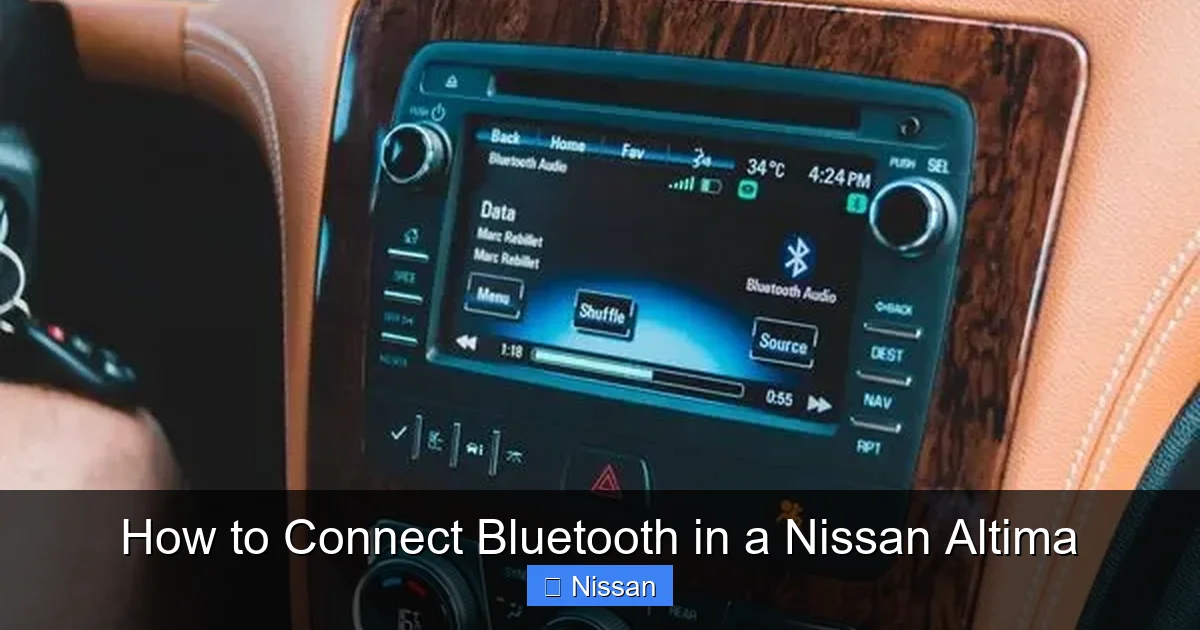
Visual guide about How to Connect Bluetooth in a Nissan Altima
Image source: i.ibb.co
Now for the main event—the actual process of connecting your phone. Don’t stress; it’s easier than it looks. Follow these steps carefully, and you’ll be streaming tunes or taking calls in under five minutes.
Step 1: Prepare Your Phone and Vehicle
First, make sure your phone is ready. Go to your phone’s settings and turn on Bluetooth. You should see a list of available devices—but don’t select anything yet. Also, ensure your phone isn’t in airplane mode and has sufficient battery.
Next, start your Nissan Altima and let the infotainment system fully boot up. This usually takes 10–15 seconds after ignition. Avoid rushing—if the system isn’t fully loaded, the Bluetooth menu might not appear.
Step 2: Access the Bluetooth Menu
On most Altimas, you’ll find the Bluetooth settings under the “Settings” or “Phone” menu on the touchscreen. Here’s how to get there:
– Tap the **“Menu”** button on the center console or home screen.
– Select **“Settings”** > **“Bluetooth”** or **“Phone/Bluetooth.”**
– Look for an option like **“Add New Device”** or **“Pair Device.”**
On older models (pre-2016), you might need to press the **“Phone”** button on the steering wheel or dashboard first, then navigate using the arrow keys.
Step 3: Put Your Phone in Discovery Mode
With your phone’s Bluetooth on, it should automatically appear in the list of available devices on your Altima’s screen. If not, go back to your phone’s Bluetooth settings and tap **“Search for devices”** or **“Scan.”**
Your Altima will show up as something like “Nissan Altima,” “My Altima,” or “NissanConnect.” Select it.
Step 4: Confirm the Pairing Code
A four-digit PIN (usually 0000, 1234, or 1111) will appear on both your phone and the car’s screen. Make sure they match—then tap **“Pair”** or **“OK”** on both devices.
If the codes don’t match, cancel the process and try again. Sometimes interference or timing issues cause mismatches.
Step 5: Enable Phone and Media Profiles
After pairing, your Altima may ask which services to enable. Always select **both**:
– **“Phone”** – for hands-free calling.
– **“Media Audio”** or **“Audio Streaming”** – for music and podcasts.
Skipping media audio means you won’t hear your music through the car speakers—even if your phone shows it’s connected.
Step 6: Test the Connection
Place a test call (to a friend or voicemail) and play a song from your music app. If everything works, congratulations—you’re all set! If not, don’t panic. We’ll cover troubleshooting next.
Troubleshooting Common Bluetooth Issues
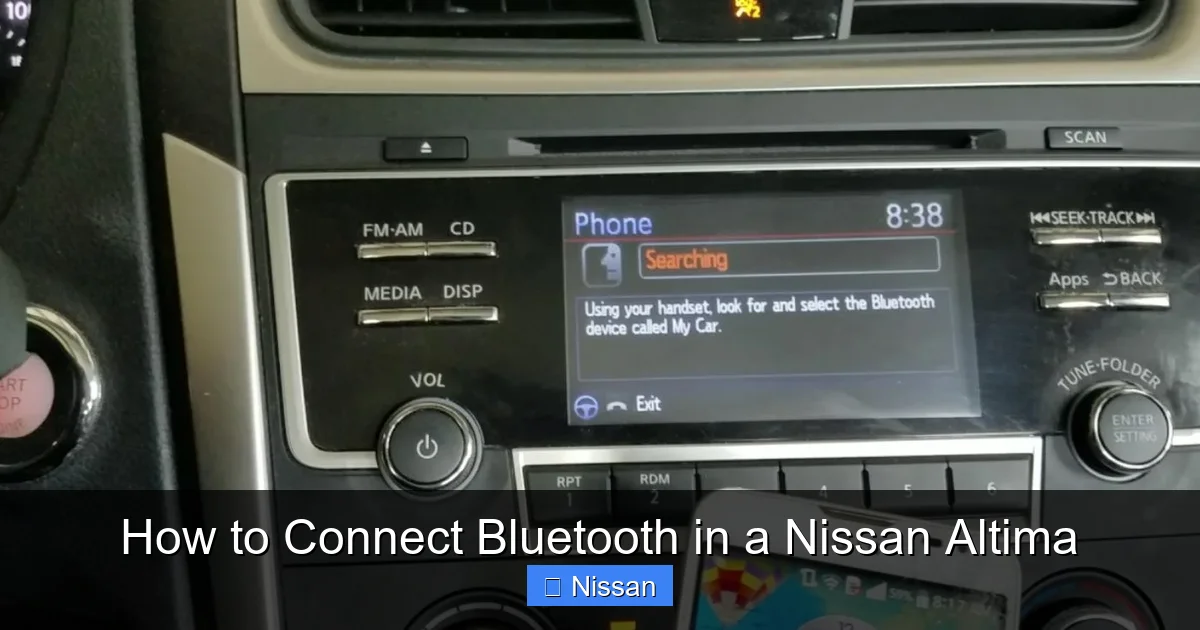
Visual guide about How to Connect Bluetooth in a Nissan Altima
Image source: turbochaos.com
Even with perfect steps, things can go wrong. Here’s how to fix the most common problems Altima owners face.
Phone Not Showing Up in Device List
If your Altima doesn’t detect your phone:
– Restart both your phone and the car’s infotainment system.
– Forget the Nissan Altima from your phone’s Bluetooth list and re-pair.
– Ensure no other Bluetooth devices (like smartwatches) are interfering.
Sometimes, simply turning Bluetooth off and on again on your phone resolves the issue.
Audio Plays Through Phone Instead of Car Speakers
This usually means the “Media Audio” profile wasn’t enabled during pairing. To fix it:
– Go to your phone’s Bluetooth settings.
– Tap the “i” or gear icon next to your Altima.
– Toggle on **“Media Audio”** or **“Audio Streaming.”**
Alternatively, check your car’s audio source—make sure it’s set to “Bluetooth Audio” or “Phone,” not “Radio” or “USB.”
Calls Drop or Have Poor Sound Quality
Bluetooth range is limited—keep your phone within 3 feet of the center console. Also:
– Close apps running in the background (they can hog bandwidth).
– Avoid placing your phone in the glove box or under seats (metal blocks signals).
– Update your phone’s operating system—older versions may have compatibility bugs.
System Freezes or Won’t Pair
A soft reset often helps:
– Turn off the car.
– Open the driver’s door (this cuts power to the infotainment system).
– Wait 2 minutes, then restart the vehicle.
For persistent issues, consult your owner’s manual or visit a Nissan dealer for a software update.
Tips for a Smarter, Safer Bluetooth Experience
Connecting Bluetooth is just the beginning. Use these pro tips to get the most out of your Altima’s connectivity.
Use Voice Commands
Say “Hey Siri” or “OK Google” (if supported) to make calls, send texts, or play music without touching your phone. On newer Altimas, you can even press the voice command button on the steering wheel to activate your assistant.
Keep Your System Updated
Nissan releases periodic software updates that improve Bluetooth stability and add features. Check for updates through the Nissan Owner Portal or ask your dealer during service visits.
Manage Multiple Devices
You can pair up to seven phones, but only one can be active. To switch:
– Go to **Settings > Bluetooth > Paired Devices**.
– Select the device you want to use.
Label your devices clearly (e.g., “John’s iPhone,” “Sarah’s Galaxy”) to avoid confusion.
Disable Bluetooth When Not in Use
For security and battery savings, turn off Bluetooth on your phone when you’re not driving. This prevents unauthorized access and reduces drain.
Final Thoughts: Stay Connected, Stay Safe
Mastering how to connect Bluetooth in a Nissan Altima isn’t just about convenience—it’s about driving smarter and safer. With wireless calling and audio streaming, you reduce distractions and keep your focus where it belongs: on the road.
Whether you’re driving a vintage 2013 Altima or a brand-new 2023 model, the process is designed to be user-friendly. And if you hit a snag? Remember: most issues are fixable with a restart, a settings tweak, or a quick visit to your local Nissan service center.
So grab your phone, hop in your Altima, and pair up. Your favorite playlist is waiting—and so is a safer, more enjoyable drive.
Frequently Asked Questions
Can I connect two phones to my Nissan Altima at the same time?
No, the Nissan Altima only allows one phone to be actively connected for calls and audio at a time. However, you can pair multiple devices and manually switch between them in the Bluetooth settings.
Why won’t my iPhone connect to my Altima’s Bluetooth?
This is often due to iOS updates changing Bluetooth permissions. Go to Settings > Bluetooth on your iPhone, forget the Altima, then re-pair. Also ensure “Media Audio” is enabled during pairing.
Does my Nissan Altima support wireless Apple CarPlay?
Only select 2021 and newer Altima trims (like the SL and Platinum) offer wireless Apple CarPlay. Most models require a USB cable for CarPlay, though all support Bluetooth audio and calling.
How do I delete a paired device from my Altima?
Go to Settings > Bluetooth > Paired Devices, select the device you want to remove, and tap “Delete” or “Forget.” This clears the connection from both the car and your phone.
Can I use Bluetooth if my Altima doesn’t have a touchscreen?
Yes! Older Altimas with button-based systems still support Bluetooth. Use the “Phone” button on the steering wheel or dashboard to access pairing options via the display screen.
Will Bluetooth drain my phone’s battery?
Bluetooth uses minimal power—far less than GPS or mobile data. However, keeping it on constantly may cause slight battery drain over long periods. Turn it off when not driving to conserve energy.