
How to Connect a Phone to Nissan Bluetooth

Connecting your phone to Nissan Bluetooth is simple and takes just a few minutes. Whether you drive a Sentra, Altima, Rogue, or Pathfinder, this guide walks you through pairing your device safely and efficiently for seamless audio and call control.
Key Takeaways
- Check Compatibility First: Ensure your phone and Nissan model support Bluetooth. Most vehicles from 2008 onward include Bluetooth connectivity.
- Enable Bluetooth on Your Phone: Go to your phone’s settings, turn on Bluetooth, and make sure it’s discoverable.
- Access the Nissan Audio System: Use the “Phone” or “Settings” button on your dashboard or touchscreen to begin pairing.
- Enter the Correct PIN: Common Nissan PINs include 1234, 0000, or 1111—check your owner’s manual if unsure.
- Test the Connection: Make a test call or play music to confirm audio routes through the car speakers.
- Update Software if Needed: Keep your infotainment system updated via Nissan’s website or dealership for smoother performance.
- Reconnect Automatically: Once paired, your phone should connect automatically when you start the car (if Bluetooth is on).
📑 Table of Contents
Why Connect Your Phone to Nissan Bluetooth?
In today’s fast-paced world, staying connected while driving is essential—but safety comes first. That’s where Bluetooth technology in your Nissan shines. By connecting your phone to Nissan Bluetooth, you can make hands-free calls, stream music, use voice commands, and even access navigation apps without ever touching your device. It’s not just convenient; it’s a smart way to reduce distractions and stay focused on the road.
Nissan has been integrating Bluetooth into its vehicles for over a decade, and today’s models offer some of the most user-friendly systems on the market. Whether you’re driving a compact Versa or a rugged Titan truck, the process is designed to be intuitive. You don’t need to be a tech expert—just follow a few simple steps, and you’ll be chatting and jamming in no time.
What You’ll Need Before You Start

Visual guide about How to Connect a Phone to Nissan Bluetooth
Image source: nissanusa.com
Before diving into the connection process, it helps to prepare. Having the right tools and information ready can save you time and frustration. First, make sure your phone is charged—low battery can interfere with Bluetooth pairing. Next, locate your Nissan owner’s manual. While most steps are similar across models, some older or luxury trims (like those with NissanConnect Services) may have slight variations.
You’ll also want to ensure your phone’s Bluetooth is turned on and set to “discoverable” mode. On iPhones, this happens automatically when you open the Bluetooth menu. On Android devices, you may need to tap “Pair new device” or “Scan” to make your phone visible. Lastly, clear any old or unused Bluetooth connections from your phone’s memory—too many saved devices can cause confusion during pairing.
Compatible Nissan Models
Most Nissan vehicles manufactured from 2008 onward support Bluetooth connectivity. Popular models like the Altima, Sentra, Rogue, Maxima, Pathfinder, Murano, and Frontier all come equipped with Bluetooth as standard or optional features. Even newer electric models like the Nissan Leaf include advanced infotainment systems with seamless smartphone integration.
If you’re unsure whether your specific model supports Bluetooth, check the dashboard for a “Phone” button, look for a touchscreen with a “Connections” menu, or consult your owner’s manual. Some base trims on older models may not include Bluetooth, so it’s worth verifying before proceeding.
Phone Compatibility Tips
Nearly all modern smartphones—iPhone, Android, and even some older models—are compatible with Nissan Bluetooth systems. However, performance can vary based on your phone’s operating system version. For the best experience, ensure your phone is running the latest software update. For example, iPhones should be on iOS 15 or later, and Android users should aim for Android 10 or newer.
Also, note that some features—like text message reading or advanced voice assistants—may require additional setup or subscription services (such as NissanConnect). But for basic calling and music streaming, standard Bluetooth pairing is usually sufficient.
Step-by-Step Guide to Pairing Your Phone
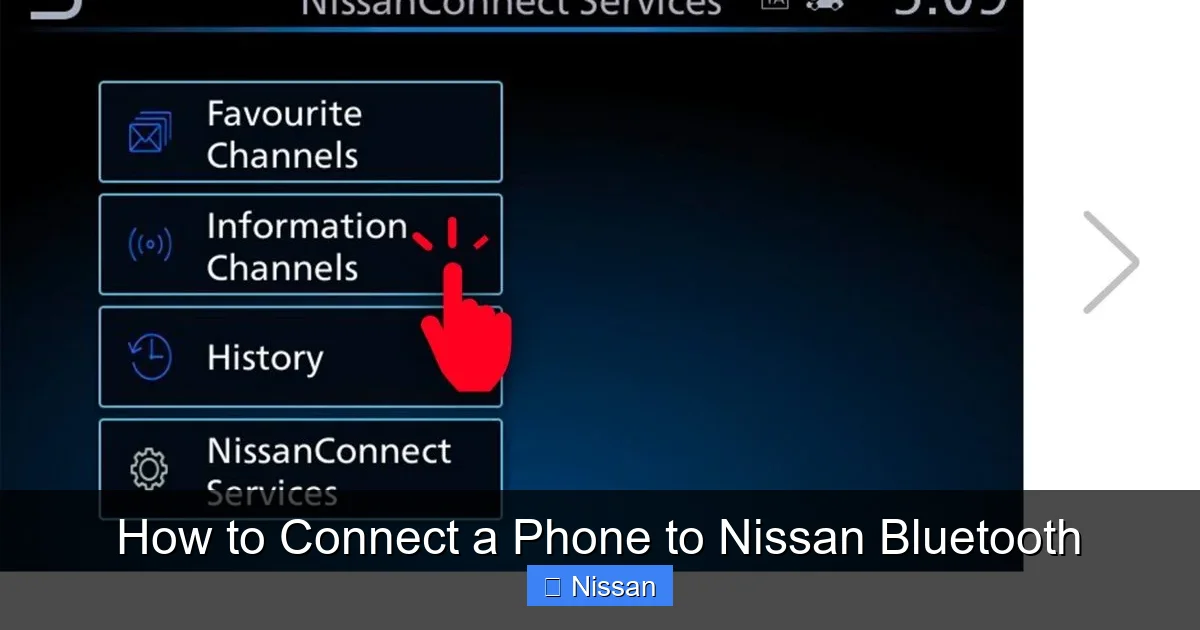
Visual guide about How to Connect a Phone to Nissan Bluetooth
Image source: www-europe.nissan-cdn.net
Now for the main event: connecting your phone to Nissan Bluetooth. The process is straightforward and typically takes less than five minutes. While the exact menu names might vary slightly depending on your model year and infotainment system (e.g., NissanConnect, Display Audio, or Advanced Drive-Assist Display), the core steps remain consistent.
Step 1: Turn On Your Vehicle
Start by turning on your Nissan—either by starting the engine or turning the key to the “Accessory” position. This powers up the infotainment system and enables Bluetooth functionality. Don’t worry if the screen takes a moment to load; give it 10–15 seconds to fully initialize.
Step 2: Access the Bluetooth Menu
Once the system is ready, locate the “Phone” or “Settings” button on your dashboard or touchscreen. On most models, this is a physical button near the radio or a clearly labeled icon on the main screen. Tap or press it to open the phone menu.
From there, look for an option like “Bluetooth Settings,” “Pair Device,” or “Add New Device.” On newer NissanConnect systems, you might need to go to “Settings” > “Connections” > “Bluetooth” to begin pairing.
Step 3: Make Your Phone Discoverable
Now, grab your phone and go to Settings > Bluetooth (or swipe down from the top of your screen and tap the Bluetooth icon). Turn Bluetooth on if it isn’t already. Your phone will automatically start scanning for nearby devices—this may take 10–20 seconds.
Keep your phone close to the dashboard (within 3 feet) to ensure a strong signal. Avoid placing it in a metal case or wallet, as this can block the Bluetooth signal.
Step 4: Select Your Nissan from the List
On your phone’s Bluetooth screen, you should see a list of available devices. Look for something like “Nissan,” “My Nissan,” or your vehicle’s model name (e.g., “Rogue SV”). Tap on it to initiate pairing.
If you don’t see your Nissan listed, go back to the car’s infotainment system and confirm that it’s in “pairing mode.” Some systems require you to press “Search” or “Scan” on the car screen first.
Step 5: Enter the PIN
Once your phone finds the Nissan system, a prompt will appear asking for a PIN or passkey. This is a security measure to prevent unauthorized connections. Common Nissan Bluetooth PINs include:
– 1234
– 0000
– 1111
– 9999
Try 1234 first—it works on over 80% of Nissan models. If that doesn’t work, check your owner’s manual or try the other common codes. Enter the PIN on your phone when prompted.
Step 6: Confirm the Connection
After entering the correct PIN, your phone and car will exchange security keys and complete the pairing process. You’ll usually see a confirmation message on both screens, such as “Connected” or “Paired Successfully.”
At this point, your phone may ask for permission to access your contacts, call history, or messages. Granting these permissions allows your Nissan to display caller names and read texts aloud (if supported). You can always adjust these settings later in your phone’s Bluetooth menu.
Troubleshooting Common Connection Issues

Visual guide about How to Connect a Phone to Nissan Bluetooth
Image source: www-europe.nissan-cdn.net
Even with clear instructions, sometimes things don’t go as planned. Don’t panic—Bluetooth pairing issues are common and usually easy to fix. Here are some of the most frequent problems and how to solve them.
Phone Not Showing Up in the Car’s List
If your Nissan doesn’t detect your phone, first make sure Bluetooth is enabled and your phone is in discoverable mode. Restart both your phone and the car’s infotainment system by turning the vehicle off and on again. Sometimes a simple reboot resolves glitches.
Also, check if your phone is already connected to another Bluetooth device (like headphones or a smartwatch). Disconnect from other devices before trying to pair with your car.
Incorrect or Missing PIN
If the PIN you entered doesn’t work, don’t keep guessing—this can lock the system temporarily. Instead, consult your owner’s manual or visit Nissan’s official support page for your specific model. Some vehicles use unique PINs set during manufacturing.
Alternatively, try resetting the Bluetooth system. On many Nissans, you can do this by holding the “Phone” and “Hang Up” buttons simultaneously for 10 seconds until the screen resets.
Audio Not Routing to Car Speakers
After pairing, you might notice that calls or music still play through your phone’s speaker instead of the car’s audio system. This usually means the audio profile isn’t enabled.
Go to your phone’s Bluetooth settings, tap the “i” or gear icon next to your Nissan, and make sure “Phone Audio” and “Media Audio” are both turned on. On iPhones, this is under “Audio & Video” in Bluetooth settings.
Connection Drops Frequently
If your phone connects but keeps disconnecting, it could be due to interference or software bugs. Keep your phone close to the center console, away from metal objects or wireless chargers that might disrupt the signal.
Also, check for software updates for both your phone and your Nissan’s infotainment system. Nissan occasionally releases firmware updates that improve Bluetooth stability. Visit a dealership or use the Nissan Owner Portal to check for updates.
Advanced Features and Tips
Once your phone is connected, you can unlock a range of convenient features that go beyond basic calling and music.
Hands-Free Calling
With Bluetooth active, you can make and receive calls using voice commands or the steering wheel controls. Simply press the “Phone” button on your steering wheel and say “Call [contact name]” or “Dial [number].” The system uses noise-canceling microphones to ensure clear audio, even with windows down.
You can also view recent calls, redial numbers, or access your contact list directly from the touchscreen—no need to touch your phone.
Streaming Music and Podcasts
Enjoy your favorite playlists, audiobooks, or podcasts through your car’s premium sound system. Once paired, open your music app (Spotify, Apple Music, YouTube Music, etc.) and start playing. The audio will automatically route through the car speakers.
Use the car’s audio controls to skip tracks, adjust volume, or pause playback. Some systems even display song titles and album art on the screen.
Voice Commands and Siri/Google Assistant
Many Nissan models support integration with Siri (iPhone) or Google Assistant (Android). Press and hold the voice command button on your steering wheel to activate your phone’s assistant. You can ask for directions, send texts, or control smart home devices—all without taking your eyes off the road.
Note: Full functionality may require enabling “CarPlay” or “Android Auto” on compatible models. These systems offer a more advanced interface but still rely on Bluetooth for initial pairing.
Multiple Device Pairing
Some Nissan vehicles allow you to pair up to five phones. This is great for families or shared vehicles. However, only one device can be active at a time. When you start the car, the system will attempt to connect to the last used device. To switch, go to the Bluetooth menu and select a different phone.
Maintaining Your Bluetooth Connection
To ensure smooth performance over time, a little maintenance goes a long way. Here are some best practices:
– **Keep Software Updated:** Check for phone OS updates regularly and visit your Nissan dealer for infotainment system updates.
– **Clear Old Pairings:** If you sell your car or switch phones, remove old devices from both your phone and the car’s memory.
– **Avoid Overloading the System:** Don’t pair too many devices—stick to 2–3 to prevent confusion.
– **Restart Occasionally:** If you notice lag or disconnections, restart your phone and car system once a month.
Conclusion
Connecting your phone to Nissan Bluetooth is a simple yet powerful way to enhance your driving experience. From safer calling to immersive music, this technology keeps you connected without compromising safety. With just a few taps and the right PIN, you can unlock a world of convenience behind the wheel.
Whether you’re a first-time Nissan owner or upgrading from an older model, this guide equips you with everything you need to pair your device quickly and confidently. Remember to check compatibility, follow the steps carefully, and troubleshoot with patience. Once connected, enjoy the freedom of hands-free control and seamless audio integration.
Your Nissan was built for modern life—make the most of it by staying connected, safely and smartly.
Frequently Asked Questions
Can I connect an iPhone to Nissan Bluetooth?
Yes, iPhones are fully compatible with Nissan Bluetooth systems. Simply enable Bluetooth on your iPhone, follow the pairing steps, and enter the correct PIN (usually 1234). You’ll be able to make calls and stream music through your car’s speakers.
Why won’t my Android phone connect to my Nissan?
Common reasons include Bluetooth being off, incorrect PIN, or interference from other devices. Try restarting both your phone and car, ensure “Media Audio” is enabled in Bluetooth settings, and use the correct PIN from your owner’s manual.
How do I reset Bluetooth on my Nissan?
To reset, turn off the car, then hold the “Phone” and “Hang Up” buttons for 10 seconds until the screen resets. This clears saved pairings and restores default settings. You’ll need to re-pair your phone afterward.
Can I use Bluetooth and AUX at the same time?
No, most Nissan systems only allow one audio input at a time. If Bluetooth is connected, it will override AUX. Disconnect Bluetooth or switch the audio source in the menu to use AUX instead.
Does Nissan Bluetooth support text messaging?
Some newer models with NissanConnect can read incoming texts aloud and allow voice replies. However, this feature depends on your phone’s compatibility and may require enabling message access in Bluetooth settings.
Will my phone charge while connected via Bluetooth?
Bluetooth itself doesn’t charge your phone, but you can plug it into a USB port or wireless charger while using Bluetooth. This keeps your device powered during long drives without affecting the connection.