
How to Change the Radio Station in a Tesla

Contents
- 1 Key Takeaways
- 2 📑 Table of Contents
- 3 Welcome to the Future of Car Audio: A Digital-Only Experience
- 4 Understanding Your Tesla’s Infotainment Layout
- 5 How to Change the AM/FM Radio Station
- 6 Using Streaming Services and Changing “Stations” There
- 7 Saving and Accessing Your Favorite Stations (Presets)
- 8 Voice Commands and Steering Wheel Shortcuts for Safe Control
- 9 Troubleshooting Common Radio Issues in a Tesla
- 10 Frequently Asked Questions

Car Interior LED Light

Car Floor Mats (Universal)

Engine Flush Cleaner

Car Window Tint Film
Changing the radio station in a Tesla is done entirely through the central touchscreen, as there are no traditional physical buttons or knobs. You can tune into AM/FM radio, stream music via services like Spotify and TuneIn, or play media from your phone. Saving favorite stations as presets and using voice commands are key for quick, safe control while driving.
Key Takeaways
- All control is via the touchscreen: Tesla’s infotainment system is fully digital; there is no physical radio knob or button to change stations.
- Multiple audio sources exist: You can listen to traditional AM/FM radio, internet-based streaming services (Spotify, TuneIn, Apple Music), or media from a connected Bluetooth device or USB.
- Presets are your best friend: Save frequently listened-to stations or playlists to the “Favorites” tab for one-tap access, eliminating the need to search repeatedly.
- Voice control is a powerful tool: Use the steering wheel scroll wheel button or the voice command button on the screen to change stations or select music hands-free.
- Software updates can change the interface: Tesla frequently updates its software, so menu locations and options might shift slightly over time.
- Steering wheel controls offer quick adjustments: The left scroll wheel on the steering wheel controls volume, while the right scroll wheel can be used for track/station skipping and seeking, depending on settings.
- Troubleshooting often involves a reboot: If the radio app freezes or audio cuts out, a simple screen or vehicle reboot usually resolves the issue.
📑 Table of Contents
- Welcome to the Future of Car Audio: A Digital-Only Experience
- Understanding Your Tesla’s Infotainment Layout
- How to Change the AM/FM Radio Station
- Using Streaming Services and Changing “Stations” There
- Saving and Accessing Your Favorite Stations (Presets)
- Voice Commands and Steering Wheel Shortcuts for Safe Control
- Troubleshooting Common Radio Issues in a Tesla
Welcome to the Future of Car Audio: A Digital-Only Experience
So, you’ve just stepped into your Tesla. The minimalist cabin is stunning—smooth surfaces, a massive glass roof, and that single, glorious touchscreen dominating the dashboard. You want to listen to the news or your favorite podcast, but you’re hunting for the radio knob. It’s not there. Don’t panic. You’re not in a spaceship without audio; you’re in a Tesla, where changing the radio station is a sleek, touch-sensitive, and often even voice-activated experience. This guide will walk you through everything, from the basics of finding the radio app to becoming a pro at saving presets and using voice commands. Think of it as your friendly decoder ring for Tesla’s digital sound system.
First, a crucial mindset shift: in a Tesla, the “radio” isn’t a single, dedicated hardware unit with a tuner. It’s an software application running on the car’s main computer (the MCU, or Media Control Unit). This means AM/FM radio, streaming apps, and your phone’s audio all live in different apps on the same screen. The method to “change the station” depends entirely on which audio source you’ve selected. We’ll break it down by source, making it crystal clear.
Understanding Your Tesla’s Infotainment Layout
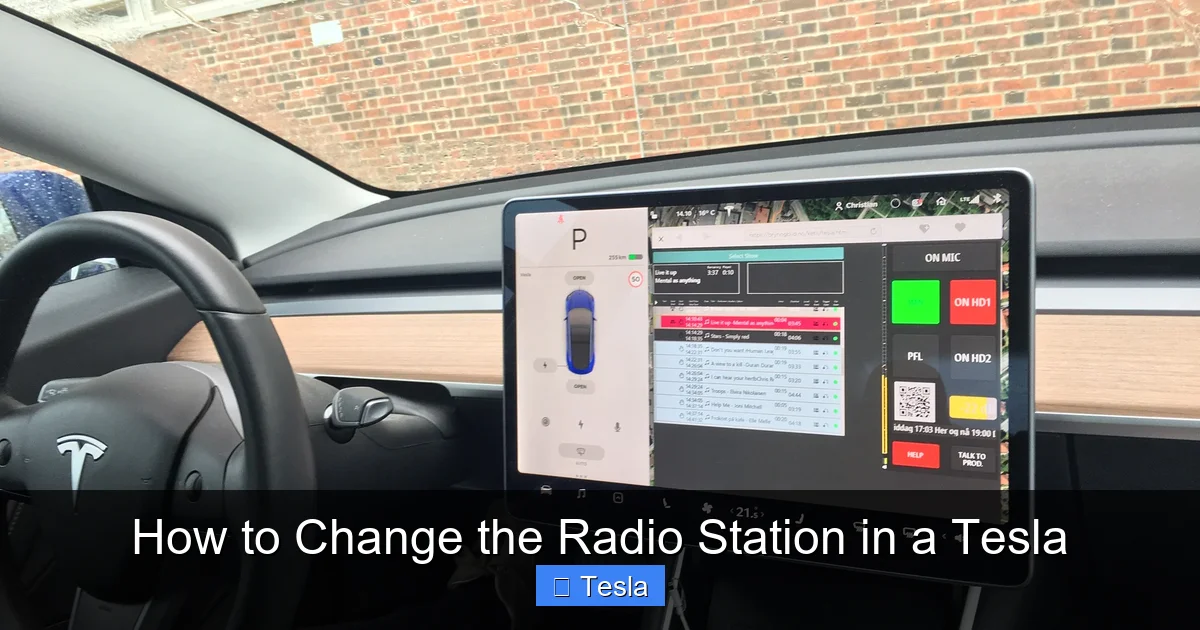
Before we dive into specific actions, let’s get familiar with the digital real estate. At the bottom of your touchscreen is the Dock—a permanent strip of app icons. Here, you’ll always see the “Radio” app icon (usually looks like a classic radio dial), the “Media” app icon (for phone/USB), and icons for streaming services like Spotify or TuneIn if you have a Premium Connectivity subscription. The currently active media app will be highlighted or show album art.
Visual guide about How to Change the Radio Station in a Tesla
Image source: radioworld.com
The “Radio” App vs. “Media” vs. Streaming Apps
It’s easy to get confused. The “Radio” app is specifically for over-the-air AM and FM broadcasts. The “Media” app is the umbrella for any audio coming from your connected phone via Bluetooth or a plugged-in USB device (like an iPod or flash drive). Streaming services like Spotify and TuneIn are their own separate apps. To change a traditional radio station, you must be inside the “Radio” app. To change a Spotify song, you must be inside the Spotify app. The first step is always identifying and tapping the correct app icon.
Pro tip: You can swipe left or right on the Dock to see all available apps if they don’t all fit. You can also access a full app list by tapping the Launcher icon (the grid of nine dots) at the bottom center of the screen.
How to Change the AM/FM Radio Station
Let’s start with the classic. Changing an AM or FM station in the Tesla “Radio” app feels intuitive once you know the controls.

Visual guide about How to Change the Radio Station in a Tesla
Image source: evehiclepro.com
The Main Tuning Interface
Open the Radio app. You’ll see a large, central circular dial representing the frequency band. The current station’s frequency (e.g., 98.7 FM) is displayed prominently. To change the station, you have three primary methods:
- Tap & Drag the Dial: Simply touch the circular dial and spin your finger clockwise or counter-clockwise. The frequency will tick up or down in small increments. This is the most direct and analog-feeling method.
- Use the Seek Buttons: Flanking the dial are small triangle icons (◀ ▶). Tapping the right arrow (▲ or ▶) seeks forward to the next strong station signal. Tapping the left arrow seeks backward. This is perfect for when you don’t know the exact frequency but want to scan for something playing.
- Direct Frequency Entry: Tap the current frequency display (e.g., “98.7”). A keypad will pop up. You can now type in the exact frequency you want (e.g., 101.1) and hit “Enter.” This is the fastest way to jump to a known station.
Switching Between AM and FM Bands
At the top of the Radio app screen, you’ll see a toggle for AM and FM. Tap to switch bands. The tuning dial will adjust to the appropriate frequency range (AM is in kHz, FM in MHz). If you’re in an area with weak AM signals, you might need to use the seek function carefully, as AM stations can be more spaced out and prone to interference.
Remember, AM reception can vary greatly based on your location and even the car’s position. If an AM station sounds fuzzy, try moving a few feet or tuning to a stronger FM affiliate if available.
Using Streaming Services and Changing “Stations” There
This is where the modern magic happens. With a Premium Connectivity subscription (or sometimes via your phone’s data via Bluetooth tethering), you have access to apps like Spotify, TuneIn, and Apple Music. The concept of a “station” here is different—it’s a playlist, artist radio, or podcast.

Visual guide about How to Change the Radio Station in a Tesla
Image source: perzanautoradio.com
Navigating the Spotify App (Example)
Open the Spotify app from your Dock. Your interface will look familiar if you use Spotify on your phone. You can search for a specific song, artist, or playlist. To change what’s playing:
- Browse Your Library: Tap “Home” or “Your Library” to see saved playlists, recently played, and recommended stations.
- Search: Use the search bar at the top to find anything. Type “rock classics” and select a Spotify-generated “artist radio” or a user-made playlist. That’s your new “station.”
- Queue Management:
Tap the “Now Playing” bar at the bottom of the screen to see the queue. You can swipe left on songs to remove them or add new ones to the up-next queue.
Understanding TuneIn’s True Radio Stations
TuneIn is the app that most closely mimics traditional radio, but with thousands of global internet stations. Open TuneIn. You can browse by genre (Sports, News, Music), location (Local, Popular), or search for a specific station call sign (e.g., “WNYC”). Once you select a station, it will play continuously. To change it, simply browse and select another. TuneIn also lets you save stations as favorites within its own app, separate from Tesla’s system-wide “Favorites” tab.
Important: Streaming quality and availability depend entirely on your Tesla’s internet connection (cellular via Premium Connectivity or Wi-Fi). A weak signal will cause buffering. If you have a limited data plan, be mindful of streaming in the car.
Saving and Accessing Your Favorite Stations (Presets)
This is the single most important skill for efficient radio use in a Tesla. Forget fumbling with a touchscreen while driving; save your go-to stations for one-tap access. Tesla calls these “Favorites.”
How to Save a Station or Playlist as a Favorite
This works across most media apps (Radio, Spotify, TuneIn, etc.).
- While a station, playlist, or podcast is actively playing, look for a heart icon (♡) or a “+” (plus) icon on the screen. Its location varies by app but is often near the album art or song title.
- Tap the heart to favorite it. It should turn solid (♥). For some apps, you might need to tap “Save” or “Add to Library” first.
- Once favorited, it automatically appears in the “Favorites” tab at the far left of your Dock (it looks like a star or a musical note).
Accessing and Managing Your Favorites
To play a saved favorite, simply tap the Favorites tab on the Dock. You’ll see a scrollable list of all your saved stations, playlists, and podcasts from all sources. Tap any item to start playing it instantly. This is your ultimate shortcut. To remove an item from Favorites, find it in the list, tap and hold it, and select “Remove from Favorites.”
If you’re used to traditional car radios with numbered preset buttons (1-6), think of the Favorites tab as your infinitely expandable, cloud-synced preset list. It’s better because it works across all audio sources and is saved to your Tesla profile, so if you have multiple drivers, each person’s favorites come with them.
Voice Commands and Steering Wheel Shortcuts for Safe Control
Safety first! While parked, you can explore all menus. While driving, you should minimize screen interaction. Tesla provides excellent hands-free alternatives.
Using the Voice Command Button
On the steering wheel, there’s a button with a microphone icon. Press and hold it, wait for the beep, and speak naturally. You can say:
- “Play 101.5 FM“
- “Play the Beatles on Spotify“
- “Play the latest news on TuneIn“
- “Increase volume” or “Lower volume“
- “Next track” or “Previous track“
The system is surprisingly good at understanding context. It will automatically switch to the correct app (Radio, Spotify, etc.) to fulfill your request. This is the fastest and safest way to change what you’re listening to while the car is moving.
Steering Wheel Scroll Wheel Functions
The scroll wheels on the steering wheel (left for volume, right for other functions) are highly customizable. By default:
- Left Scroll Wheel: Roll up/down to adjust volume. Press it to mute/unmute.
- Right Scroll Wheel: Roll up/down to skip to the next/previous track or station (depending on the source). Press it to play/pause.
You can change what the right scroll wheel does. Go to Controls > Steering > Steering Wheel Controls. Here, you can set it to control “Media” (track skipping) or “Climate” (temperature adjustment). For radio use, “Media” is the logical choice, as it will let you skip stations in the Radio app or songs in Spotify.
Troubleshooting Common Radio Issues in a Tesla
Even a Tesla’s software can hiccup. Here’s how to handle common audio problems without calling support.
Problem: No Sound, or Sound from Only One Speaker
First, check your volume level on the screen and the steering wheel. Ensure the correct audio source is selected (e.g., you’re not trying to listen to Radio when Spotify is playing). If the sound is distorted or missing from one side:
- Check the balance/fade settings. Go to Controls > Sound. Make sure the balance is centered and fade is set to front or rear as desired. An extreme setting can make it seem like a speaker is out.
- A simple soft reboot often fixes audio glitches. Hold down both scroll wheels on the steering wheel until the screen goes black and the Tesla logo reappears. This restarts the infotainment system without rebooting the whole car.
Problem: The Radio App is Missing or AM Band is Unavailable
Some Tesla models, particularly newer ones or those in certain regions, may not have an AM radio tuner due to electromagnetic interference concerns from the drivetrain. If the “Radio” app is missing from your Dock or the AM toggle is grayed out, your vehicle likely does not have AM capability. You’ll need to rely on FM or streaming services for news/talk content. For the missing app, check the full app launcher (grid icon). If it’s truly gone, a software update may have changed things—check release notes or forums for your specific model year.
Problem: Streaming Services Won’t Connect or Keep Buffering
This is a connectivity issue.
- Ensure you have an active Premium Connectivity subscription. Without it, in-car streaming over Tesla’s cellular is disabled.
- Check your signal strength in the top status bar. If it’s weak, park in a location with better reception or connect to a Wi-Fi network.
- Try toggling Airplane Mode on and off (in Controls > Connectivity) to reset the cellular modem.
- As a last resort, perform a full reboot by parking the car, going to Controls > Safety & Security > Power Off, waiting a few minutes, then pressing the brake pedal or touchscreen to wake it up.
For persistent issues, note that software updates frequently improve app stability. Make sure your car is set to receive updates automatically.
Frequently Asked Questions
How do I change the radio station in a Tesla while driving?
Use the voice command button on your steering wheel. Press and hold it, then say “Play [frequency] FM” or “Play [station name] on TuneIn.” You can also use the right scroll wheel on the steering wheel to skip to the next station if it’s set to control media. Minimizing screen touch while driving is recommended for safety.
Why can’t I find the AM radio on my Tesla?
Many newer Tesla models, especially those built after 2021, do not include an AM radio tuner due to potential interference from the vehicle’s electric powertrain. Check if the “Radio” app has an AM/FM toggle. If AM is missing or grayed out, your car does not support it. Use FM, streaming services like TuneIn, or podcasts for talk content.
How do I save a radio station as a preset in my Tesla?
While the station is playing, look for a heart icon (♡) in the Radio app interface and tap it to turn it solid (♥). The station will automatically appear in your “Favorites” tab on the Dock. You can access all your saved presets from that tab at any time, regardless of the audio source.
Can I use my phone’s data plan for streaming in a Tesla?
Yes, but with a caveat. You can connect your phone to the car via Bluetooth for phone calls and audio playback (using the “Media” app). However, for the built-in streaming apps like Spotify and TuneIn to work over the internet, you typically need an active Tesla Premium Connectivity subscription, which uses Tesla’s own embedded SIM card. Bluetooth audio from your phone does not require Premium Connectivity.
What should I do if my Tesla radio freezes or has no sound?
First, perform a soft reboot: hold down both steering wheel scroll buttons until the screen turns off and the Tesla logo reappears. If that doesn’t work, try a full power cycle: park the car, go to Controls > Safety & Security > Power Off, wait 3-5 minutes, then press the brake pedal to restart. These steps resolve most temporary software glitches affecting the infotainment system.
How is changing the radio in a Tesla different from a traditional car?
The core difference is the complete lack of physical radio buttons or knobs. Everything is controlled via the central touchscreen or voice commands. Instead of limited numbered presets, Tesla uses an unlimited, cloud-synced “Favorites” list that works across AM/FM, streaming services, and phone audio. The interface is also software-based, meaning it can change with updates, unlike a fixed hardware system in most conventional cars.







