How to Adjust the Steering Wheel in Tesla Model 3

Contents
- 1 Key Takeaways
- 2 📑 Table of Contents
- 3 Why Proper Steering Wheel Adjustment Matters
- 4 The Digital Command Center: Finding the Controls
- 5 Step-by-Step: Adjusting Tilt and Telescoping
- 6 Saving and Recalling with Driver Profiles
- 7 The Manual Override: The Physical Adjustment Button
- 8 Troubleshooting and Common Questions
- 9 Beyond the Wheel: Complete Ergonomic Setup
- 10 Conclusion: Your Personalized Command Center
- 11 Frequently Asked Questions

Car Back Support Cushion

Car MP3 Player

Car Emergency Roadside Kit

LED Emergency Road Flares
Adjusting the steering wheel in your Tesla Model 3 is a simple, digital process done via the touchscreen. You can customize the tilt (up/down angle) and telescoping (reach) to suit your driving position. The settings are saved to your driver profile, so they automatically apply when you select your profile. This guide walks you through every step, from accessing the controls to using memory functions and troubleshooting common issues.
Welcome to the driver’s seat of the future! The Tesla Model 3, with its minimalist interior and groundbreaking tech, can feel like stepping into a spaceship. But some traditional car functions, like adjusting your steering wheel, work a little differently here. Don’t worry—it’s incredibly intuitive once you know where to look. Mastering this simple adjustment is one of the first and most important steps to personalizing your driving experience, ensuring you have perfect control and maximum comfort on every journey, whether it’s a quick commute or a cross-country adventure. This guide will transform you from a curious new owner into a confident Model 3 pilot, handling the steering wheel controls like a pro.
Key Takeaways
- Digital Adjustment: The Tesla Model 3 uses the central touchscreen for all steering wheel adjustments, not physical stalks or levers.
- Two Axes of Movement: You can adjust both the tilt (vertical angle) and telescoping (horizontal reach) independently or together.
- Profile Memory: All steering wheel positions are saved to your selected driver profile and recalled automatically.
- Safety First: Always adjust the steering wheel only when the vehicle is in Park and stationary.
- Manual Override: A physical button on the steering wheel column allows for quick, basic adjustments if the touchscreen is unresponsive.
- Resetting Position: You can easily reset the steering wheel to its default factory position from the settings menu.
- Part of Ergonomics: Proper steering wheel adjustment is crucial for comfort, control, and reducing fatigue on long drives, working in tandem with seat and mirror settings.
📑 Table of Contents
- Why Proper Steering Wheel Adjustment Matters
- The Digital Command Center: Finding the Controls
- Step-by-Step: Adjusting Tilt and Telescoping
- Saving and Recalling with Driver Profiles
- The Manual Override: The Physical Adjustment Button
- Troubleshooting and Common Questions
- Beyond the Wheel: Complete Ergonomic Setup
- Conclusion: Your Personalized Command Center
Why Proper Steering Wheel Adjustment Matters
Before we dive into the “how,” let’s talk about the “why.” Getting your steering wheel position right isn’t just about comfort; it’s a fundamental safety and ergonomic principle. An optimally positioned wheel allows you to:
- Maintain a Clear View: The wheel should never block your view of the instrument cluster or the road ahead.
- Achieve a 9-and-3 or 10-and-2 Grip: Your arms should have a slight bend at the elbows, allowing for smooth, precise steering inputs without overextending or crowding your body.
- Reduce Fatigue: On long drives, a poor position can lead to sore shoulders, neck strain, and general discomfort. The right setup keeps you relaxed and alert.
- Optimize Airbag Effectiveness: While modern airbags are designed to work with various positions, sitting too close to the wheel can increase injury risk in a deployment. The recommended distance is at least 10 inches from the center of the airbag cover.
- Work with Other Controls: Your steering wheel adjustment must harmonize with your seat position (especially lumbar and thigh support) and mirror settings to create a cohesive driving triangle.
Think of it as setting up your workstation. You wouldn’t use a computer all day with a chair that’s too high or a monitor at the wrong angle. Your car is your mobile workstation, and the steering wheel is your primary input device. Getting it right pays dividends in safety and enjoyment.
The Digital Command Center: Finding the Controls
Step one: get familiar with the command center. In the Model 3, almost everything is controlled through the large central touchscreen. There are no physical adjustment stalks or levers on the steering column itself for tilt and telescoping—that’s all digital.

Visual guide about How to Adjust the Steering Wheel in Tesla Model 3
Image source: i.ytimg.com
Navigating the Touchscreen Menu
Here’s the direct path to the steering wheel controls:
- Ensure your car is in Park (P). For safety, Tesla locks out many adjustments while the vehicle is moving or in Drive/Reverse.
- Tap the Car Icon on the bottom bar of the touchscreen. This opens the “Controls” menu.
- On the left-hand sidebar, scroll down and select “Drive”.
- The main panel will now show various drive-related settings. Look for the section labeled “Steering Wheel”. It will display a small graphic of a wheel with up/down and left/right arrows next to it.
That’s it! You’re now at the digital control panel for your steering wheel.
Step-by-Step: Adjusting Tilt and Telescoping
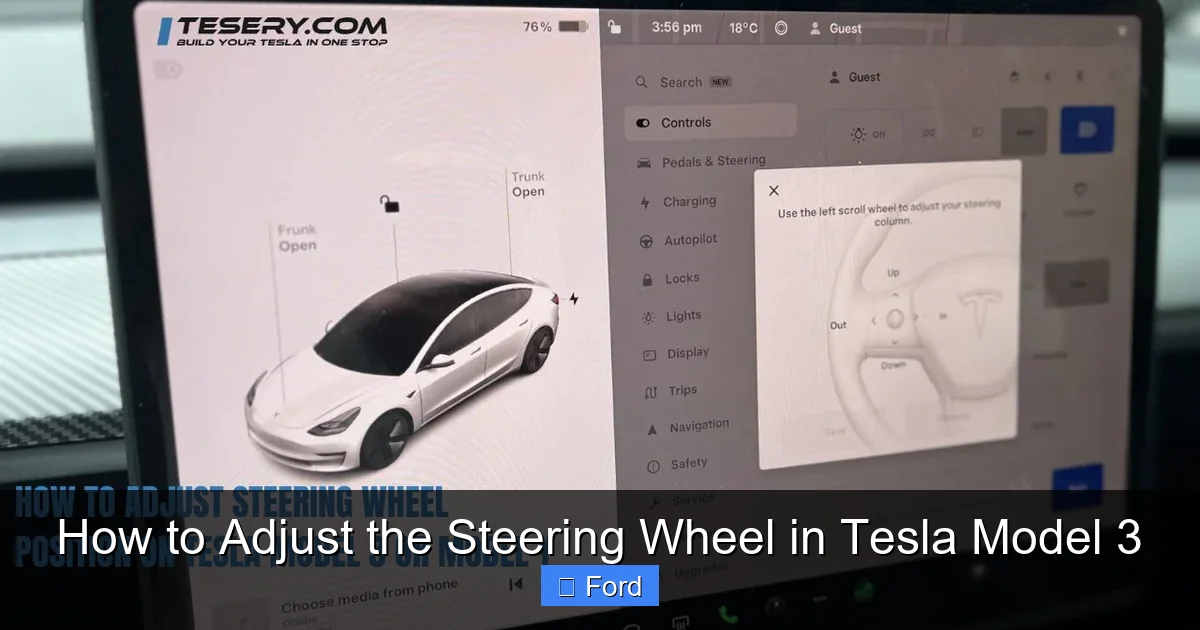
With the “Steering Wheel” menu open, you’ll see two sets of controls:
Visual guide about How to Adjust the Steering Wheel in Tesla Model 3
Image source: tesery.com
- Up/Down Arrows (Tilt): These adjust the vertical angle of the wheel. Tapping the up arrow tilts the wheel upward (the top of the wheel moves away from the dashboard). Tapping the down arrow tilts it downward (the top moves toward the dashboard). Use the arrows or drag the small circular handle on the graphic itself for finer control.
- Left/Right Arrows (Telescoping): These adjust the horizontal reach. Tapping the left arrow moves the wheel closer to you (telescopes out). Tapping the right arrow moves it away (retracts). Again, you can drag the handle on the graphic.
Pro Tip: Make these adjustments in small increments. After each tap, grip the wheel to see how it feels. Your goal is to have your arms at a comfortable, relaxed angle with a slight bend (about 120 degrees) at the elbows when your hands are at 9 and 3 o’clock. You should be able to see the top of the instrument cluster (the small screen behind the wheel) clearly over the top rim of the steering wheel.
Saving and Recalling with Driver Profiles
This is where the Tesla magic truly happens. Once you’ve found your perfect steering wheel position, you don’t need to write it down. The car remembers it for you, automatically.

Visual guide about How to Adjust the Steering Wheel in Tesla Model 3
Image source: i.ytimg.com
How Profile Memory Works
Every time you make an adjustment to the steering wheel (or your seat, mirrors, etc.) while a specific driver profile is active, the new position is saved to that profile. Here’s how to use it:
- Creating a Profile: If you haven’t already, create a driver profile. From the same “Drive” menu, tap your current profile name at the top of the screen (e.g., “Driver 1”). Select “Add Driver” and follow the prompts to name it and optionally add a photo.
- Saving the Position: Simply adjust the wheel to your liking while your profile is active. That’s it—it’s saved.
- Recalling the Position: When you get into the car, select your profile from the list that appears on the screen (or via the Tesla app if you’re approaching the car). The seat, mirrors, and steering wheel will all move to your preset positions automatically. This is incredibly convenient for families or anyone who shares the vehicle.
Important Note: The steering wheel adjustment is part of the overall “Seat & Steering Wheel” calibration in your profile. If you ever need to reset all positions for a profile, you can do so from the profile settings menu.
The Manual Override: The Physical Adjustment Button
What if the touchscreen is frozen, or you just want a super quick tweak without navigating menus? Tesla has you covered with a discreet physical control.
On the right side of the steering column, just behind the wheel, you’ll find a small, unmarked button. This is your manual steering wheel adjuster.
- How to Use It: Press and hold this button. While holding it, you can physically push and pull the wheel to telescope it (change reach) and tilt it up and down. The wheel will move freely.
- When to Use It: This is primarily for emergency adjustments or if the digital controls are unresponsive. It’s not meant for daily fine-tuning, as it lacks the precision of the touchscreen sliders. However, it’s a brilliant backup that ensures you’re never stuck with an uncomfortable position.
- It Does NOT Save: Crucially, adjustments made using this manual button are temporary. They will not be saved to your driver profile. The next time you select your profile or restart the car, the wheel will return to the saved digital position. Use it for a quick fix, then make the permanent change via the screen when you can.
This physical button is a great example of Tesla’s philosophy: high-tech digital control first, with a reliable, low-tech mechanical fallback for redundancy and safety.
Troubleshooting and Common Questions
Even a simple system can throw a curveball. Here’s what to do if you encounter issues.
“The adjustment controls are grayed out.”
This is the most common “problem,” and it’s by design. The steering wheel adjustment controls are only active when the vehicle is in Park. If you’re in Drive, Neutral, or Reverse, they will be disabled. Shift into Park, and they’ll light up. This is a critical safety feature to prevent accidental adjustment while driving.
“My steering wheel won’t move.”
First, confirm the car is in Park and the controls are active. If they are, try the manual override button on the column. If it moves manually but not digitally, there may be a temporary touchscreen glitch. Try a soft reboot of the touchscreen (hold down both scroll wheels on the steering wheel until the screen goes black and reboots). If it doesn’t move at all via the manual button, there may be a mechanical fault—schedule a service appointment through your Tesla app.
“The wheel moves, but it’s jerky or stiff.”
This is unusual. The electric motor system is typically very smooth. A jerky movement could indicate a software hiccup; a reboot may help. If it persists, it needs professional inspection. Never force it.
“How do I reset it to the default position?”
Go to Controls > Drive > Steering Wheel. At the bottom of the adjustment panel, you’ll see a small text link that says “Reset Steering Wheel”. Tap it, and the wheel will return to its factory default position. You’ll then need to re-adjust it to your liking and save it to your profile again.
Beyond the Wheel: Complete Ergonomic Setup
Your steering wheel doesn’t exist in a vacuum. For the ultimate driving position, you must set it in conjunction with your seat and mirrors. This creates the optimal “driver’s triangle” of visibility and reach.
- Step 1: Seat First: Start by adjusting your seat. Move it forward/backward so you can fully depress the pedals (especially the accelerator) with a slight knee bend. Adjust the height so you have a clear view over the dashboard and good outward visibility. Set your lumbar and thigh support for long-term comfort.
- Step 2: Steering Wheel Second: Now, with your seat set, adjust the steering wheel. Your goal is to have the wheel at a distance where your elbows are slightly bent at the 9-and-3 position, and you can see the instrument cluster clearly over the wheel’s rim.
- Step 3: Mirrors Last: Finally, adjust your side and rearview mirrors. With your head and body in the correct position from steps 1 & 2, set the mirrors to minimize blind spots. The side mirrors should show a sliver of your own car’s side panel and a wide view of the lane next to you. The rearview mirror should give a clear, centered view straight back.
Once this trio is set perfectly, save it all to your driver profile. Now, every time you get in, your entire cockpit adapts to you. This holistic approach is far more effective than tweaking one element in isolation. If you’re also considering aesthetic modifications to personalize your Model 3’s interior, understanding the cost of a full wrap can help you budget for those upgrades alongside maintaining your vehicle’s ergonomics. You can research how much does it cost to wrap a Tesla Model 3 to see if that’s a future project.
Conclusion: Your Personalized Command Center
Adjusting the steering wheel in your Tesla Model 3 is a foundational skill that unlocks a more comfortable, safer, and more enjoyable driving experience. It’s a testament to Tesla’s design that such a critical function is handled with such elegant simplicity through the touchscreen, yet backed up by a reliable physical control. Remember the core steps: access the “Drive” menu in the Controls, use the digital arrows for precise tilt and reach adjustments, and always save your perfect setup to your driver profile. By taking five minutes to dial in your steering wheel, seat, and mirrors, you’re investing in your driving comfort and safety for every mile to come. Now, take a deep breath, grip that perfectly positioned wheel, and enjoy the smooth, silent ride that only a Tesla can deliver.
Frequently Asked Questions
Can I adjust the steering wheel while the car is moving?
No. For safety, the digital steering wheel adjustment controls are only active when the vehicle is in Park. The physical manual button on the column will work at any time, but it’s not recommended to make significant changes while driving.
Why is my steering wheel adjustment control grayed out?
The most common reason is that your vehicle is not in Park. The controls are disabled while in Drive, Reverse, or Neutral. Simply shift into Park, and the controls will become active. If it remains grayed out in Park, try rebooting the touchscreen.
Does adjusting the steering wheel affect Autopilot or Full Self-Driving?
No. Adjusting the steering wheel position does not impact the function of Tesla’s advanced driver-assistance systems. However, for optimal hand placement during Autopilot use (where you must maintain slight pressure on the wheel), a comfortable position that allows for easy, subtle corrections is recommended.
How do I reset my steering wheel to the factory position?
Go to Controls > Drive > Steering Wheel. At the bottom of the adjustment screen, tap the “Reset Steering Wheel” link. The wheel will automatically return to its default position, after which you can readjust it to your preference.
Can I adjust the steering wheel heating independently?
No. The steering wheel heater is either on or off and is controlled separately from the climate control panel or via voice command. Its activation is not linked to the position adjustments you make in the Drive menu.
What should I do if the steering wheel won’t move digitally or manually?
First, ensure the car is in Park. If it still won’t move, try a touchscreen reboot (hold both scroll wheels). If the manual button also fails to move the wheel, there may be a mechanical or electrical fault. You should schedule a service appointment through the Tesla mobile app for diagnosis and repair.