
How Do I Reset My Hyundai Bluetooth?

Contents
- 1 Key Takeaways
- 2 📑 Table of Contents
- 3 Understanding Your Hyundai’s Infotainment Brain
- 4 Method 1: The Standard “Delete All Devices” Reset (The First Thing to Try)
- 5 Method 2: The Physical Button Reset (For Non-Responsive Systems)
- 6 Method 3: The Master/Factory Reset (The Nuclear Option)
- 7 What to Do If the Reset Doesn’t Fix the Problem
- 8 Model-Specific Notes and Quirks
- 9 Prevention and Best Practices for a Healthy Bluetooth Connection
- 10 Conclusion: Your Reset Roadmap
- 11 Frequently Asked Questions

OBD2 Scanner Tool

Microfiber Car Cleaning Cloth

Engine Flush Cleaner

Liquid Car Polish
Struggling with a finicky Hyundai Bluetooth connection? A reset is often the fastest fix. This guide covers the universal reset method for most Hyundai models, plus specific steps for newer touchscreens and older systems. We’ll walk you through the exact button presses and menu paths to clear old pairings and restore functionality. If simple resets don’t work, we also cover deeper system resets and when a dealer visit might be necessary.
That moment of frustration is all too familiar. You get in your Hyundai, turn the key, and your phone won’t connect to the car’s Bluetooth. The podcast you were looking forward to is stuck in your pocket, your navigation apps are useless, and hands-free calls are a distant memory. Before you panic and assume the worst—a costly hardware failure—there’s a powerful first step you should always try: performing a reset on your Hyundai’s Bluetooth system. Think of it as turning your infotainment computer off and on again. It’s simple, safe, and fixes a huge percentage of connection headaches. This complete guide will walk you through every method, from the quickest phone-deletion trick to a full factory reset, tailored for your specific Hyundai model and year.
Key Takeaways
- Most Hyundais use a standard “Phone” menu reset: Navigate to Settings > Bluetooth > Delete All Devices to clear paired phones, then re-pair.
- Physical reset methods vary by model year: Newer models (2017+) often use a “Reset” button behind the screen; older models may require holding the “Tone” or “Info” button.
- A “Master Reset” or “Factory Reset” is more thorough: This clears *all* infotainment settings (radio presets, navigation data) but solves deep software glitches.
- Resetting your phone’s Bluetooth can help too: “Forget” your Hyundai in your phone’s Bluetooth settings before re-pairing to avoid conflicts.
- Consult your owner’s manual first: It has the exact, model-specific instructions and diagrams for your vehicle’s system.
- Persistent issues may indicate hardware problems: If resets fail repeatedly, the Bluetooth module or antenna may need professional diagnosis.
- Software updates can resolve bugs: Check with your dealer about available infotainment firmware updates that improve Bluetooth stability.
📑 Table of Contents
- Understanding Your Hyundai’s Infotainment Brain
- Method 1: The Standard “Delete All Devices” Reset (The First Thing to Try)
- Method 2: The Physical Button Reset (For Non-Responsive Systems)
- Method 3: The Master/Factory Reset (The Nuclear Option)
- What to Do If the Reset Doesn’t Fix the Problem
- Model-Specific Notes and Quirks
- Prevention and Best Practices for a Healthy Bluetooth Connection
- Conclusion: Your Reset Roadmap
Understanding Your Hyundai’s Infotainment Brain
Before we start pressing buttons, it helps to know what we’re dealing with. Your Hyundai’s Bluetooth functionality lives within its infotainment system—the big screen (or smaller display) that controls audio, navigation, and connectivity. This system runs on its own software, much like your smartphone. Over time, as you pair and unpair multiple phones, install updates, or experience minor software hiccups, the Bluetooth “profile” can become cluttered or corrupted. A reset clears this temporary memory, allowing the system to start fresh and establish a clean, stable connection with your device.
The Evolution of Hyundai Infotainment
Hyundai has used several different infotainment systems over the years, which means the reset process isn’t one-size-fits-all. The two main families you’ll encounter are:
- Pre-2017/2018 Systems (Standard Radio or Navigation): These often have smaller, non-touch screens controlled by knobs and buttons. The reset process typically involves holding down a specific physical button (like “Tone” or “Info”) for several seconds.
- Post-2017/2018 Systems (Hyundai Blue Link® / 8-inch or 10.25-inch Touchscreen): These modern, tablet-like interfaces have settings menus accessible via the touchscreen. Resets are usually found deep within the Settings menu, often under “Phone” or “System.”
If you’re unsure which system you have, simply look at your screen. Is it a small 3-4 inch display controlled by buttons? Or is it a large, color touchscreen? That’s your first clue. When in doubt, your vehicle’s owner’s manual is the ultimate authority—it contains diagrams and instructions specific to your VIN.
Method 1: The Standard “Delete All Devices” Reset (The First Thing to Try)
This is the universal, software-level reset that works on nearly every Hyundai with a touchscreen or menu-driven system. It’s the equivalent of clearing your phone’s Bluetooth list. This method is non-invasive and won’t erase your radio presets or navigation history.
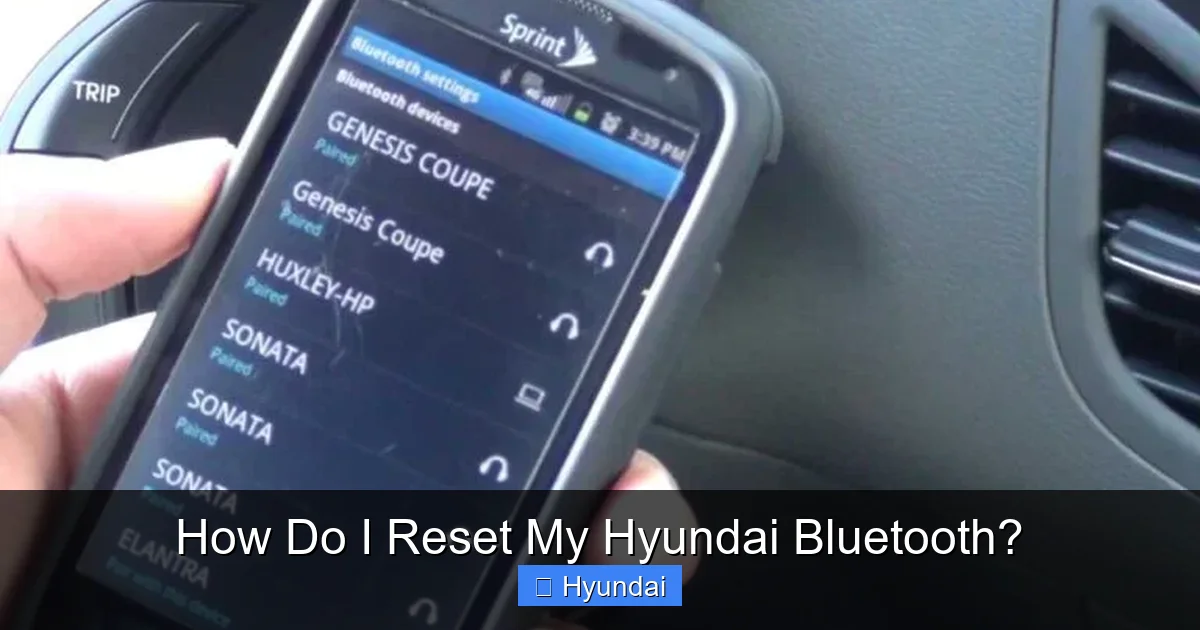
Visual guide about How Do I Reset My Hyundai Bluetooth?
Image source: thecarhow.com
Step-by-Step for Touchscreen Models (2017+)
1. Start your car. Turn the ignition to the “ON” position or start the engine. The infotainment system must be powered on.
2. Access the Settings Menu. On your home screen, look for an icon labeled “Settings,” “Setup,” or a gear/cog symbol. Tap it.
3. Navigate to Bluetooth. Within Settings, scroll through the options. You’re looking for “Bluetooth,” “Phone,” “Connections,” or “Wireless.” Tap it.
4. Find the Paired Devices List. Inside the Bluetooth menu, there should be a list of devices currently paired to your car (e.g., “John’s iPhone,” “Sarah’s Galaxy”).
5. Delete All Paired Devices. Select each device one by one and choose “Delete,” “Remove,” or “Forget.” Alternatively, some systems have a “Delete All” or “Clear All” option at the bottom of the list. Use this to wipe the slate clean in one go.
6. Re-pair Your Phone. Exit the menu. Go back to your phone’s Bluetooth settings, make sure Bluetooth is on, and search for new devices. Your Hyundai should appear (often as “Hyundai,” your model name like “Santa Fe,” or a code like “Hyundai Uconnect”). Select it and enter the PIN (usually “0000” or “1234”) if prompted.
For Button-Controlled Models (Pre-2017)
If you don’t have a touchscreen, the path is similar but uses the radio’s knob/buttons:
- Press the “Menu” or “Setup” button.
- Use the tuning knob or arrow buttons to scroll to “Bluetooth” or “Phone” and press “Enter.”
- Scroll to “Device List” or “Paired Devices.”
- Highlight each device and select “Delete.”
- After clearing, your phone should automatically appear in the “Add Device” or “Pair New” option.
Pro Tip: After deleting all devices from the car, also go to your phone’s Bluetooth settings and “Forget” or “Remove” the Hyundai from your phone’s list of paired devices. This prevents any old pairing data from causing a conflict during the new pairing process.
Method 2: The Physical Button Reset (For Non-Responsive Systems)
Sometimes, the infotainment system itself is frozen or unresponsive, making menu navigation impossible. In these cases, a physical reset is required. This is like pulling the plug on a computer. Important: This method varies significantly by model year and system type. Using the wrong button combination can do nothing or, in rare cases, cause other issues.

Visual guide about How Do I Reset My Hyundai Bluetooth?
Image source: thecarhow.com
For Models with a Small “Reset” Pinhole (Common 2015-2020)
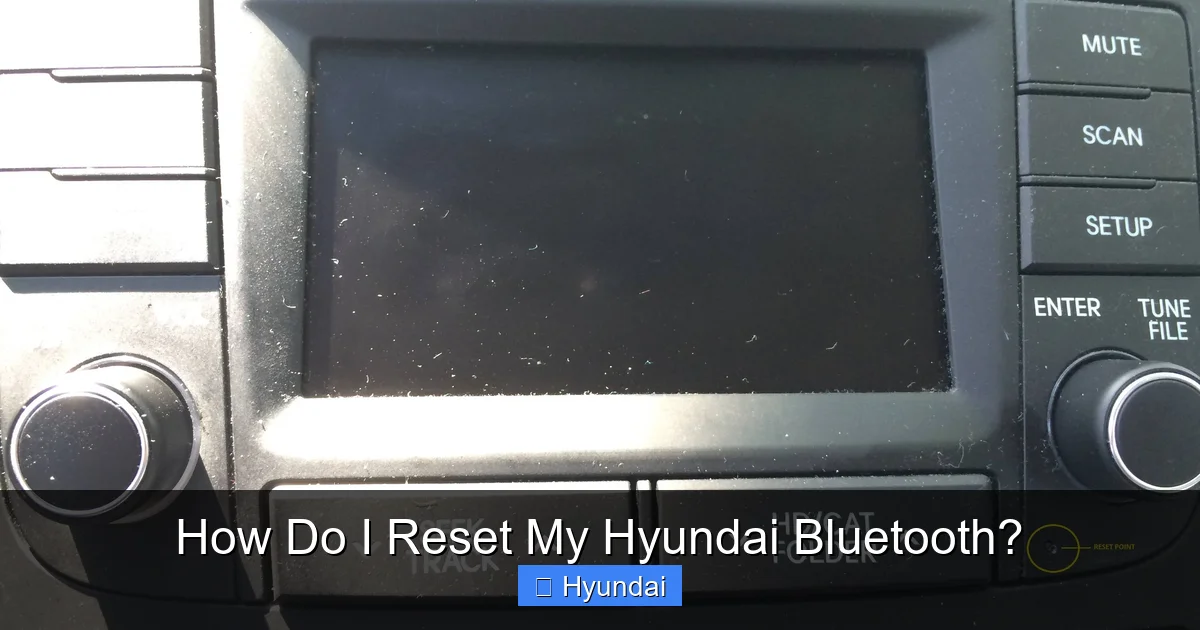
Many Hyundai models have a tiny, recessed reset button located on the face of the radio unit or just behind the screen bezel. You’ll need a paperclip or a SIM ejector tool.
- Locate the small hole labeled “RESET” or with a circular arrow icon.
- With the car’s ignition ON (engine running or in accessory mode), gently insert the paperclip and press and hold the button for about 10-15 seconds.
- The screen will likely go black, display the Hyundai logo, and then reboot. This process can take 1-2 minutes.
- Once the system restarts, go back to Method 1 to re-pair your phone, as this physical reset often clears all Bluetooth pairings.
For Older Button-Controlled Systems (No Reset Hole)
On some older models (like certain 2012-2014 Sonatas or Elantras), the reset is performed by holding a combination of buttons on the radio faceplate:
- Common Combination: Press and hold the “Tone” button and the “Info” button (or “Menu” button) simultaneously for 10-15 seconds.
- You may hear a beep, or the display will change. Release the buttons and allow the system to reboot.
- Again, this will likely clear your paired devices, so be prepared to re-pair your phone afterward.
Critical Warning: If you cannot find a specific reset procedure in your owner’s manual for your exact year and model, do not guess. Randomly holding button combinations can change radio settings or activate demo modes. When in doubt, skip to the next method or consult your manual.
Method 3: The Master/Factory Reset (The Nuclear Option)
This is the most comprehensive reset. It returns the entire infotainment system to its original factory state, as if it just rolled off the assembly line. It will erase everything: all Bluetooth pairings, radio station presets, saved navigation destinations, connected USB devices, and sometimes even system language and time settings.
Visual guide about How Do I Reset My Hyundai Bluetooth?
Image source: i.stack.imgur.com
When to Use a Factory Reset
Use this method if:
- The standard “Delete All Devices” and physical button resets have failed.
- You are experiencing other strange glitches (radio presets changing, touchscreen lag, navigation errors) alongside Bluetooth problems.
- You are selling your car and want to wipe all personal data from the system.
- You’ve recently had work done on the car’s electrical system or battery disconnected, and multiple systems are acting up.
How to Perform a Factory Reset (Touchscreen Models)
1. Go to Settings.
2. Look for a menu called “System,” “General,” or “About System.”
3. Within that menu, find the option “Factory Reset,” “Master Reset,” or “Reset to Default.”
4. The system will warn you about data loss. Confirm the reset.
5. The screen will go black and restart. This can take several minutes. Do not interrupt the process.
6. Once it restarts, you will need to go through the initial setup prompts (language, time zone) and then re-pair your phone from scratch.
Important Considerations Before a Factory Reset
Write down your radio presets! There’s no easy way to get them back. Also, if you have downloaded offline maps for navigation, you will need to re-download them, which can consume significant data. For vehicles with Hyundai Blue Link® connected services, you may need to re-login or re-activate your account after the reset. If your car has a factory-preset equalizer sound setting you like, take a photo of it before resetting.
What to Do If the Reset Doesn’t Fix the Problem
So you’ve tried all three methods, and your phone still won’t connect, or the connection drops constantly. Now what? The issue has likely moved beyond a simple software glitch.
Troubleshooting Beyond the Reset
First, isolate the problem. Is it the car or the phone?
- Test with another phone or device. Try pairing a different smartphone, a tablet, or even a friend’s phone. If the other device connects and stays connected, the problem is likely with your specific phone’s Bluetooth software or compatibility.
- Test your phone in another car. Pair your phone with a different vehicle. If it connects fine elsewhere, the problem is almost certainly with your Hyundai’s system.
- Update your phone’s OS. Ensure your iPhone or Android device is running the latest software version. Phone OS updates often include critical Bluetooth stack fixes.
- Check for Hyundai software updates. This is a big one. Hyundai periodically releases firmware updates for its infotainment systems to fix bugs and improve compatibility. You can sometimes install these via a USB drive (download from Hyundai’s owner portal) or, for newer models with connected car services, over the air (OTA). A visit to your Hyundai dealer’s service department is the surest way to check for and install the latest official update. This step can resolve persistent, model-specific Bluetooth bugs that a reset cannot fix.
When to Suspect Hardware Failure
If software resets and updates don’t work, and the problem affects all devices, the Bluetooth module itself or its antenna may be faulty. Symptoms include:
- The Bluetooth option is grayed out or missing from the menu entirely.
- The system says “No Device Found” even when your phone is actively searching and visible.
- Extreme, constant audio dropouts or complete disconnections within seconds of pairing.
In these cases, professional diagnosis is required. A dealer technician can run diagnostics on the infotainment module. The repair could range from a simple antenna wire reconnection to replacing the entire head unit. While this sounds expensive, it’s often covered under the vehicle’s warranty or extended electronics warranty if applicable.
Model-Specific Notes and Quirks
While the general methods above cover most Hyundais, a few models have unique characteristics worth noting.
Hyundai with Navigation vs. Non-Navigation
The Bluetooth reset path is usually identical in both systems, but the menu names might differ slightly. In non-navigation (audio-only) systems, the Bluetooth menu is often under “Setup” > “Bluetooth.” In navigation systems, it might be under “Setup” > “Phone” or “Setup” > “Connections.” The principle remains the same: find the device list and delete.
The 2020+ Sonata, Elantra, and Tucson with 10.25″ Screen
These vehicles feature a very modern, customizable home screen. The settings are accessed via a “Menu” button (three horizontal lines) on the home screen, then “Settings” (gear icon). The “Reset” option for the entire system is often found under “System” > “Reset.” The Bluetooth-specific delete is under “Connections” > “Bluetooth.”
Older Models (2011-2014) with “Blue Link” or “UVO”
Some of Hyundai’s earliest connected car systems had clunky interfaces. On these, the Bluetooth pairing was sometimes managed through a separate “Phone” button on the radio faceplate, not the main menu. The reset often required a physical button hold (as described in Method 2). The owner’s manual for these specific years is absolutely essential.
Related Reading: If you’re dealing with other infotainment gremlins, our guide on how to reset a Dodge Journey screen covers similar principles for another popular brand’s system. For electrical system resets after battery work, see our article on resetting a Subaru after battery replacement, which explains the importance ofECU reinitialization.
Prevention and Best Practices for a Healthy Bluetooth Connection
Once you’ve successfully reset and re-paired your phone, follow these habits to minimize future problems:
- Keep your phone’s OS updated. This is the single most important thing you can do. Phone manufacturers constantly improve Bluetooth drivers.
- Delete old, unused pairings. Every few months, go into your car’s Bluetooth menu and remove devices you no longer use. A shorter list means less potential for confusion and conflict.
- Pair only when needed. If you have a secondary phone for work, only pair it when you’re driving that car. Constantly switching primary devices can confuse the system.
- Avoid extreme interference. Don’t store large metal objects or devices that emit strong radio frequencies (like powerful inverters or multiple dash cams) directly near the infotainment antenna, which is usually in the rear window or dashboard.
- Perform a soft reboot periodically. Once a month or if you notice lag, turn your car completely off (key out of ignition), open and close the driver’s door to ensure all systems power down, wait 60 seconds, and restart. This clears temporary memory without a full reset.
Conclusion: Your Reset Roadmap
Dealing with a stubborn Hyundai Bluetooth connection is frustrating, but it’s almost always a solvable software issue, not a dead system. Your roadmap is simple: Start with the least invasive method. First, delete all paired devices from both the car and your phone and re-pair. If that fails, locate the physical reset pin or button combination for your model year and perform a hard reboot. As a last resort before visiting a dealer, execute a full factory reset, knowing you’ll need to reconfigure all your preferences. Always have your owner’s manual as your co-pilot. And remember, if these steps don’t work, the problem is likely a repairable hardware fault or a fixable software update from Hyundai. Don’t suffer in silence with a broken connection—take control with these steps and get your music, maps, and calls back on the road.
Frequently Asked Questions
Will a Bluetooth reset delete my radio presets or navigation data?
No, the standard “Delete All Devices” method (Method 1) only clears the list of paired phones. Your saved radio stations, navigation home address, and other settings remain intact. Only a full “Factory Reset” or “Master Reset” (Method 3) will erase all personalized data.
My Hyundai screen is frozen and I can’t access the Settings menu to reset Bluetooth. What do I do?
You need a physical reset. Look for a small pinhole labeled “RESET” on the radio’s faceplate or bezel. With the car ON, gently insert a paperclip and hold for 10-15 seconds until the screen reboots. If no pinhole exists, consult your owner’s manual for the correct button-hold combination (often “Tone” + “Info”).
After resetting, my phone still won’t pair. It says “Pairing Request Rejected” or “Connection Failed.”
This is a common pairing conflict. First, completely “Forget” or “Remove” the Hyundai from your phone’s Bluetooth list. Then, perform the “Delete All Devices” reset in your car. Put your phone in pairing mode (discoverable) and try again from scratch. Ensure no other Bluetooth devices are actively trying to connect nearby.
Do I need to reset my Hyundai Bluetooth if I get a new phone?
No, you don’t need to reset the car. Simply go into your new phone’s Bluetooth settings, turn it on, and search for your Hyundai (which should still be in the car’s paired list). Select it from the new phone’s list and enter the PIN. The car will recognize it as a new primary device.
Is there a difference between resetting Bluetooth and resetting the entire infotainment system?
Yes, a big difference. Resetting Bluetooth (Method 1) is a targeted, minor software refresh of just the connectivity module. Resetting the entire infotainment system (Method 3, Factory Reset) is a full wipe and reload of the system’s software, affecting all functions like radio, sound settings, and navigation. Always start with the Bluetooth-specific reset.
My Bluetooth works for music but not for calls. Could a reset fix this?
Yes, this is a common symptom of a corrupted Bluetooth profile. The Hands-Free Profile (HFP) for calls can become separate from the Audio Distribution Profile (A2DP) for music. A “Delete All Devices” reset clears both profiles. If that fails, a physical reset or factory reset is the next step to rebuild all communication protocols from the ground up.


