
How to Reset the Hyundai Infotainment System

Is your Hyundai’s infotainment screen frozen, unresponsive, or acting up? A reset can often solve these common problems. This guide covers everything from simple soft resets to full factory resets for all Hyundai models. We’ll walk you through each method, explain when to use them, and highlight important precautions to avoid data loss. For most minor glitches, a soft reset is the safest first step. If issues persist, a harder reset may be needed, but always back up your data first.
Key Takeaways
- Different Reset Levels Exist: Hyundai systems have soft resets (reboot), hard resets (deeper reboot), and factory resets (complete wipe). Choose based on the issue’s severity.
- Soft Reset is First-Line Defense: This simple power cycle fixes temporary software bugs without losing your paired devices, settings, or downloaded maps.
- Factory Reset Erases Everything: This restores the system to “new” condition, deleting all paired phones, saved radio stations, navigation history, and account logins.
- Model-Year Matters: The exact reset procedure varies between older systems (like basic Audio) and newer ones (like Hyundai Blue Link or Connected Car Services).
- Backup Before Major Resets: Always note down your radio presets, saved navigation points, and have your Bluetooth pairing info handy before a hard or factory reset.
- Persistent Problems Need a Pro: If resets don’t work, the issue may be hardware-related (faulty screen, bad connection) or a deeper software fault requiring dealer diagnostics.
📑 Table of Contents
- Introduction: Why Your Hyundai’s Brain Needs a Reboot
- Understanding Your Hyundai Infotainment System
- When Should You Reset Your Hyundai Infotainment System?
- Method 1: The Soft Reset (Your First & Safest Step)
- Method 2: The Hard Reset (Software-Level Reinitialization)
- Method 3: The Factory Reset (The Nuclear Option)
- Precautions & Best Practices Before You Reset
- Beyond the Reset: When to Seek Professional Help
Introduction: Why Your Hyundai’s Brain Needs a Reboot
Your Hyundai’s infotainment system is the digital heart of your driving experience. It’s your command center for navigation, music, hands-free calls, and vehicle settings. But like any complex computer, it can occasionally get bogged down, freeze, or develop quirky behavior. Maybe the screen is stuck on the logo, Bluetooth won’t reconnect, or apps are crashing. Before you panic or head to the dealer, a reset is your most powerful troubleshooting tool. It’s the automotive equivalent of turning your phone or computer off and on again. This comprehensive guide will transform you from a frustrated driver into a confident problem-solver, covering every reset method for Hyundai vehicles from the latest Palisade and Tucson to older Sonata and Elantra models.
We’ll break it down simply. Think of it in three levels: a soft reset (a gentle nudge), a hard reset (a firm restart), and a factory reset (the nuclear option). Understanding the difference is crucial to fixing your problem without causing unnecessary headaches. Let’s dive in and get your system back to its smooth, responsive self.
Understanding Your Hyundai Infotainment System
Not all Hyundai infotainment systems are created equal. The reset process depends heavily on the generation and type of system installed in your vehicle. Identifying your system is the first step to applying the correct fix.
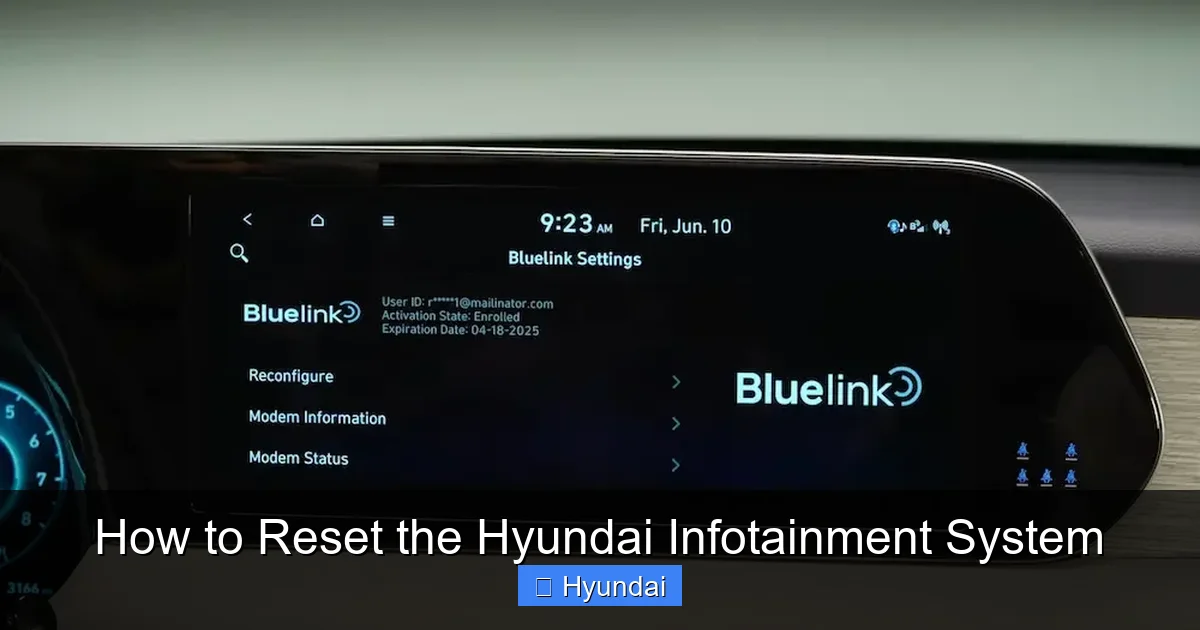
Visual guide about How to Reset the Hyundai Infotainment System
Image source: cartipsdaily.com
Common Hyundai Infotainment Generations
Hyundai has evolved its interface over the years. The most common types you’ll encounter are:
- Basic Audio System: Found in older or base-model vehicles. Features a color touchscreen (or non-touch) with radio, USB/aux input, and basic Bluetooth. Resets are usually straightforward.
- Hyundai Blue Link® / Connected Car Services: This is the branded telematics system in many 2018+ models. It includes navigation, app integration, and remote services. Resets often involve the vehicle’s main menu settings.
- Apple CarPlay & Android Auto Systems: These are integration standards, not the system itself. Your reset method will be dictated by the underlying Hyundai OS, but issues specific to CarPlay/Android Auto sometimes require phone-side troubleshooting too.
- Navigation-Enabled Systems: Systems with built-in GPS (like older ones with Garmin tech) may have specific reset procedures within the navigation menu to clear map errors.
You can usually identify your system by looking for the “Blue Link” logo on the screen or in the owner’s manual. If you have navigation, it’s a more advanced system. If you’re unsure, the general methods below will cover most scenarios.
When Should You Reset Your Hyundai Infotainment System?
A reset isn’t a magic wand for every problem, but it’s the perfect first response for a specific set of symptoms. Knowing when to use it saves you time and prevents unnecessary dealer visits.

Visual guide about How to Reset the Hyundai Infotainment System
Image source: cartipsdaily.com
Clear Signs a Reset is Needed
Perform a reset if you experience:
- Unresponsive Touchscreen: Taps and swipes do nothing, or the screen is completely frozen on a single image.
- System Boot Failure: The Hyundai logo appears but never loads the main menu, or it gets stuck on a loading screen.
- Bluetooth Connectivity Chaos: Your phone will pair but audio drops constantly, or the system says “No Device” despite a successful connection.
- App Crashes & Glitches: Music apps (like Spotify via Bluetooth) skip, pause randomly, or the navigation app closes unexpectedly.
- Audio Distortion or No Sound: Radio plays but no sound comes from speakers, or sound only comes from one side, with no clear hardware cause.
- False Error Messages: The screen displays “System Error,” “Navigation Not Available,” or other vague warnings that appear without an underlying mechanical issue.
When a Reset WON’T Help (And What To Do Instead)
A reset is a software refresh. It cannot fix physical problems. Do not waste time resetting if you have:
- A Completely Black Screen: Could indicate a blown fuse, loose wiring harness behind the screen, or a failed display unit. Check fuses first.
- No Power at All: The screen never lights up. This is likely an electrical issue, not a software glitch.
- Specific, Repeatable Hardware Failures: For example, a single speaker always cuts out, or a USB port doesn’t recognize any device. These point to component failure.
- Check Engine Light or Other Vehicle Warnings: These are related to the engine/transmission computers, not the infotainment system. Resetting the infotainment will not clear a check engine light. For those issues, you’d need an OBD2 scanner, similar to how you might reset a check emission system on a Honda Civic, but the processes are entirely separate.
Method 1: The Soft Reset (Your First & Safest Step)
This is the equivalent of restarting your phone. It clears temporary memory (RAM) and reboots the operating system without altering any saved data—your radio presets, paired phones, and saved destinations remain intact. It’s safe, quick, and should be your automatic first move for any minor glitch.

Visual guide about How to Reset the Hyundai Infotainment System
Image source: cdn.cartipsdaily.com
How to Perform a Standard Soft Reset
The most universal method for modern Hyundai vehicles (2015+) is a simple power cycle using the vehicle’s ignition.
- Park Safely: Ensure your vehicle is in Park (P) with the parking brake set. The engine can be on or off, but it’s easier with it off.
- Turn Off the Engine: Remove the key or press the start/stop button to turn the engine completely off. Do not just go to “Accessory” mode.
- Open and Close the Driver’s Door: This is a critical step for many models. Fully open the driver’s door, then close it. This action signals the car’s body control module to fully power down the infotainment system after a few seconds.
- Wait 60 Seconds: Let the car sit completely silent. This allows all capacitors in the system to discharge fully, ensuring a true reboot.
- Restart the Vehicle: Start the engine as normal. The infotainment screen will go through its boot sequence (Hyundai logo, etc.). Wait for it to fully load the home screen.
- Test: Check if the original problem (frozen app, Bluetooth issue) is resolved.
Pro Tip: If the screen is frozen and you can’t see anything, you can still perform this sequence. Just follow the steps blindly—turn off car, open/close door, wait, restart.
Alternative Soft Reset: The Fuse Pull
If the ignition cycle doesn’t work (the system remains frozen even after restart), a more definitive soft reset is pulling the infotainment system’s fuse. This guarantees power is cut.
- Locate the Fuse Box: It’s typically under the dashboard on the driver’s side (the “interior” fuse box). Consult your owner’s manual for the exact location and a diagram.
- Identify the Correct Fuse: Look for a fuse labeled “INFOTAINMENT,” “AUDIO,” “RADIO,” or “METER.” The manual is your best friend here. It’s usually a 10A or 15A blade-type fuse.
- Pull the Fuse: Use a fuse puller tool (often provided in the fuse box) or needle-nose pliers. Gently pull the fuse straight out.
- Wait 2-3 Minutes: Let the system fully depower.
- Reinsert the Fuse: Place the fuse back into its slot firmly. Ensure it’s seated correctly.
- Start the Car: Turn the ignition on. The system will boot from a completely powered-off state.
Caution: Only pull the infotainment fuse. Pulling the wrong fuse (like for the engine or airbags) can disable critical systems.
Method 2: The Hard Reset (Software-Level Reinitialization)
A hard reset is more involved than a soft reset but less destructive than a factory reset. It’s typically performed through the infotainment system’s own settings menu and can clear deeper software cache and temporary files. The exact path varies by model year and system generation.
Finding the Reset Option in Your Menu
Navigate through your vehicle’s settings. Look for these common pathways:
- Settings > General > Reset
- Settings > System > Master Reset
- Settings > About Infotainment > Reset
- Setup > System > Reset to Factory Defaults
The option might be called “Reset Settings,” “Reboot System,” “Clear All Data,” or “Master Reset.” Be very careful to read the prompts. Some systems will ask if you want to “Reset All Settings” (which keeps media but clears preferences) versus “Factory Data Reset” (which wipes everything).
Step-by-Step for a Settings-Based Hard Reset
- Enter the Menu: From the home screen, tap the “Menu” or “Settings” icon (usually a gear symbol).
- Navigate to System: Scroll through tabs like “General,” “System,” “Sound,” or “Connection.”
- Find Reset Options: Look for a sub-menu called “Reset,” “Recovery,” or “System Information.”
- Select the Correct Reset: If you see multiple options:
- “Reset Audio Settings”: Only resets sound presets (bass, treble, balance).
- “Reset Bluetooth”: Clears all paired devices but keeps other settings.
- “Reset All Settings”: Clears preferences (display, language, time/date) but often keeps media and navigation data.
- “Factory Data Reset”: The full wipe. See the next section.
- Confirm: The system will ask “Are you sure?” with a warning about data loss if applicable. Confirm to proceed.
- Wait for Reboot: The screen will go black and restart. This can take 1-3 minutes. Do not interrupt it.
Example: On a 2021 Hyundai Tucson with the 10.25″ screen, the path is typically: Settings (gear icon) > General > Reset > Reset All Settings.
Method 3: The Factory Reset (The Nuclear Option)
This returns the infotainment system to its original, out-of-the-box state. Everything you have added or customized will be permanently deleted. This includes all paired Bluetooth devices, saved radio stations, navigation “My Places,” downloaded apps, login accounts (for Hyundai Connected Services, Apple ID for CarPlay, Google for Android Auto), and system preferences (language, time zone, display brightness).
When to Use a Factory Reset
Resort to this only when:
- You are preparing to sell or trade-in your vehicle and need to remove all personal data.
- All other resets have failed, and you suspect a deep software corruption.
- You have forgotten the PIN for parental controls or system locks and need to clear it.
- You are experiencing persistent, system-wide errors that a simpler reset didn’t fix.
How to Perform a Factory Reset
The process is similar to the hard reset but you must select the most drastic option.
- Back Up Your Data: Write down your radio presets. Have your phone’s Bluetooth MAC address handy if you need to re-pair complex systems. Note your Hyundai Blue Link PIN if you use it.
- Navigate to Reset Menu: Go to Settings > General > Reset (or similar path found in your manual).
- Select “Factory Data Reset” or “Reset to Factory Defaults”: This is the final, most severe-sounding option.
- Read the Warnings Carefully: The system will list everything that will be deleted. It will ask for a final confirmation, sometimes requiring you to type a word like “RESET” or enter a default PIN (often “0000” or “1234”).
- Execute and Wait: Confirm. The system will wipe and reboot. This process can take 5-10 minutes. The screen may go black and display a progress bar or logo. Do not turn off the car or pull fuses during this process.
Post-Reset Setup: After reboot, you’ll be guided through the initial setup: select language, time zone, connect to Wi-Fi (if available), and set up accounts from scratch. You will need to re-pair all your phones and reconfigure all settings.
Precautions & Best Practices Before You Reset
Resetting is low-risk, but being prepared makes the process smooth and prevents post-reset frustration.
Always Backup First
Spend 5 minutes preparing:
- Radio Presets: Write down the station numbers and frequencies for all your saved buttons (1-6, etc.).
- Navigation Points: If you have important saved addresses (“Home,” “Work,” “Gym”), write them down or take a photo of the “My Places” list on the screen.
- Bluetooth Devices: Make sure you know the PIN or pairing process for your phone. Some older phones require a PIN entry during pairing.
- Account Logins: Have your Hyundai Blue Link username/password, Apple ID, or Google account credentials ready. You’ll need to log back into CarPlay/Android Auto.
- Downloaded Maps: If you use offline maps (like in some Hyundai nav systems), you will need to re-download regions, which requires a Wi-Fi connection.
What NOT to Do
- Don’t Interrupt a Reset: Never turn off the ignition or disconnect the battery during any reset process, especially a factory reset. This can cause serious software corruption, potentially bricking the system and requiring a costly dealer visit.
- Don’t Use a Reset for Hardware Problems: As mentioned, a black screen or no power is not a software issue.
- Don’t Factory Reset on a Whim: The setup process afterward is time-consuming. Exhaust soft and hard reset options first.
Beyond the Reset: When to Seek Professional Help
You’ve tried a soft reset, a hard reset via the menu, and even pulled the fuse. You’ve performed a full factory reset and the problem—like a specific app crashing or a screen zone that’s unresponsive—persists. It’s time to look beyond user-level resets.
Dealer vs. Independent Shop
Your Hyundai dealer has access to proprietary diagnostic software (like Hyundai’s GDS – Global Diagnostic System). They can read specific error codes from the infotainment ECU (Electronic Control Unit) that are invisible to you. They can also reflash or update the system’s firmware with the latest official software, which is a more thorough process than a user reset. An independent shop with experience in modern automotive electronics may also be able to help, but ensure they have the correct Hyundai-specific scan tools.
Possible Underlying Issues
If resets fail, the culprit could be:
- Faulty Software Update: A recent over-the-air (OTA) update or a manual update from a USB drive may have been corrupted. The dealer can reinstall the correct software version.
- Hardware Failure: A failing touchscreen digitizer, a loose internal ribbon cable, or a defective main control board.
- Water Damage: Moisture intrusion from a leak (sunroof, door seal) can cause short circuits and erratic behavior.
- Aftermarket Device Interference: Poorly installed aftermarket radios, amplifiers, or dash cams can cause electrical noise that disrupts the infotainment system’s operation.
At this point, professional diagnosis is the only efficient path forward. For context, resetting other vehicle systems like a brake system light on a Honda Civic or a Subaru infotainment system can follow similar logic, but the proprietary tools and software are always brand-specific.
Frequently Asked Questions
Will a factory reset delete my Hyundai Blue Link account?
No, a factory reset only clears the local data and logins from your vehicle’s infotainment screen. Your Hyundai Blue Link subscription and account information remain active on Hyundai’s servers. After the reset, you will simply need to log back into the Blue Link app on your phone and re-pair it with the vehicle by entering your VIN and following the setup prompts.
My Hyundai screen is completely black. Should I try to reset it?
A completely black screen with no backlight is almost always a hardware or power issue, not a software glitch. Before attempting any reset, first check the infotainment fuse in the driver’s compartment fuse box (see your owner’s manual). If the fuse is good, the problem is likely a failed screen, a loose wiring connection behind the dashboard, or a faulty control module. A reset will not fix this.
How often is it safe to perform a factory reset?
There is no set limit; the reset process itself doesn’t wear out the system. However, it’s an unnecessarily disruptive procedure. You should only perform a factory reset when absolutely necessary—for major persistent software issues or when selling the car. Frequent resets indicate an unresolved underlying problem that should be diagnosed properly.
Do I need a PIN or password to factory reset my Hyundai?
Most Hyundai factory reset processes do not require a user-set PIN. The system will simply ask for final confirmation, sometimes requiring you to type a word like “RESET” or press a series of on-screen buttons. However, if a previous owner set a parental control PIN or system lock, you may need that code to proceed. If you don’t have it, a dealer may need to use their diagnostic tools to clear it.
My reset got stuck on the Hyundai logo. What now?
If the system is stuck on the boot logo for more than 5-7 minutes after initiating a reset, the software update/reboot process has likely failed. Do not turn off the car. The safest action is to wait 15 minutes to see if it completes. If it remains stuck, you will need to perform a forced power cycle: turn off the car, open and close the driver’s door, wait 2 minutes, and restart. If it still fails, the system software may be corrupted and require a reflash by a dealer.
Will resetting affect my car’s other computer systems or engine?
Absolutely not. The infotainment system is a separate, standalone computer. Resetting it has no effect on the Powertrain Control Module (PCM), Transmission Control Module (TCM), or any other safety-critical systems like ABS or airbags. You will not clear a check engine light, change your transmission shift points, or affect driving dynamics. Those systems require their own specific scan tools and procedures.
