
How Do I Delete a Bluetooth Device from My Toyota Yaris

Deleting a Bluetooth device from your Toyota Yaris is a simple process done through the vehicle’s infotainment system settings. You’ll access the Bluetooth menu, select the paired device list, choose the unwanted device, and confirm deletion. This clears old connections, frees up slots, and resolves pairing problems. Always consult your owner’s manual for model-specific instructions, as menu paths can vary slightly between Yaris generations and stereo systems.
Have you ever jumped into your Toyota Yaris, ready to hit the road, only to have it automatically connect to an old phone from a friend who borrowed your car last month? Or maybe you sold your previous phone and the Yaris still tries to pair with it, causing frustrating errors. Managing your Bluetooth connections isn’t just about convenience—it’s about security, performance, and making sure your infotainment system works smoothly for you and only you. Knowing how to delete a Bluetooth device from your Toyota Yaris is a fundamental skill for any owner. It’s a quick, five-minute task that saves you from constant annoyance. This guide will walk you through every step, for every Yaris model, and arm you with the knowledge to keep your digital automotive space tidy and under your control.
Key Takeaways
- Access is via the infotainment system: All deletion processes begin in the “Settings” or “Setup” menu, then into “Bluetooth” or “Phone” settings.
- Model year matters: The exact button presses and menu names differ between older Yaris models with basic radios and newer ones with touchscreens like Toyota Entune™.
- Deletion is permanent: Once you confirm, the device’s pairing information is erased. You will need to re-pair the phone from scratch if you want to use it again.
- Troubleshooting may require a reset: If a device is stuck or won’t delete, a full system reset (often found in the same settings menu) may be necessary, which clears all Bluetooth and sometimes radio presets.
- Manage your connections proactively: Regularly review your paired device list to remove phones from former drivers, sold cars, or temporary guests to maintain security and prevent auto-connection issues.
- The owner’s manual is your best friend: It contains the definitive, model-specific instructions and diagrams for your specific Yaris trim and audio system.
- Process is similar across many vehicles: While menu names change, the general logic of Settings > Connectivity > Device List > Delete is consistent across most modern cars, as seen in guides for other models like the Honda Civic.
📑 Table of Contents
- Why Managing Your Bluetooth Devices is Crucial
- Step-by-Step: How to Delete a Bluetooth Device (General Process)
- Detailed Instructions by Yaris Model Year & System
- Troubleshooting: What If I Can’t Delete a Device?
- Best Practices for Bluetooth Management in Your Yaris
- Conclusion: Take Control of Your Yaris’s Digital Dashboard
Why Managing Your Bluetooth Devices is Crucial
Before we dive into the “how,” let’s talk about the “why.” Your car’s Bluetooth system has a memory, much like your phone. It stores a list of every device that has ever been successfully paired. Most systems have a limit—often around 5 to 10 devices. Once that list is full, you cannot pair a new phone until you remove an old one. This is the most common reason people need to delete a device.
But there are other, equally important reasons. Security is a big one. If you sell your Yaris or lend it to someone, your paired phone list is a mini-map of your digital life. It may contain your personal phone, your work phone, or even a tablet. A savvy person could potentially access call logs or messages if they reconnect. Deleting all personal devices before handing over the keys is a simple privacy step.
Then there’s the issue of “ghost connections.” Your Yaris might be trying to connect to a device that’s no longer in use, sitting in a drawer somewhere. This can cause the system to glitch, show a “connection failed” message, or even prevent your current phone from connecting automatically. Cleaning out the old makes way for the new and ensures a seamless, hands-free experience every time you start your car.
The Bluetooth System in Your Yaris: A Quick Overview
Toyota has equipped the Yaris with several different audio head units over its production run. The core principle of deleting a device is the same across all of them, but the path to get there looks different. You’ll primarily encounter two types:
- Pre-2017 Models (Basic Radio/CD): These often have a small monochrome display and rely on physical buttons and a knob for navigation. The Bluetooth menu is usually buried a few layers deep within a “Setup” or “Menu” button.
- 2017 and Newer Models (Entune™ 3.0 or Toyota Audio Multimedia): These feature color touchscreens that are much more intuitive. The process is similar to navigating a smartphone, with on-screen icons and lists.
Regardless of your system, look for terms like Settings, Setup, Phone, Bluetooth, Devices, or Connection. The process is also conceptually similar to deleting a preset radio station or a contact from the home screen, which are other common Toyota Yaris maintenance tasks.
Step-by-Step: How to Delete a Bluetooth Device (General Process)
Let’s establish the universal workflow. Follow these mental steps, and then apply them to your specific screen using the instructions for your model year below.
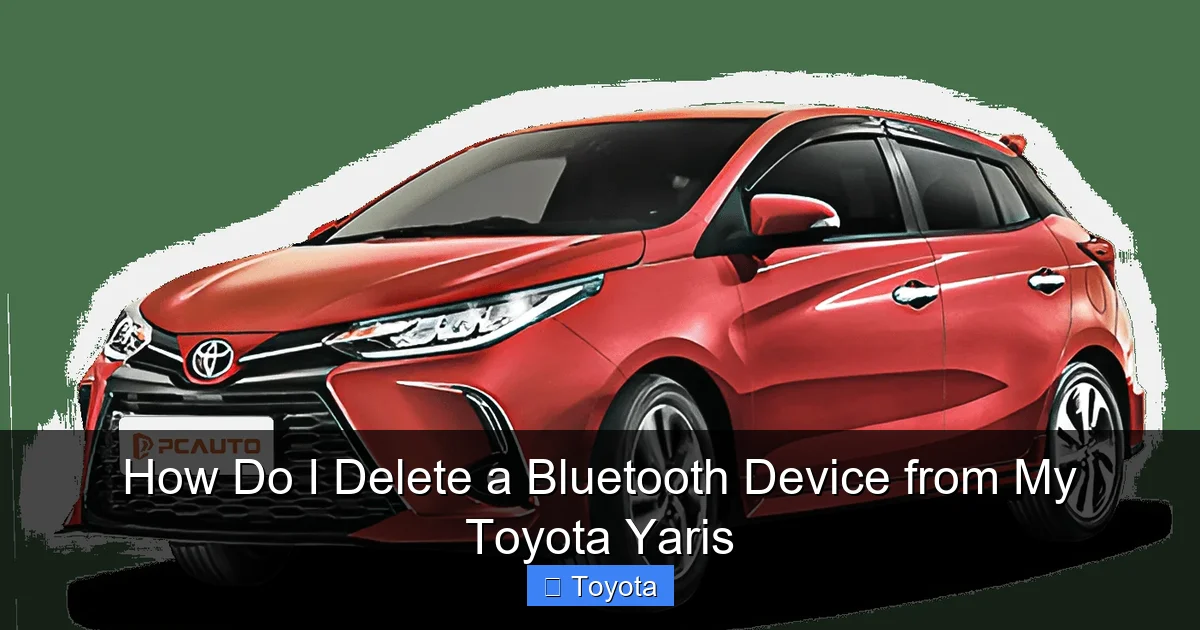
Visual guide about How Do I Delete a Bluetooth Device from My Toyota Yaris
Image source: img.pcauto.com
- Power On: Turn your Yaris’s ignition to the “ON” or “ACC” position. The infotainment system must be powered.
- Enter Settings: Find and press the button that says “Setup,” “Menu,” or look for a gear/settings icon on the touchscreen.
- Navigate to Bluetooth: Within the settings menu, look for a category called “Bluetooth,” “Phone Settings,” “Connectivity,” or “Wireless.” Select it.
- Find the Paired Devices List: Inside the Bluetooth menu, there should be an option to “Add Device,” “Pair Device,” or “Device List”/”Paired Devices.” You want the list of devices that are already connected or remembered.
- Select the Device to Delete: You’ll see a list of device names (e.g., “John’s iPhone,” “Galaxy S23,” “Sarah’s Pixel”). Use the knob, arrow keys, or touchscreen to highlight the device you want to remove.
- Choose Delete/Remove: Once a device is selected, an option like “Delete,” “Remove,” “Forget,” or “Clear” should become available. Select it.
- Confirm: The system will almost always ask you to confirm, with a message like “Delete [Device Name]?” Select “Yes” or “Confirm.”
- Exit: Back out of the menus. The device is now gone from the system’s memory.
Pro Tip: If you’re having trouble, your owner’s manual is the ultimate authority. The index will have an entry for “Bluetooth,” “Phone,” or “Pairing.” The diagrams are usually very clear.
Detailed Instructions by Yaris Model Year & System
Now, let’s get specific. Identify your Yaris’s approximate model year and audio system type to follow the precise steps.
Visual guide about How Do I Delete a Bluetooth Device from My Toyota Yaris
Image source: wonder007.com.tw
For Toyota Yaris Models (2012-2016) with Standard Radio
These models typically have a small screen above the climate controls. The process uses the “Setup” button and a rotary knob.
- Press the “Setup” button on the radio faceplate.
- Use the rotary knob to scroll to “Bluetooth” or “Phone” and press the knob to select.
- Scroll to “Device List” or “Paired Devices” and select.
- Scroll to highlight the unwanted device name.
- Press the knob or a dedicated “Delete” button (sometimes you must hold the knob down for a few seconds).
- When prompted “Delete [Device]?”, select “Yes” or “OK”.
If you don’t see a “Delete” option after selecting a device, the “Device List” menu itself might have a “Remove” or “Clear All” option at the bottom. “Clear All” will delete every paired device, which is useful if you’re selling the car.
For Toyota Yaris Models (2017-2020) with Entune™ 3.0 Touchscreen
This is the larger, more modern color touchscreen. The process is more visual.
- From the home screen, tap the “Apps” icon (usually a grid of squares).
- Find and tap the “Setup” or “Settings” app.
- Tap “Bluetooth” or “Phone”.
- Tap “Device List” or “Paired Devices”.
- You’ll see a list of paired devices. Tap the trash can icon (🗑️) or an “i” (information) icon next to the device you want to remove.
- If you tap the “i,” a new screen will open with a “Delete” or “Remove” button. Tap it.
- Confirm the deletion in the pop-up window.
On some Entune systems, you can also press and hold the device name in the list to bring up a context menu with the delete option.
For Toyota Yaris Cross (2021+) with Toyota Audio Multimedia
The newest Yaris variants use the latest Toyota interface. It’s sleek but can have slightly different wording.
- Tap the “Menu” button on the home screen or swipe from the edge.
- Select “Settings” (gear icon).
- Select “Connection” or “Bluetooth & Devices”.
- Select “Manage Devices” or “Paired Devices”.
- Find the device and tap the settings gear icon (⚙️) or “X” next to it.
- Tap “Forget” or “Delete”.
- Confirm.
The wording is very consistent with modern Android or iOS device management, making it intuitive once you find the right menu.
Troubleshooting: What If I Can’t Delete a Device?
Sometimes, a device name might be grayed out, or the delete option is missing. Here’s what to do, in order of escalation.
Visual guide about How Do I Delete a Bluetooth Device from My Toyota Yaris
Image source: img.cdn-worldsapps.com
First: Check for Correct Selection
On older systems, you might need to highlight the device by scrolling to it, but not press the knob yet. Then, look for a separate “Delete” button on the radio faceplate that lights up only when a device is selected. On touchscreens, ensure you are tapping the correct icon (trash can, ‘i’, or ‘X’) next to the specific device, not just the device name itself.
Second: Try a System Reset (Soft)
Many systems have a “Reset” or “Initialize” option within the Bluetooth or main Settings menu. This will clear all Bluetooth pairings but usually keep radio presets and other settings. This is the nuclear option for Bluetooth issues and is often more effective than trying to delete individual stuck devices. Look for “Bluetooth Reset,” “Initialize,” or “Clear All Pairings”.
Third: Perform a Full System Reboot
Turn off the car, open the driver’s door (this often fully powers down the system in modern cars), and wait 5 minutes. This can clear temporary memory glitches. Restart the car and try the deletion process again.
Fourth: Consult the Manual or Dealer
If nothing works, your owner’s manual is the next stop. If the manual doesn’t help, a quick call to your Toyota dealer’s service department can provide the exact steps. They know the quirks of each model year’s system. You might also find that your specific head unit has a hidden reset sequence (like holding certain buttons on power-on), which the dealer can tell you about. This is similar to how you might need specific instructions for resetting the maintenance light on a Yaris.
Best Practices for Bluetooth Management in Your Yaris
To avoid future headaches, adopt these simple habits.
- Audit Your List Every 6 Months: Make it a habit to glance at your paired devices list. Delete any phones you no longer use or recognize immediately.
- Use Descriptive Names: When pairing a phone, the system often uses the phone’s default name (e.g., “John’s iPhone”). You can sometimes rename it in the phone’s Bluetooth settings to something clear like “Yaris – Primary” or “Yaris – Work.” This makes identifying and deleting old ones much easier.
- Delete Before You Sell or Trade: Make “Clear All Bluetooth Pairings” part of your pre-sale checklist. It’s a quick courtesy to the next owner and protects your privacy. While you’re at it, you might also want to remove the back seat for a thorough clean-out.
- Prioritize Your Phone: If you have multiple phones, ensure your primary phone is connected. Some systems auto-connect to the first device they find in the list, which might be an old phone left in the cup holder. Deleting the old ones prevents this.
- Understand the Limits: Know your system’s capacity. If you’re constantly hitting the limit, it’s a sign you need to do some digital spring cleaning.
Conclusion: Take Control of Your Yaris’s Digital Dashboard
Your Toyota Yaris’s Bluetooth system is a powerful tool for safe, hands-free communication and entertainment. But like any tool, it works best when it’s well-maintained and organized. Taking five minutes to delete outdated or unused Bluetooth devices eliminates annoying connection errors, frees up valuable slots for new devices, and secures your personal information. The process is straightforward once you know where to look in your specific model’s infotainment system. Remember, the path is always Settings > Bluetooth > Device List > Delete, even if the button labels change. Keep your owner’s manual handy for the definitive guide to your car. By making Bluetooth management a small, regular part of your car care routine, you ensure that every time you get behind the wheel, your Yaris is connected, ready, and focused on you. Now, go forth and delete that old device—your future self, waiting for a seamless connection, will thank you.
Frequently Asked Questions
Will deleting a Bluetooth device from my Yaris delete my phone’s contacts or call history?
No. Deleting the pairing information from your car’s system only removes the connection profile from the car. Your phone’s internal data, including contacts, call logs, and text messages, remains completely untouched and safe on your phone.
What if the device I want to delete is not showing up in the list?
If a device isn’t in the “Paired Devices” list, it’s likely not currently paired. It may only be in your phone’s Bluetooth history. To prevent the car from trying to connect to it, you should also “forget” or “unpair” the Toyota Yaris from your phone’s Bluetooth settings menu.
My Yaris’s screen says “Delete Failed” or the option is grayed out. What now?
This indicates a system glitch. First, try a soft reset of the infotainment system by turning the car off, opening and closing the driver’s door, and waiting a few minutes before restarting. If that fails, use the “Bluetooth Reset” or “Clear All Pairings” option in your settings menu, which will force-delete all stored devices.
Can I delete all Bluetooth devices at once?
Yes, most Toyota systems have a “Clear All,” “Delete All,” or “Initialize” function within the Bluetooth settings menu. This is the fastest way to wipe the slate clean, especially if you’re selling the car or troubleshooting persistent connection issues.
After deleting a device, do I need to do anything on my phone?
Yes. To pair the phone again, you must first make sure the phone’s Bluetooth is turned on and that it is set to “discoverable” or “visible.” Then, initiate the pairing process from the car’s “Add Device” menu. The phone will usually receive a prompt to confirm a pairing code.
Is the process the same for all Toyota models?
The core logic is identical (Settings > Bluetooth > Device > Delete), but the exact menu names and button locations vary between models and years. For example, the steps for a Honda Civic or a Subaru will have different menu structures than your Yaris, so always refer to your specific owner’s manual for the most accurate instructions.
