
How to Turn on Rear Ac in a Tesla Model Y

Turning on the rear air conditioning in your Tesla Model Y is simple and done entirely through the central touchscreen interface. There is no physical switch or button for rear passengers; all climate control is managed from the front display or the Tesla mobile app. You can control the rear cabin temperature independently, set fan speeds, and even direct airflow, ensuring comfort for all passengers on every journey.
Welcome to your complete guide on mastering the climate control system of your Tesla Model Y! One of the most common questions new owners have is about managing comfort for rear-seat passengers. Unlike traditional cars with rear A/C vents and independent controls, Tesla has taken a streamlined, tech-first approach. Understanding how to turn on and fine-tune the rear air conditioning is essential for family trips, rides with friends, or just making sure your kids or pets are comfortable on a hot day. This guide will walk you through every method, from the simplest touchscreen tap to advanced app scheduling, ensuring you become a pro at managing your Model Y’s cabin climate.
Key Takeaways
- Centralized Control: The Tesla Model Y’s rear AC is controlled exclusively via the main touchscreen or the Tesla mobile app; there are no rear seat controls.
- Independent Rear Climate: You can set a different temperature for the rear cabin than the front, offering personalized comfort for backseat passengers.
- Multiple Activation Methods: Turn on the rear AC through the Climate Control widget on the touchscreen, the “Climate” tab in the mobile app, or using voice commands.
- Fan Speed & Airflow Direction: Beyond temperature, you can adjust the rear fan speed and choose where the air vents direct (face, floor, or both).
- Preconditioning is Key: Use the “Schedule” or “On” feature in the mobile app to pre-cool the entire cabin, including the rear, before you even get in the car.
- Energy Impact: Running the rear AC increases energy consumption. Be mindful of range, especially on longer trips with the rear climate active.
- System Integration: The rear AC is part of the vehicle’s overall thermal management system and works in tandem with the front HVAC and battery cooling systems.
📑 Table of Contents
- Understanding the Tesla Model Y’s HVAC System
- Method 1: Turning On Rear AC via the Touchscreen
- Method 2: Using the Tesla Mobile App
- Method 3: Voice Commands
- Troubleshooting: Why Won’t My Rear AC Turn On?
- Optimizing Rear AC for Comfort and Efficiency
- Maintenance and Long-Term Care
- Conclusion: Comfort at Your Fingertips
Understanding the Tesla Model Y’s HVAC System
Before we dive into the “how-to,” it’s helpful to understand the “what” you’re controlling. The Tesla Model Y uses a sophisticated, integrated Heating, Ventilation, and Air Conditioning (HVAC) system. It’s a heat pump system in most models (post-2020), which is highly efficient at both heating and cooling by transferring heat rather than generating it directly. This system services the entire cabin through a network of ducts and vents.
The Philosophy of Centralized Control
Tesla’s design philosophy emphasizes a clean, minimalist interior. This means eliminating physical buttons and switches wherever possible. For the Model Y, this extends to the rear passenger area. There are no manual dials, buttons, or even simple vents that rear passengers can adjust themselves. All authority rests with the driver (or the front passenger) via the central 15-inch (or 17-inch in newer models) touchscreen. This design choice reduces clutter and complexity but requires a slight learning curve for those used to traditional cars. It also means the driver is ultimately responsible for the comfort of everyone in the vehicle.
Heat Pump vs. Traditional Resistance Heating
If your Model Y was manufactured after around May 2020, it likely has a heat pump system. This is more energy-efficient than the older resistive heating systems, especially in moderate cold. However, the user interface for controlling it is the same. Whether heating or cooling, the commands you send to turn on the rear climate function identically. The system intelligently manages energy use to maximize range, which is something to keep in mind when using both front and rear climate aggressively in extreme temperatures.
Method 1: Turning On Rear AC via the Touchscreen
This is the primary and most immediate method for controlling the rear climate. It’s intuitive once you know where to look. The controls are nested within the main Climate Control interface.

Visual guide about How to Turn on Rear Ac in a Tesla Model Y
Image source: i0.wp.com
Step-by-Step Touchscreen Navigation
Start by ensuring your car is powered on (either in “Park” or “Drive”). From the home screen, locate the Climate Control icon. It’s typically represented by a snowflake/cooling symbol and a sun/heating symbol, or you may find it in the bottom shortcut bar. Tap this icon to open the full climate control panel.
Once the panel is open, you’ll see controls for the driver and front passenger area. Look for a section or button labeled “Rear” or an icon that looks like a person in the back seat. On some software versions, you might need to tap an arrow or “Show More” to expand the options to see the rear controls. Tap on the “Rear” section to activate it.
You will now see a dedicated set of controls for the rear cabin. Use the temperature slider or +/- buttons to set your desired temperature. Below that, you’ll find a fan speed control (usually from Off to 5 or 7 bars). To the right or below, you’ll see icons for directing airflow: a symbol for vents pointing at the face, one for floor vents, and often a combined symbol for both. Select your preferences. The rear AC is now on and working to maintain that temperature.
Visual Cues and Confirmation
When the rear climate is active, the “Rear” section on the touchscreen panel will be highlighted or illuminated, and the fan speed bar will show activity. You’ll also feel cool (or warm) air coming from the rear floor vents. These vents are typically located under the front seats, allowing air to circulate into the back. The system is smart—if you set the rear temperature to match the front and the front is already cooling, the rear may not need to run its fan as aggressively, but the system is still actively managing the rear zone’s temperature.
Method 2: Using the Tesla Mobile App
The Tesla app is an incredibly powerful tool that extends your car’s functionality far beyond the key fob. You can control the climate system from anywhere you have a cellular or Wi-Fi connection, which is perfect for pre-conditioning the cabin.

Visual guide about How to Turn on Rear Ac in a Tesla Model Y
Image source: automotiveglory.com
Accessing Climate Controls in the App
Open the Tesla app and select your connected Model Y from the vehicle list. On the main control screen, you’ll see a large “Climate” button. Tap it to enter the climate control interface. The layout is similar to the car’s touchscreen but optimized for your phone. You’ll see separate controls for “Driver & Front” and “Rear.”
To turn on the rear AC, simply tap on the “Rear” section to expand its controls. Set your desired temperature using the slider or buttons. Adjust the fan speed using the provided control. You can also typically select the airflow direction here. As soon as you make a change, the app will send a command to your car, and the rear HVAC system will activate. You’ll see a confirmation in the app, and the car’s climate status will update.
The Power of Preconditioning
This is where the app truly shines. Instead of turning the rear AC on while driving, you can prepare the cabin before your trip. In the Climate section of the app, you have two powerful options:
- “On”: Tap this to immediately start the climate system. You can set your desired temperature for the whole car or just the rear zone. This begins cooling or heating the cabin instantly.
- “Schedule”: This allows you to set a specific time for the climate to turn on. For example, set it to start cooling the cabin (including the rear) at 7:45 AM on weekdays before your commute. The car will automatically activate the HVAC system to reach your set temperature by the scheduled time. This is ideal for ensuring the rear is comfortable for kids getting in after school or for cooling the car down on a hot afternoon before you leave the office.
Pro Tip: Preconditioning while the car is plugged in uses wall power instead of the battery, preserving your range. It’s the most efficient way to get the cabin comfortable. If you’re considering aesthetic modifications that affect cabin temperature, like a Tesla Model Y window tint, you’ll find you may need to run the AC less frequently.
Method 3: Voice Commands
For hands-free convenience, the Tesla Model Y’s built-in voice command system is a fantastic option. It allows you to control the rear climate without taking your hands off the wheel or eyes off the road.
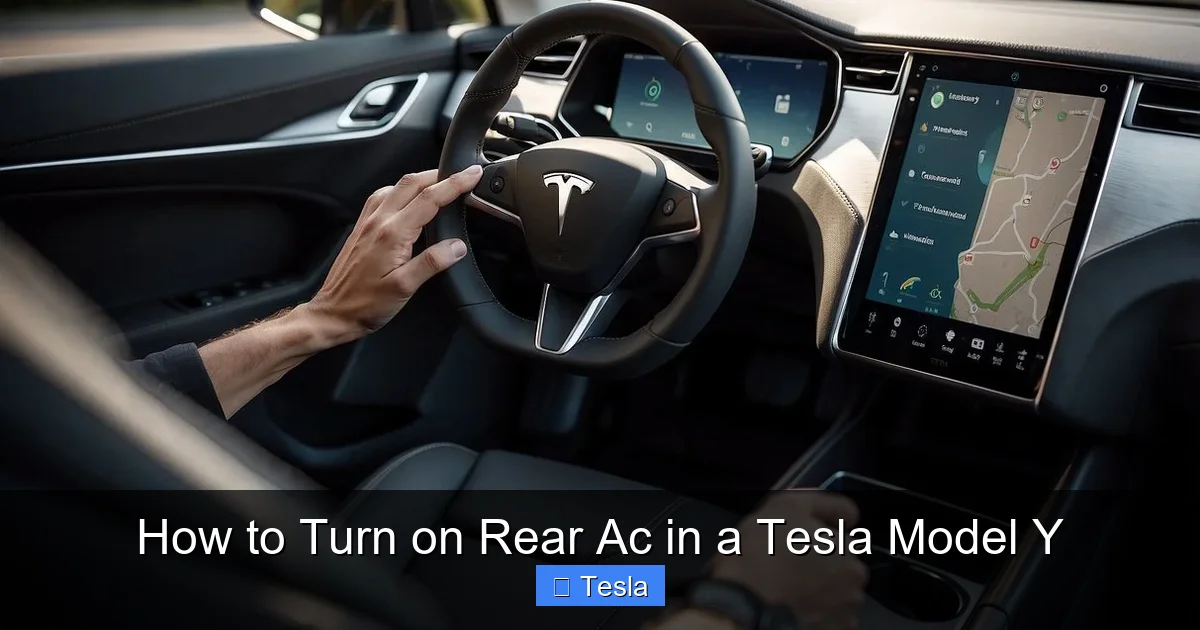
Visual guide about How to Turn on Rear Ac in a Tesla Model Y
Image source: koala.sh
Activating and Using Voice Control
Press the scroll wheel on the right side of the steering wheel (or the voice button on the left, depending on your model/year) to activate the voice command listener. You’ll hear a chime and see a microphone icon on the touchscreen. You can then speak your command naturally.
To control the rear AC, try these phrases:
- “Turn on rear air conditioning”
- “Set rear temperature to 72 degrees”
- “Increase rear fan speed”
- “Direct rear air to the floor”
- “Turn off rear climate”
The system is generally very good at understanding natural language. You don’t need to use exact menu terminology. Saying “Make the back cooler” will often be interpreted correctly to lower the rear temperature setting. The voice command will execute the action, and you’ll see the touchscreen controls adjust accordingly.
Limitations and Best Practices
Voice control for the rear climate is highly functional but has some limitations. Complex multi-step commands may not work as well (e.g., “Set rear to 68, fan speed 3, and air to faces”). It’s best to use it for single, clear commands. Also, ensure your cabin is quiet enough for the microphone to pick up your voice clearly over road or wind noise. This method is perfect for quick adjustments while driving, leaving the more detailed setup for when you’re parked or using the app.
Troubleshooting: Why Won’t My Rear AC Turn On?
On the rare occasion the rear climate control doesn’t respond as expected, don’t panic. Most issues are simple to diagnose and resolve.
Common Issues and Quick Fixes
The “Rear” button or section is grayed out or unresponsive: This is the most common “issue.” First, check your Driver Profile. If your profile has “Keep Climate On” or “Dog Mode” active, the system prioritizes the front cabin for the driver and may lock certain rear settings. Try switching to a different driver profile or disabling those modes. Also, ensure the car is not in “Camp Mode,” which has its own climate rules.
No air is coming from the rear vents: Verify the rear fan speed is turned up from “Off.” Then, check the airflow direction is set to “Face” or “Both.” If it’s set to “Floor” only, air might be flowing under the seats and you may not feel it immediately. Also, make sure the front climate is on. The rear system often uses the front system’s compressor and heater core; if the front is completely off, the rear may have limited functionality.
The app says “Climate is off” but I turned it on in the car: This is usually a temporary communication delay between the car and Tesla’s servers. Wait 30-60 seconds and refresh the app. The status should update. If it persistently shows incorrect statuses, try a soft reboot of the car’s touchscreen (hold down both scroll wheels on the steering wheel until the screen restarts).
When to Contact Service
If you’ve tried all the above and the rear AC still does not produce any air at all, or if the temperature setting has no effect (air is always hot or always cold regardless of setting), there may be a hardware issue. This could involve a faulty rear zone blend door actuator, a problem with the rear fan motor, or a larger HVAC system fault. In this case, you should schedule a service appointment through the Tesla app. The service center can run a full diagnostic on the climate control system. Before you go, note any other symptoms—unusual noises from the dashboard, warning lights on the screen, or if the issue is temperature-specific (only heats, only cools)—to help the technician.
Optimizing Rear AC for Comfort and Efficiency
Knowing how to turn the rear AC on is one thing; using it wisely is another. Efficient use preserves your battery’s driving range, which is always a top concern for EV owners.
Smart Temperature Settings
The most significant factor affecting energy use is the temperature differential between the inside and outside of the car. On a 90°F (32°C) day, setting the rear climate to 65°F (18°C) forces the system to work much harder than setting it to 75°F (24°C). A good rule of thumb is to set the rear temperature 5-7 degrees different from the front if you want to save energy, or match it for maximum comfort. The rear cabin often requires less aggressive cooling than the front because it’s smaller and has fewer heat sources (like the driver’s electronics and body heat). Start at a moderate setting and adjust as needed.
For heating, the same principle applies. Using a lower temperature setting uses less battery. Remember, the heat pump is efficient, but moving heat from the outside (or from the battery’s waste heat) still takes energy. Using aftermarket accessories like high-quality seat covers can also provide a bit of extra insulation and comfort without solely relying on the HVAC system.
Fan Speed and Airflow Strategy
Using a lower fan speed is more energy-efficient than running it on high. It also tends to be quieter, which is a huge plus for rear passengers trying to sleep or talk. For initial cooldown on a hot day, start with a higher fan speed and direct air to the face vents for quick cooling. Once the cabin is cool, lower the fan speed and switch the airflow to “Floor” or “Both.” Floor vents provide more even, gentle circulation and are less drafty.
If you have a pet in the back, “Dog Mode” is your best friend. When activated (via the touchscreen or app), it maintains a set temperature (usually around 72°F) and displays a message on the screen that the pet is safe. The rear climate is fully active in this mode. However, always remember that leaving a pet unattended in a car carries risks, and Dog Mode is a safeguard, not a substitute for good judgment.
Maintenance and Long-Term Care
To keep your rear AC (and the entire HVAC system) performing optimally for years, some basic maintenance is helpful.
Cabin Air Filter Replacement
The Model Y has a cabin air filter that cleans the air coming into the system. Over time, it gets clogged with pollen, dust, and debris. Tesla recommends replacing it every 1-2 years, depending on your environment (more often if you drive in dusty or high-pollen areas). A clogged filter reduces airflow from all vents, including the rear, making the system work harder and feel less effective. You can replace it yourself (it’s a simple procedure behind the front passenger glovebox) or have Tesla service do it. A fresh filter will make the air from your rear vents feel cleaner and flow stronger.
Keeping Vents Clear
This sounds simple, but it’s crucial. Ensure nothing is blocking the rear floor vents. Large floor mats, pet carriers, or cargo should not be placed directly over the vent outlets. Also, periodically check the front vents and the duct pathways under the seats to make sure no small objects (like toys or coins) have fallen and are obstructing airflow to the rear. A quick vacuum of the vent openings can help.
System Recalls and Updates
Tesla frequently releases over-the-air (OTA) software updates that can improve HVAC system performance, efficiency, and even add new features. Always keep your car’s software up to date. Occasionally, Tesla may issue a service bulletin or recall related to the HVAC system. If you receive a notification in your car or app about a “HVAC” or “Thermal” system recall, have it addressed promptly. These are often preventative fixes to ensure long-term reliability. You can also check your service history in the app to see if any HVAC-related work has been performed.
Conclusion: Comfort at Your Fingertips
Mastering the rear air conditioning in your Tesla Model Y is a simple yet important part of the ownership experience. The system’s centralized, digital nature is a hallmark of Tesla’s design, placing comprehensive control in the driver’s hands via the intuitive touchscreen, the powerful mobile app, or convenient voice commands. Remember, there are no physical rear controls—your ability to manage the rear climate defines the comfort level for your passengers. By understanding how to activate it, adjust temperature and fan speed independently, and leverage features like preconditioning and Dog Mode, you can create the perfect environment for every journey. Use the troubleshooting tips to address any rare hiccups, and practice efficient settings to protect your valuable battery range. With this knowledge, you’re fully equipped to keep every seat in your Model Y perfectly cool in the summer and cozy in the winter, making every trip more enjoyable for everyone on board.
Frequently Asked Questions
Can rear passengers control the AC themselves in a Tesla Model Y?
No, the Tesla Model Y does not have physical climate controls in the rear seat area. All adjustments for rear temperature, fan speed, and airflow direction must be made by the driver or front passenger using the main touchscreen, the mobile app, or voice commands.
Why is my rear AC not blowing air even though it’s turned on?
First, check that the rear fan speed is not set to “Off.” Next, ensure the airflow direction is not set to “Floor” only, as air may be flowing under seats. Also, verify the front climate system is powered on, as the rear system relies on some front components. If these are correct, a clogged cabin air filter or a software glitch (try a touchscreen reboot) could be the cause.
Does using rear AC significantly reduce Tesla Model Y range?
Yes, using any climate control, including rear AC, consumes battery energy and reduces range. The impact is more noticeable on very hot or cold days and when using high fan speeds and large temperature differentials. Using the mobile app to pre-cool the cabin while plugged in is the most range-efficient method, as it uses shore power instead of the battery.
How do I set a different temperature for the rear than the front?
On the main Climate Control panel on the touchscreen, tap the “Rear” section to expand its controls. You will see a separate temperature slider or buttons for the rear. Adjust this to your desired temperature, which can be different from the setting shown for the driver/front zone. The system will maintain both temperatures independently.
Can I turn on the rear AC while the car is parked and off?
Yes, but only if the car is in “Park” and you have one of the following modes active: “Keep Climate On” (which maintains the front climate), “Dog Mode” (which maintains a set temperature and displays a message), or “Camp Mode” (which maintains climate and allows you to use other features). You cannot simply turn on the rear AC alone with the car completely powered down and no special mode active.
Is there a way to make the rear AC cool faster?
For the quickest initial cooldown, set the rear temperature to its lowest setting (usually ~60°F or 15°C) and set the fan speed to its highest setting. Direct the airflow to the “Face” vents. Once the cabin feels cool, increase the temperature setting to your preferred comfort level and lower the fan speed, switching airflow to “Floor” or “Both” for quieter, more even cooling. Pre-cooling the entire car via the mobile app while it’s plugged in is the fastest overall method.
