
How to Disable Location on a Tesla Model Y

Disabling location tracking on your Tesla Model Y is a multi-step process focused on cutting off its GPS, cellular, and Wi-Fi connections. You can achieve this through the vehicle’s touchscreen settings by turning off connectivity services, physically removing the SIM card, or using a signal-blocking Faraday pouch. Be aware that doing so will disable critical features like real-time navigation, the Tesla mobile app, and automatic software updates, so it’s a trade-off between privacy and convenience.
Your Tesla Model Y is a rolling computer on wheels, constantly communicating with the outside world. It uses GPS to know where it is, cellular networks to talk to Tesla’s servers, and Wi-Fi to download updates. This connectivity powers amazing features like real-time navigation, the ability to check on your car from your phone, and Sentry Mode’s watchful eye. But for some owners, this constant digital tether raises a big question: how do you disable location tracking on a Tesla Model Y? Whether your concern is personal privacy, corporate security, or simply a desire for a less connected driving experience, taking control of your vehicle’s location data is possible. It’s not as simple as flipping one switch, but with a clear understanding of the systems at play, you can effectively break the location link. This guide will walk you through every method, from simple software tweaks to more involved hardware changes, and explain exactly what you gain—and what you lose—in the process.
Key Takeaways
- Primary Method is Software-Based: The first and easiest step is to disable all connectivity services (Wi-Fi, Bluetooth, and Cellular) directly through the Tesla’s touchscreen under Safety & Security settings.
- Hardware Disconnection is More Thorough: For a guaranteed block, physically removing the vehicle’s SIM card (located under the rear trunk liner) will sever all cellular communication, including the Tesla app’s ability to locate the car.
- Faraday Containment is Universal: Placing the key fob or the entire vehicle in a certified Faraday cage or pouch will block all inbound and outbound radio signals (GPS, cellular, Wi-Fi) effectively, but is impractical for daily driving.
- Feature Sacrifice is Significant: Disabling location services will render navigation, live traffic, Sentry Mode video streaming, and remote app controls non-functional until re-enabled.
- Warranty and Legality: Disabling connectivity features does not void your Tesla warranty, but it may violate the terms of service for certain connected features. It is legal for personal use, but local laws regarding vehicle tracking should be considered.
- Partial Solutions Exist: You can disable specific services like “Allow Mobile Access” or “Sentry Mode” to limit data sharing without a full disconnect, offering a middle ground for privacy-conscious owners.
- Physical Privacy Complements Digital: For holistic privacy, consider combining digital disabling with physical modifications like window tinting to prevent visual tracking from outside the vehicle.
📑 Table of Contents
- Understanding How Your Tesla Model Y Shares Its Location
- Why Would You Want to Disable Location Tracking on a Model Y?
- Method 1: Disabling Location Services via the Touchscreen (The Soft Disable)
- Method 2: The Physical Disconnect – Removing the SIM Card
- Method 3: The Faraday Solution – Blocking All Radio Signals
- What to Expect: The Real-World Implications of Going Dark
- Legal, Warranty, and Ethical Considerations
- Complementary Privacy Measures: Thinking Beyond the Signal
- Conclusion: Making an Informed Choice for Your Model Y
Before you can disable something, you need to understand what you’re dealing with. Your Model Y doesn’t rely on a single technology to determine and share its location. It’s a combination of systems working together. Think of it like a team: GPS provides the raw coordinates, the cellular modem (LTE) is the messenger that sends that data to Tesla, and Wi-Fi can act as a secondary or backup messenger. The car’s internal computer, or MCU (Media Control Unit), orchestrates this entire operation.
The Role of GPS and Cellular Modems
Global Positioning System (GPS) satellites orbiting Earth provide the Model Y with its precise latitude and longitude. This signal is receive-only; your car listens to the satellites but never transmits back to them. The critical part for location sharing is the vehicle’s built-in LTE cellular modem, provided by a carrier like AT&T in the U.S. This modem is always on, maintaining a low-power connection to the cellular network. It’s the channel through which the car sends its GPS-derived location to Tesla’s servers. This is what enables the “Where is my car?” feature in the Tesla app and provides the map data for navigation.
Connectivity Settings: The Software Gatekeeper
All of this communication is managed by software settings you can access. The “Safety & Security” menu on the touchscreen houses the primary controls. Here you’ll find toggles for “Allow Mobile Access,” which permits the Tesla app to communicate with the car, and “Sentry Mode,” which, when enabled, uses the car’s cameras and location to send alerts. There’s also a dedicated “Wi-Fi” and “Bluetooth” section. Disabling these services at the software level tells the car’s computer to stop initiating connections, but the hardware (the modem) may still be passively listening or attempting to connect.
Why Would You Want to Disable Location Tracking on a Model Y?
The motivation isn’t always about hiding something nefarious. For many, it’s a principled stand for privacy in an increasingly tracked world. Your vehicle’s location history is a rich data profile. Tesla uses it for product development, service diagnostics, and to improve their Full Self-Driving (FSD) algorithms. While anonymized in aggregate, the raw data collected from millions of miles of driving is incredibly valuable. Disabling tracking is a way to opt out of this massive data economy.
Visual guide about How to Disable Location on a Tesla Model Y
Image source: blownfuse.co
Personal Privacy and Data Security
In an era of data breaches and corporate data mining, many people are minimizing their digital footprint. Your car’s location history can reveal your home address, workplace, gym, doctor’s appointments, and favorite restaurants. If Tesla’s servers were ever compromised, this data could be exposed. By disabling the constant stream of location data, you ensure that your daily movements are not stored on any corporate server. This is a core tenet of data minimization—only share what is absolutely necessary.
Corporate or Sensitive Use Cases
For businesses that use Tesla vehicles for sales fleets or executive transport, controlling location data can be a compliance issue. Certain industries or government contracts may prohibit the use of vehicles that transmit location data to third parties. Similarly, individuals in sensitive professions—journalists, activists, private citizens in protective programs—may have legitimate, life-threatening concerns about their vehicle broadcasting its whereabouts. For them, disabling location tracking is a critical security protocol.
Simple Preference and Battery Conservation
Some owners just prefer a “dumber” car. They find the constant connectivity distracting or unnecessary. They use standalone GPS units or their phone’s offline maps for navigation and don’t need remote app features. Furthermore, the constant cellular connection, even at low power, does contribute to a small but measurable “vampire drain” on the 12-volt battery. Completely disabling the modem can marginally improve the vehicle’s ability to sit for longer periods without needing a recharge, though this is a secondary benefit for most.
Method 1: Disabling Location Services via the Touchscreen (The Soft Disable)
This is your first and primary line of defense. It’s completely reversible, requires no tools, and stops most of the convenient but trackable features. The goal here is to instruct the car’s computer to cease all outgoing communications.
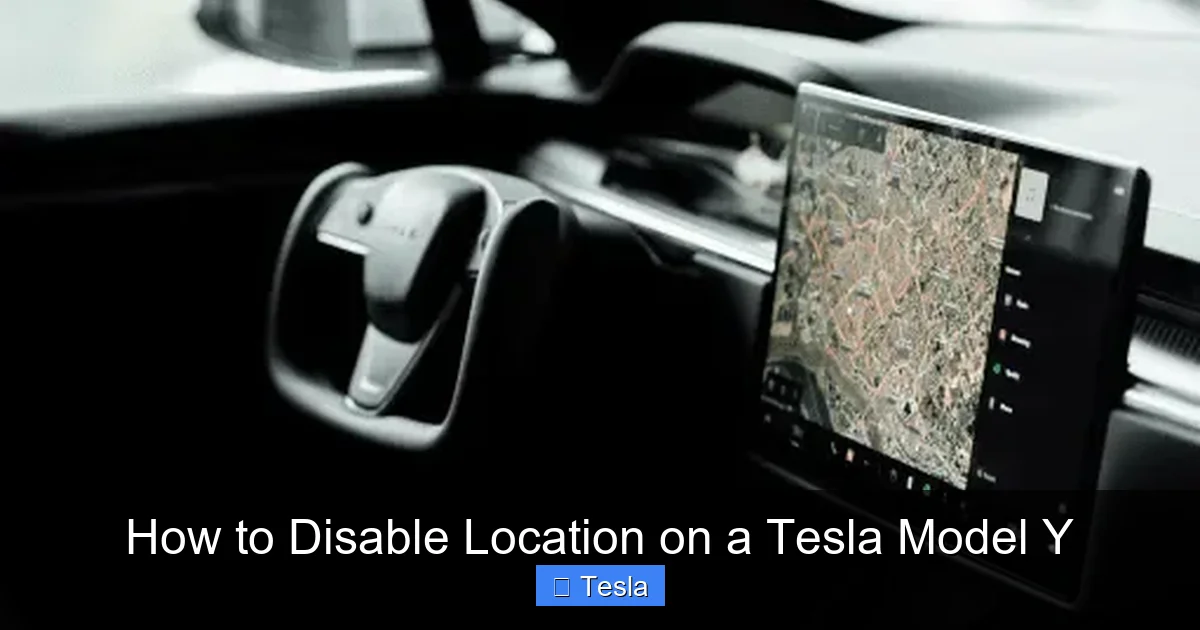
Visual guide about How to Disable Location on a Tesla Model Y
Image source: cdn.prod.website-files.com
Step-by-Step Software Toggle Guide
1. **Access Settings:** Tap the ‘Controls’ icon (car symbol) on the bottom center of your touchscreen, then select the ‘Safety & Security’ tab.
2. **Turn Off Mobile Access:** Find the toggle for “Allow Mobile Access.” Switch it OFF. This immediately severs the two-way connection between your car and the Tesla app. You will no longer be able to honk the horn, flash lights, see the car’s location, or control charging from your phone.
3. **Disable Sentry Mode:** If you have Sentry Mode enabled, tap the ‘Safety & Security’ tab and toggle it OFF. Sentry Mode relies on location data to trigger alerts and stream video to your phone. Disabling it stops this data flow.
4. **Forget Wi-Fi Networks:** Navigate to ‘Wi-Fi’ settings and select ‘Forget’ on any saved networks. Then, toggle the main Wi-Fi switch to OFF. This prevents the car from automatically connecting to any Wi-Fi (like at home or a Supercharger) which could be used to transmit data.
5. **Disable Bluetooth (Optional):** For a truly disconnected state, you can also disable Bluetooth in its settings menu. This will stop your phone from connecting for media or contacts, but is often unnecessary if Mobile Access is off.
What This Actually Blocks
This method is highly effective for stopping *initiated* communications. The Tesla app can no longer “call” your car. Sentry Mode alerts stop. The car will not proactively send its location to Tesla. However, the cellular modem hardware is still powered and may maintain a minimal, passive registration with the cellular network for emergency services (like the SOS button) or for receiving critical, over-the-air (OTA) safety updates from Tesla. The car’s location is not being actively streamed, but its presence on the network is detectable.
Method 2: The Physical Disconnect – Removing the SIM Card
If you need a more absolute solution, you must physically interrupt the cellular pathway. The Model Y, like all modern Teslas, has a removable SIM card that connects it to the LTE network. Removing it is like taking the car’s phone out of the socket. This is the most reliable way to guarantee zero cellular transmission.
Visual guide about How to Disable Location on a Tesla Model Y
Image source: koala.sh
Locating and Accessing the SIM Tray
The SIM card is not in the cabin; it’s located in the rear of the vehicle, under the trunk liner. You will need a plastic pry tool or a flat-head screwdriver and a SIM ejector tool (or a small paperclip).
1. Open the rear trunk. Fully lower the rear seats to access the trunk’s rear wall.
2. Carefully pry off the plastic trunk liner cover. It’s held by plastic clips. Start at a corner and work your way around.
3. Behind the liner, you will see a large black plastic module. This is the Telematics Control Unit (TCU). On its side, you’ll find a small tray with a tiny hole—this is the SIM card slot.
4. Use the SIM ejector tool to gently push into the hole. The tray will pop out slightly.
5. Pull the tray all the way out. It contains the SIM card. Remove the card and store it somewhere safe.
Reassembly and Expected Results
Simply push the empty tray back into the slot until it clicks, then reinstall the trunk liner. When you power the car back on, you will see a persistent “No Service” or “Cellular Not Available” icon in the top status bar of your touchscreen. The car has no cellular connection whatsoever. This means no Tesla app connectivity, no live traffic data, no ability to receive OTA updates wirelessly (you would need to use Wi-Fi manually), and no automatic emergency calling. Navigation will still work using the pre-downloaded map data, but live traffic routing is gone. This is the most comprehensive digital blackout you can achieve.
Method 3: The Faraday Solution – Blocking All Radio Signals
A Faraday cage is an enclosure made of conductive material that blocks external static and non-static electric fields. For your Model Y, this means a bag or pouch that blocks GPS, cellular, and Wi-Fi signals. This method is non-destructive and instant, but has significant practical limitations for a vehicle you drive daily.
How a Faraday Pouch Works for Key Fobs and Phones
You’ve likely seen Faraday pouches for key fobs to prevent relay attacks. They work on the same principle. A high-quality pouch, lined with conductive mesh or material, creates a shield. Placing your phone inside the pouch before getting into the car prevents it from connecting to the car’s Bluetooth or Wi-Fi. However, this only protects the phone’s signal, not the car’s own transmitter.
Can You Faraday Cage an Entire Car?
Technically, yes, but it’s not practical. To effectively block all signals from a vehicle the size of a Model Y, you would need to construct or purchase a massive garage-like enclosure lined with conductive mesh—essentially a Faraday garage. This would prevent the car from connecting to anything while parked inside. For a moving vehicle, this is impossible. Some owners have experimented with wrapping small sections of the car (like the roof where the antenna is) with conductive fabric, but this is unreliable, aesthetically damaging, and could interfere with the car’s own antenna performance. The Faraday pouch is best reserved for your key fob and phone when you want to ensure they cannot be tracked or used to ping the car’s location while you are away from it.
What to Expect: The Real-World Implications of Going Dark
Disabling your Model Y’s location capabilities isn’t just a privacy switch; it fundamentally changes how the car operates in a connected ecosystem. You must understand the trade-offs.
Navigation and Real-Time Data
The in-car Google Maps will still work for point-to-point routing using its stored map data. However, you will lose all real-time elements: live traffic visualization, congestion-based rerouting, and estimated time of arrival (ETA) adjustments. The map display will show traffic in a static, historical color scheme, if at all. For long trips, this is a major downgrade in utility. You would need to rely on your phone’s navigation, which you must connect via USB or a separate mount, and ensure your phone has its own data connection.
Sentry Mode and Camera Features
Sentry Mode is effectively neutered. While the cameras will still record to the USB drive if manually activated (via the “Honk” or “Save” commands), the feature’s core function—using the car’s location and sensors to detect threats and send you an alert with a video clip—is impossible without cellular connectivity. The car cannot “phone home” to alert you. The dashcam feature (continuous recording) remains unaffected as it’s local-only.
Mobile App and Remote Functions
Everything in the Tesla app becomes a paperweight. You cannot see the car’s location, state of charge, or climate control status. You cannot remotely precondition the cabin, start charging, or honk the horn. The app will show the car as “Asleep” or “Offline” indefinitely. This also means you cannot use the app to summon the car (Summon or Smart Summon), as those features require a constant command-and-control link.
Over-the-Air (OTA) Updates and Service
Your car will no longer automatically download and install important software updates over the cellular network. You would have to manually connect to a Wi-Fi network (like at home or a friend’s house) to receive updates. This is a security risk, as you may miss critical bug fixes or security patches. Furthermore, for many service issues, Tesla technicians rely on remote diagnostic data. With connectivity disabled, they may need to physically connect to your vehicle for diagnostics, potentially leading to longer service times or higher diagnostic fees.
Legal, Warranty, and Ethical Considerations
Before you proceed, it’s important to address the non-technical hurdles. Is what you’re doing allowed? Will Tesla penalize you?
Warranty and Terms of Service
Disabling the cellular modem by removing the SIM card does not void your vehicle’s New Vehicle Warranty. The warranty covers defects in materials and workmanship. However, Tesla’s Terms of Service for connected features state that you must maintain a compatible cellular connection to use those services. By disabling the connection, you are simply electing not to use those services. You are not modifying the car’s hardware in a way that would cause damage. The one caveat is if you were to tamper with or damage the TCU module itself during SIM removal, that could be grounds for denying a warranty claim on that specific component. Proceed with care.
Legal and Regulatory Landscape
There are no federal laws in the United States that prohibit a vehicle owner from disabling their own car’s location tracking. However, some states have laws regarding vehicle tracking by third parties (like employers tracking fleet vehicles without consent), which is a different scenario. For personal use, you are generally within your rights. Be aware that in the event of an emergency, a vehicle without a functioning eCall or emergency assistance system (which relies on cellular) may not automatically contact emergency services. You would be responsible for calling for help manually. Also, if your car is stolen, the lack of a trackable signal makes recovery nearly impossible, and your insurance company may have specific clauses about disabling tracking systems.
Complementary Privacy Measures: Thinking Beyond the Signal
Disabling the digital signal is a powerful step, but privacy is layered. What about when your car is parked and someone just looks at it? Or when it’s on the road? Consider these additional, physical measures to enhance your privacy footprint.
For instance, while your car’s location data is now silent, its physical presence is still visible. If you are concerned about someone identifying your vehicle based on its appearance, a full vehicle wrap is an excellent solution. A wrap completely changes the car’s color and finish, making it unrecognizable to casual observers or automated license plate readers. It’s a significant investment, but it offers a tangible layer of anonymity that a software disable cannot. Similarly, high-quality window tinting can prevent people from seeing inside the vehicle, protecting your personal space and any items left in the cabin from view. These modifications don’t affect the car’s electronics but dramatically increase your practical privacy on the road and in parking lots.
Conclusion: Making an Informed Choice for Your Model Y
Your Tesla Model Y is a marvel of modern engineering, but its intelligence comes with an inherent trade-off: connectivity for convenience. Disabling its location tracking is a definitive act of reclaiming that privacy. The journey ranges from the simple—a few taps on the touchscreen to turn off Mobile Access and Sentry Mode—to the more involved, like physically removing the SIM card for a true cellular blackout. The Faraday cage remains a niche, static solution. Your choice of method should align with your threat model and tolerance for losing connected features.
Remember, this is not an all-or-nothing switch. You can start with the software disables and see how it impacts your daily life. Many find they can live without remote app controls but rely heavily on live traffic navigation, so a hybrid approach is common. Weigh the loss of convenience against your need for privacy. Understand that you are stepping outside the intended, optimized ecosystem that Tesla has built. Finally, consider that privacy is a holistic practice. Combining a digital blackout with physical modifications like a wrap or tint creates a more comprehensive shield, making your Model Y both a silent and an unassuming presence on the road.
Frequently Asked Questions
Will disabling location tracking affect my Tesla’s built-in navigation?
Yes, but only partially. The base map data will still work for routing, but you will lose all real-time traffic information, congestion-based rerouting, and dynamic ETA calculations. Navigation will function like an older, offline GPS system.
Can Tesla still remotely locate my car if I remove the SIM card?
No. Removing the SIM card severs the only communication channel (cellular) Tesla uses to receive location data from your vehicle. Without it, the car cannot transmit its location to Tesla’s servers. The car’s GPS still works internally, but that data stays in the car.
Will disabling these features void my Tesla warranty?
Disabling connectivity by using the touchscreen settings or removing the SIM card does not void your New Vehicle Warranty. However, if you damage the Telematics Control Unit (TCU) during SIM removal, that specific component’s warranty could be affected. You are also forfeiting the use of connected services covered under separate terms.
Is it legal for me to disable the GPS tracking on my own car?
Yes, it is generally legal for a private owner to disable the location tracking systems on their personal vehicle. There are no laws prohibiting this. However, you should be aware that doing so will disable automatic emergency calling features, and it may impact insurance policies or theft recovery services that rely on GPS tracking.
What happens to Sentry Mode if I disable all connectivity?
Sentry Mode will be completely non-functional. It requires a cellular connection to send you alert notifications with video clips on your phone. The car’s cameras will not trigger the system’s alert state. You can still manually save dashcam footage by honking the horn, but the proactive, security-oriented aspect of Sentry Mode is disabled.
How do I re-enable location services and connectivity later?
Re-enabling is straightforward. If you only used software toggles, simply go back to ‘Safety & Security’ and turn “Allow Mobile Access” and “Sentry Mode” back on, and reconnect to Wi-Fi. If you removed the SIM card, you must physically reinstall it (ensure it’s properly seated in the tray), then power cycle the car. The cellular signal should return within a minute or two, and all connected features will resume.
