
How to Lock a Tesla Model Y with a Key Card

Locking your Tesla Model Y with a key card is a simple, secure process that requires a quick tap on the door handle. This guide provides a detailed walkthrough, troubleshooting for common issues, and insights into the key card’s security features. You’ll also learn how it compares to other Tesla entry methods and best practices for reliable use.
Key Takeaways
- Tap-to-Lock Simplicity: Locking the Model Y with a key card is designed to be intuitive—just a single tap on the driver’s door handle sensor area activates the lock.
- Key Card is Always Active: Unlike a phone key, the physical key card does not require Bluetooth pairing or battery power to function for locking/unlocking; it uses RFID technology.
- All Doors Lock Simultaneously: A valid tap on any door handle will lock or unlock all four doors and the trunk/frunk, not just the door you touch.
- Proximity is Critical: The key card must be within a few inches of the handle sensor. Holding it against the glass or metal surface ensures the best signal.
- It’s a Backup, Not a Primary: Tesla recommends using Phone Key or Key Fob as your primary method. The key card is a reliable backup for when phones are dead or unavailable.
- No App or Internet Needed: The key card function is entirely local to the vehicle’s hardware. You don’t need a cellular connection, Wi-Fi, or the Tesla app to use it.
- Security Through Encryption: Each key card has a unique, encrypted code that changes with every use, making it virtually impossible to clone or intercept.
📑 Table of Contents
- Introduction: Embracing Keyless, Yet Secure, Entry
- Understanding Your Tesla Model Y Key Card
- The Step-by-Step Process: How to Lock Your Model Y with the Key Card
- Troubleshooting: When a Tap Doesn’t Lock
- Security Features and Peace of Mind
- Comparison with Other Tesla Locking Methods
- Advanced Tips and Best Practices
- Conclusion: Your Simple, Secure Anchor
Introduction: Embracing Keyless, Yet Secure, Entry
Welcome to the world of Tesla, where the traditional key fob is often replaced by your smartphone. But what happens when your phone’s battery is dead, you’ve left it inside the car, or you simply prefer a physical, dedicated key? Enter the Tesla Key Card—a sleek, credit-card-sized piece of technology that is your ultimate backup and sometimes your primary tool for securing your Model Y. Understanding how to lock your Tesla Model Y with a key card is a fundamental skill for every owner, ensuring you’re never locked out and can always secure your vehicle with confidence.
This guide will take you from the very basics of what the key card is to advanced troubleshooting tips. We’ll break down the exact motion, explain the technology behind it, and address the “what ifs” that can cause frustration. By the end, tapping your card to lock your Model Y will be second nature, and you’ll have a deeper appreciation for the seamless, secure engineering Tesla has packed into this simple action.
Understanding Your Tesla Model Y Key Card
Before we dive into the “how,” let’s quickly cover the “what.” The Tesla Key Card is not just a dumb plastic card. It’s a sophisticated RFID (Radio-Frequency Identification) card. Inside is a small chip and an antenna. When you bring it near the door handle sensor, it receives a tiny amount of power wirelessly from the sensor itself, wakes up, and transmits a unique, encrypted code. Your Model Y’s door handle module reads this code and, if it matches a paired card in the system, executes your command—lock or unlock.
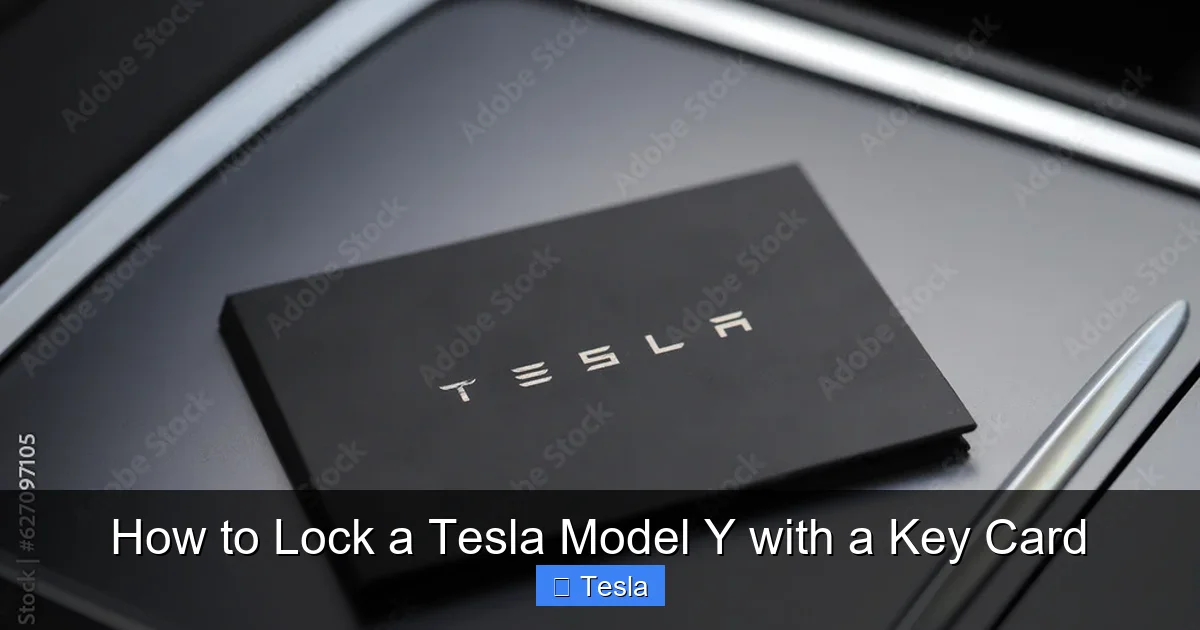
Visual guide about How to Lock a Tesla Model Y with a Key Card
Image source: as2.ftcdn.net
Key Card vs. Phone Key vs. Key Fob
Your Model Y can be configured with up to 19 keys, which can be a mix of:
- Phone Key: Uses Bluetooth Low Energy (BLE). Works automatically when your paired phone is near the car. Most convenient but relies on phone battery and OS.
- Key Fob: A traditional, optional fob with buttons. Also uses BLE and has a physical button for the trunk/frunk.
- Key Card: The passive RFID card. No battery, no Bluetooth. Always works as long as it’s physically close to the sensor. This is our star for today’s tutorial.
Pro Tip: Always keep your key card in a dedicated spot, like your wallet or a specific pocket. Its simplicity is its strength, but you must remember to carry it. If you frequently use the Phone Key, consider the key card your essential “paperweight” backup.
The Step-by-Step Process: How to Lock Your Model Y with the Key Card
This process is deliberately straightforward. There are no buttons to press on the card itself. The entire interaction is between the card and the vehicle.
Visual guide about How to Lock a Tesla Model Y with a Key Card
Image source: teslamarket.com.au
Step 1: Prepare Your Key Card and Vehicle
Ensure your Model Y is in a state where it can be locked. This means:
- All doors, the trunk, and the front trunk (frunk) should be closed.
- The vehicle should be in “Park” (P). It will not lock if it’s in any other gear or if it’s actively charging (though you can change this setting in the car’s menu).
- The driver’s door should be unlocked or just closed. You can lock from any door handle, but starting at the driver’s door is most intuitive.
Take your key card out of your wallet or pocket. Have it ready in your hand.
Step 2: Locate the Correct Spot on the Door Handle
This is the most crucial step for success. The sensor is not on the flat part of the handle. Look at the driver’s door handle. You’ll see a small, slightly recessed, rectangular area on the **top surface** of the handle, just behind where your thumb rests when opening the door. It’s often marked with a subtle Tesla “T” logo or a small circular sensor icon. This is the RFID reader.
Visual Cue: It’s the part of the handle that is parallel to the ground when the door is closed, not the vertical part you pull.
Step 3: The Tapping Motion
With the key card in hand, bring it within an inch of the sensor area. Do not swipe or rub it. A firm, deliberate tap is the correct motion. Think of tapping a small nail with a hammer—a quick, direct contact.
- Do: Tap the card directly against the sensor area for about one second.
- Don’t: Wave it around slowly, tap repeatedly in quick succession, or hold it there without moving. One firm tap is sufficient.
If the lock is successful, you will immediately hear the door locks engage with a solid “clunk” and see the side mirror lights flash once. The touchscreen may also briefly show a lock icon.
Step 4: Verify the Lock
Always verify. Try the door handle to ensure it’s locked. You can also look at the Tesla app on your phone; it will show the car’s locked/unlocked status within seconds. For complete peace of mind, check all doors and the trunk.
Important Note: A single valid tap on any door handle (driver, passenger, or rear) will lock or unlock all doors and the trunk/frunk simultaneously. You don’t need to tap each door individually.
Troubleshooting: When a Tap Doesn’t Lock
Even a simple system can hiccup. Here’s your diagnostic guide if the key card tap seems to do nothing.
Visual guide about How to Lock a Tesla Model Y with a Key Card
Image source: teslamarket.com.au
Problem 1: “I tapped, but nothing happened.”
Solution: First, check your fundamentals. Is the card within an inch of the sensor? Is the sensor area clean and free of dirt or ice? Tap firmly again. If it still fails, check the following:
- Is the key card paired? This seems obvious, but if you’ve just gotten the car or the card, it must be added in the car’s menu. Go to Controls > Locks > + and follow the on-screen instructions to add a key card.
- Is the card damaged? A cracked or severely bent card can damage the internal antenna. Try a different, known-good key card if you have one (e.g., a spare).
- Is there interference? Keep the card away from large metal objects, other RFID cards (like hotel key cards), or strong magnets at the moment of tapping.
Problem 2: “The car beeps or flashes lights, but doesn’t lock.”
This usually indicates a condition preventing the lock. The most common is:
- A door, trunk, or frunk is ajar. The car will not lock if any closure is not fully latched. Open and firmly close each one.
- The vehicle is in gear or actively charging. Shift to Park (P). If charging, you can either stop the charge session or change the setting: Controls > Locks > Lock while charging > Off.
Problem 3: “It worked before, but now it’s inconsistent.”
Inconsistency often points to a weakening card battery (for cards with a battery for other features) or a dirty sensor.
- Clean the sensor: Use a microfiber cloth with a tiny bit of isopropyl alcohol to gently clean the sensor area on the handle. Let it dry completely.
- Clean the card: Wipe the entire card, especially the area that contacts the sensor, with a dry cloth. Oils from your skin can create a barrier.
- Test with a different card: This isolates the problem to the specific card or the vehicle. If a spare card works perfectly, your primary card may need replacing.
When All Else Fails: A reboot of the vehicle’s computer can often clear transient glitches. With the car in Park, press and hold both scroll wheels on the steering wheel until the screen goes black and the Tesla logo reappears (about 10-15 seconds). After reboot, try again.
Security Features and Peace of Mind
You might wonder, “Is a simple tap really secure?” The answer is a resounding yes, and here’s why.
Dynamic Encryption: The Code That Changes
Every time your key card communicates with the car, it uses a new, unique encrypted code. This is a rolling code system. Even if someone somehow intercepted one transmission, that code would be useless for the next lock or unlock command. It’s fundamentally different from older, static RFID systems that could be cloned.
Physical Proximity Requirement
The RFID signal has a very short range—only a few inches. An attacker would need to be physically touching your door handle with a cloned card to attempt a breach, which is highly conspicuous and difficult to do without your knowledge. This is far more secure than a traditional key fob signal that can be captured from hundreds of feet away.
Pairing and Management
Key cards are paired directly to your vehicle through the touchscreen interface. You can see a list of all paired keys (cards, phones, fobs) and easily remove any you no longer recognize or have lost. If you lose a key card, you can immediately delete it from the system via the app or touchscreen, rendering it useless. You would then need to purchase a new card and pair it.
Security Best Practice: Treat your key card like a house key. If you lose it, remove it from the car’s system immediately via the Tesla app. For added security, consider keeping your key card in a signal-blocking sleeve (like those for credit cards) when not in use, though this is generally unnecessary due to the short-range nature of RFID.
Comparison with Other Tesla Locking Methods
Understanding the key card’s role requires seeing it in context with Tesla’s other entry systems.
Key Card vs. Phone Key
The Phone Key is the pinnacle of convenience—it works automatically as you approach. However, it has dependencies: your phone must have battery, Bluetooth must be on, and location services must be enabled. The key card has zero dependencies. It works in a dead phone scenario, when your phone is inside the car (a common lock-out cause), or if you simply don’t want to carry your phone on a run. The trade-off is you must carry a separate, dedicated item.
Key Card vs. Key Fob
The optional Key Fob offers physical buttons for lock, unlock, trunk, and frunk. It’s great for those who prefer tactile feedback or have accessibility needs. Like the phone key, it uses BLE and has a battery that needs occasional replacement (typically once a year). The key card has no battery to replace ever. The fob can be more prone to accidental button presses in a pocket. The key card is simpler and more robust, but lacks the dedicated trunk button.
When to Use Which Method?
- Daily Use: Phone Key (if your phone battery is reliable).
- Workout/Run: Key Card (leave your phone securely locked in the car).
- Phone Dead/Left Inside: Key Card (instant recovery).
- Giving to Valet/Friend: Use the Tesla App to create a temporary digital key or give them the Key Card. You retain full control and can revoke access instantly.
- Extreme Cold/Weather: Key Card (no battery to fail in freezing temps).
The beauty of the Tesla system is choice. Your key card is the fail-safe, always-ready foundation of your access strategy. If you’re considering enhancing your Model Y’s appearance, you might look into options like a full vehicle wrap or window tinting. Both are popular modifications that can protect the interior and give your car a unique look, and they don’t interfere with the key card’s RFID signal at all.
Advanced Tips and Best Practices
Master these tips to become a Tesla key card power user.
1. The “Double Tap” for Frunk/Trunk
While a single tap on any door handle locks/unlocks all doors, there is a dedicated action for the trunks. To open the trunk or frunk with the key card:
- Ensure the car is unlocked (you can tap any door handle first).
- Stand near the rear of the vehicle.
- Tap the key card twice firmly against the center of the rear taillight assembly (the red part). You’ll hear two distinct beeps and see the trunk/frunk pop open.
- This two-tap sequence prevents accidental trunk opening while locking the car.
2. Adding and Removing Key Cards
To add a new key card:
- With the car in Park, go to Controls > Locks > +.
- Follow the on-screen instructions: you’ll be told to tap the new card to the center of the driver’s door handle sensor.
- Once added, name it (e.g., “Spare,” “Valet”) for easy identification.
To remove a lost or unused card, go to Controls > Locks > Manage Keys, select the key, and tap “Remove.” Do this immediately if a card is lost.
3. Key Card Battery? There Isn’t One!
This is a common point of confusion. The key card itself has no battery. It is powered by the energy from the door handle sensor’s radio signal. It will work indefinitely as long as the card’s internal chip and antenna are intact. There is nothing to replace. The only “battery” in this system is the 12V car battery, which powers the door handle sensors. If your 12V battery is completely dead, no entry method (key card, phone, or fob) will work until it’s jumped or replaced.
4. Caring for Your Key Card
- Avoid bending: Severe bending can crack the internal antenna.
- Avoid water damage: While somewhat resilient, prolonged submersion can destroy the chip. Don’t put it through the washing machine.
- Avoid strong magnets: Don’t attach it to a magnetic mount on your fridge or in a magnetic wallet pocket for extended periods.
- Keep it clean: A dirty card can have poor contact. Wipe it with a dry microfiber cloth.
If your key card is genuinely broken or lost, you can order a replacement from Tesla. It will need to be paired to your vehicle by a Tesla technician or, in some regions, you can do it yourself with the new card and a valid existing key.
Conclusion: Your Simple, Secure Anchor
Locking your Tesla Model Y with a key card is one of the most reliably simple interactions you’ll have with your vehicle. It’s a masterclass in fail-safe design: no batteries to die, no signals to hack from a distance, and no software to update. It just works, silently and securely, every single time you need it. By mastering the firm tap on the correct sensor and understanding the troubleshooting steps, you eliminate one of the most common modern car anxieties—being locked out.
Integrate the key card into your routine. Keep it in a consistent place. Use it as your go-to when your phone is inconvenient. Teach it to family members. It represents the robust, physical backup that underpins Tesla’s digital-first philosophy. Whether you’re stepping away from your car in a crowded parking lot or handing it off to a valet, that small plastic card is your guaranteed, encrypted key to peace of mind. Now, go tap it with confidence.
Frequently Asked Questions
Do I need to press a button on the key card to lock the Tesla Model Y?
No. The key card is completely passive. You simply tap it firmly against the sensor area on the door handle. There are no buttons to press.
Why is my key card not locking the car even when I tap it?
First, ensure you’re tapping the correct sensor on the top of the door handle and that the card is within an inch. Then, check that all doors, the trunk, and frunk are fully closed, and the car is in Park. If problems persist, the card may not be paired correctly or could be damaged.
Does the Tesla key card have a battery that needs replacing?
No. The key card uses RFID technology and is powered by the radio signal from the car’s door handle sensor. It has no internal battery and will work indefinitely unless the physical card is damaged.
Can I lock the Tesla Model Y with the key card if my phone is inside the car?
Yes, absolutely. This is one of the primary uses of the key card. The Phone Key will not work if the paired phone is inside the vehicle, but the key card works completely independently of any phone.
How far away from the car do I need to be for the key card to work?
The RFID sensor has a very short range—typically 1-3 inches. You must physically tap the card against the designated sensor area on the door handle for it to register.
What should I do if I lose my Tesla key card?
Immediately remove it from your vehicle’s system using the Tesla mobile app or the touchscreen (Controls > Locks > Manage Keys). Then, you can purchase a replacement key card from Tesla and pair the new one using your remaining valid key.
