
How to Turn Off Auto Hold on a Hyundai

Auto Hold is a convenient Hyundai feature that automatically applies the brakes when you stop, keeping your car stationary without holding the brake pedal. While useful in traffic, some drivers prefer to turn it off for a more traditional driving feel or specific situations. Disabling it is typically done via a dedicated button on the center console or through the vehicle settings menu in the infotainment system. The exact method varies slightly by model and year, so consulting your owner’s manual is always recommended for your specific Hyundai.
Key Takeaways
- Auto Hold is not your parking brake: It’s a brake-hold function for temporary stops (like at traffic lights), distinct from the electronic parking brake which secures the car when parked.
- The primary method is a physical button: Most Hyundai models have a dedicated “Auto Hold” button, often marked with the letter “A” inside a circle, located on the center console near the electronic parking brake switch.
- Infotainment system is the alternative: If your model lacks a button, or for permanent preference settings, you can toggle Auto Hold within the “Driving Convenience” or “Driver Assistance” menus on the dashboard display.
- It defaults to “On” after a drive cycle: For most Hyundais, turning off Auto Hold is not permanent; the system will reactivate the next time you start the car unless you disable it again.
- Safety systems remain active: Disabling Auto Hold does not turn off your vehicle’s Anti-lock Braking System (ABS), Electronic Stability Control (ESC), or other core safety features.
- Model years matter: The interface and button location can change. A 2020 Sonata’s setup may differ from a 2023 Tucson, so your owner’s manual is your best friend.
- Understand why you’re turning it off: Common reasons include preference for manual brake control on steep hills, avoiding system confusion in stop-and-go traffic, or personal driving comfort.
📑 Table of Contents
- Understanding Hyundai’s Auto Hold Feature
- Why Would You Want to Turn Off Auto Hold?
- The Standard Method: Using the Auto Hold Button
- Alternative Method: Through the Infotainment System
- Model-Specific Considerations and Variations
- Troubleshooting: What If It Won’t Turn Off?
- Conclusion: Personalizing Your Drive
Understanding Hyundai’s Auto Hold Feature
So, you’re sitting at a long red light in your Hyundai, foot comfortably off the brake pedal, and the car just… stays there. No rolling, no need to keep pressure on the pedal. That’s the magic of Auto Hold. It’s one of those modern driver-assist technologies designed to reduce fatigue in urban driving. But what exactly is it, and how does it work under the hood?
Think of Auto Hold as an intelligent assistant for your brake pedal. When you come to a complete stop (usually while pressing the brake pedal), the system automatically engages the brakes on your behalf. You can then take your foot off the pedal, and the car remains securely stationary. As soon as you touch the accelerator pedal again, the system smoothly releases the brakes and you drive away. It’s different from the electronic parking brake (EPB), which you manually engage with a switch when you park and leave the vehicle. Auto Hold is purely for temporary halts while the vehicle is running and in gear (Drive or Reverse). It’s part of Hyundai’s broader suite of safety and convenience features, often grouped with systems like Hill-Start Assist Control (HAC), which prevents rollback on inclines when you move your foot from brake to throttle.
How Auto Hold Works Technically
Behind the scenes, Auto Hold relies on a network of sensors and the vehicle’s Electronic Stability Control (ESC) system. When you press the brake pedal firmly to a stop, sensors detect the vehicle’s zero speed and brake pressure. The ESC module then commands the brake calipers to maintain hydraulic pressure, effectively “holding” the brakes on without your foot. The system is constantly monitoring the accelerator pedal position and wheel speed. The moment you press the gas, it knows to release that pressure. A small indicator light, usually a green “A” inside a circle, illuminates on your instrument cluster to show the system is active. If you see a yellow or amber light, it often means there’s a fault or the system is unavailable, which could be due to low brake fluid, a worn brake pad sensor, or another issue requiring service.
Why Would You Want to Turn Off Auto Hold?
Before we dive into the “how,” let’s talk about the “why.” For many, Auto Hold is a beloved feature. But for others, it can be an unwanted interference. Understanding the common reasons helps you decide if disabling it is right for your driving style and situation.
Visual guide about How to Turn Off Auto Hold on a Hyundai
Image source: hyundaimaintenance.com
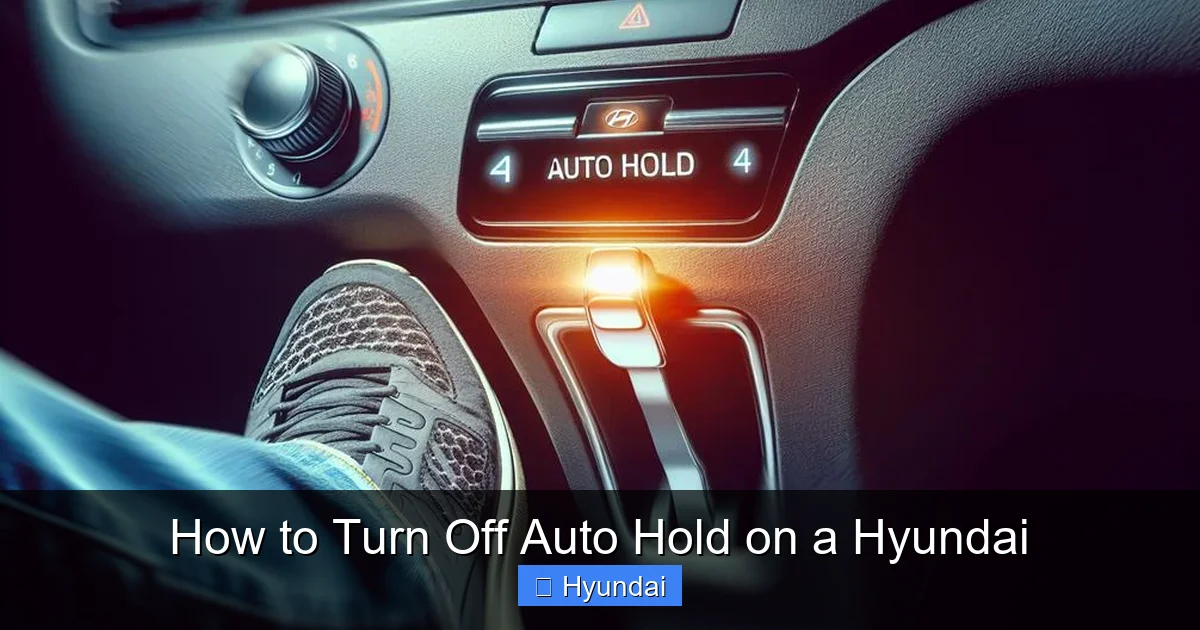
The most frequent complaint is a lack of direct control. Some drivers simply prefer the tactile feedback and immediate response of manually operating the brake pedal. They find the system’s activation and deactivation feel slightly delayed or unnatural compared to their own footwork. This is particularly noticeable in very slow, creeping traffic where the system might disengage and re-engage erratically. Another key reason is steep hill starts. While Auto Hold is designed to work with Hill-Start Assist, some drivers feel more confident using the traditional “heel-toe” method or simply controlling the brake with their foot to modulate power and prevent rollback, especially on very steep inclines. There’s also a psychological factor; some drivers are uncomfortable with the idea of a system holding the car and prefer to always have their foot on the brake when stopped, feeling it’s safer. Lastly, in certain slippery conditions, a driver might want to manually control brake application to avoid any potential system confusion.
Is It Safe to Turn Off?
Absolutely. Disabling Auto Hold does not compromise your car’s fundamental braking or stability systems. You are simply turning off this one specific convenience function. Your ABS, ESC, traction control, and regular brake-by-wire system remain fully operational. In fact, in some specific scenarios, like driving on loose gravel or deep snow, some off-road enthusiasts prefer to have full manual control to allow for a bit of wheel slip. However, it’s crucial to remember that you are now solely responsible for holding the car with the brake pedal at stops. Forgetting to do so could lead to a roll-forward or backward incident. If you frequently drive vehicles with different systems, you might find guides for other brands useful, such as learning how to turn off lane departure on a Honda Civic for similar reasons of preferring manual control.
The Standard Method: Using the Auto Hold Button
This is the quickest and most common way to toggle the Auto Hold function on and off. For the vast majority of Hyundai models produced in the last decade, you’ll find a dedicated physical button. Its location is fairly consistent, but let’s get specific.
Visual guide about How to Turn Off Auto Hold on a Hyundai
Image source: hyundaimaintenance.com
Grab your driver’s seat and look to your right, at the center console between the front seats. The button is almost always located on the panel that houses your electronic parking brake (EPB) switch and sometimes your drive mode selector. It’s a small, square or rectangular button. The symbol is unmistakable: a capital letter “A” inside a circle, sometimes with parentheses like (A) or simply the letter. It may have a faint green LED backlight when the system is active.
Step-by-Step Button Guide
1. Start Your Engine: Ensure your Hyundai is turned on. The system only operates when the ignition is in the “ON” position or the engine is running.
2. Locate the Button: Find the Auto Hold button on your center console, typically near the EPB switch.
3. Press to Disable: While the car is stationary or moving, simply press the Auto Hold button once. You should see the green “A” indicator light on your instrument cluster turn off. That’s it! The system is now disabled.
4. What to Expect: With Auto Hold off, you will now need to keep your foot on the brake pedal to hold the car at stops. When you come to a halt, the brake pedal will feel firm and require constant pressure, just like in a car without this feature.
5. Re-engaging: To turn it back on, press the button again. The green “A” light will illuminate, confirming it’s active. You’ll typically need to press the brake pedal firmly once to initially activate it on that drive cycle.
Important Note: On some newer models, you might need to press and hold the button for 2-3 seconds to completely disable it, especially if the system is trying to default to “On.” Your owner’s manual will specify this. Also, if your car has a Drive Mode Selector (like Eco, Comfort, Sport), switching modes can sometimes reset Auto Hold to its default (usually “On”), so you may need to toggle it again after changing drive modes.
Alternative Method: Through the Infotainment System
What if you can’t find the button? Or perhaps you want to change the default setting so the car remembers your preference? While less common for just toggling Auto Hold, the vehicle settings menu in your Hyundai’s infotainment screen is your control center for many features.
Visual guide about How to Turn Off Auto Hold on a Hyundai
Image source: hyundaimaintenance.com
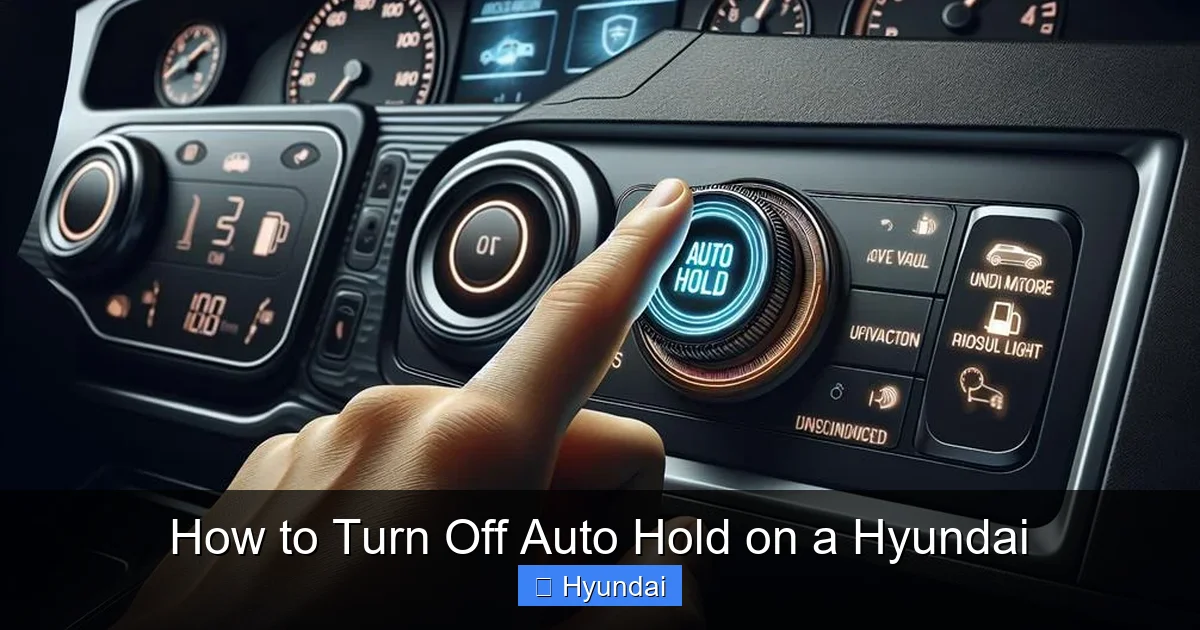
This method is more prevalent in certain Hyundai models or model years where the physical button was omitted, or for deeper system configuration. The menu structure is generally similar across Hyundai’s touchscreen interfaces (like the standard touchscreen or the larger optional ones).
Navigating the Menus
1. Power On: Turn on your vehicle without necessarily starting the engine (ACC mode is enough).
2. Access Settings: On the touchscreen, tap the “Menu” or “Settings” button, often represented by a gear icon.
3. Find the Vehicle Menu: Look for a tab or option labeled “Vehicle,” “Car Settings,” or “Driving Assistance.”
4. Locate Driving Convenience: Within that menu, scroll to find “Driving Convenience,” “Driver Assistance,” or “Brake/Hold Settings.”
5. Toggle Auto Hold: You should see an option for “Auto Hold” or “Automatic Brake Hold.” It will have a simple ON/OFF toggle switch. Tap it to turn it OFF.
6. Save & Exit: The change may save automatically. Press “Back” or “Exit” to return to the main screen.
It’s important to note that this menu setting often controls the *default* behavior. For example, setting it to “Off” here might mean the system does not automatically activate when you start the car, but you could still manually turn it on with the physical button during a drive. Conversely, if there’s no physical button on your model, this menu might be the *only* way to enable or disable the feature. This kind of deep settings dive is common in modern vehicles; if you’ve ever had to adjust the idle stop system on a Honda Civic, you know the feeling of hunting through digital menus.
Model-Specific Considerations and Variations
Hyundai has produced a wide range of models with Auto Hold, from the compact Elantra and Kona to the full-size Palisade and the electric Ioniq 5. While the core functionality is identical, the user interface can have subtle differences. Here’s a breakdown by popular model lines.
- Hyundai Sonata & Elantra (Sedans): These typically have the most straightforward layout. The Auto Hold button is almost always on the center console to the right of the shift lever, integrated with the EPB switch. The infotainment menu path is usually Settings > Vehicle > Driving Convenience > Auto Hold.
- Hyundai Tucson & Santa Fe (SUVs): Very similar to the sedans. The button location is consistent. In some model years with a rotary electronic shifter (like certain Santa Fes), the button cluster might be slightly different, but the “A” symbol remains on a dedicated button nearby.
- Hyundai Kona & Venue (Subcompact SUVs): These also follow the standard pattern. The compact console still houses the button. The menu structure in their smaller touchscreens is largely the same.
- Hyundai Palisade & Santa Cruz (Larger Vehicles): In these larger models, the button cluster on the center console is more extensive. The Auto Hold button is still present but may be among several other drive mode or terrain mode buttons. Look carefully for the “A” symbol.
- Hyundai Ioniq & Ioniq 5 (EVs): Electric vehicles often have slightly different interfaces due to their unique drive systems. The physical button is still common. The infotainment menu might be under “Vehicle Settings” or “Driving” and could have additional options related to regenerative braking that interact with hold functions.
- Model Year Changes: A 2018 model’s software might not have the menu option, relying solely on the button. A 2024 model might have the button but also a persistent “Auto Hold” icon on the main screen that can be tapped to toggle it. The golden rule: your owner’s manual, specific to your model year and trim, is the definitive source.
Troubleshooting: What If It Won’t Turn Off?
You press the button, but the green “A” light stays on. You go into the menu, but the toggle is grayed out or won’t switch. Before you panic, there are a few common reasons and solutions.
First, ensure you are meeting the basic conditions. The system only operates when the driver’s seat belt is fastened and the driver’s door is closed. It may also require the vehicle to be moving above a very low speed (like 3-5 mph) or at a complete stop. Try coming to a full, firm stop with the brake pedal before pressing the button. Second, check for any dashboard warning lights. If your ABS light, brake system warning light, or Electronic Stability Control (ESC) light is illuminated, the Auto Hold system will likely be disabled or unavailable as a safety precaution. You need to address the primary brake or system fault first. This could be something as simple as low brake fluid or a worn brake pad sensor, or it could indicate a more serious issue requiring a dealer diagnosis.
Resetting the System
Sometimes, the system’s logic can get into a state where it refuses to disengage. A simple system reset can often clear this. Turn the vehicle completely off (remove the key or press the start/stop button until everything powers down). Wait about 30 seconds. Then restart the car. Try toggling Auto Hold again. If the problem persists, there may be a software glitch that requires a dealer to perform a system reflash or update. Also, be aware that after a battery disconnect or a major electrical fault, all vehicle settings, including your Auto Hold preference, may revert to factory defaults.
When to See a Professional: If the Auto Hold light is flashing, not just solid, or if you have accompanying warnings like “Check Brake System,” do not ignore it. Have your Hyundai inspected by a qualified technician. They can scan the vehicle’s diagnostic codes to pinpoint the exact sensor or module causing the issue. This is similar to troubleshooting other indicator lights, like the master warning light on a Nissan Altima, which also requires a diagnostic approach.
Conclusion: Personalizing Your Drive
Your Hyundai is equipped with a suite of intelligent features designed to make driving easier and safer. Auto Hold is a prime example—a clever bit of technology that takes the strain out of constant braking in traffic. But technology should serve you, not the other way around. Knowing how to turn off Auto Hold gives you the control to tailor your driving experience to your personal preferences and the demands of the road. Whether you prefer the direct connection of a manual brake pedal, are navigating tricky hills, or simply find the feature more distracting than helpful, disabling it is a straightforward process. Remember, the primary method is that handy “A” button on your console. If that’s not an option, your infotainment settings menu is your backup. Always keep your owner’s manual handy for model-specific details, and never hesitate to consult a professional if you encounter persistent warning lights or system faults. Mastering these settings, much like learning how to turn off lane assist on a Subaru or disable auto high beam in a Toyota, is all about making your vehicle work for you.
Frequently Asked Questions
Will turning off Auto Hold affect my parking brake or other safety systems?
No. Disabling Auto Hold only turns off the automatic brake-hold function for temporary stops. Your electronic parking brake (EPB), ABS, ESC, and traction control systems remain fully operational and independent.
Do I need to turn off Auto Hold every time I start my Hyundai?
For most Hyundai models, yes. The system typically defaults to the “On” position each time you start the vehicle. You will need to press the button or use the menu to disable it for that drive cycle. Some newer models may have a memory function in the settings menu to remember your last preference.
Can I turn off Auto Hold while the car is moving?
Yes, you can press the Auto Hold button at any time while the vehicle is in motion. The green “A” light will turn off, and you will regain full manual control of the brake pedal immediately. The system will not disengage if you are actively braking; it only releases when you press the accelerator.
Does Auto Hold work in Reverse or only in Drive?
Auto Hold is designed to function in both Drive and Reverse gears. It will hold the vehicle when you come to a stop in either direction, provided all system conditions are met (seat belt fastened, door closed, etc.).
My Auto Hold button doesn’t seem to work. What should I check?
First, ensure your seat belt is fastened and all doors are closed. The system is interlocked with these for safety. Second, check your instrument cluster for any brake system or ESC warning lights. A fault in the primary braking system will disable Auto Hold. Finally, try a full vehicle restart (turn off, wait 30 seconds, restart). If the problem persists, consult your owner’s manual or a Hyundai dealer.
Is Auto Hold the same as the “Auto Park” feature in some other cars?
No. They are different. Auto Hold is a brake-hold system for traffic stops. “Auto Park” (like in some Dodge or Tesla models) is a feature that can automatically steer the vehicle into a parallel or perpendicular parking spot. The procedures to turn them off are also completely different.
