How to Restart Bmw Screen

Contents
- 1 Key Takeaways
- 2 📑 Table of Contents
- 3 Understanding Your BMW’s Brain: The iDrive System
- 4 Method 1: The Soft Reset (The Easiest & Safest First Step)
- 5 Method 2: The Hard Reset Using Button Combos (For Frozen Screens)
- 6 Method 3: The Fuse Reset (The Nuclear Option)
- 7 When a Restart Isn’t Enough: Diagnosing Persistent Problems
- 8 Preventative Maintenance: Keeping Your iDrive Healthy
- 9 Model-Specific Nuances and Special Cases
- 10 Conclusion: You Have the Power to Reboot
- 11 Frequently Asked Questions

Microfiber Car Cleaning Cloth

Car Mud Flaps (Universal)

Steering Wheel Cover

Octane Booster
A frozen BMW screen can be incredibly frustrating, but most issues can be resolved with a simple restart. This guide covers safe, model-specific methods to reboot your iDrive system, from soft resets using the menu to hard resets using physical buttons. We explain exactly which buttons to press for your BMW’s generation and what to do if the screen remains unresponsive after a restart.
You’re driving your BMW, the road is clear, and you reach for the iDrive controller to change the song or set your navigation destination. But nothing happens. The screen is frozen, unresponsive to your touch or the rotary dial. It’s a moment of pure automotive frustration. Before you panic and call the dealer, take a deep breath. In most cases, you can fix this yourself in under a minute by learning how to restart BMW screen systems properly. This isn’t about complex repairs; it’s about performing a simple system reboot, just like you would with a frozen smartphone. This comprehensive guide will walk you through every method, tailored to your specific BMW model and iDrive generation, so you can get back to enjoying the drive.
Key Takeaways
- Most BMW screen freezes are software glitches: A simple restart often resolves temporary bugs without needing a visit to the dealer.
- Your BMW’s iDrive generation dictates the reset method: iDrive 7/8 uses a button combo in the climate control; older iDrive 5/6 uses a “Menu” button or fuse method.
- A soft reset is always the first step: Use the in-menu restart option if available before attempting any physical button combinations.
- Hard resets are safe but should be used judiciously: Forcing a reboot via buttons or fuse will not harm the system but may reset some personalized settings.
- Persistent problems indicate a deeper issue: If restarts don’t work, the problem may be hardware-related, requiring professional diagnosis.
- Prevention is key: Keep your BMW’s software updated via USB or dealer to minimize future screen freezes and bugs.
- Know when to seek help: If the screen is completely black or shows error messages after multiple restarts, consult a BMW specialist.
📑 Table of Contents
- Understanding Your BMW’s Brain: The iDrive System
- Method 1: The Soft Reset (The Easiest & Safest First Step)
- Method 2: The Hard Reset Using Button Combos (For Frozen Screens)
- Method 3: The Fuse Reset (The Nuclear Option)
- When a Restart Isn’t Enough: Diagnosing Persistent Problems
- Preventative Maintenance: Keeping Your iDrive Healthy
- Model-Specific Nuances and Special Cases
- Conclusion: You Have the Power to Reboot
Understanding Your BMW’s Brain: The iDrive System
Before we dive into button combinations, it’s crucial to understand what you’re actually restarting. The large display in your BMW isn’t just a simple monitor; it’s the visual interface for the iDrive infotainment system—the car’s “brain” for navigation, media, communication, and vehicle settings. Over the years, BMW has released several iterations of iDrive, each with slightly different hardware and software. The method to restart it depends almost entirely on which version your car has.
The Major iDrive Generations & How to Identify Yours
Identifying your iDrive version is the first step to finding the correct reset procedure.
- iDrive 7/8 (Live Cockpit Professional): Found in BMWs from approximately 2018 to the present (G30 5 Series, G20 3 Series, X3 G01, etc.). Features a 10.25″ or 12.3″ digital gauge cluster and a large central display. The interface is highly graphical and often uses touch, rotary dial, and gesture control.
- iDrive 6: Predominant in models from 2014 to 2017 (F30 3 Series, F10 5 Series, X5 F15, etc.). Still uses the rotary controller prominently, but with a more modern, tile-based menu layout than its predecessor.
- iDrive 5 (CIC): Found in BMWs from roughly 2012 to 2014. It has a more basic menu structure compared to iDrive 6/7. The screen is often a non-touch LCD.
- iDrive 4 (CCC): The oldest generation still commonly on the road, found in models from 2008-2011 (E90 3 Series, E60 5 Series). It has a distinct, chunkier menu design.
A quick visual check: if your car has a large, sleek, mostly flat screen with a minimalist design, it’s likely iDrive 6 or 7. If it has a more pronounced bezel and a “3D” menu feel, it could be iDrive 5 or 4. The model year is your best indicator.
Method 1: The Soft Reset (The Easiest & Safest First Step)
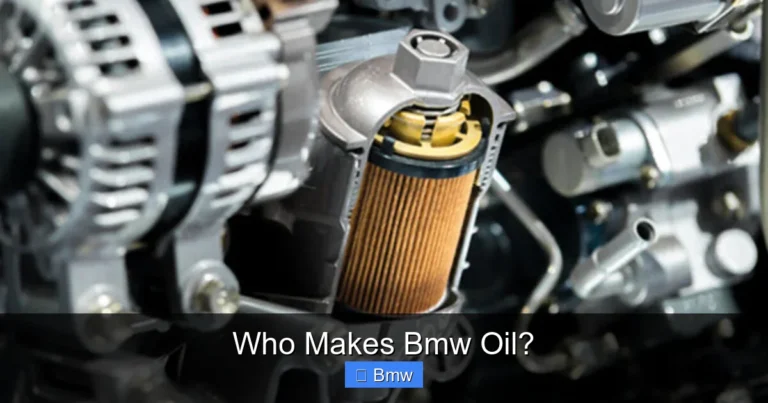
Always start here. A soft reset is a graceful reboot command sent through the system’s software menu. It’s the equivalent of restarting your computer through the Start menu—clean and safe.

Visual guide about How to Restart Bmw Screen
Image source: autologics.co.uk
How to Perform a Soft Reset on iDrive 6 & 7
For the vast majority of modern BMWs (2014+), this is your go-to first move.
- Ensure your car is in Park (P) or the parking brake is engaged. For safety, the system often only allows a restart when stationary.
- Press the MENU button on the iDrive controller (the one with the horizontal lines).
- Use the controller to highlight the “Settings” option and press the controller to select it.
- Scroll down to find “System Settings” or “General Settings” and select it.
- Look for an option called “Restart System”, “Reboot iDrive”, or “Reset”. The exact wording varies.
- Select it. You will likely see a confirmation prompt. Accept it.
- The screen will go black, you may hear a faint click from the speakers, and the BMW logo will reappear after 30-60 seconds.
Pro Tip: If your screen is so frozen you can’t navigate the menu, you must skip to the hard reset methods below.
Method 2: The Hard Reset Using Button Combos (For Frozen Screens)
When the soft reset is inaccessible due to a completely frozen interface, you need to perform a “hard reset” by pressing a specific combination of physical buttons on the dashboard or center console. This forces the iDrive computer to power cycle.

Visual guide about How to Restart Bmw Screen
Image source: makcoding.co.uk
For iDrive 7 & 8 (2018+ Models): The Climate Control Combo
This is the standard method for the latest BMWs. You’ll use buttons on the climate control panel, usually located below the central screen or on the center stack.
- Ensure the car is in Park and the engine is running (or in ON/RUN position).
- Locate the two buttons for the driver’s side temperature (the up/down arrows or +/- for the left side of the cabin).
- Press and hold BOTH of these temperature adjustment buttons simultaneously.
- Hold them for about 10-15 seconds. You will see the screen begin to dim, and the BMW logo will eventually reappear.
- Release the buttons and wait for the system to fully boot. This can take up to a minute.
This method is designed to be safe and will not delete your personal settings like radio presets or Bluetooth pairings in most cases. It’s the first hard reset you should try on a modern BMW.
For iDrive 6 & 5 (2014-2017 Models): The “Menu” & “Radio” Button Combo
For slightly older models, the reset combo involves buttons on the radio panel or the iDrive controller itself.
- Car in Park, engine ON.
- Locate the “Menu” button on the iDrive controller (the one with the three horizontal lines).
- Also locate the “Radio” button on the center console (it may have a radio icon).
- Press and hold the Menu button and the Radio button together.
- Hold for approximately 10 seconds until the display goes black and reboots.
On some models, you might need to hold the “Media” button instead of “Radio.” If this doesn’t work, consult your owner’s manual for the exact procedure for your specific year and model.
For iDrive 4 (2008-2011 Models): The CD/DVD Eject Method
The oldest iDrive systems have a unique reset trick involving the CD/DVD player.
- Car in Park, engine ON.
- Press and hold the EJECT button for the CD/DVD drive (usually a small button with a triangle/line icon).
- Hold it for 15-20 seconds. The screen will cycle and reboot.
This method works because the eject command forces the system’s main processor to reinitialize. If your car doesn’t have a CD/DVD drive (like some later E90s), you may need to use the fuse method described next.
Method 3: The Fuse Reset (The Nuclear Option)
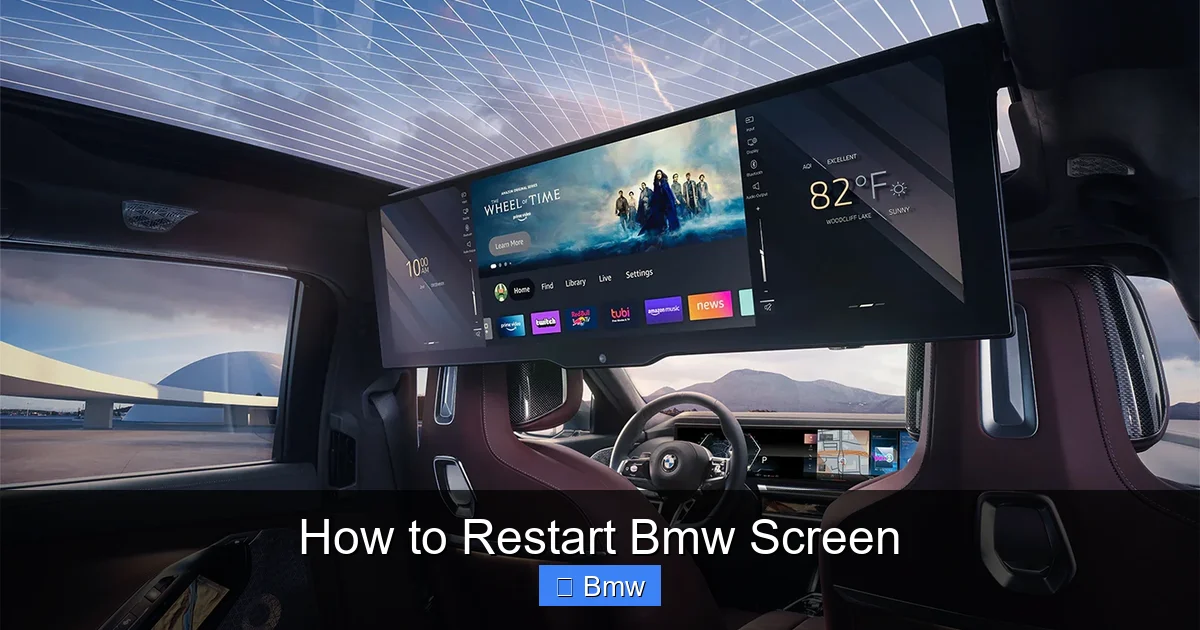
If all software and button-combo methods fail, the last resort is to perform a full power cycle by removing the iDrive system’s fuse. This is guaranteed to work but has a downside: it will reset all iDrive settings to factory defaults. You will lose saved radio stations, Bluetooth pairings, navigation favorites, and some personalized menu layouts. You’ll need to set these up again afterward.
Visual guide about How to Restart Bmw Screen
Image source: bmwmtkisco.com
How to Find and Remove the Correct Fuse
Warning: Only do this if you are comfortable working in your car’s fuse box. Consult your owner’s manual first.
- Turn off the car and remove the key (or key fob from the vehicle).
- Locate the fuse box. In most BMWs, there is one in the engine bay (often black, near the battery) and one inside the car, typically under the glovebox or on the side of the center console. The iDrive fuse is usually in the interior fuse box.
- Use your owner’s manual to identify the fuse for the “iDrive”, “Navigation System”, “COMBOX”, or “Car Communication Computer”. The diagram will show its location and amperage (often 5A, 10A, or 15A).
- Using a fuse puller (often provided in the fuse box) or needle-nose pliers, carefully pull the fuse out.
- Wait at least 5 minutes. This ensures all residual power drains from the system’s capacitors.
- Reinsert the fuse firmly, ensuring it’s seated correctly.
- Start the car. The iDrive system will perform a full, cold boot, which takes 1-2 minutes. The BMW logo will appear, followed by the initial setup screens.
- Go through the initial setup prompts (language, time, etc.) and then re-pair your phone and re-enter your radio presets.
This method is highly effective but is truly a last resort due to the inconvenience of resetting all preferences. For more complex BMW electrical issues, you might also want to read about how to reset a BMW SOS call system failure, as that system shares some infrastructure with iDrive.
When a Restart Isn’t Enough: Diagnosing Persistent Problems
You’ve tried the soft reset. You’ve held the correct button combo for 20 seconds. You’ve even pulled the fuse. The screen is still dead, frozen on a single image, or displaying strange artifacts. Now what? A persistent problem after a full reset points away from a simple software glitch and toward a potential hardware failure.
Common Hardware Issues That Mimic “Frozen” Screens
- Failing Display Unit: The LCD screen itself or its backlight can fail. Symptoms include a completely black screen (but you might still hear audio), a screen with vertical/horizontal lines, or a dim image.
- Bad iDrive Computer (CCC/CIC/NBT): The main processing unit, often located behind the glovebox or in the center console, can fail. This causes total system lockups where no reset works.
- Loose or Corroded Connections: The ribbon cables connecting the screen to the computer, or the computer to the vehicle’s wiring harness, can become loose over time or due to moisture. This interrupts the signal.
- Voltage Regulator/Power Supply Issue: The iDrive system needs a steady 12V supply. A failing voltage regulator or a poor ground connection can cause the system to brown out and crash repeatedly.
Diagnosing these issues requires specialized tools, wiring diagrams, and multimeters. At this point, it’s time to seek professional help. A BMW specialist or a dealer’s technician can run diagnostics on the iDrive system’s communication bus (CAN bus) to read fault codes. They can also test the power and ground signals to the unit. While some might worry about cost, many hardware fixes are more affordable than you think; for context, you can check guides on related BMW repair costs like fixing a coolant leak to understand general BMW service pricing.
Preventative Maintenance: Keeping Your iDrive Healthy
An ounce of prevention is worth a pound of cure. While you can’t prevent all failures, you can significantly reduce the frequency of software-related freezes.
1. Keep Software Updated
BMW periodically releases software updates (often called “iDrive updates” or “CU updates”) that fix known bugs, improve stability, and add features. These are typically installed via a USB drive you can create yourself using files downloaded from BMW’s website (for certain models/years) or performed by a dealer. An outdated system is far more prone to crashes. Check your owner’s manual or BMW’s official owner’s portal for your model’s update eligibility.
2. Avoid Abrupt Power Interruptions
Whenever possible, avoid turning off the engine or removing the key while the iDrive system is in the middle of an operation—like writing a navigation destination, downloading a phone contact, or installing an update. Shutting down during a write process can corrupt system files. Let the screen go completely black or return to the home screen before powering down.
3. Be Cautious with Third-Party Apps & Coding
Enthusiasts often use tools like BimmerCode or ESYS to unlock hidden features (coding). While powerful, incorrect coding can destabilize the system. Always back up your original coding (FA) before making changes and only apply well-vetted, model-specific coding scripts from reputable sources like forums. A bad coding job can lead to a state where even a fuse pull won’t help.
4. Protect Against Voltage Spikes
When jump-starting a BMW, always connect the negative cable to a solid metal ground point away from the battery (like a bolt on the strut tower). Connecting directly to the negative battery terminal can send a voltage spike through the car’s sensitive electronic modules, including iDrive. Consider using a modern, intelligent jump starter with surge protection.
Model-Specific Nuances and Special Cases
While the general rules above cover 95% of cases, some BMW models have specific quirks.
BMW iX, i4, and New Electric Models (iDrive 8)
The radically curved “Curved Display” in the iX and i4 runs on iDrive 8. The reset procedure is similar to iDrive 7—hold the two driver temperature buttons. However, due to the integrated nature of the dashboard and central display, a complete system freeze might require a full vehicle reboot by locking the car, waiting 5 minutes, and unlocking it again. If that fails, a fuse pull for the “Body Domain Controller” (BDC) or “Central Gateway Module” (ZGW) may be necessary, which is best left to professionals.
BMW X7 (G07) and Large SUVs with Rear Entertainment
In some 7 Series and X7 models with rear-seat entertainment screens, a front iDrive restart might not fix a frozen rear screen. The rear systems often have their own control units and may require a separate reset procedure or fuse. Consult your manual for “Rear Seat Entertainment System” reset instructions.
The “Black Screen of Death” vs. “Frozen on Logo”
- Black Screen: If the screen is completely black but the car’s other systems (lights, radio audio) work, it’s likely a display failure or a video signal problem. Try the hard reset and fuse pull. If it stays black, the display unit or its backlight inverter is suspect.
- Frozen on BMW Logo: If the car boots to the BMW logo and stays there, this indicates the main iDrive computer (NBT/HU) is failing its POST (Power-On Self-Test) or the software is corrupt. A fuse pull is essential here. If it still fails, the computer itself may need replacement or re-flashing.
For those dealing with other BMW electronic quirks, understanding how to disable a BMW car alarm can be useful knowledge for managing the vehicle’s overall electronic system.
Conclusion: You Have the Power to Reboot
A frozen BMW screen is an annoyance, not a death sentence for your infotainment system. By identifying your iDrive generation and following the appropriate steps—starting with a soft reset and escalating to the correct button combination or fuse pull—you can resolve the vast majority of these glitches yourself in minutes. Remember the golden rule: soft reset first, hard reset second, professional diagnosis third. Keep your software updated, avoid interrupting system processes, and you’ll enjoy a smooth, responsive iDrive experience for years to come. The next time that screen freezes, you won’t have to feel helpless. You’ll know exactly which buttons to hold and how to bring your BMW’s digital cockpit back to life.
Frequently Asked Questions
Will restarting my BMW screen delete my saved radio stations or Bluetooth pairs?
It depends on the method. A soft reset (through the menu) or the button-combo hard reset (holding temperature buttons) typically does not delete personal data. However, the full fuse pull reset will erase all saved settings, requiring you to re-pair phones and re-enter radio presets.
My BMW screen is completely black. Is it still frozen, or is it broken?
A completely black screen with no backlight could be a display hardware failure. First, try the hard reset (button combo) for your model. If that doesn’t bring the image back, try the fuse pull. If the screen remains black after a full power cycle, the display unit or its power supply likely needs replacement.
How long does it take for a BMW iDrive system to fully restart?
After initiating a restart, the screen will go black. The BMW logo usually reappears within 30 to 60 seconds. The full boot process, where you see the initial language/time setup screens (after a fuse pull), can take 1 to 2 minutes. Be patient and do not interrupt the process.
My BMW is a 2016 3 Series. What reset method should I use?
A 2016 BMW 3 Series (F30) uses iDrive 6. First, try the soft reset via Menu > Settings > System Settings > Restart System. If the screen is frozen, use the hard reset: press and hold the MENU button (on the controller) and the RADIO button (on the center console) together for about 10 seconds.
Can a software update fix my recurring screen freezes?
Absolutely. Many screen freezes are caused by software bugs that BMW addresses in official updates. If your car is eligible for an iDrive software update (often checkable via USB or at a dealer), installing it is one of the best preventative steps you can take to improve system stability and add features.
What if none of the restart methods work?
If you’ve performed a full fuse pull reset and the screen is still unresponsive, frozen, or black, the problem is almost certainly hardware-related. This could be a failed iDrive computer, a broken display, or a wiring issue. You will need to have the car diagnosed by a BMW specialist or a dealership to identify and replace the faulty component.