
How to Reset Uconnect on a Dodge Charger

Contents
- 1 Key Takeaways
- 2 📑 Table of Contents
- 3 Understanding Your Uconnect System in the Dodge Charger
- 4 When Should You Reset Uconnect?
- 5 How to Perform a Soft Reset on Uconnect
- 6 How to Perform a Hard Reset on Uconnect
- 7 How to Perform a Factory Reset on Uconnect
- 8 Tips to Prevent Future Uconnect Issues
- 9 Conclusion
- 10 Frequently Asked Questions


Resetting the Uconnect system in your Dodge Charger can solve common issues like freezing, slow response, or Bluetooth pairing problems. This guide walks you through soft resets, hard resets, and full factory restores—so you can get back to enjoying your infotainment system without a trip to the dealership.
If you own a Dodge Charger, you know it’s more than just a powerful muscle car—it’s a tech-savvy ride packed with features. At the heart of that technology is the Uconnect infotainment system. It handles everything from navigation and music to hands-free calling and climate control. But like any advanced system, Uconnect isn’t immune to occasional hiccups. Maybe your screen freezes mid-song, your phone won’t connect via Bluetooth, or the system just feels sluggish. When that happens, knowing how to reset Uconnect on a Dodge Charger can save you time, frustration, and potentially a costly service visit.
The good news? Resetting Uconnect is usually straightforward and can be done right from your driver’s seat—no tools or technical expertise required. Whether you’re dealing with a minor glitch or a full system crash, there’s a reset method that fits your situation. In this guide, we’ll walk you through every option: from a simple soft reset to a full factory restore. We’ll also help you identify which version of Uconnect your Charger has, explain why resets work, and share tips to keep your system running smoothly long-term.
By the end of this article, you’ll be equipped to troubleshoot Uconnect like a pro—and get back to enjoying your Charger’s impressive tech features without missing a beat.
Key Takeaways
- Soft resets are quick fixes: Ideal for minor glitches like unresponsive screens or audio lag—just hold the power and volume buttons.
- Hard resets restore functionality: Use when the system freezes completely; this reboots the entire Uconnect unit without deleting personal data.
- Factory resets erase all settings: Best for persistent issues or before selling your Charger—back up your data first.
- Know your Uconnect version: Gen 3, 4, and 5 systems have slightly different reset procedures—check your model year.
- Keep software updated: Regular updates prevent many issues that lead to needing a reset in the first place.
- Use official resources: Always refer to your owner’s manual or Dodge’s support site for accurate, model-specific instructions.
- Reset safely while parked: Never attempt a reset while driving—pull over to avoid distractions or safety risks.
📑 Table of Contents
Understanding Your Uconnect System in the Dodge Charger
Before diving into reset procedures, it’s important to understand what Uconnect actually is—and how it varies across different model years of the Dodge Charger. Uconnect is Dodge’s proprietary infotainment system, developed in partnership with Harman International. It integrates entertainment, communication, navigation, and vehicle settings into one user-friendly interface displayed on a touchscreen mounted in the center console.
Over the years, Dodge has released several generations of Uconnect, each with improvements in speed, interface design, and functionality. The Charger has featured Uconnect systems ranging from Gen 3 (found in models from around 2011–2014) to the latest Gen 5 (introduced in 2021 and beyond). Knowing your Uconnect generation helps determine the correct reset method, as button layouts and menu structures have evolved.
For example, older Uconnect systems (Gen 3 and early Gen 4) often rely on physical buttons for resetting, while newer models (Gen 4.5 and Gen 5) may use touchscreen menus or voice commands. Additionally, features like Apple CarPlay, Android Auto, and over-the-air updates are only available on newer versions. If you’re unsure which version your Charger has, check the screen size (5-inch, 8.4-inch, or 12-inch), the presence of a home button, or consult your owner’s manual.
Understanding your system also means recognizing common symptoms that indicate a reset might be needed. These include:
– The touchscreen becoming unresponsive or laggy
– Audio cutting out or playing distorted sound
– Bluetooth failing to pair or disconnecting frequently
– Navigation freezing or showing incorrect locations
– The system rebooting on its own repeatedly
These issues often stem from software bugs, memory overload, or corrupted temporary files—problems that a reset can usually resolve. Think of it like restarting your smartphone when an app freezes. The same principle applies here: a fresh start clears the system’s cache and restarts its core processes.
When Should You Reset Uconnect?
Visual guide about How to Reset Uconnect on a Dodge Charger
Image source: i.redd.it
Not every minor annoyance requires a full system reset. But knowing when to take action can prevent small problems from becoming bigger ones. Here are some clear signs that it’s time to reset your Uconnect system in your Dodge Charger:
1. Unresponsive Touchscreen
If you tap the screen and nothing happens—or it takes several seconds to respond—a soft reset can often restore normal function. This is especially common after long drives or extreme temperatures, which can affect the system’s performance.
2. Audio or Bluetooth Issues
Can’t connect your phone? Music keeps skipping? Bluetooth audio cutting in and out? These are classic signs of a software glitch. A reset reinitializes the wireless modules and often resolves connectivity problems.
3. System Freezes or Crashes
If the screen goes black, displays an error message, or gets stuck on the Dodge logo during startup, a hard reset is usually needed. This forces the system to reboot completely, clearing any stuck processes.
4. Navigation or App Errors
Maps not loading, GPS losing signal, or apps like Spotify crashing repeatedly? These issues may stem from corrupted data or outdated software. A reset gives the system a clean slate to reload these functions.
5. After a Software Update
Sometimes, after a Uconnect software update, the system may behave oddly—buttons don’t work, settings are missing, or features disappear. A reset helps the system properly integrate the new software.
6. Preparing to Sell or Transfer Ownership
Before selling your Charger or handing it off to a family member, a factory reset ensures all your personal data—contacts, call history, saved destinations, and paired devices—are completely erased.
It’s also worth noting that frequent resets might indicate a deeper issue, such as a failing hard drive (in older models), a weak battery, or a software bug that hasn’t been patched. If you find yourself resetting Uconnect more than once a month, it may be time to visit a Dodge service center for diagnostics.
How to Perform a Soft Reset on Uconnect
A soft reset is the gentlest way to refresh your Uconnect system. It’s like restarting your computer—it closes all running processes and restarts the software without deleting any of your personal settings, saved destinations, or paired devices. This method is ideal for minor glitches and should always be your first step when troubleshooting.
Step-by-Step Soft Reset Instructions
The exact button combination depends on your Uconnect generation, but here’s how to do it for most Dodge Charger models:
For Uconnect 3 and Early Uconnect 4 (2011–2017 Charger models):
1. Turn on your vehicle (you don’t need to start the engine, but the ignition should be in the “ON” or “ACC” position).
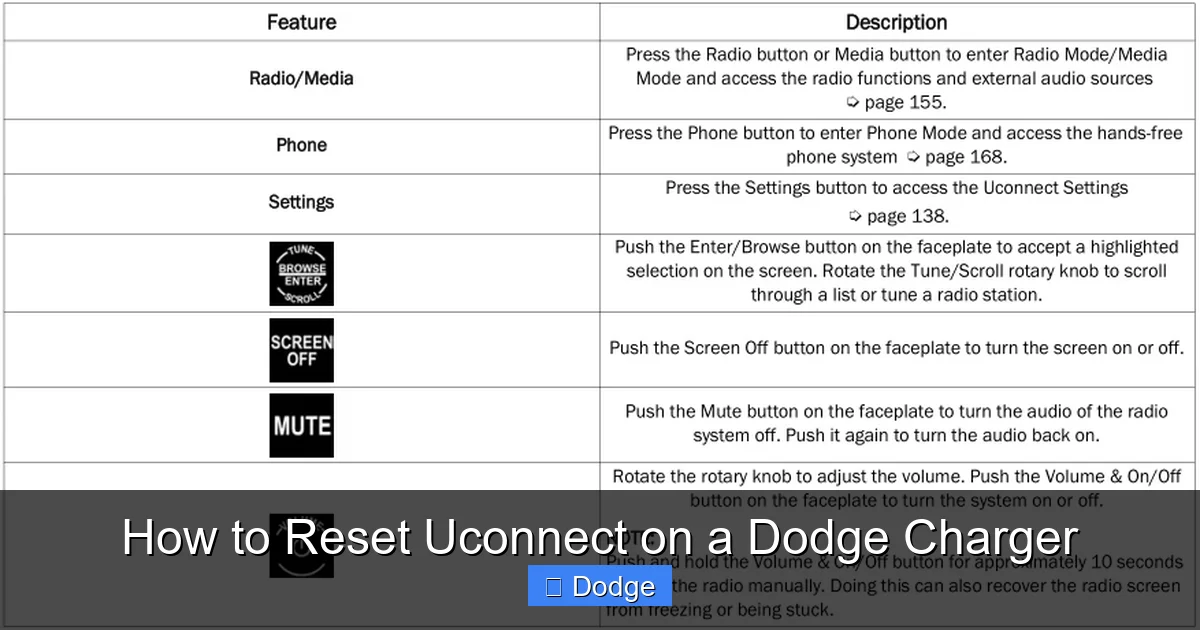
2. Locate the Power button (usually labeled with a circle or power symbol) and the Volume knob on the center console.
3. Press and hold both the Power button and the Volume down button simultaneously.
4. Keep holding them for about 10–15 seconds. You’ll see the screen go black, then the Dodge logo should appear as the system reboots.
5. Release the buttons once the system starts restarting.
6. Wait for the Uconnect system to fully load—this may take 1–2 minutes.
For Uconnect 4.5 and Uconnect 5 (2018–2023 Charger models):
1. Ensure the vehicle is on (ignition in “ON” or “ACC”).
2. Press and hold the Power button (often integrated into the volume knob) and the Volume down button at the same time.
3. Hold for 10–15 seconds until the screen turns off and the system restarts.
4. Release the buttons and allow the system to reboot completely.
Tip: If your Charger has a touchscreen-only interface (no physical power button), look for a small reset button near the USB ports or behind a panel. Some newer models also allow a soft reset through the settings menu under “System” > “Restart.”
What a Soft Reset Fixes
A soft reset is effective for:
– Temporary freezes or lag
– Audio cutting out
– Bluetooth pairing delays
– Apps not responding
– Minor display glitches
It does not erase any data, so your favorite radio stations, saved addresses, and phone connections will remain intact.
Pro Tips for a Successful Soft Reset
– Always perform the reset while the vehicle is parked and in “Park” mode.
– Avoid touching the screen or buttons during the reboot process.
– If the system doesn’t respond after 15 seconds, wait 30 seconds and try again.
– Keep your vehicle’s battery in good condition—low voltage can interfere with resets.
How to Perform a Hard Reset on Uconnect
When a soft reset doesn’t cut it—or your Uconnect system is completely frozen—a hard reset is the next step. This method forces a full reboot of the system’s hardware and software, clearing deeper-level glitches that a soft reset can’t reach. It’s more thorough but still doesn’t delete your personal data.
When to Use a Hard Reset
Use a hard reset if:
– The screen is completely black or stuck on a single image
– The system won’t respond to any button presses
– You hear audio but can’t see the display
– The Uconnect unit won’t turn on at all
Step-by-Step Hard Reset Instructions
The process varies slightly by model year, but here’s the standard method:
For Most Dodge Charger Models (2011–2023):
1. Turn off the vehicle completely and remove the key (or press the Start/Stop button to turn off ignition).
2. Open the driver’s side door and locate the fuse box under the dashboard (usually on the left side, near the steering column).
3. Use the fuse diagram on the fuse box cover to find the fuse labeled “RADIO” or “INFOTAINMENT.”
4. Use the fuse puller tool (often stored in the fuse box) to remove this fuse.
5. Wait 10–15 minutes. This allows the system’s capacitors to fully discharge, ensuring a complete reset.
6. Reinsert the fuse firmly into its slot.
7. Close the fuse box and restart your vehicle.
8. Turn on the ignition and wait for the Uconnect system to boot up.
Alternative Method (If You Can’t Access the Fuse Box):
Some owners prefer a simpler approach:
1. Turn off the vehicle.
2. Disconnect the negative terminal of the car battery using a wrench.
3. Wait 15 minutes.
4. Reconnect the battery terminal.
5. Start the vehicle and allow Uconnect to restart.
Note: Disconnecting the battery will also reset other systems (like radio presets and clock), so be prepared to reset those afterward.
What a Hard Reset Fixes
A hard reset can resolve:
– Complete system freezes
– Boot loop issues (system restarts repeatedly)
– Hardware communication errors
– Persistent audio or display failures
Like a soft reset, it preserves your personal data—unless the system was already corrupted.
Safety and Precautions
– Always wear safety glasses when working near the battery.
– Make sure the vehicle is in Park and the parking brake is engaged.
– If you’re uncomfortable handling fuses or the battery, consult a professional.
How to Perform a Factory Reset on Uconnect
A factory reset is the most comprehensive option—and should only be used when other methods fail or when you’re preparing to sell your Charger. This process wipes all personal data, restores the system to its original factory settings, and reinstalls the base software. It’s like giving your Uconnect a clean slate.
When to Use a Factory Reset
Consider a factory reset if:
– The system is still malfunctioning after soft and hard resets
– You’re experiencing frequent crashes or error messages
– You’re selling or trading in your Charger
– You want to remove all personal information for privacy
Warning: A factory reset will erase:
– Paired Bluetooth devices
– Saved radio stations
– Navigation favorites and recent destinations
– Custom settings (display brightness, language, etc.)
– Downloaded apps and login credentials
Step-by-Step Factory Reset Instructions
The process varies by Uconnect generation:
For Uconnect 3 and 4 (2011–2019 Charger models):
1. Turn on the ignition (do not start the engine).
2. Press and hold the Phone button and the Audio button simultaneously for 10–15 seconds.
3. The screen will go black, then display a confirmation message: “Factory Reset? Yes / No.”
4. Use the touchscreen or knob to select Yes.
5. Wait for the system to complete the reset—this can take 5–10 minutes.
6. Once done, the system will restart with default settings.
For Uconnect 4.5 and 5 (2020–2023 Charger models):
1. Turn on the ignition.
2. Tap the Settings icon (gear symbol) on the home screen.
3. Scroll down and select System.
4. Choose Reset Options.
5. Tap Factory Reset.
6. Confirm by selecting Yes when prompted.
7. Enter your Uconnect PIN if required (default is often 1234 or 0000—check your manual).
8. Wait for the reset to complete.
Tip: If you’ve forgotten your Uconnect PIN, you may need to contact Dodge Customer Support with your VIN to retrieve it.
After the Factory Reset
Once the reset is complete:
– Re-pair your phone via Bluetooth
– Re-enter navigation destinations
– Reconfigure display and audio settings
– Re-download any apps you use regularly
It’s also a good idea to check for software updates after a factory reset to ensure you’re running the latest version.
Tips to Prevent Future Uconnect Issues
While resets are helpful, the best approach is prevention. Here are some practical tips to keep your Uconnect system running smoothly:
1. Keep Software Updated
Dodge regularly releases Uconnect software updates to fix bugs, improve performance, and add features. Check for updates every few months via the Uconnect website or through the system’s update menu. Some newer models support over-the-air (OTA) updates—make sure this feature is enabled.
2. Avoid Overloading the System
Don’t run too many apps at once. Streaming music, using navigation, and making calls simultaneously can strain the system. Close unused apps when possible.
3. Use High-Quality USB Cables
Cheap or damaged cables can cause connection issues with Apple CarPlay or Android Auto. Invest in certified cables and avoid bending or twisting them.
4. Clean the Touchscreen Regularly
Fingerprints, dust, and grime can interfere with touch sensitivity. Use a microfiber cloth and screen-safe cleaner to keep the display clear.
5. Park in Moderate Temperatures
Extreme heat or cold can affect electronic performance. If possible, park in a garage or shaded area during summer, and use a windshield cover in winter.
6. Restart Periodically
Even if there are no issues, performing a soft reset every few weeks can help clear temporary files and keep the system fresh.
7. Monitor Battery Health
A weak car battery can cause electrical issues, including Uconnect malfunctions. Have your battery tested annually, especially if your Charger is more than 3–4 years old.
Conclusion
Resetting the Uconnect system in your Dodge Charger is a simple yet powerful way to restore performance, fix common glitches, and maintain a smooth driving experience. Whether you’re dealing with a frozen screen, Bluetooth problems, or just want to refresh the system, knowing how to perform a soft reset, hard reset, or factory reset puts you in control.
Start with a soft reset for minor issues—it’s quick, safe, and often all you need. If that doesn’t work, move on to a hard reset to force a deeper reboot. Reserve the factory reset for persistent problems or before selling your vehicle. And remember: prevention is key. Regular updates, proper care, and mindful usage can go a long way in keeping your Uconnect system running like new.
With this guide, you’re now equipped to handle Uconnect issues confidently—no dealership visit required. So the next time your Charger’s infotainment system acts up, don’t panic. Just reset, restart, and get back to enjoying the ride.
Frequently Asked Questions
How do I know which Uconnect version my Dodge Charger has?
Check your model year and screen size. Uconnect 3 is common in 2011–2014 Chargers, Uconnect 4 in 2015–2019, and Uconnect 5 in 2021 and newer. You can also find this info in your owner’s manual or by visiting the Uconnect website and entering your VIN.
Will resetting Uconnect delete my saved radio stations?
A soft or hard reset will not delete your radio presets. However, a factory reset will erase all saved stations, so you’ll need to reprogram them afterward.
Can I reset Uconnect while driving?
No. Always perform a reset while the vehicle is parked and in “Park” mode. Resetting while driving can distract you and pose a safety risk.
Why does my Uconnect keep freezing?
Frequent freezing may be due to outdated software, a weak battery, or corrupted system files. Try a factory reset and check for software updates. If problems persist, visit a Dodge service center.
How long does a Uconnect reset take?
A soft reset takes about 1–2 minutes. A hard reset (via fuse or battery) requires 10–15 minutes of waiting time. A factory reset can take 5–10 minutes to complete.
What if my Uconnect won’t turn on at all?
First, check your car battery and fuses. If the system still won’t power on, try a hard reset by removing the radio fuse or disconnecting the battery. If that fails, professional diagnosis may be needed.


