How to Reset Subaru Bluetooth

Contents
- 1 Key Takeaways
- 2 📑 Table of Contents
- 3 Why Subaru Bluetooth Connections Fail (And When to Reset)
- 4 How to Identify Your Subaru’s Infotainment System
- 5 Step-by-Step Guide: How to Reset Subaru Bluetooth
- 6 Re-Pairing Your Phone After a Reset
- 7 Preventing Future Bluetooth Problems
- 8 When to Seek Professional Help
- 9 Conclusion
- 10 Frequently Asked Questions

Carburetor Cleaner

Car GPS Navigator

Foam Cannon

Bluetooth FM Transmitter
Resetting your Subaru’s Bluetooth system can solve common connectivity problems like pairing failures, audio dropouts, or unresponsive controls. This guide walks you through simple, model-specific steps to restore seamless hands-free calling and music streaming—no dealership visit required.
If you’ve ever been on an important call while driving your Subaru only to have the audio cut out—or worse, your phone refuse to connect at all—you’re not alone. Bluetooth connectivity issues are among the most common frustrations Subaru owners face, especially as phones and infotainment systems evolve faster than ever. Whether you’re trying to stream your favorite playlist, take a hands-free call, or just get your navigation directions through the speakers, a glitchy Bluetooth connection can turn a smooth drive into a stressful one.
The good news? In most cases, these problems aren’t signs of a serious malfunction. They’re often caused by simple software hiccups, outdated pairings, or temporary glitches in the communication between your phone and your Subaru’s Starlink infotainment system. And the even better news is that you don’t need to visit a dealership or spend money on repairs to fix them. With a few straightforward steps, you can reset your Subaru’s Bluetooth and restore reliable, seamless connectivity in under 10 minutes.
This guide will walk you through everything you need to know about how to reset Subaru Bluetooth—whether you drive a 2015 Outback, a 2023 Crosstrek, or anything in between. We’ll cover multiple methods, explain why each step matters, and offer practical tips to prevent future issues. By the end, you’ll feel confident troubleshooting Bluetooth problems like a pro.
Key Takeaways
- Resetting fixes most Bluetooth glitches: Clearing paired devices or performing a full system reset often resolves connection issues without professional help.
- Steps vary by infotainment system: Older models use physical buttons, while newer ones rely on touchscreen menus—know your system type first.
- Always delete old pairings first: Remove existing devices from both your phone and car before re-pairing to avoid conflicts.
- Power cycling helps: Turning the car off and on (or disconnecting the battery briefly) can refresh the Bluetooth module.
- Update software when possible: Subaru releases infotainment updates that improve Bluetooth stability—check for them annually.
- Test after reset: Always verify calling and audio functions work before assuming the issue is resolved.
- Persistent issues may need dealer support: If problems continue after multiple resets, there could be a hardware fault requiring professional diagnosis.
📑 Table of Contents
Why Subaru Bluetooth Connections Fail (And When to Reset)
Bluetooth technology has come a long way, but it’s still prone to occasional hiccups—especially when two complex systems (your smartphone and your car’s infotainment unit) try to talk to each other over a wireless connection. Subaru vehicles use the Starlink multimedia system, which supports Bluetooth for hands-free calling, audio streaming, and even text message readouts. While generally reliable, it’s not immune to bugs.
Common symptoms that indicate your Subaru’s Bluetooth needs a reset include: your phone showing “connected” but no sound coming through the speakers, frequent disconnections during calls, the system failing to recognize your device even after pairing, or error messages like “Device Not Found” or “Connection Failed.” Sometimes, the issue is one-sided—your phone sees the car, but the car doesn’t see your phone—or vice versa.
These problems usually stem from corrupted pairing data, outdated software, or temporary memory glitches in the infotainment system. Think of it like your phone needing a restart after an app crashes. The Bluetooth module in your Subaru has a small memory buffer that stores pairing information, and over time, this data can become outdated or conflicting—especially if you’ve switched phones, updated your operating system, or paired multiple devices.
Resetting clears this stored data and gives your system a fresh start. It’s the digital equivalent of turning it off and on again—and it works surprisingly often. In fact, many Subaru service centers recommend a Bluetooth reset as the first troubleshooting step before diving into more complex diagnostics. So before you assume there’s a hardware issue or rush to the dealer, try resetting. It’s free, fast, and fixes the majority of connectivity complaints.
How to Identify Your Subaru’s Infotainment System

Visual guide about How to Reset Subaru Bluetooth
Image source: b.scdn.gr
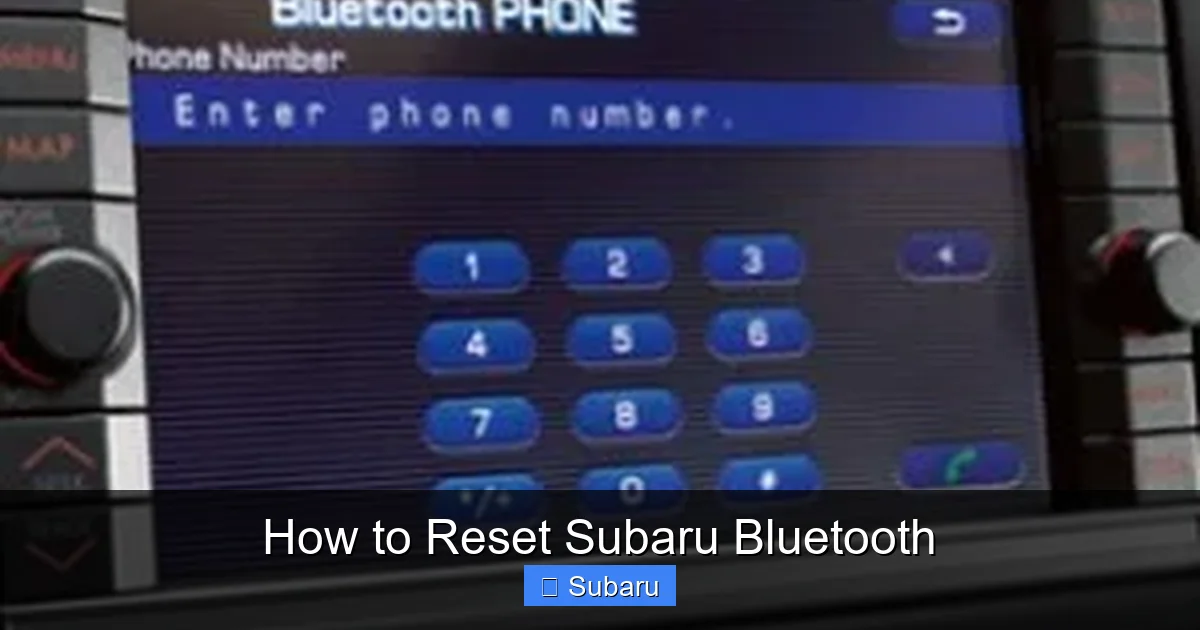
Before you begin resetting, it’s crucial to know which infotainment system your Subaru uses. The steps differ significantly between older models with physical buttons and newer ones with touchscreens. Subaru has used several versions of its Starlink system over the years, and the reset process depends on which one you have.
Older Models (2015–2017): Button-Based Systems
If your Subaru has a smaller screen (typically 6.2 or 7 inches) with physical buttons below or around the display—including a prominent “Phone” or “Bluetooth” button—you likely have an older Starlink system. These are common in models like the 2015–2017 Legacy, Outback, Forester, and Impreza. The interface is more menu-driven, and navigation relies heavily on directional pads and hard keys.
For these vehicles, resetting Bluetooth usually involves accessing the phone settings through the menu and deleting paired devices manually. There’s often no “master reset” option, so you’ll need to clear each device individually. Some older systems also allow a soft reset by holding specific button combinations, but this varies by model year.
Newer Models (2018–Present): Touchscreen Systems
Starting around 2018, Subaru began rolling out larger touchscreens (8 or 11.6 inches) with more intuitive interfaces. These systems—found in models like the 2018+ Outback, 2019+ Ascent, and 2020+ Crosstrek—use a smartphone-like layout with icons and swipe gestures. They also support wireless Apple CarPlay and Android Auto in many trims, which can sometimes interfere with Bluetooth if not configured properly.
These newer systems often include a “Factory Reset” or “Restore Defaults” option in the settings menu, making it easier to wipe all Bluetooth pairings at once. However, they also have more complex software, so a full system reboot (power cycling) is often recommended alongside a pairing reset.
How to Confirm Your System Type
Not sure which system you have? Here’s a quick way to tell:
– Look at the screen size and presence of physical buttons.
– Check your owner’s manual—Subaru lists the infotainment version by model year.
– Visit Subaru’s official support site and enter your VIN to see your vehicle’s specs.
– If your screen responds to touch and has app-like icons (e.g., Music, Phone, Settings), it’s a newer touchscreen system.
Knowing your system type ensures you follow the correct reset steps and avoid frustration. Using the wrong method might not work—or worse, accidentally reset other settings like radio presets or navigation data.
Step-by-Step Guide: How to Reset Subaru Bluetooth

Visual guide about How to Reset Subaru Bluetooth
Image source: 1factoryradio.com
Now that you’ve identified your system, let’s walk through the actual reset process. We’ll cover both older button-based systems and newer touchscreen models, with clear instructions for each. Remember: always try the simplest fix first—deleting old pairings—before moving to a full reset.
Method 1: Delete Paired Devices (All Models)
This is the most common and effective first step. Over time, your Subaru may store outdated or conflicting pairing data from old phones, tablets, or even other drivers’ devices. Clearing these out often resolves connection issues immediately.
**For Older Button-Based Systems (2015–2017):**
1. Turn on your vehicle (you don’t need to drive—just turn the key to “ON” or press the start button without pressing the brake).
2. Press the “Phone” or “Bluetooth” button on the dashboard.
3. Use the directional pad to navigate to “Phone Settings” or “Bluetooth Settings.”
4. Select “Paired Devices” or “Device List.”
5. Highlight each paired device and select “Delete” or “Remove.” Confirm when prompted.
6. Repeat until all devices are removed.
7. Turn off the car, wait 30 seconds, then turn it back on.
**For Newer Touchscreen Systems (2018–Present):**
1. Turn on the vehicle.
2. Tap the “Settings” icon (usually a gear or wrench symbol) on the home screen.
3. Select “Phone” or “Bluetooth.”
4. Tap “Paired Devices” or “Device List.”
5. Tap the trash can or “Remove” icon next to each device. Confirm deletion.
6. Exit settings and restart the vehicle by turning it off and on.
**Pro Tip:** After deleting, also go into your phone’s Bluetooth settings and “Forget” the Subaru device. This ensures both sides are cleared and prevents automatic re-pairing attempts that can cause conflicts.
Method 2: Perform a Soft Reset (Power Cycle)
If deleting pairings doesn’t work, a soft reset—also called a power cycle—can refresh the infotainment system’s memory and resolve temporary glitches. This method works for all Subaru models and is especially useful after software updates or long periods of inactivity.
1. Turn off your vehicle completely (remove the key or press the start button with the brake pressed).
2. Open the driver’s side door to ensure the system fully powers down (some Subarus keep the infotainment alive even when “off”).
3. Wait at least 2 minutes. This allows capacitors in the system to discharge and the Bluetooth module to reset.
4. Close the door and turn the vehicle back on.
5. Wait for the system to fully boot (you’ll see the Subaru logo and home screen).
6. Try pairing your phone again.
**Note:** On some newer models with larger batteries or advanced electronics, you may need to wait up to 5 minutes for a full reset. If your system has a backup camera or parking sensors, wait until those activate—this indicates the system is fully online.
Method 3: Factory Reset (Newer Touchscreen Models Only)
If the above steps fail, a factory reset will restore your infotainment system to its original settings—erasing all paired devices, saved radio stations, navigation history, and user preferences. Use this as a last resort, as you’ll need to reconfigure everything afterward.
**Steps for 2018+ Touchscreen Systems:**
1. Tap “Settings” on the home screen.
2. Scroll down and select “General” or “System.”
3. Look for “Reset” or “Restore Defaults.”
4. Choose “Factory Reset” or “Reset All Settings.”
5. Confirm when prompted (you may need to enter a security code—check your manual; it’s often “0000” or “1234”).
6. Wait for the system to restart (this can take 3–5 minutes).
7. Once rebooted, pair your phone as if it were the first time.
**Warning:** A factory reset will erase personalized settings. Take a photo of your current radio presets or write them down beforehand. Also, note any saved destinations in navigation.
Method 4: Disconnect the Battery (Advanced Option)
For persistent issues that survive all software resets, a hard reset via battery disconnection can force a deeper system reboot. This method is effective but should only be attempted if you’re comfortable working under the hood.
1. Turn off the vehicle and remove the key.
2. Open the hood and locate the negative (-) terminal on the battery (usually black with a minus sign).
3. Use a wrench to loosen the clamp and disconnect the negative cable.
4. Wait 10–15 minutes (this ensures all residual power drains from the system).
5. Reconnect the cable and tighten securely.
6. Close the hood and start the vehicle.
**Safety Note:** Always disconnect the negative terminal first and reconnect it last to avoid sparks. If you’re unsure, consult your owner’s manual or ask a professional.
Re-Pairing Your Phone After a Reset
Visual guide about How to Reset Subaru Bluetooth
Image source: madisonrising.com
Once you’ve reset your Subaru’s Bluetooth, the next step is re-pairing your phone. This process is straightforward, but doing it correctly ensures a stable connection.
1. On your phone, go to Settings > Bluetooth and make sure it’s turned on.
2. In your Subaru, navigate to the Bluetooth or Phone menu and select “Add New Device” or “Pair Device.”
3. Your car will begin searching—wait for it to appear on your phone’s Bluetooth list (usually named “Subaru [Model]” or “Starlink”).
4. Tap to connect. You may see a PIN (often “0000” or “1234”)—enter it on both devices if prompted.
5. Allow access to contacts and messages if asked (this enables hands-free calling and text readouts).
6. Test the connection: make a call or play music to confirm audio works.
**Troubleshooting Pairing Issues:**
– If your phone doesn’t see the car, ensure the car is in pairing mode and within range (stay inside the vehicle).
– If the car doesn’t see your phone, restart your phone’s Bluetooth or toggle airplane mode on and off.
– For iPhones, ensure “Sync Contacts” is enabled in the Bluetooth settings for the Subaru device.
– For Android, check that “Media Audio” and “Phone Audio” are both enabled.
**Pro Tip:** Pair only one primary device at a time. Multiple paired devices can cause the system to “jump” between them, leading to dropped calls or audio switching unexpectedly.
Preventing Future Bluetooth Problems
A reset fixes the immediate issue, but taking a few proactive steps can keep your Subaru’s Bluetooth running smoothly for years.
Keep Software Updated
Subaru periodically releases infotainment software updates that improve Bluetooth stability, add features, and fix bugs. These updates are often free and can be installed via USB or, in some newer models, over-the-air (OTA). Check for updates at least once a year by visiting Subaru’s official support page or contacting your local dealer.
Avoid Overloading the System
Pairing too many devices (phones, tablets, smartwatches) can overwhelm the Bluetooth module. Subaru systems typically support up to 5–7 paired devices, but performance degrades with each addition. Stick to 1–2 primary devices and delete unused ones.
Restart Regularly
Just like your phone, your Subaru’s infotainment system benefits from occasional restarts. If you notice sluggish performance or minor glitches, try a soft reset (power cycle) every few weeks—especially after long trips or software updates.
Use Wired Connections When Possible
For music streaming, consider using a USB cable instead of Bluetooth. Wired connections are more stable, offer better sound quality, and reduce strain on the wireless system. Plus, they charge your phone while you drive.
Check Phone Compatibility
Not all phones play nicely with Subaru’s system. If you’ve recently upgraded your phone and started having issues, check Subaru’s compatibility list. Some older Starlink systems struggle with newer Android or iOS versions.
When to Seek Professional Help
While most Bluetooth issues are software-related and fixable at home, persistent problems may indicate a hardware fault. Signs you need dealer assistance include:
– The Bluetooth option is grayed out or missing from the menu.
– The system crashes or freezes when attempting to pair.
– Audio distorts or cuts out even after multiple resets.
– Other infotainment features (radio, navigation, backup camera) also malfunction.
In these cases, the Bluetooth antenna, infotainment unit, or wiring may be damaged. Subaru dealers have diagnostic tools to pinpoint the issue and can replace faulty components under warranty if applicable.
Conclusion
Resetting your Subaru’s Bluetooth doesn’t have to be complicated. Whether you drive an older model with physical buttons or a newer touchscreen-equipped vehicle, the steps are simple, safe, and effective. By deleting old pairings, performing a power cycle, or—if needed—executing a factory reset, you can resolve most connectivity issues in under 10 minutes.
Remember: prevention is just as important as repair. Keep your system updated, avoid overloading it with devices, and restart it occasionally to maintain peak performance. And if problems persist despite your best efforts, don’t hesitate to reach out to a Subaru service center—there’s no shame in getting expert help when needed.
With this guide, you’re now equipped to handle Bluetooth hiccups like a pro. So the next time your phone won’t connect or your music cuts out, you’ll know exactly what to do. Safe driving—and happy streaming!
Frequently Asked Questions
How do I reset Bluetooth on a 2016 Subaru Outback?
For a 2016 Outback, press the “Phone” button, navigate to “Paired Devices” using the directional pad, and delete each device. Then turn the car off for 2 minutes before restarting and re-pairing your phone.
Will resetting Bluetooth delete my radio stations?
A standard Bluetooth reset (deleting paired devices) won’t affect radio presets. However, a factory reset on newer models will erase all saved stations, so note them down first.
Why does my Subaru keep disconnecting from Bluetooth?
Frequent disconnections are often caused by outdated software, too many paired devices, or interference. Try deleting old pairings, updating your infotainment system, and keeping only one active device.
Can I reset Subaru Bluetooth without turning on the car?
No—you need to turn the ignition to “ON” (or press the start button without braking) to access the infotainment system. However, you don’t need to drive.
How long does a Subaru Bluetooth reset take?
Deleting pairings takes 2–3 minutes. A power cycle (turning the car off and on) adds another 2–5 minutes. A factory reset may take up to 10 minutes including reboot time.
Does Subaru offer Bluetooth updates?
Yes. Subaru releases infotainment software updates periodically. Check their official support website or contact your dealer to see if an update is available for your model.