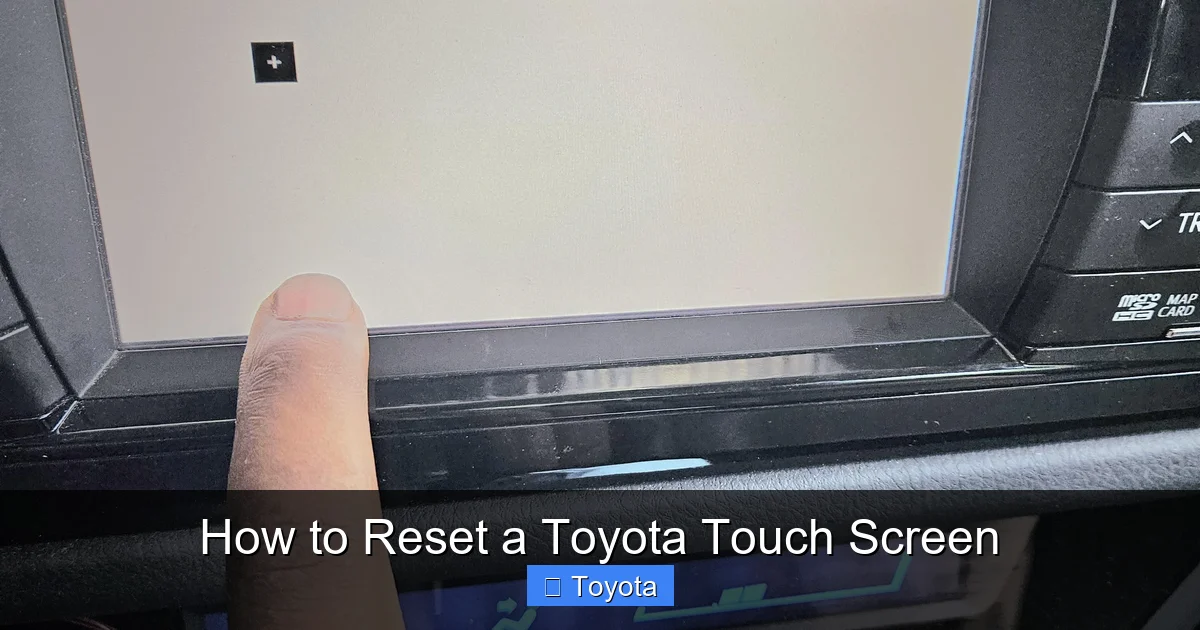
How to Reset a Toyota Touch Screen

Contents
- 1 Key Takeaways
- 2 📑 Table of Contents
- 3 Why Your Toyota Touch Screen Might Need a Reset
- 4 Understanding Your Toyota Infotainment System
- 5 Soft Reset: The Quick Fix for Minor Glitches
- 6 Hard Reset: When a Soft Reset Isn’t Enough
- 7 Factory Reset: The Nuclear Option
- 8 Preventing Future Touch Screen Problems
- 9 When to Seek Professional Help
- 10 Conclusion
- 11 Frequently Asked Questions


Is your Toyota’s touch screen frozen, glitchy, or unresponsive? You don’t need a dealership visit—most issues can be fixed with a simple reset. This guide walks you through multiple reset methods, from soft reboots to factory resets, so you can get your infotainment system back on track in minutes.
Key Takeaways
- Soft resets fix most minor glitches: A quick power cycle often resolves freezing, lag, or app crashes without losing your settings.
- Hard resets restore system performance: When a soft reset fails, a hard reset clears temporary memory and reboots the entire system.
- Factory resets erase personal data: Use this as a last resort—it wipes saved Bluetooth pairings, navigation history, and custom settings.
- Know your infotainment system: Toyota uses different systems (Entune, Audio Plus, Toyota Multimedia), and reset steps vary slightly.
- Check for software updates: Many touch screen issues are caused by outdated firmware—updating can prevent future problems.
- Use the 12V battery method carefully: Disconnecting the battery resets the system but may affect other vehicle functions like radio presets.
- Contact Toyota support if problems persist: If resets don’t work, there may be a hardware issue requiring professional diagnosis.
📑 Table of Contents
Why Your Toyota Touch Screen Might Need a Reset
You’re cruising down the highway, ready to pull up your favorite playlist or get directions to a new restaurant—but your Toyota’s touch screen won’t respond. It’s frozen. The buttons don’t work. The screen is blank or stuck on a loading screen. Sound familiar?
Modern Toyota vehicles come equipped with advanced infotainment systems like Entune, Audio Plus, and the newer Toyota Multimedia platform. These systems handle everything from navigation and music to smartphone integration and climate controls. But like any piece of technology, they can sometimes act up. Software glitches, app crashes, or memory overloads can cause the touch screen to freeze, lag, or become completely unresponsive.
The good news? Most of these issues aren’t serious—and they don’t require a trip to the dealership. In many cases, a simple reset can bring your system back to life. Whether you’re driving a Camry, RAV4, Highlander, or Prius, knowing how to reset a Toyota touch screen can save you time, frustration, and potentially hundreds of dollars in service fees.
In this guide, we’ll walk you through every method—from the quickest soft reset to a full factory restore. We’ll also help you identify which system you have, explain when to use each method, and offer tips to prevent future problems. By the end, you’ll be able to confidently troubleshoot your Toyota’s touch screen like a pro.
Understanding Your Toyota Infotainment System
Before you reset your touch screen, it helps to know which system you’re working with. Toyota has used several infotainment platforms over the years, and while the reset methods are similar, there are subtle differences. Let’s break them down.
Visual guide about How to Reset a Toyota Touch Screen
Image source: nissanusa.com
Entune (2012–2018 Models)
The Entune system was Toyota’s go-to infotainment platform for nearly a decade. Found in models like the 2015 Camry and 2016 RAV4, it features a 6.1- to 8-inch touch screen and supports Bluetooth, USB, and smartphone integration via apps like Pandora and iHeartRadio. Entune relies heavily on your phone for many functions, so if your phone is having issues, it can affect the screen’s performance.
Audio Plus (2018–2021 Models)
Audio Plus was Toyota’s upgrade to Entune, offering faster processing, better graphics, and improved voice recognition. It includes Apple CarPlay and Android Auto compatibility, making it easier to mirror your phone’s interface. Common in the 2019 Highlander and 2020 Corolla, Audio Plus systems are more responsive but can still freeze if overloaded with apps or outdated software.
Toyota Multimedia (2021 and Newer)
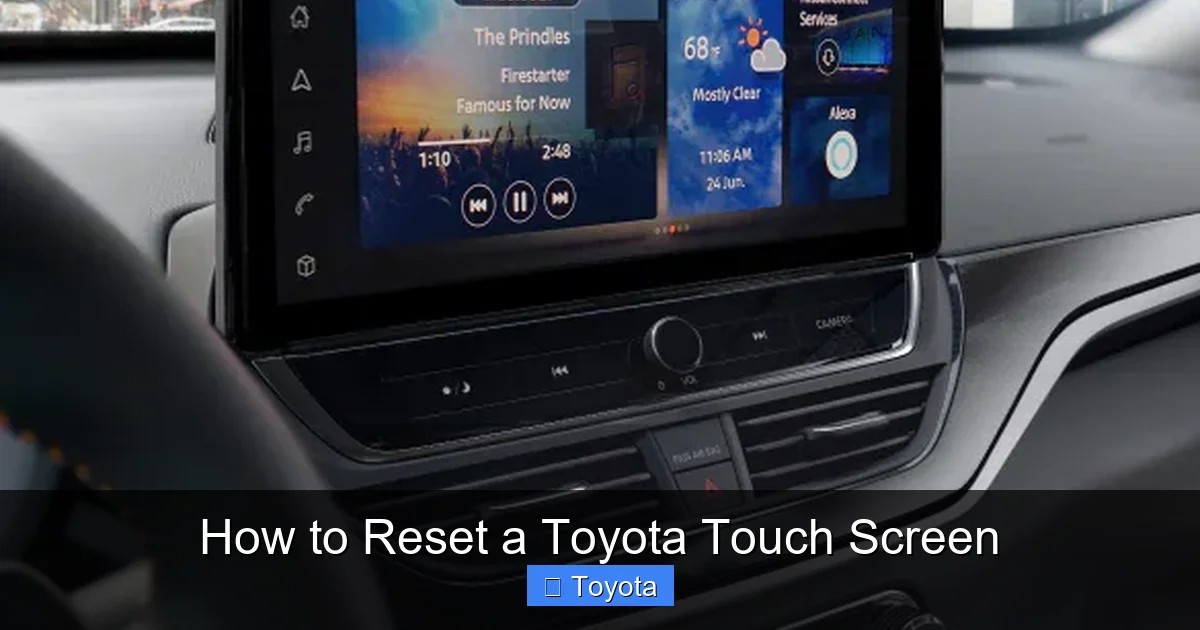
The latest generation, Toyota Multimedia, debuted in 2021 models like the redesigned Tundra and Sienna. It features a larger 9- to 14-inch screen, cloud-based navigation, over-the-air updates, and enhanced voice commands. This system is more powerful but also more complex, so resets may require additional steps.
To identify your system, check your vehicle’s owner’s manual or look at the home screen. Entune typically displays a grid of app icons, while Audio Plus and Toyota Multimedia have a more modern, tile-based layout. Knowing your system helps you choose the right reset method and avoid confusion.
Soft Reset: The Quick Fix for Minor Glitches
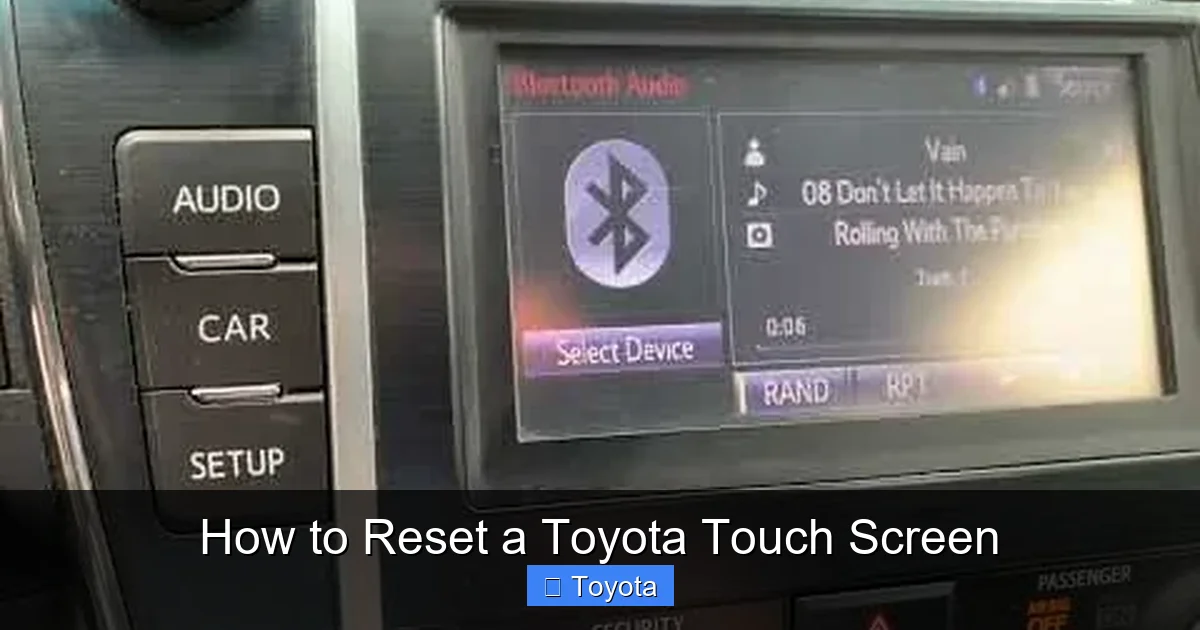
If your touch screen is acting up—freezing, lagging, or not responding to taps—a soft reset is usually the best first step. This method restarts the system without deleting any personal data, making it safe and effective for everyday issues.
Visual guide about How to Reset a Toyota Touch Screen
Image source: thecarhow.com
How to Perform a Soft Reset
The soft reset process is simple and takes less than a minute. Here’s how to do it:
- Turn off the vehicle: Put the car in park and turn the ignition to the “Off” position. If your Toyota has a push-button start, press the button once without pressing the brake to turn off the engine.
- Wait 30 seconds: This allows the system to fully power down and clear its temporary memory.
- Restart the vehicle: Turn the ignition back to “On” or press the start button (with the brake pressed if needed). Wait for the system to boot up completely—this may take 30 to 60 seconds.
- Test the touch screen: Try tapping the home button, opening an app, or adjusting the volume to see if the issue is resolved.
For example, if your 2020 RAV4’s screen freezes while using Apple CarPlay, a soft reset often clears the glitch. The system reboots, reconnects to your phone, and everything works normally again.
When to Use a Soft Reset
A soft reset is ideal for:
- Screen freezing during navigation
- Apps crashing or not opening
- Delayed response to touch inputs
- Audio cutting in and out
- Bluetooth disconnections
It’s also a great troubleshooting step before trying more invasive methods. In fact, many Toyota technicians recommend a soft reset as the first action for any infotainment issue.
Pro Tip: Use the Power Button (If Available)
Some newer Toyota models—especially those with Toyota Multimedia—have a physical power button on the screen or nearby. If your screen is completely unresponsive, try holding this button for 10–15 seconds. This forces a restart similar to a soft reset. Look for a small circular button near the screen or on the center console.
Hard Reset: When a Soft Reset Isn’t Enough
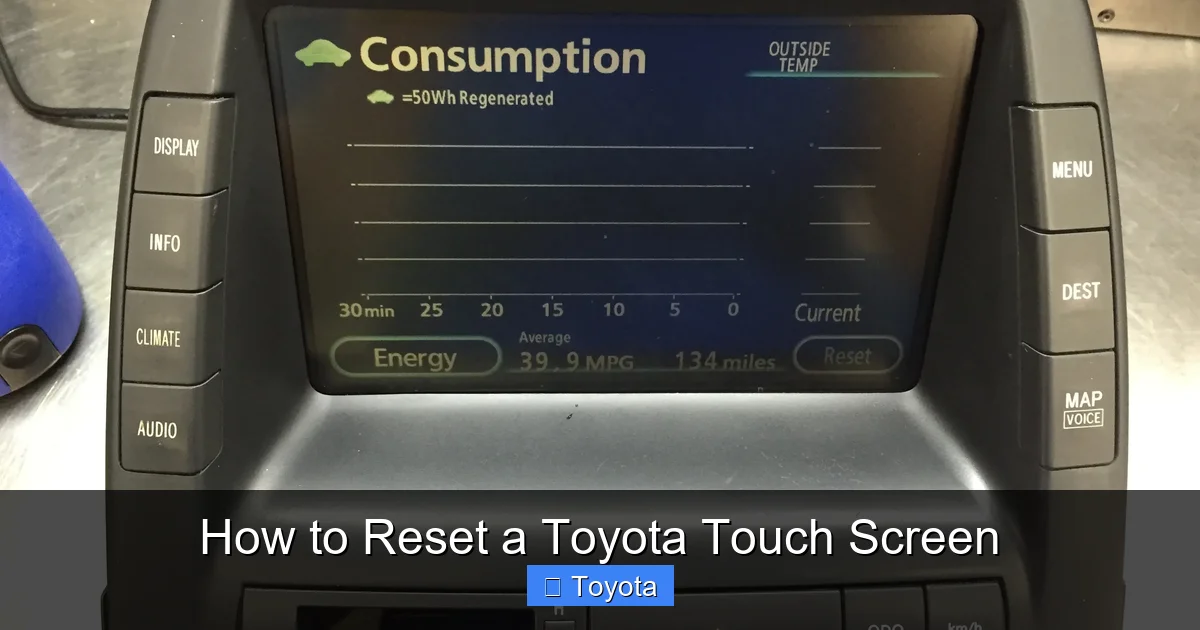
If a soft reset doesn’t fix the problem, it’s time to try a hard reset. This method clears the system’s temporary memory and reboots all components, which can resolve deeper software conflicts or memory overloads.
Visual guide about How to Reset a Toyota Touch Screen
Image source: i1.wp.com
How to Perform a Hard Reset
The hard reset process varies slightly depending on your model and system, but here’s a general guide:
- Turn off the vehicle: As with the soft reset, ensure the car is off and in park.
- Locate the fuse box: Most Toyota models have a fuse box under the dashboard on the driver’s side or in the engine compartment. Check your owner’s manual for the exact location.
- Find the “Audio” or “Radio” fuse: This is usually labeled and may be a 10A or 15A fuse. Use the fuse puller tool (often stored in the fuse box) to remove it.
- Wait 5–10 minutes: This ensures the system’s capacitors fully discharge and the memory is cleared.
- Reinsert the fuse: Push it back into place securely.
- Restart the vehicle: Turn the ignition back on and wait for the system to reboot.
For example, if your 2018 Camry’s Audio Plus system keeps freezing when using Android Auto, a hard reset often resolves the issue by clearing corrupted cache data.
Alternative: Use the 12V Battery Method
If you can’t access the fuse box or prefer a more direct approach, you can disconnect the 12V battery. Here’s how:
- Turn off the vehicle and remove the key (or ensure the start button is off).
- Open the hood and locate the battery.
- Disconnect the negative terminal: Use a wrench to loosen the clamp and remove the black cable. Always disconnect the negative first to avoid short circuits.
- Wait 10–15 minutes: This ensures a full system reset.
- Reconnect the terminal: Reattach the negative cable and tighten it securely.
- Restart the vehicle: Turn it on and let the system reboot.
Note: Disconnecting the battery may reset other systems, including radio presets, clock settings, and sometimes even the power windows. You may need to re-sync your key fob or re-enter security codes for certain features.
When to Use a Hard Reset
A hard reset is recommended when:
- The soft reset didn’t work
- The screen remains black or unresponsive
- Apps crash repeatedly
- The system boots slowly or gets stuck on the Toyota logo
- You notice unusual behavior after a software update
While more involved than a soft reset, a hard reset is still non-destructive—your personal settings and data remain intact.
Factory Reset: The Nuclear Option
If your touch screen is still malfunctioning after soft and hard resets, a factory reset may be necessary. This method restores the system to its original factory settings, wiping all personal data and custom configurations. Use it only as a last resort.
How to Perform a Factory Reset
The steps vary by system, so follow the instructions for your specific platform:
For Entune and Audio Plus Systems:
- Turn on the vehicle and wait for the system to fully boot.
- Go to “Settings” > “System” > “Reset Options.”
- Select “Factory Reset” or “Restore to Factory Defaults.”
- Confirm the action when prompted. The system will restart automatically.
- Reconfigure your settings: After the reset, you’ll need to reconnect Bluetooth devices, re-enter navigation favorites, and adjust preferences.
For Toyota Multimedia Systems:
- Press and hold the “Volume Down” and “Source” buttons simultaneously for 10–15 seconds. This triggers a hidden reset menu.
- Use the touch screen to select “Factory Reset” from the menu.
- Confirm and wait for the system to reboot.
- Set up the system as if it were new.
For example, if your 2022 Sienna’s Toyota Multimedia system is stuck in a boot loop, a factory reset can break the cycle and restore functionality.
What Gets Deleted in a Factory Reset?
A factory reset removes:
- Saved Bluetooth pairings
- Navigation history and favorites
- Radio presets
- Custom audio settings (EQ, balance, fade)
- App login information
- User profiles and preferences
Important: Back up any critical data if possible. Some systems allow you to export settings via USB, but this feature is limited.
When to Use a Factory Reset
Only perform a factory reset if:
- Other reset methods have failed
- The system is completely unusable
- You’re preparing to sell the vehicle and want to erase personal data
- A software update caused major instability
After a factory reset, monitor the system for a few days. If problems return, there may be a hardware issue requiring professional service.
Preventing Future Touch Screen Problems
Once your touch screen is working again, you’ll want to avoid future issues. Here are some practical tips to keep your Toyota’s infotainment system running smoothly.
Keep Software Updated
Outdated software is a common cause of glitches. Toyota regularly releases updates to fix bugs, improve performance, and add features. To check for updates:
- Go to “Settings” > “System” > “Software Update.”
- Connect to a Wi-Fi network (required for most updates).
- Follow the on-screen prompts to download and install.
For example, a 2021 RAV4 owner might receive an update that improves Apple CarPlay stability. Installing it can prevent freezing and disconnections.
Limit App Usage
Running too many apps at once can overload the system. Close unused apps by swiping them away in the app switcher. Avoid using resource-heavy apps like video streaming while driving—many are disabled for safety, but they can still cause lag.
Clean the Screen Regularly
Fingerprints, dust, and smudges can interfere with touch sensitivity. Use a microfiber cloth and a screen-safe cleaner to wipe the display weekly. Avoid harsh chemicals or paper towels, which can scratch the surface.
Use a Quality Phone Mount and Cable
Poor-quality USB cables or unstable phone mounts can cause connection issues. Invest in a certified cable (Apple MFi or USB-IF certified) and a secure mount to prevent disconnections during drives.
Restart the System Weekly
Even if everything seems fine, a weekly soft reset can clear memory buildup and keep the system fresh. Make it a habit—like checking your tire pressure or washing your car.
Monitor for Recurring Issues
If the same problem keeps happening—like the screen freezing every time you use navigation—it could indicate a deeper issue. Keep a log of when and how it occurs, and share it with a technician if needed.
When to Seek Professional Help
Despite your best efforts, some touch screen problems can’t be fixed with a reset. If you’ve tried all the methods above and the issue persists, it’s time to contact a professional.
Signs You Need a Technician
- The screen remains completely black after multiple resets
- Physical damage (cracks, dead pixels, or discoloration)
- Burning smell or unusual noises from the dashboard
- System reboots randomly or won’t turn on
- Error messages that don’t go away
In these cases, the issue may be hardware-related—such as a failing display, damaged wiring, or a faulty control module. A certified Toyota technician can run diagnostics and determine if repair or replacement is needed.
Most Toyota dealerships offer complimentary inspections for infotainment issues, especially if your vehicle is under warranty. Don’t hesitate to schedule an appointment if you’re unsure.
Warranty and Service Plans
If your vehicle is still under the factory warranty (typically 3 years/36,000 miles), touch screen repairs may be covered. Extended service plans or certified pre-owned warranties may also apply. Check your documentation or contact Toyota Customer Experience at 1-800-331-4331 for details.
Even out-of-warranty vehicles can benefit from Toyota’s reputation for reliability. Many service centers offer competitive pricing and use genuine parts to ensure long-term performance.
Conclusion
Dealing with a frozen or glitchy touch screen can be frustrating, but in most cases, it’s a solvable problem. Whether you drive a 2015 Camry with Entune or a 2023 Tundra with Toyota Multimedia, knowing how to reset a Toyota touch screen puts you in control.
Start with a soft reset—it’s quick, safe, and fixes the majority of issues. If that doesn’t work, move on to a hard reset using the fuse or battery method. Only use a factory reset as a last resort, and always keep your software updated to prevent future problems.
By following the steps in this guide, you’ll save time, avoid unnecessary service calls, and keep your infotainment system running smoothly for miles to come. And remember: if all else fails, Toyota’s support team is just a phone call away.
Now go enjoy that road trip—your touch screen is ready.
Frequently Asked Questions
How do I reset my Toyota touch screen without losing my settings?
Perform a soft reset by turning off the vehicle, waiting 30 seconds, and restarting it. This reboots the system without deleting any personal data like Bluetooth pairings or navigation favorites.
Why is my Toyota touch screen not responding at all?
A completely unresponsive screen could be due to a software freeze, memory overload, or hardware issue. Try a hard reset using the fuse or battery method. If it persists, there may be a hardware problem requiring professional diagnosis.
Will resetting my Toyota touch screen delete my saved radio stations?
A soft or hard reset will not delete radio presets. However, a factory reset will erase all saved stations, so you’ll need to reprogram them afterward.
Can I reset my Toyota touch screen while driving?
No, you should never attempt a reset while the vehicle is in motion. Always park safely, turn off the engine, and follow the reset steps to avoid distractions or accidents.
How often should I reset my Toyota infotainment system?
There’s no set schedule, but performing a soft reset once a week can help maintain system performance. Do it more often if you notice lag or glitches.
What if my Toyota touch screen keeps freezing after a reset?
If the problem returns frequently, it may indicate a software bug, outdated firmware, or hardware failure. Check for system updates or contact a Toyota service center for further assistance.