
How to Play a Dvd in a Toyota Sienna Without a Remote

If you’ve lost your Toyota Sienna’s DVD remote, don’t worry—you can still enjoy movies on the rear-seat entertainment system. This guide walks you through using the vehicle’s built-in controls, alternative input methods, and troubleshooting steps to get your DVD playing without the remote.
Key Takeaways
- Use the built-in screen controls: Most Toyota Sienna models with rear entertainment systems have physical buttons on the screen itself for basic playback functions like play, pause, and eject.
- Check the center console or rear seat armrest: Some Sienna trims include control panels near the rear seats or in the center console that allow DVD navigation without a remote.
- Try the front infotainment system: On newer models, you may be able to control the rear DVD player through the main dashboard screen using the touch interface or steering wheel controls.
- Use a universal remote or smartphone app: If your original remote is missing, a compatible universal remote or a mobile app (if supported) can replicate remote functions.
- Ensure the DVD is properly inserted and formatted: A disc that won’t play might be dirty, damaged, or incompatible—clean it and verify it’s a standard DVD, not a Blu-ray or region-locked disc.
- Verify power and system settings: Make sure the entertainment system is powered on, the correct input source is selected, and parental controls aren’t blocking playback.
- Consult your owner’s manual: The most accurate instructions for your specific Sienna model year and trim can be found in the official Toyota owner’s manual.
📑 Table of Contents
- Introduction: Lost Your Remote? Don’t Panic!
- Understanding Your Toyota Sienna’s Entertainment System
- Method 1: Using Built-In Screen Controls
- Method 2: Using the Center Console or Rear Seat Controls
- Method 3: Controlling the System from the Front Dashboard
- Method 4: Using a Universal Remote or Smartphone App
- Troubleshooting Common Issues
- Prevention Tips: Avoiding Future Remote Issues
- Conclusion: You’ve Got This!
Introduction: Lost Your Remote? Don’t Panic!
Picture this: You’re on a long road trip with the kids, the snacks are packed, the playlist is queued, and you’re ready to pop in that favorite animated movie to keep everyone entertained. You reach for the DVD remote—only to find it’s missing. Panic sets in. But before you resign yourself to a silent, screen-dark journey, take a deep breath. Playing a DVD in a Toyota Sienna without a remote is not only possible—it’s often easier than you think.
The Toyota Sienna, especially in higher trims like the XLE or Limited, comes equipped with a rear-seat entertainment system designed to keep passengers happy during long drives. While the included remote control is convenient, it’s not the only way to operate the system. Many drivers don’t realize that their Sienna has built-in controls, alternative access points, and even smartphone-compatible features that can replace the remote. Whether you’ve misplaced the remote, it’s broken, or the batteries died at the worst moment, this guide will show you exactly how to get your DVD playing again—no remote required.
Understanding Your Toyota Sienna’s Entertainment System
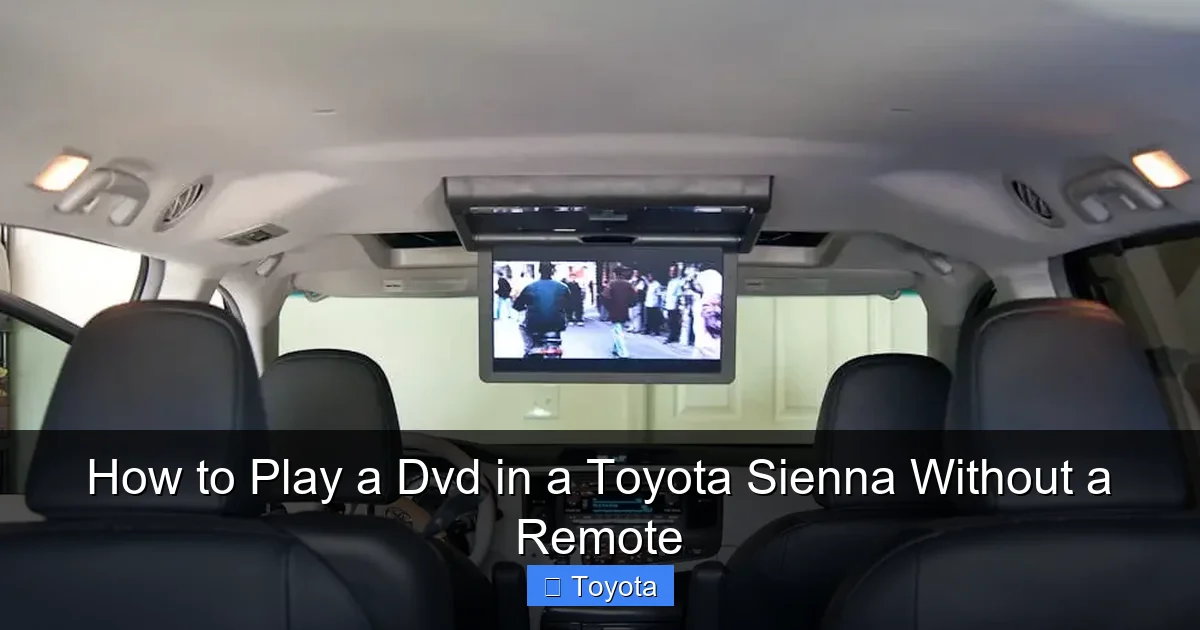
Before diving into solutions, it’s important to understand how the rear entertainment system in your Toyota Sienna works. The system varies slightly depending on the model year and trim level, but most Siennas with rear-seat entertainment feature a drop-down screen mounted to the ceiling, a DVD player (usually located in the center console or rear cargo area), and audio output through headphones or the vehicle’s speakers.
Visual guide about How to Play a Dvd in a Toyota Sienna Without a Remote
Image source: automotiveex.com
Common Features Across Sienna Models
Most Sienna entertainment systems include:
- A ceiling-mounted LCD screen (typically 9 to 10 inches)
- A built-in DVD player with support for standard DVDs and sometimes CDs
- Headphone jacks for private listening
- A remote control (often stored in a front seat pocket or glove box)
- Physical buttons on or near the screen for basic functions
- Optional integration with the front infotainment system (on newer models)
Knowing what your system includes will help you determine which workaround to use. For example, if your screen has visible buttons along the bottom or side edge, you’re in luck—those are your ticket to playing DVDs without the remote.
Model Year Differences to Note
Siennas from 2011 to 2020 typically feature a more traditional rear entertainment setup with a dedicated DVD player and remote. Starting in 2021, Toyota began phasing out built-in DVD players in favor of streaming and USB-based media, but many 2021–2023 models still offer optional rear entertainment packages. If you have a newer Sienna, your system might rely more on HDMI inputs or wireless streaming, but the principles of controlling playback without a remote still apply.
Method 1: Using Built-In Screen Controls
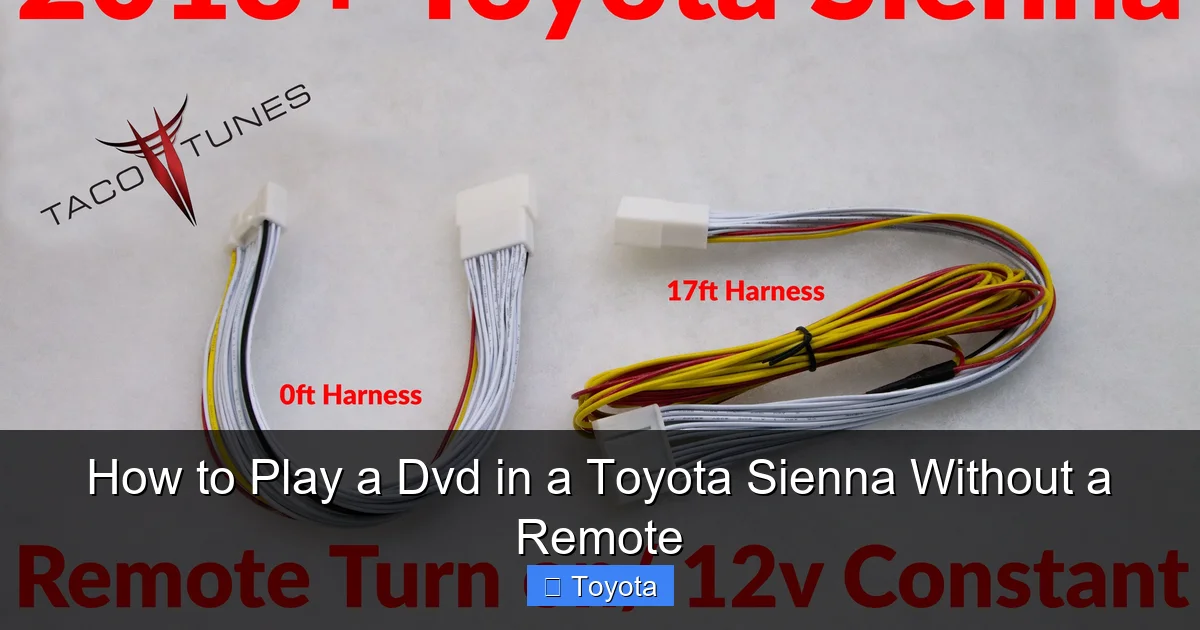
The most straightforward way to play a DVD without a remote is by using the physical buttons on the entertainment screen itself. These are often overlooked but are designed precisely for situations like this.
Visual guide about How to Play a Dvd in a Toyota Sienna Without a Remote
Image source: tacotunes.com
Locating the Control Buttons
Look along the bottom or side edge of the drop-down screen. You’ll typically find a small cluster of buttons labeled with icons such as:
- Power – Turns the screen on or off
- Source/Input – Switches between DVD, AV, or auxiliary inputs
- Play/Pause – Starts or pauses playback
- Stop – Stops the current playback
- Eject – Opens the DVD tray (if accessible)
- Menu – Accesses DVD menu options
On some models, these buttons may be touch-sensitive or require a firm press. If you don’t see them immediately, check the screen’s bezel carefully—they’re sometimes recessed or hidden under a protective flap.
Step-by-Step: Playing a DVD Using Screen Buttons
- Turn on the screen: Press the power button. The screen should light up and display a source menu or standby screen.
- Insert the DVD: If the DVD player is in the center console, open the compartment and gently insert the disc with the label side up. Close the compartment.
- Select the DVD source: Press the “Source” or “Input” button repeatedly until “DVD” appears on the screen.
- Start playback: Press the “Play” button. The DVD should begin playing automatically. If not, press “Menu” to access the disc’s main menu and select “Play Movie.”
- Adjust volume: Use the volume buttons on the screen or the vehicle’s audio system. Note that some systems require you to use wired headphones for sound unless the audio is routed through the car speakers.
Pro Tip: If the screen doesn’t respond, make sure the vehicle is in “Accessory” or “On” mode (key turned to position II). The entertainment system won’t power on if the car is fully off.
Method 2: Using the Center Console or Rear Seat Controls
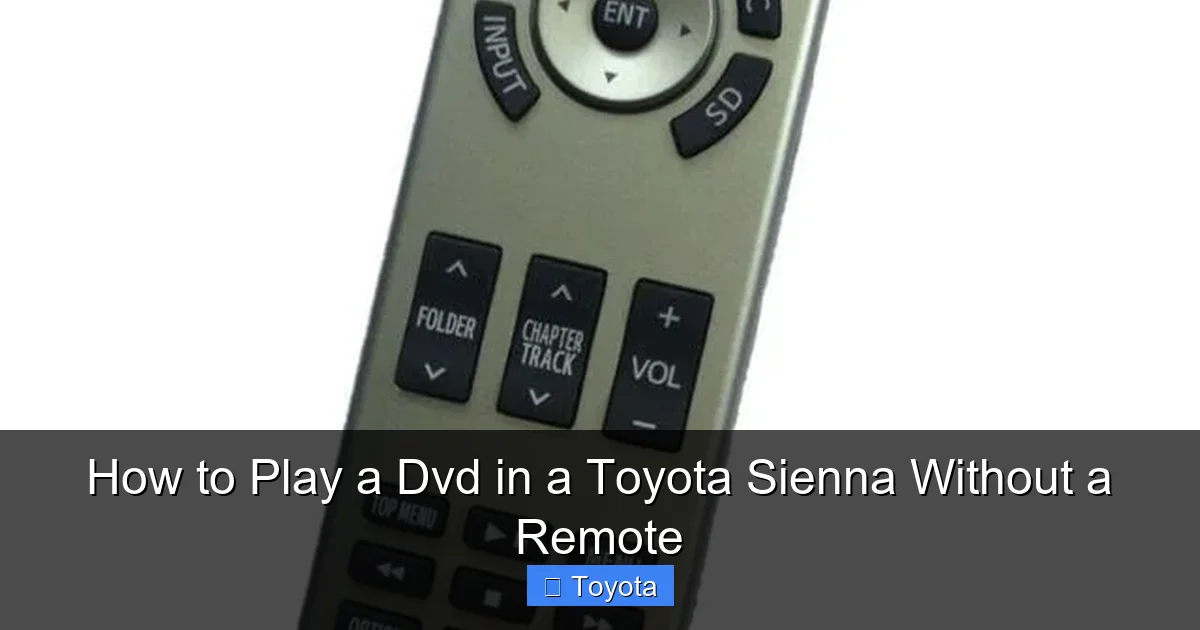
Some Toyota Sienna trims include additional control panels located in the center console or rear seat armrest. These panels often mirror the functions of the remote and can be a lifesaver when the remote is missing.
Visual guide about How to Play a Dvd in a Toyota Sienna Without a Remote
Image source: s3.amazonaws.com
Finding the Control Panel
Check the following locations:
- Center console (between front seats): Look for a small panel with buttons labeled “DVD,” “Play,” “Pause,” etc. This is common in XLE and Limited trims.
- Rear seat armrest (passenger side): Some models have a flip-up panel with media controls for rear passengers.
- Overhead console near the screen: A few Siennas have a secondary control module mounted near the entertainment screen.
These panels usually include basic playback controls and may also allow you to adjust screen brightness, volume, or input source.
How to Use the Console Controls
Once you locate the panel:
- Press the “Power” or “DVD” button to activate the system.
- Insert the DVD into the player (usually in the same compartment as the controls).
- Use the “Play” button to start the movie.
- Navigate menus using the directional pad or “Menu” button if available.
Example: In a 2018 Toyota Sienna Limited, the center console has a dedicated DVD control panel with a small LCD display. You can use it to skip chapters, adjust volume, and even eject the disc—all without touching the screen or remote.
Method 3: Controlling the System from the Front Dashboard
On newer Sienna models (especially 2018 and later), Toyota integrated the rear entertainment system with the main infotainment display. This means you can control the DVD player directly from the front dashboard screen—no remote needed.
Accessing Rear Entertainment from the Main Screen
Here’s how to do it:
- Turn on the vehicle and ensure the main infotainment system is active.
- Tap the “Apps” or “Media” icon on the touchscreen.
- Look for an option labeled “Rear Entertainment,” “DVD,” or “Second Screen.”
- Select the DVD player as the active source.
- Use the on-screen controls to play, pause, or navigate the DVD menu.
This method is especially useful if the rear screen is off or the kids are asleep—you can manage playback discreetly from the driver’s seat.
Using Steering Wheel Controls (If Equipped)
Some Siennas allow you to control media playback using buttons on the steering wheel. While these are typically designed for audio systems, they may work with the DVD player if the system is set to “DVD” mode. Try pressing the “Source” button on the wheel to cycle to the DVD input, then use the “Play/Pause” button to start the movie.
Method 4: Using a Universal Remote or Smartphone App
If the built-in controls aren’t sufficient or your system lacks them, a universal remote or smartphone app can replicate the original remote’s functions.
Choosing a Compatible Universal Remote
Look for a universal remote that supports Toyota entertainment systems. Popular brands include:
- Logitech Harmony
- GE Universal Remote
- Sony RM-VLZ620
When setting up the remote, select “Toyota” as the brand and “DVD Player” or “Rear Entertainment” as the device type. Follow the pairing instructions in the remote’s manual.
Using a Smartphone as a Remote
Some newer Siennas support wireless control via apps like:
- Toyota Remote Connect – Available on select 2020+ models with connected services
- Third-party IR blaster apps – If your phone has an infrared (IR) blaster, apps like “Peel Smart Remote” can mimic the original remote
Note: Most smartphones lack IR blasters, so this method only works with compatible devices. Alternatively, if your Sienna has Wi-Fi-based entertainment (e.g., via HDMI or wireless streaming), you might be able to use a media server app like Plex or VLC to stream content instead of using a physical DVD.
Troubleshooting Common Issues
Even with the right method, you might run into problems. Here’s how to fix the most common issues.
DVD Won’t Play or Eject
If the disc doesn’t play or the tray won’t open:
- Check the disc: Ensure it’s clean, unscratched, and a standard DVD (not Blu-ray or DVD-RW unless supported).
- Try a different disc: Test with a known-working DVD to rule out disc issues.
- Reset the system: Turn the car off, wait 30 seconds, then restart. This reboots the entertainment system.
- Manually eject the disc: Some DVD players have a small pinhole near the tray. Insert a paperclip to trigger a manual eject.
No Sound from the Screen
If the video plays but there’s no audio:
- Check if headphones are plugged in—sound may be routed to them by default.
- Use the “Audio” or “Source” button to switch audio output to the car speakers.
- Adjust volume using the screen or dashboard controls.
Screen Won’t Turn On
If the screen remains dark:
- Ensure the vehicle is in “Accessory” or “On” mode.
- Check the fuse for the entertainment system (usually in the interior fuse box—refer to your owner’s manual).
- Verify the screen isn’t locked by parental controls.
Prevention Tips: Avoiding Future Remote Issues
Now that you’ve got your DVD playing, here’s how to avoid this problem in the future:
- Store the remote securely: Keep it in a designated spot, like the glove box or a front seat pocket.
- Use a remote tether: Attach the remote to the headrest or seat with a lanyard.
- Buy a spare remote: Purchase a replacement from Toyota or an aftermarket supplier.
- Label the remote: Add your name or phone number in case it’s found by someone else.
Conclusion: You’ve Got This!
Losing the DVD remote in your Toyota Sienna doesn’t have to ruin your travel plans. With the built-in screen controls, center console panels, front dashboard integration, or a universal remote, you have multiple ways to enjoy your favorite movies on the go. The key is knowing where to look and understanding your specific Sienna’s setup.
Whether you’re on a cross-country family vacation or just running errands around town, your entertainment system is designed to be accessible—even without the remote. So next time the remote goes missing, remember: the power to play that DVD is already in your hands. Just press play and enjoy the ride.
Frequently Asked Questions
Can I play a DVD in my Toyota Sienna if I lost the remote?
Yes, you can still play a DVD without the remote by using the physical buttons on the entertainment screen, the center console controls, or the front dashboard touchscreen. Most Siennas have built-in alternatives to the remote.
Where are the DVD control buttons on a Toyota Sienna?
The control buttons are usually located along the bottom or side edge of the drop-down screen. They may also be found in the center console or rear seat armrest, depending on your trim level.
Why won’t my DVD play even with the buttons?
The disc might be dirty, damaged, or incompatible. Try cleaning it or using a different DVD. Also, ensure the system is powered on and the correct input source is selected.
Can I use my phone to control the DVD player?
Only if your phone has an infrared (IR) blaster and you use a compatible remote app. Most modern smartphones don’t have IR, so this method is limited. Newer Siennas with connected services may support app control via Toyota Remote Connect.
How do I eject a stuck DVD without the remote?
Look for a small pinhole near the DVD tray. Insert a paperclip and press gently to manually eject the disc. This is a standard feature on most built-in DVD players.
Is there a way to prevent losing the remote in the future?
Yes—store the remote in a consistent location, use a lanyard to attach it to the seat, or purchase a spare. Labeling it can also help if it’s ever misplaced or found by someone else.
