How to Lock a Tesla Model Y with a Key Card

Contents
- 1 Key Takeaways
- 2 📑 Table of Contents
- 3 Understanding Your Tesla Model Y’s Keyless System
- 4 Step-by-Step: How to Lock Your Model Y with the Key Card
- 5 When and Why You’ll Need to Use the Key Card
- 6 Troubleshooting: What to Do If the Key Card Won’t Lock
- 7 Security Implications and Best Practices
- 8 Key Card vs. Phone Key: A Practical Comparison
- 9 Conclusion: Mastering Your Tesla’s Simplicity
- 10 Frequently Asked Questions


Locking your Tesla Model Y with the key card is a simple, one-tap process. You just need to tap the key card on the door pillar when the handles are extended. It’s a reliable backup to your phone key and requires no button presses or settings changes.
Key Takeaways
- Authentication is Key: The key card must be physically close to the driver’s side B-pillar (the vertical pillar between the front and rear doors) for the car to recognize it and lock.
- Handles Must Be Extended: You cannot lock the car with the key card if the door handles are retracted. You must first approach the car to trigger handle extension.
- No Button Presses Needed: Unlike traditional key fobs, you simply tap the card on the marked area. There is no separate “lock” button on the card itself.
- Phone Key is Primary, Card is Backup: Your configured smartphone is the primary key. The key card is a physical backup for when your phone is unavailable, out of battery, or for valet use.
- Secure & Encrypted: The communication between the key card and the Model Y uses encrypted RFID technology, making it very difficult to clone or intercept.
📑 Table of Contents
- Understanding Your Tesla Model Y’s Keyless System
- Step-by-Step: How to Lock Your Model Y with the Key Card
- When and Why You’ll Need to Use the Key Card
- Troubleshooting: What to Do If the Key Card Won’t Lock
- Security Implications and Best Practices
- Key Card vs. Phone Key: A Practical Comparison
- Conclusion: Mastering Your Tesla’s Simplicity
Understanding Your Tesla Model Y’s Keyless System
Welcome to the world of Tesla ownership! One of the first things you’ll notice about your new Tesla Model Y is the complete absence of a traditional key fob. There are no buttons to press, no key slot to insert. This is because Tesla has built a sophisticated, phone-centric keyless entry and start system. But what happens when your phone’s battery dies, or you need to hand a key to a valet? That’s where the humble, credit-card-sized key card comes in. It’s your essential physical backup, and learning how to use it is a critical part of your Tesla ownership journey. This guide will walk you through everything you need to know about locking your Model Y with this simple tool.
The Model Y uses a combination of Bluetooth Low Energy (BLE) for your phone key and Near Field Communication (NFC) for the key card. Your phone, when paired via the Tesla app, acts as the primary key, automatically unlocking and locking the car as you approach and walk away. The key card uses NFC, which requires you to be very close—essentially touching the car—to communicate. This design provides excellent security but also means the process feels different from a conventional remote.
Step-by-Step: How to Lock Your Model Y with the Key Card
Locking the car with the key card is designed to be intuitive, but it follows a specific sequence. If you try to do it out of order, it won’t work. Don’t worry; it’s easy to master with a little practice. Here is the definitive, step-by-step process.
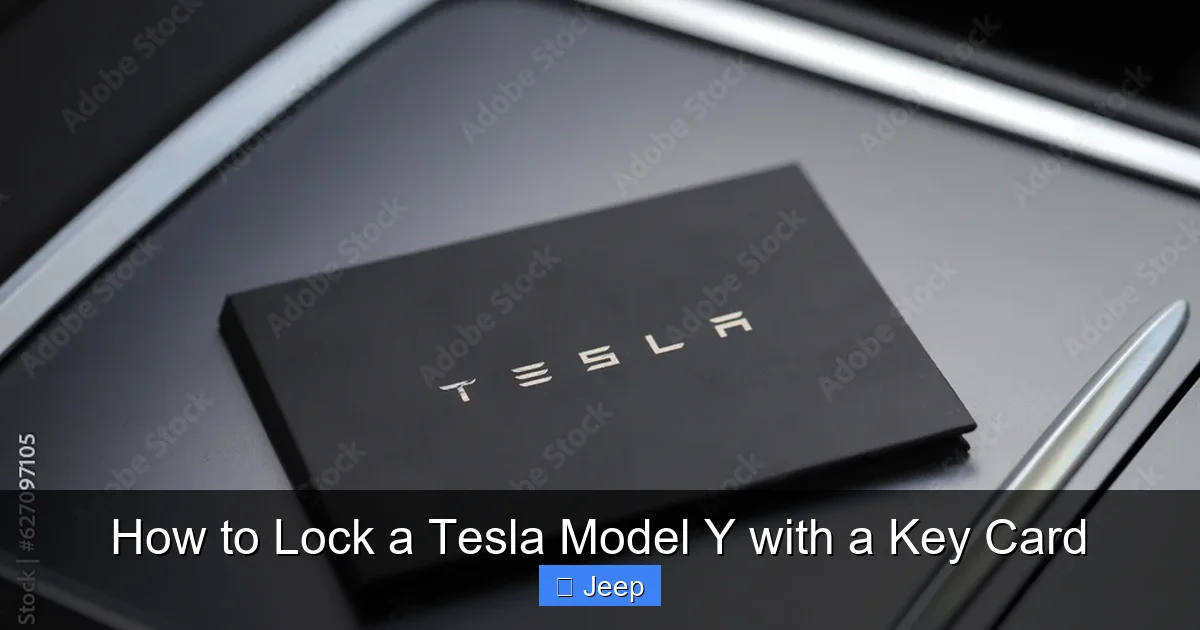
Visual guide about How to Lock a Tesla Model Y with a Key Card
Image source: as2.ftcdn.net
The Prerequisite: Unlocked Doors and Extended Handles
This is the most common point of confusion. You can only lock the car with the key card if the doors are currently unlocked and the door handles are in their extended (protruding) position. The car’s logic is: if the handles are retracted, the car assumes you have already walked away and it should be locked (or is in the process of locking automatically via your phone key). Therefore, the first step is to ensure the car is unlocked for you to interact with it.
To get the handles to extend, you must have a recognized key (your phone or the key card) near the car. Simply walk up to the driver’s door with your key card in your hand or pocket. The handles should pop out within a second or two. If they don’t, make sure you have the key card with you and you’re standing close to the driver’s side door.
The Locking Motion: Tap, Don’t Swipe
Once the handles are extended, locate the small, rectangular NFC sensor zone. It’s a subtle, slightly textured area on the driver’s side B-pillar (the vertical column between the front and rear doors). You’ll see a small Tesla “T” logo or a key icon embossed or printed near it as a guide.
- Hold your key card so the Tesla logo or the front of the card is facing the sensor.
- Firmly tap the card directly against the sensor zone. You should feel a slight tap, not a prolonged hold.
- Immediately after the tap, you will hear the door locks engage with a solid thunk-thunk sound. The side mirrors will also fold in (if this setting is enabled in your car’s controls).
- The door handles will then automatically retract after a few seconds.
That’s it! You’ve locked the car. It’s a single, decisive motion. A common mistake is to swipe the card slowly or hold it there. The tap must be quick and deliberate to trigger the NFC transaction.
Verifying the Lock
After tapping, always verify. Look at the driver’s door handle—it should be flush with the body. Check the Tesla app on your phone; it will show the car as “Locked” almost instantly. The red lights on the side mirrors (if equipped) will also flash briefly. For absolute certainty, try the driver’s door handle; it should not open.
When and Why You’ll Need to Use the Key Card
While the phone key is wonderfully convenient, it’s not infallible. The key card is your failsafe. Understanding its use cases will make you a more prepared owner.
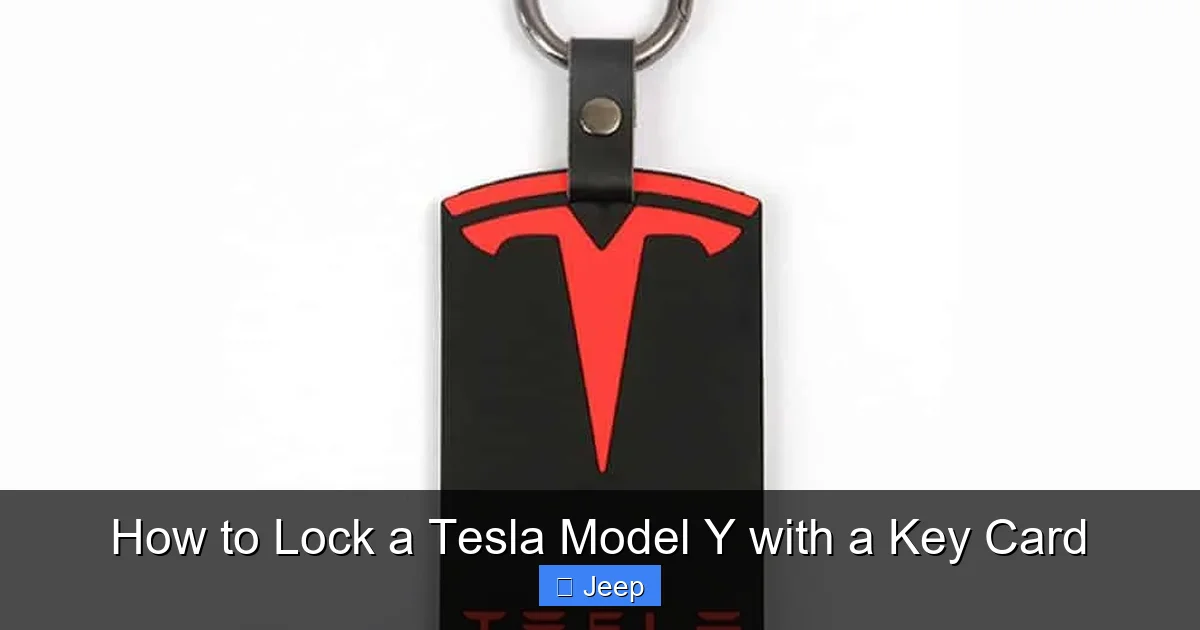
Visual guide about How to Lock a Tesla Model Y with a Key Card
Image source: teslamarket.com.au
Phone Battery is Dead or Unavailable
This is the most frequent scenario. If your phone’s battery is completely drained, Bluetooth is turned off, or you’ve left your phone inside the car, the phone key won’t work. With the key card in your pocket or wallet, you can simply tap to unlock and lock as described. It’s a good habit to always carry the key card with you, separate from your phone, for this exact reason.
Valet and Service Use
When handing your car over to a valet or taking it in for service, you should never hand over your phone or your primary key card. Instead, you can create a temporary Valet Key profile directly in your Model Y’s settings. This profile limits speed, disables certain features, and uses a separate, disposable key card code. You give the valet this specific key card. The process to lock with it is identical, but it provides you with crucial control and peace of mind. Always review the article on how to use key fobs securely for general key management principles that apply to Tesla cards too.
Poor Bluetooth or Signal Interference
In rare cases, heavy interference from other Bluetooth devices, certain building materials, or extreme weather can temporarily disrupt the phone key’s ability to detect the car. The key card’s NFC technology is immune to this, as it requires physical contact. It’s the ultimate, interference-proof backup.
Conscious Security Practice
Some owners prefer to use the key card in crowded urban areas to prevent any theoretical possibility of Bluetooth relay attacks (though Tesla’s encryption is robust). The physical tap requirement eliminates any remote signal interception risk entirely.
Troubleshooting: What to Do If the Key Card Won’t Lock
If your key card tap isn’t working, don’t panic. There are several simple fixes before you assume the card is broken.
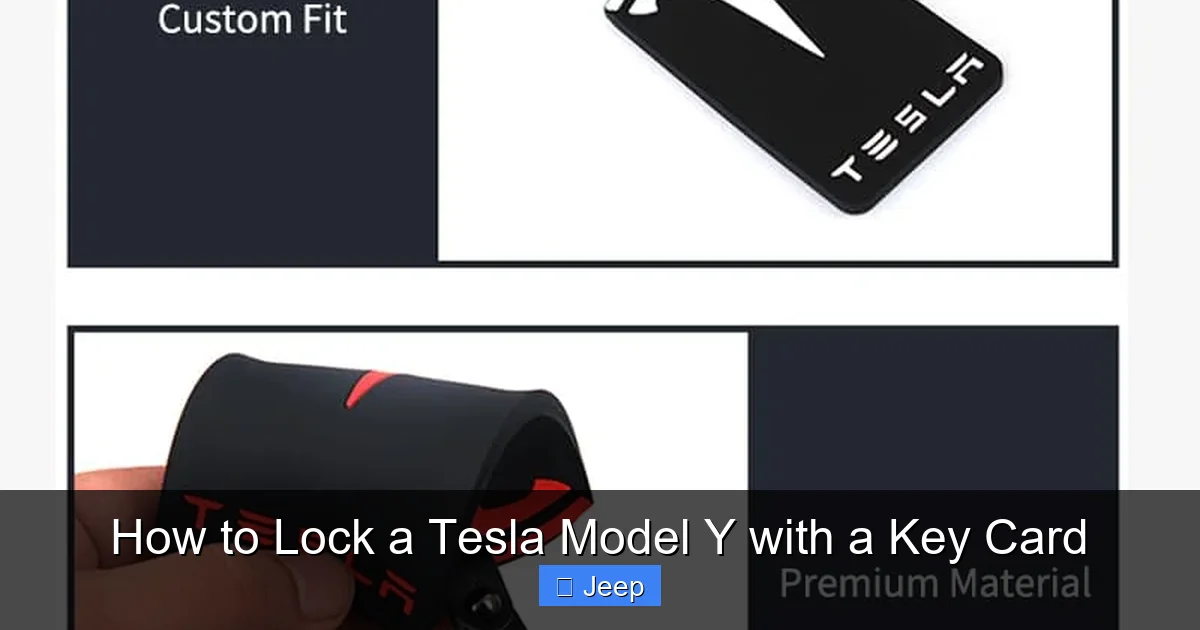
Visual guide about How to Lock a Tesla Model Y with a Key Card
Image source: teslamarket.com.au
Problem: Handles Are Not Extended
Solution: The car does not recognize you. Ensure the key card is out of any thick, metal-lined wallet that can block NFC signals. Hold the card in your hand and stand very close to the driver’s door. Wait 5-10 seconds for the handles to extend. If they don’t, try pressing the lock/unlock button on the card itself—this will wake it up and force a Bluetooth Low Energy connection to extend the handles first.
Problem: Car Doesn’t Lock After the Tap
Solution: You likely didn’t tap correctly or the card wasn’t positioned properly on the sensor. The sensor zone is specific. Try again, making firm, direct contact with the designated area on the B-pillar. Ensure you’re not tapping too quickly or too softly. A firm, audible tap is best. Also, check if any doors or the trunk are still open; the car will not lock if a door ajar is detected.
Problem: Key Card is Unresponsive
Solution: The key card battery is likely dead. The card uses a small, replaceable coin cell battery (CR2032 or similar, depending on model year). You can replace it yourself with a small flathead screwdriver by gently prying open the card. Detailed instructions are in your owner’s manual. A low battery will cause intermittent failures. If a new battery doesn’t help, the card may be damaged and need replacement through Tesla.
Problem: Extreme Cold or Heat
Solution: NFC performance can be slightly affected by extreme temperatures. If it’s very cold, warm the key card in your pocket for a few minutes before tapping. Avoid storing it directly on a cold metal surface. Similarly, in extreme heat, ensure the card isn’t overheating in a parked car.
Security Implications and Best Practices
The key card system is secure, but good habits enhance that security. Unlike a traditional fob that can be accidentally pressed in your pocket, the key card requires intentional, physical contact with the car. This virtually eliminates accidental locking or unlocking.
Physical Security of the Card
Treat your key card like a credit card. If it’s lost or stolen, anyone could tap it on your car to unlock and drive it (if the car is in Park). Immediately use the Tesla app to remove the key card from your vehicle’s access list. This will deactivate the lost card instantly. You can then order a replacement. Always report a lost key card to Tesla, just as you would a lost traditional key fob.
The Importance of the Phone Key
Your smartphone key, using BLE and additional cryptographic handshakes, is actually more secure than the NFC card against sophisticated attacks. Always prioritize setting up and using your phone key. Ensure your phone’s operating system and the Tesla app are kept up to date, as updates often include security enhancements for the key protocol.
Valet Key Usage
As mentioned, never hand over your primary key card. Use the in-car Valet Mode feature. This not only limits the car’s performance but also creates a separate, revocable key profile. When you retrieve your car, simply exit Valet Mode, and that key card’s privileges are instantly revoked. This is a superior practice to simply handing over a spare key card.
Key Card vs. Phone Key: A Practical Comparison
To fully appreciate the key card’s role, it helps to compare it directly with your primary phone key.
| Feature | Phone Key (Bluetooth) | Key Card (NFC) |
|---|---|---|
| Primary Use | Daily, seamless entry/exit | Backup, valet, phone dead |
| Action Required | Walk toward/away from car (automatic) | Manual tap on B-pillar |
| Range | Approx. 30 feet (10m) | Must touch the sensor |
| Security | Very High (encrypted BLE) | High (encrypted NFC, physical touch) |
| Battery Dependent? | Yes (phone battery) | Yes (small coin cell, lasts ~1-2 years) |
| Convenience | Extremely High (hands-free) | High, but requires deliberate action |
| Risk of Accidental Activation | Low (but possible if phone in pocket) | None (requires intentional tap) |
As you can see, the phone key is for convenience, while the key card is for reliability and control. They are complementary parts of a two-key system. If you’re considering aftermarket modifications like a wrap, which can slightly affect NFC signal, check out our guide on Tesla Model Y wrap costs. Similarly, if you tint your windows, ensure the film doesn’t have metallic components that could interfere with NFC signals placed near the B-pillar, as discussed in our article on Model Y tinting.
Conclusion: Mastering Your Tesla’s Simplicity
Locking your Tesla Model Y with a key card is one of those fundamental skills that, once learned, becomes second nature. It’s a brilliantly simple solution to a complex problem: providing a secure, reliable physical key without the bulk or security vulnerabilities of a traditional remote fob. Remember the golden rule: unlocked handles + firm tap on B-pillar = locked car.
Embrace the phone key for its magical, hands-free convenience in daily life. But always carry your key card as your trusted, low-tech backup. Practice the tap a few times in your driveway until it feels natural. Understand how to manage its battery and what to do if it’s lost. By mastering both keys, you unlock the full, frustration-free potential of your Tesla’s innovative access system. You’re not just driving a car; you’re interacting with a thoughtfully designed piece of technology, and the key card is a perfect example of that elegant, user-centric design.
Frequently Asked Questions
Can I lock the Tesla Model Y with the key card if the phone key is already nearby?
Yes, absolutely. The process is identical. The car will recognize whichever key (phone or card) you use for the tap. The presence of a connected phone key does not interfere with using the key card.
What if my key card doesn’t have a visible Tesla logo or sensor marking?
All Tesla key cards have an NFC chip. The sensor zone is typically on one of the long edges. The most common location is the edge with the Tesla “T” logo. If your card is a different style (like a third-party wallet card), consult your owner’s manual for the exact pairing and usage instructions, as the tap location may vary slightly.
Will a door or trunk left open prevent the key card from locking the car?
Yes. The Model Y’s safety system will not allow the car to lock if any door, frunk, or trunk is ajar. You must fully close all openings first. The car will give an audible warning and the lock mechanism will not engage.
How long does the key card battery last, and can I replace it myself?
The battery typically lasts 1-2 years depending on usage. When the battery gets low, you’ll see a warning on the car’s screen. You can replace it yourself; it uses a standard CR2032 3V coin cell. Gently pry open the card’s seam with a small tool, replace the battery respecting the + / – polarity, and snap it back together.
Is locking with the key card less secure than using the phone key?
Both are highly secure using encryption. The phone key uses a more complex cryptographic handshake over Bluetooth, which is considered slightly more advanced. However, the key card’s NFC requires physical touch, eliminating any possibility of a remote relay attack. Both are vastly more secure than traditional unencrypted key fobs. The key card’s security is inherently tied to physical possession.
Can I program my own third-party NFC card or sticker to work as a key?
No. Tesla’s key card system uses proprietary, encrypted communication. Only genuine Tesla key cards or key fobs that have been specifically paired and authorized through your vehicle’s settings can function. You cannot clone or program an arbitrary NFC tag to act as a key.