How to Delete a Phone from Subaru Bluetooth

Contents
- 1 Key Takeaways
- 2 📑 Table of Contents
- 3 Why You Might Need to Delete a Phone from Subaru Bluetooth
- 4 Understanding Subaru’s Bluetooth System
- 5 Step-by-Step Guide: How to Delete a Phone from Subaru Bluetooth
- 6 Model-Specific Instructions for Popular Subaru Vehicles
- 7 Troubleshooting Common Issues When Deleting a Phone
- 8 Tips for Managing Multiple Devices and Preventing Future Issues
- 9 Final Thoughts: Keeping Your Subaru Bluetooth Running Smoothly
- 10 Frequently Asked Questions

Car Seat Organizer

Liquid Car Polish

Tire Pressure Monitoring System (TPMS)
Car Emergency Roadside Kit
Deleting a phone from Subaru Bluetooth is simple once you know the right steps. Whether you’re upgrading your device or troubleshooting connection issues, this guide walks you through the process for every Subaru model—ensuring a clean, hassle-free disconnect.
Key Takeaways
- Access the Bluetooth menu via the infotainment screen: Most Subaru models use a touchscreen system where you can manage paired devices under “Settings” or “Phone.”
- Select the device you want to remove: Once in the Bluetooth menu, tap on the phone name to open its options and choose “Delete” or “Forget Device.”
- Confirm the deletion when prompted: Subaru systems often ask for confirmation—tap “Yes” or “OK” to complete the process.
- Repeat for multiple phones if needed: You can delete more than one device; just go back and repeat the steps for each unwanted pairing.
- Re-pair your new phone after deletion: After removing an old device, go through the standard pairing process to connect your current phone.
- Reset the system if issues persist: If Bluetooth won’t delete or reconnect, try restarting the infotainment system or performing a factory reset as a last resort.
- Consult your owner’s manual for model-specific steps: Older or less common Subaru models may have slight variations—always check your manual for exact instructions.
📑 Table of Contents
- Why You Might Need to Delete a Phone from Subaru Bluetooth
- Understanding Subaru’s Bluetooth System
- Step-by-Step Guide: How to Delete a Phone from Subaru Bluetooth
- Model-Specific Instructions for Popular Subaru Vehicles
- Troubleshooting Common Issues When Deleting a Phone
- Tips for Managing Multiple Devices and Preventing Future Issues
- Final Thoughts: Keeping Your Subaru Bluetooth Running Smoothly
Why You Might Need to Delete a Phone from Subaru Bluetooth
So, you’ve got a shiny new smartphone, or maybe your old one finally gave up the ghost. Either way, it’s time to update your car’s Bluetooth settings. But before you can pair your new device, you’ll likely need to delete the old one from your Subaru’s system. Why? Because most Subaru infotainment systems only allow a limited number of paired devices—usually around five. Once that limit is reached, you can’t add a new phone without first removing an old one.
But it’s not just about making space. Sometimes, Bluetooth connections get glitchy. Maybe your phone keeps disconnecting, or calls sound muffled. In these cases, deleting and re-pairing the device can reset the connection and solve the problem. It’s like giving your car’s Bluetooth a fresh start.
And let’s be honest—nobody wants their ex’s phone still connected to their car. Whether it’s a breakup or just a change in devices, removing old pairings keeps things clean and secure. Plus, it prevents accidental calls or music streaming from the wrong phone. So whether you’re upgrading, troubleshooting, or just tidying up, knowing how to delete a phone from Subaru Bluetooth is a must-have skill for any Subaru owner.
Understanding Subaru’s Bluetooth System

Visual guide about How to Delete a Phone from Subaru Bluetooth
Image source: bluetoothmag.com
Before we dive into the step-by-step process, it helps to understand how Subaru’s Bluetooth system works. Most modern Subarus—like the Outback, Forester, Crosstrek, and Ascent—come equipped with a touchscreen infotainment system powered by either Subaru Starlink or a third-party platform like Harman or Panasonic. These systems handle everything from navigation and music to hands-free calling and text messaging.
Bluetooth connectivity is built right into the head unit, allowing you to pair your smartphone wirelessly. Once paired, your phone can stream audio, make calls, and even send text messages through the car’s speakers and microphone. The system remembers each paired device, storing them in a list that you can manage through the settings menu.
One important thing to note: Subaru’s Bluetooth system is designed for convenience, not complexity. That means the interface is generally user-friendly, but the exact steps can vary slightly depending on your model year and infotainment version. For example, a 2023 Subaru Outback with the latest Starlink system will have a more streamlined menu than a 2018 Crosstrek with an older interface.
Also, keep in mind that Bluetooth pairing is two-way. Your phone must also “forget” the car if you want to fully disconnect. So after deleting the phone from your Subaru, you may also want to go into your phone’s Bluetooth settings and remove the car from its list of paired devices. This ensures a clean break and prevents any future connection attempts.
Step-by-Step Guide: How to Delete a Phone from Subaru Bluetooth
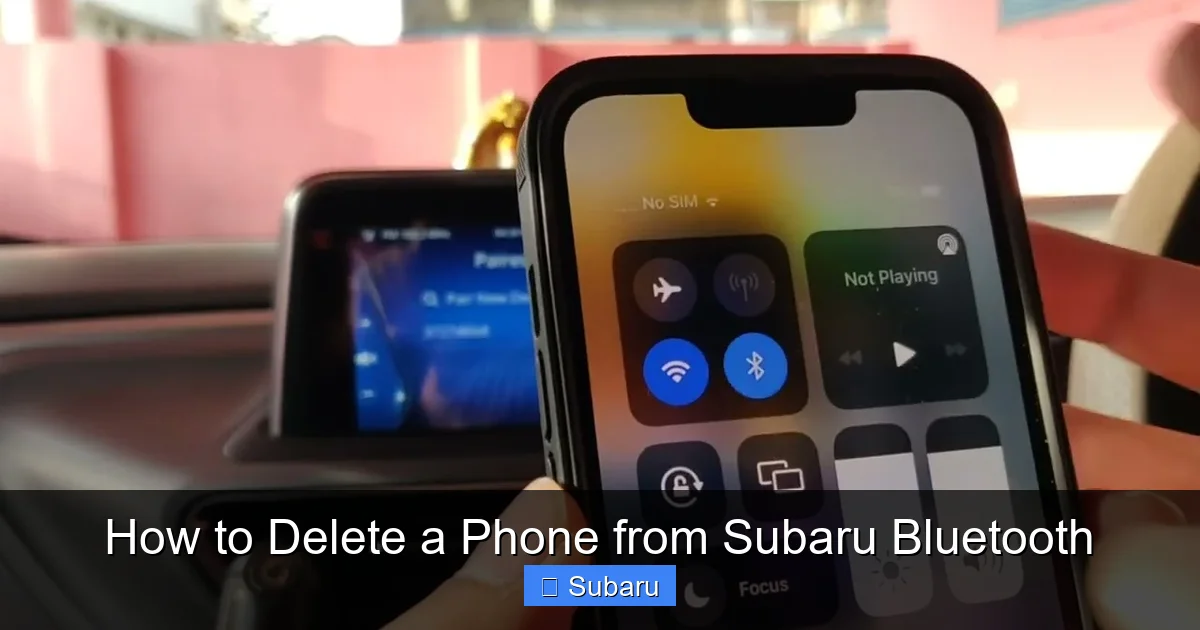
Visual guide about How to Delete a Phone from Subaru Bluetooth
Image source: robots.net
Now that you know why and how Subaru’s Bluetooth system works, let’s get into the nitty-gritty: actually deleting a phone. The process is straightforward, but it’s important to follow each step carefully to avoid confusion or accidental deletions.
Step 1: Turn On Your Subaru and Access the Infotainment System
First things first—start your car or turn the ignition to the “On” position. You don’t need to drive anywhere; just make sure the infotainment system is powered up. Once the screen lights up, you’re ready to begin.
On most Subaru models, the main home screen will display icons for Music, Phone, Navigation, and Settings. Look for the “Phone” or “Settings” icon—this is where you’ll find the Bluetooth menu. If you’re unsure, tap around the screen or look for a gear-shaped icon, which usually represents settings.
Step 2: Navigate to the Bluetooth or Phone Settings
Once you’re on the home screen, tap the “Phone” icon. This will take you to the phone menu, where you can see currently paired devices. Alternatively, some models require you to go through “Settings” first. If that’s the case, tap “Settings,” then look for “Bluetooth,” “Device Management,” or “Paired Devices.”
You should now see a list of all phones that have been paired with your Subaru. Each entry will show the phone’s name (like “John’s iPhone” or “Sarah’s Galaxy”) and possibly a signal strength indicator.
Step 3: Select the Phone You Want to Delete
Now, tap on the name of the phone you want to remove. This will open a submenu with options like “Connect,” “Disconnect,” “Edit,” or “Delete.” Look for the “Delete” or “Forget Device” option—this is the one you want.
If you don’t see a “Delete” option, try tapping and holding the phone name, or look for a small trash can icon next to it. Some systems hide the delete function behind a long press or a secondary menu.
Step 4: Confirm the Deletion
Once you tap “Delete,” the system will usually ask for confirmation. A pop-up message might say something like, “Are you sure you want to delete this device?” This is your last chance to back out—so double-check that you’re removing the correct phone.
Tap “Yes,” “OK,” or “Confirm” to proceed. The phone should disappear from the list immediately. If it doesn’t, try refreshing the screen or restarting the system.
Step 5: Repeat for Additional Phones (If Needed)
If you have multiple old phones to remove, simply go back to the list and repeat the process. Each deletion is independent, so you can remove as many devices as you like—just be careful not to delete your current phone by mistake!
Step 6: Re-Pair Your New Phone (Optional)
After deleting the old device, you’re free to pair a new one. To do this, go back to the Bluetooth menu and select “Add New Device” or “Pair Device.” Put your phone into pairing mode (usually found in Settings > Bluetooth), then follow the on-screen prompts to complete the connection.
You’ll likely need to enter a PIN code—often “0000” or “1234”—and confirm the pairing on both your phone and the car’s screen. Once connected, test the system by making a call or playing music to ensure everything works.
Model-Specific Instructions for Popular Subaru Vehicles
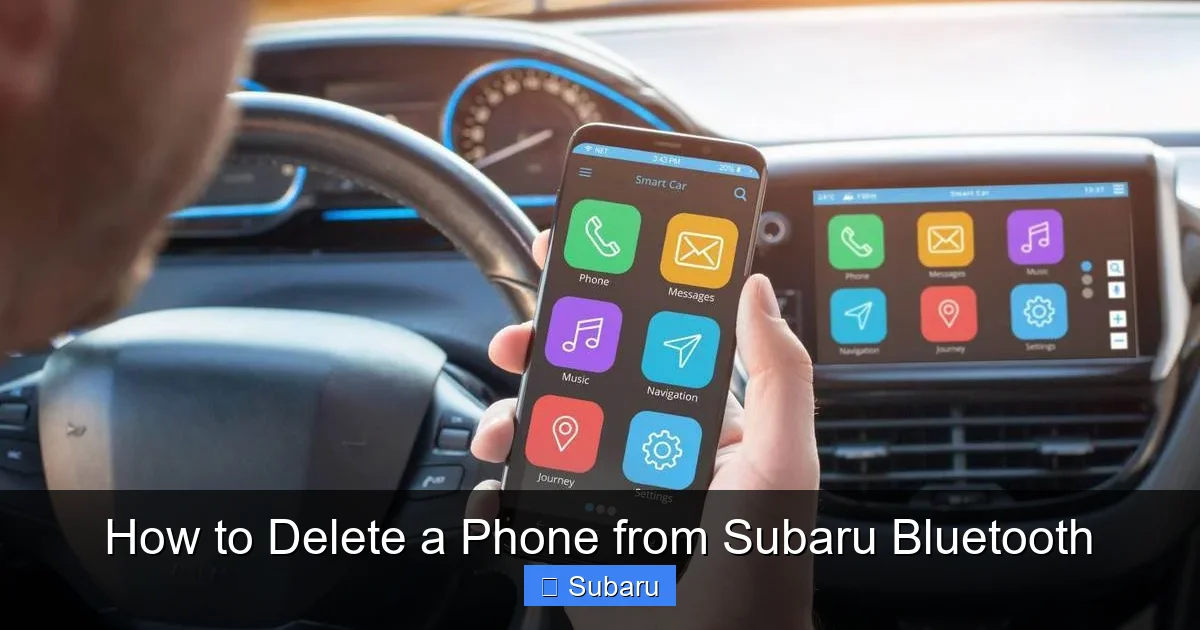
Visual guide about How to Delete a Phone from Subaru Bluetooth
Image source: robots.net
While the general process is similar across models, there are some differences depending on your Subaru’s year and infotainment system. Here’s a quick breakdown for some of the most popular models.
Subaru Outback (2015–2023)
The Outback uses the Starlink infotainment system, which has a clean, intuitive interface. To delete a phone:
– Tap the “Phone” icon on the home screen.
– Select “Device List” or “Paired Devices.”
– Tap the phone you want to remove.
– Choose “Delete” and confirm.
For 2020 and newer models, you may need to go through “Settings” > “Bluetooth” > “Paired Devices” instead.
Subaru Forester (2014–2023)
The Forester’s system is nearly identical to the Outback’s. The steps are the same: access the Phone menu, find the device list, select the phone, and delete it. Older models (pre-2019) may have a slightly different layout, but the core process remains unchanged.
Subaru Crosstrek (2013–2023)
The Crosstrek, especially the hybrid version, may have a smaller screen or different menu structure. On most models:
– Go to “Settings” > “Bluetooth.”
– Tap “Paired Devices.”
– Select the phone and choose “Forget Device.”
If you’re using a 2022 or newer Crosstrek with the updated Starlink system, the process is even simpler—just tap the phone name and hit “Delete.”
Subaru Ascent (2019–2023)
The Ascent features a larger, more advanced infotainment system. To delete a phone:
– Tap “Phone” on the home screen.
– Select “Manage Devices.”
– Choose the phone and tap the trash can icon.
– Confirm the deletion.
Some Ascent models also allow voice commands—try saying, “Delete phone” while in the Phone menu.
Older Models (2010–2014)
For older Subarus with basic Bluetooth systems (like the Legacy or Impreza), the process may involve physical buttons instead of a touchscreen. In these cases:
– Press the “Phone” or “Setup” button on the dashboard.
– Use the knob or arrow keys to navigate to “Bluetooth Settings.”
– Select “Delete Device” and choose the phone from the list.
– Confirm with the “OK” or “Enter” button.
Always refer to your owner’s manual for exact instructions, as older systems can vary significantly.
Troubleshooting Common Issues When Deleting a Phone
Even with clear instructions, things don’t always go smoothly. Here are some common problems you might encounter—and how to fix them.
The “Delete” Option Is Missing or Grayed Out
If you can’t find the delete option, or it’s grayed out, your phone might still be connected. Try disconnecting it first by tapping “Disconnect” or turning off Bluetooth on your phone. Once disconnected, the delete option should become available.
Another possibility is that the system is locked or in use. Make sure no calls are active and that the car isn’t currently streaming audio. If the issue persists, restart the infotainment system by turning the car off and on again.
The Phone Doesn’t Appear in the List
If your phone isn’t showing up, it might not have been properly paired in the first place. Check your phone’s Bluetooth settings to see if the car is listed there. If it is, try deleting it from your phone first, then re-pairing.
Also, ensure that your Subaru’s Bluetooth is discoverable. Some systems require you to enable “Discovery Mode” before new devices can be seen.
Deletion Doesn’t Stick
Sometimes, a phone appears to be deleted but reappears after restarting the car. This can happen if the system caches old data. To fix it, try performing a full system reset.
To reset the infotainment system:
– Turn off the car.
– Disconnect the negative terminal of the battery for 10–15 minutes.
– Reconnect the battery and start the car.
This will clear all saved settings, including Bluetooth pairings. You’ll need to re-pair all your devices afterward, but it’s a surefire way to resolve stubborn issues.
Bluetooth Won’t Reconnect After Deletion
If you delete a phone and can’t pair a new one, the problem might be with your phone’s Bluetooth settings. Go to your phone’s Bluetooth menu and “Forget” the car. Then, restart both your phone and the car before attempting to pair again.
Also, make sure your phone’s software is up to date. Outdated operating systems can cause compatibility issues with car Bluetooth systems.
Tips for Managing Multiple Devices and Preventing Future Issues
Now that you know how to delete a phone from Subaru Bluetooth, here are some pro tips to keep your system running smoothly.
Limit the Number of Paired Devices
As mentioned earlier, most Subaru systems support up to five paired devices. While it’s tempting to keep every family member’s phone connected, this can lead to confusion and connection conflicts. Stick to the essentials—your phone, your partner’s phone, and maybe one backup.
Name Your Devices Clearly
When pairing a phone, give it a clear, unique name like “Dad’s iPhone” or “Mom’s Galaxy.” This makes it easier to identify and delete the right device later. Avoid generic names like “Phone” or “Device 1.”
Regularly Clean Up Old Pairings
Make it a habit to check your paired devices list every few months. Remove any old phones, tablets, or gadgets you no longer use. This keeps the system tidy and prevents accidental connections.
Use Voice Commands When Possible
Many newer Subaru models support voice commands for Bluetooth management. Try saying, “Delete phone” or “Pair new device” to speed up the process. Just make sure your microphone is working and the system is listening.
Keep Your Infotainment System Updated
Subaru occasionally releases software updates for its infotainment systems. These updates can improve Bluetooth performance and fix bugs. Check for updates through the Starlink app or by visiting a Subaru dealer.
Consider a Bluetooth Adapter for Older Models
If you drive an older Subaru without built-in Bluetooth, consider using a Bluetooth FM transmitter or AUX adapter. These devices plug into your car’s cigarette lighter or AUX port and allow wireless connectivity. While not as seamless as built-in Bluetooth, they’re a great workaround for older vehicles.
Final Thoughts: Keeping Your Subaru Bluetooth Running Smoothly
Deleting a phone from Subaru Bluetooth might seem like a small task, but it’s an important part of maintaining your car’s technology. Whether you’re upgrading your phone, fixing a connection issue, or just keeping things organized, knowing how to manage your paired devices saves time and frustration.
The process is simple: access the Bluetooth menu, select the device, delete it, and confirm. With a little practice, you’ll be able to do it in under a minute. And if you run into problems, don’t panic—most issues can be resolved with a restart or a system reset.
Remember, your Subaru’s infotainment system is designed to make your life easier. By keeping it updated and well-maintained, you’ll enjoy seamless connectivity, clear calls, and hassle-free music streaming for years to come.
So the next time you get a new phone—or just want to clean up your Bluetooth list—you’ll know exactly what to do. Happy driving!
Frequently Asked Questions
How do I delete a phone from Subaru Bluetooth if the screen is frozen?
If the infotainment screen is unresponsive, try restarting the system by turning the car off and on. If that doesn’t work, disconnect the car battery for 10–15 minutes to perform a hard reset. This often resolves software glitches.
Can I delete a phone from Subaru Bluetooth using my phone instead of the car?
No, you must use the car’s infotainment system to delete a paired device. However, you can “forget” the car from your phone’s Bluetooth settings, which prevents future connections but doesn’t remove it from the car’s list.
Why won’t my Subaru let me delete a phone?
This could be because the phone is still connected, the system is in use, or the delete option is hidden. Try disconnecting the phone first, or look for a long-press or trash can icon. Restarting the system may also help.
How many phones can I pair to my Subaru Bluetooth?
Most Subaru models support up to five paired devices. Once the limit is reached, you must delete an old device before adding a new one.
Will deleting a phone from Subaru Bluetooth affect my navigation or music apps?
No, deleting a phone only removes the Bluetooth pairing. It won’t affect navigation, radio, or other infotainment features. However, you’ll need to re-pair your phone to use hands-free calling or audio streaming.
What should I do if my new phone won’t connect after deleting the old one?
Make sure your new phone is in pairing mode and that the car’s Bluetooth is discoverable. Also, “forget” the car from your phone’s Bluetooth settings and restart both devices before trying again.