
How to Connect to Hyundai Wi-fi

Connecting your device to your Hyundai’s built-in Wi-Fi hotspot is a straightforward process that unlocks a world of in-car connectivity. First, ensure your Hyundai Blue Link subscription is active and your vehicle is in a location with cellular coverage. You’ll then find the Wi-Fi network name (SSID) and password on your infotainment screen or through the Hyundai app. After selecting the network on your phone or tablet and entering the password, you’re online. Common hiccups often involve incorrect passwords, expired subscriptions, or needing a simple infotainment system restart, which are easily resolved.
You’re cruising down the highway, and your passenger needs to submit a last-minute work email. Your teenager in the back is begging to stream a new video. Or maybe you just want to use your tablet’s navigation without using your phone’s precious data plan. This is where your Hyundai’s built-in Wi-Fi hotspot becomes your best friend. But what do you do when the connection fails or you’re setting it up for the first time? Don’t worry. Connecting to Hyundai Wi-Fi is designed to be user-friendly, and with a clear guide, you’ll have all your devices online in under two minutes. This comprehensive guide will walk you through every step, from prerequisites to advanced tips, ensuring you get the most out of your vehicle’s connected features.
First, let’s clarify what “Hyundai Wi-Fi” actually is. It’s not a feature that magically creates internet from thin air. It’s a mobile hotspot built into your car’s infotainment system. It uses an embedded cellular modem (provided by Hyundai’s partner, typically AT&T in the U.S.) to receive a data signal, just like your smartphone. The car then broadcasts a local Wi-Fi network that your phones, tablets, and laptops can join. This means your in-car internet experience is only as good as the cellular signal in your area and the data plan you have active.
Key Takeaways
- Active Blue Link Subscription Required: Your Hyundai’s Wi-Fi hotspot is part of the Blue Link connected car service and requires an active, paid subscription to function.
- Find Credentials on the Infotainment Screen: The default Wi-Fi network name (SSID) and password are always displayed in the vehicle’s Settings or Connectivity menu on the main display.
- Connection is a Standard Wi-Fi Process: On your device, go to Wi-Fi settings, select your Hyundai’s network (e.g., “Hyundai-XXXX”), and enter the password—just like connecting to a home router.
- Data is Shared Across Devices: The vehicle’s in-car data plan is shared by all connected devices, so bandwidth-intensive activities like streaming on multiple screens will consume data quickly.
- Troubleshooting Starts with Basics: If you can’t connect, first verify your subscription is current, restart the vehicle’s infotainment system, and double-check the password for typos.
- Password Can Be Customized: You can change the default Wi-Fi password to something more memorable through the infotainment system’s Wi-Fi settings menu.
- Signal Depends on Cellular Network: The hotspot’s strength and availability are entirely dependent on the cellular network coverage in your area, not the car’s physical location.
📑 Table of Contents
Prerequisites: What You Need Before You Start
Before you dive into menus and passwords, there are a few critical boxes you must check. Rushing this step is the most common reason for connection failures.
1. An Active Hyundai Blue Link Subscription
This is non-negotiable. The Wi-Fi hotspot is a premium feature bundled with Hyundai’s Blue Link connected car services. If your subscription has lapsed or was never activated, the hotspot will not function. You typically get a trial period (often 1-3 years depending on the model year and purchase date) when you buy a new Hyundai. After that, you must pay a monthly or annual fee.
How to Check: Log into your Hyundai account on the web or via the Hyundai Blue Link app on your smartphone. Your subscription status and available data (if on a limited plan) will be clearly displayed. If it’s expired, you’ll need to renew it through the app or website before proceeding.
2. A Vehicle with an Embedded Modem
Not all Hyundai models have a built-in cellular modem for Wi-Fi. This feature is standard on most newer models (typically 2019 and later) and is often part of a higher trim package (like “Limited” or “Ultimate”). Models without a physical SIM card slot or explicit “Wi-Fi hotspot” marketing are likely not equipped for this feature. Your owner’s manual or the infotainment system’s connectivity menu will confirm its presence.
3. A Strong Cellular Signal
Since the hotspot relies on a cellular network, you need to be in an area with good coverage. If you’re in a remote area, a deep parking garage, or a rural dead zone, your car’s modem won’t be able to connect to the carrier’s tower, and thus no Wi-Fi signal will be broadcast. A quick check: see if your personal smartphone has a strong 4G/LTE/5G signal in the same spot. If it doesn’t, your Hyundai’s hotspot won’t either.
4. Your Device’s Wi-Fi Capability
This sounds obvious, but ensure the smartphone, tablet, or laptop you want to connect has its Wi-Fi turned on and is not already connected to a stronger, more preferred network (like your home Wi-Fi). You may need to manually “forget” other networks to force it to connect to the car’s.
Step-by-Step: Connecting Your Device to Hyundai Wi-Fi
Once the prerequisites are satisfied, the actual connection process is remarkably simple. Think of it like connecting to a coffee shop’s Wi-Fi, but the “coffee shop” is your own car.
Visual guide about How to Connect to Hyundai Wi-fi
Image source: ifdalivestorage.blob.core.windows.net
Step 1: Locate Your Hyundai’s Wi-Fi Network Name (SSID) and Password
These credentials are unique to your vehicle, like a serial number. You’ll find them displayed on your car’s infotainment screen.
- Start your vehicle and ensure the infotainment system is powered on.
- Navigate to the Settings menu. The exact icon varies by model year and system (e.g., “Menu,” “Setup,” “Gear” icon).
- Look for a submenu called Connectivity, Network, Wi-Fi, or Bluetooth & Wi-Fi.
- Select Wi-Fi Hotspot or Mobile Hotspot.
- The screen will display two key pieces of information:
- Network Name (SSID): This usually starts with “Hyundai-” followed by a series of letters and numbers specific to your car (e.g., Hyundai-AB12C).
- Password: A default, complex password (e.g., “Hyundai1234” or a longer alphanumeric string). You can often change this here for easier recall.
- Pro Tip: You can also find these credentials in the Hyundai Blue Link app on your phone. Go to the vehicle’s details section, and there is usually a “Wi-Fi Hotspot” tab that lists the SSID and password.
Step 2: Connect from Your Personal Device
Now, switch to your phone, tablet, or laptop.
- Open your device’s Settings app.
- Tap on Wi-Fi.
- Wait for the list of available networks to populate.
- Find and select the network name (SSID) that matches what you saw on your Hyundai’s screen (e.g., “Hyundai-AB12C”).
- When prompted, enter the password exactly as displayed. Pay close attention to uppercase letters and numbers. It’s case-sensitive.
- Tap Connect or Join.
Your device should connect within a few seconds. You’ll typically see a Wi-Fi icon appear in your device’s status bar. To confirm, try opening a web browser and loading a webpage (like google.com). If it loads, you’re connected and using your Hyundai’s data!
Step 3: Understanding Data Usage and Limits
This is crucial. Hyundai’s Wi-Fi plans can be either unlimited or come with a monthly data cap (e.g., 1GB, 5GB). Your subscription details in the Blue Link app will specify this.
- Unlimited Plans: You can stream video, download updates, and have multiple devices connected without worrying about overages (though fair use policies may apply for extreme usage).
- Limited Data Plans: You have a set amount of high-speed data per billing cycle. Once you hit that limit, speeds may be drastically reduced (throttled) for the rest of the cycle, making streaming difficult. Monitor your usage in the Blue Link app to avoid surprise slowdowns.
- Data Consumption: Streaming HD video uses about 1GB per hour. Video calls, large downloads, and online gaming consume significant data. Basic web browsing and messaging use very little.
Troubleshooting Common Connection Problems
Even with perfect steps, things can go wrong. Here’s how to diagnose and fix the most frequent issues.
Visual guide about How to Connect to Hyundai Wi-fi
Image source: robots.net
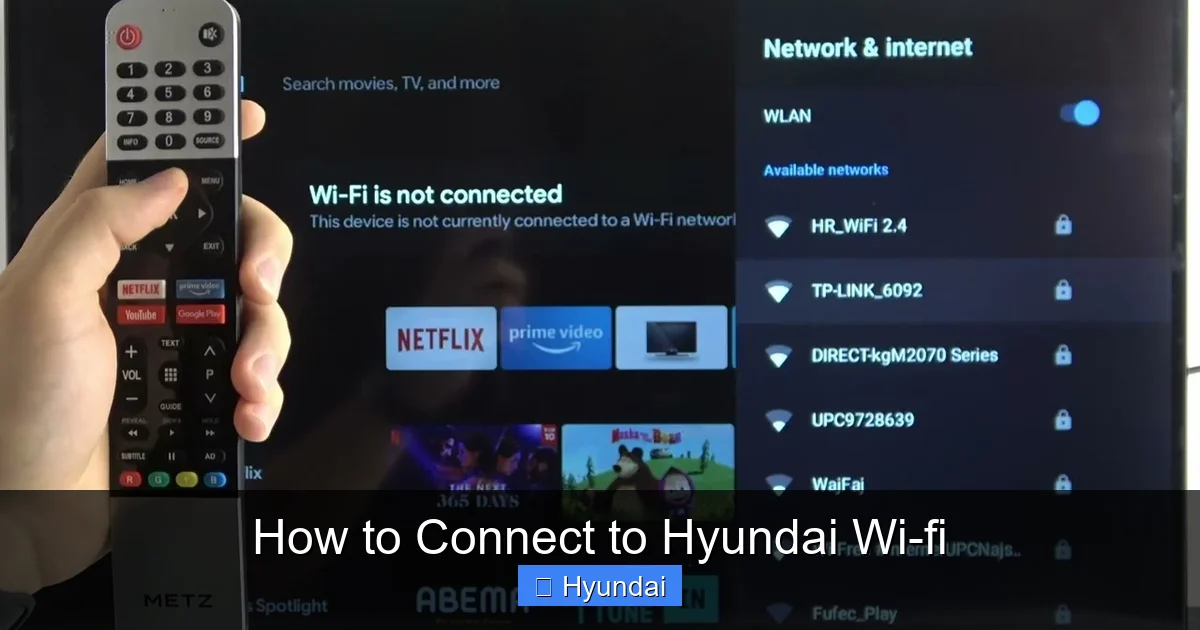
Problem: “Incorrect Password” or “Cannot Join Network” Error
Solution: This is almost always a typo. Double-check the password on your infotainment screen. It’s easy to mix up a zero (0) with the letter ‘O’, or a one (1) with a lowercase ‘l’. Re-enter it carefully. If you customized the password and forgot it, you can reset it to the default in the Wi-Fi hotspot settings menu (you may need the vehicle’s VIN or to be logged into your Blue Link account for security).
Problem: Wi-Fi Network Doesn’t Appear in List
Solution: The hotspot might be turned off. Go back to your Hyundai’s infotainment Settings > Connectivity > Wi-Fi Hotspot and ensure the toggle is switched to ON. Also, ensure your vehicle is started (not just in “ACC” or accessory mode), as the modem may not power on otherwise. Finally, move the vehicle to a location with a known strong cellular signal.
Problem: Connected but No Internet Access
Solution: This points to a cellular data issue, not a Wi-Fi issue. First, verify your Blue Link subscription is active and in good standing. Next, check your vehicle’s location; if you’re in a weak signal area, the modem may connect to a tower but not have a stable data channel. The most effective fix is often a system restart. Turn the vehicle completely off, remove the key (or press the stop button), wait 2-3 minutes, and restart. This power-cycles the embedded modem. For persistent issues, consult our detailed guide on how to reset Hyundai’s infotainment system.
Problem: Connection Drops Frequently
Solution: Intermittent drops are usually signal-related. Are you driving through areas with spotty coverage? The modem is trying to hand off between cell towers. If drops happen while stationary, there may be interference from other electronic devices in the car. Try moving your device closer to the front of the vehicle (where the modem antenna is often located) and turn off other Bluetooth devices. A system restart, as mentioned above, can also clear temporary glitches.
Advanced Tips and Best Practices
Once you’re connected, you can optimize your experience and manage your hotspot like a pro.
Visual guide about How to Connect to Hyundai Wi-fi
Image source: autosonline.cl
Customizing Your Hotspot Settings
Beyond the password, your infotainment system offers more control. In the Wi-Fi hotspot menu, you can often:
- Change the SSID (Network Name): Make it personal, like “Hyundai-Sonata-John.” Avoid spaces and special characters for best compatibility.
- Set a Simpler Password: Create a password that’s easy to tell passengers but still reasonably secure.
- View Connected Devices: See a list of all devices currently using your hotspot and disconnect specific ones if needed.
- Enable/Disable the Hotspot: You can turn it off completely to save your vehicle’s battery (though the impact is minimal) or prevent unauthorized use.
Using the Hyundai Blue Link App for Management
The mobile app is your remote command center. From the app, you can:
- Check your remaining data balance in real-time.
- View and change your Wi-Fi password.
- Turn the hotspot on or off remotely (useful if you want it ready as you approach the car).
- Renew your subscription instantly if it lapses.
- Some models even allow you to start the engine or climate control from the app—a great feature to cool down the cabin before a summer road trip while you’re still finishing up inside a building. This is part of the broader remote features that complement the Wi-Fi.
Security Considerations: Is My Hyundai Wi-Fi Safe?
Your car’s hotspot uses WPA2-PSK encryption, the same standard as most home Wi-Fi networks. It’s secure for general use. However, remember:
- It’s a shared network: Anyone with the password can connect. Change it from the default if you frequently have guests.
- Public perception: Your network name (SSID) will be visible to others nearby. Using your car’s VIN part in the default SSID is not a security risk, but customizing it to something non-identifiable is a minor privacy plus.
- For sensitive activities: While encrypted, no public (or car-based) hotspot is as secure as your trusted home network. Avoid online banking or entering highly sensitive passwords on a car hotspot if you’re extremely security-conscious. Using a VPN on your device adds an extra layer of protection.
Frequently Asked Questions (FAQs)
Why does my Hyundai Wi-Fi say “Connected” but I have no internet?
This usually means your vehicle’s embedded modem has connected to a cellular tower, but the tower isn’t providing a data pathway, or your Blue Link subscription is not active. First, check your subscription status in the Blue Link app. If it’s active, try restarting your vehicle’s infotainment system. If the problem persists, you are likely in an area with no data coverage from Hyundai’s carrier partner.
Can I use my Hyundai Wi-Fi for unlimited Netflix streaming?
It depends entirely on your specific Blue Link subscription plan. Some plans offer truly unlimited high-speed data, perfect for streaming. Others have a monthly data cap (like 1GB or 5GB). Streaming HD video uses about 1GB per hour, so a limited plan would be exhausted quickly. Check your data allowance in the Blue Link app before committing to long streaming sessions.
How many devices can connect to my Hyundai hotspot at once?
Most Hyundai vehicles support connecting up to 5 to 7 devices simultaneously via Wi-Fi. However, the more devices connected, the more the available bandwidth is split, which can slow down the experience for everyone. For the best performance, limit connections to 2-3 devices at a time for activities like video streaming or video calls.
My Wi-Fi password isn’t working. What’s the default?
There is no universal default password. The default password is unique to your vehicle and is printed on the Wi-Fi hotspot settings screen in your infotainment system or listed in your Blue Link app. If you changed it and forgot it, you must go into the Wi-Fi hotspot settings menu (often requiring you to be logged into your Blue Link account for verification) and reset it to the default or set a new one.
Does using the Wi-Fi hotspot drain my car’s battery?
The hotspot uses a small amount of power from the vehicle’s electrical system. When the car is running, the alternator provides ample power. If you use the hotspot with the engine off (in accessory mode), it will drain the 12V battery, but typically not at an alarming rate for short periods (30-60 minutes). It’s not recommended to use it for extended periods with the engine off, just as you wouldn’t run the radio or lights for hours without the engine on.
Can I use the Hyundai Wi-Fi outside of the United States?
No. Hyundai’s embedded modem is configured for a specific regional carrier network (e.g., AT&T in the U.S.). It will not have a data roaming agreement and will not function when you travel internationally. You would need to rely on your personal smartphone’s international data plan or a local SIM card hotspot while abroad.
Frequently Asked Questions
What is How to Connect to Hyundai Wi-Fi?
How to Connect to Hyundai Wi-Fi is an important topic with many practical applications.
