
How to Connect Phone to Car Bluetooth Toyota Corolla 2012

Pair your phone to your 2012 Toyota Corolla’s Bluetooth by first enabling Bluetooth on your device, then navigating the car’s audio system to the “Setup” menu and selecting “Bluetooth” and “Pairing.” Confirm the unique PIN shown on both your phone and the car’s display to complete the connection, enabling hands-free calls and wireless music streaming.
How to Connect Phone to Car Bluetooth Toyota Corolla 2012
Remember that frantic feeling? You’re driving, your phone buzzes on the passenger seat, and you know it’s important. You glance down for a split second—a huge no-no—and fumble with the aux cable or, worse, just let it go to voicemail. If you own a 2012 Toyota Corolla, that moment of stress is totally avoidable. That little Bluetooth symbol on your dash isn’t just for show; it’s your ticket to safe, hands-free calling and crystal-clear music streaming. I spent years juggling cords and missing calls before I finally sat down, decoded my Corolla’s menu, and mastered the pairing process. It’s simpler than you think, and once you do it, you’ll wonder how you ever drove without it. This guide will walk you through every single step, for both iPhone and Android, and tackle the hiccups you might hit along the way. Let’s get you connected.
First, take a breath. The 2012 Corolla’s infotainment system, while not the flashiest by today’s standards, is incredibly reliable once you know where to look. We’re going to break it down into plain English—no tech jargon, no confusing manuals. Whether you’re pairing your first phone or adding a new device after a phone upgrade, this is your definitive playbook. By the end, you’ll be streaming podcasts and taking calls with the press of a button, all while keeping your eyes on the road. Ready? Let’s dive in.
Key Takeaways
- Pair your phone via the car’s Bluetooth menu before driving.
- Enable Bluetooth on your phone and set it to “discoverable” mode.
- Manage multiple devices by deleting old pairings to avoid connection conflicts.
- Reconnect manually if the phone disconnects automatically after a trip.
- Use voice commands for hands-free calls and audio streaming after pairing.
- Note system limits; this model lacks Android Auto or Apple CarPlay integration.
📑 Table of Contents
- Understanding Your 2012 Toyota Corolla’s Bluetooth System
- Pairing Your iPhone with the 2012 Corolla Bluetooth
- Pairing Your Android Phone with the 2012 Corolla Bluetooth
- Troubleshooting Common Bluetooth Connection Problems
- Managing Your Paired Devices and Bluetooth Settings
- Maximizing Your Bluetooth Experience: Tips and Tricks
- Conclusion: Enjoy the Freedom of Wireless Connectivity
Understanding Your 2012 Toyota Corolla’s Bluetooth System
Before we start tapping buttons, it helps to know what we’re working with. Your 2012 Corolla likely came with an AM/FM/CD player that has Bluetooth capability built into the head unit. This isn’t a separate adapter; it’s integrated. That means the system can handle both phone calls (hands-free) and audio streaming (A2DP profile). The good news? It’s a robust system. The bad news? The menu can feel a bit dated if you’re used to modern touchscreens. But the logic is sound and universal.
What is Bluetooth and How Does It Work in Your Corolla?
Think of Bluetooth as a short-range, wireless handshake between two devices. Your phone and your car’s stereo talk to each other using radio waves. For your 2012 Corolla, this happens through the “Setup” or “Phone” button on your stereo faceplate. The system will broadcast a signal saying, “Hey, I’m ready to pair!” Your phone then scans for that signal. When you select your car’s name (usually something like “TOYOTA” or “Corolla”), they exchange a security code (often a PIN like 0000 or 1234) and create a secure, personal link. Once paired, they remember each other. You shouldn’t have to pair every time you get in—it should connect automatically.
Locating the Bluetooth Controls in Your 2012 Corolla
Grab your owner’s manual if you have it, but don’t worry if you don’t. On most 2012 Corolla trims, you’ll find a button labeled “Phone” or “Setup” directly on the stereo faceplate. Sometimes it’s a dedicated button; other times, it’s a soft key on a display screen. Pressing this is your gateway. From there, you’ll use the arrow or rotary knob to navigate menus like “Bluetooth,” “Pair Device,” or “Add Phone.” The exact wording varies slightly by trim level (LE, S, etc.), but the path is always similar: Phone/Settings > Bluetooth > Add/Pair.
Compatibility: Which Phones Work with the 2012 Corolla?
Great news here: virtually any smartphone from the last decade will work. That includes all iPhone models (iPhone 4s and newer) and Android phones (Samsung, Google Pixel, LG, etc.). The Bluetooth standard is backward and forward compatible for these basic functions. The only real limitation is that your 2012 Corolla does not support Apple CarPlay or Android Auto—those came years later. So you’re pairing for calls and music only, which works perfectly. If your phone has Bluetooth (and it almost certainly does), you’re good to go.
If you ever find yourself troubleshooting a different Toyota model, the process is often nearly identical. For instance, connecting to a Toyota Camry from the same era follows the exact same menu logic. It’s a consistent system across Toyota’s lineup of that period.
Pairing Your iPhone with the 2012 Corolla Bluetooth
Apple users, this is your step-by-step. The process is straightforward and takes less than two minutes once you know the sequence. The key is to have your iPhone’s Bluetooth turned on before you start digging through the car menus.
Visual guide about How to Connect Phone to Car Bluetooth Toyota Corolla 2012
Image source: images.carexpert.com.au
Before You Start: Prerequisites for iPhone Pairing
Make sure your iPhone is charged and powered on. Go to Settings > Bluetooth and toggle Bluetooth to ON. You should see it say “Visible” or show a spinning wheel as it scans. Also, ensure your car is in the “On” position (ignition on or ACC mode) and the stereo is powered. Finally, if you’ve previously paired this iPhone with the Corolla, you must delete that old pairing first. We’ll cover deleting devices in a later section, but if you’re having trouble pairing a second time, that’s often the culprit.
Step 1: Activate Pairing Mode in Your Corolla
This is the most critical step. On your stereo, press the Phone button. If you don’t see that, look for Setup or a button with a gear icon. Use the arrow keys or knob to scroll through the options until you find “Bluetooth” or “Add Device.” Select it. The system will now broadcast its signal. On many 2012 Corollas, you’ll see a message like “Searching for device…” or the stereo might start blinking, indicating it’s in pairing mode. You usually have about 30-60 seconds to complete the next step before it times out.
Step 2: Select Your Corolla on Your iPhone
While your car is in that “searching” state, look at your iPhone’s Bluetooth settings screen. Under “Other Devices,” you should see an entry for your car. It will likely be “TOYOTA” or “Corolla” followed by a few digits. Tap on that name. Your iPhone will attempt to pair and may ask for a PIN.
Step 3: Enter the PIN and Confirm
For most 2012 Toyotas, the default PIN is 0000 or 1234. If your car’s screen displays a PIN, enter that exact number on your iPhone’s prompt. If it doesn’t display one, try 0000. Once you enter it, both devices should confirm the pairing. Your car’s screen might say “Connected” or show a phone icon. Your iPhone’s Bluetooth settings will now list the Corolla under “My Devices.”
Step 4: Test the Connection
Don’t assume it worked. Play some music from your iPhone’s Music app or a podcast. You should hear it through your car speakers. Then, have someone call your phone (or use another phone). The call should ring through the car, and you should be able to answer using the button on your steering wheel or stereo. If audio comes through but the call doesn’t, or vice versa, we’ll troubleshoot that later.
If you run into issues specific to iPhone models, especially with newer iOS versions, the steps are largely the same. For a deeper dive into iPhone-specific quirks with Toyota systems, our guide on how to connect an iPhone to a Toyota Highlander covers additional troubleshooting that often applies to the Corolla as well.
Pairing Your Android Phone with the 2012 Corolla Bluetooth
Android users, your process is nearly identical to iPhone, but the menu names on your phone are different. The core principle—activate car pairing mode, then select car on phone—remains the same.
Visual guide about How to Connect Phone to Car Bluetooth Toyota Corolla 2012
Image source: i.ytimg.com
Preparing Your Android Device
On your Android phone (Samsung, Google, etc.), swipe down from the top of your screen to open Quick Settings. Long-press the Bluetooth icon to open Bluetooth settings. Alternatively, go to Settings > Connected Devices > Bluetooth. Make sure Bluetooth is turned ON. Your phone will automatically start scanning for nearby devices.
Step 1: Put the Corolla in Pairing Mode
Just like with the iPhone, press the Phone or Setup button on your stereo. Navigate to Bluetooth > Add Device. The system will now be discoverable. You might see a message on the screen like “Waiting for connection…”
Step 2: Select the Corolla from Your Android’s List
On your phone’s Bluetooth scan results, look for “TOYOTA” or “Corolla”. Tap it. Your phone will attempt to pair. If a PIN request pops up, try 0000 or 1234. Some Android phones might automatically pair without a PIN if the car’s system is set to “no PIN” (common in Toyotas).
Step 3: Grant Necessary Permissions
On newer Android versions, you might see a popup asking for permission to access your Contacts and Call Logs. This is so your car’s system can display caller ID and sync your phonebook. Tap Allow or Pair. If you deny these, you’ll still get audio, but caller ID won’t show on your dash.
Step 4: Verify and Test
Your car’s stereo should now show a Bluetooth icon or “Connected.” Play music from your phone—it should come through the speakers. Make a test call. If it works, you’re all set! If the audio is tinny or only comes through one speaker, check your car’s audio balance/fade settings. Sometimes pairing resets these.
Troubleshooting Common Bluetooth Connection Problems
Even with perfect steps, things can go wrong. Don’t panic. Most Bluetooth gremlins have simple fixes. Let’s tackle the most frequent complaints from Corolla owners.
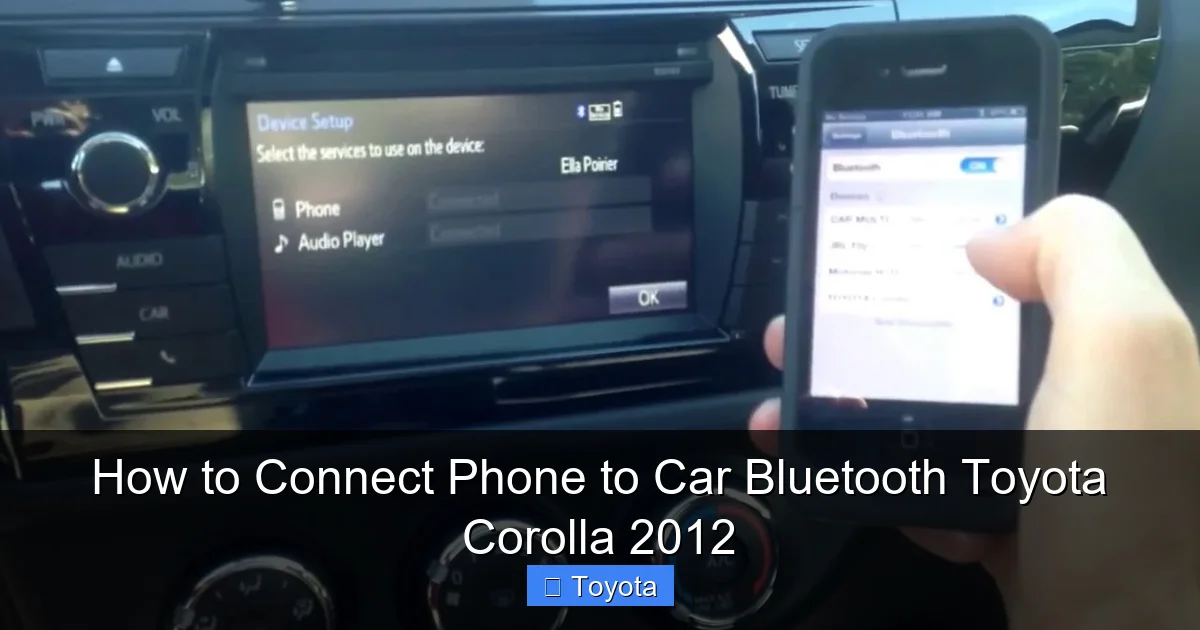
Visual guide about How to Connect Phone to Car Bluetooth Toyota Corolla 2012
Image source: i.ytimg.com
“No Devices Found” During Scan
This is the most common error. Your car says it’s searching, but your phone doesn’t see it. First, double-check that you actually put the car into pairing mode. Did you press Add Device and see the “waiting” message? If not, start over. Second, make sure your phone’s Bluetooth is on and set to “discoverable” or “visible.” On iPhones, this is automatic when you’re in Settings > Bluetooth. On Android, sometimes you need to tap “Scan” manually. Third, move closer to the stereo; Bluetooth has about a 30-foot range, but obstacles weaken it. Finally, restart your phone and try again.
Connection Keeps Dropping or Disconnecting
If the connection works but drops randomly while driving, there are a few culprits. First, check your phone’s battery saver or power-saving mode. Some phones turn off Bluetooth to save power when the screen is off. Disable battery optimization for your Bluetooth or media apps. Second, interference from other electronics—like a dash cam or phone charger—can sometimes disrupt the signal. Try unplugging other USB devices. Third, your phone’s software might be outdated. Go to Settings > General > Software Update (iPhone) or Settings > System > Software Update (Android) and install any available updates.
Audio Quality Issues, Stuttering, or No Sound
If music plays but sounds like a bad radio signal, or if it cuts in and out, try these steps. Ensure your phone’s volume is up and not muted. On your car stereo, check the audio source—it should be set to “Bluetooth Audio” or “Audio”, not “Radio” or “CD.” Also, check the balance and fade settings; an accidental tweak could send all sound to one speaker. If you’re using a streaming service like Spotify, try a different song or app to rule out a problem with the media file. Lastly, clear your phone’s Bluetooth cache (Android: Settings > Apps > Bluetooth > Storage > Clear Cache).
Phonebook Contacts Not Syncing
Your calls work, but the caller’s name doesn’t show on the screen. This is usually a permissions issue (we mentioned it in the Android section) or a setting in your car. Go into your car’s Bluetooth settings (Phone > Bluetooth > [Your Phone Name]) and look for an option like “Phonebook” or “Contacts”. Make sure it’s set to “On” or “Auto.” On your phone, when you paired, you should have granted contact access. If you denied it, you’ll need to delete the pairing and re-pair, this time allowing access.
For a quick reference, here’s a table summarizing these common issues and their fixes.
| Symptom | Most Likely Cause | Quick Fix |
|---|---|---|
| Car can’t find phone; phone doesn’t see car | Car not in pairing mode; phone Bluetooth off | Re-enter pairing mode on car; toggle phone Bluetooth off/on |
| Connection drops frequently | Phone battery saver mode; electrical interference | Disable battery optimization for Bluetooth; unplug other USB devices |
| Audio stutters or sounds poor | Weak signal; wrong audio source selected | Move closer to stereo; set car source to “Bluetooth Audio” |
| No caller ID, contacts don’t show | Missing contact permissions | Delete pairing, re-pair and grant “Contacts” permission on phone |
Managing Your Paired Devices and Bluetooth Settings
Your 2012 Corolla can store multiple paired devices—usually up to 5. This is handy if you and your partner both want to connect your phones. But over time, you might accumulate old phones you no longer use, which can cause confusion. Let’s learn how to view, delete, and manage these connections.
Viewing Paired Devices in Your Corolla
Press the Phone button on your stereo. Navigate to Bluetooth or Device List. You should see a list of names like “John’s iPhone,” “Galaxy S22,” etc. This list shows everything currently paired. If your phone’s name isn’t there, it’s not paired. If you see an old device you don’t recognize, it’s best to delete it to free up a slot and avoid accidental connections.
How to Delete an Old Phone from Your Corolla’s Memory
From that same Device List screen, highlight the phone you want to remove. On most 2012 Corolla stereos, you’ll then press a button labeled “Info” or “Menu” or use the “Setup” knob to find a “Delete” or “Remove” option. Confirm the deletion. The device is now gone. On your phone, you should also “Forget This Device” in your Bluetooth settings to clean up your phone’s list. The process for deleting is very similar across many car brands. For example, the steps to delete a phone from a Honda Civic’s Bluetooth follow the same general menu navigation logic—find the device list, select, and delete.
Renaming Your Car’s Bluetooth Name (If Possible)
Some 2012 Corolla stereos allow you to change the broadcast name from “TOYOTA” to something custom, like “Dad’s Corolla.” This can be helpful if you have multiple Toyotas nearby. To check, go to Phone > Bluetooth > [Your Device Name] > Change Name. Not all trims support this, but it’s worth exploring in your settings menu.
Maximizing Your Bluetooth Experience: Tips and Tricks
You’re connected! Now, let’s make the experience flawless. These pro tips will save you headaches and make your daily drive more enjoyable.
Keep Your Phone’s Operating System Updated
This is huge. Bluetooth stack updates in iOS and Android often fix compatibility bugs with older car systems. Make sure your phone is running the latest software version it supports. An old iPhone 6 on iOS 12 might struggle with a 2012 Corolla, but updating to the latest possible iOS can resolve many quirks.
Clear Your Bluetooth Cache Regularly (Android)
Android phones can sometimes get their Bluetooth connection files corrupted. Once a month, go to Settings > Apps > Bluetooth > Storage > Clear Cache. Then, re-pair your phone. It takes two minutes and can solve mysterious disconnections.
Use a Unique and Recognizable Phone Name
When you first pair, your phone’s name (e.g., “John’s iPhone”) is what shows on your car’s screen. If your phone’s name is just “iPhone” or “Android Device,” it’s hard to tell which is which if you have multiple phones paired. Change your phone’s name in its settings to something clear, like “John iPhone” or “Samsung Work.” This makes managing devices in your car much easier.
Optimize Your Phone’s Settings for Audio Streaming
For the best music quality, disable any “Audio Codec” or “Bluetooth Audio Quality” settings that prioritize battery life over quality. On some Android phones, under Developer Options (which you enable by tapping Build Number 7 times), you can set the Bluetooth audio codec to SBC or AAC. SBC is the universal standard and works best with older car systems like the 2012 Corolla. Avoid aptX or LDAC; those are for newer, high-end systems and can cause issues here.
Know the Limits: What Bluetooth Can’t Do in Your 2012 Corolla
Manage expectations. Your 2012 Corolla’s Bluetooth is for calls and music/podcast audio only. It does not stream video, nor does it display phone apps like Google Maps or Waze on your car screen. You can, however, hear turn-by-turn navigation prompts if the app outputs its audio through the phone’s media channel (which Bluetooth audio uses). So you can play Google Maps directions over your music, but the map itself won’t appear on your dash. For that integrated experience, you’d need an aftermarket stereo with Apple CarPlay/Android Auto. But for what it does, the stock system is reliable.
If you’re interested in getting navigation prompts through your car’s speakers, the setup process for streaming app audio is the same as music. You might find our guide on how to connect Google Maps to Toyota navigation helpful for understanding how audio from mapping apps can be routed through your car’s system, even on older models.
Conclusion: Enjoy the Freedom of Wireless Connectivity
You did it! You’ve transformed your 2012 Toyota Corolla from a simple point-A-to-point-B machine into a connected command center. No more fumbling for cables, no more missed calls, and no more distraction. That Bluetooth symbol on your dash isn’t just a feature—it’s a safety upgrade. The steps we walked through—understanding your system, pairing for iPhone and Android, troubleshooting, and managing devices—are all skills that will serve you for the life of the car.
Remember, the first time might take a few minutes. But once paired, your phone will connect automatically every time you start the car, like magic. If you ever get a new phone or need to clear out old devices, you now have the map. The key is patience: read the screen on your stereo carefully, take it one menu at a time, and don’t be afraid to experiment with the settings. Your owner’s manual is a great backup, but you now have the know-how to do it without it.
In a world that’s constantly buzzing with notifications, having a seamless, hands-free link to your digital life while driving is priceless. It’s one of those small upgrades that makes a big difference in daily comfort and safety. So go ahead, grab your phone, follow these steps, and experience your reliable Corolla in a whole new way. Safe travels, and enjoy the music!
Frequently Asked Questions
How to Connect Phone to Car Bluetooth Toyota Corolla 2012 for the first time?
First, ensure your car is parked and turned to the ACC/ON position. Press the “Phone” or “Setup” button on your steering wheel or stereo, navigate to “Add Device” or “Pair,” and select your Corolla’s Bluetooth from your phone’s available devices list. The default PIN is usually “0000” or “1234.”
What do I do if my phone won’t pair with my 2012 Toyota Corolla?
First, delete any previous pairings from both your phone’s Bluetooth settings and the car’s system (often found in the Setup menu under “Delete” or “Clear”). Then, restart your phone and car, and try the pairing process again, ensuring you select the correct “Toyota” Bluetooth name.
Can I connect two phones to my Toyota Corolla 2012 Bluetooth at once?
The 2012 Corolla’s factory Bluetooth system typically supports only one connected phone at a time for calls and audio. You can, however, store multiple phones in the system’s memory, but you must manually switch the active connection between them using the “Phone” menu on your stereo.
How do I disconnect or switch phones on my Toyota Corolla Bluetooth?
To disconnect, go to your phone’s Bluetooth settings and select “Disconnect” or “Forget This Device.” To switch to another paired phone, press the “Phone” button on your steering wheel, use the stereo controls to select “Change Phone,” and choose the desired device from the list stored in your car’s system.
How to answer a call through Bluetooth in my 2012 Toyota Corolla?
When a call comes in, you can answer it by pressing the “Answer” or “Phone” button on your steering wheel. The call audio will automatically route through your car’s speakers. You can also use the “Call” button to voice-dial a contact from your paired phone’s address book.
Why is my music not playing through the car speakers after connecting Bluetooth?
After pairing, you must manually select the “Audio” or “Media” source on your car stereo (often via a “Source” or “Mode” button). Ensure your phone’s media volume is up and that the music app is playing. Some phones also require you to enable “Media Audio” in the Bluetooth device settings on the phone itself.
