
How to Check Mileage on a Tesla

Contents
- 1 Key Takeaways
- 2 📑 Table of Contents
- 3 Method 1: The Touchscreen – Your Primary Command Center
- 4 Method 2: The Tesla Mobile App – Mileage on the Go
- 5 Method 3: The Tesla Website – Historical Data and Records
- 6 Understanding Tesla’s Mileage and Range Displays
- 7 Troubleshooting: What If My Mileage Data Looks Wrong?
- 8 Comparing Tesla’s System to Traditional Cars
- 9 Conclusion: mileage as a Tool, Not Just a Number
- 10 Frequently Asked Questions


Checking mileage on a Tesla is simple and done through the central touchscreen, the Tesla mobile app, or your online Tesla account. You can view the total odometer, multiple trip meters, and estimated range data. The system provides real-time feedback, making it easy to track efficiency for daily drives or long trips. Understanding these different metrics helps you maximize your Tesla’s range and monitor its usage.
So, you’ve traded in your gas guzzler for a sleek, silent Tesla. You love the instant torque and the futuristic interior, but now you’re staring at that giant screen wondering, “How do I even check the mileage?” Don’t worry, it’s not a secret code. Checking mileage on a Tesla is actually one of the easiest things you can do. It’s all digital, accessible in multiple places, and gives you way more information than a simple number ever could. Let’s break it down step-by-step, from the quickest touchscreen tap to deep-diving into your driving efficiency.
First, a quick note on why this matters. In a gasoline car, mileage is mostly about fuel economy and scheduling oil changes. In a Tesla, it’s about range anxiety, efficiency tuning, and understanding your car’s health. The “mileage” you see isn’t just a number; it’s a window into your battery’s performance, your driving habits, and your car’s overall energy consumption. Whether you’re a new owner or just got your first Tesla and are exploring the menus, this guide will walk you through every method to check mileage on a Tesla.
Key Takeaways
- Primary Method: The main way to check mileage is via the touchscreen’s “Controls” menu, showing odometer and trip data.
- Mobile Access: The Tesla app provides real-time mileage, range, and trip tracking right from your smartphone.
- Online Dashboard: Your Tesla account on the web shows historical trip data and total mileage.
- Trip vs. Total: “Trip” meters measure distance since last reset; “Odometer” shows the car’s total lifetime miles.
- Rated vs. Actual Range: “Rated Range” is the EPA estimate; “Actual Range” updates based on your recent driving efficiency.
- Energy Graph: The touchscreen’s energy app visualizes consumption, helping you understand what affects your range.
- Automatic Tracking: Tesla automatically tracks trips and charges; you rarely need to manually log mileage.
📑 Table of Contents
- Method 1: The Touchscreen – Your Primary Command Center
- Method 2: The Tesla Mobile App – Mileage on the Go
- Method 3: The Tesla Website – Historical Data and Records
- Understanding Tesla’s Mileage and Range Displays
- Troubleshooting: What If My Mileage Data Looks Wrong?
- Comparing Tesla’s System to Traditional Cars
- Conclusion: mileage as a Tool, Not Just a Number
Method 1: The Touchscreen – Your Primary Command Center
The 15-inch (or 17-inch in older Model S/X) touchscreen is the heart of your Tesla. This is where you’ll find the most immediate and detailed mileage information. The layout is consistent across all models, so once you learn it on a Model 3, you’ll know it on a Model Y, S, or X.
Finding the Odometer and Trip Meters
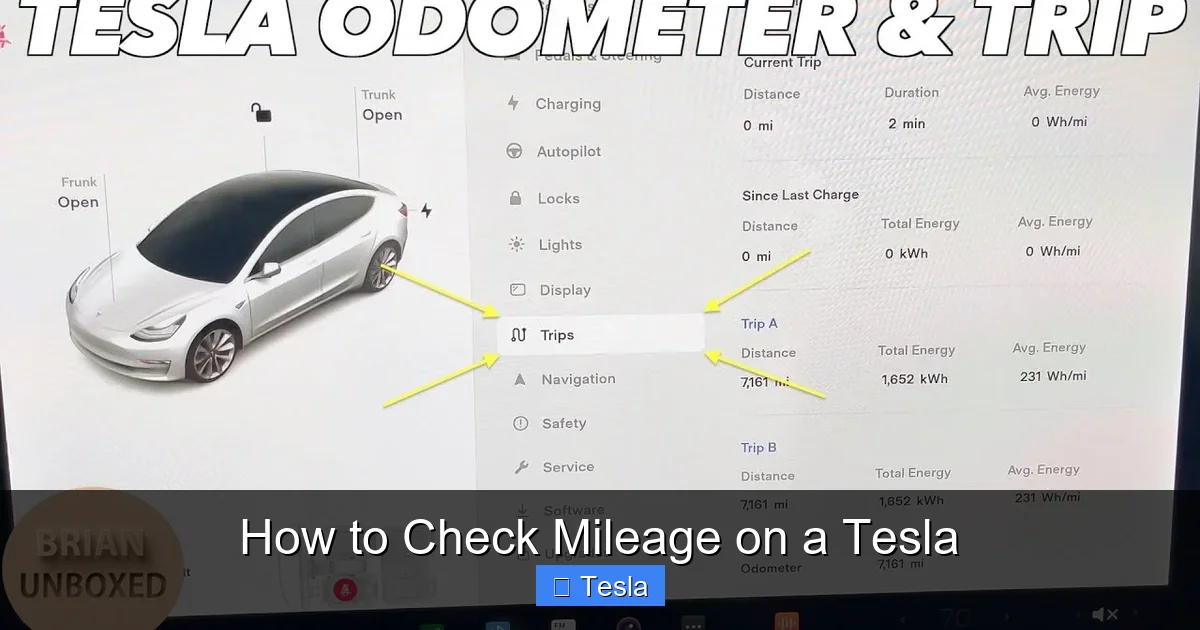
From the main screen, tap the ‘Controls’ icon (the car silhouette) on the bottom left. This opens the master vehicle settings menu. Scroll down until you see the ‘Service’ section. Right at the top of this section, you’ll find your primary mileage displays. You’ll see:
- Odometer: This is your car’s total lifetime mileage. It’s the big number that never resets (unless you get a new car or a major odometer rollback, which is extremely rare).
- Trip A & Trip B: These are your resettable trip meters. You can use them to measure the distance of a specific journey, like your daily commute, a road trip, or to track mileage between charges. You can have two separate trips running simultaneously.
On the main driving screen (the one with the speedometer and range), you can also customize what’s displayed. Tap the small ‘i’ or settings icon on the top right of the screen, then select ‘Display’. Here, you can often add trip meter data directly to your primary driving view for a constant glance without diving into menus.
Resetting Your Trip Meters
This is a common point of confusion. To reset Trip A or Trip B, go to the same ‘Controls > Service’ menu. Tap on the trip meter number you want to reset (e.g., “Trip A: 124.5 mi”). A pop-up will appear asking if you want to reset it to zero. Confirm, and you’re set. It’s that simple. There’s no hidden button hold or sequence. You can reset them as often as you like—at the start of every day, every time you charge, or at the beginning of a long trip. This makes tracking specific distances effortless. For comparison, in some conventional cars, you might need to consult the manual to reset a trip meter, but Tesla’s interface is designed for intuitiveness.
The Energy App – The Mileage Deep Dive
This is where Tesla’s digital advantage shines. On the bottom app bar, tap the ‘Energy’ icon (it looks like a battery with a graph). This screen visualizes your energy consumption in real-time and historically. The top section shows your current range and the rated vs. actual range. The graph below plots your Wh/mile (watt-hours per mile) over time. A lower Wh/mile means better efficiency (more miles per kWh). You can scroll back to see how your driving style, speed, and climate control affected your “mileage” on that trip. This is the true power of checking mileage on a Tesla—it’s not just distance, it’s efficiency. You can see if that last 50 miles cost you 15 kWh or 20 kWh, which directly impacts your usable range. It’s a fantastic tool for learning to drive more efficiently.
Method 2: The Tesla Mobile App – Mileage on the Go
You’re away from your car, maybe at work or a restaurant, and you suddenly wonder, “Did I lock the car?” (Use the app for that too!). While you’re checking on the car, you can instantly see its current mileage and range. The Tesla app is a powerful companion.
Visual guide about How to Check Mileage on a Tesla
Image source: automotivesimple.com
Setting Up and Navigating the App
First, ensure your phone is properly paired with your Tesla via Bluetooth and you’re logged into your Tesla account. Open the app, and your car’s name and image will appear on the main screen. Just below the car image, you’ll see the current odometer reading and the estimated range. This updates in near real-time, even if the car is parked. It’s the quickest way to check total mileage without walking to the car.
Trip Tracking and Charging Details
Tap on your car’s image to enter the detailed control screen. Here, you can see more. Scroll down to the ‘Drive’ section. You’ll find the same Trip A and Trip B meters as on the touchscreen, and you can reset them from the app too. Even more useful for “mileage” context is the ‘Charging’ tab. It shows your charging history, including the energy added (in kWh) and the miles added to your range. This lets you correlate energy input with estimated miles gained, giving you a practical sense of your car’s efficiency over a charging cycle. If you’re planning a trip, this helps you understand how much energy you need to add for a certain number of miles.
Method 3: The Tesla Website – Historical Data and Records
For a broader, historical view of your mileage and trips, log into your Tesla account on a web browser. Go to tesla.com/login. Once logged in, select your vehicle. This dashboard is excellent for long-term tracking.
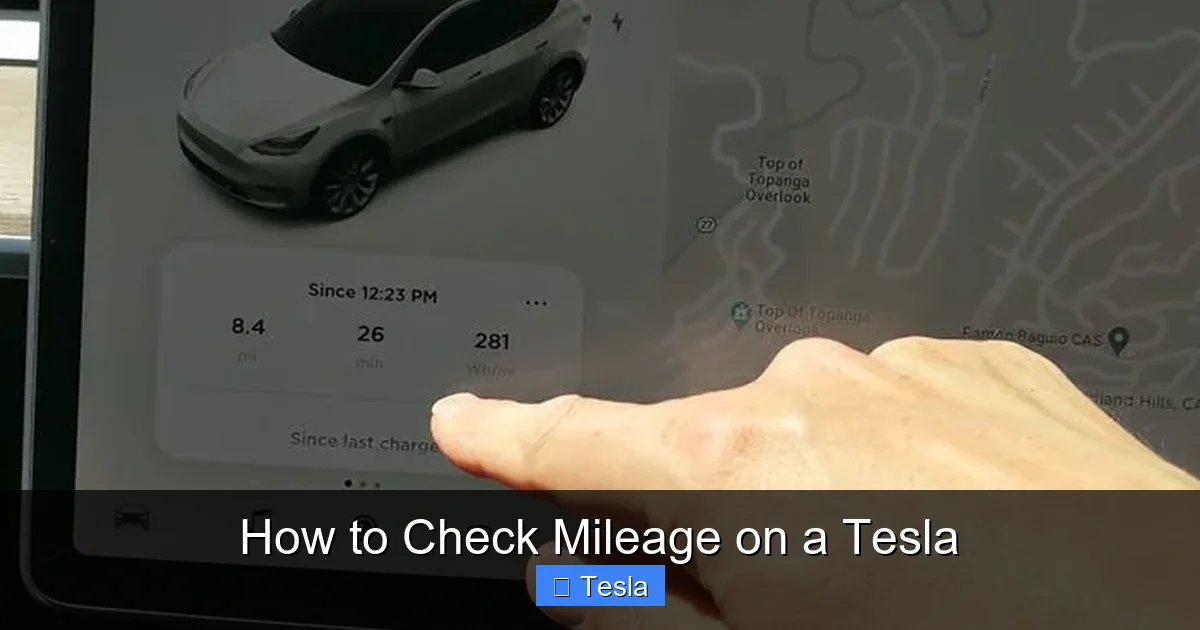
Visual guide about How to Check Mileage on a Tesla
Image source: carproblemsolved.com
Viewing Trip History and Summary
The web portal shows a summary of your car’s total mileage, total energy consumed, and total CO2 saved. The most valuable feature here is the ‘Trip’ tab. It lists every trip your car has automatically recorded. Each entry shows the start and end locations (if available), date, distance, average Wh/mile, and energy used. This is perfect for expense reports, tax deductions (if you use your Tesla for business), or just satisfying your curiosity about how much you drove last month. You can click into any trip for a map visualization. Unlike the touchscreen and app, which are for real-time or recent data, the website is your permanent logbook. It’s automatically synced, so you never have to manually write anything down.
Understanding Tesla’s Mileage and Range Displays
Now that you know where to find the numbers, let’s clarify what they all mean. This is crucial to avoid confusion.
Visual guide about How to Check Mileage on a Tesla
Image source: i.ytimg.com
Total Odometer vs. Trip Meters
The odometer is the car’s permanent record. It’s used for service intervals (though Tesla service is mostly condition-based), warranty purposes, and resale value. The trip meters (A & B) are your temporary tools. Use Trip A for your daily drive from home to work and back. Reset it every morning. Use Trip B for a weekend road trip. You can leave one running for months if you want to track mileage between services. The key is you control when they reset.
Rated Range vs. Actual/Projected Range
This is the most important concept for Tesla owners. Rated Range is the number you see on the window sticker, based on EPA testing. It’s a fixed, ideal number (e.g., 358 miles for a Long Range Model 3). Actual Range or Projected Range is the dynamic number that changes based on your recent driving. If you’ve been driving aggressively on the highway with AC blasting, your projected range might drop to 290 miles even with a full charge. If you’re driving gently in the city, it might show 320 miles. The car constantly recalculates this based on your last 30-50 miles of average Wh/mile. When you check mileage on a Tesla, always look at the Wh/mile figure on the Energy graph to understand *why* your range is what it is. It’s not a flaw; it’s a precise energy meter.
The Energy Consumption Graph (Wh/mile)
As mentioned, this is your efficiency dashboard. A good target for efficient driving in a Model 3 is around 220-250 Wh/mile. If you’re seeing 350+ Wh/mile, you’re driving fast or using a lot of climate control. This graph directly ties your driving behavior to your “mileage” (range). A 10% improvement in Wh/mile gives you roughly 10% more miles from the same battery. So, checking this graph is as important as checking the raw mileage number.
Troubleshooting: What If My Mileage Data Looks Wrong?
Most of the time, Tesla’s mileage tracking is flawless. But occasionally, you might see something odd.
Display Not Updating or Stuck
If the touchscreen odometer isn’t changing, first try a simple screen reboot. Hold down both scroll wheels on the steering wheel until the screen goes black and the Tesla logo reappears. This refreshes the system. The mileage will update. If it’s still stuck, it’s likely a very rare software glitch. A pending software update might fix it. If the problem persists after an update, schedule a service appointment through the app.
Inaccurate Trip Meter Reset
If you reset Trip A, but it doesn’t go to zero, reboot the screen as above. If it still won’t reset, it’s a software bug. Document it and report it via the app’s “Feedback” section. In the meantime, you can use Trip B or simply note the starting number and do the math manually.
Range Seems Off Compared to Mileage
Remember: range is an estimate based on recent efficiency, not a direct conversion of miles driven. If you drive 100 miles but your range only dropped by 80 miles, that’s because your Wh/mile was better than the car’s initial estimate. Conversely, if you drive 50 miles and range drops by 70, you were driving inefficiently. The key metric is the energy used (kWh) displayed at the end of a trip in the Energy app. That’s the true “fuel” consumed. Miles are just a result of that energy usage.
Comparing Tesla’s System to Traditional Cars
In a traditional gasoline car, you have a physical odometer and maybe a small digital trip meter. That’s it. You know how many miles you’ve driven, but you have almost no data on *how* you drove them or how it affected your fuel economy unless you manually calculate it at every gas station. Tesla automates all of this. The mileage data is integrated with energy consumption, charging sessions, and even GPS mapping. You get a complete picture of your vehicle’s usage. For instance, if you’re curious about the cost per mile, you can take the energy used from your last trip (in kWh), multiply it by your home electricity rate, and get an exact figure. You can’t do that with a simple gas pump receipt. This level of integration is why learning to check mileage on a Tesla is so valuable—it’s the gateway to understanding your electric vehicle’s performance and cost of operation.
Additionally, unlike some older vehicles where you might need to physically inspect components or reset warning lights like a check engine light on a Dodge Ram after a repair, Tesla’s systems are digital and self-diagnosing. Your mileage and range data are part of that continuous health check, providing insights without any physical checks or manual resets beyond the trip meters.
Conclusion: mileage as a Tool, Not Just a Number
Checking mileage on a Tesla is designed to be intuitive and informative. The touchscreen gives you instant access. The app lets you check from anywhere. The website builds your permanent record. Together, they provide a comprehensive view of your driving. Don’t just glance at the big number on the screen. Dive into the Energy app. Watch how your Wh/mile changes when you slow down or turn off the AC. Use the trip meters to measure specific routes. This data empowers you to maximize your range, understand your car’s capabilities, and become a more efficient driver. Your Tesla is a computer on wheels, and its mileage system is one of its best features for keeping you informed and in control. So next time you’re in your car, take two minutes to explore these menus. You’ll find that checking mileage isn’t a chore—it’s a fascinating look into your electric driving experience.
Frequently Asked Questions
Can I check my Tesla’s mileage if the car is locked and offline?
No, the touchscreen requires the car to be awake (either on or in “Sentry Mode”). However, you can always check the odometer and range via the Tesla mobile app as long as your phone has internet and the car has cellular connectivity.
Why is my Tesla’s projected range different from the EPA-rated range?
Projected range is dynamic and based on your recent driving efficiency (Wh/mile). The EPA-rated range is a fixed laboratory number. Your actual range depends on speed, terrain, temperature, climate control use, and driving style. The projected range updates constantly to reflect these factors.
Do Tesla trip meters reset automatically when I charge?
No, trip meters do not reset automatically at any point, including charging. You must manually reset them via the touchscreen or app. The car does, however, automatically start a new “trip” for the energy graph after a charge or when the car has been parked for a while.
Is the odometer on a Tesla susceptible to rollback or fraud like some older mechanical odometers?
No. Tesla’s digital odometer is stored in multiple secure modules within the car and is also synced to Tesla’s servers. Tampering with it would be extremely difficult and is easily detectable by Tesla service centers. It provides a trustworthy, immutable record of the car’s total mileage.
How can I see how many miles I drove on a specific charge session?
Go to the ‘Charging’ screen on the touchscreen or in the mobile app. It shows the energy added during the last charge and the estimated miles added. For exact miles driven between charges, use a trip meter (reset it right after charging completes) or check the “Trip” log on the Tesla website, which groups drives between charging sessions.
What’s the best way to track mileage for a business or tax purpose?
Do not rely on the trip meters alone for official records. Use the Tesla website’s ‘Trip’ log. It automatically records every drive with date, start/end times, distance, and location (if connected). You can export this data for accurate, timestamped records that are far more reliable than manual note-taking.







