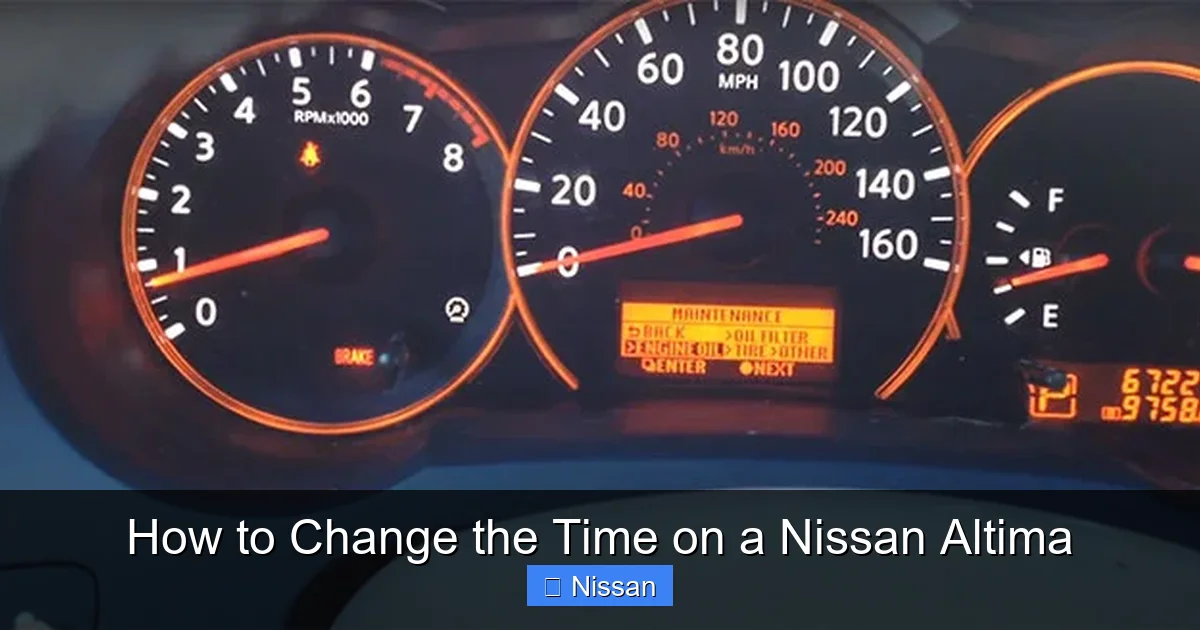
How to Change the Time on a Nissan Altima

Contents
- 1 Key Takeaways
- 2 📑 Table of Contents
- 3 Why Keeping Your Nissan Altima’s Clock Accurate Matters
- 4 Understanding Your Nissan Altima’s Clock System
- 5 Step-by-Step Guide: How to Change the Time on a Nissan Altima
- 6 Automatic vs. Manual Time Setting: Which Is Better?
- 7 Common Mistakes and How to Avoid Them
- 8 Maintaining Your Altima’s Clock Over Time
- 9 Conclusion: Stay on Time, Every Time
- 10 Frequently Asked Questions




Changing the time on your Nissan Altima is simpler than you think—whether you drive a 2005 model or a 2024 Altima with advanced infotainment. This guide walks you through every method, from basic dashboard controls to touchscreen settings, so you’ll never miss an appointment again.
Key Takeaways
- Know your model year: Older Altimas use physical buttons, while newer models rely on touchscreen menus.
- Access the clock settings: Most models require navigating through the audio or information display system.
- Use the “Menu” or “Settings” button: This is your gateway to adjusting time, date, and display preferences.
- Enable automatic time sync: Many newer Altimas can sync with GPS or your smartphone for accurate timekeeping.
- Manual adjustment works too: If automatic sync fails, you can always set the time manually.
- Battery disconnect resets the clock: After jump-starting or replacing the battery, you may need to reset the time.
- Practice makes perfect: Spend a few minutes exploring your dashboard controls to build confidence.
📑 Table of Contents
- Why Keeping Your Nissan Altima’s Clock Accurate Matters
- Understanding Your Nissan Altima’s Clock System
- Step-by-Step Guide: How to Change the Time on a Nissan Altima
- Automatic vs. Manual Time Setting: Which Is Better?
- Common Mistakes and How to Avoid Them
- Maintaining Your Altima’s Clock Over Time
- Conclusion: Stay on Time, Every Time
Why Keeping Your Nissan Altima’s Clock Accurate Matters
We’ve all been there—running late, glancing at the dashboard, and realizing your car’s clock is off by 15 minutes. It’s a small thing, but it can throw off your entire schedule. Whether you’re catching a flight, picking up the kids, or just trying to stay on top of your day, having an accurate clock in your Nissan Altima isn’t just convenient—it’s essential.
Modern vehicles like the Nissan Altima are packed with technology, but sometimes the simplest features get overlooked. The clock might seem like a minor detail, but it’s integrated into your car’s infotainment system, navigation, and even your scheduled maintenance reminders. When it’s wrong, it can cause confusion and frustration. Plus, if you rely on your car’s clock to sync with your phone or smartwatch, inaccuracies can ripple through your entire digital life.
The good news? Changing the time on a Nissan Altima is straightforward once you know where to look. Whether you drive a 2005 Altima with basic analog controls or a 2024 model with a high-resolution touchscreen, this guide will walk you through the process step by step. No tools, no mechanics, no stress—just clear, simple instructions you can follow in under five minutes.
Understanding Your Nissan Altima’s Clock System
Before diving into the steps, it helps to understand how your Altima’s clock system works. Over the years, Nissan has evolved its dashboard design and technology, which means the method for changing the time varies depending on your model year and trim level.
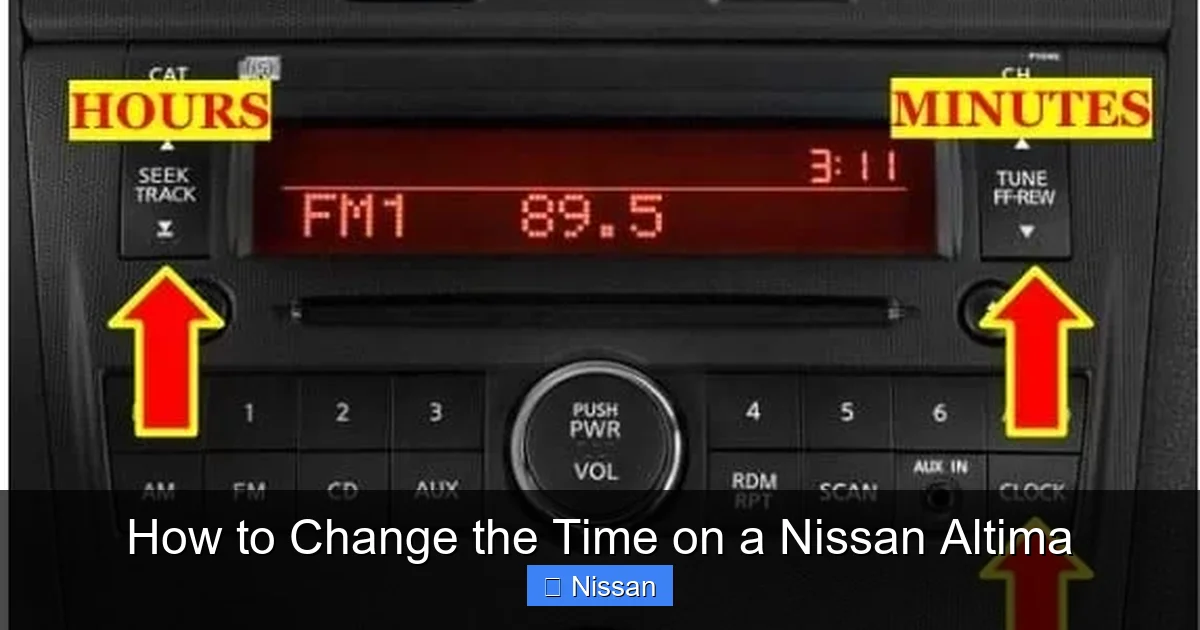
Visual guide about How to Change the Time on a Nissan Altima
Image source: hiride.com
Older Models (2005–2012): Analog and Early Digital Displays
If you drive an older Altima—say, from 2005 to 2012—your clock is likely displayed on a small LCD screen near the speedometer or integrated into the audio head unit. These models typically use physical buttons labeled “Clock,” “Set,” or “Menu” to adjust the time. The process is manual and doesn’t sync with GPS or your phone, so you’ll need to update it yourself, especially after daylight saving time changes or a battery replacement.
Mid-Range Models (2013–2018): Transition to Digital Interfaces
From 2013 onward, Nissan began introducing more advanced infotainment systems. The Altima started featuring larger color displays, touchscreen capabilities, and better integration with smartphones. During this period, the clock settings moved from standalone buttons to menu-driven systems accessed through the audio or information display. You’ll still adjust the time manually, but the interface is more intuitive and often includes options for 12-hour or 24-hour format.
Newer Models (2019–2024): Smart Connectivity and Automation
The latest Nissan Altimas come equipped with NissanConnect, a sophisticated infotainment system that supports Apple CarPlay, Android Auto, and GPS navigation. These models often feature automatic time synchronization, meaning your car can pull the correct time from GPS satellites or your connected smartphone. However, if the automatic feature fails—or if you prefer manual control—you can still adjust the time through the settings menu. The touchscreen interface makes navigation easier, but it can also be a bit overwhelming if you’re not familiar with the layout.
Trim Levels and Optional Features
It’s also worth noting that higher trim levels (like the SR, SL, or Platinum) may include additional features such as dual-zone climate control, premium audio systems, or advanced driver-assistance tools. These features don’t directly affect the clock, but they can influence where the time settings are located. For example, on a Platinum trim with a large central display, the clock settings might be buried under multiple submenus. Always check your owner’s manual or look for a “Settings” icon on the screen.
Step-by-Step Guide: How to Change the Time on a Nissan Altima
Now that you understand the basics, let’s get into the nitty-gritty. Below are detailed instructions for changing the time on various Nissan Altima models. Follow the steps that match your vehicle’s year and system type.

Visual guide about How to Change the Time on a Nissan Altima
Image source: i2.wp.com
For Models with Physical Buttons (2005–2012)
If your Altima has a traditional dashboard with physical buttons, here’s how to adjust the clock:
- Turn on the ignition: You don’t need to start the engine, but the car must be in “Accessory” or “On” mode for the display to activate.
- Locate the “Clock” or “Set” button: This is usually found on the audio head unit or near the instrument cluster. It may be labeled “CLK,” “SET,” or have a clock icon.
- Press and hold the button: Hold it for 2–3 seconds until the time display starts blinking.
- Adjust the hours: Use the “+” or “–” buttons (or tune knob) to set the correct hour. Some models require you to press “Set” again to confirm.
- Adjust the minutes: Once the hour is set, the minutes will begin blinking. Use the same buttons to set the correct minute value.
- Press “Set” or “Clock” again: This saves your changes and exits the setting mode.
Pro Tip: If your Altima has a separate “AM/PM” indicator, make sure to toggle it correctly. Some older models don’t automatically switch between 12-hour and 24-hour formats, so double-check your setting.
For Models with Touchscreen Infotainment (2013–2018)
Starting around 2013, many Altimas began using touchscreen systems. Here’s how to change the time on these models:
- Turn on the car: Again, you just need the ignition on—no need to drive.
- Tap the “Menu” or “Settings” icon: This is usually a gear or wrench symbol on the home screen of the infotainment system.
- Navigate to “Clock” or “Time Settings”: Look for options like “System Settings,” “Display,” or “General.” The clock option is often under one of these submenus.
- Select “Set Time” or “Manual Time”: If your car has automatic time sync, you may need to disable it first to enable manual adjustment.
- Enter the correct time: Use the on-screen keypad or sliders to input the hour and minute. Confirm your selection.
- Choose your time format: Select between 12-hour (AM/PM) or 24-hour format, depending on your preference.
- Exit the menu: Your new time should now appear on the dashboard and infotainment screen.
Example: On a 2016 Nissan Altima SV, you’d tap the “Menu” button, go to “Settings” > “Clock” > “Set Time,” then manually enter 3:45 PM. The system will update instantly.
For Latest Models with NissanConnect (2019–2024)
The newest Altimas with NissanConnect offer the most advanced options, including automatic time synchronization. Here’s how to manage the clock on these vehicles:
- Start the car or turn on the accessory mode.
- Tap the “Settings” icon on the touchscreen: This is typically located in the bottom-left or top-right corner of the home screen.
- Go to “System” or “Device Settings”: Look for a section labeled “Clock,” “Time & Date,” or “General.”
- Enable or disable “Automatic Time Sync”: If this feature is on, your car will pull the correct time from GPS or your connected phone. Toggle it off if you want to set the time manually.
- Select “Set Time Manually” (if needed): Use the digital keypad to enter the correct hour and minute.
- Adjust the time zone if necessary: Some models allow you to select your time zone for more accurate automatic updates.
- Confirm and exit: Your clock will update across all displays, including the instrument cluster and head-up display (if equipped).
Pro Tip: If your phone is connected via Apple CarPlay or Android Auto, the car may sync the time from your device. Make sure your phone’s time is accurate to avoid discrepancies.
What to Do If the Time Won’t Change
Sometimes, despite following the steps correctly, the clock won’t update. Here are a few troubleshooting tips:
- Check the battery: A weak or recently replaced battery can cause the clock to reset or malfunction. Ensure the car has been running for a few minutes to stabilize the electrical system.
- Restart the infotainment system: Turn the car off, wait 30 seconds, then restart it. This can reset the system and fix glitches.
- Consult the owner’s manual: Nissan occasionally updates software or changes menu layouts. Your manual will have the most accurate instructions for your specific model.
- Visit a dealership: If the clock still won’t change, there may be a software issue or faulty module. A Nissan service center can diagnose and fix it.
Automatic vs. Manual Time Setting: Which Is Better?
With newer technology comes a choice: should you let your Nissan Altima set the time automatically, or take control manually? Both methods have pros and cons, and the best option depends on your lifestyle and preferences.
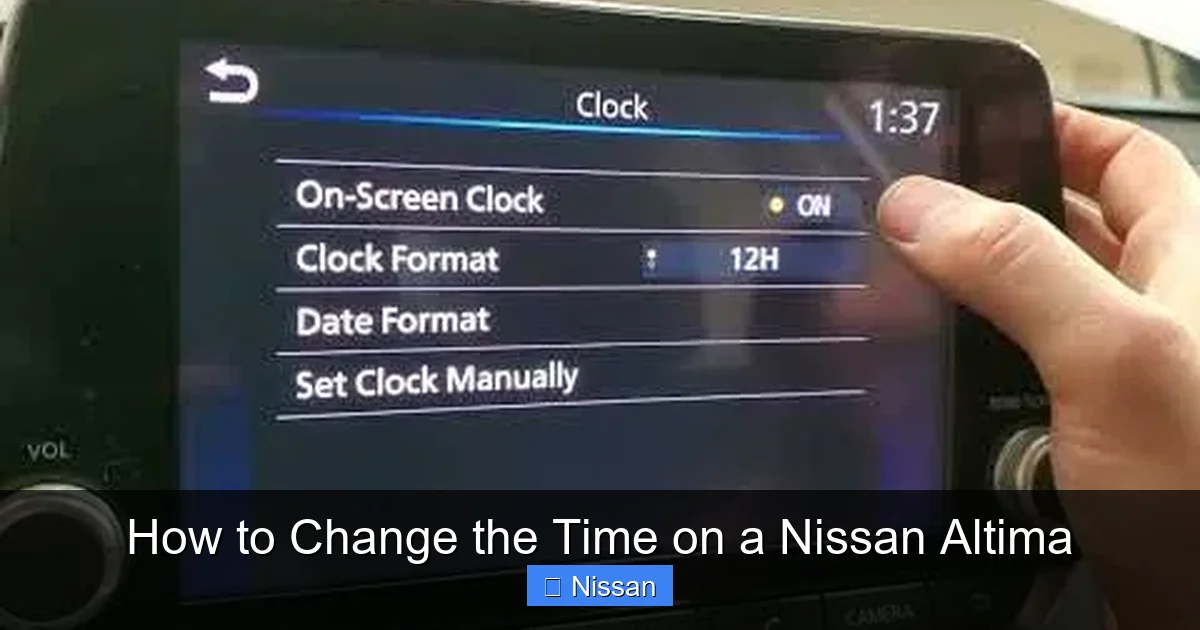
Visual guide about How to Change the Time on a Nissan Altima
Image source: i.pinimg.com
Benefits of Automatic Time Sync
Automatic time synchronization is a game-changer for busy drivers. Here’s why:
- Accuracy: GPS and smartphone sync ensure your clock is always correct, even after daylight saving time changes.
- Convenience: No need to remember to adjust the time twice a year. The car does it for you.
- Integration: If you use navigation or calendar apps, accurate time improves route planning and appointment reminders.
- Peace of mind: You’ll never accidentally show up late because your car’s clock was off.
For example, if you travel across time zones, your 2023 Altima with NissanConnect can automatically update to the local time using GPS data. That means no more mental math or manual adjustments when you’re on the road.
When Manual Setting Makes Sense
Despite the advantages of automation, there are times when manual control is better:
- No GPS signal: In remote areas or underground parking, GPS sync may fail. Manual setting ensures your clock stays accurate.
- Phone not connected: If you don’t use Apple CarPlay or Android Auto, automatic sync from your phone won’t work.
- Personal preference: Some drivers like having full control over their vehicle’s settings and don’t trust automated systems.
- Older models: If your Altima doesn’t support automatic sync, manual is your only option.
Real-World Scenario: Imagine you’re camping in the mountains with no cell service. Your phone can’t sync, and GPS is spotty. By manually setting the time before you leave, you ensure your clock stays accurate throughout your trip.
How to Switch Between Modes
Most newer Altimas allow you to toggle between automatic and manual time settings. Here’s how:
- Go to “Settings” > “Clock” or “Time & Date.”
- Look for a toggle labeled “Automatic Time” or “Sync with GPS.”
- Turn it on for automatic updates or off for manual control.
- If manual, follow the steps above to enter the correct time.
Switching modes takes just seconds, so you can adapt based on your needs. For daily driving in the city, automatic is ideal. For road trips or off-grid adventures, manual gives you reliability.
Common Mistakes and How to Avoid Them
Even with clear instructions, it’s easy to make mistakes when changing the time on your Nissan Altima. Here are some common pitfalls and how to avoid them:
Forgetting to Turn On the Ignition
One of the most frequent errors is trying to adjust the clock with the car completely off. The display won’t respond unless the ignition is in “Accessory” or “On” mode. Always make sure your key is in the ignition or your push-button start is activated (without starting the engine).
Pressing the Wrong Button
On older models, the “Clock” button might be small or hidden among other controls. Take a moment to locate it before pressing random buttons. If you’re unsure, refer to your owner’s manual or look for a clock icon.
Not Confirming the Time
After setting the hour and minute, many people forget to press “Set” or “OK” to save the changes. The display may stop blinking, but the time won’t update until you confirm. Always double-check that the new time appears correctly.
Ignoring the Time Format
If you prefer 24-hour time (common in Europe or for military-style scheduling), make sure to select that format. Otherwise, you might end up setting 15:00 instead of 3:00 PM by accident.
Assuming All Models Work the Same
Don’t assume your friend’s 2020 Altima has the same menu layout as your 2015 model. Nissan frequently updates its infotainment systems, so always tailor your approach to your specific vehicle.
Overlooking Automatic Sync
If your car has automatic time sync enabled, manually changing the time might not work—or it could revert after a few minutes. Always disable automatic sync before making manual adjustments.
Maintaining Your Altima’s Clock Over Time
Once you’ve set the time correctly, a little maintenance goes a long way in keeping it accurate. Here are some tips to ensure your clock stays reliable:
Update After Battery Work
Whenever you replace the battery, jump-start the car, or disconnect the terminals, the clock may reset to 12:00. Make it a habit to check and adjust the time after any electrical work.
Check During Daylight Saving Time
Even with automatic sync, it’s wise to verify the time when clocks “spring forward” or “fall back.” Sometimes, the system doesn’t update immediately, especially if the car hasn’t been driven in a while.
Keep Your Software Updated
Nissan occasionally releases software updates for the infotainment system. These updates can improve clock accuracy, fix bugs, and add new features. Visit your local dealership or check Nissan’s website for updates.
Use Your Phone as a Backup
If you’re ever unsure about your car’s time, glance at your smartphone. Most phones automatically sync with network time, so they’re a reliable reference point.
Teach Family Members
If others drive your Altima, show them how to change the time. This prevents confusion and ensures everyone stays on schedule.
Conclusion: Stay on Time, Every Time
Changing the time on your Nissan Altima might seem like a small task, but it’s one of those little things that makes a big difference in your daily routine. Whether you’re driving a classic 2007 model or a sleek 2024 Altima with all the bells and whistles, knowing how to adjust your clock ensures you’re always on time—literally.
From physical buttons to touchscreen menus, the process is designed to be user-friendly. With the steps outlined in this guide, you can confidently update your clock in minutes, no matter your model year. And by understanding the differences between automatic and manual settings, you can choose the method that best fits your lifestyle.
So the next time you hop in your Altima and notice the clock is off, don’t stress. Grab your owner’s manual, follow these instructions, and get back on track. After all, life’s too short to be late because of a misplaced minute.
Frequently Asked Questions
How do I change the time on a 2010 Nissan Altima?
On a 2010 Altima, press and hold the “Clock” or “Set” button on the audio head unit until the time blinks. Use the “+” and “–” buttons to adjust the hour and minute, then press “Set” again to confirm.
Why won’t my Nissan Altima clock change?
This could be due to a weak battery, a software glitch, or automatic time sync being enabled. Try restarting the car, checking the battery, or disabling automatic sync in the settings menu.
Can I set my Altima’s clock automatically?
Yes, if your model has NissanConnect (2019 and newer), you can enable automatic time sync via GPS or your connected smartphone in the “Clock” or “Time & Date” settings.
How do I switch between 12-hour and 24-hour time on my Altima?
Go to the “Clock” or “Time Settings” menu in your infotainment system. Look for a “Time Format” option and select either “12-hour” or “24-hour” based on your preference.
Does disconnecting the battery reset the clock?
Yes, disconnecting or replacing the battery often resets the clock to 12:00. You’ll need to manually set the time again after reconnecting the battery.
Where is the clock button on a 2008 Nissan Altima?
The clock button is usually located on the audio head unit, often labeled “CLK” or “SET.” It may be near the radio controls or below the display screen.