
How Do I Reset My Dodge Journey Screen?

Contents
- 1 Key Takeaways
- 2 📑 Table of Contents
- 3 Why Would You Need to Reset Your Dodge Journey Screen?
- 4 Understanding Your Dodge Journey’s Uconnect System
- 5 How to Perform a Soft Reset on Your Dodge Journey
- 6 Performing a Hard Reset (Full Power Cycle)
- 7 Factory Reset: When and How to Use It
- 8 Updating Your Uconnect Software
- 9 When to Seek Professional Help
- 10 Tips to Prevent Future Screen Issues
- 11 Conclusion
- 12 Frequently Asked Questions



Resetting your Dodge Journey screen can solve glitches, frozen displays, or unresponsive controls. This guide walks you through soft resets, hard resets, and factory restores for the Uconnect system—no tools or dealership visit required.
Key Takeaways
- Soft resets fix minor glitches: Restarting the system often clears temporary software hiccups without losing settings.
- Hard resets restore functionality: A full power cycle can resolve frozen screens or unresponsive touch inputs.
- Factory resets erase all personal data: Use this only when necessary, as it removes saved radio stations, Bluetooth pairings, and navigation favorites.
- Check for software updates: Many screen issues are resolved with the latest Uconnect firmware from Dodge.
- Physical buttons matter: Knowing which buttons to press (like Volume + Tune) is key to triggering a reset.
- Climate control may be affected: Some resets temporarily disable HVAC controls—wait a few minutes for full system reboot.
- Professional help is available: If DIY steps fail, visit a Dodge dealer or certified technician for diagnostics.
📑 Table of Contents
- Why Would You Need to Reset Your Dodge Journey Screen?
- Understanding Your Dodge Journey’s Uconnect System
- How to Perform a Soft Reset on Your Dodge Journey
- Performing a Hard Reset (Full Power Cycle)
- Factory Reset: When and How to Use It
- Updating Your Uconnect Software
- When to Seek Professional Help
- Tips to Prevent Future Screen Issues
- Conclusion
Why Would You Need to Reset Your Dodge Journey Screen?
If you own a Dodge Journey, you’re likely familiar with the Uconnect infotainment system—the central hub for music, navigation, phone connectivity, and vehicle settings. While it’s designed to be user-friendly and reliable, like any technology, it can occasionally act up. Maybe the screen freezes mid-song, the touch response lags, or the system won’t recognize your Bluetooth device. These aren’t signs of a major breakdown—they’re common software glitches that a simple reset can often fix.
Resetting your Dodge Journey screen isn’t about giving up on the system; it’s about giving it a fresh start. Think of it like restarting your phone when an app crashes. The Uconnect system runs on embedded software, and over time, temporary files, memory overloads, or conflicting commands can cause it to behave unpredictably. A reset clears the cache, reboots the operating system, and restores normal function—often in under a minute.
But not all resets are the same. Depending on the issue, you might need a quick soft reset, a more thorough hard reset, or in rare cases, a full factory restore. Knowing which one to use saves time and prevents accidental data loss. This guide will walk you through each method step by step, so you can get back to enjoying your Journey’s tech features without frustration.
Understanding Your Dodge Journey’s Uconnect System
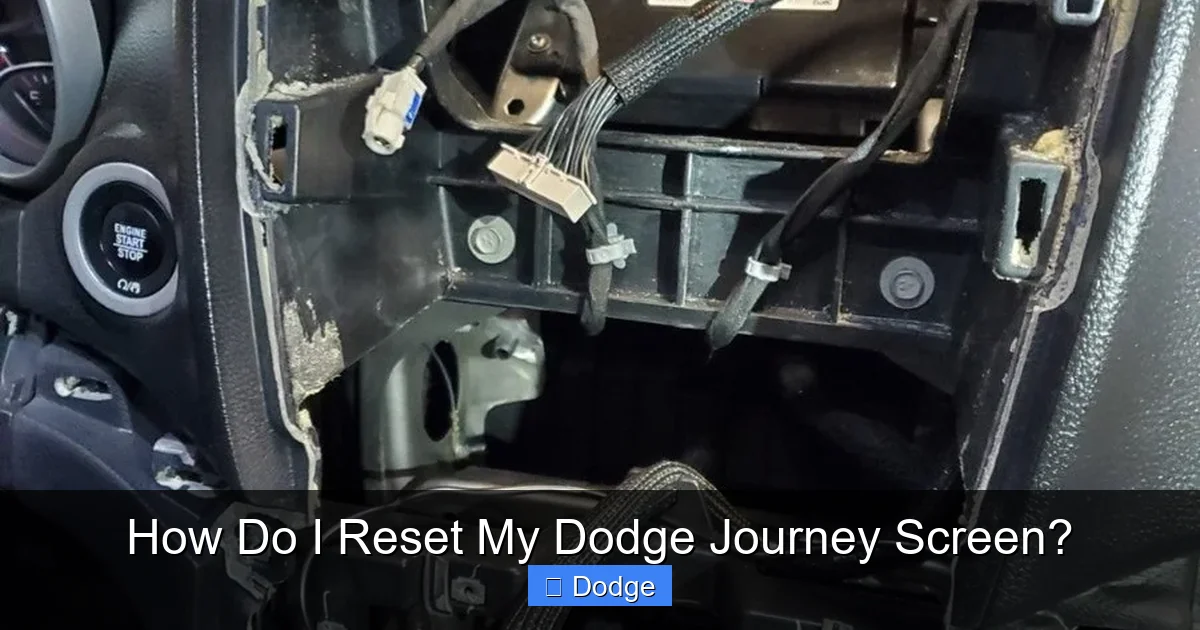
Visual guide about How Do I Reset My Dodge Journey Screen?
Image source: dodgejourneyforum.com
Before diving into reset procedures, it helps to understand what you’re working with. The Dodge Journey, produced from 2009 to 2020, came equipped with various versions of the Uconnect infotainment system. Depending on your model year and trim level, you might have a 4.3-inch, 5-inch, 8.4-inch, or even a 10.1-inch touchscreen. While the interface has evolved over the years, the core functionality—audio, climate, phone, navigation, and vehicle settings—remains consistent.
The Uconnect system is essentially a computer built into your dashboard. It runs on proprietary software developed by FCA (Fiat Chrysler Automobiles), now part of Stellantis. Like any computer, it can experience bugs, slowdowns, or crashes. Common symptoms that indicate a need for a reset include:
– The screen is completely black or unresponsive
– Touch inputs don’t register or respond incorrectly
– Audio cuts out or plays static
– Bluetooth fails to connect or drops frequently
– Navigation freezes or shows incorrect location
– The system reboots on its own repeatedly
These issues are usually software-related, not hardware failures. That means you don’t need to replace the screen or wiring—just reboot the system.
Model Year Variations to Consider
Not all Dodge Journey models have the same Uconnect setup. For example:
– **2009–2014 models** typically feature earlier Uconnect versions (Uconnect 4.3 or 5.0) with smaller screens and fewer features.
– **2015–2020 models** often include Uconnect 5.0 or 8.4 systems with larger touchscreens, Apple CarPlay, Android Auto, and improved processing power.
The reset process is similar across most versions, but button locations and menu options may vary slightly. Always check your owner’s manual or look for on-screen prompts if you’re unsure.
What a Reset Does—and Doesn’t Do
A reset refreshes the system’s memory and reloads the operating software. It’s like turning your TV off and on again—simple but effective. However, it won’t fix physical damage, such as a cracked screen, faulty wiring, or a blown fuse. If your screen is physically damaged or the system won’t power on at all, a reset won’t help—you’ll need professional repair.
Also, keep in mind that a reset won’t update your software. If your issue is due to outdated firmware, you’ll need to download and install the latest Uconnect update from the official Dodge website. We’ll cover that later in this guide.
How to Perform a Soft Reset on Your Dodge Journey
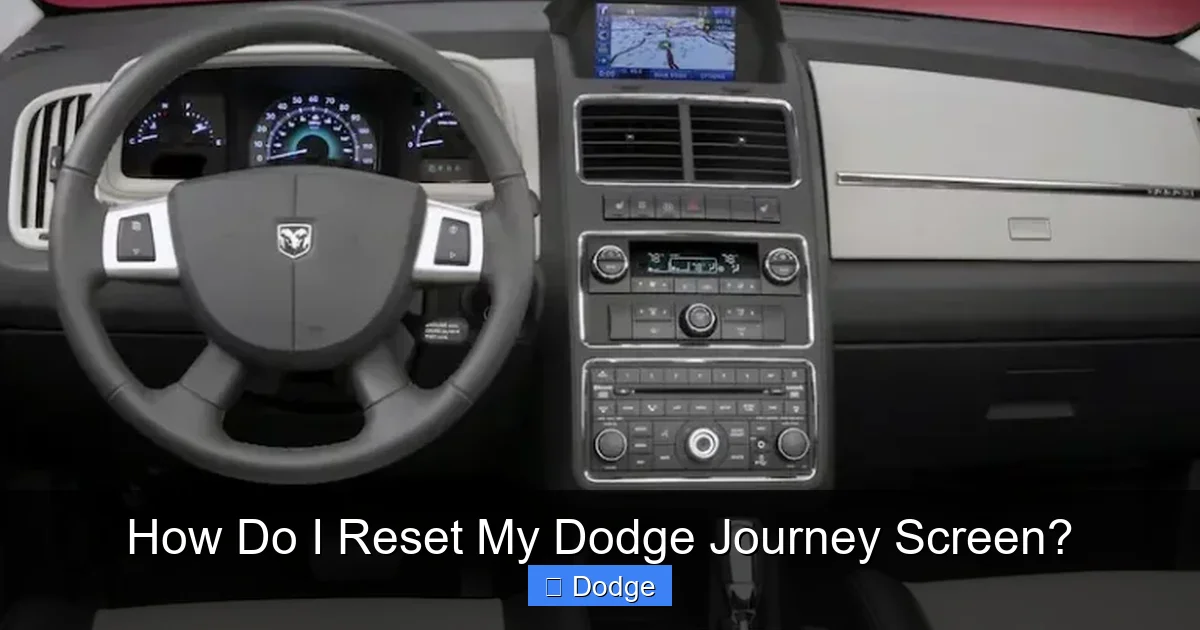
Visual guide about How Do I Reset My Dodge Journey Screen?
Image source: cdn.cartipsdaily.com
A soft reset is the gentlest way to refresh your Uconnect system. It’s ideal for minor glitches like a frozen app, slow response, or audio dropout. This method restarts the system without erasing any saved data—your radio presets, Bluetooth pairings, and navigation favorites will remain intact.
Step-by-Step Soft Reset Instructions
1. **Turn on your vehicle** – Make sure the ignition is in the “ON” or “ACC” position. You don’t need to start the engine, but the system must be powered.
2. **Locate the Volume and Tune buttons** – These are usually on the left side of the touchscreen or on the steering wheel. On most Journey models, the Volume knob also acts as a power button.
3. **Press and hold both buttons** – Hold down the Volume knob and the Tune (or Seek) button simultaneously.
4. **Wait for the screen to go black** – After about 10–15 seconds, the screen will turn off. Keep holding the buttons.
5. **Release when the Uconnect logo appears** – Once you see the Dodge or Uconnect logo on the screen, let go of the buttons.
6. **Wait for the system to reboot** – The system will restart automatically. This usually takes 30–60 seconds.
After the reboot, test the system. Try playing music, connecting your phone, or using the navigation. If the issue is resolved, you’re all set!
Tips for a Successful Soft Reset
– **Be patient** – Don’t release the buttons too early. If you let go before the screen turns off, the reset won’t complete.
– **Try it twice** – If the first attempt doesn’t work, wait a minute and try again. Sometimes a second reset is needed.
– **Check for updates afterward** – A soft reset won’t update your software, but it’s a good time to check if a firmware update is available.
When a Soft Reset Isn’t Enough
If your screen remains unresponsive or the problem returns quickly, a soft reset may not be sufficient. This could indicate a deeper software issue or a hardware problem. In that case, move on to a hard reset or consider a factory restore.
Performing a Hard Reset (Full Power Cycle)
A hard reset goes a step further than a soft reset. It completely cuts power to the Uconnect system, forcing a full reboot. This method is useful when the screen is completely frozen, the system won’t respond to touch, or the soft reset didn’t work.
How to Do a Hard Reset
1. **Turn off the vehicle** – Put the ignition in the “OFF” position and remove the key (or press the Start/Stop button to turn off the engine).
2. **Open the driver’s side door** – This ensures the vehicle is fully powered down and not in accessory mode.
3. **Wait 2–3 minutes** – This allows the vehicle’s electrical system to fully discharge. The Uconnect system relies on capacitors that store power, so you need to wait long enough for them to drain.
4. **Close the door and restart the vehicle** – Turn the ignition back to “ON” or start the engine.
5. **Wait for the system to boot up** – The Uconnect screen will turn on and begin its startup sequence. This may take a minute or two.
After the reboot, test all functions. The hard reset often resolves stubborn issues that a soft reset can’t fix.
Why the Wait Time Matters
You might be tempted to restart the car immediately, but that won’t fully reset the system. The Uconnect module has backup power sources that keep it partially active even when the car is off. Waiting 2–3 minutes ensures all power is drained, giving the system a true “cold start.”
What to Expect After a Hard Reset
– The system may take longer to boot up than usual.
– Bluetooth devices may need to be reconnected.
– Climate settings might reset to default (e.g., fan speed, temperature).
– Navigation may need to reload maps or recalibrate GPS.
These are normal behaviors and should resolve within a few minutes of driving.
Factory Reset: When and How to Use It
A factory reset is the most drastic option. It wipes all personal data from the Uconnect system and restores it to its original factory settings. This includes:
– Saved radio stations
– Bluetooth pairings
– Navigation favorites and recent destinations
– Custom audio settings (equalizer, balance, fade)
– Phone contacts synced to the system
– User profiles and login information
Only perform a factory reset if:
– The system is severely malfunctioning
– You’re selling or trading in your vehicle
– A soft or hard reset didn’t work
– You’re troubleshooting a persistent software issue
How to Perform a Factory Reset
The process varies slightly by model year, but here’s the general method for most Dodge Journey models:
1. **Turn on the ignition** – Do not start the engine.
2. **Press and hold the Volume and Tune buttons** – Hold them for about 10 seconds until the screen changes.
3. **Navigate to “Settings”** – Use the touchscreen or physical buttons to go to the main menu.
4. **Select “System” or “System Settings”**
5. **Choose “Reset” or “Factory Reset”**
6. **Confirm the reset** – You’ll be asked to confirm. Select “Yes” or “Reset.”
7. **Wait for the process to complete** – The system will restart and return to factory defaults. This can take 5–10 minutes.
After the reset, you’ll need to reconfigure your settings, reconnect your phone, and re-sync your contacts.
Important Warnings
– **Back up your data** – If possible, note down your radio presets and favorite destinations before resetting.
– **Don’t interrupt the process** – Turning off the car or removing the key during a factory reset can corrupt the system.
– **Updates may be required** – After a factory reset, check for software updates to ensure optimal performance.
Updating Your Uconnect Software
Sometimes, the best way to fix screen issues is to update the Uconnect software. Dodge regularly releases firmware updates that improve performance, fix bugs, and add new features. An outdated system can cause glitches, slow response, or compatibility issues with newer phones.
How to Check for Updates
1. **Visit the official Uconnect website** – Go to [www.driveuconnect.com](https://www.driveuconnect.com).
2. **Enter your vehicle info** – You’ll need your VIN (Vehicle Identification Number) and model year.
3. **Check for available updates** – The site will tell you if a new software version is available for your Journey.
4. **Download the update** – If an update is available, download it to a USB drive (8GB or larger, formatted to FAT32).
5. **Install in your vehicle** – Insert the USB into the port (usually in the center console), then follow the on-screen prompts.
The update process can take 20–40 minutes. Do not turn off the vehicle or remove the USB during installation.
Benefits of Updating
– Fixes known software bugs
– Improves touchscreen responsiveness
– Enhances Bluetooth and phone connectivity
– Adds support for newer smartphones
– Improves navigation accuracy and speed
What If No Update Is Available?
If your system is already up to date, but you’re still experiencing issues, the problem may be hardware-related. In that case, it’s time to consult a professional.
When to Seek Professional Help
While most screen issues can be resolved with a reset or update, some problems require expert attention. Visit a Dodge dealership or certified technician if:
– The screen remains black after multiple resets
– The system crashes repeatedly
– Physical damage is visible (cracks, discoloration, flickering)
– The touchscreen responds inaccurately or not at all
– You hear unusual sounds from the dashboard
Technicians have diagnostic tools that can pinpoint hardware failures, such as a faulty display module, damaged wiring, or a failing control unit. They can also perform deeper software repairs that aren’t accessible to users.
Cost Considerations
– **DIY resets** – Free
– **Software updates** – Usually free from Dodge
– **Professional diagnostics** – $100–$150
– **Screen or module replacement** – $500–$1,500, depending on the part
Always get a quote before proceeding with repairs.
Tips to Prevent Future Screen Issues
Prevention is better than cure. Here are some habits to keep your Uconnect system running smoothly:
– **Avoid extreme temperatures** – Don’t leave your Journey in direct sunlight for long periods, as heat can damage electronics.
– **Keep the screen clean** – Use a microfiber cloth and screen-safe cleaner. Avoid harsh chemicals.
– **Don’t overload the system** – Close unused apps and avoid running too many functions at once.
– **Update regularly** – Check for software updates every 6–12 months.
– **Use quality USB drives** – Cheap or corrupted USBs can cause installation errors.
Conclusion
Resetting your Dodge Journey screen is a simple yet powerful way to restore functionality and improve your driving experience. Whether you’re dealing with a frozen display, unresponsive touchscreen, or Bluetooth issues, a soft reset, hard reset, or factory restore can often solve the problem—no tools or technical expertise required.
Start with a soft reset for minor glitches, move to a hard reset for more stubborn issues, and only use a factory reset as a last resort. Always check for software updates, and don’t hesitate to seek professional help if DIY steps don’t work.
With these tips, you’ll keep your Uconnect system running smoothly for years to come. Your Dodge Journey is more than just a vehicle—it’s a connected, comfortable, and convenient ride. Keep it that way with regular care and the occasional reset.
Frequently Asked Questions
How do I reset my Dodge Journey screen if the touchscreen isn’t working?
If the touchscreen is unresponsive, use the physical Volume and Tune buttons to perform a soft or hard reset. Hold both buttons for 10–15 seconds until the screen turns off, then release when the Uconnect logo appears.
Will resetting my Dodge Journey screen delete my saved radio stations?
A soft or hard reset will not delete your radio presets. However, a factory reset will erase all saved data, including radio stations, so only use it when necessary.
Can I reset the Uconnect system while driving?
No, it’s not safe to perform a reset while driving. Always pull over to a safe location and turn off the engine before attempting any reset procedure.
How long does it take for the Uconnect system to reboot after a reset?
A soft reset typically takes 30–60 seconds. A hard reset may take 1–2 minutes, and a factory reset can take 5–10 minutes depending on the system.
Why does my Dodge Journey screen keep freezing?
Frequent freezing could be due to outdated software, memory overload, or a hardware issue. Try a hard reset and check for software updates. If problems persist, consult a technician.
Do I need a USB drive to reset my Dodge Journey screen?
No, a USB drive is only needed for software updates. Resets are performed using the vehicle’s built-in controls and don’t require external devices.


