How Do I Delete a Bluetooth Device from My Toyota Yaris?

Contents
- 1 Key Takeaways
- 2 📑 Table of Contents
- 3 Understanding Your Toyota Yaris Infotainment System
- 4 Preparing to Delete a Bluetooth Device
- 5 Step-by-Step: Deleting a Device on Non-Touchscreen Systems (Type 1)
- 6 Step-by-Step: Deleting a Device on Touchscreen Systems (Type 2)
- 7 What to Do If a Device Won’t Delete
- 8 Best Practices for Managing Your Yaris Bluetooth
- 9 Conclusion: Keep Your Connection Clean
- 10 Frequently Asked Questions

Power Steering Fluid

Anti Rust Spray

Dashboard Polish

Rear View Camera
Deleting an old Bluetooth device from your Toyota Yaris is a simple process that clears up connection slots and improves your hands-free calling and audio streaming. The steps vary slightly depending on your Yaris’s infotainment system generation, but the core method involves accessing the Bluetooth settings menu and selecting the device to remove. Always confirm the deletion and, if needed, perform a system reset for persistent issues. This routine maintenance keeps your car’s tech organized and responsive.
Have you ever struggled to pair your smartphone with your Toyota Yaris because the Bluetooth system is full of old, unused devices? Maybe you sold the car to someone else and need to wipe your personal data, or perhaps an old phone just won’t stop trying to connect. Whatever the reason, knowing how to delete a Bluetooth device from your Toyota Yaris is an essential piece of car tech ownership. It’s a quick, five-minute task that saves you from endless pairing headaches. Think of it like cleaning out a cluttered closet—you need to remove the old stuff to make room for the new, and to find what you actually need quickly. In this guide, we’ll walk through every single step, for every Yaris model year, in plain, simple language. No technical jargon, just clear instructions.
First, let’s set the stage. Your Toyota Yaris, whether it’s a 2012 sedan or a 2020 hatchback, uses an infotainment system to manage Bluetooth connections. This system has a limited memory—it can only store a certain number of paired phones (usually around 5-7). Over the years, as you get new phones or lend your car to friends, that list gets full. When it’s full, the system might refuse to pair a new device or randomly connect to an old one. Deleting unused devices is the fix. The good news? The process is designed to be user-friendly. You don’t need to be a tech wizard; you just need to know where to click or turn the knob. We’ll break it down by system type, because that’s the only real difference. Let’s get started.
Key Takeaways
- Purpose: Deleting old devices frees up Bluetooth slots, resolves pairing conflicts, and enhances security by removing devices you no longer use.
- Preparation: Ensure the phone you want to delete is powered on and within range, but not actively connected to the Yaris’s system.
- Menu Navigation: The process is done entirely through the car’s infotainment screen using the “Phone” or “Settings” menu, with variations between older button-based and newer touchscreen systems.
- Confirmation is Key: The system will always ask for confirmation before permanently deleting a paired device; never skip this step to avoid accidental removal.
- Troubleshooting: If a device won’t delete, a full infotainment system reset is often the solution, but this will erase all paired phones and radio presets.
- Model Differences: Models from 2012-2017 typically use a non-touchscreen audio unit, while 2018+ models (especially Yaris Hatchback) feature a touchscreen with a slightly different menu layout.
[FEATURED_IMAGE_PLACEHOLDER]
📑 Table of Contents
- Understanding Your Toyota Yaris Infotainment System
- Preparing to Delete a Bluetooth Device
- Step-by-Step: Deleting a Device on Non-Touchscreen Systems (Type 1)
- Step-by-Step: Deleting a Device on Touchscreen Systems (Type 2)
- What to Do If a Device Won’t Delete
- Best Practices for Managing Your Yaris Bluetooth
- Conclusion: Keep Your Connection Clean
Understanding Your Toyota Yaris Infotainment System
Before we dive into button-pressing, it helps to understand what you’re looking at. The “brain” of your car’s audio and connectivity is the infotainment head unit. In the Yaris, there have been two primary types over the last decade. Knowing which one you have is the first step to following the correct instructions.
The Two Main System Types
Type 1: Non-Touchscreen Audio Unit (Pre-2018, mostly Sedan models). If your Yaris has a small color display (about 5-6 inches) but it’s controlled by physical buttons and a rotary knob on the center console, you have this system. It’s common in 2012-2017 Yaris sedans. The menu structure is hierarchical: you use the buttons to navigate through lists like “Setup,” “Bluetooth,” and “Device List.” It’s a bit like using an old iPod click wheel—logical but requires a few more steps.
Type 2: Touchscreen Audio Unit (2018+, especially Hatchback). Starting around the 2018 model year, particularly in the Yaris Hatchback (which replaced the Yaris Sedan in some markets), Toyota introduced a more modern touchscreen system. This system looks and operates more like a tablet. You tap icons directly on the screen. The Bluetooth menu is often found under a “Phone” or “Settings” app on the home screen. It’s generally faster and more intuitive.
Why does this matter? The path to the delete option is different. On the button-based system, you might need to press “Setup,” then “Bluetooth,” then “Device List.” On the touchscreen, you might tap “Phone,” then the gear icon for settings, then “Manage Devices.” Don’t worry—we’ll cover both in detail. If you’re unsure, just look: can you touch the screen to select options? If yes, you have Type 2. If you must use physical buttons, you have Type 1.
It’s also worth noting that the core Bluetooth software is largely the same across these systems. The user interface is the only real change. So, the mental model is identical: you need to get to a list of paired devices and select one to delete. The navigation is just the route you take to get there. For those who have experience with other brands, you might find the process similar to deleting a phone from a Honda Civic’s system, though the menu names will differ.
Preparing to Delete a Bluetooth Device
Okay, you’re at your Yaris, ready to clean up that Bluetooth list. Before you start tapping or turning knobs, there’s one crucial preparation step. It involves your smartphone, and it will make the process smoother.

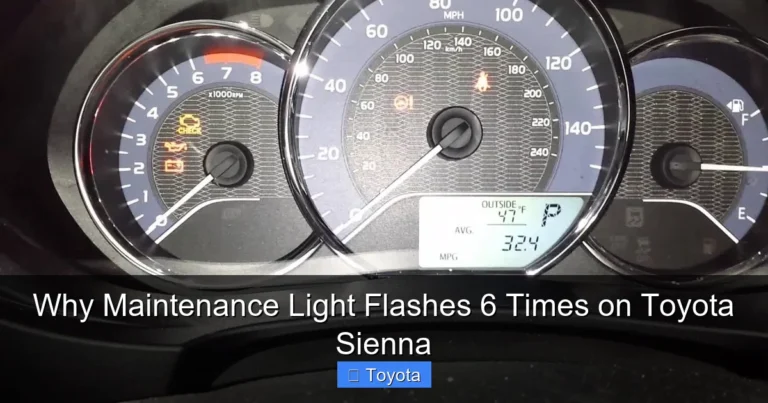
Visual guide about How Do I Delete a Bluetooth Device from My Toyota Yaris?
Image source: wonder007.com.tw
Why Your Phone Needs to Be On (But Not Connected)
This might seem counterintuitive. You want to delete the phone from the car, so why does the phone need to be on? The reason is that the Bluetooth system identifies devices by their unique MAC address and name (like “John’s iPhone” or “Samsung Galaxy S21”). For the car’s system to display the correct, recognizable name in the device list, that phone must be powered on and have its Bluetooth discoverable (usually just turning Bluetooth on does this). If the phone is off, the car might show a generic, cryptic name like “BT Device 03” or not show it at all, making it hard to know which one to delete.
However, you do not want the phone to be actively connected to the car’s system during deletion. An active connection can sometimes lock the device entry, preventing deletion or causing errors. So, here’s your prep checklist:
- Step 1: Get into your Yaris with the phone you intend to delete. It can be your current phone or an old one you still have.
- Step 2: Start your Yaris so the infotainment system powers on.
- Step 3: On your phone, go to Settings > Bluetooth and make sure Bluetooth is turned ON. Do not manually connect to the Yaris if it appears in your phone’s list. If it connects automatically, go to the Yaris’s Bluetooth menu and select “Disconnect” or “Cancel” if prompted.
- Step 4: Now, you’re ready to proceed to the car’s system.
This simple prep ensures you’ll see the correct, human-readable name for the device in your Yaris’s list, so you delete the right one. There’s nothing worse than accidentally deleting your partner’s phone because it was listed as “iPhone” and you couldn’t tell which one was yours.
Step-by-Step: Deleting a Device on Non-Touchscreen Systems (Type 1)
For Yaris models with the button-and-knob control (primarily 2012-2017 sedans), follow these steps precisely. The buttons we’ll refer to are typically found on the center console, around the display screen.
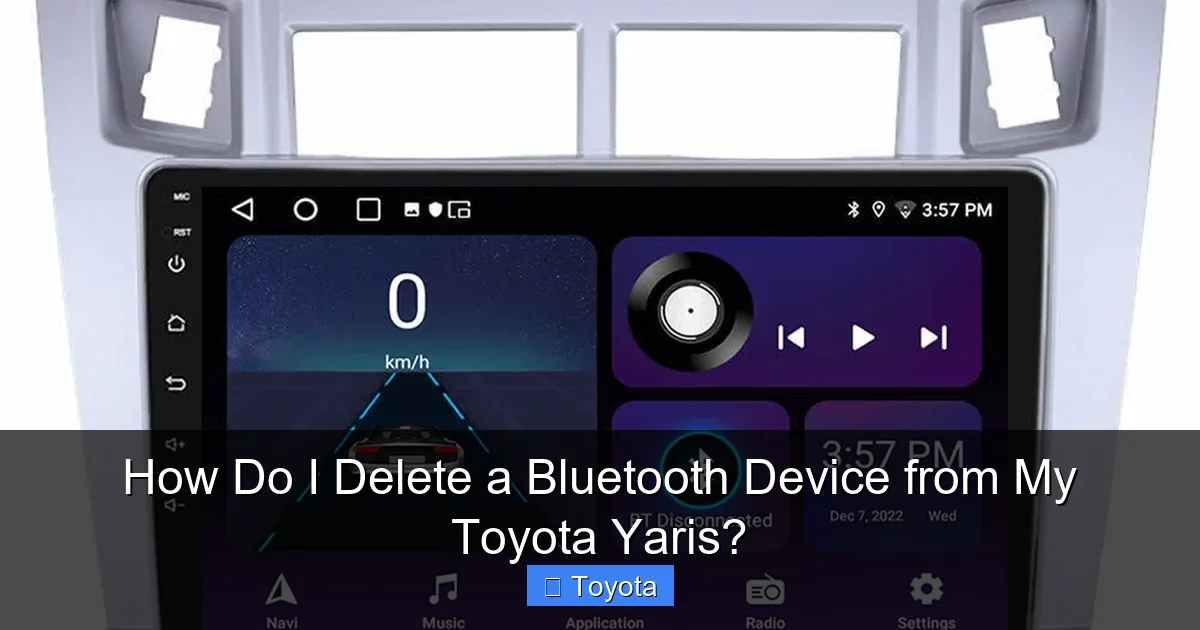
Visual guide about How Do I Delete a Bluetooth Device from My Toyota Yaris?
Image source: img.cdn-worldsapps.com
The Button Sequence: Setup, Bluetooth, Device List
Step 1: Access the Setup Menu. Press the “Setup” button on your console. This is usually a dedicated button with a wrench icon or the word “Setup.” The display should change to show a menu with options like “Phone,” “Audio,” “Clock,” etc.
Step 2: Navigate to Bluetooth Settings. Using the rotary knob (or arrow buttons), highlight the “Phone” or “Bluetooth” option and press the knob/button to select it. In some models, you might need to first select “Setup,” then “Bluetooth” on a sub-menu. If you see “Bluetooth” as a top-level option in Setup, use that.
Step 3: Enter the Device List. Once in the Bluetooth settings menu, you should see options like “Pair Device,” “Device List,” “Connection,” etc. Use the knob to highlight “Device List” or “Paired Devices” and press to enter. This screen will show you a numbered list (e.g., Device 1, Device 2) of all phones currently paired with your Yaris. The names should be visible next to each entry.
Step 4: Select the Device to Delete. Scroll through the list using the knob until the undesired device’s name is highlighted. Press the knob to select that device. A new sub-menu should appear with options like “Connect,” “Disconnect,” and “Delete” or “Remove.”
Step 5: Confirm Deletion. Highlight the “Delete” option and press the knob. The system will almost always give you a warning message: “Delete this device?” or “Are you sure?” This is your safety net. Use the knob to select “Yes” or “OK” and press. The device name should disappear from the list.
Step 6: Exit. Press the “Back” button (usually an arrow icon) repeatedly until you return to the main audio screen. Your work is done. That device is now gone from the Yaris’s memory.
Pro Tip: If the “Delete” option is grayed out or unavailable, it might be because the phone is currently connected. Go back to the main Bluetooth menu and look for a “Disconnect” option for that device, perform the disconnect, then return to the Device List to try deletion again.
Step-by-Step: Deleting a Device on Touchscreen Systems (Type 2)
For newer Yaris models with a touchscreen (2018+ Hatchback), the process is more visual but follows the same logical path. The buttons are virtual on-screen icons.

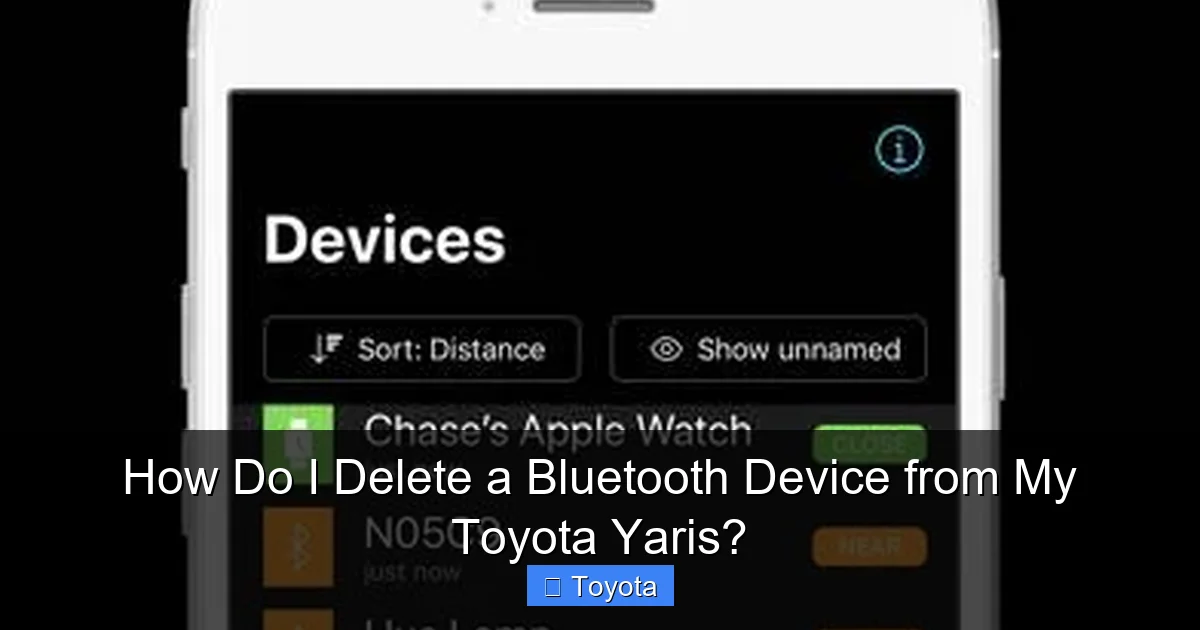
Visual guide about How Do I Delete a Bluetooth Device from My Toyota Yaris?
Image source: diycarexpert.com
Tapping Through the Touch Interface
Step 1: Find the “Phone” App. From the home screen of your infotainment system, look for an app icon labeled “Phone” or a phone handset icon. Tap it. This opens the main phone menu.
Step 2: Access Settings. Inside the Phone app, you’ll typically see tabs or a menu button (often three horizontal lines “☰” or a gear icon “Settings”). Tap the Settings icon/gear. This opens the Bluetooth management area.
Step 3: View Paired Devices. In the settings menu, look for an option like “Paired Devices,” “Device List,” or “Manage Phones.” Tap it. You will see a list of all your paired phones, usually with their names and sometimes an icon indicating connection status.
Step 4: Select and Delete. Tap on the name of the phone you want to remove. This should open a detail screen for that device. On this screen, you should find a button or option clearly labeled “Delete,” “Remove,” or “Forget.” Tap it.
Step 5: Confirm. A pop-up window will appear asking for confirmation: “Delete [Phone Name]?” Tap “Yes,” “OK,” or “Delete” to confirm. The device will vanish from the list instantly.
Step 6: Return Home. You can tap a “Back” arrow or the home button to exit to the main screen. The deletion is complete.
Visual Cue: On some touchscreen systems, you might also be able to swipe left on the device name in the list to reveal a red “Delete” button directly, which is even faster. Give it a try if you don’t see a separate settings menu.
What to Do If a Device Won’t Delete
Sometimes, technology throws a curveball. You follow all the steps, but the stubborn old phone name remains in the list. Don’t panic. This is a common hiccup, and there are logical fixes, starting with the simplest and moving to the more drastic.
First, Check for an Active Connection
The most frequent reason a device won’t delete is that it’s currently linked to the car. Even if your phone’s screen is off, the Yaris might have a low-power connection. Go back to the main Bluetooth menu (the one before the Device List). See if there’s an option to “Disconnect All” or if the problematic device shows as “Connected.” If so, disconnect it first, then try the delete process again. This solves the issue 70% of the time.
Second, Power Cycle the Infotainment System
Like rebooting a computer, restarting your car’s infotainment system can clear temporary glitches. The easiest way is to turn off the car, open and close the driver’s door, and wait 60 seconds. This full power-down resets the system. Start the car again and try to delete the device. If that doesn’t work, locate the fuse for the audio system in your engine bay or under-dash fuse box (check your owner’s manual), pull it for 30 seconds, and reinsert it. This is a hard reset.
Third, The Nuclear Option: Factory Reset
If the device is truly stuck, a factory reset of the infotainment system will wipe its memory completely, including all paired Bluetooth devices, radio presets, and sometimes navigation history. This is a last resort. Here’s how:
- Go to the main Setup menu.
- Find an option called “General,” “System,” or “Reset.”
- Look for “Reset All Settings,” “Factory Reset,” or “Initialize.”
- Confirm the reset. The screen will go black and reboot, taking several minutes.
Warning: After this, you will have to re-pair all your phones and reprogram your favorite radio stations. Write down your radio presets first if you have custom ones! Also, note that the process to reset other Toyota systems can vary; for instance, resetting the maintenance light on a Toyota Yaris uses the odometer button, not the infotainment screen. They are completely separate systems.
Once reset, go back and pair only the devices you currently use. Your Bluetooth list will be clean, and the phantom device will be gone.
Best Practices for Managing Your Yaris Bluetooth
Deleting a device is reactive. Let’s talk about proactive habits to keep your Bluetooth experience flawless for years to come.
1. Audit Your Device List Quarterly
Every few months, take three minutes to look at your paired device list. If you see a phone from a friend who borrowed your car six months ago, or an old work phone, delete it immediately. This prevents the list from filling up unnoticed. Think of it like clearing cookies from your browser.
2. Name Your Devices Clearly
When you pair a new phone, the system uses the “Device Name” set in your phone’s Bluetooth settings (e.g., “John’s iPhone 14”). Before pairing, go to your phone’s Settings > Bluetooth and change the name to something unique and clear, like “John Personal iPhone” or “Sarah Work Android.” This makes identifying and managing devices in the car’s list much easier later.
3. The “One Phone, One Priority” Rule
If you and your partner both regularly use the Yaris, decide which phone will be the “primary” for auto-connection. In your phone’s Bluetooth settings for the Yaris connection, you can often set a “Priority” or disable “Auto-connect” on the secondary phone. This stops the car from randomly connecting to the wrong phone when you both get in.
4. Unpair Before You Sell or Trade
This is critical for privacy. Before you sell, trade-in, or even lend your Yaris for a long period, delete all paired Bluetooth devices. This erases your phone’s connection history from the car. While it doesn’t delete contacts or call logs from your phone, it prevents the new owner from accessing your recent call history or seeing your phone’s name. It’s a simple courtesy and a security step.
5. Understand System Limits
Know your system’s capacity. Most Toyota systems, including the Yaris, can store about 5-7 devices. If you frequently pair different phones (for work, personal, testing), you’ll hit this limit faster. Regular deletion is necessary. If you have a newer touchscreen system, the management might be slightly more user-friendly, but the storage cap is similar. The process for adding and removing is consistent across models, much like how you would delete preset radio stations in a Toyota—you’re just managing a different type of memory.
Conclusion: Keep Your Connection Clean
Deleting a Bluetooth device from your Toyota Yaris is a fundamental maintenance task for modern car ownership. It’s not complicated, but it requires knowing your way around the infotainment menu. The key takeaway is this: identify your system type (button vs. touchscreen), ensure your phone is on but not connected, navigate to the Device List, and confirm the deletion. If you hit a snag, a system reset is your friend, but remember it erases everything.
By taking a few minutes to manage your paired devices, you ensure your Yaris’s Bluetooth is ready when you need it—for an important hands-free call or to stream your favorite podcast on the drive home. A clean list means faster pairing, fewer random connections, and a more secure system. You’ve now got the knowledge to keep your in-car tech running smoothly. So go ahead, open up that menu, and clear out the digital clutter. Your future self, fumbling with a full Bluetooth queue, will thank you.
Frequently Asked Questions
Can I delete a Bluetooth device from my Yaris if I no longer have the phone?
Yes, you can. The device will appear in your Yaris’s paired list by its last known name (e.g., “Mike’s iPhone”). Simply select it from the list and delete it. The phone itself does not need to be present for deletion to work.
Will deleting a device from my Yaris also delete it from my phone’s Bluetooth history?
No. Deleting the connection from your car’s system only removes it from the Yaris. Your phone will still show the Yaris in its list of paired devices. To remove it from your phone, you must go to your phone’s Bluetooth settings and “Forget” or “Unpair” the Yaris from there.
What happens if I accidentally delete the wrong device?
Don’t worry, it’s easy to fix. Simply re-pair the phone you want to keep. To do this, make sure the phone’s Bluetooth is on, go to the Yaris’s Bluetooth menu, select “Add Device” or “Pair,” and follow the on-screen prompts to complete the pairing again. The deleted device is gone from the car’s memory until you pair it anew.
My Yaris’s touchscreen is frozen and I can’t access the Bluetooth menu to delete a device. What now?
A frozen screen requires a system reset. Perform a hard reset by turning off the car, opening and closing the driver’s door, and waiting 60 seconds to let the system fully power down. If that fails, locate and briefly remove the audio system fuse from the fuse box (see your owner’s manual), wait 30 seconds, and reinstall it. This will reboot the system.
Is there a limit to how many Bluetooth devices I can pair with my Yaris?
Yes. Most Toyota infotainment systems, including those in the Yaris, can store between 5 and 7 paired devices. Once this limit is reached, you must delete an old device before you can pair a new one. This limit is why regular device management is important.
Do I need to delete my phone before selling my Toyota Yaris?
Absolutely. It’s a crucial step for protecting your privacy. Before handing over the keys, go through the Bluetooth menu and delete every paired device. This prevents the new owner from seeing your phone’s name or potentially accessing call history through the car’s system. Treat it like clearing your personal data from any device.