
How Do I Connect My Phone to My Toyota Corolla Navigation?

Connecting your smartphone to your Toyota Corolla’s navigation system is primarily done through a USB cable for Apple CarPlay or Android Auto, which projects your phone’s apps onto the car’s screen. For basic phone calls and music, Bluetooth pairing is used. The exact steps depend on your Corolla’s infotainment system generation, but the process is straightforward once you identify your system.
So, you’re staring at the screen in your Toyota Corolla, and you just know there has to be a better way to get directions than fumbling with your phone in a cup holder. You’ve heard about connecting your phone to the car, but the steps seem confusing. Is it Bluetooth? A USB cable? What’s the difference between Apple CarPlay and Android Auto? Don’t worry. Connecting your smartphone to your Corolla’s navigation system is a common task, and once you get it set up, it will transform your daily drive. This guide will walk you through every method, for every Corolla model year, in simple, no-jargon terms. We’ll start with the most important thing: figuring out what system your car actually has.
Key Takeaways
- USB is Primary for Navigation: To use Google Maps, Waze, or Apple Maps on your Corolla’s screen, you must connect your phone via a USB cable. This enables Apple CarPlay or Android Auto.
- Bluetooth is for Audio/Calls Only: Bluetooth pairing handles hands-free calls and streaming music but does not project navigation apps to the car’s display.
- Know Your System: Your connection method depends on whether you have Entune 3.0, Audio Multimedia (newer), or legacy Entune 2.0. Check your owner’s manual or screen menus.
- iPhone vs. Android: iPhones use Apple CarPlay; Android phones use Android Auto. Both require a compatible USB cable (often USB-A to USB-C or Lightning) and a data-enabled port.
- Troubleshooting is Key: Common fixes include trying a different USB port/cable, restarting the car and phone, and ensuring your phone’s software and the car’s system are updated.
- Wireless Options Are Limited: Only select newer Corolla models with Audio Multimedia support wireless Apple CarPlay/Android Auto. Most require a wired USB connection for navigation.
- Setup is a One-Time Pairing: Once you pair your phone via Bluetooth and set up CarPlay/Android Auto, your phone should connect automatically when you start the car with it inside.
[FEATURED_IMAGE_PLACEHOLDER]
📑 Table of Contents
- Understanding Your Corolla’s Infotainment System
- The Gold Standard: USB Connection for Apple CarPlay & Android Auto
- Bluetooth Pairing: The Essential Foundation for Calls & Music
- Leveraging Toyota’s Connected Services (The App Method)
- Troubleshooting Common Connection Issues
- Maximizing Your Connected Drive: Tips & Best Practices
- Conclusion
Understanding Your Corolla’s Infotainment System
Before we talk about cables and settings, we need to identify your car’s brain. Toyota has used a few different infotainment systems in the Corolla over the years, and the connection method depends entirely on which one you have. Picking the wrong instructions will lead to frustration. The good news? It’s easy to check.
The Three Main Systems: Entune 2.0, Entune 3.0, and Audio Multimedia
Think of these as different versions of the car’s smartphone. The newest is Audio Multimedia, found in 2022 and later Corollas. It has a modern, tile-based interface and is the only one that supports wireless Apple CarPlay and Android Auto on certain models. Next is Entune 3.0, which was standard from about 2019 to 2021. It has a more traditional menu layout and requires a USB cable for smartphone projection. The oldest is Entune 2.0, found in models from approximately 2014 to 2018. It has fewer apps and a more basic structure. Your path to connection starts here.
How do you tell which one you have? The easiest way is to look at the home screen. If you see large, colorful tiles for “Audio,” “Phone,” “Apps,” and “Toyota Connected Services,” you likely have Audio Multimedia. If the screen has a list of sources like “AM/FM,” “SiriusXM,” “USB,” and “Bluetooth Audio” in a row, with a separate “Apps” button, you probably have Entune 3.0. If the menu is very simple with limited icons, it’s Entune 2.0. You can also check your owner’s manual—the first few chapters on the audio system will name it explicitly.
Why does this matter? Because Entune 2.0 does not support Apple CarPlay or Android Auto at all. For those models, navigation integration is limited to Toyota’s own subscription-based navigation app (if equipped) or using your phone’s speaker via Bluetooth. For Entune 3.0 and Audio Multimedia, the magic happens through CarPlay/Android Auto. So, step one is solved: identify your system. Now, let’s get connected.
The Gold Standard: USB Connection for Apple CarPlay & Android Auto
This is the method you want. It’s the most seamless and powerful way to use your phone’s navigation apps—Google Maps, Waze, Apple Maps—on your Corolla’s built-in screen, with touch control, voice commands via Siri or Google Assistant, and turn-by-turn directions that work with your car’s sound system. This requires a physical USB connection. Let’s break it down for both iPhone and Android users.
Visual guide about How Do I Connect My Phone to My Toyota Corolla Navigation?
Image source: wonder007.com.tw
For iPhone Users: Setting Up Apple CarPlay
Apple CarPlay is designed to be intuitive. First, ensure your iPhone has iOS 7.1 or later (all modern iPhones do). Use a high-quality, data-capable USB cable. Some cheap charging-only cables won’t work. Plug the cable into the USB port in your Corolla—this is usually in the center console, under the climate controls, or in the glove box. The port may have a smartphone or USB symbol next to it.
Once plugged in, your Corolla’s screen should automatically switch to the CarPlay interface. If a prompt appears on your iPhone asking “Trust This Computer?” tap “Trust.” You may also see a prompt on the car’s screen asking if you want to enable Apple CarPlay; say yes. The first time you connect, you might need to go to your Corolla’s “Settings” > “Apple CarPlay” (or “Smartphone Link”) and select your iPhone from the list of available devices to activate it. From then on, simply plugging in your phone should launch CarPlay instantly. You’ll see icons for Phone, Messages, Music, and your navigation apps. If you don’t see your navigation apps, go to your iPhone’s Settings > General > CarPlay > [Your Car’s Name] and toggle them on.
For Android Users: Setting Up Android Auto
Android Auto works similarly but requires the Android Auto app (pre-installed on most modern Android phones with Android 8.0 or higher). Again, use a good data USB cable. Plug into the designated USB port. Your phone may notify you that a car connection is detected; accept the permissions. On your Corolla’s screen, you might need to select the “Android Auto” icon from the Apps menu to launch it the first time.
Like CarPlay, the goal is for Android Auto to launch automatically upon connection. If it doesn’t, check your phone’s notification shade for the Android Auto prompt and tap it. You may also need to grant permissions for phone, contacts, location, and notifications within the Android Auto app settings on your phone. Once active, you’ll get a simplified, driver-friendly interface with Google Maps, Google Assistant, music apps, and messaging. A key tip for Android users: make sure your phone’s battery optimization settings are not set to aggressively restrict the Android Auto app, as this can cause disconnections.
What If My Car Doesn’t Have CarPlay/Android Auto?
If you have an older Entune 2.0 Corolla, you cannot use these systems. Your options are limited. You can pair your phone via Bluetooth for calls and audio, and then manually mount your phone on the dashboard or windshield (using a safe, legal mount) to use its screen for navigation. Some Entune 2.0 models had an optional, subscription-based “Toyota Navigation” app that could be downloaded to the car’s system, but this is largely obsolete and not recommended compared to the free, superior Google Maps or Waze on your phone.
For a more integrated feel without CarPlay, you might explore aftermarket head units, but that’s a major installation. For most owners of older Corollas, the Bluetooth + phone mount combo is the most practical solution. If you frequently use navigation, this is a strong argument for upgrading to a newer vehicle with native smartphone projection. Speaking of which, if you’re curious how this process compares in other Toyota models, our guide on how to connect an iPhone to a Toyota Highlander covers very similar steps, as they share the same infotainment platforms.
Bluetooth Pairing: The Essential Foundation for Calls & Music
Even if you use USB for navigation, Bluetooth pairing is a separate, crucial step for hands-free calling and wireless audio streaming. You should do this regardless of your navigation method. It’s simple and works with virtually any modern phone.
Visual guide about How Do I Connect My Phone to My Toyota Corolla Navigation?
Image source: carpursuits.com
The Step-by-Step Bluetooth Dance
Start with your Corolla parked and your phone’s Bluetooth turned on (not just discoverable, but actively on). On your Corolla’s screen, go to “Setup” > “Bluetooth” > “Add Device” (the exact menu names vary slightly by system). The car will begin searching. On your phone, go to Bluetooth settings and look for a device named something like “Toyota” or “Entune” or “Audio Multimedia.” Tap it to pair. You may be asked to confirm a PIN code on both devices—usually “0000” or “1234.” Accept the pairing request on your phone. Once connected, you’ll see a phone or Bluetooth icon on your car’s display.
This connection is independent of your USB navigation connection. Your phone can be connected to both Bluetooth and USB simultaneously. After the initial pairing, your phone should reconnect automatically every time you start the car, as long as Bluetooth is on. If it doesn’t, you may need to manually select the car from your phone’s Bluetooth list. A common hiccup is if your phone “forgets” the car; just delete the pairing from your phone’s Bluetooth history and start the process over.
Bluetooth is fantastic for streaming Spotify, Apple Music, or podcasts from your phone to the car’s speakers. However, remember its limitation: it does not send navigation app audio directions through the car’s speakers in a way that shows the map on the screen. For that visual navigation, you need the USB connection we discussed earlier. So, for the full experience—maps on screen, calls, music—you typically need both Bluetooth (for calls/music when not plugged in) and a USB connection (for navigation on screen).
Leveraging Toyota’s Connected Services (The App Method)
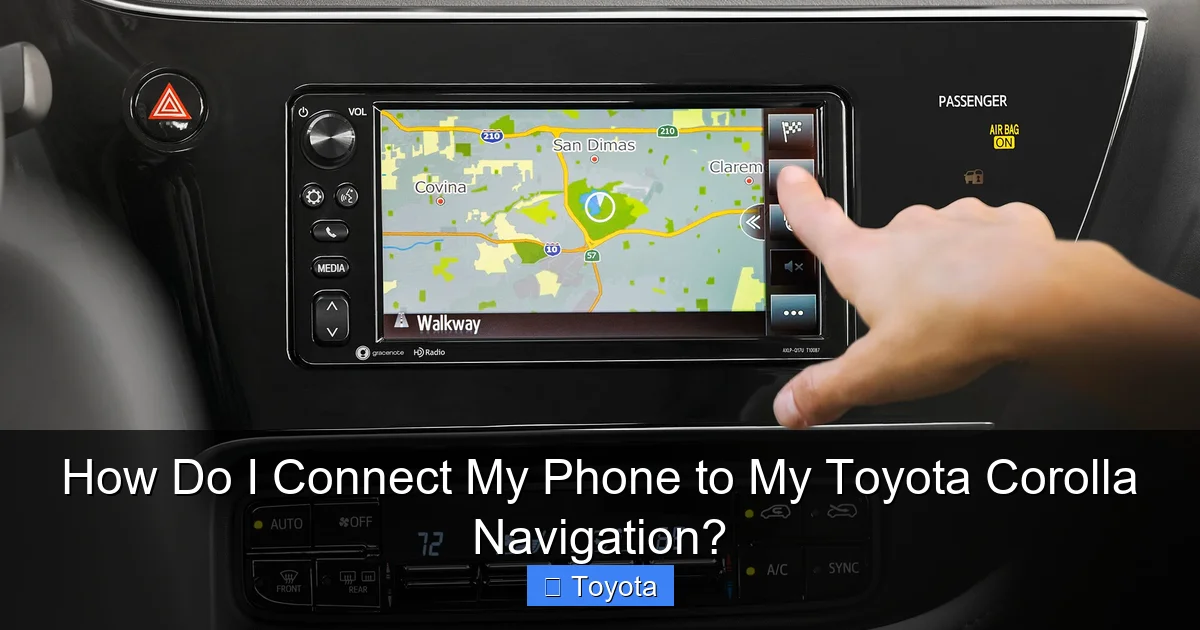
Your Corolla might be eligible for Toyota’s connected services, often called Toyota Connected Services or Safety Connect. This is a subscription-based suite of features that can include remote start, vehicle health alerts, and—most relevant here—a navigation link. This feature, sometimes called “Send to Car” or “Destination Assist,” allows you to search for destinations on your smartphone using the Toyota app and send them directly to your car’s navigation system.
Visual guide about How Do I Connect My Phone to My Toyota Corolla Navigation?
Image source: st.automobilemag.com
How the “Send to Car” Feature Works
First, you need an active subscription. Many new Toyotas come with a trial period (e.g., 1-3 years). Check your owner’s manual or the Toyota app to see if your vehicle is enrolled. Download the official “Toyota” app (or “Toyota Owners”) on your phone and log in or create an account, linking your vehicle’s VIN. In the app, look for a “Navigation” or “Send to Car” section. You can search for a business, address, or point of interest. Once you find it, select “Send to Car.” The destination will be transmitted to your Corolla’s built-in navigation system (the factory GPS nav, not your phone’s apps). The next time you start your car, you should see a prompt on the screen asking if you want to navigate to the new destination.
Important Distinction: This method uses your car’s built-in navigation system, which is separate from Apple CarPlay/Android Auto. It’s a good backup if you don’t want to plug in a USB cable, but the built-in navigation maps are often less detailed and less frequently updated than Google Maps or Waze. Traffic data may also be less real-time unless you have a connected services subscription. For the best, most current experience, USB-connected CarPlay/Android Auto is superior. However, the “Send to Car” feature is incredibly convenient for pre-planning a trip from your couch. If you’re looking at other ways to integrate digital services, our article on connecting Google Maps to Toyota Navigation dives deeper into the differences between the factory system and smartphone projection.
Troubleshooting Common Connection Issues
It’s rare, but sometimes the technology doesn’t cooperate. Here’s a cheat sheet for the most common problems. The first rule of tech support: turn it off and on again. Restart your phone and restart your car (turn it fully off, open the door, wait a minute, start again).
“My Phone Won’t Connect via USB”
This is the most frequent issue. First, ensure you are using a data cable, not just a charging cable. The cable that came with your phone is best. Second, try the other USB port in your car if there is more than one. Some Corollas have two: one for data (usually the front one) and one for charging only. Third, check your phone’s USB mode. When you plug it in, a notification may appear asking “USB for…” Select “File Transfer” or “Transfer Files” or “USB for Android Auto” instead of “Charge only.” On iPhones, this setting is usually automatic. Fourth, inspect the cable and port for damage. Finally, make sure your car’s infotainment system software is updated. Sometimes, Toyota releases updates that improve compatibility. You can check for updates via USB or over Wi-Fi if your system supports it.
“CarPlay/Android Auto Won’t Launch Automatically”
Go to your phone’s settings. For iPhone: Settings > General > CarPlay. Make sure your Corolla is listed and that “Connect to iPhone” is enabled. You can also try forgetting the car here and re-pairing. For Android: Open the Android Auto app > Settings > Connected Cars. Forget your car and set it up again. Also, ensure “Start Android Auto automatically” is toggled on in the app settings.
“Bluetooth Audio is Choppy or Disconnects”
This is often an interference issue. Keep your phone out of the glove box, as metal can block the signal. Try “forgetting” the car in your phone’s Bluetooth settings and re-pairing. On some Android phones, disabling “Absolute Volume” in the Developer Options (tap Build Number 7 times in About Phone) can fix audio distortion. Also, clear any old Bluetooth pairings from your car’s system—too many saved devices can cause conflicts.
If problems persist, consult your owner’s manual’s troubleshooting section. It’s specific to your model year. For persistent USB issues with Entune 3.0, some users report success by resetting the system: go to Settings > System > Reset (be aware this may erase your presets and paired devices). For more general tech help across different brands, our piece on how to reset a Dodge Journey screen shows how a system reset can resolve similar glitches.
Maximizing Your Connected Drive: Tips & Best Practices
Now that you’re connected, let’s make the experience as smooth as possible. A few habits will save you headaches later.
Use a Quality, Dedicated USB Cable
This cannot be stressed enough. The cable is the lifeline. Cheap, thin, or worn-out cables fail. Keep a dedicated cable in your car’s center console that you only use for CarPlay/Android Auto. A braided nylon cable is a good investment. For iPhones with USB-C ports (iPhone 15 and newer), you’ll need a USB-C to USB-C cable if your Corolla’s port is USB-A (the older rectangular shape). In that case, a USB-A to USB-C cable is required.
Keep Software Updated
Update your phone’s operating system (iOS or Android) regularly. These updates often include fixes for CarPlay/Android Auto. Also, check for infotainment system updates. For Audio Multimedia and Entune 3.0, you can often download an update file from Toyota’s owner portal onto a USB drive and install it in the car. For older systems, a dealer update may be the only option. Updated software means better compatibility and new features.
Organize Your CarPlay/Android Auto Screen
Both systems allow you to customize the home screen layout. On CarPlay, go to Settings > General > CarPlay > [Your Car] and you can rearrange or hide app icons. On Android Auto, open the app on your phone, go to Settings > Customize launcher. Put your most-used navigation and music apps front and center for one-tap access while driving.
Voice Commands Are Your Friend
The whole point is to keep your eyes on the road. Use the voice command button on your steering wheel. For CarPlay, say “Hey Siri” or press the voice button. For Android Auto, say “Hey Google” or press the voice button. You can say “Navigate to 123 Main Street,” “Play the latest podcast,” or “Call Mom.” Practice this at home so it’s second nature in the car.
Safety First: Plan Before You Drive
Set your destination before you start driving, or have a passenger do it. If you need to change destinations, use voice commands. The touchscreen should be a secondary input while moving. Familiarize yourself with the layout so you don’t fumble.
By following these steps and tips, you’ll have a robust, modern infotainment experience in your Corolla. The integration is fantastic once it’s working. If you run into a specific snag, remember that the core requirement is a data USB cable, a compatible phone, and the correct system. Now, you can leave the phone in the cupholder and let the big screen guide the way.
Conclusion
Connecting your phone to your Toyota Corolla’s navigation isn’t a one-size-fits-all process, but it’s always a manageable one. The key is identifying your car’s infotainment system—Audio Multimedia, Entune 3.0, or Entune 2.0. For the vast majority of 2019+ Corollas, the solution is simple: use a reliable USB cable to enable Apple CarPlay or Android Auto. This gives you the power of Google Maps, Waze, or Apple Maps on your car’s display, complete with real-time traffic. Bluetooth pairing is a separate, essential step for hands-free calls and music streaming. Older models without CarPlay/Android Auto will rely on Bluetooth for audio and a physical phone mount for navigation visuals. Remember to troubleshoot with cable swaps, restarts, and software updates. With a little setup, your Corolla’s cockpit becomes a smart, connected command center, making every journey safer and more informed.
Frequently Asked Questions
Can I connect my phone wirelessly for navigation?
Only if you have a 2022 or newer Corolla with the Audio Multimedia system. Even then, wireless Apple CarPlay/Android Auto is not available on all trims. Most Corollas require a USB cable for navigation app projection. Bluetooth wireless is only for calls and music.
Why isn’t Apple CarPlay/Android Auto showing up on my screen?
First, ensure you are using a data-capable USB cable in the correct USB port. Second, check your phone’s settings to make sure CarPlay/Android Auto is enabled and the car is listed as a trusted device. Finally, verify your Corolla’s model year supports smartphone projection (2019+).
Do I need to update my Corolla’s navigation system to use my phone?
No. Apple CarPlay and Android Auto use your phone’s processing power and data connection. The car’s built-in navigation system (if it has one) is separate and may require paid map updates, but you don’t need it to use Google Maps or Waze via USB projection.
Can I use Android Auto on an iPhone or vice versa?
No. iPhone users must use Apple CarPlay. Android phone users must use Android Auto. They are separate, platform-specific protocols and are not cross-compatible.
Is Bluetooth enough for navigation directions?
No. Bluetooth can stream audio from your phone, so you could hear Google Maps directions through the car speakers. However, the visual map will only appear on your phone’s screen, not the car’s display. For turn-by-turn visuals on the dashboard screen, you need a USB connection for CarPlay/Android Auto.
My phone connects but the apps freeze or crash. What do I do?
This is often a software glitch. Start by restarting both your phone and your car. If that fails, try a different USB cable and port. Update your phone’s iOS/Android and check for any available infotainment system updates from Toyota. As a last resort, you can reset your car’s system to factory settings (found in Settings > System > Reset), but this will erase all your paired devices and presets.