How Do I Connect Google Maps to Toyota Navigation

Connecting Google Maps to your Toyota navigation system lets you enjoy real-time traffic, voice-guided directions, and updated routes directly on your dashboard. This guide walks you through every method—from Apple CarPlay and Android Auto to Bluetooth and USB—so you can drive smarter and safer.
If you’ve ever been behind the wheel of a Toyota and thought, “I wish I could just use Google Maps like I do on my phone,” you’re not alone. Google Maps is one of the most trusted navigation tools in the world—offering real-time traffic updates, accurate ETAs, voice-guided directions, and even suggestions for gas stations, restaurants, and parking. But getting it to work seamlessly with your Toyota’s built-in navigation system can feel a bit like solving a puzzle.
The good news? It’s absolutely possible. Whether you drive a 2020 Toyota Camry, a 2023 RAV4 Hybrid, or even an older Corolla, there are several ways to connect Google Maps to your Toyota navigation. You don’t need to be a tech expert, and you don’t need to buy expensive aftermarket gear. With the right setup—and a little patience—you can have Google Maps running smoothly on your dashboard screen in just a few minutes.
In this guide, we’ll walk you through every method available, from the simplest plug-and-play options to more advanced integrations. We’ll also cover troubleshooting tips, common mistakes to avoid, and how to make the most of your connected driving experience. By the end, you’ll know exactly how to connect Google Maps to Toyota navigation—and why it’s worth the effort.
Key Takeaways
- Use Apple CarPlay or Android Auto: These are the easiest and most reliable ways to mirror Google Maps on your Toyota’s infotainment screen.
- Check your Toyota model and year: Not all Toyotas support wireless connectivity; older models may require a USB cable.
- Ensure your phone and car software are updated: Outdated systems can cause connection issues or poor performance.
- Enable location and app permissions: Google Maps needs access to your location, microphone, and notifications to work properly in the car.
- Use Bluetooth for audio only: While Bluetooth can stream turn-by-turn audio, it won’t display the map—use it as a backup.
- Consider Toyota’s built-in navigation alternatives: Some newer models offer Google Maps integration directly through Toyota’s multimedia system.
- Keep your phone charged: Running GPS and screen mirroring drains battery quickly—use a car charger during long trips.
📑 Table of Contents
- Why Use Google Maps with Your Toyota Navigation?
- Check Your Toyota Model and Compatibility
- Method 1: Connect via Apple CarPlay (iPhone Users)
- Method 2: Connect via Android Auto (Android Users)
- Method 3: Use Bluetooth for Audio-Only Navigation
- Method 4: Use a Phone Mount and Run Google Maps Directly
- Troubleshooting Common Connection Issues
- Conclusion
Before we dive into the “how,” let’s talk about the “why.” Why bother connecting Google Maps when your Toyota might already come with its own navigation system?
First, Google Maps is constantly updated. While factory-installed systems can become outdated within a year or two, Google Maps pulls live data from millions of users, traffic sensors, and satellites. That means you get the most accurate, up-to-the-minute information—whether there’s a sudden traffic jam, a road closure, or a new speed camera.
Second, Google Maps offers features that many Toyota navigation systems lack. Think about things like:
– Real-time traffic rerouting
– Lane guidance for complex highway exits
– Public transit directions
– Indoor maps for malls and airports
– Reviews and photos of destinations
– Voice search and hands-free control
Plus, if you’re already used to Google Maps on your phone, using it in your car feels natural. There’s no learning curve. You don’t have to relearn a new interface or memorize different voice commands. It’s the same app, just bigger and easier to see while driving.
Another big advantage? Integration with your daily life. Google Maps syncs with your Google Calendar, so it can automatically suggest departure times based on your schedule. It also remembers your frequent destinations—like home, work, or your favorite coffee shop—and can even predict where you’re going based on the time of day.
And let’s not forget safety. Using Google Maps through your car’s display means you’re less likely to fumble with your phone while driving. With voice commands and large, clear visuals, you can keep your eyes on the road and your hands on the wheel.
So whether you’re commuting to work, road-tripping across the country, or just running errands around town, connecting Google Maps to your Toyota navigation makes every drive smarter, safer, and more efficient.
Check Your Toyota Model and Compatibility
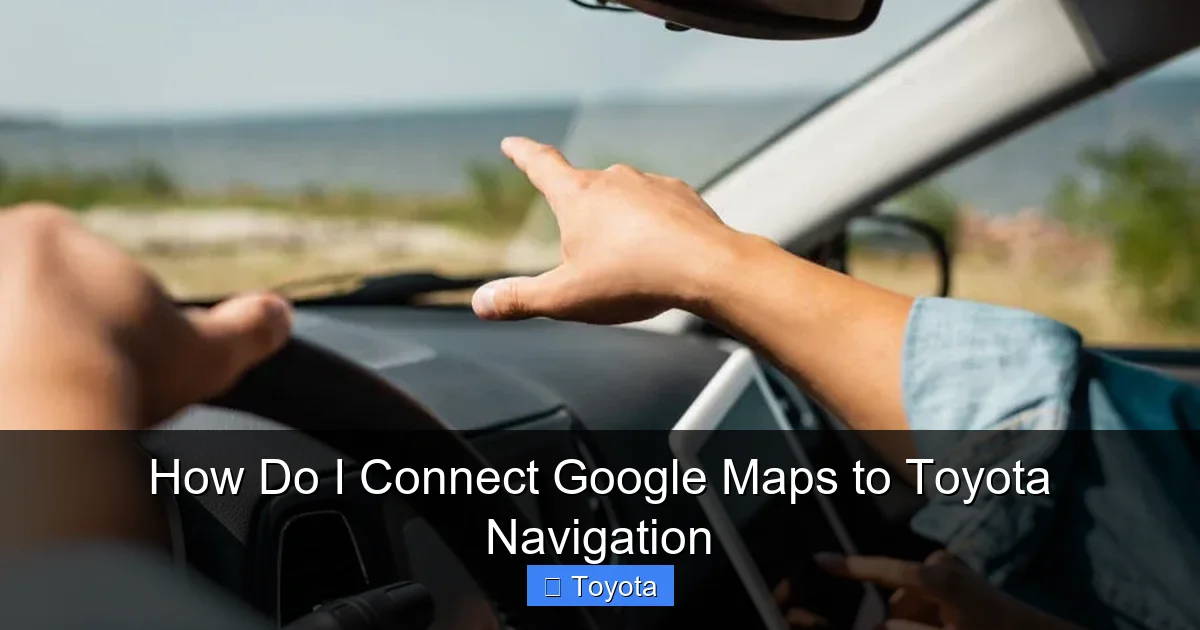
Visual guide about How Do I Connect Google Maps to Toyota Navigation
Image source: jerry.ai
Not all Toyotas are created equal when it comes to smartphone integration. Before you start trying to connect Google Maps, it’s important to know what your vehicle supports.
Toyota has gradually upgraded its infotainment systems over the years. Models from 2018 and newer typically come with Apple CarPlay and Android Auto compatibility—two of the most reliable ways to run Google Maps on your car’s screen. But even within those years, there are differences.
For example:
– **2018–2020 models:** Usually support wired Apple CarPlay and Android Auto (you’ll need a USB cable).
– **2021 and newer:** Many include wireless Apple CarPlay and Android Auto, so you can connect without plugging in your phone.
– **2023 and newer (especially with Toyota Audio Multimedia):** Some models now offer built-in Google Maps integration, meaning you can use Google Maps directly through the car’s system—no phone required.
To check your specific model, look at your vehicle’s infotainment screen. If you see icons for Apple CarPlay or Android Auto, you’re in good shape. You can also check your owner’s manual or visit Toyota’s official website and enter your VIN to see what features your car includes.
Another thing to consider: your phone. Apple CarPlay only works with iPhones (iPhone 5 or newer, running iOS 7.1 or later). Android Auto works with most Android phones running Android 6.0 (Marshmallow) or higher. If your phone is too old, you might need to upgrade or use alternative methods like Bluetooth or a phone mount.
Also, keep in mind that some Toyota trims—especially base models—may not include full smartphone integration. If your car only has basic Bluetooth and no touchscreen, your options will be more limited. But don’t worry—we’ll cover those scenarios too.
How to Identify Your Toyota’s Infotainment System
If you’re not sure what system your Toyota has, here’s a quick way to find out:
1. Turn on your car and look at the center screen.
2. Look for icons like a phone, Apple logo, or Android robot.
3. If you see “Apple CarPlay” or “Android Auto” in the menu, you’re good to go.
4. If the screen says “Entune” or “Toyota Audio,” check the year:
– Entune 2.0 (2012–2017): Limited smartphone integration.
– Entune 3.0 (2018–2020): Supports wired Apple CarPlay and Android Auto.
– Toyota Audio Multimedia (2021+): Supports wireless connectivity and advanced features.
You can also go to Settings > System > About on your infotainment screen to see the software version.
Method 1: Connect via Apple CarPlay (iPhone Users)
Visual guide about How Do I Connect Google Maps to Toyota Navigation
Image source: jerry.ai
If you have an iPhone and a compatible Toyota, Apple CarPlay is the easiest and most seamless way to use Google Maps in your car.
Apple CarPlay essentially mirrors a simplified version of your iPhone’s interface onto your car’s display. You can access Google Maps, make calls, send messages, and play music—all through the car’s touchscreen or voice commands.
Here’s how to set it up:
Step 1: Update Your iPhone and Car Software
Before connecting, make sure both your iPhone and your Toyota’s infotainment system are running the latest software.
On your iPhone:
– Go to Settings > General > Software Update.
– Install any available updates.
In your Toyota:
– Go to Settings > System > Software Update (or similar).
– Follow the prompts to update if needed.
Outdated software can cause connection issues or prevent Google Maps from loading properly.
Step 2: Enable CarPlay on Your iPhone
1. Open the Settings app on your iPhone.
2. Scroll down and tap “General.”
3. Tap “CarPlay.”
4. If your Toyota isn’t listed, tap “Add New Car” and follow the on-screen instructions.
5. Make sure “Automatic” is turned on so your phone connects automatically when you start the car.
Step 3: Connect Your iPhone to Your Toyota
If your Toyota supports **wired CarPlay**:
1. Use a certified Lightning cable (Apple-certified cables work best).
2. Plug one end into your iPhone and the other into the USB port in your car (usually in the center console).
3. Your car’s screen should display a prompt asking if you want to enable CarPlay. Tap “Allow.”
4. Google Maps should appear on the screen within a few seconds.
If your Toyota supports **wireless CarPlay**:
1. Make sure your car is in park and the infotainment system is on.
2. On your iPhone, go to Settings > General > CarPlay.
3. Tap your Toyota’s name when it appears in the list.
4. Follow the on-screen prompts to pair via Bluetooth and Wi-Fi.
5. Once connected, Google Maps will be available on the home screen.
Step 4: Launch Google Maps
Once CarPlay is active:
1. Tap the Google Maps icon on your car’s screen.
2. You can now search for destinations, get directions, and use voice commands (say “Hey Siri” or press the voice button on your steering wheel).
3. Google Maps will display turn-by-turn directions, traffic conditions, and estimated arrival times.
Tips for Better Performance
– Keep your iPhone charged. GPS and screen mirroring drain the battery quickly.
– Use a phone mount if you want to see both the car screen and your phone.
– Enable “Do Not Disturb While Driving” on your iPhone to minimize distractions.
– If Google Maps doesn’t appear, try restarting your phone and car, then reconnect.
Method 2: Connect via Android Auto (Android Users)
Visual guide about How Do I Connect Google Maps to Toyota Navigation
Image source: jerry.ai
Android users have a similar experience with Android Auto. Like CarPlay, it mirrors your phone’s interface onto the car’s display, giving you access to Google Maps, music, messaging, and more.
Here’s how to connect Google Maps using Android Auto:
Step 1: Install the Android Auto App
If you haven’t already, download the Android Auto app from the Google Play Store. It’s free and works with most Android phones running Android 6.0 or higher.
Step 2: Enable Developer Options (Optional but Helpful)
If you’re having trouble connecting, enabling Developer Options can help troubleshoot:
1. Go to Settings > About Phone.
2. Tap “Build Number” seven times until you see “You are now a developer.”
3. Go back to Settings > System > Developer Options.
4. Enable “USB Debugging” if needed.
Step 3: Connect Your Phone to Your Toyota
For **wired Android Auto**:
1. Use a high-quality USB cable (preferably the one that came with your phone).
2. Plug your phone into the USB port in your car.
3. Your phone may ask if you want to allow data access—tap “Allow.”
4. The Android Auto interface should appear on your car’s screen.
For **wireless Android Auto** (available on 2021+ models):
1. Make sure your car is in park and the system is on.
2. On your phone, open the Android Auto app.
3. Tap the menu (three lines) > Settings > Wireless Android Auto.
4. Follow the prompts to pair with your Toyota via Bluetooth and Wi-Fi.
5. Once connected, Google Maps will be ready to use.
Step 4: Use Google Maps in Android Auto
Once connected:
1. Tap the Google Maps icon on the Android Auto home screen.
2. You can search for destinations, use voice commands (“Hey Google”), and get real-time directions.
3. The map will display on your car’s screen, with audio directions through the car’s speakers.
Pro Tips for Android Users
– Make sure Google Assistant is enabled for voice commands.
– Keep your phone’s screen on while driving to prevent disconnection.
– If the screen goes blank, try unplugging and reconnecting the USB cable.
– Update the Android Auto app regularly for the best performance.
If your Toyota doesn’t support Apple CarPlay or Android Auto, or if you’re using an older phone, you can still use Google Maps—just with limited functionality.
Bluetooth allows you to stream audio from your phone to your car’s speakers. That means you can hear turn-by-turn directions from Google Maps, but you won’t see the map on your car’s screen.
Here’s how to set it up:
Step 1: Pair Your Phone via Bluetooth
1. Turn on your car and go to the infotainment menu.
2. Select “Setup” or “Bluetooth.”
3. Choose “Add New Device” or “Pair Device.”
4. On your phone, go to Settings > Bluetooth and turn it on.
5. Select your Toyota from the list of available devices.
6. Confirm the pairing code on both devices.
Step 2: Open Google Maps on Your Phone
1. Launch the Google Maps app.
2. Enter your destination and start navigation.
3. The audio directions will play through your car’s speakers.
Limitations to Keep in Mind
– You’ll need to look at your phone to see the map—this can be distracting.
– No visual cues on the car screen (like lane guidance or traffic alerts).
– Audio may lag or cut out if the Bluetooth connection is weak.
Tips for Safer Use
– Use a phone mount on your dashboard or vent.
– Set your destination before driving.
– Use voice commands (“Hey Google, navigate to…”) to minimize screen interaction.
– Keep your phone charged—Bluetooth uses less power than screen mirroring, but GPS still drains the battery.
While Bluetooth isn’t ideal, it’s a solid backup option if other methods aren’t available.
Method 4: Use a Phone Mount and Run Google Maps Directly
Sometimes, the simplest solution is the best. If your Toyota doesn’t support smartphone integration at all, or if you prefer to keep things straightforward, you can just mount your phone and use Google Maps directly.
This method doesn’t connect Google Maps to your car’s navigation system—but it does give you full access to all of Google Maps’ features, right in front of you.
How to Set It Up
1. Buy a reliable phone mount (dashboard, vent, or CD slot style).
2. Install it in a safe, visible location—don’t block your view of the road.
3. Plug your phone into a car charger to keep it powered.
4. Open Google Maps and start navigation.
Benefits of This Approach
– Full access to Google Maps features (real-time traffic, street view, etc.).
– No compatibility issues—works with any phone and any car.
– Easy to remove when you’re not driving.
Safety Tips
– Never hold your phone while driving.
– Set your destination before you start moving.
– Use voice commands to interact with the app.
– Choose a mount that doesn’t obstruct airbags or controls.
This method is especially popular with older Toyotas or drivers who want maximum flexibility.
Troubleshooting Common Connection Issues
Even with the best setup, things can go wrong. Here are some common problems and how to fix them:
Google Maps Won’t Load on CarPlay or Android Auto
– Make sure Google Maps is updated on your phone.
– Restart your phone and car.
– Check that CarPlay or Android Auto is enabled in your phone’s settings.
– Try a different USB cable—some cables only charge, not transfer data.
Connection Drops Frequently
– Ensure your phone and car software are up to date.
– Move your phone closer to the USB port or infotainment system.
– Disable battery-saving modes on your phone.
– For wireless connections, make sure Wi-Fi and Bluetooth are stable.
No Audio from Google Maps
– Check that your phone’s volume is up.
– Make sure audio is set to play through the car (not phone speakers).
– In Android Auto, go to Settings > Audio and select your car.
Google Maps Freezes or Lags
– Close other apps running in the background.
– Clear the cache for Google Maps (Settings > Apps > Google Maps > Storage > Clear Cache).
– Restart your phone.
“Phone Not Supported” Error
– Your phone may be too old or not certified for CarPlay/Android Auto.
– Check compatibility on Apple’s or Google’s official websites.
– Consider using a phone mount instead.
Conclusion
Connecting Google Maps to your Toyota navigation system doesn’t have to be complicated. Whether you’re using Apple CarPlay, Android Auto, Bluetooth, or a simple phone mount, there’s a method that will work for your vehicle and your lifestyle.
The key is knowing what your Toyota supports and choosing the right approach. For most drivers, Apple CarPlay or Android Auto offers the best experience—giving you full access to Google Maps with minimal distraction. But even if your car is older, you can still enjoy accurate, real-time navigation with a little creativity.
Remember to keep your phone charged, your software updated, and your focus on the road. With Google Maps by your side, every drive becomes a little easier, safer, and more efficient.
So go ahead—plug in, pair up, and hit the road with confidence. Your Toyota and Google Maps are ready to take you wherever you need to go.
Frequently Asked Questions
Can I use Google Maps wirelessly in my Toyota?
Yes, if your Toyota supports wireless Apple CarPlay or Android Auto (typically 2021 or newer models), you can use Google Maps without plugging in your phone. Just pair your device via Bluetooth and Wi-Fi.
Does my Toyota come with Google Maps built-in?
Some newer Toyota models (2023+) with Toyota Audio Multimedia offer built-in Google Maps integration. Check your owner’s manual or Toyota’s website to see if your vehicle supports it.
Why won’t Google Maps show up on my car screen?
This could be due to outdated software, a faulty USB cable, or incorrect settings. Try updating your phone and car, using a certified cable, and ensuring CarPlay or Android Auto is enabled.
Can I use Google Maps if my Toyota doesn’t have Apple CarPlay or Android Auto?
Yes. You can use Bluetooth for audio directions or mount your phone and run Google Maps directly. While you won’t see the map on your car screen, you’ll still get voice-guided navigation.
Do I need a data plan to use Google Maps in my car?
Yes, Google Maps requires an internet connection (via Wi-Fi or mobile data) to provide real-time traffic and directions. Make sure your phone has data enabled or is connected to Wi-Fi.
Is it safe to use Google Maps while driving?
When used properly—through voice commands, a mounted phone, or integrated systems like CarPlay—Google Maps can enhance safety by reducing the need to handle your phone. Always set your destination before driving.