
How to Reset a Hyundai Radio

Resetting your Hyundai radio is a common fix for issues like frozen screens, Bluetooth problems, or error messages. The process ranges from a simple soft reset (like rebooting your phone) to a more involved hard reset that may require a security code. Always start with the softest method and consult your owner’s manual, as procedures vary by model year and infotainment system (like Hyundai’s Blue Link or newer touchscreens). If problems persist after a reset, it may indicate a deeper hardware fault needing professional diagnosis.
Let’s be honest: there’s almost nothing more frustrating than getting into your Hyundai, turning the key, and having your radio screen stay black, frozen on a logo, or blaring static. That trusted companion for your commute has suddenly become a source of irritation. Before you panic and head to the dealership with a wallet full of cash, take a deep breath. Many Hyundai radio issues are software-related and can be fixed with a simple reset. Think of it like restarting your smartphone when it acts up. This guide will walk you through every method, step-by-step, for how to reset a Hyundai radio, no matter if you drive a 2010 Sonata or a 2024 Tucson.
The world of automotive infotainment has changed dramatically. What was once a simple AM/FM/CD player with a few buttons is now a complex computer system controlling audio, navigation, Bluetooth, smartphone integration (Apple CarPlay/Android Auto), and even vehicle settings. With complexity comes the potential for software bugs, freezes, and connectivity headaches. The good news is that Hyundai designed these systems with several built-in reset options. Our job is to find the right one for your specific situation and vehicle. We’ll start with the easiest, least invasive methods and gradually move to more comprehensive solutions. Remember, the goal is always to restore functionality while preserving your personal settings and presets whenever possible.
Key Takeaways
- Reset Types: A “soft reset” (reboot) solves minor glitches without losing settings; a “hard reset” (factory reset) clears all data but can fix major software bugs.
- Model Variation: Steps differ significantly between older models with button-only stereos and newer models with large touchscreens and navigation systems.
- Security Codes: A hard reset often triggers an anti-theft lock, requiring the unique 4-6 digit code from your manual or dealer.
- Precautions First: Always try the simplest solution (like turning the car off/on) and disconnect the battery only as a last resort to avoid other electrical issues.
- Know When to Stop: If the radio remains unresponsive after all reset attempts, the issue is likely hardware-related (faulty unit, wiring) and requires a technician.
📑 Table of Contents
Understanding Your Hyundai’s Infotainment System
Before we dive into button presses, it’s crucial to identify what type of radio/infotainment system you have. This determines which reset procedures will work for you. Hyundai has used several system generations over the years.
System Generations & Common Models
Older Systems (Pre-2015): These often feature a smaller color screen (if any) and are primarily controlled by physical buttons and a rotary knob. Examples include systems in the Hyundai Elantra (2010-2014), Sonata (2011-2014), and Santa Fe (2013-2014). Resets usually involve holding specific button combinations.
Mid-Generation Systems (2015-2020): This era introduced larger touchscreens, standard Bluetooth, and often navigation. Popular systems include the 7-inch or 8-inch touchscreen found in the Hyundai Tucson (2016-2021), Elantra (2016-2020), and Kona (2018-2022). Reset methods often involve deep within the “Settings” menu or specific power-button holds.
Modern Systems (2021-Present): Hyundai’s latest vehicles feature the advanced Hyundai Blue Link connected car system (when equipped), larger 10.25-inch touchscreens, and wireless Apple CarPlay/Android Auto. Models like the redesigned Sonata (2020+), Tucson (2022+), and Santa Fe (2021+) have sophisticated software that sometimes requires dealer-level diagnostics for major issues, but basic resets are still user-accessible.
Your owner’s manual is the single most valuable document for this process. It has the exact instructions for your model year and trim level. If you don’t have the physical copy, Hyundai often has PDFs available on their owner’s website. Locate the infotainment system section now.
Step 1: The Soft Reset (Your First & Best Option)
A soft reset is the equivalent of turning your phone off and back on again. It clears the system’s temporary memory (RAM), forcing it to reload the operating system. This fixes temporary software glitches, unresponsive touchscreens, and Bluetooth pairing failures without erasing your saved radio stations, paired devices, or personal settings. It’s the safest and first step you should always try.
Visual guide about How to Reset a Hyundai Radio
Image source: windupradio.com
Method A: The Power Cycle (Universal First Try)
This method works on virtually every Hyundai, regardless of the infotainment generation.
- Turn Off the Engine: Park safely and turn your ignition to the “OFF” position. Do not just turn the radio knob off; the system needs to lose all power from the vehicle.
- Open the Hood: This is a critical step for a complete power cycle. The radio’s main power often comes from a fuse that is live even when the car is off. By opening the hood, you prepare for the next step.
- Disconnect the Negative Battery Terminal: Using a 10mm wrench (typical size), loosen and remove the negative (black, marked with a “-” or “NEG”) battery cable from the terminal. Tuck it away so it cannot accidentally touch the terminal. Wait for at least 5-10 minutes. This ensures all residual power (from capacitors) drains from the vehicle’s electrical system, including the radio’s memory.
- Reconnect and Test: Reattach the negative cable, tighten it securely, close the hood, and start your car. The radio will take a minute or two to fully boot up (you’ll see the Hyundai logo). Test all functions. In most cases, this resolves the issue.
Pro Tip: If disconnecting the battery seems too extreme for a simple radio glitch, try the next soft reset method first.
Method B: The Infotainment System Reboot (For Touchscreen Models)
Many newer Hyundai touchscreens have a built-in software reboot option, which is more convenient than disconnecting the car battery.
- With the car running or in “ACC” (accessory) mode, go to your radio’s Settings menu.
- Look for sub-menus like System, General, or Info.
- Within those menus, search for an option called “Reboot System,” “Restart,” or “System Reset” (be careful not to select “Factory Data Reset” here).
- Select it and confirm. The screen will go black and restart. This may take 2-3 minutes. Do not interrupt the process.
If you cannot find this option, your system may not have a software-based reboot, making the battery disconnect method (Method A) necessary.
Step 2: The Hard Reset / Factory Reset
When a soft reset fails, a hard reset is the next step. This returns the infotainment system to its original factory state, as if it just rolled off the assembly line. This will erase all your personalized data: saved radio presets, paired Bluetooth devices, navigation home addresses, and account login information (for connected services). You will need to set everything up again.
Visual guide about How to Reset a Hyundai Radio
Image source: vehiclechef.com
Accessing the Factory Reset Menu
The path is generally consistent across modern Hyundai touchscreens.
- Go to Settings.
- Select System (or General).
- Look for Reset or Factory Data Reset.
- You may be prompted to enter a PIN. For many models, the default is 0000 or 1234. If those don’t work, consult your manual. Some systems require the vehicle’s VIN or a code from the dealer.
- Confirm the reset. The system will wipe and reboot. This can take several minutes. Ensure your vehicle is parked and the engine is running or in accessory mode with a stable power source.
The Critical Security Code (Anti-Theft Lock)
After a full factory reset or if the system detects a major power loss (like a dead battery), Hyundai’s anti-theft system will engage. The screen will display a message like “SECURITY CODE” or “ENTER CODE.” This is a 4 or 6-digit number unique to your radio. You must enter this code to unlock the radio.
- Where to Find It: Check your owner’s manual pouch. The code is often on a sticker labeled “Radio Code” or “Anti-Theft Code.” It may also be on a card in the glove compartment.
- If Lost: You will need to contact a Hyundai dealer. They can retrieve it using your Vehicle Identification Number (VIN) and proof of ownership. There is sometimes a small fee for this service.
- Important: Do not attempt random codes. After a few incorrect attempts, the system may lock permanently, requiring a dealer visit to unlock it.
Warning: If your radio was working fine before a battery disconnect and now asks for a code, this is normal. If it asks for a code without any power interruption, it may indicate a fault in the radio module itself.
Step 3: Model-Specific Procedures & Nuances
While the above methods cover most cases, some Hyundai models have unique quirks or dedicated reset buttons.
Visual guide about How to Reset a Hyundai Radio
Image source: vehiclechef.com
For Models with a Dedicated “RESET” Button
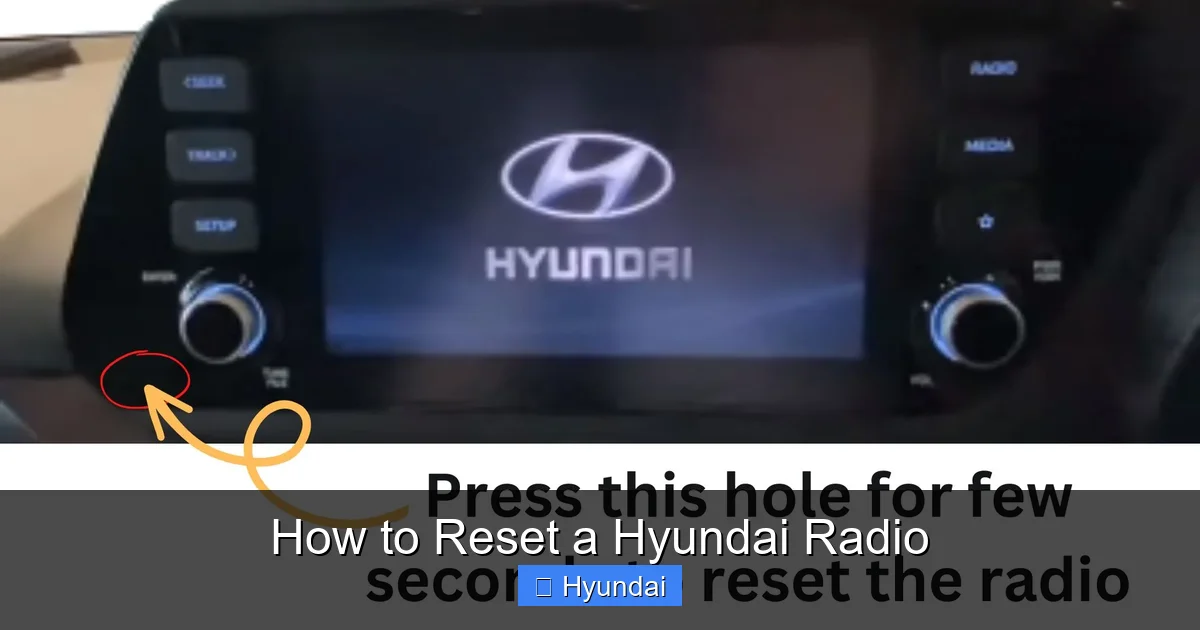
Some older Hyundai models (like certain 2010-2014 Sonatas or Santa Fes) have a small, recessed button labeled “RESET” on the face of the radio unit, often near the CD slot or on the side panel.
- Turn the ignition to “ON” but do not start the engine.
- Use a paperclip or a pen tip to press and hold the recessed “RESET” button for 10-15 seconds.
- The display will likely go blank and restart. This performs a soft reset.
- If the problem is severe, you may still need to perform the battery disconnect method afterward.
For Hyundai Blue Link Equipped Vehicles
If your Hyundai has the Blue Link connected car system (subscription-based), you have an additional reset option via the Hyundai app or website. This can sometimes resolve infotainment glitches remotely.
- Log into your Hyundai Blue Link account on the mobile app or myhyundai.com.
- Look for a “Vehicle Diagnostics” or “Reset” feature.
- There may be an option to “Reboot Infotainment System.” Initiate it. The car must be in a location with cellular coverage and the ignition should be “ON.”
- This sends a command to the vehicle’s telematics control unit to restart the infotainment module.
This is a very convenient first step for Blue Link subscribers before trying physical methods. If you’re having persistent issues, it’s also worth checking if your Blue Link subscription is active, as an expired subscription can sometimes cause system errors.
Step 4: Troubleshooting Beyond the Reset
You’ve tried a soft reset, a hard reset, and entered your security code. The radio screen is still black, or it turns on but has no sound. Now what? The problem is likely not just software.
Common Post-Reset Issues & Checks
- No Sound, but Display Works: Check your volume level and mute button. Ensure the correct audio source is selected (FM, AM, Bluetooth, USB). Check the balance/fade settings—they might be set all the way to one side. Also, inspect the speaker fuses in the under-hood fuse box (refer to your manual for location and amperage).
- Bluetooth Won’t Pair: After a reset, you must delete all old pairings from both the phone and the car, then set up as a new device. Make sure your phone’s Bluetooth is discoverable.
- Apple CarPlay/Android Auto Not Working: These require a certified USB cable connected to a specific port (often labeled with a smartphone icon). Use the cable that came with your phone. After a reset, you may need to grant permission prompts on your phone screen when you plug in.
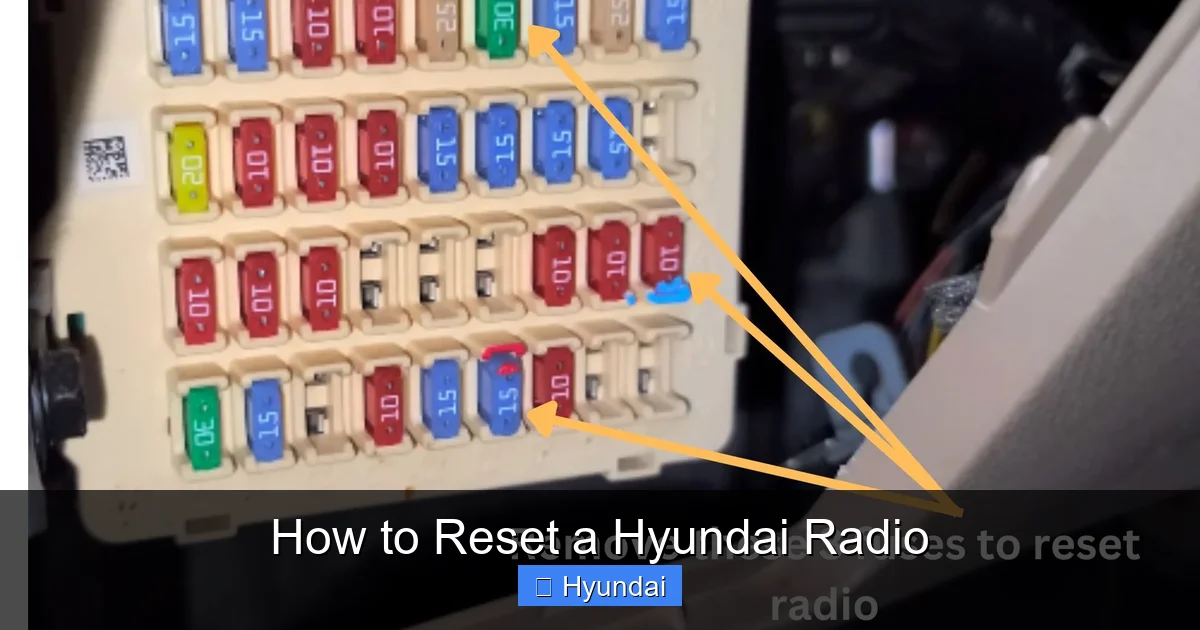
- Screen Remains Black: If the screen is completely dead after all resets, check the dimmer switch (usually a knob or buttons near the headlight switch). It may be turned all the way down. Also, a blown fuse for the infotainment system is a common cause. Locate the “INF” or “RADIO” fuse in the interior fuse panel (usually under the dash or in the cabin) and check it.
When to Suspect a Hardware Failure
If you’ve exhausted all reset options, including battery disconnection and factory reset, and the radio still:
- Does not power on at all (no lights, no boot screen).
- Has physical damage (cracks, liquid exposure).
- Exhibits intermittent complete failures.
- Shows distorted video or lines on the screen.
…then the fault is almost certainly hardware-related. This could be a failed radio unit, a loose wiring harness behind the dash, or a problem with the vehicle’s CAN bus network. At this stage, diagnosis and repair require a professional. A dealership technician has the proprietary diagnostic software (like Hyundai’s GDS) to communicate directly with the infotainment module and read fault codes.
Step 5: Prevention & Best Practices
While you can’t prevent all software bugs, you can minimize your radio’s stress and avoid common pitfalls.
Software Updates Are Your Friend
Hyundai periodically releases software updates for its infotainment systems to fix bugs, improve performance, and add features. These updates are often done during scheduled maintenance at the dealer, but sometimes can be performed via a USB drive downloaded from the Hyundai owner’s portal. Keeping your system updated is the single best way to prevent many issues that require resets. Check your manual or ask your dealer about available updates for your specific VIN.
Smart Charging & Power Management
Frequent, deep battery discharges (like leaving lights on) can cause voltage sags that corrupt infotainment system software. Always ensure your battery is in good health. If you have an older battery and experience radio resets after a cold start, consider having the battery and charging system tested.
Gentle with the Touchscreen
Use only your fingers or a soft, lint-free cloth. Never use harsh chemicals, abrasive cleaners, or excessive force. These can damage the sensitive digitizer layer, causing unresponsive areas that mimic software freezes.
Document Your Code
If you locate your radio security code, write it down in multiple places: in your owner’s manual (on the code page itself), on a card in your wallet, and in a secure digital note. Do not keep it only in the car. This will save you a massive headache if you ever need a hard reset.
Conclusion: You’ve Got This
Resetting your Hyundai radio is a straightforward process of elimination. Always begin with the simplest soft reset—the power cycle via battery disconnect or the in-menu reboot. If that fails, escalate to a factory reset, being acutely aware of the security code requirement. Understanding your specific system’s generation and having your owner’s manual at the ready are your biggest advantages. Most common Hyundai radio ailments—frozen screens, Bluetooth chaos, and weird error messages—are solved with these steps. By following this guide, you save yourself time, money, and the frustration of a silent ride. Remember, you are the first line of defense for your vehicle’s technology. A little knowledge goes a long way in keeping your Hyundai’s infotainment system happy and your drives entertaining.
Frequently Asked Questions
Will a Hyundai radio reset delete my saved radio stations and phone contacts?
It depends on the type of reset. A soft reset (power cycle) will not delete any saved data. A full factory/hard reset will erase all saved radio presets, paired Bluetooth devices, and navigation addresses. Always try a soft reset first to preserve your settings.
Is it safe to disconnect my car battery to reset the radio?
Yes, it is generally safe and is a standard diagnostic procedure. However, be aware that disconnecting the battery may also reset other vehicle systems like the clock, power window/mirror memory, and sometimes the engine’s idle adaptation. You may need to re-learn your driving habits for a short time after. Always follow proper procedure: turn off all accessories, disconnect the negative terminal first, and wait 10 minutes.
My Hyundai radio is asking for a code after I reset it. Where do I find it?
The security code is typically found on a sticker in your owner’s manual pouch or on a separate card in your glove compartment. It’s a 4 or 6-digit number. If you cannot locate it, you must contact a Hyundai dealer with your Vehicle Identification Number (VIN) and proof of ownership to retrieve it.
My Hyundai’s touchscreen is completely unresponsive. What should I do?
First, perform a full power cycle by disconnecting the negative battery terminal for 10+ minutes. If the screen remains dead after reconnection, check the dimmer switch and the infotainment fuse. If those are fine, the issue is likely a failed touchscreen digitizer or the radio unit itself, requiring professional replacement.
Can I reset the radio while the car is running?
For a soft reset via the in-menu “Reboot” option, yes, the car should be in “ACC” or “ON” mode. However, for a hard reset that involves disconnecting the battery, the engine must be turned off. Never disconnect the battery while the engine is running, as it can cause a voltage spike that damages electronic modules.
Should I take my Hyundai to the dealer for a radio reset?
Only as a last resort. Most resets are user-performable and save you a diagnostic fee. Take it to the dealer if: 1) you’ve tried all reset methods and the radio is still dead, 2) you have lost your security code and cannot retrieve it, or 3) you suspect a deeper electrical or software fault beyond a simple reset. For context, many owners find that procedures for other brands, like how to reset the radio in a Dodge Durango, follow similar general principles of power cycling and menu navigation.
