
How to Reset a Ford F-150 Radio

Resetting your Ford F-150 radio is a common fix for software glitches, unresponsive screens, or audio issues after a battery disconnect. This guide covers all the official reset methods for different Sync generations, from simple button combos to deeper system reboots. Follow the precise steps for your specific model year to safely restore functionality without losing all personalized settings.
So, you’re sitting in your trusty Ford F-150, ready to hit the road, but the radio screen is frozen, the sound is crackling, or it’s just stuck on a single station. Frustrating, right? Before you panic and head to the dealership with a wallet full of cash, take a deep breath. Many common Ford F-150 radio problems can be solved with a simple reset. Think of it like restarting your phone when it acts up. It’s a powerful first troubleshooting step that can save you time, money, and a major headache. This guide will walk you through every method, for every generation of Ford’s SYNC system, so you can get your tunes back with confidence.
The F-150’s infotainment system, branded as SYNC, has evolved dramatically over the years. What worked on a 2013 model won’t do a thing for a 2023. That’s why the first, most critical step is knowing exactly which system you’re dealing with. We’ll break it down clearly. Remember, a reset is software-focused. It won’t fix a blown fuse, a broken antenna, or a physically damaged screen. But for software bugs, memory leaks, and post-battery-disconnect confusion, it’s your best friend. Let’s get started.
Key Takeaways
- Identify Your Sync System First: The reset method depends entirely on whether you have Sync 1, 2, 3, or 4. Check your settings menu or physical buttons to determine the correct procedure.
- A “Soft Reset” is the First and Safest Step: This simple button combination (often holding “Power” + “Volume Up”) fixes minor hiccups without deleting paired devices or presets.
- A “Hard Reset” or “Master Reset” is More Drastic: This clears all user data, paired phones, and saved settings. Use it for persistent problems or when selling the truck, but be prepared to set everything up again.
- Battery Disconnection is a Last Resort: While it forces a full reboot, disconnecting the battery can cause other vehicle systems to lose memory (like seat positions, radio presets on some models) and may trigger fault codes.
- Aftermarket Radios Have Different Procedures: If you’ve installed an aftermarket unit, its reset method will be in its specific manual, not Ford’s guides. Often, it’s a small recessed reset button.
- Persistent Issues May Indicate a Larger Problem: If resets don’t work, the issue could be a faulty module, antenna, or wiring. Consulting a professional is the next step.
- Always Consult Your Owner’s Manual: It has the definitive, model-year-specific instructions for your vehicle’s infotainment system.
📑 Table of Contents
- Understanding Your Ford F-150’s SYNC System Generation
- Method 1: The Standard Soft Reset (SYNC 3 & 4)
- Method 2: The Master Reset (SYNC 3 & 4)
- Method 3: The SYNC 1 & 2 “Three-Button” Reset
- Method 4: The Battery Disconnect Reset
- Troubleshooting: What to Do When a Reset Doesn’t Work
- Preventative Tips and Final Thoughts
Understanding Your Ford F-150’s SYNC System Generation
Before you press a single button, you need to identify your SYNC version. Ford made this relatively easy. The system’s look, feel, and physical button layout change significantly between generations. Using the wrong reset method for your system can be ineffective or, in rare cases, cause unnecessary confusion.
How to Identify Your SYNC Version
The easiest way is to look at the home screen. SYNC 1 and 2 have a more rectangular, blocky icon layout. SYNC 3 and 4 feature a sleek, modern, tile-based interface with vibrant colors and Apple CarPlay/Android Auto integration prominently displayed. You can also check your vehicle’s settings menu. Navigate to Settings > General or System Information. The SYNC software version number will be listed there (e.g., SYNC 3.4, SYNC 4A). A quick online search for your truck’s model year and “SYNC version” will also confirm it.
Here’s a quick decade-based guide:
- SYNC 1 (MyFord Touch): Found primarily in 2011-2015 models. Characterized by a touch-sensitive capacitive screen with physical buttons on the sides/bezel, known for being a bit sluggish.
- SYNC 2 (MyFord Touch): 2013-2016 models. An evolution of SYNC 1 with a slightly improved interface but similar overall design and reset methods.
- SYNC 3: The game-changer. Introduced around 2016 and used through 2020+ in many models. Features a responsive capacitive touchscreen, a much faster processor, and standard Apple CarPlay/Android Auto. This is the most common system on the road today.
- SYNC 4 / 4A: The latest, found in 2021+ F-150s (especially the hybrid and higher trims). Offers a larger, more fluid screen, connected navigation, and over-the-air updates. The reset process is different from SYNC 3.
Once you’ve identified your system, find the corresponding method below. If you’re unsure, the owner’s manual is your ultimate source of truth.
Method 1: The Standard Soft Reset (SYNC 3 & 4)
This is the “turn it off and on again” of the automotive world. It’s safe, quick, and preserves almost all your settings—paired phones, saved radio stations, and preferences remain intact. It simply forces the system’s software to reboot, clearing temporary glitches. This is the absolute first thing you should try for a frozen screen, unresponsive audio controls, or Bluetooth connection drops.

Visual guide about How to Reset a Ford F-150 Radio
Image source: cardeeply.com
Step-by-Step for SYNC 3
The process for SYNC 3 is wonderfully simple and consistent across most model years.
- Ensure your vehicle is in Park (P) and the ignition is in the ON position (engine off or running).
- Locate the Power button (usually a physical button with a circle and a line, often on the lower center stack or bezel) and the Volume Up button (the physical rocker or knob).
- Press and hold both buttons simultaneously for about 10-15 seconds.
- You will see the screen go black, display the Ford logo, and then reload the home screen. The entire process takes about 30-60 seconds.
- Once the home screen reappears, test your audio, Bluetooth, etc.
Pro Tip: If your truck has the smaller, non-touchscreen audio display (base models), the button locations might differ. The combination is still typically Power + Volume Up, but consult your manual if this doesn’t work.
Step-by-Step for SYNC 4 / 4A
SYNC 4 systems often use a slightly different, but equally simple, method.
- With the vehicle in Park and ignition ON, locate the physical Home button (a house icon) and the Voice button (a microphone icon) on the steering wheel OR the center stack.
- Press and hold both the Home and Voice buttons together for approximately 10 seconds.
- The large touchscreen will turn off and then restart, cycling through the startup sequence.
- Wait for the system to fully reload before testing functions.
Some SYNC 4A systems may also allow a soft reset via the on-screen menu: go to Settings > System > Reboot System. If this option exists, it’s the cleanest method.
Method 2: The Master Reset (SYNC 3 & 4)
When a soft reset doesn’t cut it, or you’re preparing to sell your truck and want to wipe your personal data, a Master Reset (sometimes called a Factory Reset) is the answer. This returns the infotainment system to its original factory state. All paired Bluetooth devices, saved contacts, navigation destinations, radio presets, and personalized settings will be permanently deleted. You will have to set everything up from scratch afterward.

Visual guide about How to Reset a Ford F-150 Radio
Image source: cardeeply.com
Performing a Master Reset on SYNC 3
This is done entirely through the touchscreen menus.
- Start with the vehicle in Park and ignition ON.
- On the home screen, tap the Settings icon (looks like a gear or wrench).
- Scroll down and select System.
- Look for an option called Master Reset or Factory Reset. (On some models, it might be under General first).
- You will be presented with a warning about data loss. Confirm you want to proceed.
- The system will reboot and take several minutes to restore factory defaults. Do not interrupt this process.
Performing a Master Reset on SYNC 4 / 4A
The menu structure is similar but may look slightly different.
- Go to Settings on the home screen.
- Select System.
- Find and select Master Reset.
- Carefully read the warnings and confirm the reset.
- The large screen will go black and restart. Be patient; this can take a few minutes.
Important Note: A Master Reset will NOT reset the truck’s other computer modules (like the PCM for engine settings). It is purely for the infotainment system. If you’re trying to clear a check engine light, this is not the procedure—you need an OBD2 scanner.
Method 3: The SYNC 1 & 2 “Three-Button” Reset
For the older, button-heavy SYNC 1 and 2 systems (common in 2011-2016 F-150s), the reset process is different and relies on physical button sequences. These systems are more prone to freezing due to their older processors.
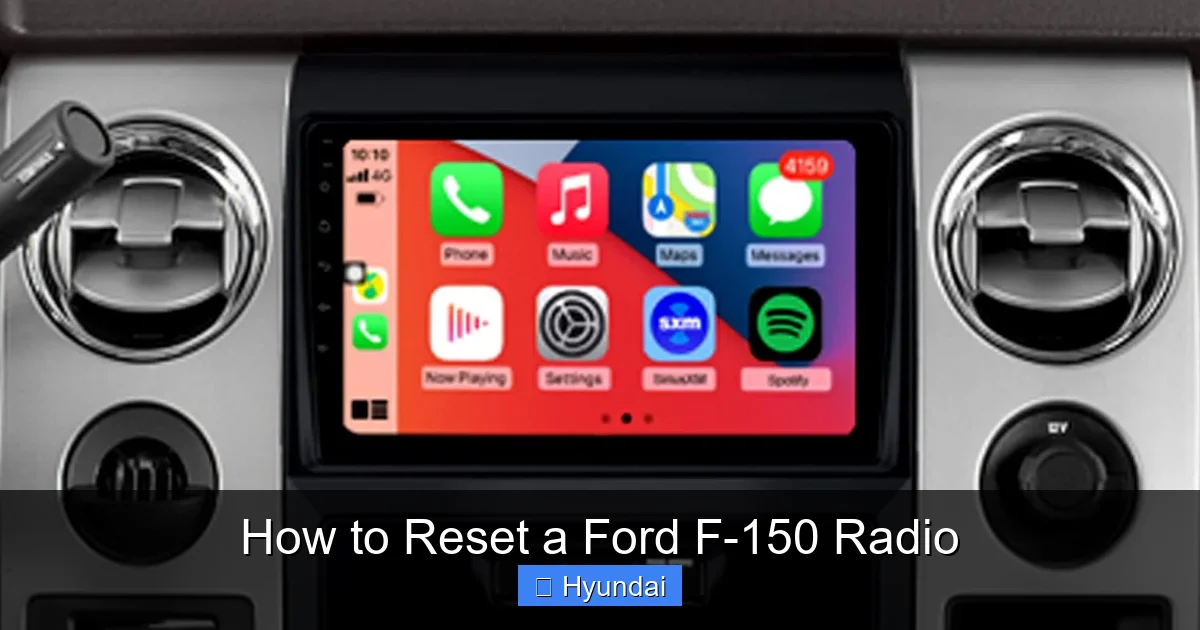
Visual guide about How to Reset a Ford F-150 Radio
Image source: m.media-amazon.com
The Classic SYNC 1/2 Hard Reset Sequence
This method is more involved but very effective for these older units.
- Ensure the vehicle is in Park with the ignition ON (engine off).
- You will need to press a specific sequence of buttons on the radio faceplate. The exact buttons can vary slightly by year, but the universal sequence is:
- Step 1: Press and release the Phone button (the one with a phone icon).
- Step 2: Immediately press and release the Info button (the one with an “i” in a circle).
- Step 3: Immediately press and release the Radio button (the one with a radio wave icon).
- If done correctly, the screen should go blank and then restart with the “Ford SYNC” logo. If nothing happens, wait a few seconds and try the sequence again, ensuring the presses are quick and sequential.
- For some SYNC 2 models, an alternative is to hold the Volume Down (-) button and the Seek Down button (<<) together for about 10 seconds until the screen resets.
SYNC 1/2 Menu-Based Reset
If your system is still somewhat responsive, you can try a menu reset:
- Press the Menu button.
- Use the arrow keys to scroll to System Settings and press OK.
- Scroll to Advanced Settings and press OK.
- Find and select Reset All Settings or Factory Reset.
- Confirm the action. The system will reboot.
Caution: SYNC 1 and 2 are notoriously finicky. If these resets don’t work, the system may have a deeper software corruption that requires a visit to a dealer for a reflash. For owners of these systems, considering an aftermarket radio upgrade is often a cost-effective way to gain modern connectivity and reliability.
Method 4: The Battery Disconnect Reset
This is the nuclear option, used when all else fails or after a vehicle battery has been replaced. Disconnecting the battery forces a complete power cycle of every vehicle module, including the radio. However, it comes with significant downsides and should not be your first choice.
When and How to Do It Safely
Use this method only if the radio remains completely dead or unresponsive after trying all other resets, and you suspect a total power drain or lock-up.
- SAFETY FIRST: Park safely, engage the parking brake, and ensure all electrical accessories are off.
- You will need a 10mm socket wrench or pliers. Open the hood.
- Locate the negative (black) battery terminal. ALWAYS disconnect the NEGATIVE terminal first. Loosen the clamp nut and remove the cable. Tuck it away so it cannot accidentally touch the terminal.
- Wait at least 5-10 minutes. This allows all residual power (capacitors) in the vehicle’s systems to fully drain.
- Reconnect the negative cable and tighten the nut securely.
- Close the hood. When you start the truck, the radio may boot into a “Initial Setup” screen. It may have lost all presets and pairings. You will also likely need to reset the truck’s clock, and some models may require you to re-learn steering wheel controls or window preferences.
Why This is a Last Resort
Modern vehicles are full of sensitive electronics. A full battery disconnect can cause other systems to go into a “learn” mode or throw temporary fault codes. It can also reset the maintenance minder or service indicators on some models. You are essentially resetting the entire vehicle’s computer network, not just the radio. The soft and master resets are far more targeted and preferable.
Troubleshooting: What to Do When a Reset Doesn’t Work
You’ve followed every step for your SYNC generation, but the radio screen is still black, the sound is still out, or the system won’t turn on. Now what? Don’t assume your radio is broken yet. There are a few more things to check before calling a pro.
Check the Obvious: Fuses and Connections
A blown fuse is a classic culprit. Your owner’s manual has a fuse box diagram (usually under the dash and under the hood). Look for fuses labeled RADIO, INFOTAINMENT, or SYSTEM. Pull them with a fuse puller or needle-nose pliers and check the metal strip inside. If it’s broken, replace it with a new fuse of the exact same amperage (e.g., 10A, 15A). A cheap multi-pack of assorted fuses is a great tool to keep in your glove box. Also, if you recently had any work done under the dash, a connector to the radio may have been loosened.
Consider the Aftermarket Scenario
Did you or a previous owner install an aftermarket radio? If so, none of the SYNC reset procedures apply. Aftermarket units (from brands like Pioneer, Kenwood, Alpine) have their own reset methods, usually a small pinhole button on the faceplate that you press with a paperclip. You’ll need to find the specific model number and its manual. If the aftermarket unit is dead, check its dedicated fuse, which is often separate from the factory fuse box.
When to Seek Professional Help
If you’ve confirmed the correct reset method, checked fuses, and the system is still non-functional, the problem is likely hardware-related. This could be:
- A failed SYNC module (the “brain” of the system).
- A faulty touchscreen digitizer (the screen works but doesn’t respond to touch).
- An antenna or amplifier issue causing no sound.
- Wiring problems, especially common in trucks that see heavy off-road use.
At this point, diagnose the issue. A reputable car audio shop or a Ford dealership’s service department has the diagnostic tools to read the system’s error codes. They can determine if it needs a simple module replacement or a more complex repair. For those with a knack for DIY, forums like F-150-specific communities are invaluable for finding junkyard replacement modules and detailed swap guides.
Preventative Tips and Final Thoughts
Resetting your radio is a fix, but we can minimize the need for it. A few good habits go a long way.
Software Updates Are Your Friend
Ford periodically releases software updates for SYNC to fix bugs, improve stability, and add features. These updates are often done via USB drive at the dealership or sometimes over Wi-Fi (on newer SYNC 4 models). A system running outdated software is more prone to glitches. Ask your dealer if any updates are available for your VIN during your next service visit.
Gentle Power-Down Practices
If you need to disconnect the battery (for any repair), perform a SYNC Master Reset *before* you do so. This can sometimes prevent the system from entering a confused state upon re-powering. Also, avoid using cheap, low-quality phone chargers or USB accessories that can introduce electrical noise into the system’s circuitry.
In conclusion, your Ford F-150’s radio is a sophisticated computer. Like any computer, it sometimes needs a reboot. By identifying your SYNC generation and following the precise reset method outlined here, you can solve the vast majority of common issues yourself. Start with the gentle soft reset, escalate to the master reset if needed, and only use the battery disconnect as a final measure. Keep your owner’s manual handy, check those fuses, and you’ll keep your F-150’s infotainment system singing for miles to come. Safe travels!
Frequently Asked Questions
Will resetting my Ford F-150 radio delete my paired phones and saved radio stations?
It depends on the reset type. A soft reset (the button combination) will NOT delete your paired phones, presets, or settings. A Master Reset or Factory Reset WILL erase all user data, including Bluetooth pairings, saved contacts, and radio station presets, returning the system to its original factory state.
My Ford F-150 radio screen is completely black and unresponsive. What should I try first?
First, ensure the truck’s ignition is in the ON position. Try the soft reset method for your specific SYNC generation (e.g., hold Power + Volume Up for SYNC 3). If the screen remains black after the reboot attempt, check the radio/infotainment fuses in your fuse box. A blown fuse is a common cause of a totally dead screen.
What’s the difference between a soft reset and a master reset?
A soft reset is like restarting your phone—it clears temporary software glitches without deleting your personal data. A master reset (or factory reset) is more drastic; it wipes all user-configured settings and returns the software to its original, out-of-the-box state, requiring you to set up everything again from scratch.
Can I reset the radio if my truck’s battery is completely dead?
No. The reset procedures require the ignition to be in the ON position to supply power to the SYNC module. If the main vehicle battery is completely dead, you must jump-start or charge the battery first until the truck can power on. Once the vehicle starts, you can then perform the appropriate reset procedure.
I have a 2012 F-150 with the old MyFord Touch system. Which reset method do I use?
For 2011-2016 models with SYNC 1 or 2, use the specific three-button sequence: quickly press and release the Phone button, then the Info button, then the Radio button. If that doesn’t work, try holding the Volume Down and Seek Down (<<) buttons together for 10 seconds. You can also try the menu-based reset if the screen is partially responsive.
My radio works but the sound is distorted or only comes from one speaker. Is a reset the solution?
Possibly, but it’s less likely. Sound distortion or imbalance is often a hardware issue: a blown speaker, a loose wiring connection at a door or rear panel, a faulty amplifier, or a bad antenna connection. A reset might help if it’s a software audio balance setting that got corrupted, but start by checking fuses and inspecting speaker connections before assuming a software fix is needed. If you’ve recently added an aftermarket component in another vehicle, double-check your wiring work.
