
How to Make Android Auto Full Screen on a Hyundai

Struggling with a small, letterboxed Android Auto display on your Hyundai’s infotainment screen? This is a common issue, often caused by default display settings. You can usually fix it by diving into your car’s infotainment menu to adjust the “Display Mode” or “Screen Ratio” specifically for Android Auto. Our step-by-step guide walks you through the exact menu paths for popular Hyundai models, plus essential troubleshooting if the option is missing.
You plug your Android phone into your Hyundai, Android Auto boots up, and everything works… except it’s not full screen. Instead, you’re greeted by a frustrating black border around the interface, making maps tiny and buttons harder to hit. This “letterboxing” effect is one of the most common gripes for Hyundai owners using Android Auto. The good news? In most modern Hyundais, it’s a fixable settings issue, not a permanent flaw. This comprehensive guide will walk you through exactly how to make Android Auto full screen on your Hyundai, from the simplest menu tweak to advanced troubleshooting for stubborn cases.
The solution almost always lies in your car’s infotainment system settings, not your phone’s. Hyundai, like many manufacturers, builds its own software layer on top of Android Auto. That layer controls how the projected image is scaled and fitted to your specific dashboard screen. Our goal is to find that hidden “display mode” switch and toggle it from “Letterbox” to “Full Screen.” Let’s get started.
Key Takeaways
- Compatibility is Key: Not all Hyundai models or infotainment versions support a true full-screen Android Auto. It typically requires a widescreen (16:9 or similar) factory display and a compatible infotainment system (like Hyundai’s newer Blue Link or standard touchscreens).
- Check Your Car’s Display Settings First: The primary fix is almost always within your Hyundai’s infotainment system under Settings > Display > Android Auto Display Mode (or similar). Look for options like “Full Screen,” “Widescreen,” or “Fit to Screen.”
- Your Phone’s Settings Matter Too: Ensure your Android phone’s developer options are configured correctly. Settings like “Smallest Width” or “Force Full-Screen Apps” can sometimes override the car’s settings, so they should be left at default unless troubleshooting.
- Software Updates Solve Many Problems: Both your Hyundai’s infotainment firmware (via USB or OTA updates) and the Android Auto app on your phone should be kept current. Updates frequently add or fix display scaling support.
- Hardware Limitations Are Real: Older Hyundai models with small, square-ish non-touch screens (e.g., 7-inch 4:3 ratio) physically cannot display Android Auto in true full-screen mode. The system will always letterbox to maintain aspect ratio.
- USB Cable and Connection Quality Count: A poor-quality or damaged USB cable can cause data connection issues that prevent the infotainment system from correctly identifying the phone’s display capabilities, leading to default letterboxing.
- Workarounds Exist but Use Caution: Third-party apps like “SecondScreen” can force a different resolution on your phone, but this can cause instability, overheating, or navigation glitches, and may violate your car’s warranty terms.
📑 Table of Contents
- Understanding the Android Auto Display Architecture
- Step-by-Step: Finding the Full-Screen Setting in Your Hyundai
- Troubleshooting: What to Do If the Full-Screen Option is Missing
- Advanced Workarounds and Considerations
- Why This Matters: Safety and Usability
- Conclusion: Your Hyundai, Your Full Screen
Understanding the Android Auto Display Architecture
Before we click through menus, it helps to understand why this happens. Android Auto is designed to be a safe, standardized interface. It sends a video signal to your car’s screen at a fixed resolution and aspect ratio (typically 1280×720 or 1920×720 pixels in a 16:9 widescreen format). Your Hyundai’s infotainment computer receives this signal and has two choices: display it natively to fill the screen, or scale it down with black bars to fit a screen with a different shape.
The Role of Your Hyundai’s Infotainment System
Think of your car’s infotainment system as a translator and a projector. It translates the Android Auto signal and decides how to paint it on your physical screen. This translator has its own set of rules (firmware) and a preferences menu where you can tell it how to handle the incoming image. For a full-screen experience, you need to instruct this translator to ignore the black bars and stretch or crop the image to match your screen’s exact dimensions.
Why Your Phone Isn’t Usually the Problem
Many users first hunt for settings on their phone—in the Android Auto app or in Developer Options. While those can influence the experience (more on that later), the primary scaling control resides with the car. The car’s system knows the exact physical pixels of its screen. Your phone just sends a generic widescreen feed. Therefore, 90% of the solution is on the driver’s side of the dash, not the passenger’s.
Step-by-Step: Finding the Full-Screen Setting in Your Hyundai
The exact menu path varies slightly by Hyundai model year and infotainment generation (e.g., standard touchscreen, 10.25-inch screen, or the older non-touch systems). Below are the most common paths for recent models. The key is to look for words like Display, Screen, Android Auto, or Phone Projection within the Settings menu.
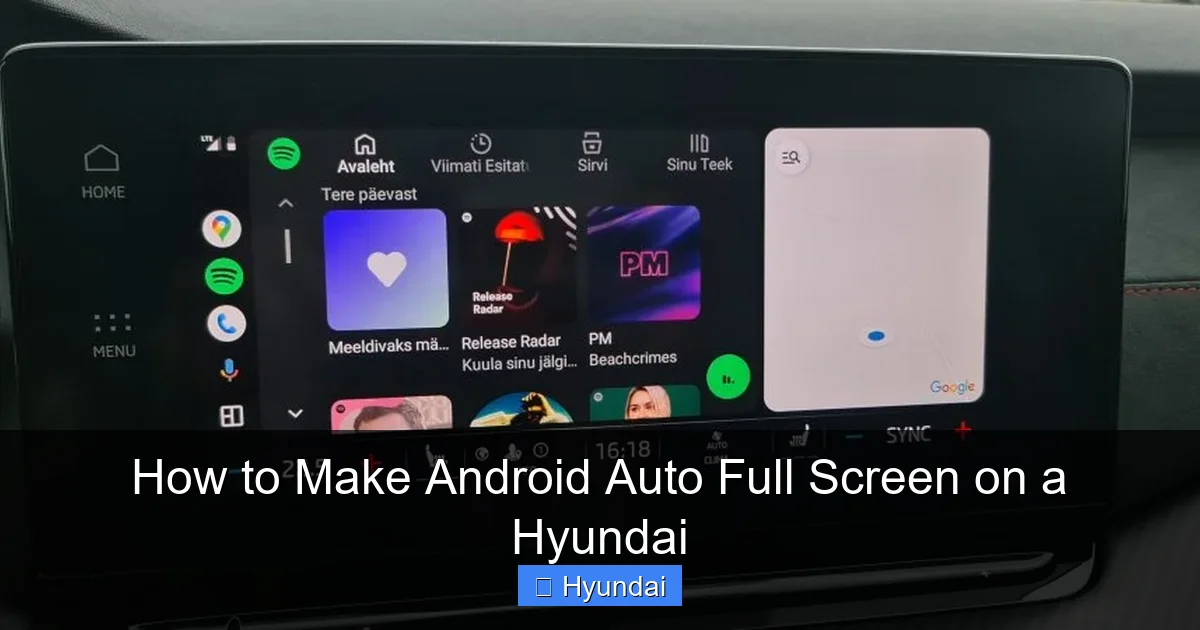
Visual guide about How to Make Android Auto Full Screen on a Hyundai
Image source: briskoda.net
For Models with Hyundai’s Standard Touchscreen (2019-2023)
This includes many Elantra, Sonata, Tucson, Santa Fe, and Kona models from the last few years.
- Start your car and ensure it’s in Park (some settings are locked while driving for safety).
- Press the HOME or MENU button on your infotainment screen.
- Navigate to Settings (usually a gear icon).
- Look for a tab or sub-menu labeled Display or Screen.
- Within Display settings, search for an option called Android Auto Display Mode, Phone Projection Display, or Aspect Ratio.
- You should see choices like Normal (letterboxed), Full Screen, or Widescreen. Select Full Screen.
- Exit settings, disconnect and reconnect your USB cable to restart Android Auto.
Example: On a 2022 Hyundai Sonata with the 10.25-inch screen, the path is often: Settings > Display > Android Auto Display Mode > [Select Full Screen].
For Models with Hyundai’s Larger 10.25″ or 12.3″ Screens
Found in higher trims of the Palisade, Genesis GV70/GV80, and newer Santa Fe/Calligraphy models.
The menu structure is often more detailed. You might find the setting under:
- Settings > General > Apple CarPlay / Android Auto
- or Settings > System > Phone Projection
Look specifically for a toggle or dropdown labeled Display Mode. These larger screens almost always support full-screen mode, but it may default to “Standard” to preserve some factory UI elements.
For Older Models with Non-Touch or Small Screens (Pre-2019)
If your Hyundai has a small 7-inch non-touchscreen controlled by knobs/buttons (common in 2015-2018 models), your options are severely limited. These systems often use a fixed 4:3 aspect ratio. Android Auto’s 16:9 signal will always be letterboxed. There is no user-accessible setting to change this. The only potential fix is a firmware update from the dealer, but even that may not add full-screen support if the hardware can’t handle it. In this case, you must accept the letterboxed view.
Pro Tip: If you can’t find the setting, consult your owner’s manual under the “Infotainment System” or “Android Auto” section. The manual will have the exact menu path for your specific VIN’s configuration. You can also often find digital copies on Hyundai’s website.
Troubleshooting: What to Do If the Full-Screen Option is Missing
You followed the steps above, but there’s no “Android Auto Display Mode” option, or it’s grayed out. Don’t panic. Here’s your systematic troubleshooting plan.
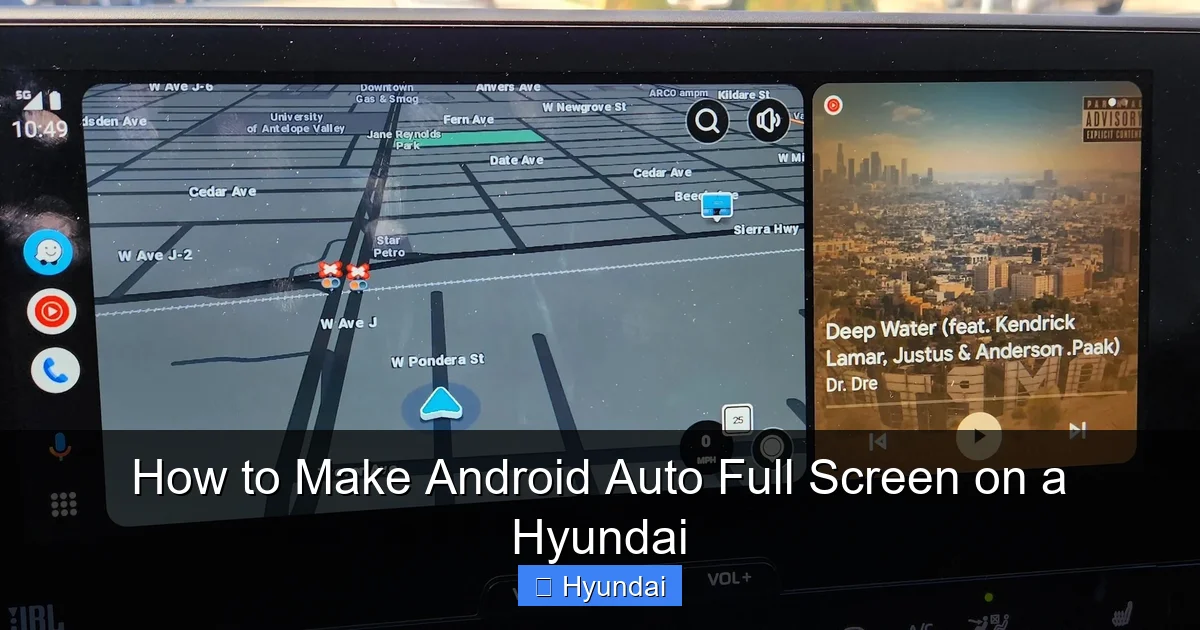
Visual guide about How to Make Android Auto Full Screen on a Hyundai
Image source: s1.cdn.autoevolution.com
1. Verify Your Hyundai Actually Supports It
This is the most common oversight. Full-screen Android Auto requires a widescreen physical display (16:9 or 16:10 aspect ratio). Measure your screen roughly: if it’s more square than rectangle (like older 7-inch 4:3 screens), it’s physically impossible. You can confirm your screen’s aspect ratio by searching your model year + “infotainment screen specs” online. If your hardware is square, no setting will change that.
2. Update Your Infotainment Firmware
Hyundai frequently adds features and bug fixes via software updates. An older firmware version might not include the full-screen toggle. You can update in two ways:
- USB Update: Download the latest firmware from your regional Hyundai website (owner’s portal), copy it to a blank USB drive, and follow the on-screen prompts in your car’s Settings > General > System Update.
- Dealer Update: Visit a Hyundai dealer. They can perform a comprehensive update, often for free if it’s a known issue or safety recall. This is the safest method.
After any update, re-check the Display settings menu.
3. Check Your Android Phone’s Configuration
While the car is the primary controller, your phone can sometimes interfere.
- Reset Android Auto App: Go to your phone’s Settings > Apps > Android Auto > Storage > Clear Cache and Clear Data. Then reconnect.
- Disable Developer Options: If you have Developer Options enabled on your phone (tapped Build Number 7 times), go to Developer Options and ensure settings like “Smallest Width” or “Force Full-Screen Apps” are at their default values or disabled. These can override the car’s scaling.
- Update the Android Auto App: Ensure you have the latest version from the Google Play Store.
4. Inspect Your USB Connection and Cable
A faulty connection can prevent the car from properly handshaking with the phone, leading to a fallback, low-resolution display mode.
- Use the original, high-quality USB cable that came with your phone, or a certified replacement from a reputable brand.
- Try a different USB port in your car, if available (some have a “data” port and a “charge-only” port).
- Clean the USB port and cable connector with compressed air.
5. Perform a System Reset on Your Hyundai
As a last resort before visiting the dealer, try a soft reset of your infotainment system. This clears temporary glitches. The method varies:
- Hold down the Power/Volume knob for 10-15 seconds until the screen reboots.
- Or, go to Settings > General > System > Factory Reset (note: this will erase all your radio presets, paired Bluetooth devices, and personal settings. Back them up first if possible).
After the reset, set up your phone again and check for the display mode option.
Advanced Workarounds and Considerations
If you’ve exhausted all official methods and still have black bars, you have a few remaining options, each with caveats.
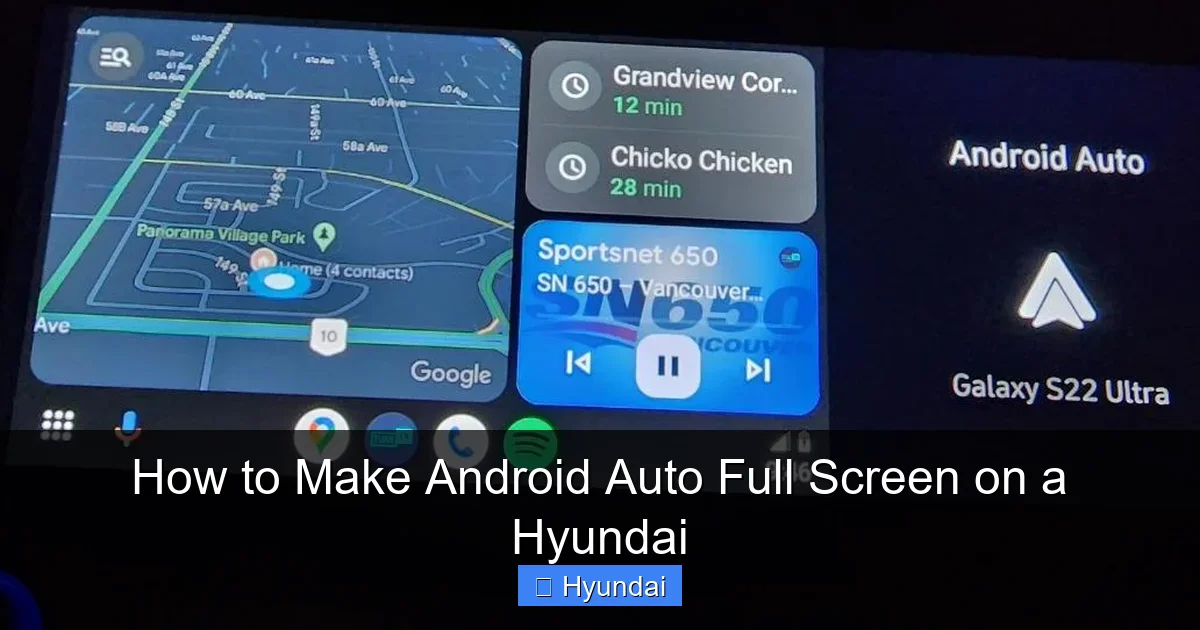
Visual guide about How to Make Android Auto Full Screen on a Hyundai
Image source: i.redd.it
Using Third-Party Apps to Force Resolution
Apps like SecondScreen (requires root) or Tasker with certain plugins can change your phone’s output resolution before launching Android Auto. The theory is to match your phone’s output exactly to your car’s screen resolution. This is risky and not recommended for most users. It can cause:
- App crashes and instability within Android Auto.
- Overheating of your phone.
- Potential navigation errors (map tiles not loading correctly).
- Voiding aspects of your car’s warranty if an infotainment fault is traced to a forced resolution.
Only attempt this if you’re technically savvy and understand the risks. Detailed guides for this are niche and model-specific.
The Dealer is Your Final Advocate
If your car is under warranty and you believe it should support full-screen Android Auto (based on marketing materials for your trim level), a visit to the dealer is warranted. Show them the issue. They can check for Technical Service Bulletins (TSBs) related to infotainment displays. Sometimes, a simple module replacement or a deeper software flash they perform with their diagnostic computer is the only solution. They can also definitively tell you if your specific hardware is incapable.
Why This Matters: Safety and Usability
It’s not just about aesthetics. A full-screen Android Auto interface is a significant safety and usability upgrade. Larger maps mean you can see upcoming turns at a glance. Bigger buttons for music and phone calls reduce the time your eyes are off the road. The standard letterboxed view wastes valuable screen real estate and forces you to squint. By maximizing your display, you maximize the core benefit of Android Auto: a cleaner, larger, and less distracting interface that keeps you focused on driving.
Furthermore, as automakers like Hyundai continue to phase out traditional buttons in favor of large touchscreens, optimizing that screen real estate becomes even more critical. Every pixel counts for quick, confident interactions while navigating traffic.
Conclusion: Your Hyundai, Your Full Screen
Making Android Auto full screen on your Hyundai is usually a straightforward settings change, but it requires knowing where to look. Start by hunting for the “Android Auto Display Mode” or “Aspect Ratio” setting in your infotainment’s Display menu. If it’s not there, update your car’s firmware and your phone’s app. Rule out hardware limitations if you have an older, square screen. And remember, a high-quality USB cable is a simple fix for many connection-related display quirks.
Your Hyundai’s infotainment system is a powerful tool. Taking five minutes to optimize its settings for Android Auto transforms your daily commute or road trip. The larger, clearer interface is safer and more enjoyable. So, plug in, dive into those settings, and reclaim every inch of your dashboard screen. If you hit a wall, your dealer’s service department is a valuable resource—don’t hesitate to ask them specifically about Android Auto display scaling for your model year.
By mastering these settings, you ensure that the technology in your car works for you, providing the seamless, modern connected car experience you expect. Now, go enjoy that full-screen navigation!
Frequently Asked Questions
Why is my Android Auto not full screen on my Hyundai even after changing settings?
This usually means your Hyundai’s physical screen has a 4:3 aspect ratio (more square), which cannot natively display 16:9 content without letterboxing. Alternatively, your infotainment firmware may be outdated and lack the full-screen toggle option. A dealer software update is the next step.
Do all Hyundai models support full-screen Android Auto?
No. Models with older, smaller, non-widescreen displays (typically pre-2019 or base-model screens) do not support it due to hardware limitations. Most Hyundai models from 2020 onward with a 8-inch or larger widescreen touchscreen do support a full-screen mode via a setting.
Can I force full-screen Android Auto without a car setting?
Not reliably. While advanced users can try third-party apps to change phone output resolution, this often causes instability, app crashes, and navigation errors. It’s not an official or supported method and can lead to a poor user experience.
Will a software update from the dealer fix my letterboxed Android Auto?
Possibly. Hyundai has released updates that add display scaling options for certain models. If your car is under warranty, a dealer can check for applicable updates. If your hardware is too old, no update will enable full-screen mode.
Is there a difference between Android Auto and Apple CarPlay screen scaling?
Yes. The settings are often separate. You might have a “Android Auto Display Mode” and an “Apple CarPlay Display Mode” in your Hyundai’s menu. You must adjust each independently if you use both systems. One can be set to Full Screen while the other remains Letterboxed.
My Hyundai’s screen goes black after selecting full-screen mode. What now?
This indicates a handshake error between your phone and the car. First, perform a soft reset of your infotainment system (hold power knob). Then, disconnect and carefully reconnect your USB cable, ensuring a firm data connection. If it persists, clear the Android Auto app cache on your phone and try a different cable.
