
How to Change Radio Stations in a Tesla

Changing radio stations in a Tesla is primarily done through the central touchscreen interface, with additional options via voice commands and steering wheel buttons. This guide explains every method step-by-step, from browsing AM/FM and SiriusXM to using streaming apps like Spotify. You’ll also learn how to save favorite stations as presets and solve common audio issues, making your Tesla’s infotainment system effortless to use.
Key Takeaways
- Touchscreen is Primary: All radio functions are controlled through the large central display, with no traditional physical buttons for station selection.
- Multiple Audio Sources: Tesla offers AM/FM radio, SiriusXM satellite radio, and integrated streaming apps like Spotify and TuneIn, each with its own interface.
- Voice Commands Work Well: The “Talk” button on the steering wheel lets you change stations hands-free by saying phrases like “Tune to 101.5 FM.”
- Steering Wheel Controls: Most models have buttons or scroll wheels on the steering wheel for quick volume and track skipping, but station tuning requires the touchscreen.
- Presets Are Saved Per Source: Favorite stations must be saved separately for FM, AM, SiriusXM, and each streaming app; they don’t transfer between sources.
- System Reboots Fix Glitches: If the radio freezes, a soft reboot (holding both steering wheel scroll buttons) often resolves the issue without losing presets.
- No Traditional “Seek” Button: Unlike many cars, Tesla lacks a physical seek/scan button; you must use the touchscreen’s tune bar or voice commands for scanning.
📑 Table of Contents
- Introduction: Your Tesla’s Digital Radio Experience
- Understanding Your Tesla’s Audio System: More Than Just AM/FM
- Method 1: Changing Stations via the Touchscreen (The Primary Method)
- Method 2: Voice Commands for Hands-Free Station Changes
- Method 3: Steering Wheel Controls for Quick Adjustments
- Saving and Managing Presets: Your Personal Quick-Select List
- Troubleshooting: When the Radio Won’t Change Stations
- Comparing Tesla’s System to Traditional Cars
- Conclusion: Embracing the Digital Dashboard
Introduction: Your Tesla’s Digital Radio Experience
Welcome to the future of in-car entertainment! If you’ve just stepped into a Tesla, you’ve probably noticed something missing: the familiar array of buttons and knobs for the radio. That’s because Tesla has replaced them with a sleek, all-digital interface centered around a large touchscreen. Changing radio stations here isn’t about twisting a dial—it’s about tapping, swiping, and sometimes even talking to your car. This might feel unfamiliar at first, but once you get the hang of it, you’ll likely find it more intuitive and powerful than traditional systems.
In this comprehensive guide, we’ll walk you through every single method to change radio stations in any Tesla Model S, 3, X, or Y. We’ll cover the basics of navigating the media player, how to use voice commands for hands-free tuning, the role of steering wheel controls, and exactly how to save your favorite stations for instant access. We’ll also troubleshoot common hiccups and share tips to make your audio experience seamless. Whether you’re commuting, road-tripping, or just running errands, mastering your Tesla’s radio will keep you entertained without taking your eyes off the road.
Understanding Your Tesla’s Audio System: More Than Just AM/FM
Before we dive into the “how,” it’s crucial to understand what “radio” means in a Tesla. It’s not just one thing. Your Tesla can play audio from several different sources, and each source has its own way of selecting stations or tracks. Think of it like having multiple music apps on your phone—each is separate and requires its own setup.
Visual guide about How to Change Radio Stations in a Tesla
Image source: car-horizon.com
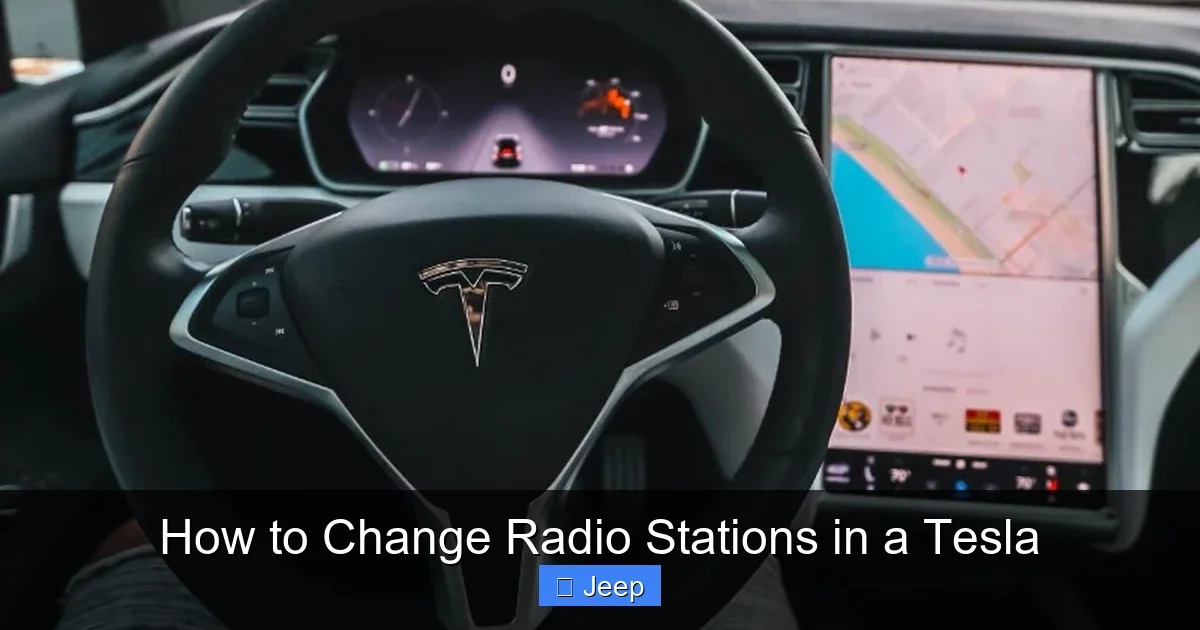
The Touchscreen: Your Main Control Hub
Everything starts at the bottom of the central touchscreen. When you tap the “Media” or “Music” icon (usually a musical note), you’ll see the current audio source displayed prominently at the top—like “FM Radio,” “SiriusXM,” or “Spotify.” Below that is the player interface with play/pause, skip buttons, and a tune bar or station list. This is your command center for all audio.
Available Audio Sources Explained
Here’s a breakdown of what you can listen to:
- AM/FM Radio: The traditional broadcast radio. You’ll browse by frequency or use presets. Availability depends on your region and vehicle configuration.
- SiriusXM Satellite Radio: Requires an active subscription. Offers hundreds of commercial-free channels, from news to sports to dedicated music stations. You browse by category or channel number.
- Streaming Apps: Tesla includes apps like Spotify, TuneIn, and Apple Music (in some regions). These require a Premium Connectivity subscription for mobile data or a connected Wi-Fi network. You search for specific songs, artists, playlists, or internet radio stations.
- Bluetooth Audio: Stream music from your phone. Station changing here is controlled by your phone’s app, not the Tesla interface directly.
- USB Drive: Play music files stored on a flash drive. You navigate folders like a computer.
Each source operates independently. Your saved FM presets won’t appear when you’re listening to Spotify, and vice versa.
Steering Wheel & Voice Controls: The Quick Access Shortcuts
While the touchscreen is the main tool, your steering wheel has important shortcuts. The left scroll wheel typically controls volume and track skipping (for the current source). The right scroll wheel often controls following distance and other Autopilot settings. A dedicated “Talk” button (usually on the left side) activates voice commands. These controls let you change music without looking away from the road, but for true station tuning (like entering a specific frequency), you’ll usually need the touchscreen or voice.
Method 1: Changing Stations via the Touchscreen (The Primary Method)
This is the most direct and visual way to change stations. The steps are consistent across all Tesla models and software versions, though the exact layout might vary slightly with updates.
Visual guide about How to Change Radio Stations in a Tesla
Image source: gearfixup.com
Step-by-Step: Accessing the Media Player
First, make sure your car is on (or in “Park” if you want to adjust while parked). Tap the large “Media” or “Music” icon at the bottom of the touchscreen. The current source will appear at the top. If it’s not the one you want, tap the source name to open a dropdown menu and select your desired source (e.g., “FM Radio”).
For AM/FM Radio: Using the Tune Bar
Once in FM or AM mode, you’ll see a horizontal “tune bar” with a marker showing the current frequency. To change stations:
- Tap anywhere on the tune bar to jump roughly to that frequency.
- Drag the marker left or right to fine-tune manually.
- Use the “” and “>” buttons on either side of the frequency display to seek up or down to the next strong station.
- Some versions also have a “Scan” button that automatically cycles through stations for a few seconds each.
For SiriusXM: Browsing by Category or Channel
In SiriusXM, you’ll typically see a list of categories (Music, Sports, News, etc.). Tap a category to see its channels. Tap a channel name to tune in. You can also directly enter a channel number using the on-screen keypad if you know it.
For Streaming Apps: Search and Select
In Spotify or TuneIn, the interface is like your phone. Use the search bar to find a specific song, artist, or internet radio station. You can also browse curated playlists or “radio stations” based on an artist. Once playing, the skip buttons work as expected.
Pro Tip: You can often access the last-used media source faster by tapping the small media icon in the status bar at the top of the screen, or by using a steering wheel button if configured.
Method 2: Voice Commands for Hands-Free Station Changes
This is arguably the safest and fastest method while driving. Tesla’s voice recognition is robust and specifically tuned for car commands.
Visual guide about How to Change Radio Stations in a Tesla
Image source: gearfixup.com
How to Activate Voice Control
Press the “Talk” button on your steering wheel (it usually has a microphone icon). You’ll hear a chime, and a microphone icon will appear on the touchscreen. The system is now listening. You can also say “Hey Tesla” if you have that feature enabled in settings.
Essential Voice Commands for Radio
Speak clearly and naturally. Here are the most useful commands:
- “Tune to [frequency] FM/AM.” Example: “Tune to 98.7 FM.”
- “Change to [channel number] on SiriusXM.” Example: “Change to channel 12 on SiriusXM.”
- “Play [artist/song] on Spotify.” Example: “Play Beatles on Spotify.”
- “Turn up/down the volume.” Or “Set volume to [number].”
- “Next track” / “Previous track.” Works for most sources.
- “Play [genre] radio.” For streaming apps, this often starts a station based on that genre.
Limitations and Tips for Voice
Voice commands generally cannot save presets or navigate complex menus. They’re best for direct tuning. If the system mishears you, try rephrasing. For obscure station names or frequencies, it’s often easier to use the touchscreen. Remember, you can combine commands: “Tune to 101.5 FM and turn the volume up.”
Method 3: Steering Wheel Controls for Quick Adjustments
Your steering wheel buttons are designed for common actions that don’t require looking at the screen. However, their exact functionality can vary by model year and software version.
Typical Button Functions
On most Teslas:
- Left Scroll Wheel: Roll forward/back to adjust volume. Press the wheel itself to play/pause or skip to the next track (for the current source).
- Right Scroll Wheel: Primarily for Autopilot and cruise control, not audio.
- Steering Wheel Stalks: The left stalk has the “Talk” button for voice commands. The right stalk controls turn signals and wipers.
- Additional Buttons: Some models have discrete buttons on the steering wheel for media control (play/pause, next/previous track). These are rare in newer models, as functions moved to scroll wheels.
What Steering Wheel Controls CAN and CANNOT Do
They are excellent for:
- Adjusting volume quickly.
- Pausing/playing audio.
- Skipping to the next track or station (for streaming apps and SiriusXM channel up/down).
They typically cannot:
- Enter a specific frequency (like 102.5 FM).
- Browse station lists or categories.
- Save presets.
- Switch between audio sources (e.g., from FM to Spotify).
For these tasks, you must use the touchscreen or voice commands.
Saving and Managing Presets: Your Personal Quick-Select List
Presets are the best way to access your favorite stations with one tap. But the process and storage work differently than in a conventional car.
How to Save a Preset (Step-by-Step)
1. Tune to the station you want to save using any method (touchscreen, voice).
2. Look for a “Favorite” or “Star” icon on the media player screen—it’s often near the frequency display or channel number.
3. Tap that icon. It should turn solid (gold or white) to indicate it’s saved.
4. To view all your saved presets, tap the “Favorites” tab or list icon, usually located next to the source name or in a sidebar.
Important: Presets Are Source-Specific
This is a key difference from many cars. Your list of saved FM presets is completely separate from your SiriusXM favorites and your Spotify “Radio” stations. When you switch sources, you must switch to that source’s preset list. There is no universal “preset 1” that holds an FM station and a Spotify playlist simultaneously.
Organizing and Deleting Presets
In the presets list, you can usually:
- Reorder: Drag and drop presets to rearrange their order (on some software versions).
- Delete: Swipe left on a preset (on touchscreen) or tap an “Edit” button to remove unwanted stations.
- Rename: Some versions allow renaming presets for easier identification.
Your presets are stored in your Tesla account and sync to other Tesla vehicles you drive, which is a nice perk.
Troubleshooting: When the Radio Won’t Change Stations
Most radio issues in a Tesla are software glitches, not hardware failures. Here’s how to fix the most common problems.
Problem: Touchscreen Buttons Don’t Respond / Media Player Frozen
Solution: Perform a soft reboot. While the car is in “Park,” press and hold both scroll wheels on the steering wheel for about 10-15 seconds until the Tesla logo appears on the screen. The system will restart. Your presets and settings will NOT be lost. This fixes 90% of minor infotainment glitches. If the problem persists, a full power cycle (walk away for 15 minutes with the car off and keys far away) may help.
Problem: No Sound or Static
First, check the volume level and mute button on the touchscreen. Ensure the correct audio source is selected and that your phone isn’t connected via Bluetooth and overriding the radio. For AM/FM, poor reception can be due to location; try driving to a new area. If using streaming, check your internet connection (Premium Connectivity or Wi-Fi).
Problem: Voice Commands Not Working
Ensure the “Talk” button is pressed until you hear the chime. Speak clearly after the chime. Check that your vehicle’s language setting is correct (Controls > Display > Language). If problems continue, a reboot often resolves microphone or software recognition issues.
Problem: Can’t Save Presets
Make sure you’re tapping the correct “Favorite” icon for the current source. Some streaming apps (like Spotify) use their own “Save to Library” function instead of the Tesla preset system. Also, you cannot save a preset while the car is moving in some regions due to safety regulations; try when parked.
When to Contact Tesla Service
If a reboot doesn’t fix a completely dead radio (no sound from any source, touchscreen media controls missing), or if you see persistent error messages, it may indicate a hardware issue with the media control unit. This requires professional diagnosis at a Tesla Service Center.
Comparing Tesla’s System to Traditional Cars
If you’re coming from a conventional vehicle, the differences are stark. In most cars, you’d use a physical knob to scroll through stations, a “seek” button to find strong signals, and a set of numbered buttons (1-6) to save presets. Tesla replaces all of that with a touchscreen. There are pros and cons.
Pros: The touchscreen allows for richer information (album art, station info, song lyrics). Presets can hold more than just a frequency—they can save a specific Spotify playlist. Voice control is highly integrated. The system updates over-the-air, so features improve.
Cons: It can be harder to change stations by feel while driving; you must glance at the screen. There’s no tactile feedback. The learning curve is steeper. For those who prefer physical controls, this can be frustrating.
If you’re used to a system like the one in a 2023 Toyota RAV4, which combines a touchscreen with some physical climate and audio buttons, Tesla’s approach feels more all-or-nothing. Similarly, even luxury brands like Audi often retain a physical volume knob and some hard buttons, which some drivers prefer for safety. Tesla bets entirely on voice and touch, which works well once adapted.
Conclusion: Embracing the Digital Dashboard
Changing radio stations in a Tesla might seem daunting at first, but it becomes second nature with a little practice. The touchscreen is your primary tool, offering precise control and visual feedback. Voice commands provide a safe, eyes-on-the-road alternative for simple tuning. While the lack of physical buttons takes adjustment, the system’s flexibility—from satellite radio to streaming apps—offers unparalleled entertainment options. Remember to save your favorite stations as presets within each source, and don’t forget the trusty reboot if things act up. With these methods in your toolkit, you’ll be tuning in to your favorite podcasts, news, or music channels in your Tesla with confidence and ease. Enjoy the ride and the soundtrack!
Frequently Asked Questions
Can I change Tesla radio stations while the car is moving?
Yes, you can change stations via the touchscreen while driving, but for safety, Tesla recommends using voice commands or steering wheel controls (for next/previous track) to minimize distraction. Some preset-saving functions may be disabled while moving.
Why can’t I find the AM radio band on my Tesla?
AM radio availability varies by region and vehicle configuration. Some markets (like Europe) do not include AM receivers due to lower usage and interference issues. Check your media source list; if AM isn’t there, your vehicle wasn’t equipped with it. SiriusXM and streaming apps are alternatives.
How do I switch between FM, SiriusXM, and Spotify?
Tap the current source name (e.g., “FM Radio”) at the top of the media player screen. A dropdown menu will appear listing all available sources. Simply tap your desired source to switch. You can also use voice: “Switch to Spotify.”
Do Tesla radio presets transfer to a new Tesla if I sell my car?
No. Presets are stored locally in the vehicle’s memory and in your Tesla account profile. If you sell your car, the new owner can create their own presets. If you buy a new Tesla and log into your Tesla account, some preferences may sync, but presets typically do not transfer automatically between vehicles.
Is there a way to scan for stations automatically like the “seek” button in other cars?
Yes. In FM/AM mode, look for a “Scan” button on the tune bar screen. Tapping it will automatically cycle through stations for a few seconds each, stopping when you tap again. If you don’t see a scan button, use the “>” or “<" buttons to seek to the next strong station manually.
What should I do if my Tesla radio freezes and won’t change stations?
Perform a soft reboot: while parked, press and hold both scroll wheels on the steering wheel for 10-15 seconds until the Tesla logo appears. The system will restart. This resolves most temporary software glitches without erasing your presets or settings.
