
How to Set Home Address in Tesla Model 3

Setting your home address in a Tesla Model 3 is a simple process that personalizes your navigation and enhances convenience. You can do it directly through the car’s touchscreen, the Tesla smartphone app, or even with voice commands. This guide provides clear, step-by-step instructions for each method, along with troubleshooting tips and pro advice to make the most of this feature. Once set, your Model 3 will automatically route you home and prioritize it as a favorite destination.
Key Takeaways
- Multiple Setup Methods: You can set your home address via the in-car touchscreen, the Tesla mobile app, or voice commands, offering flexibility.
- Auto-Navigation Home: The “Go Home” command on the touchscreen or via voice instantly starts navigation to your saved home address.
- App Sync is Key: Changes made in the Tesla app sync with the car over a cellular or Wi-Fi connection; ensure your phone has connectivity.
- Voice Command Simplicity: Use the steering wheel stalk or center console button to activate voice commands and say “Navigate Home” or “Set Home to [Address].”
- Troubleshooting Sync Issues: If changes don’t appear, check your phone’s internet connection, restart the car’s touchscreen, or log out and back into the Tesla app.
- Privacy Consideration: Your home address is stored locally in the car and in your Tesla account; be mindful of this if you sell or service your vehicle.
- Foundation for Favorites: Setting your home address automatically saves it as a “Favorite” destination, making it even quicker to access from the navigation map.
📑 Table of Contents
- Why Setting Your Home Address is a Game-Changer
- Method 1: Setting Home Address via the Touchscreen
- Method 2: Using the Tesla Smartphone App
- Method 3: The Power of Voice Commands
- Troubleshooting: When Your Home Address Won’t Set or Sync
- Pro Tips and Integrating with Your Tesla Lifestyle
- Conclusion: Your Home, One Tap Away
Why Setting Your Home Address is a Game-Changer
Imagine you’re finishing a long day at work, hopping into your Tesla Model 3, and with a single tap or a spoken phrase, the car knows exactly where to take you: home. That’s the magic of setting your home address. It transforms your Model 3 from a mere vehicle into a personalized assistant. This small step saves you from manually typing in your address every single time you want to navigate home, which can be a distraction and an inconvenience. It’s about making the technology work for you, seamlessly and intuitively.
Beyond the obvious convenience, your saved home address integrates with several other Tesla features. It becomes a permanent “Favorite” destination in your navigation system, always a tap away on the map screen. The “Go Home” button appears prominently on the touchscreen’s bottom navigation bar when you’re away from home. Furthermore, if you use Tesla’s Smart Summon or Summon features in the future, having an accurate home location in your account can be relevant for certain automated functions. It’s one of the first and most important personalization steps for any new Tesla owner.
Method 1: Setting Home Address via the Touchscreen
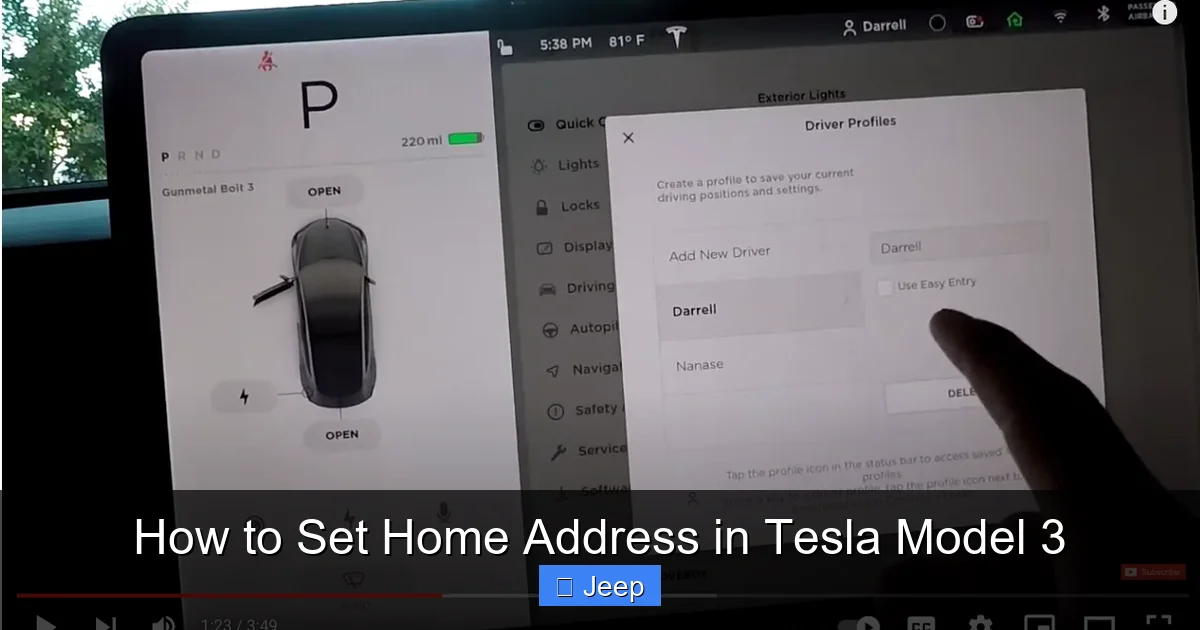
The primary and most straightforward method to set your home address is using the large, responsive touchscreen at the center of your Model 3’s dashboard. The interface is designed to be user-friendly, guiding you through a few simple taps. This method is ideal when you’re already in the car, perhaps after driving home for the first time.
Visual guide about How to Set Home Address in Tesla Model 3
Image source: lh4.googleusercontent.com
Step-by-Step Touchscreen Navigation
Start by ensuring your car is in Park and has a stable internet connection via its built-in cellular modem. Then, follow these precise steps:
- Tap the Navigation icon (the arrow pointing in a direction) on the bottom dock of your touchscreen.
- In the upper-left corner of the map screen, you’ll see a Home icon that looks like a small house. Tap it.
- A menu will pop up. Since you haven’t set a home yet, it will likely say “Set Home” or show a plus (+) symbol. Tap Set Home.
- The screen will now display a search bar at the top. You can either:
- Type your address using the on-screen keyboard.
- Use voice dictation by tapping the microphone icon on the keyboard.
- Drop a pin on the map by long-pressing on your exact home location.
- Once the correct address appears in the search results or you’ve placed the pin, tap on it to select it.
- Finally, tap the Set as Home button that appears at the bottom of the address card.
You should see a confirmation message, and the house icon in the navigation menu will now be filled in. Your home address is saved! To test it, simply tap the Home icon again and then tap Navigate. The car will begin routing you home immediately.
Method 2: Using the Tesla Smartphone App
For those who prefer managing things from their phone, the Tesla app is a powerful companion. Setting your home address here is just as easy and has the added benefit of syncing automatically to your car the next time it connects to the internet. This is perfect for setting up your address before you even take delivery of the car or if you need to update it while away from the vehicle.
Visual guide about How to Set Home Address in Tesla Model 3
Image source: koala.sh
App Setup and Sync Process
First, ensure you have the official Tesla app installed on your iOS or Android device and are logged into the same Tesla account linked to your Model 3. Your phone must have an active internet connection (cellular data or Wi-Fi). Here’s how to proceed:
- Open the Tesla app and select your Model 3 from the vehicle selector at the bottom if you have more than one.
- In the main control panel, look for the Location or Share section. The exact layout can vary with app updates, but you’re looking for an option related to addresses or favorites. Often, it’s found by tapping the three-line menu (hamburger icon) in the top-left corner and selecting Addresses or Favorites.
- Within the Addresses menu, you should see fields for Home and Work. Tap on Home.
- Enter your full home address into the search field. The app uses Google Maps, so it will auto-suggest addresses as you type. Select the correct, complete address from the dropdown list.
- Once selected, the address will be saved. There is usually no separate “Save” button; the selection itself saves it.
The change is now stored in your Tesla account. For it to appear in your car, your Model 3 needs to be awake and connected to the Tesla network. This usually happens within a few minutes, especially if the car is plugged in or has recent activity. You can force a sync by opening the touchscreen’s Settings menu, going to Software, and checking for updates, or simply by restarting the car’s touchscreen (hold down both scroll wheels on the steering wheel until the screen reboots).
Pro Tip: Setting Work and Other Favorites
While you’re in the app’s address menu, take a moment to also set your Work address. This creates the same one-tap convenience for your daily commute. You can also add other frequently visited locations like the grocery store, gym, or parents’ house as “Favorites” in the app, which will sync to the car’s navigation favorites list.
Method 3: The Power of Voice Commands
One of the most futuristic and hands-free features of the Tesla Model 3 is its voice command system. You can use it to set your home address without ever taking your hands off the wheel or eyes off the road (well, minimally). This method is incredibly quick once you get the hang of it.
Visual guide about How to Set Home Address in Tesla Model 3
Image source: carstale.com
Activating and Using Voice Commands
The voice command system is activated in one of two ways:
- Press and hold the right scroll wheel button on the steering wheel.
- Press the microphone button on the center console touchscreen (if equipped with that layout).
- To navigate home immediately: Simply say “Navigate home” or “Take me home.” The car will instantly start calculating a route to your saved home address. If you haven’t set one yet, it will prompt you to set it via the touchscreen.
- To set a new home address: You can say “Set home to [your address].” For example, “Set home to 123 Main Street, Anytown.” The system will attempt to interpret the address. For best results, speak clearly and include the street number, street name, and city. If it’s unsure, it may display a list of possible matches on the screen for you to confirm.
You’ll hear a chime, and the touchscreen will show a listening prompt. Now, you have two primary voice command options:
Voice recognition is generally excellent but can struggle with complex street names or new subdivisions. In those cases, the touchscreen or app method is more reliable. Practice makes perfect—try it with a simple command first to build confidence.
Troubleshooting: When Your Home Address Won’t Set or Sync
Despite Tesla’s generally seamless integration, you might occasionally encounter a hiccup. Maybe the address you set in the app doesn’t appear in the car, or the touchscreen gives an error. Don’t worry; these issues are almost always fixable with a few simple steps.
Common Issues and Solutions
Issue 1: “Address not found” error in the car or app.
Solution: Double-check the spelling and formatting of your address. Try entering it in a standard format: “123 Street Name, City, State, Zip Code.” Use the map pin-drop method on the touchscreen if typing fails. Sometimes, new neighborhoods aren’t in the map database immediately; dropping a pin on your exact house is the most foolproof method.
Issue 2: Address set in app, but not showing up in car.
Solution: This is a sync issue. First, ensure your Model 3 has a cellular signal (check the top-left corner of the touchscreen for bars). Then, try a soft reboot of the touchscreen: hold down both scroll wheel buttons on the steering wheel until the screen turns black and reboots. This often forces a data refresh. If that fails, log out of the Tesla app on your phone and log back in, then try syncing again.
Issue 3: “Go Home” button missing from the bottom dock.
Solution: The “Go Home” button only appears when you are a significant distance from your saved home location (typically over 0.5 miles). If you’re testing it while parked in your driveway, it might be hidden because the car thinks you’re already home. Drive a few blocks away and check again. Also, confirm the home address is correctly set in Navigation > Home.
Issue 4: Voice command for setting home doesn’t work.
Solution: Voice commands for *setting* an address are less robust than for *navigating* to it. If the system can’t understand the spoken address, it will default to the touchscreen. Your best bet is to set the address via touchscreen or app first, then use the voice command “Navigate home” for future use.
Pro Tips and Integrating with Your Tesla Lifestyle
Now that your home address is set, let’s level up your Tesla experience. This simple setting unlocks more convenience and ties into other ownership aspects.
Leverage Favorites and Recent Destinations
Once your home is saved, it automatically becomes a Favorite. Access your full list of Favorites by tapping the heart icon on the navigation screen. Here, you can also manually add other frequent spots. The “Recent” tab is also useful, but Favorites are permanent. Organize these to create a truly personalized navigation hub.
Consider Your Car’s Appearance After Setting Up
Setting up your car’s tech is just one part of ownership. Many Tesla owners also love to personalize their vehicle’s exterior. If you’re thinking about protecting the paint or giving your Model 3 a unique look, you might explore wrapping or tinting options. For comprehensive cost guides on these popular customizations, check out resources like how much does it cost to wrap a Tesla Model 3 or how much to tint a Tesla Model 3. These modifications not only enhance aesthetics but can also protect your car’s original finish from road debris and harmful UV rays.
Keep Your Address Updated
Life happens—you might move. Remember to update your home address in both the Tesla app and via the touchscreen. This is crucial for accurate navigation and for any location-based services. Also, if you sell your car, it’s a good practice to remove your personal addresses from the system via the touchscreen (go to Settings > Safety & Security > Clear Personal Data), though a factory reset will handle this.
Conclusion: Your Home, One Tap Away
Setting your home address in your Tesla Model 3 is a foundational step in tailoring your electric vehicle to your life. It’s a quick, one-time task that pays dividends in daily convenience, whether you use the intuitive touchscreen, the powerful mobile app, or the futuristic voice commands. By mastering this feature, you’re not just setting an address; you’re programming a shortcut to the place you love most, making every journey’s end that much simpler. So take five minutes now to set it up, and enjoy the seamless, “it just works” feeling of your Tesla knowing exactly where you belong.
Frequently Asked Questions
Can I set multiple home addresses in my Tesla Model 3?
No, the Tesla system only allows for one primary “Home” address to be saved at a time. However, you can save other frequent locations as “Favorites” in the navigation system for one-tap access.
Will setting my home address affect my Tesla’s autopilot or self-driving features?
No. Your saved home address is solely used for navigation and destination shortcuts. It does not influence Autopilot, Full Self-Driving (FSD), or any safety-critical driving functions. Those systems operate based on real-time sensor data and mapping, not your personal favorites.
What is the difference between setting an address in the car versus in the Tesla app?
Functionally, there is no difference; both save the address to your Tesla account. The main difference is convenience. Setting it in the app allows you to do it from anywhere, and it syncs to the car later. Setting it in the car is immediate. It’s recommended to use the app for initial setup before taking delivery.
My home address is in a new development not on the map. How do I set it?
Use the map pin-drop method. In the navigation search screen, zoom in on your exact house, long-press on the roof to drop a pin, and then select “Set as Home.” This bypasses the address database and uses GPS coordinates, which is perfect for new homes or rural routes.
Is my home address stored locally in the car or in the cloud?
Your home address is stored in both places. It’s saved to your Tesla account in the cloud (accessible via the app) and also cached locally in the car’s system for offline use. This dual storage ensures you can navigate home even if the car temporarily loses its cellular connection.
Does the “Go Home” feature work if I’m already at home?
No. The “Go Home” button on the bottom dock of the touchscreen only appears when the car’s GPS determines you are a significant distance away from your saved home location (usually more than half a mile). If you’re at home, the system assumes you don’t need to navigate there.
