
How to Set Up Bluetooth on a Nissan Altima

Setting up Bluetooth on a Nissan Altima is simple and enhances your driving experience by enabling hands-free calling and wireless music streaming. Whether you drive a 2013 model or a 2023 Altima, this guide walks you through the pairing process clearly and confidently.
Key Takeaways
- Bluetooth is standard on most Nissan Altima models from 2013 onward: This feature allows you to connect your smartphone for calls, texts, and music without touching your device.
- Pairing requires your phone and the car’s infotainment system: Both must be in pairing mode at the same time for a successful connection.
- The process varies slightly by model year and trim level: Older models may use a basic audio system, while newer ones feature NissanConnect with advanced voice controls.
- Always ensure your phone’s Bluetooth is turned on and discoverable: This is the first step before attempting to pair with your Altima.
- You can connect multiple devices, but only one can be active at a time: Switch between devices easily through the audio or phone menu.
- Regular software updates improve Bluetooth performance: Check for infotainment system updates via Nissan’s official website or your dealer.
- Troubleshooting tips include restarting devices and clearing old pairings: These simple steps often resolve connection issues quickly.
📑 Table of Contents
Why Bluetooth Matters in Your Nissan Altima
Imagine driving down the highway, your favorite playlist streaming through the car speakers, or taking an important call without ever touching your phone. That’s the power of Bluetooth in your Nissan Altima. This wireless technology isn’t just a convenience—it’s a safety feature. With Bluetooth, you keep your hands on the wheel and your eyes on the road, reducing distractions and helping you stay focused.
Bluetooth has been a standard feature in most Nissan Altima models since 2013, evolving alongside smartphone technology. Whether you’re using it for hands-free calling, voice-to-text messaging, or streaming music from apps like Spotify or Apple Music, Bluetooth makes your drive more enjoyable and safer. Plus, it integrates seamlessly with the car’s audio system, so you don’t need extra cables or adapters. Once set up, your phone automatically connects when you start the car—making every trip smoother.
What You’ll Need Before You Start
Before diving into the setup process, make sure you have everything ready. You’ll need your smartphone, your Nissan Altima, and a few minutes of uninterrupted time. It’s best to do this when the car is parked and the engine is off or in accessory mode. This prevents any interruptions and ensures the system is ready to pair.
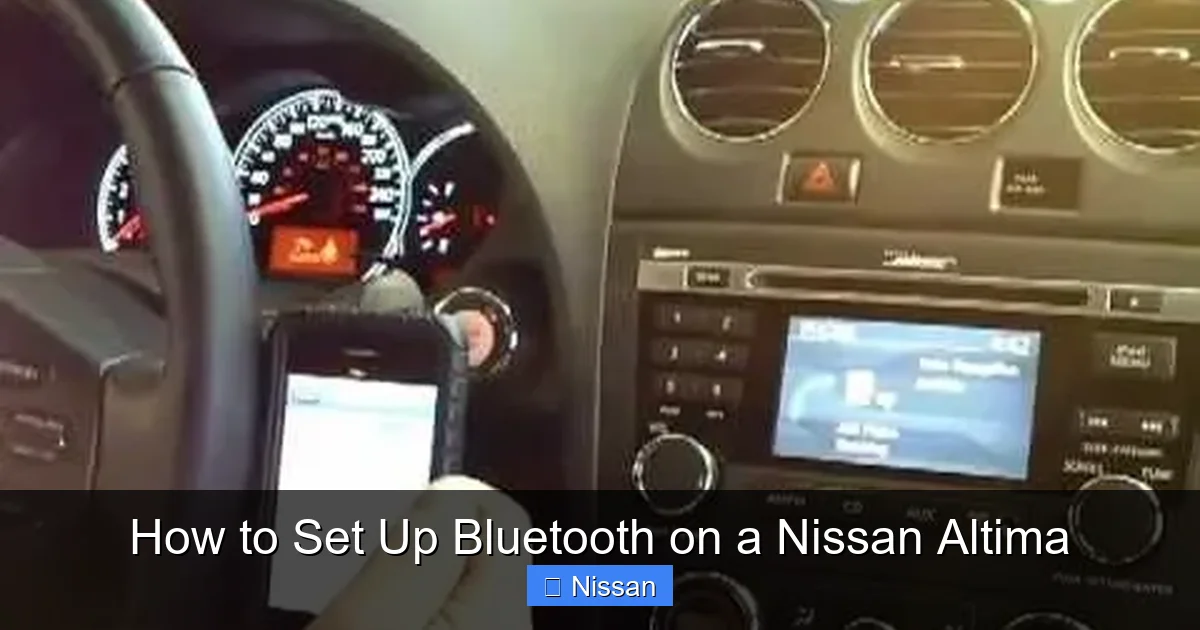
Visual guide about How to Set Up Bluetooth on a Nissan Altima
Image source: img.wonderhowto.com
Check Your Phone’s Compatibility
Most modern smartphones—iPhone, Android, and others—support Bluetooth 4.0 or higher, which works perfectly with the Altima’s system. If you’re using an older phone, check your settings to confirm Bluetooth is available. Also, ensure your phone’s software is up to date. Outdated operating systems can cause pairing issues or limit functionality.
Know Your Altima’s Infotainment System
Nissan has used different infotainment systems over the years. Older models (2013–2018) typically feature a basic audio system with a small screen, while newer models (2019–2023) come with NissanConnect, offering larger touchscreens, voice recognition, and smartphone integration like Apple CarPlay and Android Auto. The Bluetooth setup process is similar across models, but the menu layout may differ slightly. If you’re unsure which system you have, check your owner’s manual or look for the NissanConnect logo on the screen.
Gather Your Tools
You won’t need any special tools, but having your phone charger handy is a good idea. If the pairing process takes longer than expected, your phone’s battery might drain. Also, keep your owner’s manual nearby—it contains model-specific instructions and troubleshooting tips. If you don’t have the physical manual, you can download a digital copy from Nissan’s official website using your vehicle identification number (VIN).
Step-by-Step Guide to Pairing Your Phone
Now that you’re prepared, let’s walk through the pairing process. The steps are straightforward, but it helps to follow them in order. We’ll cover the general method that works for most Altima models, with notes for variations.
Step 1: Turn On Your Phone’s Bluetooth
Start by unlocking your smartphone and going to the Settings menu. Look for “Bluetooth” and toggle it on. Make sure your phone is set to “discoverable” or “visible to other devices.” This allows your Altima to find it during the pairing process. On iPhones, Bluetooth is usually enabled through the Control Center or Settings. On Android devices, it’s typically under “Connections” or “Network & Internet.”
Step 2: Access the Bluetooth Menu in Your Altima
Turn on your Altima’s ignition—you don’t need to start the engine, but the accessory mode must be active. On the infotainment screen, look for a button labeled “Phone,” “Bluetooth,” or “Settings.” Tap it to open the menu. If you don’t see a touchscreen, use the physical buttons or knob near the center console to navigate. Older models may require you to press and hold the “Phone” button on the steering wheel to enter pairing mode.
Step 3: Start the Pairing Process
Once in the Bluetooth menu, select “Add New Device” or “Pair Device.” The system will begin searching for nearby Bluetooth devices. This may take 10–20 seconds. When your phone appears on the list, tap it to select it. If your phone doesn’t show up, make sure it’s still discoverable and try again. Sometimes moving closer to the car’s infotainment system helps improve signal detection.
Step 4: Confirm the Pairing Code
A four-digit code will appear on both your phone and the car’s screen. Verify that the codes match—this ensures a secure connection. Tap “Pair” or “OK” on both devices. If the codes don’t match, cancel the process and restart it. Some older models may not display a code but will ask for confirmation directly. Once paired, you’ll see a success message on the screen.
Step 5: Test the Connection
After pairing, test the connection by making a quick phone call or playing music. Dial a number using the car’s voice command or touchscreen, or open a music app and select a song. The audio should play through the car speakers. If you hear sound from your phone instead, check the audio output settings on your device and ensure it’s set to the car’s Bluetooth system.
Setting Up Bluetooth on Different Altima Models
While the basic steps are similar, the exact process can vary depending on your Altima’s year and trim level. Let’s break it down by model generation to help you find the right instructions.
2013–2015 Nissan Altima
These models typically feature a basic audio system with a small LCD screen. To pair your phone, press the “Phone” button on the steering wheel or the center console. Navigate to “Bluetooth Settings” using the arrow buttons, then select “Add Device.” Follow the on-screen prompts to complete pairing. Note that these older systems may not support advanced features like voice-to-text or media browsing.
2016–2018 Nissan Altima
Starting in 2016, Nissan introduced updated infotainment systems with larger screens and improved Bluetooth functionality. The process is more intuitive: tap the “Settings” icon, then “Bluetooth,” and choose “Add Device.” These models often support dual-device pairing, meaning you can connect two phones and switch between them easily. They also allow for contact syncing, so your phonebook appears on the screen.
2019–2023 Nissan Altima
The latest Altima models come with NissanConnect, offering a sleek touchscreen interface and advanced features. To pair your phone, go to “Settings” > “Connections” > “Bluetooth.” Tap “Add Device” and follow the prompts. These systems support Apple CarPlay and Android Auto, which enhance Bluetooth functionality by allowing app integration. You can also use voice commands via the “Talk” button on the steering wheel to initiate calls or play music without touching the screen.
Advanced Features and Tips
Once your phone is paired, you can unlock additional features that make driving more convenient. Here are some tips to get the most out of your Altima’s Bluetooth system.
Use Voice Commands for Hands-Free Control
Most Altima models with Bluetooth support voice recognition. Press the “Talk” button on your steering wheel and say commands like “Call John Smith” or “Play music from Spotify.” This keeps your hands on the wheel and reduces distractions. To improve accuracy, speak clearly and avoid background noise. You can also train the system by repeating commands a few times.
Sync Your Contacts and Messages
After pairing, your phone’s contacts may automatically sync to the car’s system. This allows you to make calls by saying a name instead of dialing a number. Some models also support message reading—when you receive a text, the system can read it aloud and let you reply using voice-to-text. To enable this, go to “Phone Settings” and turn on “Message Access” or “Text Message Sync.”
Stream Music from Your Favorite Apps
Bluetooth isn’t just for calls—it’s great for music too. Once connected, open apps like Spotify, Apple Music, or Pandora on your phone. The audio will stream wirelessly to your car’s speakers. You can control playback using the touchscreen, steering wheel buttons, or voice commands. For the best sound quality, ensure your phone’s volume is set to at least 75% and use high-quality audio files or streaming settings.
Connect Multiple Devices
If you share your car with family members or frequently switch between personal and work phones, you can pair multiple devices. Go to “Bluetooth Settings” and add each phone individually. Only one device can be active at a time, but you can switch between them easily. When you start the car, the system will connect to the last used device automatically.
Troubleshooting Common Bluetooth Issues
Even with the best setup, you might run into occasional problems. Here’s how to fix the most common Bluetooth issues in your Nissan Altima.
Phone Won’t Connect or Pair
If your phone doesn’t appear in the device list, make sure Bluetooth is on and discoverable. Try turning Bluetooth off and on again on both devices. If that doesn’t work, restart your phone and the car’s infotainment system by turning the ignition off and on. For persistent issues, delete the old pairing from both devices and start fresh.
Audio Cuts Out or Sounds Distorted
This can happen due to weak signal strength or interference. Move your phone closer to the infotainment system—avoid placing it in the glove box or back seat. Also, check for software updates on your phone and the car’s system. Outdated firmware can cause audio glitches. If the problem continues, try disconnecting and reconnecting the Bluetooth link.
Phone Disconnects Frequently
Frequent disconnections may be caused by battery-saving modes on your phone. Disable features like “Battery Saver” or “Low Power Mode,” as they can limit Bluetooth performance. Also, ensure your phone isn’t connecting to other Bluetooth devices (like headphones or smartwatches) at the same time. Only one active connection is allowed per device.
Voice Commands Don’t Work
If voice recognition fails, check the microphone—usually located near the rearview mirror. Make sure it’s not blocked by sun visors or accessories. Also, verify that the “Voice Recognition” feature is enabled in the settings. Speak clearly and use simple commands. If the system still doesn’t respond, consult your owner’s manual for model-specific troubleshooting.
Maintaining Your Bluetooth Connection
To keep your Bluetooth system running smoothly, follow these maintenance tips. Regular care prevents issues and extends the life of your infotainment system.
Update Your Software
Nissan periodically releases software updates for its infotainment systems. These updates can improve Bluetooth performance, fix bugs, and add new features. Visit Nissan’s official website and enter your VIN to check for updates. Some models allow over-the-air updates, while others require a visit to the dealership. Keeping your phone’s operating system updated is equally important.
Clear Old Pairings
Over time, your car’s system may store multiple old pairings, which can slow down the connection process. Periodically go to “Bluetooth Settings” and remove devices you no longer use. This keeps the list clean and ensures faster pairing when you need it.
Reset the System if Needed
If you’re experiencing persistent issues, a system reset may help. Turn off the car, disconnect the battery for 10 minutes, then reconnect it. This resets the infotainment system to factory settings. Note that this will erase all saved pairings and settings, so you’ll need to reconfigure everything afterward.
Conclusion
Setting up Bluetooth on your Nissan Altima is a simple process that pays off in convenience, safety, and enjoyment. Whether you drive a 2013 model or a brand-new 2023 Altima, the steps are straightforward and designed for everyday users. Once paired, you’ll enjoy hands-free calling, wireless music streaming, and seamless integration with your smartphone.
Remember to keep your devices updated, test the connection regularly, and use the advanced features like voice commands and contact syncing. If you run into issues, don’t panic—most problems can be solved with a quick restart or re-pairing. With this guide, you’re well-equipped to make the most of your Altima’s Bluetooth capabilities. So go ahead, pair your phone, and enjoy a smarter, safer drive.
Frequently Asked Questions
Can I connect more than one phone to my Nissan Altima via Bluetooth?
Yes, most Nissan Altima models allow you to pair multiple phones, but only one can be active at a time. You can switch between devices through the Bluetooth or phone menu.
Why won’t my phone show up when I try to pair it?
Make sure your phone’s Bluetooth is turned on and set to discoverable. Also, ensure you’re within range of the car’s infotainment system and that no other devices are interfering.
Do I need to pair my phone every time I start the car?
No. Once paired, your phone should connect automatically when you start the car, as long as Bluetooth is enabled on both devices.
Can I use Bluetooth to charge my phone in the Altima?
No, Bluetooth is only for wireless audio and data transfer. To charge your phone, use the USB port or wireless charging pad (if equipped).
What if my Altima doesn’t have a touchscreen?
Older models use physical buttons or knobs to navigate the menu. Press the “Phone” or “Settings” button and use the arrow keys to find the Bluetooth pairing option.
How do I delete a paired device from my Altima?
Go to the Bluetooth settings menu, select the device you want to remove, and choose “Delete” or “Forget Device.” Confirm the action to complete the process.