
How to Add Navigation to Subaru Starlink

Adding navigation to Subaru Starlink is easier than you think—whether your vehicle came with it or not. This guide walks you through compatible models, upgrade options, and step-by-step instructions to get turn-by-turn directions right on your dashboard.
If you’ve ever found yourself squinting at your phone mounted awkwardly on the windshield while driving your Subaru, you’re not alone. Many Subaru owners love their cars for their reliability, all-wheel drive, and rugged charm—but sometimes feel left behind when it comes to modern infotainment features like built-in navigation. The good news? You don’t need to trade in your trusted Outback or Forester just to get turn-by-turn directions on your dashboard. Thanks to Subaru Starlink, adding navigation is more accessible than ever—even if your vehicle didn’t come with it standard.
Subaru Starlink isn’t just one system—it’s a suite of connected services that includes safety, security, entertainment, and yes, navigation. Depending on your model year and trim level, your Starlink setup might already have the hardware needed for navigation; you just need to activate it. Or, if you’re working with a simpler audio system, you can still enjoy full navigation capabilities using your smartphone. Whether you’re planning a cross-country road trip or just trying to avoid downtown traffic, this guide will show you exactly how to add navigation to Subaru Starlink—no mechanic degree required.
In this comprehensive walkthrough, we’ll cover everything from checking your current Starlink compatibility to activating factory navigation, using smartphone mirroring, and even exploring aftermarket alternatives. We’ll also share practical tips to keep your system running smoothly and answer common questions along the way. By the end, you’ll know exactly which path to take—and how to stay on it with confidence.
Key Takeaways
- Check your Starlink system version: Not all Subaru Starlink systems support built-in navigation—know your head unit type (Gen 1, Gen 2, or Gen 3) before upgrading.
- Factory navigation requires a subscription: If your Subaru has the navigation-ready Starlink system, you’ll need an active Starlink Safety Plus & Security Plus plan to activate it.
- Aftermarket solutions work too: Use Android Auto or Apple CarPlay to mirror Google Maps or Apple Maps directly to your Starlink screen.
- USB updates may be needed: Some navigation features require a software update via USB drive downloaded from Subaru’s official website.
- Dealer installation ensures compatibility: For factory upgrades, visiting a Subaru dealer guarantees proper setup and warranty protection.
- Third-party apps enhance functionality: Apps like Waze offer real-time traffic and crowd-sourced alerts when used through smartphone integration.
- Future-proof with over-the-air updates: Newer Starlink systems support OTA updates, making navigation improvements automatic.
📑 Table of Contents
- Understanding Your Subaru Starlink System
- Activating Factory Navigation (If Your Subaru Is Navigation-Ready)
- Using Smartphone Integration: Android Auto & Apple CarPlay
- Updating Starlink Software for Navigation Compatibility
- Aftermarket Navigation Solutions (When All Else Fails)
- Tips for Optimal Navigation Experience
- Future of Navigation in Subaru Starlink
- Conclusion
Understanding Your Subaru Starlink System
Before you can add navigation, it’s essential to understand what kind of Starlink system your Subaru actually has. Subaru has rolled out several generations of Starlink since its introduction around 2015, and not all of them support built-in navigation. Confusingly, even within the same model year, different trims may come with different head units—some with navigation capability, others without.
The first step is identifying your Starlink generation. Gen 1 systems (found in models from 2015–2017) typically feature a smaller 6.2-inch or 7-inch touchscreen and often lack native navigation unless specifically equipped. Gen 2 (2018–2020) introduced larger 8-inch displays and better integration with smartphones, while Gen 3 (2021 and newer) brought wireless Apple CarPlay and Android Auto, plus over-the-air update capabilities.
To check your system type, look at your vehicle’s infotainment screen. If you see “Starlink” branding on startup and have options like “Safety,” “Security,” or “Services,” you likely have a connected system. You can also consult your owner’s manual or visit Subaru’s official VIN decoder tool online. Knowing your generation helps determine whether you can enable factory navigation or if you’ll need to rely on smartphone integration.
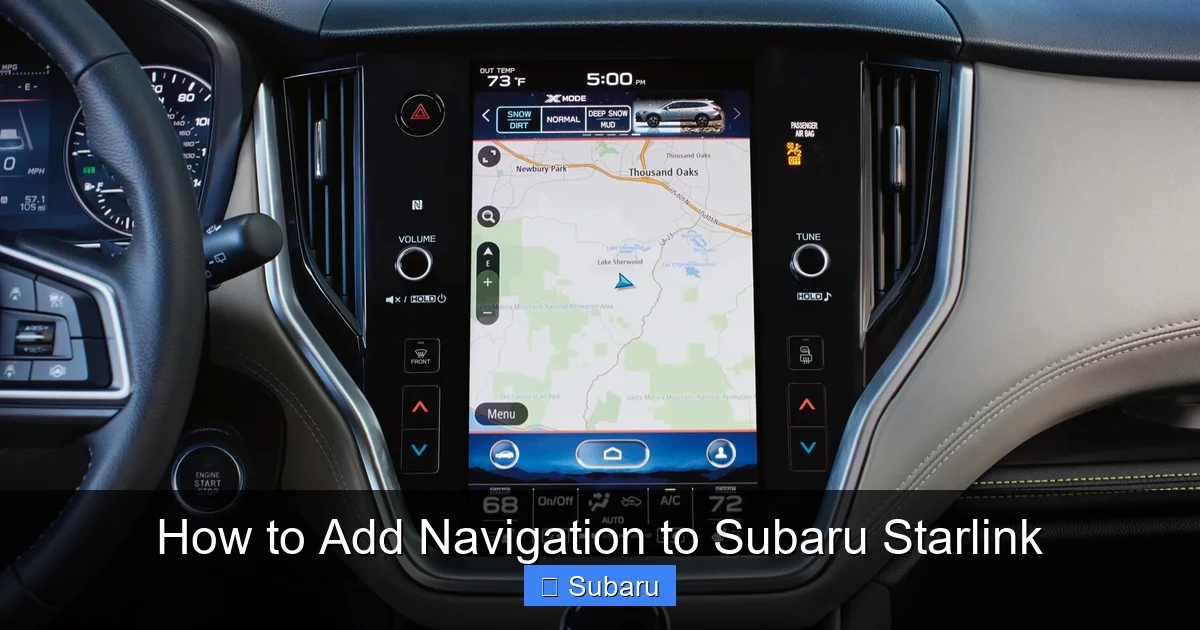
Another key detail: some Subarus are “navigation-ready,” meaning the hardware is present but the feature is locked behind a subscription. This is common in mid-tier trims like the Premium or Limited packages. If your screen shows a “Navigation” button but it’s grayed out, that’s a strong sign you’re navigation-ready—and just need to activate the service.
Visual guide about How to Add Navigation to Subaru Starlink
Image source: a.storyblok.com
If your Subaru came with a navigation-ready Starlink system, activating built-in navigation is surprisingly straightforward—but it does require a subscription. Subaru bundles navigation under its Starlink Safety Plus & Security Plus plan, which also includes automatic collision notification, SOS emergency assistance, remote door unlock, and stolen vehicle recovery.
To activate navigation:
1. Visit the official Subaru Starlink website and create an account (or log in if you already have one).
2. Enter your vehicle’s VIN to link it to your account.
3. Select the “Safety Plus & Security Plus” plan, which currently costs around $130–$150 per year (pricing may vary by region and promotions).
4. Complete the payment process.
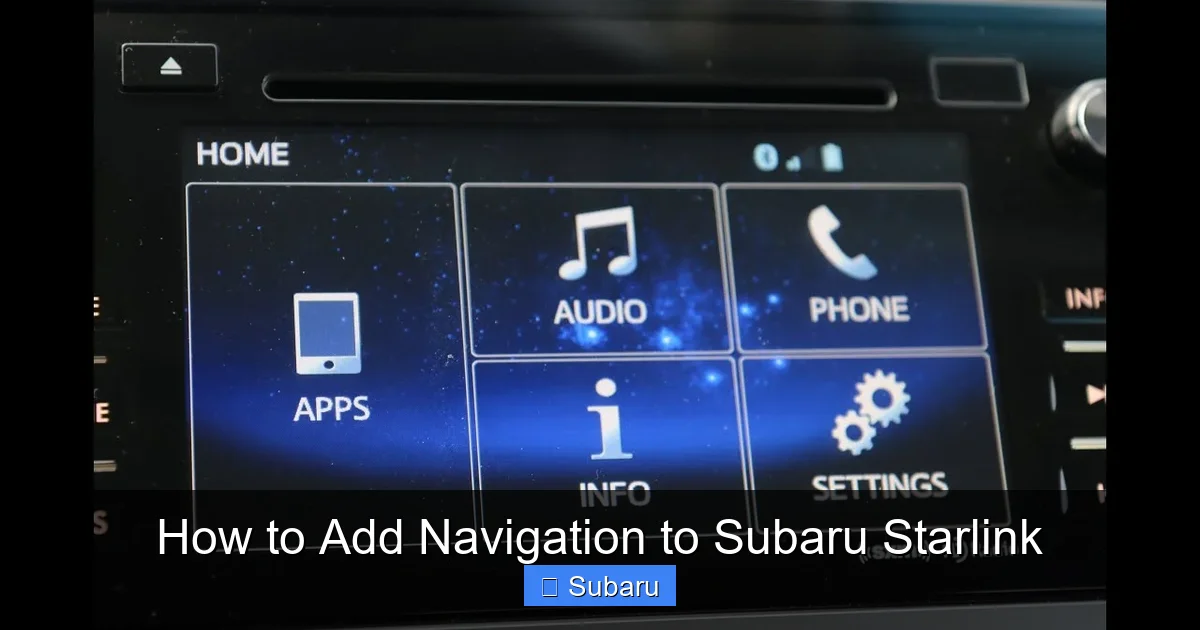
5. Once activated, restart your vehicle. The navigation icon should now be accessible on your home screen.
After activation, your system will download map data and begin offering voice-guided directions. The built-in navigation uses TomTom maps and receives periodic updates—though these aren’t always as frequent as Google Maps. Still, it’s convenient because it works offline (once maps are downloaded) and doesn’t drain your phone’s battery.
Pro tip: If navigation still doesn’t appear after activation, try performing a system reset. Turn off the car, wait 30 seconds, then restart. You may also need to update your Starlink software via USB—more on that below.
Using Smartphone Integration: Android Auto & Apple CarPlay
Visual guide about How to Add Navigation to Subaru Starlink
Image source: i.ytimg.com
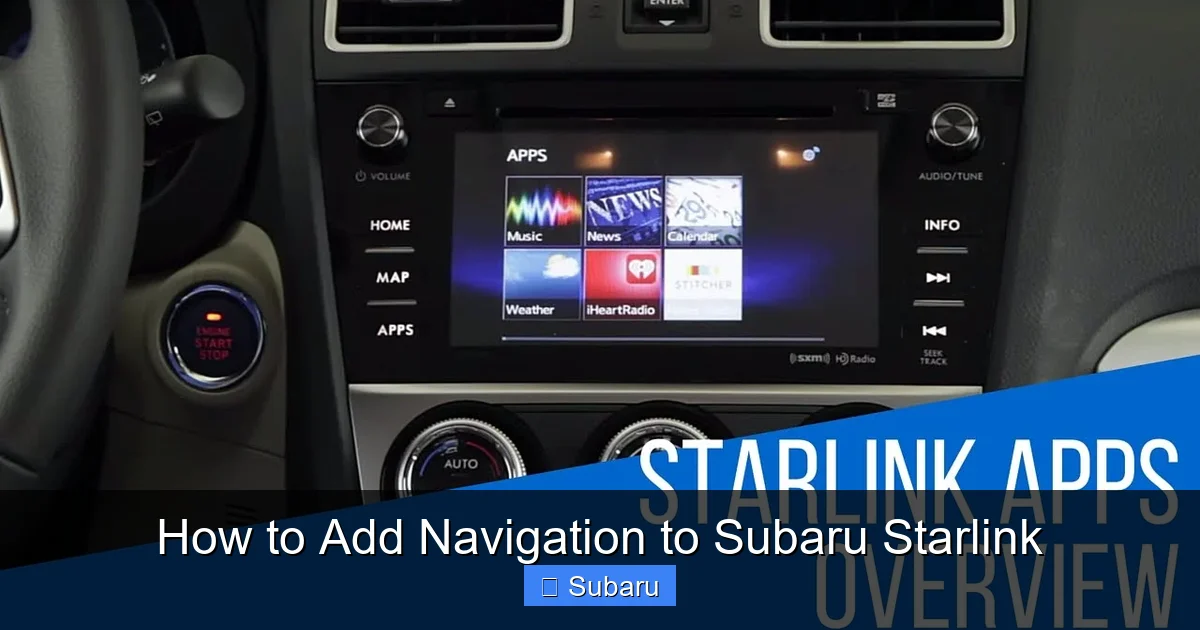
Don’t have a navigation-ready system? No problem. Most Subaru Starlink systems from 2018 onward support either Android Auto, Apple CarPlay, or both. These smartphone mirroring technologies let you run Google Maps, Apple Maps, Waze, and other navigation apps directly on your car’s touchscreen—giving you the same (or better) functionality as factory navigation, often with fresher maps and real-time traffic.
To use Android Auto or Apple CarPlay:
– For Android Auto: Connect your Android phone (running Android 8.0 or later) via USB cable. Follow the on-screen prompts to enable permissions. Once connected, tap the Android Auto icon on your Starlink screen.
– For Apple CarPlay: Plug in your iPhone (iOS 14 or later recommended) using a Lightning or USB-C cable. Accept the CarPlay prompt on your phone, then select CarPlay from your Subaru’s menu.
Once connected, open Google Maps or Apple Maps on your phone—the app will appear on your dashboard. You can search for destinations, get live traffic updates, view street view, and even use voice commands via “Hey Google” or Siri. Waze users will appreciate crowd-sourced alerts about police, accidents, and road hazards.
One major advantage of this method? Your navigation stays up-to-date automatically through your phone’s app store. Plus, you avoid subscription fees entirely. The only downside is that you’ll need your phone plugged in (unless you have a 2021+ model with wireless connectivity), and heavy GPS use can drain your battery—so keep a car charger handy.
Visual guide about How to Add Navigation to Subaru Starlink
Image source: i.ytimg.com
Sometimes, even if your Subaru is technically capable of navigation, outdated software can prevent features from working properly. Subaru periodically releases firmware updates that improve performance, fix bugs, and enable new functionalities—including navigation support.
To check if an update is available:
1. Go to the Subaru Starlink support page and enter your VIN.
2. Look for “Software Updates” under your vehicle details.
3. If an update is listed, download the file to a blank USB drive (formatted as FAT32).
4. Insert the USB into your Subaru’s port (usually in the center console).
5. Turn on the ignition (don’t start the engine) and follow the on-screen instructions.
The update process typically takes 15–30 minutes. Do not turn off the vehicle or remove the USB during this time—it could corrupt the system. After completion, restart your car and test the navigation feature.
Note: Not all updates add navigation, but they often improve compatibility with Android Auto/CarPlay or prepare the system for future services. Keeping your software current also ensures smoother performance and better security.
If your Subaru has an older or non-Starlink infotainment system (common in base trims of pre-2018 models), you might not have Android Auto or CarPlay at all. In these cases, aftermarket solutions can bridge the gap.
Options include:
– **Portable GPS units:** Devices like Garmin DriveSmart or TomTom Go offer standalone navigation with large screens, lifetime map updates, and traffic alerts. They mount easily to your dash or windshield and don’t rely on your car’s system.
– **Aftermarket head units:** You can replace your factory stereo with a modern double-DIN unit that includes built-in navigation, Apple CarPlay, and Android Auto. Brands like Pioneer, Kenwood, and Sony offer Subaru-compatible models with plug-and-play harnesses.
– **Smartphone mounts + Bluetooth audio:** For a budget-friendly fix, use a high-quality phone mount (like the iOttie or RAM Mount) and stream navigation audio through your car’s speakers via Bluetooth. Pair this with a portable power bank to avoid battery drain.
While aftermarket routes require more effort (and possibly professional installation), they can modernize an aging Subaru significantly. Just ensure any replacement head unit matches your vehicle’s wiring and dashboard dimensions—many Subaru forums and YouTube channels offer model-specific guides.
Once you’ve added navigation to your Subaru Starlink, a few best practices will keep you cruising smoothly:
– **Keep your maps updated:** Whether using factory navigation or smartphone apps, outdated maps lead to wrong turns. Enable automatic updates on Google Maps/Waze and check Subaru’s site quarterly for USB updates.
– **Use voice commands:** Reduce distractions by saying “Navigate to [address]” instead of typing while driving. Both Siri and Google Assistant work well with Starlink.
– **Pre-load destinations:** Before long trips, save frequent locations (home, work, favorite trails) in your navigation app for quick access.
– **Monitor data usage:** If using cellular data for real-time traffic, consider a hotspot plan or connect to Wi-Fi when possible to avoid overages.
– **Clean your screen regularly:** A smudged touchscreen makes navigation harder. Use a microfiber cloth and screen-safe cleaner.
Also, remember that Subaru’s built-in navigation doesn’t support third-party apps like Waze—so if you rely on crowd-sourced alerts, stick with smartphone mirroring.
Subaru is steadily improving its connected services. Starting with 2021 models, many Starlink systems now support over-the-air (OTA) updates, meaning future navigation enhancements could arrive wirelessly—no USB or dealer visit required. There’s also growing integration with cloud-based services, allowing for smarter route suggestions based on your driving habits.
While Subaru may never match Tesla’s level of tech integration, the gap is narrowing. With Android Auto, Apple CarPlay, and optional factory navigation, most owners can enjoy a seamless, modern driving experience. And as 5G connectivity becomes more widespread, expect faster map downloads, enhanced voice recognition, and even augmented reality navigation overlays in future updates.
For now, though, the methods outlined above will get you where you need to go—safely, efficiently, and without breaking the bank.
Conclusion
Adding navigation to Subaru Starlink doesn’t have to be complicated or expensive. Whether your vehicle came equipped with the hardware or not, there’s a solution that fits your needs and budget. From activating a factory subscription to leveraging your smartphone’s powerful mapping apps, you can enjoy reliable, real-time directions right from your dashboard.
Start by identifying your Starlink generation and checking if your system is navigation-ready. If so, a simple subscription unlocks built-in GPS. If not, Android Auto and Apple CarPlay offer nearly identical functionality with zero monthly fees. And for older models, aftermarket options provide a viable upgrade path.
Remember: the goal isn’t just to have navigation—it’s to have navigation that’s safe, accurate, and easy to use. By following this guide, you’ll turn your Subaru into a smarter, more connected ride without sacrificing the practicality and adventure spirit it’s known for. So plug in, power up, and hit the road with confidence.
Frequently Asked Questions
Can I add navigation to any Subaru Starlink system?
Not all Starlink systems support built-in navigation, but most from 2018 onward can use Android Auto or Apple CarPlay for smartphone-based navigation. Older or base models may require aftermarket solutions.
Do I need a subscription for Subaru Starlink navigation?
Yes, if you’re using factory-built navigation, you’ll need an active Starlink Safety Plus & Security Plus subscription. However, navigation via Android Auto or Apple CarPlay uses your phone’s apps and requires no subscription.
How do I know if my Subaru is navigation-ready?
Look for a grayed-out “Navigation” button on your home screen or check your vehicle’s trim level. Navigation-ready systems are common in Premium, Limited, and Touring trims. You can also verify using your VIN on Subaru’s website.
Can I update my Starlink navigation maps for free?
Subaru provides map and software updates via USB download, which are free but must be manually installed. Over-the-air updates are available on 2021+ models with compatible hardware.
Will using navigation drain my phone’s battery?
Yes, GPS and screen usage can drain your phone quickly. Always use a car charger or power bank when relying on smartphone navigation, especially on long trips.
Is aftermarket navigation safe to install in a Subaru?
Yes, as long as you choose a reputable brand and ensure compatibility with your vehicle’s wiring and dashboard. Professional installation is recommended for complex setups to avoid damage or voided warranties.
