
Why Is Apple Carplay Not Working in Subaru

Apple CarPlay not working in Subaru? You’re not alone. This frustrating issue affects many Subaru owners, but it’s often fixable with simple troubleshooting steps like checking cables, updating software, or resetting the infotainment system. With the right approach, you can restore seamless smartphone integration and get back to enjoying hands-free navigation, music, and calls.
If you’re a Subaru owner who relies on Apple CarPlay for daily commutes, road trips, or just staying connected safely behind the wheel, there’s nothing more frustrating than plugging in your iPhone and seeing… nothing. No response. No prompt. Just silence from your dashboard screen. You’re not imagining things—Apple CarPlay not working in Subaru is a surprisingly common complaint among owners of Outbacks, Foresters, Crosstreks, and other popular models.
But here’s the good news: in most cases, this isn’t a sign of a major mechanical failure or a flaw in your Subaru itself. More often than not, it’s a fixable glitch caused by something as simple as a worn-out cable, outdated software, or a settings misconfiguration. Whether you’re driving a 2020 Forester or a brand-new 2024 Outback, the steps to troubleshoot and resolve CarPlay issues are largely the same. And with a little patience and the right guidance, you can get your smartphone integration back up and running in no time.
In this guide, we’ll walk you through the most common reasons why Apple CarPlay stops working in Subaru vehicles, how to diagnose the problem yourself, and what you can do to fix it—without needing to visit the dealership unless absolutely necessary. We’ll cover everything from cable quality and software updates to system resets and hidden settings that might be blocking your connection. By the end, you’ll have a clear action plan to restore CarPlay functionality and enjoy a smoother, smarter driving experience.
Key Takeaways
- Faulty or low-quality USB cables are the #1 cause of Apple CarPlay failure in Subaru vehicles—always use Apple-certified cables.
- Outdated infotainment or iOS software can break compatibility; regularly check for updates on both your phone and Subaru system.
- Bluetooth and Wi-Fi interference may disrupt CarPlay connection—disable other wireless devices when connecting.
- Incorrect CarPlay settings on your iPhone (like disabled Siri or restricted access) can prevent activation—verify settings in Screen Time and Siri menus.
- Subaru system glitches often resolve with a simple restart or factory reset of the Starlink infotainment system.
- Model-year limitations exist—older Subaru models may lack full CarPlay support or require dealer-enabled activation.
- Dealer or professional help may be needed if hardware issues (like a failing USB port) are suspected.
📑 Table of Contents
Understanding Apple CarPlay and Subaru Compatibility
Before diving into fixes, it helps to understand how Apple CarPlay actually works with Subaru vehicles—and why things sometimes go wrong. Apple CarPlay is a smart interface that mirrors key iPhone functions—like Maps, Messages, Phone, and Music—onto your car’s infotainment screen. It allows you to use these features safely through voice commands (via Siri) or touch controls, minimizing distractions while driving.
Subaru began offering Apple CarPlay compatibility in select models starting around 2017, with broader adoption in 2018 and later. Today, nearly all new Subaru vehicles come with CarPlay support as standard or optional, depending on trim level. The system is integrated into Subaru’s Starlink multimedia platform, which handles everything from navigation to climate control and smartphone connectivity.
However, unlike some competitors that use wireless CarPlay by default, most Subaru models still rely on a wired connection—meaning you must plug your iPhone into the USB port using a Lightning cable (or USB-C for newer iPhones). This wired approach is generally more reliable than wireless, but it also introduces more potential points of failure: the cable, the USB port, the phone’s charging system, and the car’s software all need to work in harmony.
One important note: not all Subaru models or trim levels support CarPlay out of the box. For example, base trims of older models (like the 2017 Impreza) may require a software update or dealer activation to enable CarPlay functionality. Additionally, some early implementations had bugs or limited features, which were gradually improved in later model years. So if you’ve recently purchased a used Subaru or upgraded from an older model, double-check that your specific vehicle actually supports CarPlay—and that it’s properly enabled.
Top Reasons Why Apple CarPlay Fails in Subaru Vehicles
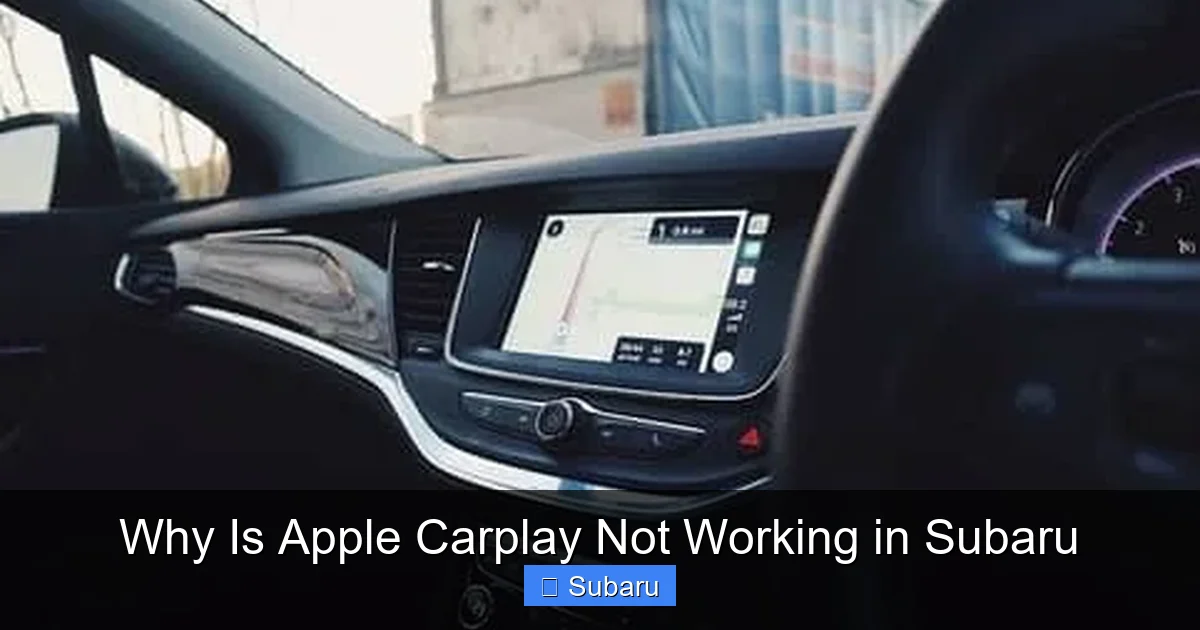
Visual guide about Why Is Apple Carplay Not Working in Subaru
Image source: madisonrising.com
Now that we’ve covered the basics, let’s get into the nitty-gritty: why does Apple CarPlay stop working in Subaru cars? Based on owner reports, dealership service logs, and tech forums, several recurring issues stand out. Understanding these common culprits can save you hours of frustration and help you zero in on the real problem faster.
1. Low-Quality or Damaged USB Cables
This might sound trivial, but it’s the single most common reason CarPlay fails. Many Subaru owners unknowingly use cheap, non-Apple-certified cables—or cables that are frayed, bent, or worn from daily use. These cables may charge your phone but don’t support data transfer, which is essential for CarPlay to function.
For example, Sarah from Colorado plugged her iPhone into her 2021 Outback every morning, but CarPlay only worked intermittently. After trying three different cables, she discovered that only her original Apple Lightning cable provided a stable connection. The others—bought from discount stores—would charge the phone but never trigger CarPlay.
Always use an MFi-certified (Made for iPhone) cable. Look for the Apple logo or certification mark. If your cable is more than a year old or shows signs of wear, replace it. And avoid using extension cables or adapters unless absolutely necessary—they can interfere with the signal.
2. Outdated Software on iPhone or Subaru System
Software compatibility is crucial. If your iPhone is running an older version of iOS, or if your Subaru’s Starlink system hasn’t been updated in months, CarPlay may refuse to connect.
Apple frequently releases iOS updates that include bug fixes and improvements for CarPlay. Similarly, Subaru pushes over-the-air (OTA) updates or requires dealership visits to update the infotainment system. Running mismatched software versions can cause handshake failures—where the phone and car can’t “talk” to each other properly.
For instance, when iOS 16 was released, some Subaru owners reported CarPlay suddenly stopped working. The fix? Updating their vehicle’s Starlink software via a dealership or USB drive. Always check for updates on both devices. On your iPhone, go to Settings > General > Software Update. For your Subaru, check the Starlink menu or visit Subaru’s official update portal.
3. Incorrect iPhone Settings
Even with the right cable and updated software, hidden settings on your iPhone can block CarPlay. The most common culprits are:
– **Siri disabled**: CarPlay requires Siri to be enabled. If you’ve turned off “Listen for ‘Hey Siri’” or disabled Siri entirely, CarPlay won’t launch.
– **Screen Time restrictions**: If Content & Privacy Restrictions are enabled and “CarPlay” is set to “Don’t Allow,” the feature is blocked.
– **Trust This Computer prompt ignored**: When you first plug in, your iPhone may ask, “Trust This Computer?” If you tap “Don’t Trust,” CarPlay won’t activate.
To check, go to Settings > Siri & Search and ensure Siri is on. Then go to Settings > Screen Time > Content & Privacy Restrictions > Allowed Apps and make sure CarPlay is enabled. Finally, when you plug in, always tap “Trust” on your iPhone screen.
4. USB Port or Hardware Issues
Over time, the USB port in your Subaru can accumulate dust, lint, or corrosion—especially if you frequently plug and unplug your phone. A dirty or damaged port may not make a solid connection, leading to intermittent or failed CarPlay activation.
Additionally, some Subaru models have multiple USB ports (e.g., front console and center stack), but only one is designed for data transfer and CarPlay. Using the wrong port—like a charging-only port—will prevent CarPlay from working.
Try cleaning the USB port gently with compressed air or a soft brush. If that doesn’t help, test different ports. If none work, there may be an internal wiring issue or a failing infotainment unit—something best handled by a technician.
5. Bluetooth or Wi-Fi Interference
Although CarPlay in Subaru is primarily wired, it still uses Bluetooth for initial pairing and sometimes for phone calls. If your phone is connected to multiple Bluetooth devices (like headphones, smartwatches, or other cars), it can cause confusion and connection drops.
Similarly, if your iPhone is actively searching for Wi-Fi networks or connected to a weak signal, it may delay or disrupt the CarPlay handshake.
Try turning off Bluetooth on other devices, or temporarily disable Wi-Fi on your iPhone when connecting to CarPlay. You can also go to Settings > Bluetooth on your iPhone and “Forget This Device” for any unused connections.
Step-by-Step Troubleshooting Guide

Visual guide about Why Is Apple Carplay Not Working in Subaru
Image source: f150lab.com
Now that you know the common causes, let’s walk through a systematic approach to fixing Apple CarPlay not working in Subaru. Follow these steps in order—they’re designed to be simple, safe, and effective.
Step 1: Check Your Cable and USB Port
Start with the basics. Unplug your iPhone and inspect the cable. Is it frayed? Bent? Does it feel loose when plugged in? Try a different Apple-certified cable. If you don’t have one, borrow one from a friend or buy a new one from an authorized retailer.
Next, examine the USB port in your Subaru. Is it clean? Free of debris? Try plugging the cable into a different USB port if available. Remember: only the data-capable port (usually labeled or located in the center console) supports CarPlay.
Step 2: Restart Your iPhone and Subaru
Sometimes, a simple restart solves everything. Turn off your iPhone completely (not just sleep mode), wait 10 seconds, then turn it back on. Do the same with your Subaru: turn the ignition off, wait a minute, then restart the vehicle.
This refreshes the software and resets temporary glitches in both devices. Many users report that CarPlay starts working again after a full reboot.
Step 3: Update Software on Both Devices
On your iPhone, go to Settings > General > Software Update. Install any pending iOS updates.
For your Subaru, check for Starlink updates. You can do this through the infotainment screen (Settings > System > Software Update) or visit Subaru’s official website. Some updates require a USB drive or a visit to the dealership.
Keeping both systems current ensures compatibility and access to the latest bug fixes.
Step 4: Verify iPhone Settings
Go to Settings > Siri & Search and make sure Siri is enabled. Then check Settings > Screen Time > Content & Privacy Restrictions > Allowed Apps and confirm CarPlay is allowed.
When you plug in your phone, always tap “Trust This Computer” when prompted. If you accidentally tapped “Don’t Trust,” unplug and replug the cable to see the prompt again.
Step 5: Reset Network Settings on iPhone
If CarPlay still won’t connect, try resetting your iPhone’s network settings. This clears saved Wi-Fi passwords, Bluetooth pairings, and cellular settings—but it often resolves stubborn connectivity issues.
Go to Settings > General > Transfer or Reset iPhone > Reset > Reset Network Settings. You’ll need to re-enter Wi-Fi passwords afterward, but it’s worth it for a clean slate.
Step 6: Perform a Subaru Infotainment Reset
If all else fails, reset your Subaru’s Starlink system. This is like rebooting your home router—it clears temporary errors and restores default settings.
To do this, turn off the car, then press and hold the Power button on the infotainment screen for 10–15 seconds until the system restarts. Some models may require a different method—check your owner’s manual or Subaru’s support site.
For a full factory reset (which erases saved settings), go to Settings > System > Reset > Factory Reset. Use this as a last resort.
When to Visit a Subaru Dealer or Technician
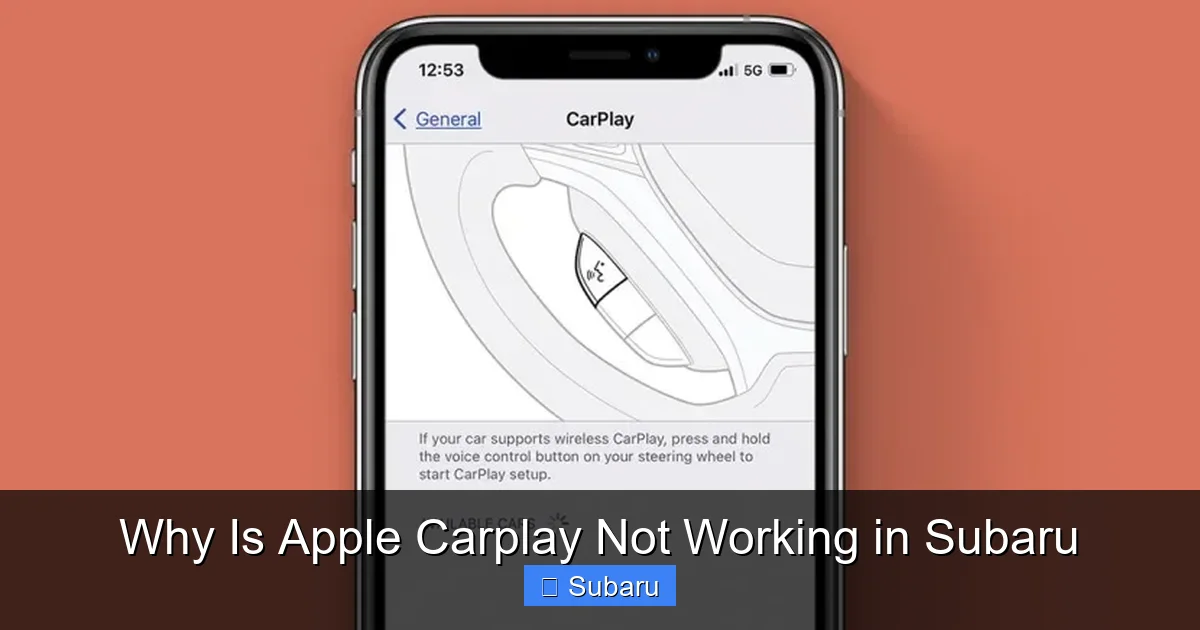
Visual guide about Why Is Apple Carplay Not Working in Subaru
Image source: iphonelife.com
Most CarPlay issues can be resolved at home with the steps above. But if you’ve tried everything and Apple CarPlay still won’t work in your Subaru, it may be time to seek professional help.
Signs You Need Professional Assistance
– CarPlay fails consistently across multiple iPhones and cables.
– The USB port shows physical damage or doesn’t charge any device.
– The infotainment screen freezes, crashes, or displays error messages.
– You suspect a software bug specific to your model year.
Dealerships have diagnostic tools that can pinpoint hardware failures, software conflicts, or wiring issues. They can also perform firmware updates that aren’t available to consumers.
Additionally, if your Subaru is still under warranty, any repairs related to the infotainment system should be covered. Don’t hesitate to use your warranty—especially if the issue started shortly after purchase or a recent service.
What to Expect at the Dealership
When you visit, explain the problem clearly: “Apple CarPlay won’t connect when I plug in my iPhone.” Bring your phone and cable. The technician will likely test multiple devices, check for software updates, and inspect the USB port and wiring.
In some cases, they may replace the USB hub or update the head unit firmware. If a hardware defect is found, it should be repaired at no cost under warranty.
Preventing Future CarPlay Issues
Once you’ve restored CarPlay functionality, take steps to keep it working smoothly.
– Use only Apple-certified cables and store them properly to avoid damage.
– Keep your iPhone and Subaru software updated.
– Clean the USB port regularly with compressed air.
– Avoid using third-party chargers or adapters.
– Enable automatic updates on your iPhone (Settings > General > Software Update > Automatic Updates).
By maintaining your devices and staying proactive, you’ll minimize the chances of CarPlay failing again.
Conclusion
Apple CarPlay not working in Subaru can be incredibly frustrating—but it’s rarely a permanent problem. In most cases, the issue stems from something simple: a bad cable, outdated software, or a settings misstep. By following the troubleshooting steps outlined above, you can diagnose and fix the problem yourself, saving time and money.
Remember: start with the basics—check your cable, restart your devices, and verify your settings. If that doesn’t work, move on to software updates and system resets. And if all else fails, don’t hesitate to contact your local Subaru dealer. With the right approach, you’ll be back to enjoying seamless smartphone integration in no time.
Your Subaru is designed to keep you connected, safe, and entertained on the road. Don’t let a CarPlay glitch stand in the way. Take action today, and get back to what matters—driving with confidence.
Frequently Asked Questions
Why won’t my iPhone connect to CarPlay in my Subaru?
This is usually due to a faulty cable, outdated software, or incorrect iPhone settings. Try using an Apple-certified cable, updating your iOS and Subaru system, and ensuring Siri and CarPlay are enabled in your phone’s settings.
Does every Subaru model support Apple CarPlay?
Most Subaru models from 2018 onward support CarPlay, but base trims or older models may require a software update or dealer activation. Check your owner’s manual or Subaru’s website to confirm compatibility.
Can I use wireless CarPlay in my Subaru?
As of 2024, most Subaru vehicles only support wired CarPlay. A few newer models may offer wireless capability, but it’s not standard. You’ll need to plug in your iPhone via USB for reliable connection.
Why does CarPlay work sometimes but not always?
Intermittent issues are often caused by a loose or damaged cable, a dirty USB port, or software glitches. Try cleaning the port, using a different cable, and restarting both your phone and car.
How do I reset the infotainment system in my Subaru?
Turn off the car, then press and hold the Power button on the screen for 10–15 seconds until it restarts. For a full factory reset, go to Settings > System > Reset > Factory Reset (note: this erases saved data).
Will updating my iPhone break CarPlay in my Subaru?
Not usually—but occasionally, a new iOS version may require a corresponding update to your Subaru’s software. Always check for Starlink updates after major iOS releases to maintain compatibility.
