How to Use Tool32 for Bmw

Contents
- 1 Key Takeaways
- 2 📑 Table of Contents
- 3 What Exactly Is Tool32 and Why Do You Need It?
- 4 Essential Hardware: The Interface You Can’t Skip
- 5 Your First Safe Operations: Reading and Resetting
- 6 Diving Deeper: Coding and Adaptations
- 7 Practical Example: Enabling Auto-Dimming Mirror on an F30
- 8 Troubleshooting and Common Pitfalls
- 9 Best Practices for the Responsible BMW Enthusiast
- 10 Frequently Asked Questions

Windshield Cleaning Tool
Power Steering Fluid

Diesel Fuel Additive
Side Window Sunshade
Tool32 is a powerful, free diagnostic and coding software for BMWs that gives you dealer-level access to your vehicle’s electronic systems. Unlike basic OBD2 scanners, it communicates directly with BMW’s proprietary modules, allowing you to read deep error codes, perform adaptations, activate hidden features, and reset service lights. While incredibly capable, it requires careful setup, a compatible interface (like ENET or ICOM), and a solid understanding to avoid costly mistakes. Mastering Tool32 unlocks a new level of maintenance and customization for your BMW.
So, you’ve heard the whispers in the BMW community. The magic software that can unlock hidden features, reset stubborn service lights without a trip to the dealer, and dive deep into the electronic soul of your Ultimate Driving Machine. That software is Tool32. But what exactly is it, and more importantly, how do you actually use it without turning your prized Bimmer into a very expensive paperweight? This guide will walk you through everything, from the absolute basics to performing your first safe operation. Think of this as your friendly, cautious primer before you ever click a button.
First, a reality check. Tool32 is not an app you download from the App Store. It’s a sophisticated, Windows-based diagnostic and engineering tool originally developed for BMW dealerships and independent workshops. It operates at a level far below the consumer-grade OBD2 scanners you might use on other cars. With it, you can communicate directly with individual control units—the engine computer (DME), the body gateway (BG), the central electronics (ZGM), you name it. This power is incredible but comes with great responsibility. Using it incorrectly can cause module failures, disable safety systems, or create ghost errors that are a nightmare to trace. Our goal here is to give you the knowledge to use it wisely.
Key Takeaways
- Tool32 is not a simple code reader: It’s a deep diagnostic and coding tool that interfaces with BMW’s protected systems, requiring specific hardware and knowledge to use safely.
- Hardware is critical: You need a compatible ENET cable (for Ethernet-based models) or ICOM emulator for newer G-Series cars; a standard OBD2 scanner will not work for most advanced functions.
- Always backup before coding: Any adaptation or coding change should be preceded by a full data backup (FA/Vehicle Order) to prevent bricking a module.
- Start with basic functions: Begin by learning to read fault memories and perform standard service resets before attempting complex codings or activations.
- Community resources are vital: Forums like BimmerPost and coding-specific wikis are essential for finding correct parameter codes (FDL/GRUPPE) and safe procedures for your specific model and year.
- It complements, not replaces, professional tools: Tool32 is fantastic for enthusiasts but lacks the guided workflows and safety checks of expensive dealer systems like ISTA; know its limits.
📑 Table of Contents
- What Exactly Is Tool32 and Why Do You Need It?
- Essential Hardware: The Interface You Can’t Skip
- Your First Safe Operations: Reading and Resetting
- Diving Deeper: Coding and Adaptations
- Practical Example: Enabling Auto-Dimming Mirror on an F30
- Troubleshooting and Common Pitfalls
- Best Practices for the Responsible BMW Enthusiast
What Exactly Is Tool32 and Why Do You Need It?
To understand Tool32, you must first understand BMW’s diagnostic ecosystem. At the top is ISTA (Integrated Service Technical Applications), the official dealer software. Below that are a suite of tools used by independent mechanics, and Tool32 sits firmly in that category. It’s often used in conjunction with other programs like NCS Expert for coding and WINKFH for flashing. Its primary job is to provide a raw, text-based interface to the vehicle’s electronic control units (ECUs).
The Core Functions: FA, FA-Daten, and Coding
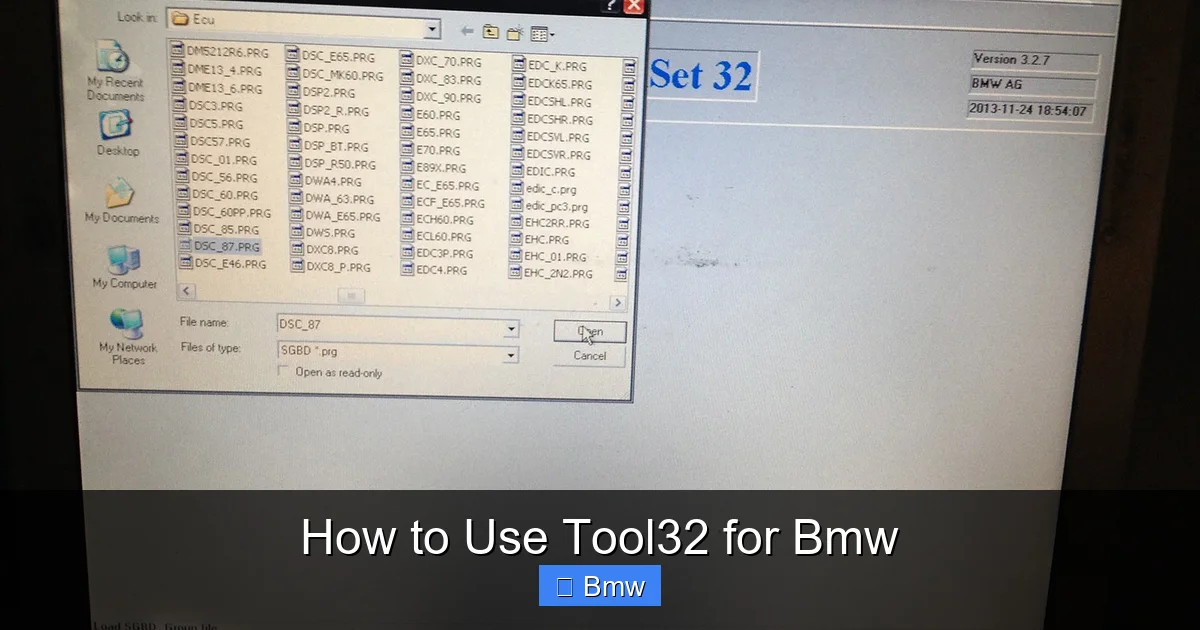
When you open Tool32, you’re presented with a stark, command-line-like interface. The magic happens through specific job files (JOB files). The most fundamental job is FA (Fahrzeugausstattung), which reads the Vehicle Order—a master list of every option and module your car was built with from the factory. This is your car’s DNA in digital form. You’ll also use FA-Daten to load the correct parameter files for your specific model year and engine. Without these, you’re flying blind. The real power, however, lies in coding jobs like GRUPPE or FDL. These allow you to change the “if-then” logic within a module. For example, you can tell your comfort module that “if the key is in the ignition and the driver’s door opens, then automatically disable the alarm.” These are the hidden features.
What It Can (and Can’t) Do
Tool32 excels at reading and clearing deep fault memories from any module, performing service resets (like oil service or brake service), activating or deactivating components (like the automatic start-stop system), and coding vehicle functions. However, it is not a flashing tool for updating ECU software (that’s WINKFH’s job). It also doesn’t provide the guided, illustrated procedures of ISTA. You must know the exact job to run and the correct parameter to change. This is where research is non-negotiable. A wrong parameter in the wrong module can have serious consequences, which is why forums are filled with warnings and specific guides for each BMW chassis (E36, E90, F30, G20, etc.).
Essential Hardware: The Interface You Can’t Skip
You cannot run Tool32 with a generic Bluetooth OBD2 dongle. BMW uses a proprietary communication protocol on its internal networks (K-CAN, PT-CAN, Ethernet). You need an adapter that speaks these languages. For most E-Series (1990s-2013) and early F-Series cars, the standard is the ENET cable. This is a simple Ethernet cable (typically CAT5) with a modified connector on one end that plugs into the OBD2 port. On the other end, it plugs into your laptop’s Ethernet port. It’s cheap, reliable, and the community standard for a decade.

Visual guide about How to Use Tool32 for Bmw
Image source: themelockq.weebly.com
ENET vs. ICOM: Knowing Your Car’s Generation
Starting around 2016 with the G11/G12 7 Series and spreading to the G30 5 Series and G20 3 Series, BMW transitioned to a faster, more secure Ethernet-based diagnostic protocol. For these newer cars, an ENET cable will only give you very limited access. You need an ICOM emulator (also called ICOM Next or a “B+ cable” setup). This is a more complex device that emulates the expensive official BMW ICOM interface. It often requires its own drivers and sometimes a separate power supply. Identifying your car’s chassis is the first step in choosing the right hardware. A quick VIN decode online will tell you if you need ENET or ICOM.
Setting Up the Software and Drivers
Once you have the physical cable, the software setup is next. You’ll need a Windows PC (Windows 10 or 11 is common now, though older versions may be required for some legacy tools). Download the Tool32 suite from a reputable source within the BMW coding community. Install it. Then, you must install the correct drivers for your ENET or ICOM interface. This is a common stumbling block. The drivers allow Windows to recognize the cable as a network adapter. You’ll often need to manually assign a static IP address to this network connection (commonly 169.254.1.1) and set the subnet mask. Detailed, model-specific driver setup guides are abundant on forums—follow them precisely. A misconfigured network adapter means Tool32 will simply say “Interface not found.”
Your First Safe Operations: Reading and Resetting
Before you ever think about changing a coding, you must learn to read and interpret the car’s data safely. Start here.

Visual guide about How to Use Tool32 for Bmw
Image source: i.pinimg.com
Reading Fault Memories (Fehlerspeicher)
Connect your laptop, turn the car’s ignition to “ON” (do not start the engine for initial tests), and launch Tool32. You’ll see a list of “ECU Groups.” These are the various control modules. For a basic check, you can select “Alle” (All) or common groups like “DME” (Engine), “SMS” (Seat Module), “JBE” (Junction Box Electronics). The key job to run is Fehlerspeicher lesen (Read Fault Memory). Run it. The software will communicate with each module and return a list of any stored errors. The codes will look like “31 01 01 00” or similar. This is where your research begins. You must look up these hexadecimal codes in a fault code dictionary to understand them. A code might indicate a “sensor plausibility error” or a “communication fault.” This step is purely diagnostic and is safe; you’re only reading data.
Performing a Basic Service Reset
One of the most common and useful tasks is resetting the oil service or brake service indicator after you’ve done the work yourself. For this, you navigate to the relevant ECU group. For an oil reset on most cars, you’d go to the “DME” group. You then run the job Service Reset or Wartungsintervall zurücksetzen. The software will communicate with the engine computer and reset the interval counter. It’s a simple, one-click procedure that saves you a dealership visit. You can apply this same logic to resetting the brake pad wear indicator after a pad change by going to the “SMC” or “LRS” (Light/Radar Sensor) module. This is a perfect starting point to build confidence. If you’ve recently changed your brake pads and need to reset the light, you can follow a dedicated guide like our step-by-step process for resetting the BMW brake service light.
Diving Deeper: Coding and Adaptations
This is where Tool32 becomes legendary. Coding is changing the default settings stored in a module’s memory. It’s not about writing new software, but tweaking existing parameters. For example, your car’s factory code might have “door unlock on key removal” set to “OFF” for certain markets. You can change that parameter to “ON.” The process is standardized but requires precision.

Visual guide about How to Use Tool32 for Bmw
Image source: thecarhow.com
The Critical Role of the FA (Vehicle Order)
Before any coding, you must read and save your FA. This is your car’s configuration file. In Tool32, you go to the “FA” job and run “FA lesen” (Read FA). It will generate a long text file listing every module and its part number/software version. Save this file in multiple places—this is your undo button. If a coding goes wrong, you can often restore the original FA to revert changes. Some advanced codings require you to edit the FA itself (adding or removing entries) to tell the car you have a feature it didn’t come with. This is high-risk and requires deep knowledge of compatible modules and coding lines (FDL).
Finding the Right Parameter: The Search Function
To change a setting, you need the exact “Gruppe” (group) and “FDL” (function) name. For example, to enable video playback in motion (a popular coding), you might need to change a parameter in the “IHK” (Head Unit) module. Tool32 has a search function. You can load the FA-Daten for your car, then search for keywords like “video,” “motion,” or “tv.” It will return possible groups and FDLs. You then run the job GRUPPE suchen (Search Group) or FDL suchen (Search FDL) in the target module. You’ll get a list of current values. You change the value from “nicht_aktiv” (not active) to “aktiv” (active) and write it back. This is the core loop: Read FA -> Identify Module -> Search for FDL -> Change Value -> Write.
Practical Example: Enabling Auto-Dimming Mirror on an F30
Let’s walk through a classic, safe coding. Many BMWs with a manual-dimming mirror (or no mirror at all) have the wiring and sensor for an auto-dimming (electrochromic) mirror present but disabled in software. To enable it:
- Preparation: Ensure your FA is read and saved. Confirm your car has the physical auto-dimming mirror hardware installed (check the mirror for a small sensor and two wires).
- Identify Module: The mirror is controlled by the KOMBI (Instrument Cluster) or sometimes the FEM (Footwell Module) on newer cars. Search forums for your specific chassis (e.g., “F30 auto-dimming mirror coding”).
- Search FDL: In Tool32, select the KOMBI module. Run the job FDL suchen. In the search field, type “abblend” (the German term for dimming) or “spiegel” (mirror).
- Locate and Change: You’ll find a line like
abblend_spiegel_aktivwith a value of “0” (inactive). Change it to “1” (active). - Write and Verify: Write the change back to the module. Then, run “Fehlerspeicher lesen” on the KOMBI to ensure no new errors appeared. Finally, test the mirror at night with headlights behind you.
This example highlights the research needed. The exact FDL name varies by model year and software version. Your research on forums is what tells you that “abblend_spiegel” is the keyword for an F30, not an E90.
Troubleshooting and Common Pitfalls
Even with careful steps, things can go wrong. Here’s how to handle the most common issues.
The Dreaded “Job not found” or “No Response”
If Tool32 can’t communicate with a module, first check your physical connections. Is the ENET cable fully seated in both the car and laptop? Is the car’s battery sufficiently charged? Low voltage can cause communication failures. Next, verify your network adapter IP settings are correct. Finally, ensure you’re using the correct FA-Daten for your exact car. Sometimes a module simply doesn’t support the job you’re trying to run on that specific software version.
After a Coding, a New Error Appears
This is a sign the parameter you changed may be incompatible with another system or was changed incorrectly. First, note the new error code. Search for it online. Often, the solution is to reverse your change. Go back into Tool32, search for the same FDL, and set it back to its original value (which you should have noted down before changing it). If you didn’t note it, your saved FA file can sometimes be used to restore defaults, but this isn’t always guaranteed for single FDLs.
When to Seek Professional Help
There are lines you should not cross as a beginner. Never code a module that controls safety systems (airbags, ADAS radar/camera) without absolute certainty. Never edit the FA to add a module you don’t physically have (e.g., coding for a steering wheel you didn’t install). If you encounter a persistent, serious error after a coding attempt, your safest bet is to visit a specialist. It’s also wise to understand that some modern systems, especially related to driver aids, are locked down more tightly. If you’re dealing with a complex system like a restraint module, it’s better to consult experts. You can read about professional approaches to systems like the BMW driver restraint system to understand the complexity involved.
Best Practices for the Responsible BMW Enthusiast
To wrap up, let’s cement the habits that will keep you and your car safe.
- Backup Everything: Your first action for any car is a full FA read. Save it. Consider it your insurance policy.
- Research, Then Research Again: Don’t rely on a single forum post from 2012. Find multiple sources confirming the coding for your exact chassis code (e.g., F30 LCI vs. pre-LCI) and software version (found in your FA).
- One Change at a Time: Change one parameter, write it, reset the car (turn off ignition, open/close door, wait), and test. Don’t make ten changes and then wonder which one broke something.
- Keep the Car Awake: During any coding session, have a battery charger or a second car jump-starting the BMW. A power interruption during a write operation can corrupt a module.
- Know When to Stop: Tool32 is amazing, but it’s not the final word. For complex programming, flashing, or troubleshooting persistent, safety-related errors, the investment in a professional with ISTA is worth every penny. Your goal is enhancement and maintenance, not creating new problems.
In conclusion, Tool32 for BMW is a gateway to a deeper understanding of your vehicle. It transforms you from a driver into a caretaker who can diagnose, maintain, and personalize with unprecedented access. The learning curve is real, but the community is vast and helpful. Start slow, back up obsessively, and respect the power you hold. Your first successful service reset or hidden feature activation will feel like unlocking a secret level, and that feeling is what the BMW hobby is all about.
Frequently Asked Questions
Is Tool32 free to use?
Yes, the Tool32 software itself is free and widely available within the BMW enthusiast community. However, you must purchase the required hardware interface (ENET cable or ICOM emulator), which typically costs between $20 and $200 depending on the type and quality.
Can I brick my BMW using Tool32?
Yes, it is possible to cause serious issues, including module failures, if you change the wrong parameter or edit the FA incorrectly. This is why creating a full backup of your Vehicle Order (FA) before any coding and conducting thorough research for your specific model is absolutely critical. Always proceed with caution.
What’s the difference between Tool32 and BMW Coding Apps like BimmerCode?
BimmerCode and similar apps are user-friendly, mobile-based tools that offer a curated, safe list of codings. They use a simplified, guided process and are connected via a Bluetooth OBD2 dongle. Tool32 is a raw, desktop-based engineering tool with access to every single parameter in every module. It’s far more powerful and dangerous, requiring deep knowledge, while BimmerCode is designed for safe, common modifications.
Do I need to code my BMW? What are the benefits?
Coding is optional and for enthusiasts. Benefits include enabling features your car’s hardware supports but software disabled (like video in motion, automatic door locks), disabling annoying default behaviors (like the seatbelt reminder chime), and personalizing settings. It does not improve performance or fix mechanical faults; it’s purely for customization and convenience.
My car is a 2021 G20 3 Series. Can I use Tool32?
Yes, but you will need an ICOM emulator or a proper “B+” cable setup, as the G20 uses a newer Ethernet diagnostic protocol that an ENET cable cannot fully access. Setup is more complex than for older E or F series cars, and some systems may have increased security locks. Ensure you get guides specific to G-Series coding.
What should I do if I get a communication error with a module?
First, check all physical connections and ensure your car’s battery is charged. Verify your network adapter IP settings are correct. If the issue persists for only one module, it may have a fault or be incompatible with your software version. If all modules fail, the problem is likely your cable, drivers, or car’s ignition state. Consult specific troubleshooting threads for your hardware setup.