
How to Turn Off the Radio in a Hyundai Venue

Contents
- 1 Key Takeaways
- 2 📑 Table of Contents
- 3 Understanding Your Hyundai Venue’s Infotainment System
- 4 Method 1: The Physical Power Button (If Equipped)
- 5 Method 2: Using the Touchscreen Menu (For Newer Models)
- 6 Method 3: The Mute Button – Your Quick Silence Tool
- 7 Method 4: Steering Wheel Audio Controls – Beyond Mute
- 8 Method 5: The Ultimate Off – Turning Off the Vehicle
- 9 Troubleshooting: When the Radio Won’t Turn Off
- 10 Pro Tips and Advanced Considerations
- 11 Conclusion: Quiet Confidence in Your Venue
- 12 Frequently Asked Questions

Car Sunshade for Windshield

Trunk Organizer

Car USB Charger

Side Window Sunshade
Turning off the radio in your Hyundai Venue is straightforward but varies by model year and infotainment system. You can use the physical power button, mute function, steering wheel controls, or simply turn off the car. If issues arise, a system reset may help. Always consult your owner’s manual for model-specific guidance. Key methods include locating the power button on the touchscreen or console, using the mute button for temporary silence, and utilizing steering wheel audio controls for convenience. For persistent problems, a soft reset might resolve glitches. Remember, some models automatically mute when doors open, enhancing safety.
Key Takeaways
- Method Varies by Model Year: The exact button or menu to turn off the radio differs between 2020-2023 Hyundai Venue models due to infotainment updates.
- Mute vs. Power Off: Muting temporarily silences audio but keeps the system on; using the power button completely shuts down the radio and display.
- Steering Wheel Controls: Most Venues have audio buttons on the steering wheel, including a dedicated mute or power function for quick access.
- Vehicle Shutdown: Turning off the ignition and opening the driver’s door typically powers down the radio automatically in many modern cars.
- Software Glitches Occur: Like any computer system, the infotainment can freeze, requiring a soft reset (holding the power button) or a full disconnect.
- Owner’s Manual is Key: Your specific Venue’s manual provides the definitive guide, as trim levels (SE, SEL, Limited) affect control layouts.
📑 Table of Contents
- Understanding Your Hyundai Venue’s Infotainment System
- Method 1: The Physical Power Button (If Equipped)
- Method 2: Using the Touchscreen Menu (For Newer Models)
- Method 3: The Mute Button – Your Quick Silence Tool
- Method 4: Steering Wheel Audio Controls – Beyond Mute
- Method 5: The Ultimate Off – Turning Off the Vehicle
- Troubleshooting: When the Radio Won’t Turn Off
- Pro Tips and Advanced Considerations
- Conclusion: Quiet Confidence in Your Venue
Understanding Your Hyundai Venue’s Infotainment System
Let’s be real: sometimes you just need a little quiet. Whether you’re waiting in the carpool line, enjoying a peaceful moment, or trying to hear your navigation instructions clearly, knowing how to quickly turn off the radio in your Hyundai Venue is a simple skill that makes a big difference. The Hyundai Venue, known for its compact size and urban-friendly design, comes equipped with a user-friendly infotainment system that varies slightly across its model years. Understanding this system is the first step to mastering its audio controls.
From the base SE trim to the feature-packed Limited, the Venue typically features a touchscreen display—ranging from 5 inches in earlier models to an 8-inch or even 10.25-inch screen in newer ones. This screen is the hub for audio, navigation, and vehicle settings. However, the physical buttons and menu structures can differ. For instance, a 2020 Venue might have a dedicated physical “POWER” button on the console below the screen, while a 2023 model might integrate the power function into the touchscreen’s audio menu or rely solely on steering wheel controls. This evolution means the “how-to” isn’t one-size-fits-all.
Before we dive into the specific methods, it’s helpful to know that Hyundai, like many manufacturers, designs these systems with both convenience and safety in mind. You might notice that the radio automatically mutes when you open the driver’s door after turning off the car—a feature to prevent you from accidentally driving away with loud music. Similarly, some models have an “Auto Off” timer that powers down the system after a set period to save battery. These automated features can sometimes be confused with manual controls, so getting familiar with your specific setup is key.
Identifying Your Venue’s Infotainment Generation
So, how do you know which system you have? Start with your model year. Hyundai significantly updated its infotainment software around the 2022 refresh. A quick visual check: if your Venue has a small, square-ish display with physical buttons on the side or below, it’s likely the older system. If it’s a large, sleek glass panel with capacitive touch buttons (no physical buttons on the bezel), it’s the newer generation. The user interface (UI) will also look different—older systems have more traditional menus, while newer ones use a tile-based, smartphone-like layout.
Why does this matter? Because the location of the power function changed. In older systems, a physical button was almost always present. In newer ones, Hyundai moved many functions into the touchscreen menu to reduce clutter on the dashboard. This means for a 2023 Venue, you’ll likely be poking through on-screen menus, while for a 2020, you might just press a button. We’ll break down both approaches in the following sections. If you’re ever unsure, your owner’s manual—usually in the glove compartment—has a dedicated chapter for the audio system with diagrams specific to your trim.
Method 1: The Physical Power Button (If Equipped)
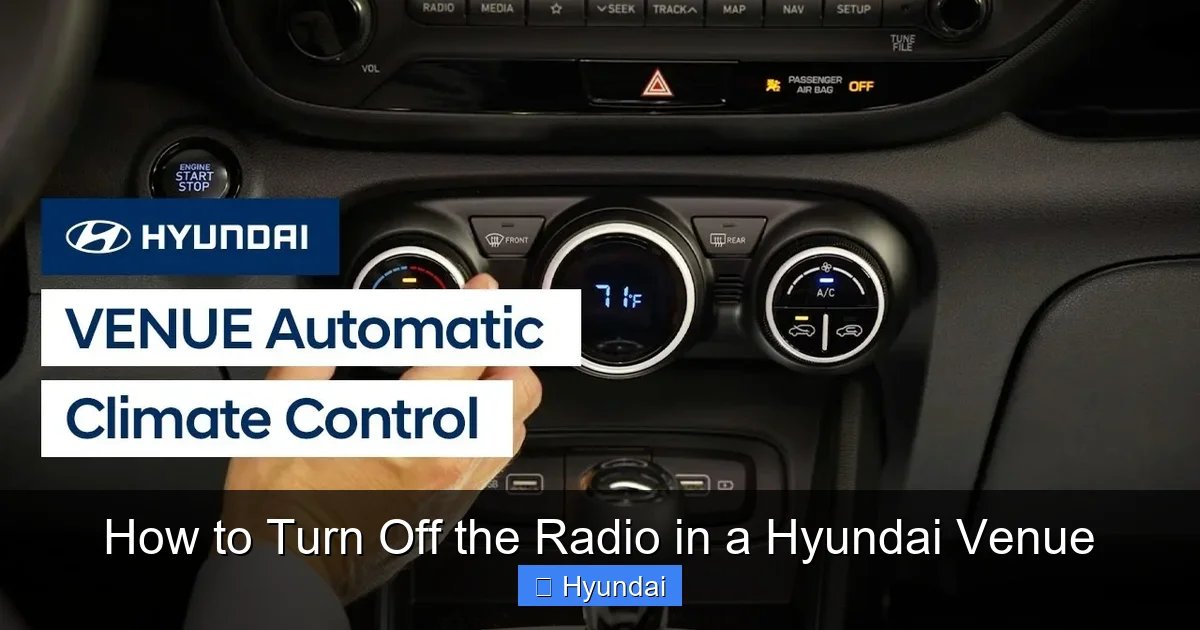
This is the most direct and satisfying method, akin to flipping a light switch. For many Hyundai Venue owners, especially those with models from 2020 to 2021, there is a tangible, physical button labeled “POWER” or with a power symbol (⏻). This button is your fastest route to silence.

Visual guide about How to Turn Off the Radio in a Hyundai Venue
Image source: vehicle-images.dealerinspire.com
Where to Find It
The location is consistent but worth describing. Crouch down or lean into the passenger seat and look at the center console area below the climate controls and touchscreen. You’re searching for a small, circular or rectangular button, often black or dark gray, with the word “POWER” or the universal power icon. It’s typically positioned on the right-hand side of the console stack, near the USB ports or the volume knob. In some trims, it might be integrated into the bezel around the touchscreen itself, as a small button on the lower right or left edge.
Pro Tip: Use your fingertip to feel for it if you can’t see it clearly. It’s usually slightly raised or has a distinct texture compared to the smooth plastic around it. Once found, a simple press and release will toggle the radio and display off. Press it again to turn it back on. The system will usually resume the last played source (AM/FM, Bluetooth, Apple CarPlay, etc.).
Method 2: Using the Touchscreen Menu (For Newer Models)
If your Venue lacks a physical power button, or if you prefer navigating menus, the touchscreen is your control center. This method applies to most 2022 and 2023 Hyundai Venues with the updated infotainment hardware.
Visual guide about How to Turn Off the Radio in a Hyundai Venue
Image source: shutterstock.com
Step-by-Step Navigation
Start with the car turned on (ACC or ON position). The touchscreen should be active. Look for a button labeled “MENU,” “SETUP,” or an icon that looks like three horizontal lines (the “hamburger” menu). Tap this to enter the system’s main settings area. From there, you’ll navigate to an audio-specific menu. The path is usually: Menu > Audio > Power Off or Settings > Sound > System Power. The exact wording can vary. On some newer Hyundais, you might need to go to Home > Media > Power Button.
It can feel like a treasure hunt the first time. Don’t be afraid to explore the “Settings” or “System” menus. Look for any option that says “Power,” “Shut Down,” or “Turn Off Display.” Once you find it, tapping it will immediately blank the screen and cut the audio. The system enters a low-power standby mode. To wake it, you can press any physical button on the console or steering wheel, or sometimes just touch the screen.
Important Note: In some Venue models, the touchscreen power option might only turn off the *display* while the audio continues playing in the background. If you want complete silence, you must also mute the audio source. We’ll cover muting next. This two-step process (display off + audio off) is a common point of confusion.
Method 3: The Mute Button – Your Quick Silence Tool
Muting is not the same as turning off, but for instant quiet, it’s often the most practical solution. The mute function temporarily silences all audio output while keeping the radio “on.” This means your station or playlist is paused, and the system is ready to resume instantly when you unmute.
Finding Mute Controls
You have three primary places to find the mute function:
- On the Steering Wheel: This is the champion for quick access. Look at the back of your steering wheel (the side you can reach without taking your hands off the wheel). There is almost always a button with a speaker icon and a diagonal line through it (🔇). Pressing this mutes or unmutes the audio instantly. It’s designed for moments when you need to hear a passenger or a sudden outside sound.
- On the Infotainment Touchscreen: During audio playback, a mute icon (usually the same speaker-with-slash) appears on the screen, often in the bottom or top corner status bar. Tapping it will mute. It might also be accessible within the audio player’s on-screen controls (play/pause/skip area).
- On the Center Console: Some Venue models have a physical “MUTE” button on the dashboard or center stack, separate from the volume knob. It’s less common but worth checking.
The beauty of mute is its reversibility. A quick press of the same steering wheel button brings your music back exactly where it left off. This is perfect for brief interruptions. However, if you’re leaving the car for an extended period, a full power-off (using Method 1 or 2) is better for battery conservation.
Method 4: Steering Wheel Audio Controls – Beyond Mute
Your Hyundai Venue’s steering wheel is a command center for audio, and it often includes more than just mute. Understanding these controls can make turning off the radio seamless while keeping your eyes on the road.

Visual guide about How to Turn Off the Radio in a Hyundai Venue
Image source: shutterstock.com
Common Button Functions
Familiarize yourself with the layout. Typically, you’ll find:
- Volume Up/Down: A rocker switch or separate +/- buttons.
- Mute: As described above.
- Mode/Source: This button cycles through audio sources (FM, AM, Bluetooth, USB, Apple CarPlay, Android Auto).
- Track Seek (△/▽): For skipping tracks on Bluetooth or USB sources.
- Voice Command Button: Often marked with a talk icon, this activates the voice recognition system for hands-free control.
Now, here’s the key for turning off the radio: on some steering wheel designs, long-pressing the “Mode” or “Source” button will power the system down. It’s not universal, but it exists on certain Hyundai models. Try pressing and holding the button you use to switch from radio to Bluetooth for about 3-5 seconds. If the screen goes black and audio stops, you’ve found a hidden power shortcut. If not, don’t worry—revert to the other methods.
Safety First: These controls are meant for quick adjustments. Fiddling with complex menus on the touchscreen while driving is dangerous. Mastering the steering wheel controls for mute and volume is the safest way to manage audio.
Method 5: The Ultimate Off – Turning Off the Vehicle
This might seem obvious, but it’s the most foolproof method: simply turn off your Hyundai Venue’s engine and remove the key (or press the start/stop button again if you have push-button start). In the vast majority of modern vehicles, including the Venue, the infotainment system is tied to the ignition’s accessory power.
How It Works
When you turn the key to the “OFF” position or press the start/stop button to shut down the engine, the car’s electrical system begins a shutdown sequence. After a few seconds—often timed to let you listen to a final news update or finish a song—the radio and screen will automatically turn off. This is a standard feature to prevent battery drain. In some Venue models, if you open the driver’s door after turning off the car, the radio may mute or turn off immediately.
What About “Accessory” Mode? If you only turn the key to the “ACC” (Accessory) position or press the start button without pressing the brake (on push-start models), the radio will stay on. This allows you to listen to music with the engine off. So, to ensure the radio is off, make sure you’ve fully turned the vehicle off, not just to accessory mode.
Battery Conservation Note: While the system is designed to shut off, a faulty relay or a aftermarket accessory (like a dash cam hardwired incorrectly) can keep the radio drawing power, leading to a dead battery. If your Venue’s battery dies frequently and you suspect the radio, this is a diagnostic clue.
Troubleshooting: When the Radio Won’t Turn Off
What if you’ve tried all the obvious buttons and the radio keeps playing? This is frustrating but usually solvable. The issue typically falls into two categories: a software glitch or a physical control failure.
Performing a Soft Reset
Like rebooting a frozen smartphone, a soft reset can clear temporary errors in the Venue’s infotainment computer. Here’s the standard procedure for most Hyundai models:
- Ensure the car is in the “ON” or “ACC” position (engine can be off).
- Locate the physical power button (if your model has one).
- Press and hold the power button for approximately 10-15 seconds. You should see the screen go black, maybe a Hyundai logo flash, and then the system will restart. This process can take 30-60 seconds. Do not interrupt it.
- If your model has no physical button, you’ll need to perform a “hard reset” by disconnecting the car battery (see below) or by finding a “System Reset” option deep in the Settings menu (often under “General” or “System”).
After the reset, test if the power-off functions work normally. Often, a simple reboot resolves unresponsiveness. If you’re interested in how other brands handle radio resets, you can read about the process for a Dodge Durango, which shares similar computerized principles.
Hard Reset: Disconnecting the Battery
If a soft reset fails, the nuclear option is to disconnect the car’s 12V battery. Warning: This will reset all electronic systems—radio presets, clock, window settings, and potentially engine adaptation data. You’ll need your radio anti-theft code (if applicable) and will have to re-pair your Bluetooth devices.
- Open the hood and locate the negative (-) battery terminal.
- Using a 10mm wrench, loosen the nut on the negative cable clamp.
- Carefully lift the clamp and move the cable away from the battery post. Secure it so it can’t touch metal.
- Wait at least 5-10 minutes. This allows the capacitors in the infotainment system to fully discharge.
- Reconnect the cable, tighten the nut, and close the hood.
- Start the car. The radio will likely be in “SAFE” mode or request a code. Enter it if needed (code is in owner’s manual or on a card).
This method forces a complete power cycle of all vehicle computers, including the radio module. It’s highly effective for persistent glitches but is more disruptive. Only attempt this if you’re comfortable and understand the consequences.
Stuck Button or Faulty Control
If the radio *physically* won’t turn off—meaning it’s playing but you have no control—a button might be stuck in the “on” position. Inspect the physical power button (if equipped) and the mute button. Press them several times firmly to dislodge any debris. Sometimes a small particle of dirt or a spilled drink can cause a button to malfunction. A gentle cleaning with electronic contact cleaner (sprayed with the car off) can help. If the problem persists, it may be a faulty switch or a deeper electronic issue requiring a dealer or specialist diagnosis.
Pro Tips and Advanced Considerations
Now that you know the basics, let’s level up your Venue audio management. These tips will help you customize your experience and avoid common pitfalls.
The “Auto Off” or “Auto Mute” Feature
Digging into your Venue’s settings might reveal an “Auto Off” timer for the audio system. This is a battery-saving feature that automatically turns off the radio after a set time (e.g., 10 or 30 minutes) when the car is in accessory mode. You can usually adjust or disable this in Settings > System > Power Management or a similarly named menu. If you find your radio turning itself off while you’re sitting in the parked car, this is the culprit. Disabling it lets you listen longer with the engine off, but be mindful of battery drain.
Apple CarPlay and Android Auto Nuances
When your phone is connected via USB and using Apple CarPlay or Android Auto, the audio source is technically your phone’s music or podcast app. The radio’s native power button might only control the *head unit*, not the connected phone’s audio. In practice, turning off the Venue’s radio usually pauses the phone’s playback too. However, if you mute via the phone itself, the car’s radio might still show as “on.” The most reliable way to stop all sound is still to use the car’s physical power or mute controls. Also, note that disconnecting your phone’s USB cable will often return the system to its last AM/FM or Bluetooth source, which might start playing if the radio is powered on.
Volume Presets and Safe Startup
Many Venues have a “Safe Start” volume feature. This prevents the radio from blasting at an ear-damaging level when you start the car. You can set a maximum startup volume in the audio settings. It’s a great safety feature, especially if kids use the car. While not directly related to turning off, it’s part of responsible audio management. If your radio always starts loud, check for this setting.
Conclusion: Quiet Confidence in Your Venue
Mastering how to turn off the radio in your Hyundai Venue empowers you with control over your driving environment. Whether you prefer the tactile feedback of a physical power button, the instant silence of a steering wheel mute, or the thoroughness of a full system shutdown, you now have a toolkit of methods. Remember that your specific model year and trim level dictate which options are available, so treating your owner’s manual as the final authority is always wise.
If you encounter a persistent issue where the radio won’t respond, start with the simple soft reset—holding the power button for 10 seconds. This fixes the majority of software hiccups. For more complex electrical problems, don’t hesitate to consult a Hyundai technician. Taking these steps ensures your Venue’s audio system remains a source of enjoyment, not frustration. Now, go ahead and enjoy those moments of quiet peace on the road. And while you’re exploring your Venue’s features, you might also want to learn how to manage other vehicle alerts, such as turning off the tire pressure light on a Honda Civic or seatbelt alarm in a Toyota RAV4—skills that, like this one, make you a more confident and informed driver.
Frequently Asked Questions
Where is the physical power button located on a Hyundai Venue?
It’s typically found on the center console below the touchscreen, often on the right side near the USB ports. Look for a small button labeled “POWER” or with a power symbol (⏻). On some models, it may be integrated into the touchscreen bezel.
Can I turn off the radio without turning off the car engine?
Yes, absolutely. Use the physical power button (if equipped), the touchscreen menu’s power-off function, or press and hold the steering wheel’s “Mode” button (on some models). The mute button on the steering wheel provides instant silence but keeps the system powered on.
What should I do if my Hyundai Venue’s radio is frozen and won’t turn off?
First, try a soft reset: press and hold the physical power button for 10-15 seconds until the screen goes black and restarts. If there is no physical button, you’ll need to disconnect the car’s battery for 5-10 minutes for a full reset, but this will erase all presets and settings.
Does turning off the car always turn off the radio automatically?
Yes, in normal operation. When you turn the ignition to “OFF” and open the driver’s door, the radio should power down after a few seconds. If it stays on, there may be an issue with the ignition switch relay or an aftermarket accessory keeping it powered.
Is muting the same as turning the radio off?
No. Muting only silences the audio; the radio remains on, your station is preserved, and the display may stay lit. Turning the radio off completely powers down the display and audio system, which is better for saving battery if you’ll be away from the car.
Why might my radio turn off by itself while the car is running?
This is unusual. Possible causes include a loose power connection, a failing radio unit, or a software glitch. Try the soft reset first. If it continues, have the electrical system and infotainment module checked by a professional, as it could indicate a deeper issue.


