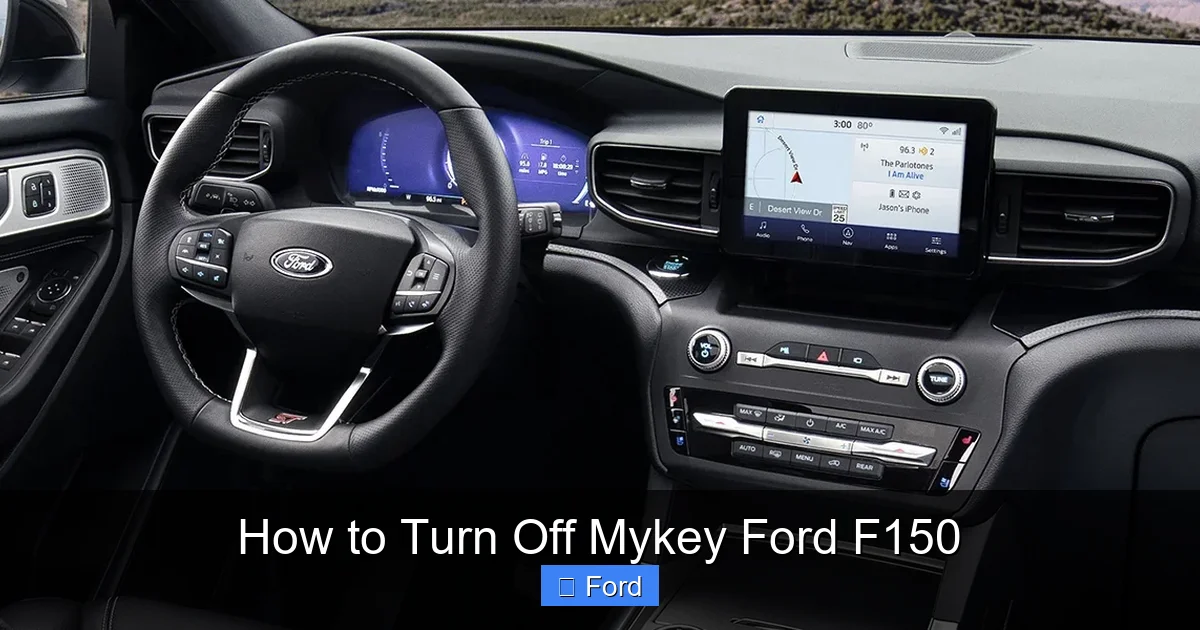
How to Turn Off Mykey Ford F150

Contents
- 1 Key Takeaways
- 2 📑 Table of Contents
- 3 Introduction: Taking Back Control of Your F150
- 4 Understanding MyKey: What It Is and How It Works
- 5 Method 1: The Standard In-Menu Procedure (Using the Admin Key)
- 6 Method 2: Disconnecting the Battery (Older Models & Last Resort)
- 7 Method 3: Using Forscan (The Advanced Diagnostic Route)
- 8 Troubleshooting: What If the “Clear MyKey” Option is Missing or Greyed Out?
- 9 Alternatives and Important Considerations
- 10 Conclusion: Choose the Right Method for Your Situation
- 11 Frequently Asked Questions

Emergency First Aid Kit

Waterless Car Wash Spray

Carburetor Cleaner

Car Mud Flaps (Universal)
MyKey is Ford’s programmable security and safety feature for the F150, designed to limit vehicle performance for secondary drivers. To turn it off, you must use the original “admin” key to clear the MyKey settings through the vehicle’s menu or, for older models, by disconnecting the battery. The process is straightforward but requires the correct key and a few minutes of your time. If you’ve lost the admin key, the only official method is to have a Ford dealer reprogram the system with new keys.
Key Takeaways
- You need the original “admin” key: The primary, programmed key that created the MyKey settings is required to disable them from the truck’s menu.
- Disabling is done via the instrument cluster menu: The process uses the buttons on your steering wheel to navigate the digital display cluster, not the infotainment touchscreen.
- It’s a permanent reset, not a temporary override: Turning off MyKey erases all programmed restrictions (speed limit, audio volume, etc.) for that specific key until settings are re-enabled.
- No admin key means a dealer visit: If the original admin key is lost, a Ford dealership must use their diagnostic computer (IDS) to clear MyKey and program new keys.
- Forscan can be a powerful alternative: For tech-savvy users, the Forscan software with an OBD2 adapter can access and clear MyKey settings, bypassing the in-menu process.
- MyKey and SecuriLock are separate systems: Disabling MyKey does not affect the truck’s anti-theft engine immobilizer system (SecuriLock).
- Always check for updates first: Before attempting any method, ensure your F150’s software is up-to-date, as Ford has made changes to the MyKey system over the years.
📑 Table of Contents
- Introduction: Taking Back Control of Your F150
- Understanding MyKey: What It Is and How It Works
- Method 1: The Standard In-Menu Procedure (Using the Admin Key)
- Method 2: Disconnecting the Battery (Older Models & Last Resort)
- Method 3: Using Forscan (The Advanced Diagnostic Route)
- Troubleshooting: What If the “Clear MyKey” Option is Missing or Greyed Out?
- Alternatives and Important Considerations
- Conclusion: Choose the Right Method for Your Situation
Introduction: Taking Back Control of Your F150
So, you’re sitting in your Ford F150, and that little key-shaped icon on the dash is glowing. Or maybe the speedometer won’t go past 65 mph, the radio volume is capped, and the low fuel warning chimes relentlessly. You know exactly what this is: MyKey. Ford’s brilliant, sometimes frustrating, teen driver or fleet manager feature is active. It’s a great tool for peace of mind, but what happens when you need your full-power truck back? Whether you’ve sold the F150 to a new owner, your teen has graduated to full driving privileges, or you’ve simply had enough of the restrictions, knowing how to turn off MyKey on a Ford F150 is essential knowledge for every owner.
The process isn’t hidden in a secret menu, but it does have specific steps and requirements. It’s not as simple as flipping a switch. This guide will walk you through every legitimate method, from the standard in-menu procedure to the more advanced diagnostic tool route. We’ll cover what MyKey is, why you might want to disable it, and what to do if you’ve lost the all-important admin key. By the end, you’ll be fully equipped to reclaim your truck’s full capabilities.
Understanding MyKey: What It Is and How It Works
Before we dive into turning it off, let’s quickly understand what we’re dealing with. MyKey is an integrated, factory-programmed feature in your F150’s onboard computer (PCM). It uses the RFID chip in your key fob to identify which key is being used. When you program a key as a “MyKey” using an “admin” key, the truck stores a set of restrictions linked to that specific key’s transponder code.

Visual guide about How to Turn Off Mykey Ford F150
Image source: drivinggeeks.com
The Admin Key vs. The MyKey
Think of the admin key as the master key. It’s the key that was first programmed to the truck or the key you used to create the MyKey settings. The admin key has no restrictions. The MyKey is any key you’ve programmed with limits. The truck reads the key upon startup and applies the corresponding profile. This is why you cannot turn off MyKey with the restricted key itself—the system prevents you from overriding the very restrictions it’s enforcing.
Common MyKey Restrictions on an F150
When active, MyKey can enforce several limits:
- Speed Limiter: Prevents the vehicle from exceeding a preset maximum speed (often 65, 70, 80, or 90 mph).
- Audio Volume Limit: Caps the stereo volume at a predetermined level.
- Low Fuel Warning: Sounds a chime earlier and more persistently when fuel is low.
- Seat Belt Reminder: Cannot be muted and may have a different chime pattern.
- Advanced Driver Assistance Systems (ADAS): Can disable or limit features like Blind Spot Information System (BLIS) and Pre-Collision Assist.
- Battery Saver: May prevent certain accessories from staying on after engine shut-off.
These settings are stored in the truck’s memory. To remove them, you must tell the truck to “forget” the MyKey profile. That’s what the “Clear MyKey” function does.
Method 1: The Standard In-Menu Procedure (Using the Admin Key)
This is the primary, intended method for most Ford F150 owners. It’s completely free and only takes a few minutes. You must have the original admin key fob with you. The process is performed using the buttons on your steering wheel, navigating the digital instrument cluster display (the screen behind your steering wheel, not the SYNC infotainment screen).

Visual guide about How to Turn Off Mykey Ford F150
Image source: trucksauthority.com
Step-by-Step Guide for 2015-2020 F150s (Analog Gauge Cluster with 4.2″ or 8″ Screen)
- Start the Truck: Insert the admin key and start the engine. Make sure all other MyKeys are not in the vehicle.
- Access the Main Menu: Use the left arrow button on the left side of your steering wheel to scroll through the display until you see “SETTINGS” or a gear icon. Press the OK button (the central button on the left steering wheel stalk) to enter.
- Navigate to MyKey: Scroll through the settings menu. The exact wording varies by year and trim. Look for:
- “MYKEY” or “MY KEY”
- “DRIVER PROFILES” (then select MyKey)
- “VEHICLE SETTINGS” -> “MYKEY”
- Enter MyKey Menu: Select “MYKEY” and press OK.
- Clear All MyKeys: You will see options like “CREATE MYKEY,” “CLEAR MYKEY,” or “VIEW MYKEYS.” Select “CLEAR MYKEY.” The display will warn you that this will remove all restrictions for all MyKeys. Select “YES” or “CLEAR ALL.”
- Confirmation: The system will process the command. You should see a message like “MyKey Settings Cleared” or “All MyKeys Cleared.” Turn the ignition off and remove the key.
Step-by-Step for 2021+ F150 (Digital Gauge Cluster with 12.4″ or 15.5″ Screen)
The newer trucks with the massive digital gauge cluster have a slightly different, more graphical interface, but the logic is identical.
- Start with the admin key.
- Press the left arrow button on the steering wheel to open the cluster menu.
- Scroll to the Settings (gear icon) pane and press OK.
- Scroll to Driver Aids & Warnings or Vehicle Settings.
- Find and select MyKey.
- Select Clear MyKey and confirm.
Pro Tip: After clearing, it’s a good practice to restart the truck with the previously restricted key to confirm the speed limiter and other restrictions are gone. The MyKey icon on the dash should not illuminate.
Method 2: Disconnecting the Battery (Older Models & Last Resort)
For very early models (pre-2011) or if the menu method fails due to a glitch, a full system reset can sometimes work. This is a last-resort method because it will also reset other vehicle settings like radio presets, clock, seat memory, and adaptive learning data. It does not guarantee MyKey will be cleared, as the MyKey data is stored in non-volatile memory designed to survive a battery disconnect. However, on some older platforms, it has been reported to work.

Visual guide about How to Turn Off Mykey Ford F150
Image source: carbiketech.com
How to Perform a Safe Battery Reset
- Gather Tools: You’ll need a 10mm socket/wrench (for negative battery terminal on most F150s) and possibly a memory saver (a 12V power supply that plugs into the cigar lighter) to preserve radio and PCM memory.
- Locate Battery: Open the hood. The battery is typically in the engine bay on the driver’s side.
- Disconnect Negative Terminal: Loosen and remove the negative (-) battery cable. Secure it away from the terminal so it can’t accidentally touch.
- Wait: Leave it disconnected for at least 10-15 minutes. This allows all residual capacitors to discharge and the modules to fully reset.
- Reconnect: Tighten the negative terminal clamp securely.
- Relearn: Start the truck. It may idle a bit rough for the first few minutes as the PCM re-learns fuel trim. Radio presets and the clock will need to be reset.
- Check MyKey: Start the truck with the key that was previously MyKey’d. Check if the restrictions and warning light are gone. If not, you must use Method 1 or 3.
Important: A battery disconnect will not clear MyKey on the vast majority of 2011+ F150s. The MyKey data is stored in a separate memory module (often the BCM or PCM) that retains data without battery power. Relying on this method will likely waste your time. Always try the in-menu method first.
Method 3: Using Forscan (The Advanced Diagnostic Route)
For the technically inclined, the Forscan software (for Windows or Android) paired with an OBD2 adapter (like an OBDLink EX or a compatible ELM327) can access the F150’s modules directly. This method bypasses the in-vehicle menu and communicates with the Body Control Module (BCM) or Powertrain Control Module (PCM) to clear the MyKey profile. It’s powerful but comes with warnings.
Why Use Forscan?
- It can clear MyKey even if the in-menu option is greyed out or missing.
- It can read and clear other stored DTCs (Diagnostic Trouble Codes) that might be interfering.
- It gives you deep insight into your truck’s systems.
Step-by-Step Forscan Process
- Setup: Download Forscan for Windows. You need a compatible OBD2 adapter that supports the MS-CAN network (most F150s require a more advanced adapter than a basic ELM327 for module configuration). The OBDLink EX is a popular, reliable choice.
- Connect & Identify: Connect the adapter to your F150’s OBD2 port (under the dash, near the steering column). Open Forscan, connect to the adapter, and click the “Vehicle Identification” button (the little car icon). Let it read your vehicle info.
- Access the BCM: MyKey settings are typically stored in the Body Control Module (BCM). Click “Service Functions” -> “Module Configuration” -> Select “BCM” (or “Body” module). You may need to enter a security access code (often 2021 or a code from a dealership forum for your specific year/model—research your specific truck first!).
- Find and Clear MyKey: Once in the BCM configuration, look for a parameter related to “MyKey,” “Key Profiles,” or “Secure Identifier.” The exact name varies wildly by year and module software. Common paths include:
- “Driver Identification” -> “MyKey Settings”
- “Key Configuration” -> “Clear MyKey Data”
- Execute & Verify: Select the option to clear or reset MyKey data. Write the configuration to the module. Disconnect Forscan, turn the ignition off and on. Test with the MyKey.
CRITICAL WARNING: Modifying module configurations with Forscan can potentially cause serious issues (bricking a module, disabling important functions) if you change the wrong setting. Always back up the original configuration before making any changes. This method is for advanced users who understand the risks. If you are unsure, stick to Method 1 or visit a dealer.
Troubleshooting: What If the “Clear MyKey” Option is Missing or Greyed Out?
This is a common frustration. If you navigate to the MyKey menu and see only “Create MyKey” or the “Clear” option is unavailable/light grey, here’s what to check:
1. You Are Not Using the Admin Key
This is the #1 reason. Double-check you are using the key that originally programmed the MyKey settings. If you have two keys and don’t know which is admin, try both. The admin key will have no restrictions and typically no MyKey icon on the dash when used alone.
2. The Key Itself is Programmed as a MyKey
It’s possible the key you think is the admin was, at some point, also programmed as a MyKey. The truck can have multiple MyKeys and one admin. The admin key must be a key that has never had MyKey restrictions applied to it, or it must be the key used to originally set up the system. If you only have two keys and both are restricted, you are locked out of the menu. The solution requires a dealer or Forscan to reset the system entirely.
3. Software Glitch or Module Communication Error
Sometimes the BCM or PCM has a temporary hiccup. Try a full battery disconnect (Method 2) first. If that fails, a dealer can use their IDS (Integrated Diagnostic System) to force a module reset and clear the MyKey data, even without the admin key—but they will need to verify ownership and will likely charge for the service.
4. Vehicle Software Needs an Update
Ford has released Technical Service Bulletins (TSBs) over the years to address MyKey menu issues. A simple software update from the dealer can fix a buggy menu system. If your truck is under warranty or you have a paid update, this is a good step.
Alternatives and Important Considerations
Before you permanently erase MyKey, consider these points and alternatives.
Resetting vs. Turning Off
“Turning off” MyKey is effectively the same as “resetting” or “clearing” it. You are deleting the stored profile for that key. Once cleared, that key becomes a standard, unrestricted key—essentially an admin key itself. If you want to keep MyKey active for one driver but not another, you must create a new MyKey profile for the restricted driver using the (now) admin key.
Can I Temporarily Bypass MyKey?
No. There is no secret button combination or temporary override. The restrictions are active as long as the truck recognizes the MyKey transponder. Your only options are to use the admin key or clear the MyKey profile entirely.
Will Disabling MyKey Affect My Warranty or SecuriLock?
Absolutely not. MyKey is a convenience/restriction feature. Disabling it does not alter the factory anti-theft system (SecuriLock). Your warranty remains intact. You are simply using your vehicle as intended, with all features available.
What About Aftermarket Remote Starters or Alarms?
Some aftermarket systems that “read” your key can interfere with the MyKey recognition process. If you have an aftermarket remote starter and are experiencing MyKey issues, consult with the installer. The factory system must be able to properly read the key’s transponder at the ignition ring.
Creating a New Admin Key
If you’ve cleared MyKey and now have no admin key (because your only key was a MyKey and you cleared it, making it admin), you’re fine. That key is now your admin. However, if you want to add a new MyKey later, you must use the current admin key to program it. The process is: Insert admin key, start truck, go to MyKey menu, select “Create MyKey,” and follow prompts (which usually involve pressing OK on the steering wheel controls while driving).
Conclusion: Choose the Right Method for Your Situation
Turning off MyKey on your Ford F150 is a straightforward process of accessing the right menu with the correct key. For 99% of owners, Method 1 (the in-menu clear function) is the quickest, safest, and intended solution. Remember: admin key is mandatory. If you don’t have it, your path forward involves either a professional dealer visit or, if you’re technically skilled, using Forscan with extreme caution. The battery disconnect method is largely ineffective on modern F150s and should be avoided unless you’re also troubleshooting other electrical gremlins.
MyKey serves an important purpose, but your truck is your truck. Understanding how to manage its features—from disabling lane assist on other vehicles to resetting key restrictions—is part of being an informed owner. Take your time, follow the steps precisely, and enjoy the full, unrestricted performance of your F150. If you hit a wall, don’t hesitate to call your local Ford dealer’s service department; a quick 15-minute appointment with their diagnostic computer can solve it definitively.
Frequently Asked Questions
Can I turn off MyKey without the original admin key?
No, you cannot clear MyKey settings from the truck’s menu without the original admin key. If the admin key is lost, a Ford dealership must use their diagnostic computer to reset the MyKey system and program new keys, which is a paid service.
Will turning off MyKey delete my radio presets or other settings?
No. Clearing MyKey only erases the key restriction profiles stored in the Body Control Module. It will not affect your radio presets, clock, seat memory, or other personalized vehicle settings. Those are stored in separate memory modules.
How do I know which of my keys is the admin key?
The admin key is the key that was first programmed to the truck or the key you used to create the MyKey settings. It has no restrictions. Test by starting the truck with each key alone. The key that does NOT trigger a MyKey warning light on the dash and allows full speed and volume is your admin key.
Can I keep MyKey active for one key and disabled for another?
Yes. The system allows for one admin key and multiple MyKeys. To do this, first ensure you have an admin key. Then, use the admin key to create MyKey settings for the secondary key(s). The admin key will remain unrestricted, while the programmed MyKeys will have the limits you set.
Is there a way to permanently disable the MyKey feature from my truck’s computer?
There is no official “master disable” switch. The only way to remove restrictions is to clear the MyKey profile for a specific key using an admin key. The feature will remain active in the truck’s software, ready to be reprogrammed. Advanced users with Forscan can sometimes find and modify deeper BCM parameters to disable the feature entirely, but this is not recommended and can cause unforeseen issues.
My “Clear MyKey” option is greyed out. What does this mean?
A greyed-out “Clear MyKey” option almost always means you are not using the correct admin key. The key in the ignition is likely a MyKey itself. You must insert and use the original, unrestricted admin key to access the clear function. If you are sure you have the admin key and it’s still greyed out, there may be a software fault requiring a dealer’s diagnostic tool.