
How to Restart Mazda Infotainment System

A frozen or glitchy Mazda infotainment system can be incredibly frustrating, but most issues are quickly resolved with a simple restart. This guide covers every method, from the quick soft reset to the more involved hard reset, for all 2026 Mazda models like the CX-5, CX-50, and MX-5. We’ll walk you through the exact button sequences, explain when a restart is the right fix, and warn you when it’s time to visit your dealer. Following these steps will get your navigation, audio, and connectivity working again safely and efficiently.
You’re cruising down the highway, your favorite playlist queued up, when the unthinkable happens: the Mazda infotainment screen freezes. The touchscreen doesn’t respond, the radio cuts out, and your navigation has seemingly vanished into the digital ether. In that moment, that sleek central display feels less like a luxury and more like a critical piece of machinery that’s just let you down. Before you panic or start fiddling with every button, take a breath. The solution is often simpler than you think. Knowing how to properly restart your Mazda infotainment system is an essential skill for any owner of a 2026 Mazda, from the family-friendly CX-5 to the sporty MX-5. It’s your first and most powerful line of defense against the glitches and bugs that can occasionally plague even the most sophisticated automotive computers. This comprehensive guide will transform you from a frustrated driver into a confident troubleshooter, armed with the exact steps to bring your car’s digital brain back to life.
Think of your car’s infotainment system—Mazda calls it Mazda Connect—as the central nervous system for your cabin’s entertainment, information, and connectivity. It handles your Apple CarPlay or Android Auto, satellite radio, Bluetooth phone calls, and vehicle settings. Like any complex computer, it can sometimes get bogged down by a rogue app, a failed software update, or just a temporary hiccup in its logic. A restart is the digital equivalent of a good night’s sleep for your system; it clears temporary memory, stops errant processes, and boots everything back up fresh. The process is designed to be safe and non-destructive to your vehicle’s core functions. We’ll break down every method, from the gentle software reboot you can do with the engine running to the more drastic hardware reset that requires a fuse pull. By the end, you’ll know exactly which button sequence to use for your specific 2026 Mazda model and year.
Key Takeaways
- Safety First: Always perform restarts while the vehicle is parked in “Park” (P) with the engine running or in “Accessory” mode to avoid distractions while driving.
- Soft Reset is First: The built-in software restart (holding the “Back/Home” and “Nav” buttons) solves 80% of freezes and should be your initial step.
- Model Matters: Button locations and procedures can vary slightly between the Mazda CX-5, CX-50, CX-30, and MX-5; consult your owner’s manual for specifics.
- Hard Reset is Last Resort: Pulling the infotainment fuse or disconnecting the battery will reset all system settings, including radio presets and paired devices.
- Know When to Seek Help: If restarts fail and the screen remains black or shows persistent error codes, the issue may be hardware-related and require a professional technician.
- Updates Prevent Problems: Regularly installing Mazda’s official software updates via USB or Wi-Fi (if equipped) can fix bugs and improve system stability, reducing the need for restarts.
- Data Loss Warning: A full system reset (hard reset) will erase personalized settings, downloaded maps, and Bluetooth pairings; note these down first if possible.
📑 Table of Contents
- Understanding Your 2026 Mazda Infotainment System
- Recognizing the Signs: When to Restart Your System
- The Step-by-Step Restart Methods: From Soft to Hard
- Advanced Troubleshooting: When a Restart Isn’t Enough
- Preventive Care and Best Practices for 2026 Mazda Owners
- Special Considerations for Different 2026 Mazda Models
- Conclusion: Empowering the Modern Mazda Driver
Understanding Your 2026 Mazda Infotainment System
Before we dive into the “how,” it helps to understand the “what.” The 2026 model year sees Mazda continuing its partnership with its proprietary Mazda Connect system, now in its third generation. This isn’t just a screen; it’s an integrated module that communicates with your vehicle’s other computers (ECUs). It runs on a version of the Linux operating system, which is generally stable but can still experience software conflicts. The system controls a vast array of functions: audio sources, climate control displays, vehicle status monitors (like tire pressure and service alerts), and connectivity.
The Hardware: Screen and Control Knob
Your 2026 Mazda likely features a large, centrally mounted touchscreen—either an 8.9-inch or a larger 10.25-inch display depending on the trim. Critically, Mazda still emphasizes the commander knob (the large dial and buttons on the center console) for primary control to minimize driver distraction. This knob is also your gateway to the system’s hidden menus, including the reboot command. The physical buttons surrounding the screen—like “Home,” “Back,” “Audio,” and “Nav”—are your primary tools for a soft reset. Knowing their locations is key.
The Software: Mazda Connect & Over-the-Air Potential
The software manages everything from user interface themes to map data for the navigation system. Historically, Mazda has required USB updates from a dealer or a downloaded file, but newer 2026 models may have limited over-the-air (OTA) update capabilities for infotainment software. These updates are crucial as they patch known bugs that cause freezes. A system that is out-of-date is more prone to issues that require a restart. Keeping your software current is the single best preventive measure you can take.
Recognizing the Signs: When to Restart Your System
Not every odd behavior warrants a full restart, but several clear symptoms indicate that a reboot is the correct first step. Recognizing these signs helps you avoid unnecessary dealer visits and solves problems in under a minute. The most common and obvious sign is a completely frozen or unresponsive touchscreen. You tap an icon, and nothing happens. The screen may stay on a static image or go black. Another major indicator is loss of audio from all sources—radio, Bluetooth, USB—while the system UI is still visible. Sometimes, the system will be responsive but functions erratically: Bluetooth pairing fails repeatedly, navigation freezes on a map, or the system reboots on its own spontaneously.
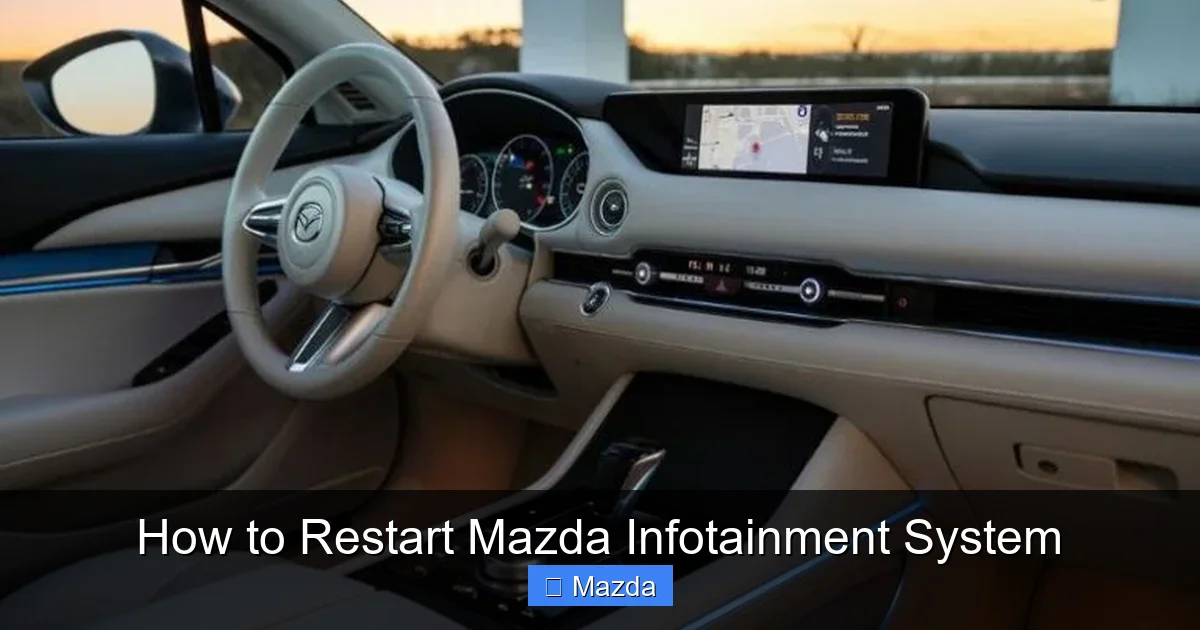
Visual guide about How to Restart Mazda Infotainment System
Image source: carinfotainment.org
You might also encounter error messages populating the screen, such as “System Initializing…” that never completes, or warnings about “Navigation System Error.” In some 2026 models, you might notice that the rearview camera display fails to activate when shifting into Reverse, or the climate control icons on the screen don’t update when you adjust the physical vents. All of these point to a software process that has crashed or become stuck. Before you restart, a quick check: is your phone properly connected? Is the audio source selected correctly? Sometimes what feels like a system crash is just a disconnected device or a muted setting. If you’ve ruled out simple user errors, it’s reboot time.
The Step-by-Step Restart Methods: From Soft to Hard
This is the core of the guide. We will progress from the least invasive (soft reset) to the most invasive (hard reset). Always start with the soft reset. It’s safe, quick, and preserves all your personalized settings—radio presets, paired phones, navigation home address, and system preferences. Only move to a hard reset if a soft reset fails to resolve the issue.

Visual guide about How to Restart Mazda Infotainment System
Image source: carinfotainment.org
Method 1: The Standard Soft Reset (Button Hold)
This is the official, dealer-recommended method for a software reboot. It’s designed to mimic a computer’s restart command without fully power-cycling the system. The exact button combination is consistent across most 2020-2026 Mazda models with the Mazda Connect system.
- Step 1: Ensure your vehicle is in “Park” (P). Start the engine or turn the key to the “Accessory” (ACC) position so the infotainment system is powered on.
- Step 2: Locate the three physical buttons on the bezel (frame) of your infotainment screen. You need the “Back” button (usually an arrow pointing left), the “Home” button (usually a house icon), and the “Navigation” button (usually a map pin icon). On some models, the “Nav” button may be labeled “Menu” or represented by an icon with multiple squares.
- Step 3: Press and hold all three of these buttons simultaneously. You must hold them down continuously.
- Step 4: Continue holding for approximately 10-15 seconds. You will know it’s working when the screen goes black, and the Mazda logo or a boot-up animation appears. The system is now restarting.
- Step 5: Release the buttons and wait 1-2 minutes for the system to fully boot up and re-establish connections (like Bluetooth). Test all functions to see if the issue is resolved.
Pro Tip: If your vehicle has a “Menu” button instead of a dedicated “Navigation” button, use the “Menu” button in the three-button hold sequence. This method is safe for your vehicle’s electronics and will not affect any saved data.
Method 2: The Power Cycle (Engine Off/On)
Sometimes, the system needs a deeper reset than a button hold, but you don’t want to mess with fuses. A full vehicle power cycle can do the trick.
- Step 1: With the car in “Park,” turn the engine completely off. Remove the key if you have a traditional key fob, or press the start/stop button until the engine is off (do not press it again for “Accessory” mode yet).
- Step 2: Open and close the driver’s door. This action often triggers the vehicle’s computers to fully power down after a few seconds. Wait at least 60 seconds with the key out of the ignition or the fob away from the car. This allows the infotainment system’s capacitors to fully discharge.
- Step 3: Re-enter the vehicle, press the brake pedal, and press the start/stop button to return to “Accessory” mode or start the engine. The infotainment system will power up from a completely cold state.
- Step 4: Wait for it to fully initialize and test your functions.
This method is excellent for issues where the system is stuck in a boot loop or a low-power state that a button hold can’t escape.
Method 3: The Hard Reset (Infotainment Fuse Pull)
This is the most effective but also the most disruptive method. It completely cuts power to the infotainment module, forcing a factory-like restart. Warning: This will erase all user settings: radio station presets, Bluetooth pairings, navigation “Saved” locations, and system preferences (like sound settings and display themes). You will need to set these up again afterward.
- Step 1: Locate your vehicle’s fuse box. In most 2026 Mazdas, there is a primary fuse box under the hood (engine compartment) and a secondary fuse box inside the cabin, usually on the lower left side of the dashboard (near the driver’s knee) or under a panel on the end of the dashboard. Your owner’s manual will have an exact diagram.
- Step 2: Identify the fuse for the infotainment system. It is typically labeled “INFOTAINMENT,” “RADIO,” “AUDIO,” or “MZD”. The manual is essential here. You will need a fuse puller (often provided in the fuse box cover) or a pair of needle-nose pliers.
- Step 3: With the engine and all accessories OFF, carefully pull the identified fuse out of its slot.
- Step 4: Wait a full 5 minutes. This ensures residual power is drained from the system’s circuits.
- Step 5: Reinsert the fuse firmly into its original slot, ensuring it’s seated properly.
- Step 6: Start the vehicle. The infotainment screen will take longer than usual to light up as it performs a full initialization. Go through the initial setup prompts (language, time, etc.) and then re-enter all your personal settings.
Critical Note: If you cannot find the infotainment fuse, or if pulling it does not restore function, the problem may lie with a different fuse or a deeper electrical issue. Consult your manual or a professional.
Advanced Troubleshooting: When a Restart Isn’t Enough
You’ve performed the soft reset, the power cycle, and even the hard fuse pull, but the problem persists—the screen is still black, or a specific error code haunts the display. Now what? This indicates the issue is likely not a simple software hang but a more complex problem requiring deeper investigation. First, check for any obvious physical damage. Is the screen cracked? Are there any signs of water intrusion around the dashboard? Water damage is a common cause of permanent infotainment failure. Next, consider recent events. Did the problem start after you installed an aftermarket device (like a dash cam or OBD2 scanner) that plugs into the USB port or cigarette lighter? Such devices can cause power fluctuations or communication conflicts. Try disconnecting all non-Mazda accessories and performing another soft reset.

Visual guide about How to Restart Mazda Infotainment System
Image source: carinfotainment.org
Another angle is system updates. An interrupted software update (perhaps due to a dead battery during the process) can brick the system. If your screen shows a progress bar that never completes or says “Update Failed,” your dealer may need to re-flash the software using specialized diagnostic tools. This is not a DIY fix. Furthermore, some error messages are linked to other vehicle systems. For instance, a persistent “Check Emission System” light on your dashboard might cause the infotainment to display related warnings, but the root cause is under the hood, not in the radio. In such cases, you need an OBD2 scanner to diagnose the engine’s trouble codes. For those issues, resources like our guide on how to reset a check emission system illustrate the process, though the principle is similar across brands: the infotainment is often just a messenger for a problem elsewhere. If your Mazda’s infotainment issue is accompanied by other warning lights or drivability problems (rough idle, loss of power), focus on the primary vehicle system first.
Preventive Care and Best Practices for 2026 Mazda Owners
An ounce of prevention is worth a pound of cures. While you can’t eliminate all software bugs, you can significantly reduce the frequency of infotainment glitches with smart habits. The most important practice is to keep your system software updated. Mazda periodically releases updates that fix known bugs, improve performance, and add features. Check for updates by going to Settings > System > Software Update on your screen. If your 2026 model has built-in Wi-Fi (via a connected Mazda Connect account or a tethered phone), it may download updates automatically. Otherwise, you may need to download a file from the official Mazda owner’s portal onto a USB drive and install it manually. Never interrupt an update once it begins—ensure the battery is fully charged or use a trickle charger if needed.
Be mindful of what you connect. Use only high-quality, certified USB cables for CarPlay/Android Auto. Cheap cables can cause communication errors. Avoid plugging power-hungry devices directly into the infotainment system’s USB ports; use a powered USB hub if you need multiple devices. Also, be cautious with aftermarket modifications. While adding a backup camera or amplifier is common, poor wiring jobs can introduce electrical noise that confuses the sensitive computer networks in your car. If you experience issues after an installation, have the installer double-check their work. Finally, a simple periodic soft reset (once a month) can help clear out temporary cache files and keep the system running smoothly, much like restarting your home computer. It’s a low-effort habit that promotes long-term health.
Special Considerations for Different 2026 Mazda Models
While the core restart procedures are universal across the Mazda lineup, there are minor nuances. The flagship Mazda CX-90 and CX-70 (if available in your market) may have slightly different button layouts on their larger screens, but the three-button hold (Back, Home, Nav/Menu) remains the standard. The compact CX-30 and popular CX-5 share the same interface. The sporty MX-5 Miata, with its smaller screen, uses the identical button combination. The key is to physically identify the three buttons on your specific model’s screen bezel. In rare cases, a model year update might change the function of a button. For example, in some earlier models, the “Audio” button was used instead of “Nav.” For your 2026 vehicle, the manual is the ultimate authority. If you’ve lost your physical manual, Mazda often has digital copies on their website. A quick search for “[Your Model Year] [Your Model] Owner’s Manual PDF” will usually yield results. Bookmark the fuse box diagram page—it’s a lifesaver.
One additional feature on some 2026 Mazdas is the i-Stop (idle stop-start) system. While not directly part of infotainment, its status is often displayed on the driver’s instrument cluster and sometimes referenced in the vehicle settings menu within Mazda Connect. A fault in the i-Stop system can sometimes cause broader electrical gremlins. If you’re troubleshooting persistent electrical issues, it’s worth checking. For more on this specific system, our detailed guide on how to disable i-Stop on a Mazda explains its function and common problems, which could be related if you’re experiencing multiple system warnings.
Conclusion: Empowering the Modern Mazda Driver
Your Mazda’s infotainment system is a gateway to connectivity and convenience, but like all technology, it occasionally needs a nudge to get back on track. Mastering the simple art of the restart—starting with the gentle three-button hold and escalating to the fuse pull only when necessary—saves you time, money, and frustration. Remember the golden rule: always begin with the soft reset. It’s your primary tool, designed by Mazda for this exact purpose. Keep your software updated, be mindful of connected devices, and don’t hesitate to consult your owner’s manual for model-specific details. By treating your infotainment system with a little care and understanding, you ensure it remains a reliable partner on every journey. Should the problem persist beyond these steps, recognize the signs that it’s time to seek professional help—a black screen after a hard reset or persistent error codes point to hardware failure. In that case, your certified Mazda technician has the diagnostic tools to get to the root cause. Now, with this knowledge in hand, you can confidently tackle any frozen screen and get back to enjoying the drive, the music, and the peace of mind that comes from being in control of your vehicle’s technology.
Frequently Asked Questions
What’s the difference between restarting and resetting my Mazda infotainment system?
A restart (soft or hard reset) simply reboots the system’s software to fix temporary glitches, like a frozen screen. A full reset (often called a “factory reset” in settings) erases all personalized data—presets, pairings, settings—and returns the system to its original out-of-the-box state. A restart is for troubleshooting; a full reset is a last-ditch effort for major software corruption.
Will restarting my infotainment system delete my saved radio stations or Bluetooth phones?
No. A standard soft reset (button hold) or a power cycle does not delete any saved data. Only a hard reset via the fuse pull or a manual “Factory Data Reset” from the system settings menu will erase your personalized information like radio presets, Bluetooth device lists, and saved navigation addresses.
My screen is completely black and unresponsive. Is this still a restart issue?
Possibly. A completely black screen can be caused by a severe software crash that a soft reset can fix. Try the three-button hold first. If that fails, attempt the hard reset by pulling the infotainment fuse. If the screen remains black after a fuse pull and reinsertion, the problem is likely hardware-related—a failed screen, a loose internal connection, or a faulty infotainment module—and requires professional diagnosis.
How often should I update my Mazda infotainment software?
Check for updates periodically, about once every 3-6 months. Mazda releases updates to fix bugs and improve stability. Enable any available automatic update settings if your 2026 model supports over-the-air updates. Installing updates promptly is the best way to prevent the bugs that lead to freezes and the need for restarts.
Can a low car battery cause infotainment problems that require a restart?
Yes. A weak or failing 12-volt battery can cause voltage drops that confuse the car’s sensitive computer modules, including the infotainment system. This can lead to random reboots, freezes, or failure to power on. If you’re experiencing frequent restarts or other electrical quirks (like dim lights), have your battery and charging system tested first.
My navigation system says “GPS Signal Lost” after a restart. Is that normal?
It can be. After a full restart, the infotainment system may take 2-5 minutes to re-acquire a strong GPS satellite signal, especially if you’re in a parking garage or between tall buildings. Drive to an open area with a clear view of the sky. If the GPS signal does not return after 10-15 minutes of driving in open conditions, there may be an issue with the GPS antenna, which is typically located in the shark-fin antenna on the roof.
