How to Restart a Mazda Screen

Contents
- 1 Key Takeaways
- 2 📑 Table of Contents
- 3 Understanding Your Mazda’s Brain: The Infotainment System
- 4 Method 1: The Soft Reset (Your First and Best Option)
- 5 Method 2: The Hard Reset (Power Cycle)
- 6 When a Restart Isn’t Enough: Diagnosing Persistent Problems
- 7 Preventive Care for Your 2026 Mazda Screen
- 8 Future-Proofing: The 2026 and Beyond Infotainment
- 9 Frequently Asked Questions

Car Wireless Charger Mount

Car Roof Rack Cross Bars

Car Trash Can

Carburetor Cleaner
Is your Mazda’s infotainment screen frozen, black, or unresponsive? You’re not alone. This guide provides clear, safe methods to restart your Mazda Connect system, from simple soft resets to more thorough hard resets. We cover procedures for all 2026 models, explain why screens freeze, and tell you exactly when to seek professional help to avoid damage.
That sinking feeling is all too familiar. You’re backing out of the driveway, you need your navigation, or you just want to play your favorite podcast, but your Mazda’s infotainment screen is frozen on a single menu, stubbornly black, or stuck on the Mazda logo. It’s not just an inconvenience; in a 2026 Mazda, where the screen controls climate, audio, and critical vehicle settings, a dead display can feel like you’re piloting a spaceship with a broken control panel. Before you panic and call the dealer—or worse, start poking at it with a screwdriver—take a breath. Restarting your Mazda screen is often a simple, user-performable task. This guide will walk you through every safe and effective method, from the quickest soft reset to the more involved hard reset, specifically for the technology found in 2026 model year Mazdas.
The infotainment system in your modern Mazda—officially called Mazda Connect—is a sophisticated computer. Like any computer, it can experience software hiccups, memory leaks, or conflicts from apps and updates. The good news is that 95% of these glitches are resolved by a simple reboot. The key is knowing *how* to do it correctly for your specific system without causing unintended problems. We’ll break it down by symptom, step, and model nuance so you can get your screen back to life confidently and safely.
Key Takeaways
- Always Try a Soft Reset First: The 10-second hold on the power/audio knob is the safest, first-line fix for most glitches and preserves your settings.
- A Hard Reset is a Last Resort: Disconnecting the battery or fuse will reset *everything*—radio presets, navigation history, and paired devices—but clears deep system errors.
- 2026 Models Have Nuances: Newer Mazda’s with larger displays or advanced driver-assist system (ADAS) integration may have slightly different reset protocols; consult your manual.
- Identify the Symptom: A totally black screen often points to a power/connection issue, while a frozen-but-lit screen usually needs a software reboot.
- Prevent Future Freezes: Keep your system software updated via Wi-Fi or USB, and avoid downloading unofficial apps that can cause conflicts.
- Know When to Call a Pro: If resets don’t work, or if you see physical damage, flickering, or error messages, it’s likely a hardware fault needing a dealer.
- Safety First: Always perform resets with the car in park and the parking brake set. Never attempt hardware fixes while driving.
📑 Table of Contents
- Understanding Your Mazda’s Brain: The Infotainment System
- Method 1: The Soft Reset (Your First and Best Option)
- Method 2: The Hard Reset (Power Cycle)
- When a Restart Isn’t Enough: Diagnosing Persistent Problems
- Preventive Care for Your 2026 Mazda Screen
- Future-Proofing: The 2026 and Beyond Infotainment
Understanding Your Mazda’s Brain: The Infotainment System
Before we start pressing buttons, it helps to understand what we’re dealing with. The 2026 Mazda infotainment system is the central hub for the vehicle’s connected features. It runs on an embedded Linux-based operating system and manages everything from the touchscreen interface and audio processing to Bluetooth connectivity, navigation maps, and integration with the i-ACTIVSENSE safety suite.
The Difference Between a “Soft” and “Hard” Reset
This is the most critical distinction. A soft reset (or reboot) is like restarting your phone. It closes all running apps and processes, clears temporary memory (RAM), and reloads the core operating system. Your personal settings—radio presets, paired phones, home screen layout—remain intact because they are stored in non-volatile memory. This is the fix for 90% of frozen or laggy screens.
A hard reset (or factory reset) is more drastic. It interrupts the main power supply to the system, forcing a complete power cycle at the hardware level. It also often restores the system software to its default state, wiping *all* user-configured data. Think of it as pulling the plug on a desktop computer that’s completely frozen. This clears deeper software corruption but requires you to set everything up again afterward.
Method 1: The Soft Reset (Your First and Best Option)
This is the go-to procedure. It’s safe, fast, and designed by Mazda for user execution. The method varies slightly depending on whether your vehicle has a rotary knob or a touch-sensitive panel.

Visual guide about How to Restart a Mazda Screen
Image source: cdn.cartipsdaily.com
For Models with the Central Command Knob (Most CX-5, CX-50, CX-90, MX-5)
This is the classic Mazda interface. You’ll find the volume/power knob on the center console.
- Ensure your vehicle is in Park (P) with the engine running or in Accessory (ACC) mode. The screen must be powered on.
- Locate the volume/power knob. It’s the large, knurled wheel you turn to change volume.
- Press and hold this knob down firmly.
- Continue holding it for approximately 10-15 seconds. You will see the screen go black, and the Mazda logo will reappear as the system reboots.
- Release the knob and wait 30-60 seconds for the system to fully load. Test the touch response and all functions.
Pro Tip: If the knob press doesn’t trigger a reboot after 15 seconds, try holding it while simultaneously pressing the “Back” button next to the knob. This combo can force a deeper software restart on some 2024-2026 models.
For Models with a Touch-Sensitive Panel (Some 2026+ Models)
Some newer Mazdas may use a capacitive touch area instead of a physical knob. The process is similar.
- With the car in Park/ACC, locate the power/volume touch area (often a ring around a central button).
- Press and hold the center of this touch area for 10-15 seconds.
- The screen will cycle through a shutdown and restart sequence.
Note: If your vehicle has a dedicated, physical “Voice” button on the steering wheel, a quick press-and-hold (5 seconds) of that button can also initiate a system restart on certain trims, as it’s hardwired to the infotainment computer’s reset line.
Method 2: The Hard Reset (Power Cycle)
If the soft reset fails—the screen remains black, frozen on the logo, or unresponsive—it’s time for a full power cycle. This method is safe when done correctly but requires a bit more effort.
Visual guide about How to Restart a Mazda Screen
Image source: cdn.cartipsdaily.com
Step-by-Step: Disconnecting the 12V Battery
⚠️ Warning: This will reset *all* vehicle systems. You will lose radio presets, paired Bluetooth devices, seat memory settings, and potentially clock/date settings. Your key fob may need to be re-paired. Have your radio security code (if applicable) and be prepared to re-set your preferences.
- Park safely and turn off the engine. Remove the key fob from the vehicle if you have a keyless system.
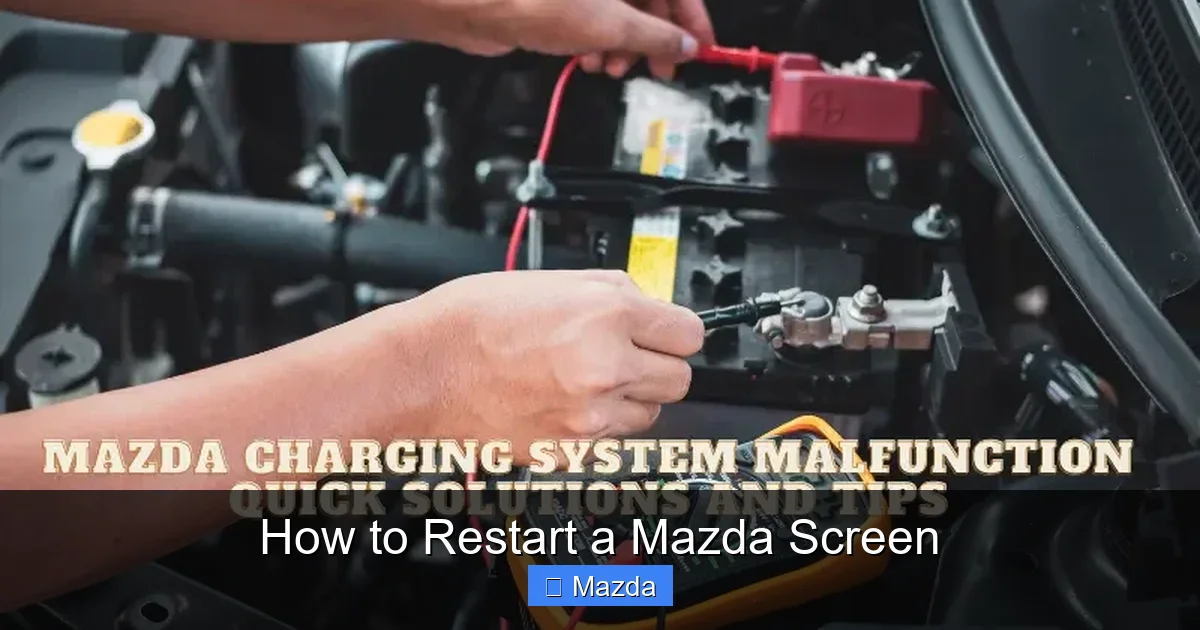
- Open the hood. Locate the negative (-) terminal on the 12V battery. It’s usually marked with a black cap and a minus (-) symbol.
- Using a 10mm socket wrench (common size for Mazda battery terminals), loosen the nut on the negative terminal clamp.
- Carefully lift the clamp off the negative post and tuck it away so it cannot accidentally touch the battery post.
- Wait at least 5 minutes. This allows the capacitors in the infotainment module and other ECUs to fully discharge, clearing any residual “ghost” power that can keep systems alive.
- Reconnect the negative clamp and tighten the nut securely.
- Close the hood. Start the car. The infotainment system will take 1-3 minutes to fully boot as it re-initializes all modules and runs system checks. Do not interrupt this process.
Alternative: Some Mazda models have a dedicated infotainment fuse in the interior fuse box (check owner’s manual for location, often “INFOTAINMENT” or “RADIO”). Pulling this fuse for 5 minutes achieves the same result without resetting other vehicle systems like the clock or power windows. This is often the preferred hard reset method.
When a Restart Isn’t Enough: Diagnosing Persistent Problems
You’ve performed both a soft and hard reset, and the screen is still dead or glitchy. Now what? The problem has likely moved from software to hardware or a deeper system fault.

Visual guide about How to Restart a Mazda Screen
Image source: cdn.cartipsdaily.com
Symptom: The Screen is Totally Black, But the Car Starts
This points to a power or connection issue. The backlight might be out, or the display cable has failed. Check:
- Dimming Switch: Ensure the dashboard dimmer knob/ring isn’t turned all the way down, which can make the screen appear black.
- Fuse: The infotainment system fuse may have blown (it could have blown for another reason). Locate and check it.
- If fuses are good and dimmer is up, the backlight LED or the display itself has likely failed. This requires a technician.
Symptom: The Screen is Stuck on the Mazda Logo (Boot Loop)
The system is trying to start but failing during the boot sequence. This is often corrupted system software. A standard hard reset may not be enough. The system software may need to be re-flashed or updated using a USB drive with the latest firmware from Mazda’s official website. This is a dealer or advanced enthusiast procedure.
Symptom: Touch Response is Erratic or Ghost Touches
This is almost always a faulty touchscreen digitizer. The glass layer that senses your touch has failed. It needs to be replaced as a unit. Sometimes, a very thorough cleaning with a microfiber cloth (no chemicals) can resolve minor issues from residue buildup.
Preventive Care for Your 2026 Mazda Screen
An ounce of prevention is worth a pound of cure. Keeping your system healthy reduces the need for resets.
Keep Software Updated
Mazda regularly releases software updates to fix bugs and improve stability. Connect your vehicle to a Wi-Fi network (at home or via a hotspot) and check for updates in Settings > System > Software Update. You can also download updates to a USB drive from Mazda’s owner portal and install manually.
Be Mindful of Apps and Sources
Only install apps from the official Mazda Connected Services store or trusted, verified sources. Sideloading unofficial Android Auto or CarPlay modifications can introduce instability. If you use Android Auto or Apple CarPlay, ensure your phone’s OS is up-to-date, as phone-side glitches can manifest on the car screen.
Physical Care
Use only a soft, slightly damp microfiber cloth to clean the screen. Never use household cleaners, ammonia, or alcohol-based wipes, as they can degrade the anti-glare coating and touch sensitivity. Avoid placing heavy objects on the dash that could press against the screen.
Future-Proofing: The 2026 and Beyond Infotainment
The 2026 model year sees Mazda continuing its evolution toward a more integrated, screen-centric cabin. Newer models like the updated CX-90 and potential electric vehicles may feature even larger, more complex displays with deeper vehicle control integration. The reset principles remain the same, but the locations of buttons and fuse panels may change. Always, your vehicle’s official owner’s manual is the final authority. For 2026 models, Mazda may also introduce over-the-air (OTA) update capabilities that can automatically fix software bugs without any action from you, potentially reducing the need for manual resets in the future.
Understanding how to restart your Mazda screen empowers you as an owner. It saves time, avoids unnecessary dealer visits for simple glitches, and gives you a deeper connection to your vehicle’s technology. Start with the gentle soft reset. Escalate to the hard reset if needed. And when in doubt, especially with persistent hardware symptoms, consulting a certified Mazda technician is the smart, safe choice to protect your investment in your car’s sophisticated digital cockpit.
Frequently Asked Questions
My Mazda screen is completely black, but the dash lights are on. Is this still a restart issue?
Not necessarily. A total black screen with power to the car often indicates a failed backlight, a loose display cable, or a blown infotainment fuse. Try the hard reset (battery disconnect) first. If that doesn’t bring it back, the issue is likely hardware-related and needs professional diagnosis.
Will a hard reset delete my saved navigation addresses and radio stations?
Yes, absolutely. A hard reset, especially one involving battery disconnect, will erase all user data stored in the infotainment system’s volatile memory. This includes AM/FM presets, satellite radio favorites, saved navigation points, paired Bluetooth devices, and connected app accounts. You will need to set these up again after the system reboots.
Can I use the “Reset” button in the Settings menu?
Most Mazda Connect systems do not have a simple “Reset” or “Reboot” option buried in the on-screen settings menu when the system is functional. The physical button/knob hold method is the intended user reset. The settings menu typically only offers a “Factory Data Reset” which is the most extreme option, wiping all personal data. For a simple reboot, always use the physical control method first.
My screen freezes every few days. Is this normal, or is there a bigger problem?
Occasional freezing (once a month or less) can happen with any complex software. However, frequent freezing (multiple times per week) suggests a deeper issue. First, ensure your system software is fully updated. If the problem persists after updates, it could indicate a failing hardware component (like the main computer module) or a conflict with a specific app or phone you’re using. Document when it happens (e.g., “only when using Android Auto”) and consult a dealer.
Is there a way to restart just the audio system without rebooting the whole screen?
No. In Mazda’s integrated architecture, the audio processing is a core function of the main infotainment computer. There is no separate audio module that can be rebooted independently. Any system restart will affect the entire infotainment stack. For minor audio glitches (like no sound from one source), cycling the source or adjusting audio settings may help, but a full system reboot is the only true reset.
Could a faulty phone or USB cable cause the screen to freeze and need a restart?
Yes, absolutely. A malfunctioning USB cable (especially non-MFi certified cables for iPhone) or a phone with a corrupted media database can send bad data to the infotainment system, causing it to hang. Always use high-quality, certified cables. If freezes only happen when your phone is connected, try a different cable, restart your phone, or update its OS. This is a common cause of seemingly random screen freezes.