
How to Restart a Bmw Screen

A frozen BMW infotainment screen is a common but frustrating issue. Most of the time, you can fix it yourself with a simple system reboot, not a costly dealership visit. The exact restart method depends on your BMW’s model year and iDrive generation, but the core principle is the same: perform a controlled reset of the system. This guide walks you through every method, from the classic button combo to the newer touchscreen gestures, ensuring you get your navigation, music, and settings back quickly and safely.
Key Takeaways
- Most BMW screen freezes are software glitches: Like any computer, the iDrive system can hang. A restart clears temporary files and refreshes the operating system, resolving the issue in minutes.
- The restart method depends on your iDrive version: Older models (iDrive 4-6) use physical button combinations, while newer ones (iDrive 7 & 8) often use touchscreen menus or a dedicated reset button.
- A “hard reset” is different from a “soft reset”: A soft reset (via menu/buttons) is safe and first-line. A hard reset (disconnecting the battery) should be a last resort as it can reset other vehicle systems.
- Prevention is key: Keeping your BMW’s software updated via USB or over-the-air (OTA) updates is the best way to prevent bugs that cause screen freezes.
- Know when to seek professional help: If the screen remains black, shows physical damage, or resets don’t work, the problem may be hardware-related (faulty screen, loose connection) and needs a technician.
📑 Table of Contents
- Introduction: Why Your BMW Screen Freezes and Why You Can Fix It
- Understanding Your BMW’s iDrive System: It All Starts Here
- The Primary Method: The Standard Button Combo Reset
- Advanced Scenarios: iDrive 8/9 and Hard Resets
- What to Do If a Simple Restart Doesn’t Work
- Proactive Care: Preventing Future Screen Freezes
- Conclusion: You’ve Got This
Introduction: Why Your BMW Screen Freezes and Why You Can Fix It
You’re driving your BMW, the premium cabin humming around you, and suddenly—the central screen goes black, freezes on a map, or becomes unresponsive to touch. That sinking feeling is all too familiar for many BMW owners. Before you panic and brace for an expensive dealership bill, take a deep breath. In the vast majority of cases, this is a temporary software hiccup, not a catastrophic hardware failure.
Your BMW’s infotainment system, called iDrive, is a sophisticated computer running on an embedded operating system. Just like your smartphone or laptop, it can occasionally get bogged down by a rogue process, a buggy update, or a simple memory overflow. The solution? A restart. Rebooting the system clears its temporary memory (RAM) and reloads the core software, often banishing the freeze instantly.
This guide is your definitive manual for restarting a BMW screen. We’ll cover every generation of iDrive, from the classic knob-controlled systems to the latest massive curved displays. We’ll start with the safest, easiest methods and progress to more involved steps. Our goal is to empower you with the knowledge to solve this common problem yourself, saving you time, money, and the hassle of a service appointment.
Understanding Your BMW’s iDrive System: It All Starts Here
Before we dive into button combos, it’s crucial to identify which version of iDrive your BMW has. The restart procedure varies significantly between generations. Here’s a simple breakdown:
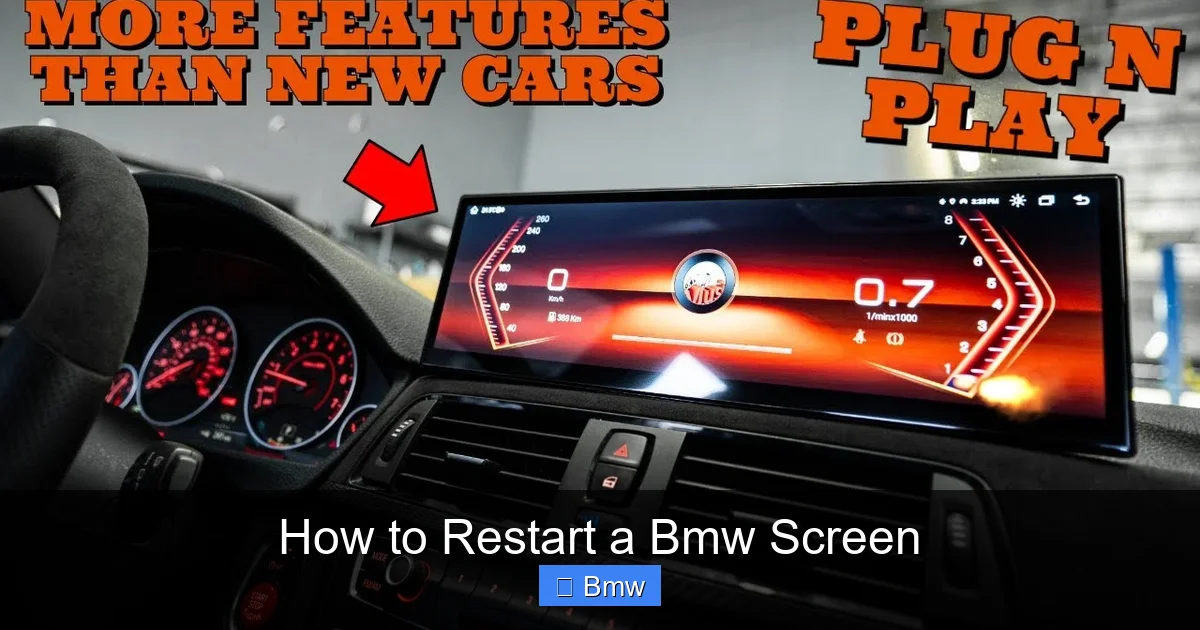
Visual guide about How to Restart a Bmw Screen
Image source: i.ytimg.com
iDrive 4, 5, and 6 (Pre-2018 Models)
These are the systems dominated by the iconic rotary knob and physical buttons on the center console. The screen is typically a non-touch LCD. Restarting is almost always done via a specific, hidden button combination. Models include most 3 Series (F30), 5 Series (F10), X5 (F15), and X3 (F25) from roughly 2012-2017.
iDrive 7 (Live Cockpit Professional, 2018-2022)
This generation introduced a fully digital, customizable dashboard and a touch-sensitive screen (on most models), though the rotary knob was retained. It also features a physical “MENU” and “MEDIA” button on the console. Restart methods include both a button combo and a menu-driven option.
iDrive 8 / iDrive 9 (Curved Display, 2022+)
The latest systems, found in the G60 7 Series, G42 2 Series, and updated G30 5 Series, feature a stunning curved glass display with no physical buttons for the infotainment screen itself. Restarting is done entirely through the on-screen interface or by using a specific, recessed reset button.
Pro Tip: The easiest way to identify your system is by looking at the center console. If you have a large rotary controller with a touchpad on top, you’re likely on iDrive 6 or 7. If the screen is a single, curved piece of glass with minimal physical controls, you have iDrive 8/9.
The Primary Method: The Standard Button Combo Reset
This is the universal first-aid for a frozen iDrive 4, 5, or 6 system. It’s a soft reset that forces the system to reboot without affecting any of your saved settings, paired devices, or vehicle configurations.
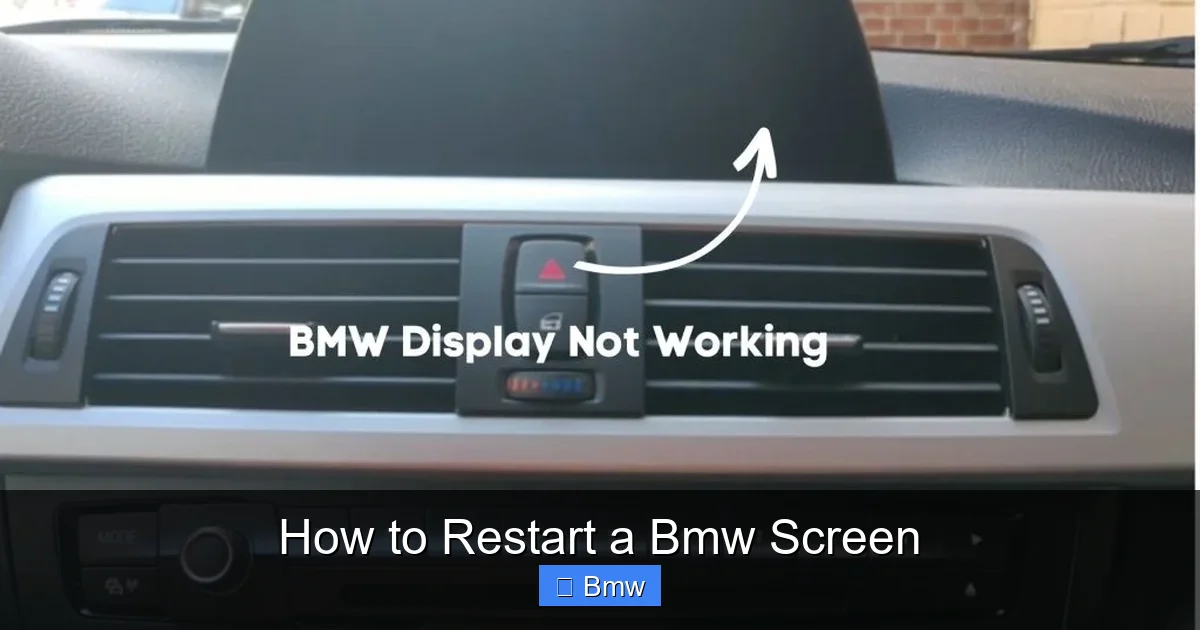
Visual guide about How to Restart a Bmw Screen
Image source: vehiclechef.com
Step-by-Step for iDrive 4/5/6 (The Classic Combo)
- Ensure the car is ON and the engine is running. The system must have full power. Do not attempt this in the “ignition on” position only if your car requires the engine for full system power.
- Locate the specific buttons. You will need to press and hold three buttons simultaneously: The “MENU” button, the “CD/Radio” button (often the one with the radio symbol), and the “AM/FM” button. These are the three large, physical buttons on the center console, usually to the right of the iDrive knob.
- Press and hold firmly. Press all three buttons at the same time and hold them down for about 10-15 seconds.
- Watch for the reboot. You will see the BMW logo appear on the screen, followed by a loading bar or spinning circle. The screen will go completely black before restarting. This is normal.
- Release the buttons once you see the BMW logo. The system will boot up fully in 30-60 seconds. Your radio presets, Bluetooth pairings, and navigation maps will all be intact.
What if my car doesn’t have an “AM/FM” button? Some models (like certain X5s) may label it differently. Look for a button with a radio wave or tuning symbol. The key is the “MENU” button plus the two primary media source buttons (Radio and CD/Media).
For iDrive 7: The Menu Reset Path
If your BMW has a touchscreen (iDrive 7), you can often reset through the software menu, which is a cleaner method.
- From the home screen, swipe left or press the “MENU” button to access the main grid.
- Go to “Settings” (the gear icon).
- Navigate to “System Settings”.
- Scroll down and select “Restart System” or “Reboot iDrive”.
- Confirm the restart. The screen will go black and reboot.
If the screen is too frozen to navigate, fall back to the physical button combo method described for iDrive 6, as the button layout is often identical.
Advanced Scenarios: iDrive 8/9 and Hard Resets
When the standard methods fail, or you have a cutting-edge BMW with a curved display, you need a different approach.
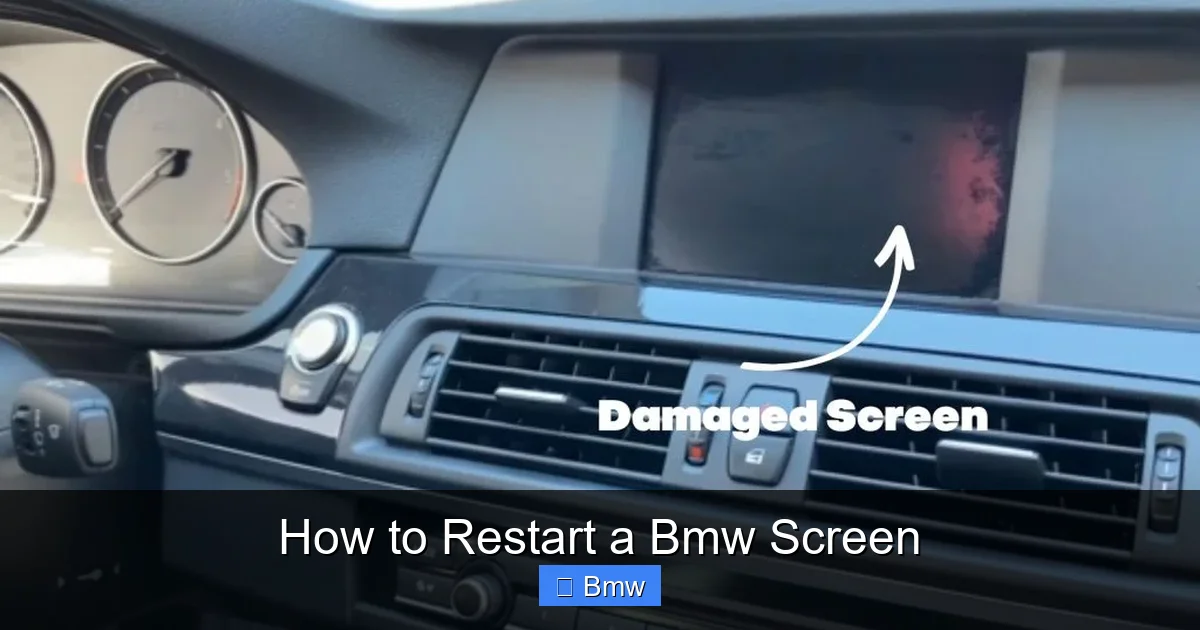
Visual guide about How to Restart a Bmw Screen
Image source: vehiclechef.com
Restarting iDrive 8/9 (Curved Display Models)
These systems have no physical buttons on the screen itself. Your options are:
- The On-Screen Reset (if responsive): Go to Settings > System > Restart System. This is identical in concept to iDrive 7.
- The Recessed Reset Button: Look for a tiny hole labeled “RESET” or with a circular arrow symbol. It’s usually located on the lower part of the center console, near the USB ports or the wireless charger. Use a paperclip or SIM ejector tool to gently press and hold the button inside for 5-10 seconds. The system will power cycle.
- The Key Cycle (Soft Hard Reset): Turn the car completely OFF (key out or push-button off). Open and close the driver’s door. Wait 60 seconds. This allows the iDrive system’s capacitors to fully drain. Then re-enter the car and start it normally. This often clears deeper glitches.
The Last Resort: Battery Disconnect (True Hard Reset)
Warning: This method can reset other vehicle systems like the radio clock, transmission adaptations, and window/power seat memory. Only use this if all other methods fail and you are prepared to reconfigure these settings.
- Park the car, engage the parking brake, and turn it OFF. Remove the key fob if applicable.
- Open the hood and locate the negative (-) battery terminal.
- Using a 10mm socket wrench, loosen the nut on the negative terminal and carefully remove the cable. Tuck it away so it cannot touch the terminal.
- Wait 15-20 minutes. This ensures all residual power (the “keep alive memory”) is drained from the iDrive system and other modules.
- Reconnect the negative cable and tighten the nut securely.
- Re-enter the car. You will likely need to enter your radio code (found in your owner’s manual or service booklet). The iDrive system will take several minutes to fully initialize and may run system checks.
For complex electrical issues, understanding how much it costs to replace a BMW windshield can be relevant, as improper handling during other repairs can sometimes affect wiring to the infotainment system.
What to Do If a Simple Restart Doesn’t Work
You’ve tried the button combo, the menu reset, and even the key cycle. The screen is still dead, frozen, or displaying bizarre artifacts. Now what?
Diagnosing the Problem: Software vs. Hardware
Your next steps depend on the symptoms:
- Screen is completely black, but backlight is on: This often points to a software crash that a hard reset (battery disconnect) might solve. If it persists, it could be a failing backlight inverter or a loose LVDS cable (the video cable between the computer and screen).
- Screen is partially frozen, buttons work but touch doesn’t: Likely a touchscreen digitizer failure or a calibration issue. A software update may help, but physical repair is often needed.
- Screen flickers or has colored lines: Classic signs of a failing screen or a loose connection. Vibration while driving can worsen this.
- System reboots on its own: Could indicate a failing iDrive computer module (the host unit behind the screen) or a voltage supply issue.
When to Call a Professional
If you’ve exhausted all reset options and the problem persists, it’s time to consult a specialist. A BMW technician can run diagnostics on the iDrive system, check for stored fault codes, and test the screen and control unit separately. They can also perform a proper software reflash or update, which is more thorough than a simple reboot. For persistent electrical gremlins, issues might be related to broader vehicle systems, similar to diagnosing a driver restraint system malfunction, where a specialist is essential.
Proactive Care: Preventing Future Screen Freezes
An ounce of prevention is worth a pound of cure. Keep your iDrive system running smoothly with these habits:
Regular Software Updates Are Non-Negotiable
BMW regularly releases software updates (OS upgrades) that fix bugs, improve stability, and add features. You can update via:
- USB Drive: Download the update from the BMW ConnectedDrive portal (if your region supports it), copy it to a USB drive, and install in the car.
- Over-the-Air (OTA): Newer models (iDrive 7/8) can download and install updates directly via the car’s built-in cellular connection. Always install these when prompted.
Never interrupt an update. Turning off the car during installation can brick the iDrive system, requiring a full reflash at the dealer.
Mind Your Power Source
Using a low-quality or failing car battery can cause voltage dips that reset or corrupt the iDrive system. If your battery is over 4-5 years old and you’re experiencing random electronic glitches, have it tested. A healthy battery is critical for all modern car computers.
Gentle with the Controls
While the iDrive knob and buttons are robust, aggressive, forceful use can wear out contacts over time. Use deliberate, moderate pressure. For touchscreens, a microfiber cloth is your best friend for cleaning—never use harsh chemicals that can damage the coating.
Conclusion: You’ve Got This
That frozen BMW screen doesn’t have to be a source of anxiety. With this guide, you now have a clear, step-by-step path from the simplest soft reset to the more advanced diagnostic steps. Start with the method for your specific iDrive generation, and don’t be afraid to try the key cycle or recessed reset button. Remember, a restart is safe, preserves all your data, and is the number-one fix for this issue.
Embrace the DIY spirit. Performing these resets yourself saves you a tow truck, a dealership appointment fee, and a day without your car. It connects you more deeply with your vehicle and builds your confidence as a car owner. However, always know your limits. If the problem seems deeply rooted in hardware—a cracked screen, constant reboots, or no backlight—seek a qualified BMW technician. They have the tools to diagnose module failures and replace components correctly.
Your BMW’s infotainment system is the command center of your driving experience. Keeping it healthy ensures your journeys, whether to the grocery store or across the country, are connected, entertaining, and stress-free. Now, go ahead and give that screen the reboot it needs.
Frequently Asked Questions
Is it safe to restart my BMW screen myself? Will I lose my settings?
Yes, it is completely safe. The standard button combo and menu restart are soft resets, identical to rebooting your computer. They do not delete your saved radio presets, Bluetooth pairings, navigation maps, or vehicle personalization settings. Only a full battery disconnect for an extended period might reset some minor clock and convenience settings.
My BMW is a 2023 model with the big curved screen. How is it different?
What’s the difference between a restart and a software update?
A restart clears the system’s current memory (RAM) and reloads the existing software. It fixes temporary glitches. A software update actually replaces or adds to the core operating system files, fixing underlying bugs, patching security flaws, and sometimes adding new features. Updates are more comprehensive but less frequent than restarts.
My screen is completely black and unresponsive. The button combo did nothing. Now what?
If the screen has no backlight at all (pitch black), the issue may be power-related or a hardware failure. First, try the “key cycle”: turn the car fully off, open/close the driver’s door, wait 60 seconds, and restart. If that fails, check your car’s main fuses (see owner’s manual). If still no luck, the iDrive control module or the screen itself may be faulty and requires professional diagnosis.
Can a frozen screen cause other problems in my BMW?
Generally, no. The iDrive system is largely independent. A frozen screen will not cause your engine to stall or brakes to fail. However, on some models, the climate control or seat heating settings are integrated into the iDrive menu, so you might lose access to those controls until the system reboots. The core driving functions remain operational.
Will resetting the screen delete my paired phones or navigation history?
No. A standard soft reset (button combo or menu restart) does not touch your personal data. Your paired Bluetooth devices, phonebook contacts, navigation destinations, and media library will all be there when the system boots back up. Only a full battery disconnect for many hours might clear some Bluetooth pairings, requiring you to re-pair your phone.