
How to Reset Uconnect in a Dodge Challenger

Resetting the Uconnect system in your Dodge Challenger can resolve glitches, improve performance, and restore connectivity. This guide covers everything from soft resets to full factory restores, ensuring your infotainment system runs smoothly.
Key Takeaways
- Soft Reset Fixes Minor Glitches: A quick power cycle can resolve temporary issues like frozen screens or unresponsive touch controls.
- Hard Reset Restores Factory Settings: Use this method when facing persistent problems or before selling your vehicle to erase personal data.
- Check for Software Updates: Outdated firmware is a common cause of Uconnect malfunctions—always update via USB or Wi-Fi when possible.
- Use the Correct Procedure for Your Model Year: Reset steps vary slightly between 2015–2023 Dodge Challengers due to different Uconnect versions.
- Backup Paired Devices and Settings: A hard reset erases Bluetooth pairings and saved preferences—reconnect devices afterward.
- Contact Dodge Support if Issues Persist: If resets don’t solve the problem, there may be a hardware issue requiring professional diagnosis.
- Keep Your Vehicle Running During Reset: Ensure the engine is on or the key is in the “ON” position to avoid interrupting the process.
📑 Table of Contents
- Why Resetting Uconnect in Your Dodge Challenger Matters
- Understanding Your Uconnect System
- How to Perform a Soft Reset (Power Cycle)
- How to Perform a Hard Reset (Factory Restore)
- Updating Uconnect Software to Prevent Future Issues
- Troubleshooting Persistent Uconnect Problems
- Best Practices for Maintaining a Healthy Uconnect System
- Final Thoughts: Take Control of Your Challenger’s Tech
Why Resetting Uconnect in Your Dodge Challenger Matters
The Uconnect infotainment system is the digital heartbeat of your Dodge Challenger. It handles everything from navigation and music streaming to hands-free calling and climate control integration. But like any advanced tech, it’s not immune to hiccups. You might notice the screen freezing mid-song, Bluetooth refusing to connect, or apps crashing unexpectedly. When these issues arise, knowing how to reset Uconnect in a Dodge Challenger isn’t just helpful—it’s essential.
Resetting Uconnect doesn’t mean you’re admitting defeat. In fact, it’s a smart maintenance step that many Challenger owners overlook. Think of it like restarting your computer when it starts acting sluggish. A simple reset can clear temporary memory errors, refresh system connections, and restore functionality without needing a trip to the dealership. Whether you’re dealing with a glitchy touchscreen or preparing to sell your car, mastering the reset process puts you in control of your vehicle’s tech experience.
Understanding Your Uconnect System
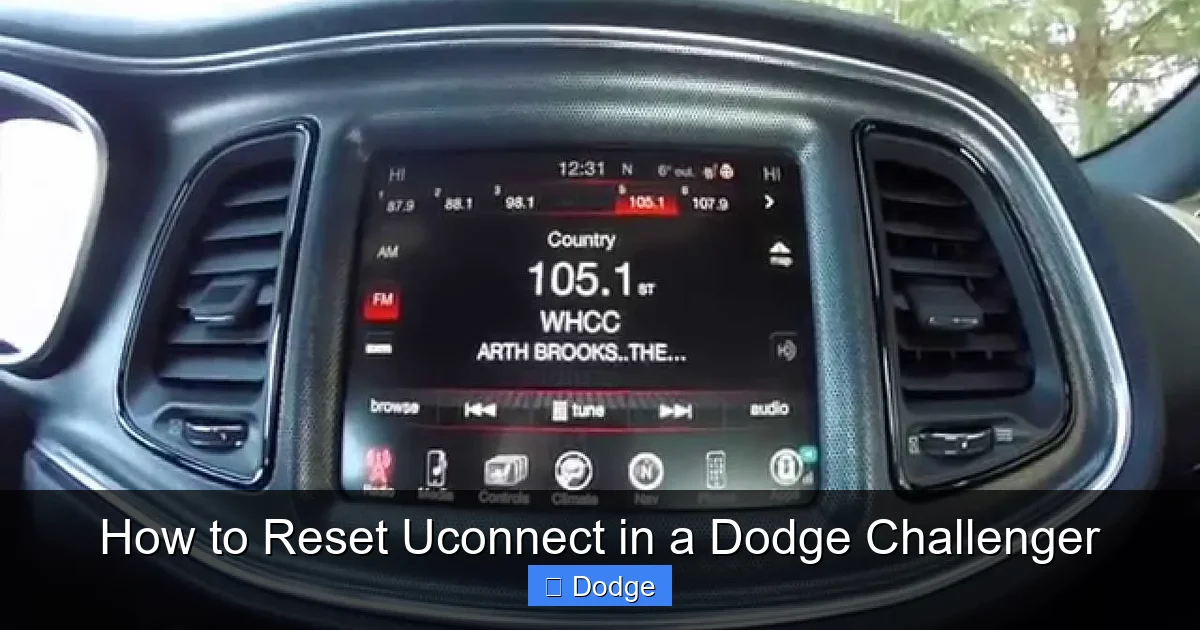
Before diving into reset procedures, it helps to understand what Uconnect actually is and how it has evolved in the Dodge Challenger lineup. Uconnect is FCA’s (now Stellantis) proprietary infotainment platform, first introduced in Dodge vehicles around 2013. Over the years, it has received multiple hardware and software upgrades, with newer models featuring faster processors, larger screens, and enhanced connectivity options like Apple CarPlay and Android Auto.
Visual guide about How to Reset Uconnect in a Dodge Challenger
Image source: i.ytimg.com
Dodge Challengers from 2015 to 2019 typically come equipped with Uconnect 5 or Uconnect 8.4 systems, while 2020 and newer models often feature Uconnect 5 with improved graphics and wireless smartphone integration. The physical interface also varies—some use a 5-inch display, others an 8.4-inch touchscreen, and newer versions include voice command buttons on the steering wheel. Despite these differences, the core reset principles remain consistent across most model years.
Common Uconnect Issues That Call for a Reset
- Frozen or unresponsive touchscreen: The display stops reacting to taps or swipes.
- Bluetooth pairing failures: Your phone won’t connect, even after deleting and re-pairing.
- Audio cutting out: Music or calls drop unexpectedly during playback.
- Navigation errors: GPS fails to locate destinations or shows incorrect routes.
- App crashes or slow performance: Apps like Spotify or Pandora freeze or take forever to load.
- System reboots randomly: The screen turns off and on without warning.
If you’re experiencing any of these symptoms, a reset should be your first troubleshooting step—before calling customer support or visiting a service center.
How to Perform a Soft Reset (Power Cycle)
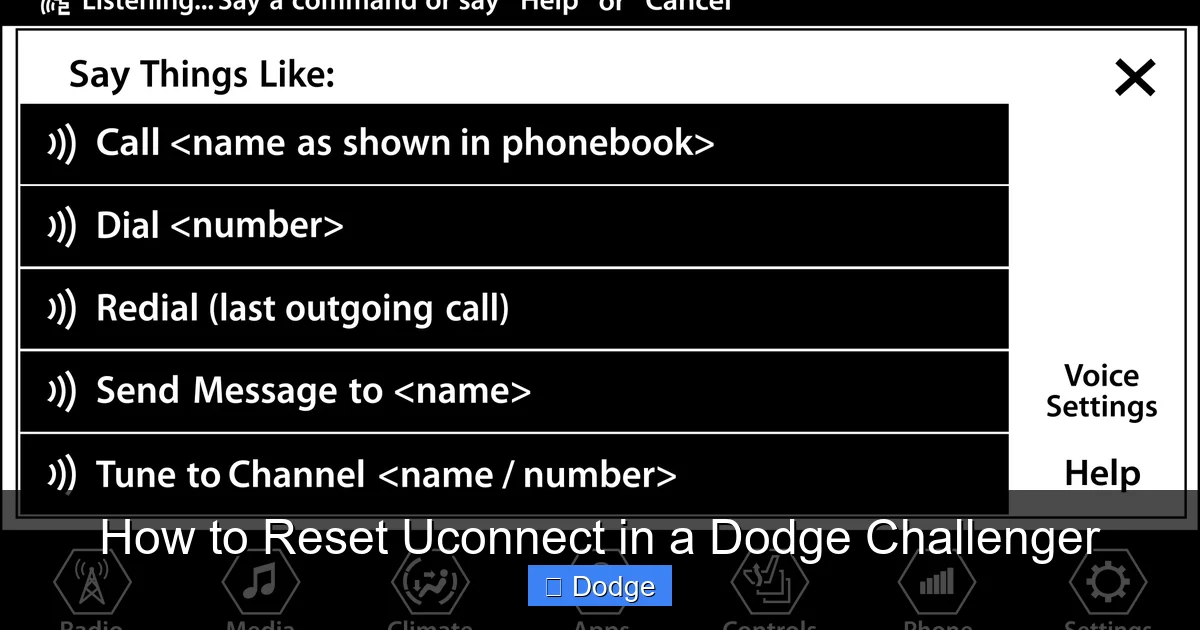
A soft reset—also known as a power cycle—is the gentlest way to refresh your Uconnect system. It’s ideal for resolving minor glitches without losing your personal settings or paired devices. This method works across all Dodge Challenger models from 2015 onward and takes less than two minutes.
Visual guide about How to Reset Uconnect in a Dodge Challenger
Image source: vehicleinfo.mopar.com
Step-by-Step Soft Reset Instructions
- Turn off the vehicle: Shift into Park (for automatic transmissions) and turn the ignition key to the “OFF” position. If you have a push-button start, press the button once without pressing the brake pedal.
- Wait 30–60 seconds: This allows the Uconnect system’s capacitors to fully discharge. Don’t rush this step—skipping the wait can reduce effectiveness.
- Restart the vehicle: Turn the key back to the “ON” position or press the start button (with brake engaged for push-button models). Let the engine run.
- Allow Uconnect to reboot: The screen will go dark and then display the Dodge logo as it restarts. This usually takes 30–90 seconds.
- Test functionality: Try using the touchscreen, playing music, or making a Bluetooth call to confirm the issue is resolved.
Pro Tip: If your Challenger has a backup camera, you may notice a brief delay before it activates after a soft reset—this is normal. Also, avoid touching the screen during the reboot process, as this can interfere with the startup sequence.
When a Soft Reset Isn’t Enough
While a soft reset solves many everyday issues, it won’t fix deeper software corruption or configuration errors. If your Uconnect system continues to misbehave after a power cycle—especially if it’s slow, crashes frequently, or won’t recognize your phone—it’s time to consider a hard reset.
How to Perform a Hard Reset (Factory Restore)
A hard reset restores your Uconnect system to its original factory settings. This means all personalized data—including Bluetooth pairings, saved radio stations, navigation favorites, and user profiles—will be erased. Use this method only when a soft reset fails or when you’re preparing to sell or trade in your Challenger.

Visual guide about How to Reset Uconnect in a Dodge Challenger
Image source: vehicleinfo.mopar.com
Hard Reset Procedure for 2015–2019 Dodge Challengers
For models with Uconnect 5 or 8.4 (typically 2015–2019), follow these steps:
- Ensure the vehicle is running: Start the engine and let it idle. Do not turn off the ignition during the process.
- Press and hold the Volume and Tune/Scroll knobs: Locate the physical knobs on the left side of the Uconnect screen. Press both simultaneously.
- Hold for 10–15 seconds: The screen will go black, then display the Dodge logo. Release the knobs once the system begins rebooting.
- Wait for the reset to complete: The system will restart and show a “System Reset Complete” message. This may take 2–5 minutes.
- Reconfigure settings: Re-pair your phone, set up radio presets, and adjust preferences as needed.
Hard Reset Procedure for 2020–2023 Dodge Challengers
Newer Challengers with Uconnect 5 use a slightly different method due to updated hardware:
- Turn on the vehicle but do not drive: Keep the engine running or place the key in the “ON” position.
- Navigate to Settings: Tap the gear icon on the Uconnect home screen.
- Select “System” > “Reset Options”: Scroll down and choose “Restore to Factory Defaults.”
- Confirm the reset: You’ll be prompted to enter a security code (usually “1234” or “0000” unless previously changed). Enter it and confirm.
- Wait for completion: The system will reboot automatically. Do not turn off the vehicle until the process finishes.
Important Note: If you’ve customized your security code and forgotten it, you’ll need to contact Dodge Customer Support with your VIN to retrieve it. Never attempt to force a reset by disconnecting the battery—this can cause electrical issues or trigger fault codes.
What Gets Erased During a Hard Reset?
- All Bluetooth-paired devices (phones, headsets, etc.)
- Saved radio stations and audio preferences
- Navigation history and saved addresses
- User profiles and seat/mirror memory settings (if linked to Uconnect)
- App login credentials (e.g., SiriusXM, Spotify)
Your vehicle’s mechanical settings (like tire pressure monitoring or oil life) remain unaffected. Only the infotainment system is reset.
Updating Uconnect Software to Prevent Future Issues
One of the most overlooked aspects of Uconnect maintenance is keeping the software up to date. Dodge regularly releases firmware updates that fix bugs, improve stability, and add new features. Running outdated software is a leading cause of system instability—even after a successful reset.
How to Check for Uconnect Updates
You can update Uconnect in two ways: via Wi-Fi (on supported 2020+ models) or using a USB drive. Here’s how:
Wi-Fi Update (2020–2023 Models):
- Connect your Challenger to a stable Wi-Fi network (go to Settings > Wi-Fi and select your network).
- Tap Settings > System > Check for Updates.
- If an update is available, follow the on-screen prompts to download and install it. The vehicle must remain running throughout the process.
USB Update (All Models):
- Visit the official Dodge Uconnect Software Update website.
- Enter your VIN to see available updates.
- Download the update file to a blank USB drive (formatted as FAT32, 8GB or smaller).
- Insert the USB into your Challenger’s USB port (usually in the center console).
- Follow the on-screen instructions to install. Do not remove the USB or turn off the vehicle during installation.
Pro Tip: Updates can take 20–45 minutes. Plan to do this when you’re not in a hurry—and always ensure your battery is fully charged or the engine is running to avoid interruptions.
Why Updates Matter
Software updates often address known issues like Bluetooth dropouts, slow response times, or compatibility problems with newer smartphones. For example, a 2022 update for Uconnect 5 improved Android Auto stability and fixed a bug that caused the screen to flicker in cold weather. Staying current not only prevents resets but enhances your overall driving experience.
Troubleshooting Persistent Uconnect Problems
Even after a hard reset and software update, some Uconnect issues may persist. This could indicate a deeper hardware problem—such as a failing touchscreen digitizer, corrupted memory module, or faulty wiring harness. Here’s how to diagnose and address stubborn issues.
Signs You May Need Professional Help
- The screen remains black after multiple resets.
- Touch inputs are consistently misregistered (e.g., tapping “Phone” opens “Navigation”).
- The system reboots every few minutes, regardless of reset attempts.
- Audio outputs no sound, even after checking volume and source settings.
- USB ports or auxiliary inputs stop working entirely.
What to Do Next
If you’re experiencing any of the above, it’s time to visit a certified Dodge dealership or authorized service center. They have diagnostic tools that can read Uconnect error codes and determine if replacement parts are needed. Common repairs include:
- Replacing the Uconnect head unit
- Updating the vehicle’s CAN bus firmware
- Repairing loose connections in the dashboard harness
Warranty Note: If your Challenger is still under the 3-year/36,000-mile basic warranty or the 5-year/60,000-mile powertrain warranty, Uconnect repairs may be covered—especially if the issue is due to a manufacturing defect.
DIY Checks Before Visiting the Dealer
Before scheduling service, try these quick checks:
- Inspect the USB ports for debris or damage.
- Test the system with multiple phones to rule out device-specific issues.
- Check the 12V battery voltage—low voltage can cause erratic Uconnect behavior.
- Ensure all fuses related to the infotainment system are intact (refer to your owner’s manual for fuse locations).
Best Practices for Maintaining a Healthy Uconnect System
Prevention is always better than cure. By adopting a few simple habits, you can minimize the need for resets and keep your Uconnect system running smoothly for years.
1. Avoid Extreme Temperatures
Park in shaded areas or use a sunshade during hot weather. Prolonged exposure to heat can degrade the touchscreen’s responsiveness. Similarly, in cold climates, allow the vehicle to warm up before using intensive features like navigation or video playback.
2. Keep Your Phone Updated
Ensure your smartphone’s operating system and apps are up to date. Compatibility issues between outdated phones and Uconnect are a common cause of Bluetooth and CarPlay failures.
3. Use High-Quality USB Cables
Cheap or damaged USB cables can cause connection drops during updates or media playback. Invest in certified cables (Apple MFi or Android-compatible) for reliable performance.
4. Don’t Overload the System
Running too many apps simultaneously (e.g., navigation, music, and phone calls) can strain the Uconnect processor. Close unused apps and restart the system weekly to clear memory.
5. Schedule Regular Checkups
Just like oil changes, treat Uconnect maintenance as part of your routine. Every 6 months, check for software updates and perform a soft reset to keep things fresh.
Final Thoughts: Take Control of Your Challenger’s Tech
Resetting Uconnect in your Dodge Challenger doesn’t require a degree in engineering—just a little know-how and patience. Whether you’re tackling a frozen screen with a soft reset or wiping the slate clean with a factory restore, these steps put you in the driver’s seat of your vehicle’s digital experience. And with regular updates and smart usage habits, you’ll spend less time troubleshooting and more time enjoying the open road.
Remember, Uconnect is designed to enhance your drive, not hinder it. When it works well, it’s seamless and intuitive. When it doesn’t, a reset is often all it takes to get back on track. So the next time your Challenger’s infotainment system acts up, don’t panic—just follow this guide, stay calm, and reset with confidence.
Frequently Asked Questions
How often should I reset my Uconnect system?
There’s no set schedule, but performing a soft reset every few months can help maintain performance. Only do a hard reset when facing persistent issues or before selling the vehicle.
Will resetting Uconnect void my warranty?
No, resetting the system yourself does not void your warranty. However, if you damage components during the process (e.g., by disconnecting the battery improperly), that could affect coverage.
Can I reset Uconnect while driving?
Never attempt a reset while the vehicle is in motion. Always park safely, shift into Park, and ensure the engine is running or the key is in the “ON” position.
Why does my Uconnect screen stay black after a reset?
A black screen after reset may indicate a hardware failure, loose connection, or corrupted firmware. Try a second reset first; if it persists, seek professional diagnosis.
Do I need an internet connection to reset Uconnect?
No, resets are performed locally on the vehicle. However, an internet connection (via Wi-Fi or USB) is required for software updates.
Can I recover my data after a hard reset?
Unfortunately, no. A hard reset permanently deletes all user data. Always back up important information (like navigation addresses) before proceeding.
