

How to Reset Ford F150 Screen

Contents
- 1 Key Takeaways
- 2 📑 Table of Contents
- 3 Understanding Your F150’s Infotainment Brain
- 4 Method 1: The Soft Reset (Your First Line of Defense)
- 5 Method 2: The Hard Reset (The Nuclear Option)
- 6 When a Reset Isn’t Enough: Diagnosing Deeper Issues
- 7 Model-Specific Tips and Tricks
- 8 Prevention is Key: Keeping Your Screen Happy
- 9 Conclusion: You’ve Got This
- 10 Frequently Asked Questions

OBD2 Scanner Tool
Wiper Blade Refills

Anti-Slip Dashboard Mat

Car Tissue Holder
Is your Ford F150’s infotainment screen frozen or unresponsive? A reset can often solve common glitches. You’ll typically start with a simple soft reboot (holding the power button), but some issues may require a hard reset by disconnecting the battery. Always backup your settings first and know your specific model year’s procedure, as methods vary. If problems persist after a reset, it could signal a deeper hardware or software fault requiring a professional technician.
Hey there, fellow F150 owner! Let’s talk about that moment of sheer frustration: you’re all set to use your truck’s navigation, crank up your favorite podcast, or just check the backup camera, and the screen is… nothing. Black, frozen on a menu, or stuck on a logo. It’s a modern-day trucker’s nightmare. Before you panic and head straight to the dealership (and their labor charges), take a deep breath. Resetting your Ford F150’s infotainment screen is a troubleshooting step you can often do yourself in minutes. Think of it like rebooting your home computer when it acts up. This guide will walk you through every method, from the gentle soft reboot to the more involved hard reset, tailored specifically for the various F150 generations.
First, a quick note on terminology. What we call the “screen” is part of the larger infotainment system. In F150s, this is the SYNC system (SYNC 3, SYNC 4, etc.). The screen is its interface. Resets address software glitches, not physical damage like a cracked display. If your screen is physically damaged, a reset won’t help—you’ll need a replacement. But for software hiccups, freezes, or unresponsive touch, a reset is your best first defense. We’ll cover why these glitches happen and how to fix them, step-by-step.
Key Takeaways
- Soft vs. Hard Reset: A soft reset (power button hold) is the first, safest step for frozen screens. A hard reset (battery disconnect) is more drastic and clears all personal data and settings.
- Backup Your Data: Before any hard reset, note radio presets, paired Bluetooth devices, and navigation favorites, as these will be erased.
- Model Year Matters: Procedures differ between older models with physical buttons and newer models with capacitive touchscreens and SYNC 4. Consult your owner’s manual.
- Persistent Issues Need Diagnosis: If the screen keeps failing after resets, the problem may be a faulty module, wiring issue, or software bug needing a dealer’s diagnostic tool.
- Safety First: Always ensure the vehicle is in park, the engine is off, and the parking brake is set before attempting any reset procedure.
- Preventive Care: Regularly update your SYNC system via USB or Wi-Fi when prompted, and avoid installing unverified third-party apps to maintain system stability.
- Related System Resets: A screen issue can sometimes be linked to other vehicle systems. For instance, a persistent electrical gremlin might also trigger a check engine light.
📑 Table of Contents
- Understanding Your F150’s Infotainment Brain
- Method 1: The Soft Reset (Your First Line of Defense)
- Method 2: The Hard Reset (The Nuclear Option)
- When a Reset Isn’t Enough: Diagnosing Deeper Issues
- Model-Specific Tips and Tricks
- Prevention is Key: Keeping Your Screen Happy
- Conclusion: You’ve Got This
Understanding Your F150’s Infotainment Brain
To reset something effectively, it helps to know what you’re resetting. Your F150’s infotainment system is a sophisticated computer. It runs on an embedded operating system (like a simplified version of Windows or Linux) and manages everything you see and interact with on that display: audio, navigation, phone connectivity, vehicle settings, and sometimes even climate control or rear-seat entertainment. Over time, as you pair devices, download updates, and use various apps, temporary files and processes can clog the system’s memory, leading to slowdowns or freezes—just like your laptop after a week without a restart.
The Different SYNC Generations in F150s
The reset method often depends on your truck’s model year and its SYNC version. Here’s a quick breakdown:
- 2013-2016 (Early SYNC 3): These have a physical “Home” button and a “Power” button (often a small circle with a line). The reset process is usually straightforward with these physical controls.
- 2017-2020 (SYNC 3 with Updates): The interface became more capacitive (touch-sensitive with no moving parts). The “Power” button might be integrated into the bezel or accessed via a long-press on the screen itself in some settings.
- 2021-Present (SYNC 4 & 4A): The latest massive, pillar-to-pillar screens. These often have a more complex software architecture. Resets might involve a specific button combination or a “System Reset” option buried in the vehicle settings menu on the screen itself, if you can access it.
Your owner’s manual is your absolute best friend here. It has the exact procedure for your specific VIN. But don’t worry, we’ll cover the universal methods that work for the vast majority.
Method 1: The Soft Reset (Your First Line of Defense)
The soft reset is the equivalent of a graceful restart. It tells the infotainment computer to close all running applications and reboot its software without wiping your personal settings. This is the method you should try first, 90% of the time. It’s safe, quick, and preserves your radio presets, paired phones, and navigation data.

Visual guide about How to Reset Ford F150 Screen
Image source: vehiclewisdom.com
The Classic “Hold the Power Button” Technique
This is the most common soft reset procedure across all modern F150s with a physical power button.
- Ensure the truck is in “Park” (P) and the engine is OFF. You don’t need the key in the “on” position for this.
- Locate the infotainment power button. It’s typically a small button with a circle and a line (⏻) icon. On older models, it’s on the face of the unit. On newer models, it might be on the lower bezel or the side of the screen housing.
- Press and hold this button. You need to hold it for a solid 10-15 seconds. Don’t just tap it.
- Watch the screen. You should see the Ford logo appear, followed by a loading animation or progress bar. The screen will go completely black before the logo comes back. This is normal.
- Release the button once the Ford logo reappears and the system begins to load. The full reboot process can take 30 seconds to a minute. Do not interrupt it.
If the screen was merely frozen, this will almost certainly bring it back to life. All your settings will be intact.
When the Power Button Doesn’t Work or Isn’t Present
Some newer models (especially 2021+) might not have a dedicated physical power button, or the button might be unresponsive because the system is totally frozen. In these cases, you can try a “vehicle cycle” soft reset:
- Get in the truck, ensure it’s in Park.
- Press the brake pedal and press the engine start/stop button to start the truck. Let it run for 10-15 seconds.
- Press the engine start/stop button again to turn the engine off. Do not open the door or press the brake pedal yet.
- Wait about 60 seconds. This allows the infotainment system’s capacitor to fully drain and the module to power down completely.
- Now, start the truck normally. The infotainment system should perform a cold boot, which can clear minor glitches.
This method simulates a full power cycle of the vehicle’s electrical system, which often reboots the infotainment module.
Method 2: The Hard Reset (The Nuclear Option)
If a soft reset doesn’t fix the problem—if the screen is still frozen, constantly rebooting on its own, or showing persistent error messages—it’s time for a hard reset. This is also called a “Master Reset” or “Factory Reset.” This will erase ALL personal data and settings from the infotainment system. Think of it like restoring your phone to factory settings out of the box.
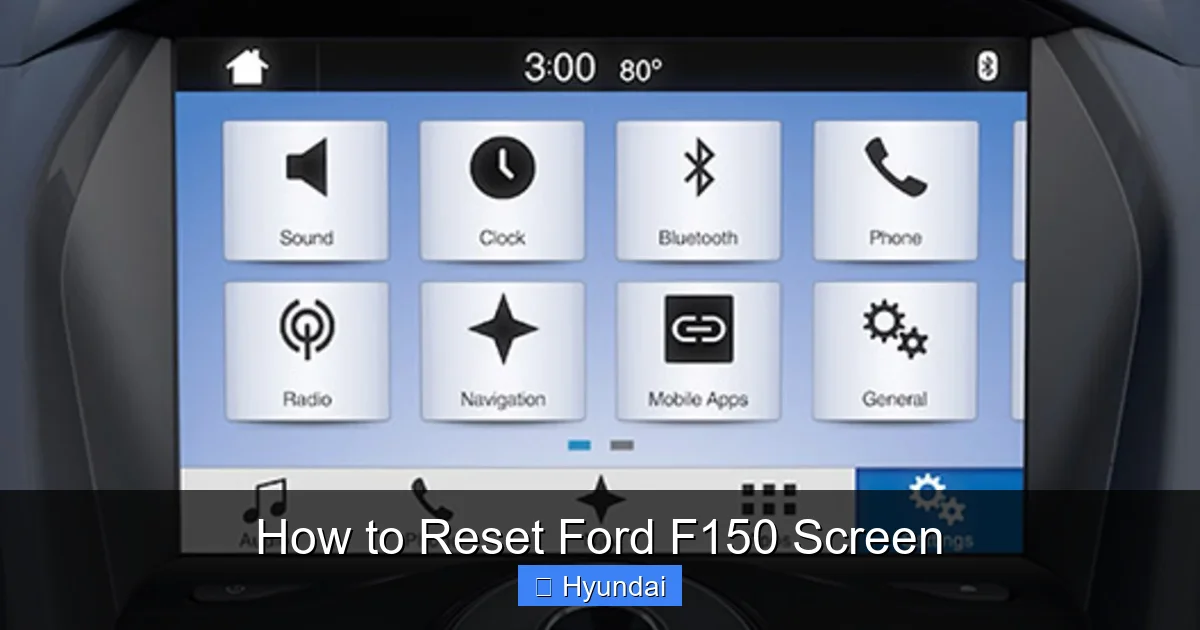
Visual guide about How to Reset Ford F150 Screen
Image source: cf-images.us-east-1.prod.boltdns.net
How to Perform a Master Reset via the Menu
This is the preferred hard reset method if you can still navigate the menus, even slowly.
- Turn the truck on (accessory mode is fine).
- Go to Settings on the home screen (the gear icon).
- Scroll down to find System or General.
- Look for an option called Master Reset, Factory Reset, or Reset All Settings.
- You will likely be asked to confirm your choice. The system will warn you that all data will be lost. Confirm.
- The screen will go black and restart. The first boot after a master reset can take 2-3 minutes as it rebuilds its default file structure. Be patient.
After it restarts, you will need to re-pair your Bluetooth phones, re-enter radio presets, and set up navigation favorites again.
The Ultimate Hard Reset: Disconnecting the Battery
This is the most effective but also the most disruptive method. It’s used when the system is so bricked you can’t access any menu. It resets the infotainment module by cutting its direct power source. Warning: Disconnecting the battery can also reset other vehicle systems, like the clock, radio presets (even if you just reset the infotainment), and in some models, the engine’s learned fuel trim data. You may need to let the truck idle for 10-15 minutes after reconnecting to let the PCM (Powertrain Control Module) relearn.
- SAFETY FIRST: Park on a flat surface, engage the parking brake. Open the hood.
- Locate the battery. In the F150, it’s typically in the engine bay on the driver’s side. Some 2021+ models have it under the hood, but some may have it in the cab or bed (rare). Consult your manual.
- Identify the terminals. The negative (-) terminal is usually connected to the black cable and has a “-” symbol. The positive (+) is red with a “+” symbol.
- Disconnect the NEGATIVE (-) cable first. Use a 10mm wrench or socket to loosen the nut. Do not let the wrench touch any metal part of the truck while it’s on the terminal. Once loose, carefully lift the cable clamp off and tuck it away so it cannot accidentally touch the battery post.
- Wait. Leave it disconnected for at least 15 minutes. This is crucial to ensure all residual power (from capacitors) drains from the infotainment module and the vehicle’s BCM (Body Control Module). Some experts recommend 30 minutes for a truly deep reset.
- Reconnect. Place the negative cable clamp back on the negative post and tighten the nut securely. Do not overtighten.
- Close the hood.
- Start the truck. The infotainment system will go through its full startup sequence. This may be longer than usual. Do not touch the screen or buttons during this initial boot.
Once it’s on, you’ll be greeted with the factory welcome screens and will need to go through the initial setup (language, region, etc.) again. Your system is now factory fresh.
When a Reset Isn’t Enough: Diagnosing Deeper Issues
So you’ve done a soft reset. You’ve done a hard reset, maybe even a battery disconnect. The screen still flickers, freezes in the same spot, or displays strange artifacts. Now what? This indicates the problem is likely hardware-related or a deeply corrupted software firmware that a simple reset cannot overwrite.

Visual guide about How to Reset Ford F150 Screen
Image source: carglassadvisor.com
Common Hardware Culprits
- Failing Infotainment Control Module: The computer itself (often located behind the screen or in the dashboard) could be dying. Symptoms include random reboots, no backlight, or complete black screens despite having power.
- Loose or Damaged Wiring Harness: The connectors behind the screen or to the module can become loose from vibration or wear. This causes intermittent connection, leading to resets or black screens.
- Faulty Touchscreen Digitizer: The screen may look fine but be unresponsive to touch. This is a separate component from the LCD display. You might see the screen but cannot select anything.
- Bad Ground Connection: A poor ground for the infotainment system can cause all sorts of erratic electrical behavior.
Signs It’s Time to Call a Professional
Here are clear indicators that DIY is over and professional diagnostics are needed:
- The screen remains completely black after a successful hard reset/battery disconnect, but other dash lights work.
- You hear the system boot (chimes, clicks) but see nothing on the display.
- Physical cracks or damage to the screen glass.
- Issues persist after a Ford F150 anti-theft system reset—sometimes security system glitches can interfere with infotainment power.
- You are not comfortable removing dashboard trim panels to inspect wiring.
A Ford dealer or a reputable car electronics specialist will have proprietary diagnostic tools (like Ford’s IDS or FDRS) that can read fault codes directly from the infotainment module, something you cannot do at home. They can test the module, check for software re-flashing needs, and replace faulty components.
Model-Specific Tips and Tricks
While the general methods above work for most, here are some nuggets for specific generations.
For 2018-2020 F150s with SYNC 3
There’s a hidden “Engineering Mode” or “Diagnostic Mode” that can be accessed by holding specific buttons (like “Phone” and “Settings” simultaneously during boot). This is for advanced users or technicians and can sometimes force a deeper software reload. Use caution, as changing settings here can cause major issues. For most users, the standard power button hold is sufficient.
For 2021+ F150s with the Giant SYNC 4 Screen
The sheer size of this screen is amazing, but it’s also a complex piece of tech. The power button is often a tiny, recessed button on the lower-right side of the bezel. You’ll need a pen cap or a fingernail to press and hold it. Also, because the system controls so much (including the digital gauge cluster in some trims), a full system reset might require a dealer to recalibrate certain sensors afterward. If your screen is frozen but you can still see the backup camera feed when in reverse, it’s likely just the UI layer that’s crashed, making a soft reset very effective.
The “F150 with the Small 4.2” Screen
If you have an older base-model F150 with the small 4.2-inch display (pre-2013 or very basic trims), it has a much simpler system. The reset is almost always a simple hold the “Audio” or “Power” button for 10 seconds. There is no menu-based master reset on these basic units. The battery disconnect is your only hard reset option for these.
Prevention is Key: Keeping Your Screen Happy
You don’t want to be reading this article every few months. Here’s how to minimize future freezes:
- Install Updates Promptly: Ford releases SYNC software updates to fix bugs and improve stability. They come via USB (from your dealer or Ford’s website) or over-the-air (OTA) if your truck is equipped. When you see the “Update Available” icon, do it. It takes 30-45 minutes with the truck running and parked.
- Be Wary of Third-Party Apps: Don’t sideload random Android APK files onto your SYNC system (if it supports it). Unofficial apps can be poorly coded and cause system instability. Stick to the Ford App Catalog.
- Manage Bluetooth Connections: Too many paired, unused devices can clutter the system. Periodically go into Settings > Bluetooth and remove old phones you no longer use.
- Give It Time: After starting your truck, especially in very cold or hot weather, give the infotainment system 30-60 seconds to fully boot before interacting heavily. Rushing it can cause software timeouts.
- Clean Gently: Use a soft, microfiber cloth slightly dampened with water. Never use harsh chemicals, ammonia-based cleaners (like Windex), or abrasive pads on the screen. Spray the cleaner on the cloth, not directly on the screen.
Taking these simple steps will go a long way in ensuring your F150’s digital brain stays sharp and responsive for years to come.
Conclusion: You’ve Got This
Dealing with a frozen Ford F150 screen is incredibly common, and it’s almost always a software hiccup you can fix yourself. Start with the gentle soft reset—the 10-second power button hold. It’s your go-to move. If that fails, escalate to the master reset through the settings menu (if accessible) or the ultimate battery disconnect method. Remember, the battery disconnect is a last resort that wipes everything, so have your radio presets written down. Always, always consult your owner’s manual first for your specific model year’s instructions.
If you’ve exhausted all these steps and the screen is still misbehaving, it’s a clear sign the fault is physical—a bad module, a loose wire, or a broken screen. At that point, seeking help from a Ford dealer or a qualified automotive electronics expert is the smart, safe, and ultimately cost-effective choice. They have the tools to diagnose the exact fault code and get your truck’s brain back online properly. Now, go give that screen a reboot and get back to enjoying your mighty F150!
Frequently Asked Questions
Will a hard reset delete my GPS maps and navigation history?
Yes, absolutely. A factory or master reset will erase all downloaded map data, saved destinations, and navigation history. You will need to re-download map regions if your system uses stored maps, or you will rely solely on live connected services if your truck has a data plan.
My screen is frozen but I can still hear audio (radio, Bluetooth music). What does that mean?
This is a classic sign of a UI (User Interface) software crash. The audio processing part of the infotainment system is still running fine, but the graphics processor or the main application layer has frozen. A soft reset (power button hold) is almost guaranteed to fix this specific issue.
Is there a difference between a “reboot” and a “reset”?
Yes. A reboot (soft reset) simply restarts the system’s software, clearing temporary memory. It’s like restarting your computer. A reset (hard/factory reset) restores the system to its original factory software state, erasing all user data, settings, and paired devices. Always try a reboot first.
Can I do a hard reset while the truck is running?
For the battery disconnect method, the truck must be completely OFF. You should not disconnect the battery while the engine is running, as it can cause a severe voltage spike that may damage sensitive electronic modules, including the PCM. Always turn off the engine, remove the key, and wait a few minutes before touching the battery.
My F150 has a “SYNC Reboot” option in the settings menu. Should I use that instead?
If you see that option, use it! It is essentially a manufacturer-sanctioned soft reset. It’s the safest and most correct way to reboot the system without losing data. It’s functionally the same as holding the physical power button, but executed through the software menu.
How often should I perform a reset on my F150 screen?
You shouldn’t need to reset it regularly. If you find you’re resetting the screen more than once a month, that’s a sign of an underlying problem—either a software bug that needs a firmware update from the dealer, or a developing hardware issue. Track the frequency and mention it to your technician.


