

How to Make Android Auto Full Screen on Hyundai

Contents
- 1 Key Takeaways
- 2 📑 Table of Contents
- 3 Understanding Android Auto Display Issues in Hyundai Vehicles
- 4 The Fundamentals: Why Android Auto Isn’t Always Full Screen
- 5 Step-by-Step: How to Enable Full Screen Android Auto on Hyundai
- 6 Troubleshooting When Full Screen Doesn’t Work
- 7 Advanced Solutions: Aftermarket Options and Software Updates
- 8 Future-Proofing Your Setup and Final Thoughts
- 9 Frequently Asked Questions

Multipurpose Lubricant Spray

Car Ambient Light Kit
Wiper Blade Refills

Car Floor Mats (Universal)
Tired of seeing black bars around Android Auto on your Hyundai’s screen? This issue stems from mismatched display ratios between your phone and car. Most Hyundai models from 2018 onward allow full-screen mode through the infotainment settings menu. If your model lacks this option, software updates or aftermarket solutions may help. Follow our detailed steps tailored to your specific Hyundai vehicle to unlock the full potential of Android Auto today.
You plug in your Android phone, Android Auto lights up on your Hyundai’s dashboard screen, and… there are annoying black bars on the sides or top and bottom. It’s a small thing, but it drives you crazy! You want that crisp, immersive navigation and music experience to fill the entire display, just like it does in your friend’s car. If you’ve been wondering how to make Android Auto full screen on Hyundai, you’re not alone. This is one of the most common questions Hyundai owners ask. The good news is that for many recent models, the solution is just a few taps away in your vehicle’s settings menu. For others, it might require a software update or a different approach. This guide will walk you through every possibility, from the simplest setting change to more advanced options, so you can finally enjoy Android Auto the way it was meant to be seen.
Key Takeaways
- Compatibility Varies by Model: Not all Hyundai vehicles support full-screen Android Auto; models from 2018+ with touchscreen infotainment are most likely to have the option.
- Check for Software Updates First: Hyundai often releases updates that enable full-screen mode; use your vehicle’s Wi-Fi or USB to check for updates.
- Settings Menu Location: The display setting is usually under Settings > Display > Android Auto Display Mode on compatible models.
- Hardware Limitations Exist: Older models or those with non-standard screen ratios may never achieve true full screen without aftermarket modifications.
- USB Connection Quality Matters: A poor USB connection can cause display issues; ensure you’re using a high-quality cable and the correct port.
- Safety Regulations May Apply: Some regions restrict full-screen modes for driver distraction reasons; your Hyundai may limit this feature based on location.
- Aftermarket Radios Are an Option: For unsupported models, installing an aftermarket Android Auto-compatible head unit can provide full-screen functionality.
📑 Table of Contents
- Understanding Android Auto Display Issues in Hyundai Vehicles
- The Fundamentals: Why Android Auto Isn’t Always Full Screen
- Step-by-Step: How to Enable Full Screen Android Auto on Hyundai
- Troubleshooting When Full Screen Doesn’t Work
- Advanced Solutions: Aftermarket Options and Software Updates
- Future-Proofing Your Setup and Final Thoughts
Understanding Android Auto Display Issues in Hyundai Vehicles
Before we dive into fixes, let’s quickly understand why this happens. Android Auto is a projection system developed by Google. It takes your phone’s interface and redraws it on your car’s screen using a standardized layout. This layout is designed for a specific screen aspect ratio, typically 16:9. However, Hyundai uses many different screen sizes and ratios across its model lineup. A 2023 Hyundai Sonata might have a 12.3-inch screen with a 16:10 ratio, while a 2020 Hyundai Tucson might use a smaller 8-inch 16:9 screen. When the projected image’s ratio doesn’t perfectly match the physical screen, the system adds black bars (a process called letterboxing or pillarboxing) to preserve the correct proportions. It’s like watching a widescreen movie on an old square TV—you get bars to avoid stretching the image.
Hyundai, like all automakers, must balance user experience with safety regulations. In some markets, displaying certain information full-screen while driving is restricted. This can influence how the automaker implements display modes. Additionally, older infotainment hardware may simply lack the processing power or software flexibility to resize the Android Auto projection dynamically. So, the first step in solving this is identifying your specific Hyundai model, its infotainment system (like Hyundai’s Blue Link or older UVO systems), and its factory screen specifications.
The Fundamentals: Why Android Auto Isn’t Always Full Screen
Aspect Ratio Mismatch: The Core Technical Reason
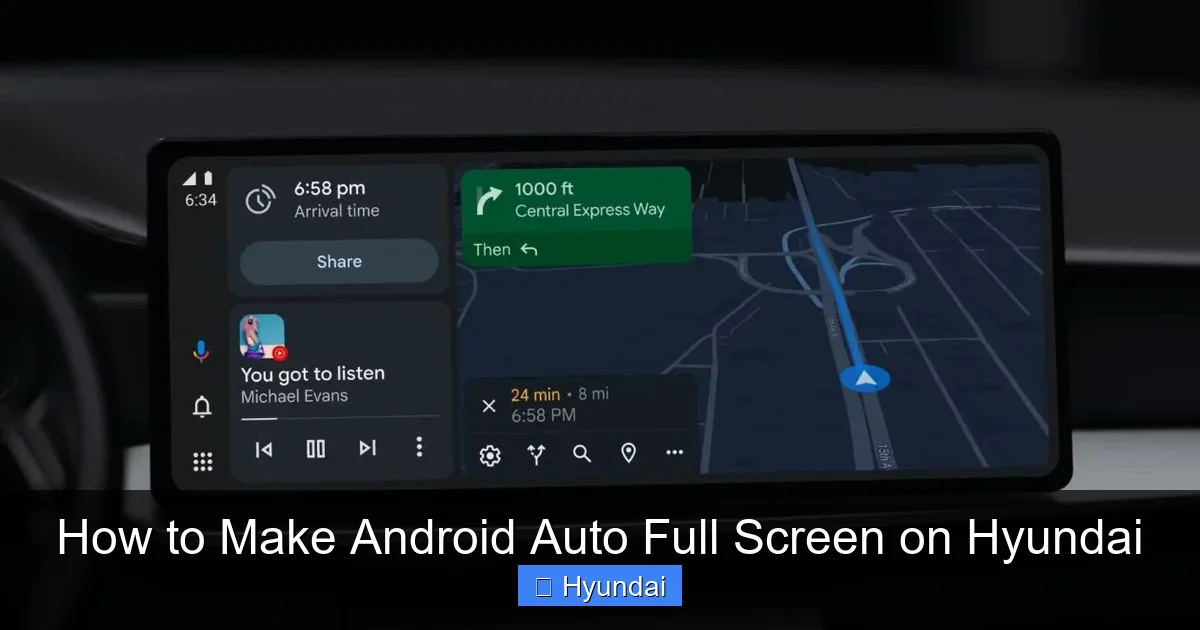
This is the primary culprit. Imagine your car’s screen is a picture frame. Android Auto provides a picture (the app interface) that is cut to a specific shape. If the frame’s shape is different, you have empty space. Common mismatches include:
Visual guide about How to Make Android Auto Full Screen on Hyundai
Image source: ytechb.com
- 16:9 Content on a 15:9 or 16:10 Screen: This creates pillarboxing (vertical bars on the sides).
- 16:9 Content on a 3:2 or 4:3 Screen: This creates letterboxing (horizontal bars on top/bottom), though this is rare in modern Hyundais.
Hyundai’s solution on newer systems is often a software setting that tells the infotainment computer to stretch or crop the Android Auto image to fit. This setting is what we’re after.
Safety and Regulatory Constraints
In many regions, including parts of Europe and North America, automakers face strict rules about what information can be displayed and how large it can be while the vehicle is in motion. A full-screen map, for instance, could be considered overly distracting if it consumes 100% of the display area. Hyundai may therefore disable the full-screen option by default or only allow it when the parking brake is engaged. It’s crucial to check your owner’s manual or local regulations, as this is a firmware-level decision not always user-overridable.
Infotainment System Generation
Hyundai has evolved its infotainment systems significantly. Early Android Auto support (around 2017-2018) was often basic and limited. The “Display Mode” option became more common with the introduction of larger, higher-resolution screens in the 2020+ model years. Systems like Hyundai’s second-generation Blue Link (with the 10.25-inch touchscreen) generally offer more customization than the older 7-inch units.
Step-by-Step: How to Enable Full Screen Android Auto on Hyundai
Now for the practical part. The steps vary slightly by model year and trim level, but the general path is similar. First, ensure your Android phone is running Android 8.0 or higher and has the latest version of the Android Auto app installed (though on newer phones, it’s built into Google Services). Connect your phone via a high-quality USB cable to the USB port labeled for data (usually in the center console or dashboard). The port must support data transfer, not just charging.

Visual guide about How to Make Android Auto Full Screen on Hyundai
Image source: cimg4.ibsrv.net
For Models with Touchscreen Navigation (2018 and Newer)
If your Hyundai has a color touchscreen (typically 8 inches or larger), follow these steps. This covers popular models like the Sonata, Elantra, Santa Fe, Tucson, Palisade, and Kona from recent years.
- Start the Car and Connect Your Phone: Turn the ignition to the “ON” position or start the engine. Plug your phone into the correct USB port. Wait for Android Auto to launch automatically. If it doesn’t, press the “Android Auto” or “Projection” button on your infotainment screen or steering wheel.
- Access the Settings Menu: Once Android Auto is active, look for a “Settings” icon (usually a gear ⚙️) either on the Android Auto home screen itself or in the main Hyundai infotainment menu. Important: You often need to be in the Android Auto interface to find the specific display setting. Press the “Menu” or “Home” button on your touchscreen to exit to the main Hyundai UI, then look for “Android Auto” or “Phone Projection” settings.
- Navigate to Display Options: In the settings, look for categories like “Display,” “Screen,” or “Projection.” Within that, you should see an option called “Android Auto Display Mode,” “Screen Ratio,” or “Aspect Ratio.”
- Change the Mode: You will likely see two choices: “Standard” (letterboxed) and “Full Screen” or “Fit to Screen.” Select “Full Screen.”
- Confirm and Reconnect: The screen may flash or reboot. Disconnect and reconnect your USB cable or restart your car to ensure the change takes effect. Android Auto should now fill the entire screen.
Pro Tip: The exact menu path can differ. For a 2022 Hyundai Tucson, it might be: Settings > Display > Android Auto Display Mode. For a 2021 Sonata, it could be: Setup > System Settings > Android Auto Display. Consult your owner’s manual’s infotainment section if you can’t find it. If the option is missing, your model may not support it natively, or you need a software update.
For Older Models Without a Touchscreen (or Basic Screens)
If your Hyundai has a small, non-touchscreen display (common in base trims from 2017-2019), your options are severely limited. These systems often use a fixed, low-resolution projection where the aspect ratio is hard-coded. There is typically no user-accessible setting to change it. Your only recourses are:
- Check for a Software Update: Visit your Hyundai dealer. Occasionally, a firmware update for the infotainment module can add display flexibility, though this is rare for the oldest systems.
- Consider an Aftermarket Solution: Replacing the factory head unit with a modern Android Auto-compatible aftermarket radio (from brands like Pioneer, Kenwood, or Sony) is the most reliable way to get a full-screen experience. This involves professional installation and may require additional parts like a steering wheel control adapter and a dash kit. You can explore guides on related Hyundai system modifications, such as how to change the startup screen on a 2022 Toyota, to understand the complexity of infotainment swaps, though Hyundai-specific procedures differ.
Using Hyundai’s Display Settings Menu (General Guide)
Sometimes the setting isn’t inside the Android Auto app but in the main Hyundai vehicle settings. Here’s a universal exploration method:
- With your car parked and engine running, press the “Setup” or “Menu” button on your infotainment system.
- Navigate to “System Settings,” “Display Settings,” or “Sound & Display.”
- Look for any submenu related to “Phone Projection,” “Android Auto,” or “Apple CarPlay.”
- Within that submenu, find the “Display Mode” or “Screen Fit” option.
- Toggle it to “Full” or “Wide.”
- Exit menus, disconnect and reconnect your phone.
If you see an option for “Camera View” or “Rear Camera” settings, that’s different—keep looking. The setting is specifically tied to the projected smartphone interface.
Troubleshooting When Full Screen Doesn’t Work
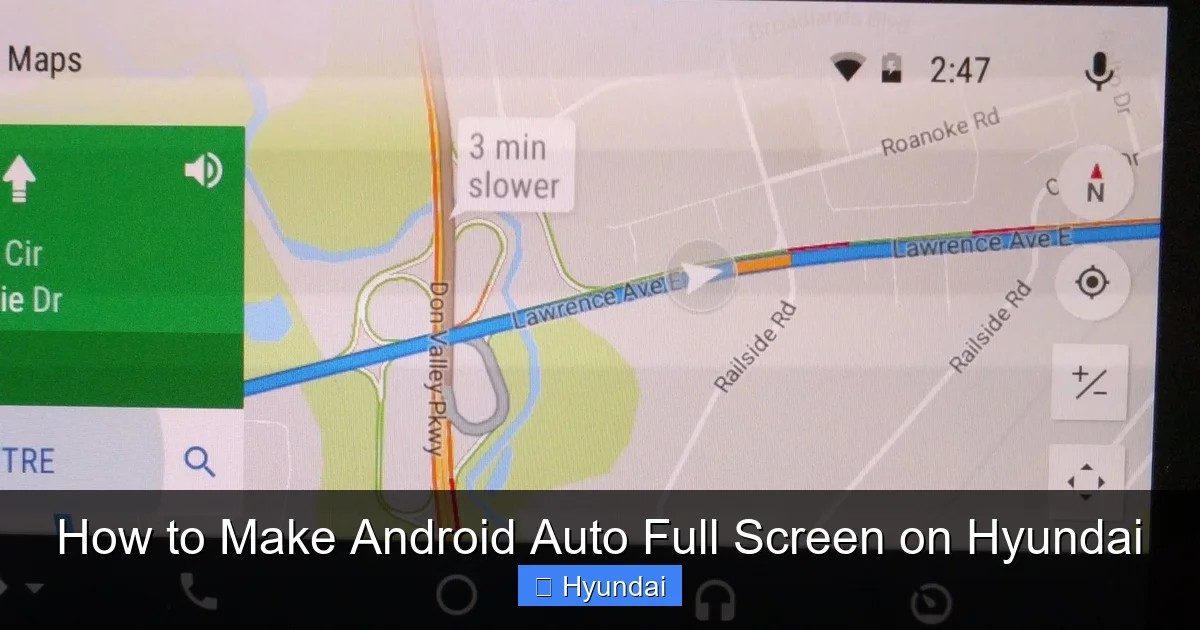
You followed the steps, but the option was grayed out, missing, or changing it had no effect. Don’t panic. Here’s a systematic checklist.
Visual guide about How to Make Android Auto Full Screen on Hyundai
Image source: cimg0.ibsrv.net
Issue: The “Display Mode” Setting is Grayed Out or Missing
- Solution 1: Update Your Phone’s OS and Android Auto App. An outdated phone OS can cause compatibility issues. Go to your phone’s Settings > System > Software Update. Also, update the Android Auto app from the Google Play Store.
- Solution 2: Update Your Hyundai’s Infotainment Software. This is critical. Hyundai pushes updates over Wi-Fi (if your car has a hotspot) or via a USB download from their owner’s portal. A 2020 Hyundai might have received an update in 2022 that added the full-screen toggle. Check your infotainment “Settings > General > Software Update” or visit a Hyundai dealer for a forced update.
- Solution 3: Check Your USB Port and Cable. Use the original cable or a certified high-quality cable. A cheap cable might only support charging, not data. Try a different USB port if available. A faulty connection can cause Android Auto to run in a safe, low-resolution mode.
Issue: Full Screen is Selected but Bars Remain
- Solution 1: Reset Infotainment System. Hold down the power/audio knob for 10-15 seconds to force a reboot (consult manual for exact method). Alternatively, disconnect the car battery for a few minutes (only if you know how to reset radio presets).
- Solution 2: Clear Android Auto Cache and Data. On your Android phone, go to Settings > Apps > Android Auto > Storage. Tap “Clear Cache” and “Clear Data.” Then reconnect and set up Android Auto again from scratch.
- Solution 3: Factory Reset Infotainment (Last Resort). In your Hyundai’s settings, there is usually a “Factory Reset” or “Initialize System” option under System Settings. Warning: This will erase all your radio presets, Bluetooth pairings, and navigation history. Back up what you need first.
Issue: My Hyundai is an EV (like Ioniq 5) – Does That Change Anything?
For Hyundai electric vehicles, the principle is the same. The infotainment system is separate from the EV’s high-voltage charging system. However, the UI might have additional EV-specific menus. The Android Auto display setting should be in the same location. One unique tip for EV owners: ensure your car is not in “Charging” mode with the port open, as some systems disable certain infotainment functions during active charging for safety. Also, familiarize yourself with the vehicle’s charging port operation by reading resources like how to unplug an electric car charger on Hyundai, so you don’t confuse the charging port with the data USB port.
Advanced Solutions: Aftermarket Options and Software Updates
If the native route fails, you have two main advanced paths.
Dealer or Official Software Updates
Sometimes, Hyundai releases a “map update” or “system update” that includes broader infotainment improvements. These are not always advertised. Call your dealer’s service department, provide your VIN, and ask if any updates are available for your infotainment system (often called “Audio/Video” or “Navigation” updates). They can apply it via a wired connection at the dealership, sometimes for a fee. This is the safest way to ensure compatibility and maintain warranty coverage.
Aftermarket Head Unit Replacement
For models that fundamentally lack the hardware support (e.g., very small screens, early systems), replacing the factory radio is the most effective solution. Modern aftermarket Android Auto head units offer:
- Native 16:9 or adjustable aspect ratios.
- Wireless Android Auto (no cable needed).
- Larger, higher-resolution screens.
- Enhanced sound processing and connectivity.
Considerations: This is not a simple DIY for most. You need a vehicle-specific dash kit to make the new radio fit, a wiring harness to connect it to your car’s electrical system, and often an adapter to retain steering wheel controls. Professional installation is highly recommended. Research compatibility for your exact Hyundai model and year before purchasing anything.
Future-Proofing Your Setup and Final Thoughts
The world of smartphone projection is evolving. Google is pushing “Android Auto” towards a more integrated, wireless future, and Hyundai is adopting it in newer models. To keep your setup optimal:
- Keep Everything Updated: Regularly update your phone’s Android OS, the Android Auto app (if separate), and your Hyundai’s infotainment firmware via Wi-Fi or USB.
- Use Quality Cables: A good, short USB-C to USB-A cable (for Android) or certified Lightning cable (for iPhone with CarPlay) ensures a stable, high-bandwidth connection that supports the highest possible resolution.
- Understand Your Model’s Limits: Accept that a 2017 Hyundai with a 7-inch non-touchscreen will probably never show full-screen Android Auto. Manage expectations based on your vehicle’s hardware generation.
- Explore Other Hyundai Features: While you’re mastering your infotainment, take time to learn other convenient systems. For example, understanding how to master cruise control on your Hyundai Tucson can make highway driving much more relaxing. Each system has its own quirks and settings worth exploring.
In conclusion, making Android Auto full screen on your Hyundai is usually a matter of digging into the display settings menu on models from 2018 onward. Start there, ensure your software is current, and use a proper cable. If that fails, a dealer update or an aftermarket radio are your backups. The journey to a perfect, distraction-free driving display is worth it. Now, go enjoy that full-screen map without those pesky black borders!
Frequently Asked Questions
Why is my Android Auto not full screen on my Hyundai?
This is almost always due to an aspect ratio mismatch between your phone’s Android Auto projection (usually 16:9) and your car’s physical screen. Your Hyundai’s infotainment system adds black bars to prevent image distortion. A setting called “Display Mode” in your vehicle’s menu often allows you to override this and force a full-screen fit.
Which Hyundai models support full-screen Android Auto?
Most Hyundai models from 2018 onward with a touchscreen infotainment system (typically 8 inches or larger) have the option. This includes the Sonata, Elantra, Santa Fe, Tucson, Palisade, Kona, and Venue in recent model years. Base models with small, non-touch screens are less likely to support it. The presence of the setting varies by trim and software version.
How do I update my Hyundai’s infotainment software?
You can check for updates directly in your car: go to Settings > General > Software Update (or similar). If your car has Wi-Fi connectivity, it can download updates over the air. Alternatively, you can download updates to a USB drive from the Hyundai owner’s portal and install it, or visit a Hyundai dealer who can apply the latest firmware via a wired connection.
Can I make Android Auto full screen on an older Hyundai without a touchscreen?
Unfortunately, it’s very unlikely. Older systems with basic, fixed-resolution displays lack the software flexibility to resize the Android Auto projection. Your only real options are to see if a dealer software update exists (rare) or to replace the factory head unit with a modern aftermarket Android Auto-compatible radio, which will provide a full-screen experience by design.
Does wireless Android Auto work in full screen on Hyundai?
Yes, if your Hyundai model and infotainment system support wireless Android Auto (introduced in some 2021+ models), the display aspect ratio and settings are identical to the wired connection. The same “Android Auto Display Mode” setting will control whether it’s full screen or letterboxed. The wireless feature simply removes the USB cable requirement.
Are there safety concerns with using full-screen Android Auto?
Some regions have regulations that limit the amount of screen space certain apps (like maps) can occupy while driving for safety reasons. Hyundai may lock the full-screen option when the vehicle is in motion in these markets. Always prioritize safe driving; use voice commands (“Hey Google”) to interact with Android Auto and minimize glancing at the screen, regardless of its size.


